
Stock In Order
Stock In Order - places a vehicle into Inventory (fleet - lease) vs. directly in a Sale (consignment).
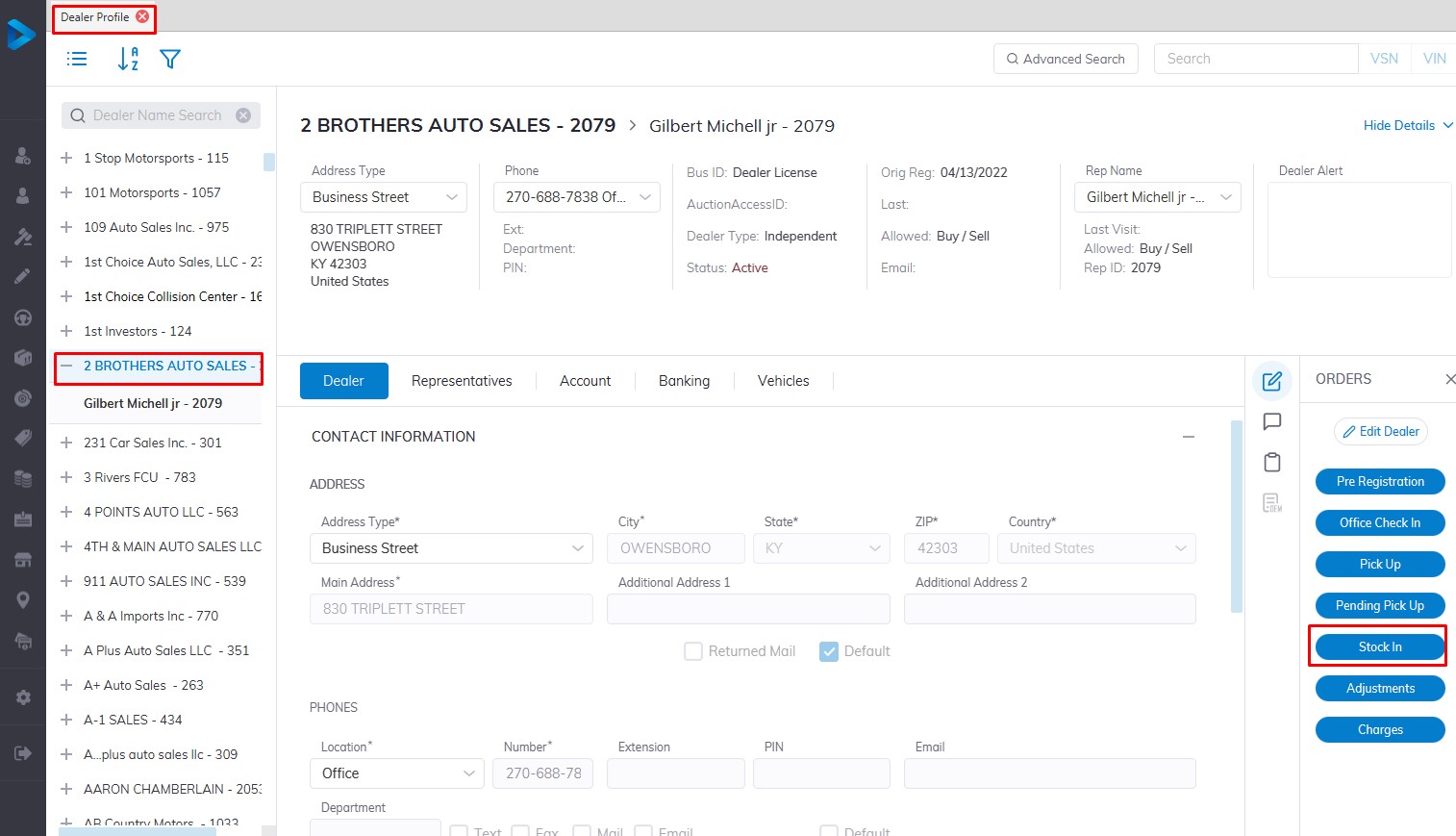
- Select Dealer Profile Application
- Then select the Dealer, you want to Stock In a vehicle.
- Select the 'Stock In' order button under the Order column on the right side
- This will launch the stock in the form
Reminder: Whenever you go into Dealer Profile, select the dealer you wish to work with!
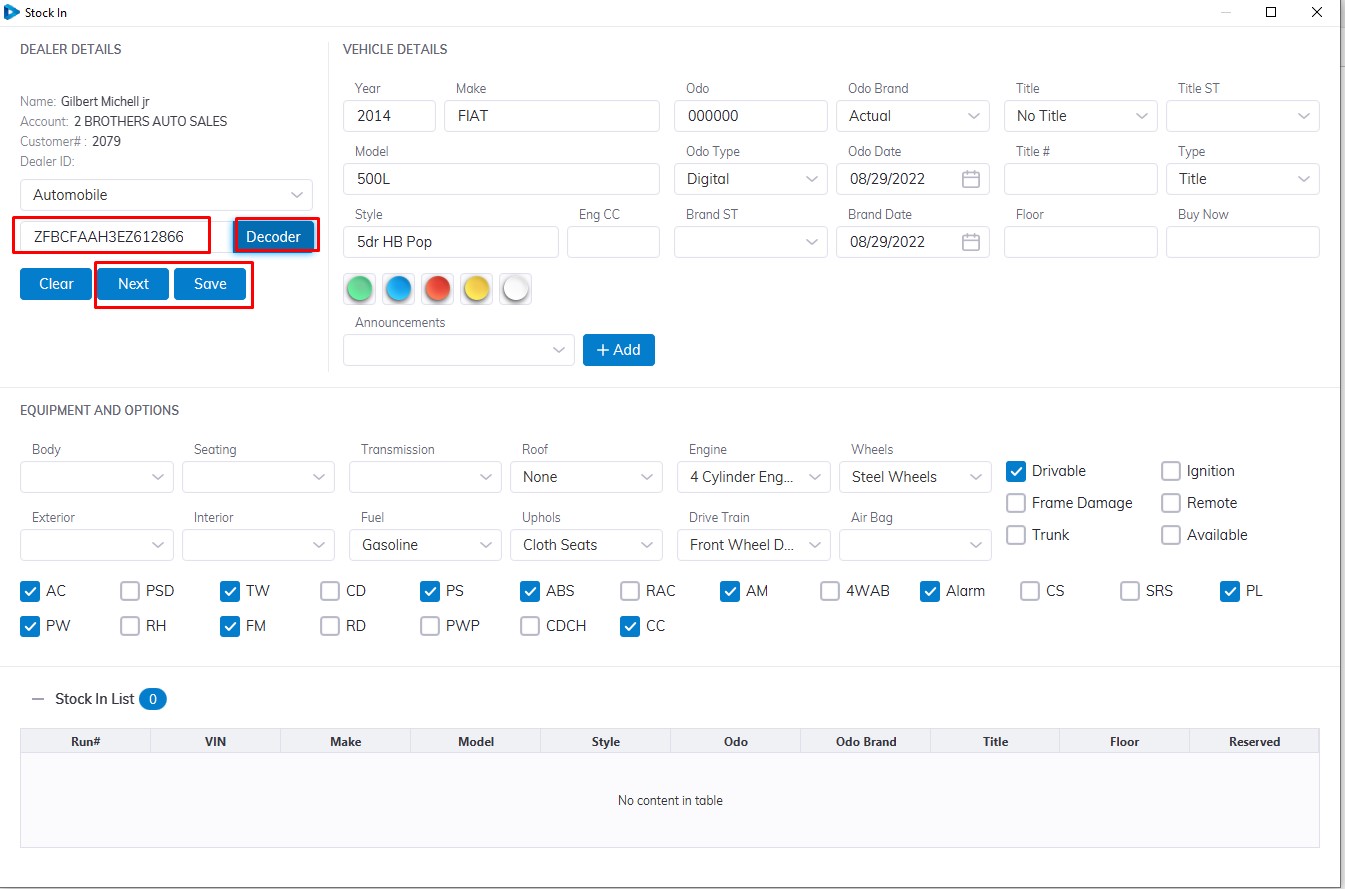
Input
- VIN (vehicle identification number)
- Vehicle Type ( Automobile is the default you can select from the Dropdown)
Please note that the VIN must contain 17 digits.
Select the Decoder button to decode the vehicle trim level and style
Check if vehicle information is correct then select the 'Save' button to Complete
In the case of multiple vehicles for the same Dealer, you can select the 'Next' button to enter another vehicle for Stock In
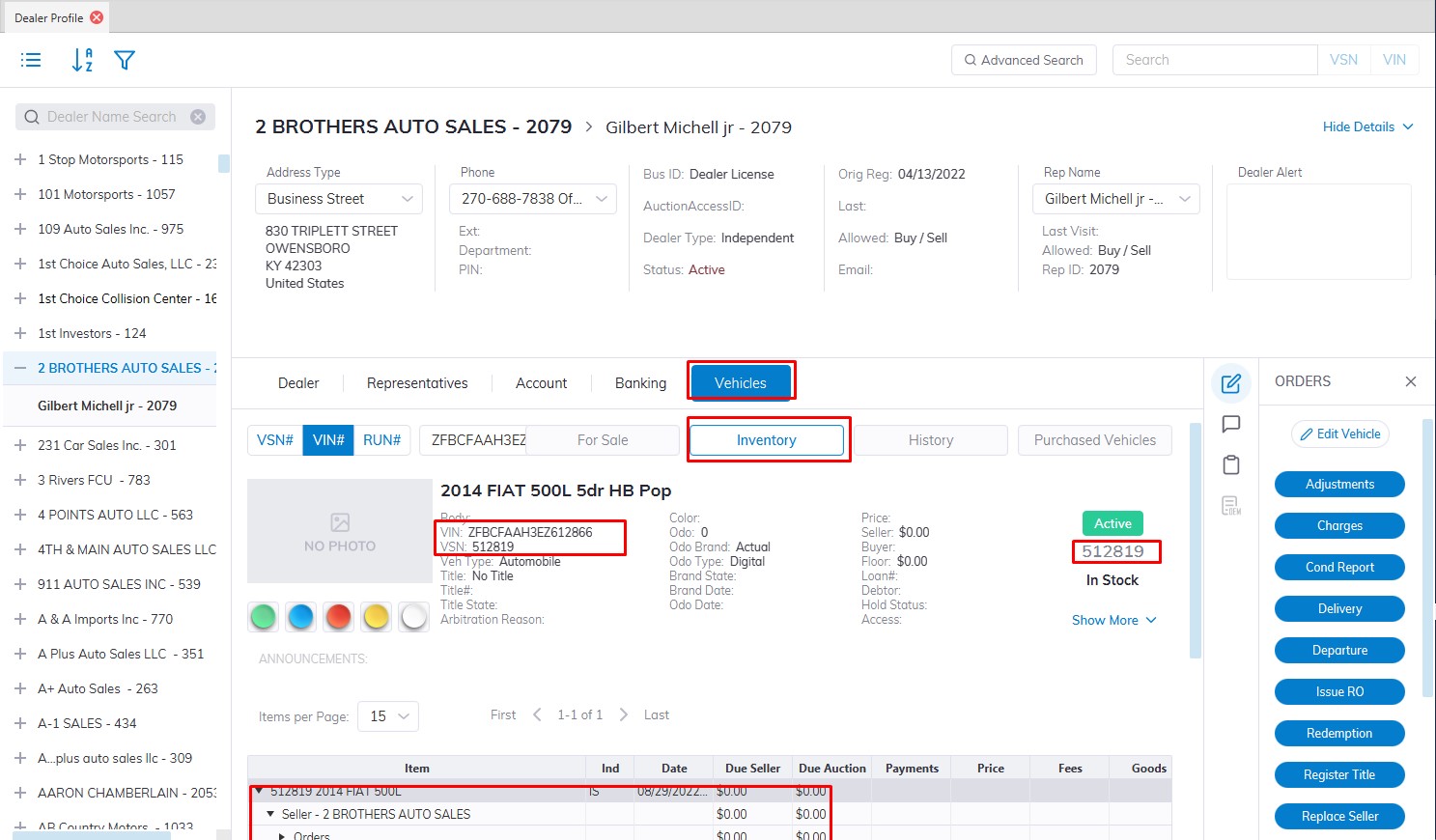
Note: The Sale Date and Run Number are absent since this vehicle is not heading to a sale.
After Stock In the vehicle will be added to the Dealers Inventory Tab under the Vehicle Tab and is assigned a VSN number or Stock number
No Comments