
Buyer Invoice-Vehicle Statement-Order Statement
Buyer Invoice
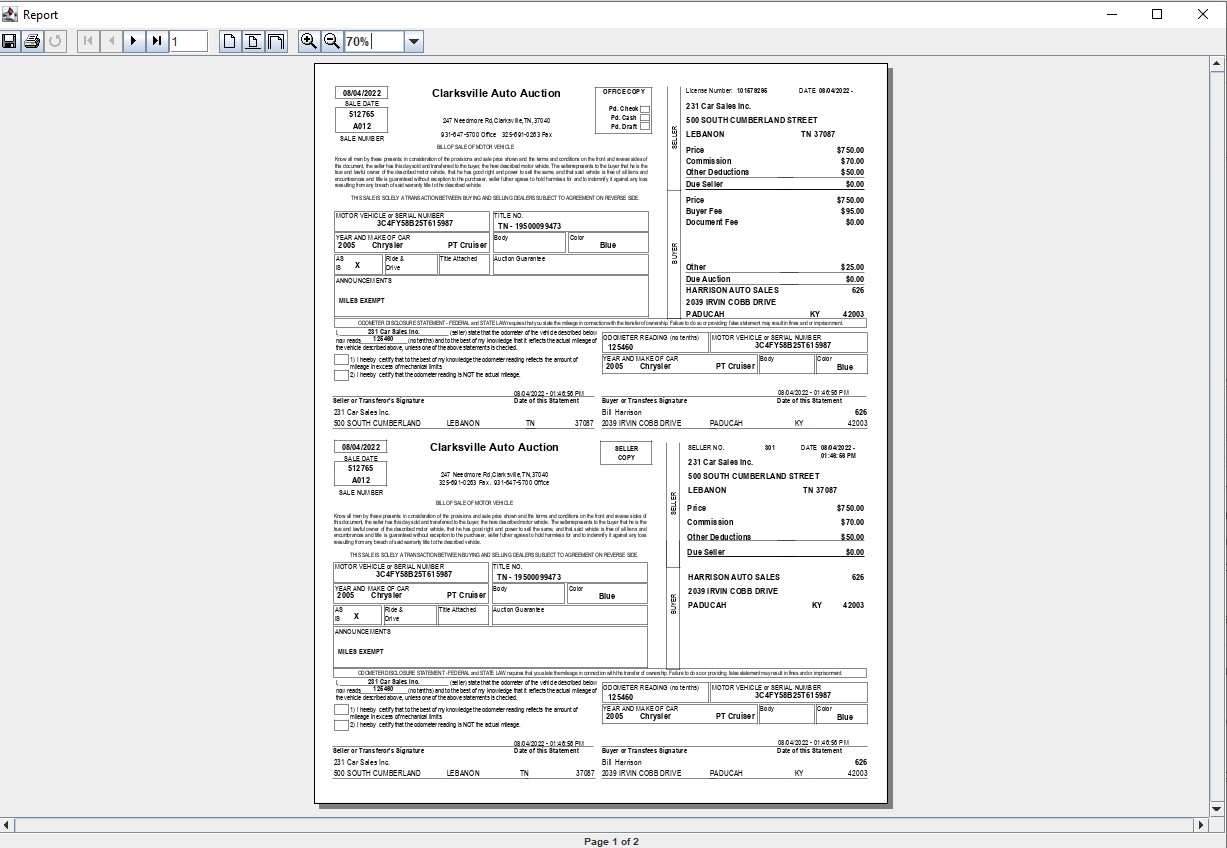
The Buyer Invoice prints automatically when a vehicle is sold from the Vehicle Block application. It may also be re-printed from the Dealer Profile or Vehicle Orders application. Each Buyer Invoice is unique for the Auction.
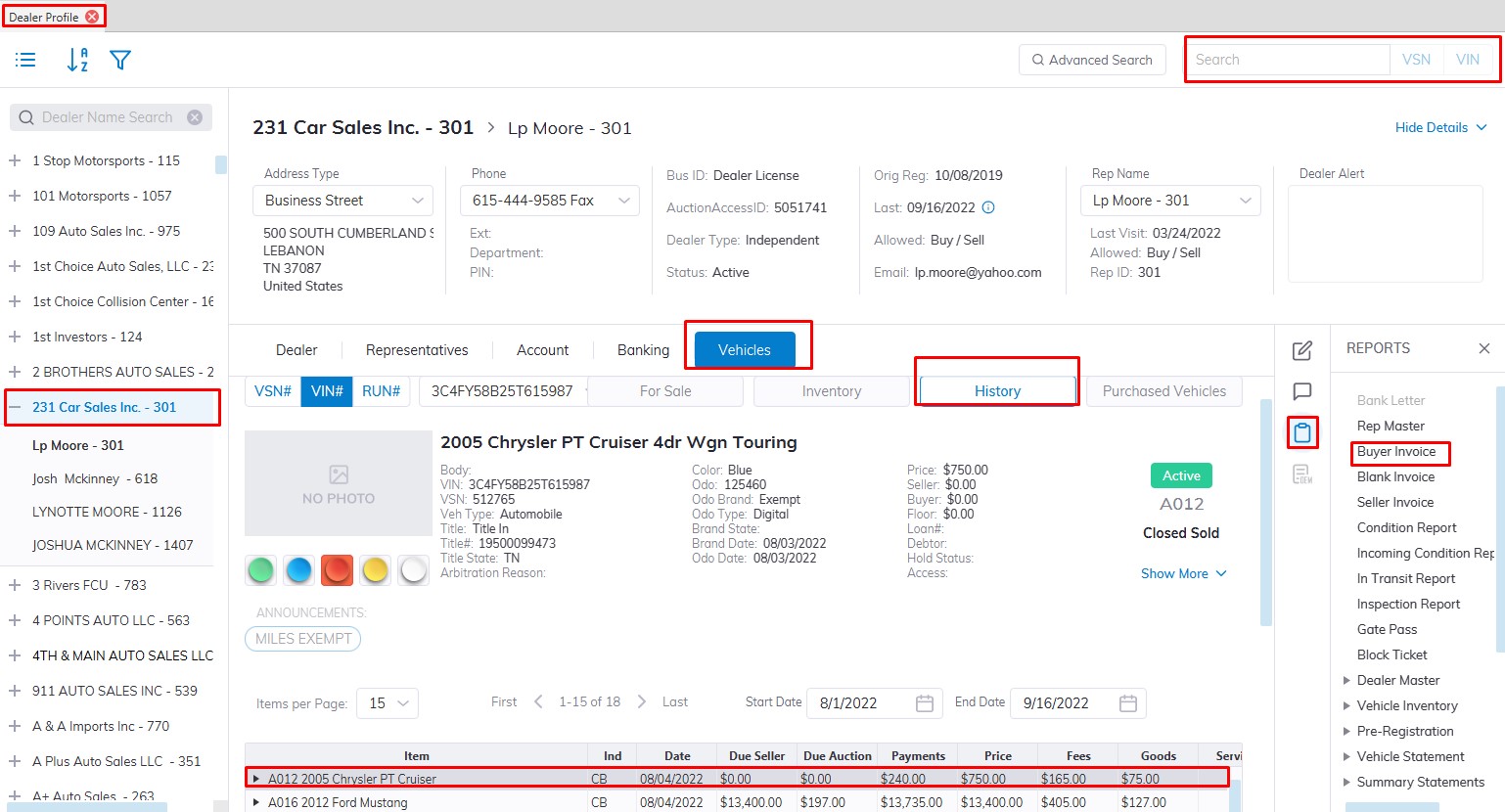
- Select the Dealer Profile application
- You can search for them using the VSN or IF you know the Dealer's Name
- Select the Dealer
- Select the 'Vehicle Tab' then Sub Tab the 'History Tab' (All Sold vehicles are located here)
- Find the vehicle in the grid
- Select the Reports menu
- Then Select the Buyer Invoice from the Reports menu
Note: You must select a vehicle from the 'Vehicles' tab of the Dealer Profile application to run the report
Vehicle Statement
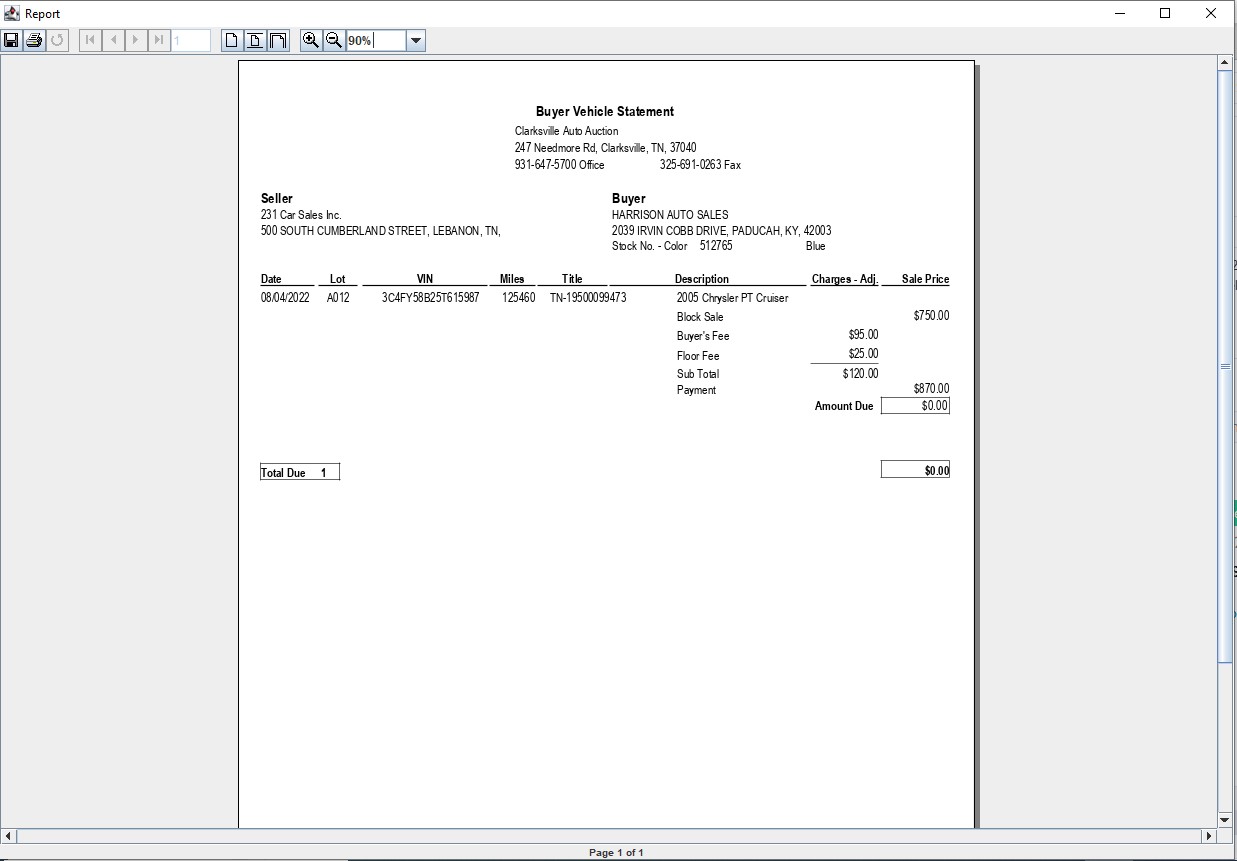
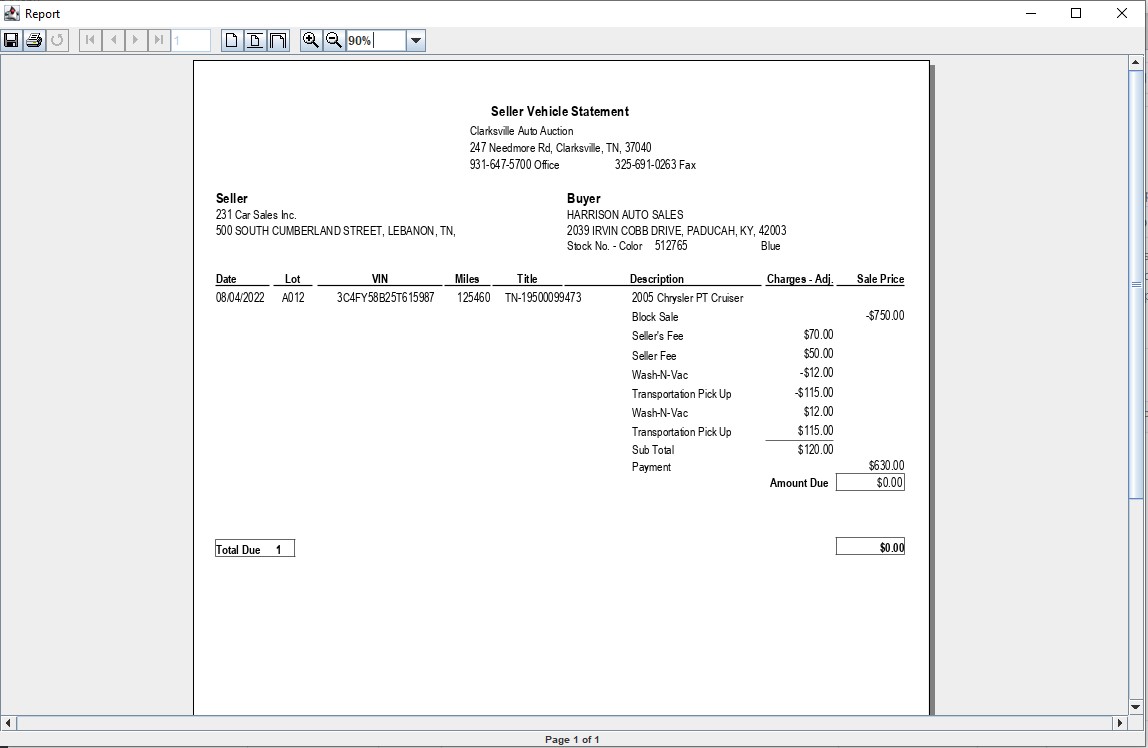
The Vehicle Statement is a detailed report of the fees, payments, adjustments, prices, and payment s (if any) for any selected vehicle.
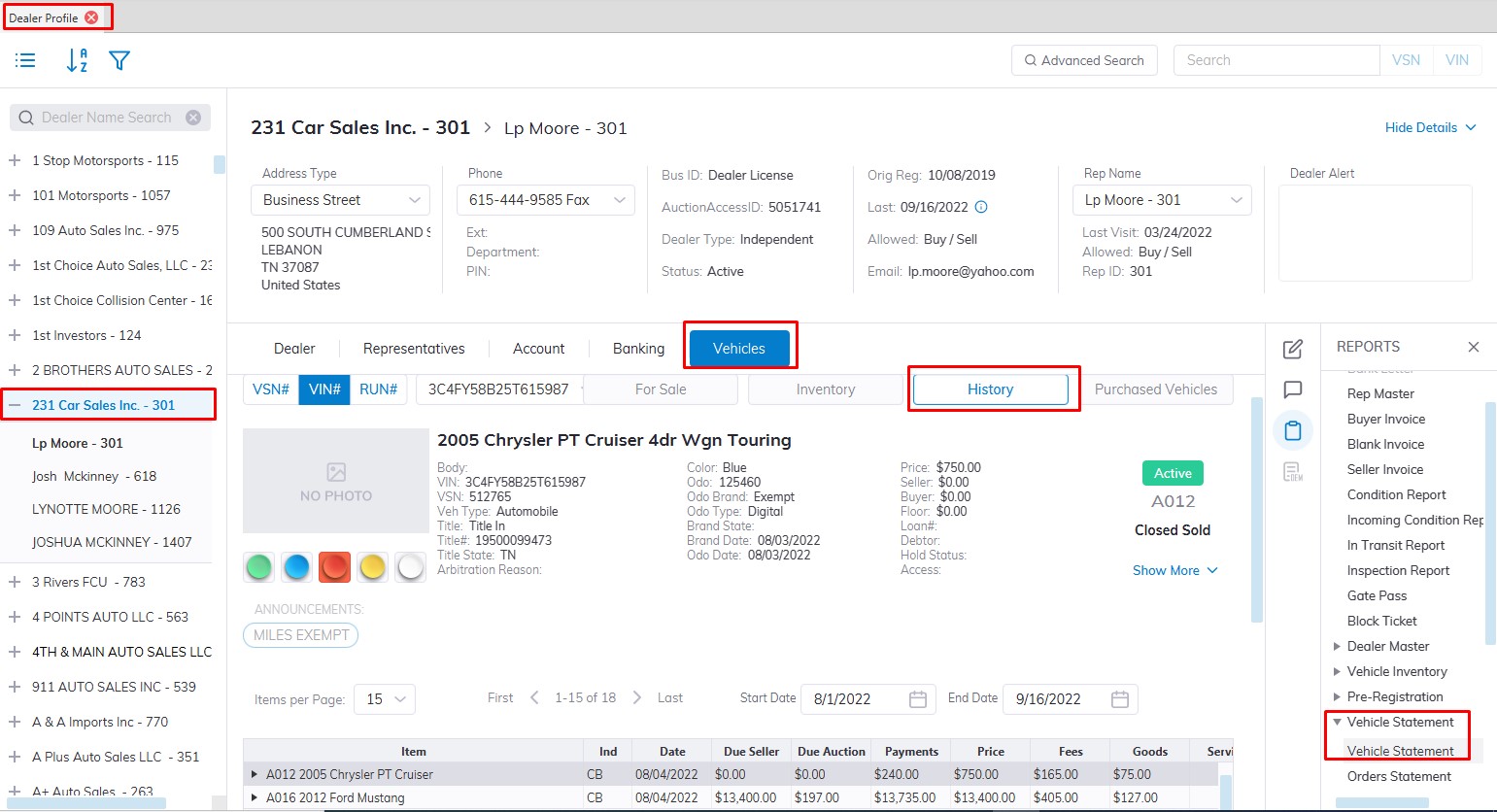
- Select the Dealer Profile application
- You can search for them using the VSN or IF you know the Dealer's Name
- Select the Dealer
- Select the 'Vehicle Tab' then Sub Tab the 'History Tab' (All Sold vehicles are located here)
- Find the vehicle in the grid
- Select the Reports menu
- Then Select the Vehicle Statement report to the Launch wizard
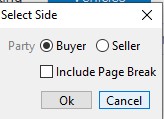
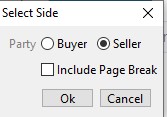
- Here you can choose Buyer Statement or Seller Statement.
- Click 'OK' when done to create and print the report
Note: You must first select a vehicle in the 'Vehicle', 'Inventory' or 'History' tab
Buyer Vehicle Statement
Seller Vehicle Statement
Order Statement
The Order Statement is a report listing what appears in the Grid of the Dealer Profile. Rather than viewing Orders, Charges, or Adjustments on screen, it is now possible to obtain the same information in report form.
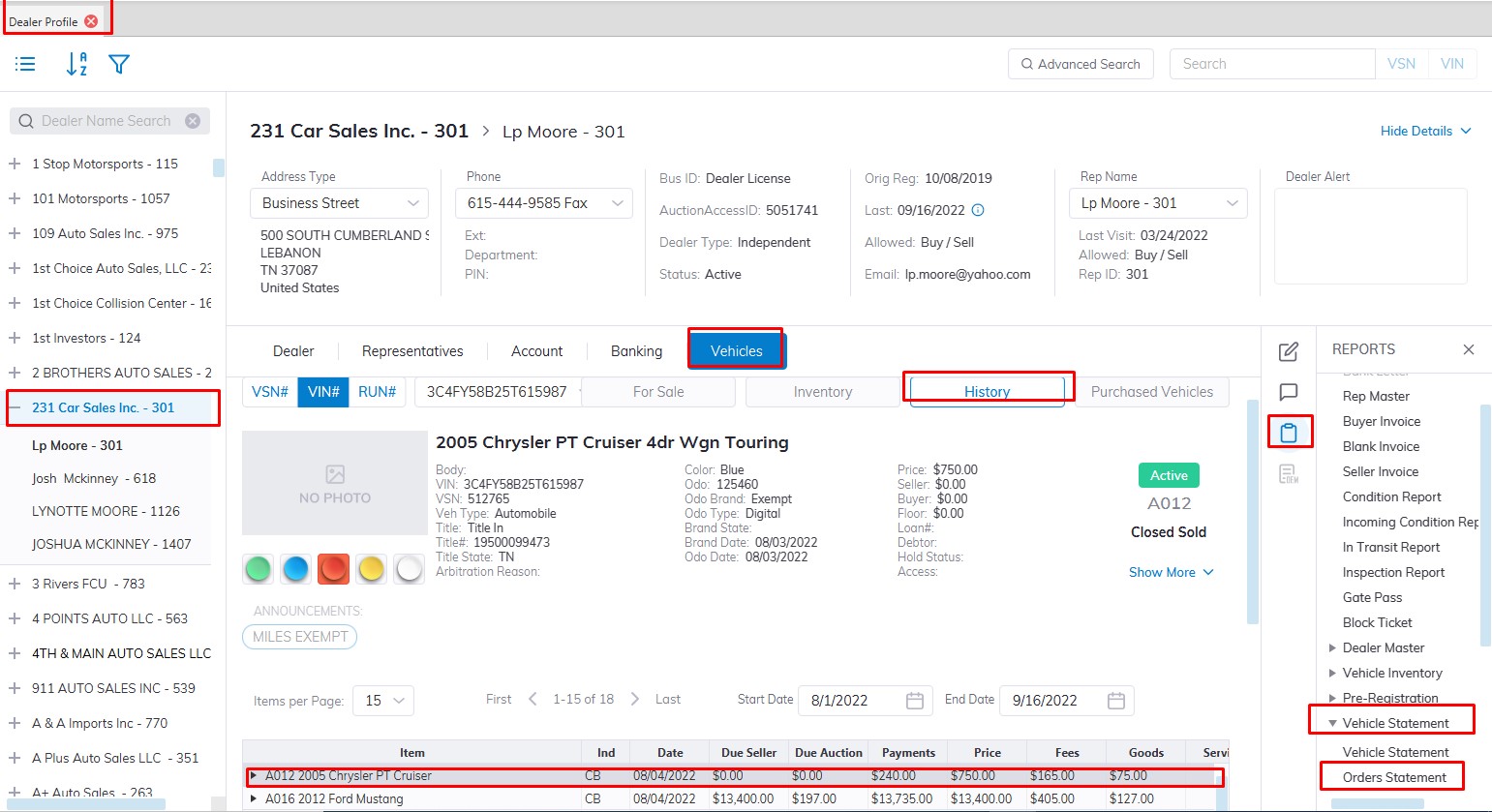
- Select the Dealer Profile application
- You can search for them using the VSN or IF you know the Dealer's Name
- Select the Dealer
- Select the 'Vehicle Tab' then Sub Tab the 'History Tab' (All Sold vehicles are located here)
- Find the vehicle in the grid
- Select the Reports menu
- Then Select the "Vehicle Statement" then 'Order Statement' report under it to Launch wizard
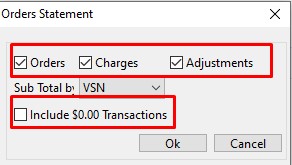
- You may choose to 'Include $0.00 Transactions since most orders have no amount associated with them. You may also sub-total by VSN or Description.
- Choose the checkboxes if you want to see 'Orders', 'Charges', and 'Adjustments' in the report
- Click 'OK' when done to create and print the report.
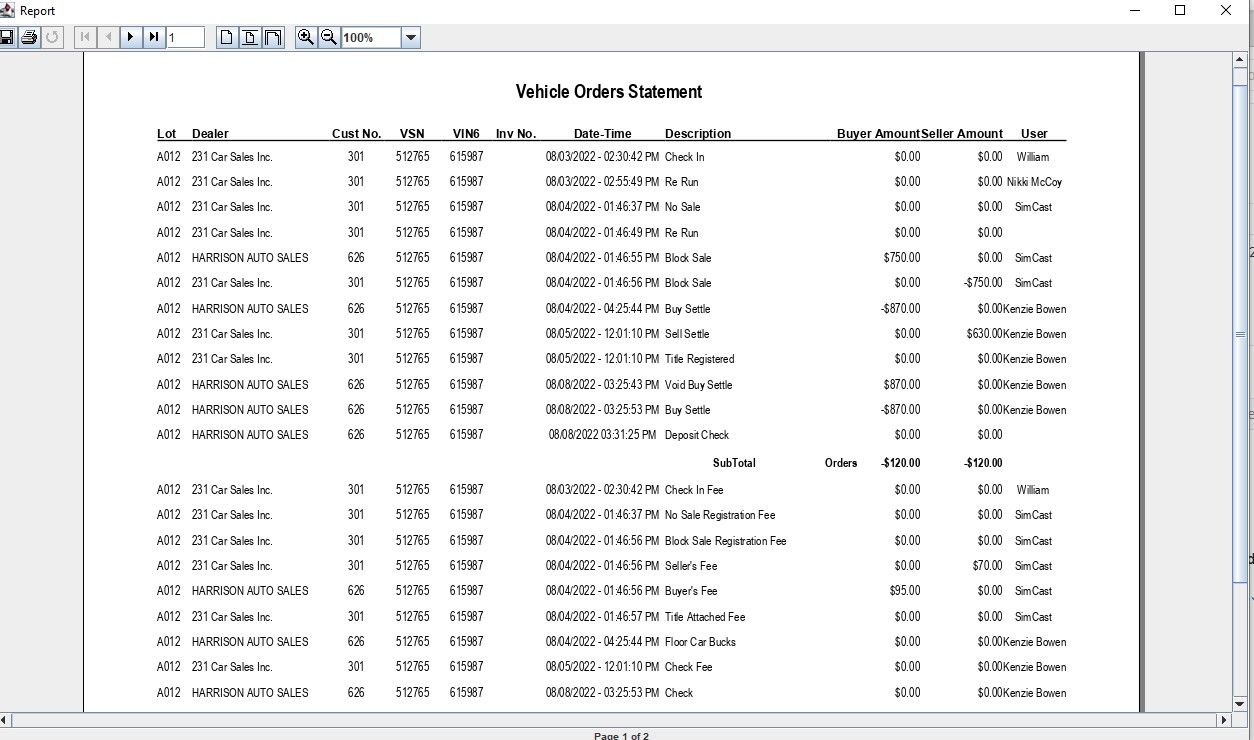
No Comments