
Vehicle Block
Select Vehicle Block Application>>
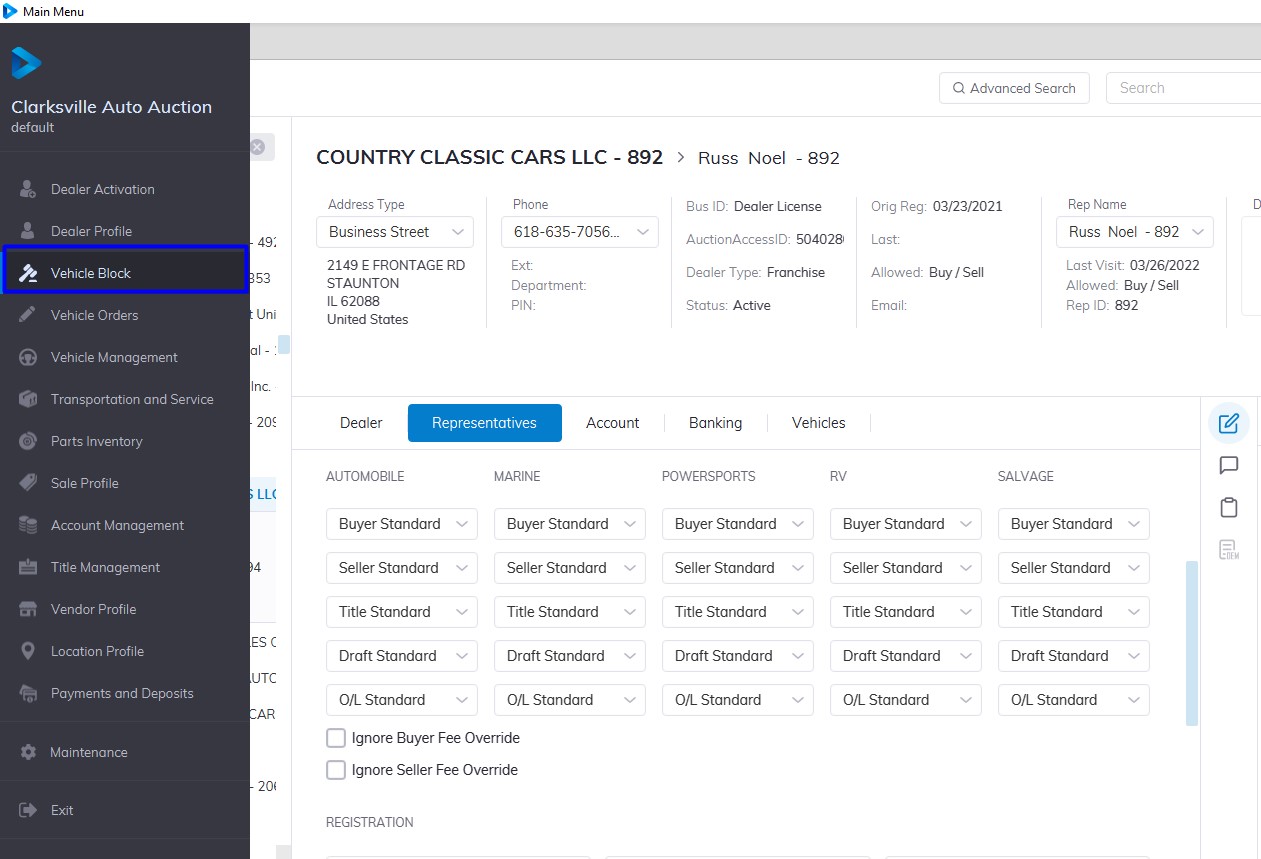
On the right-hand side Click the 'Sale Date' then ‘Lane’ you want this will launch the lane content in the middle window.
Lane Display
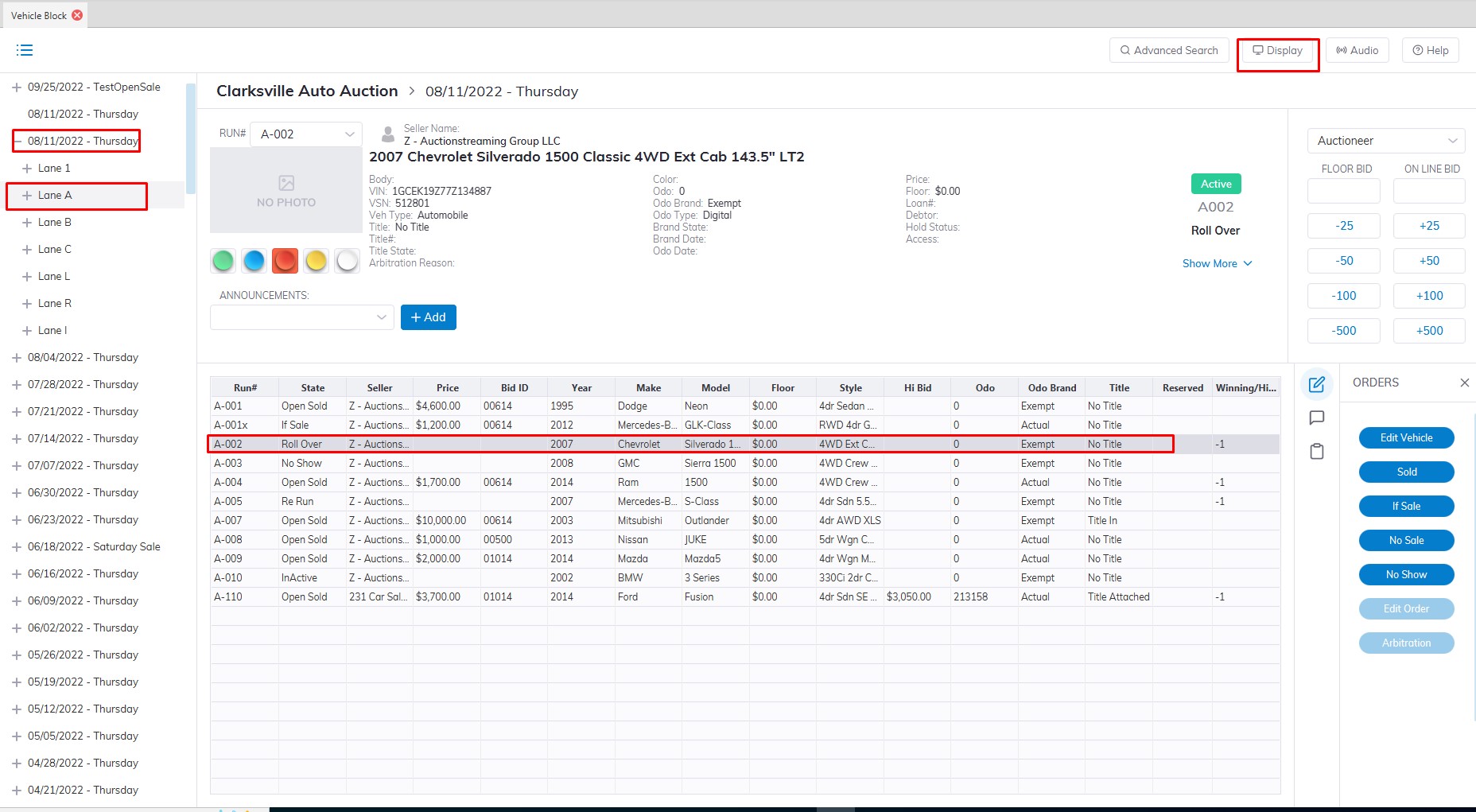
This part of the Vehicle Block Application which from the Main menu.
- Select the Sale Date.
- Select the Lane.
- Select an unsold vehicle in the grid.
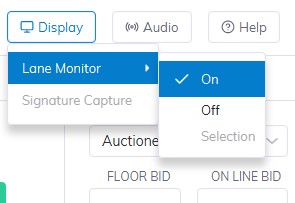
- Select the "Display" on the top right of the screen.
- Select 'On' from the menu 'Display' dropdown menu
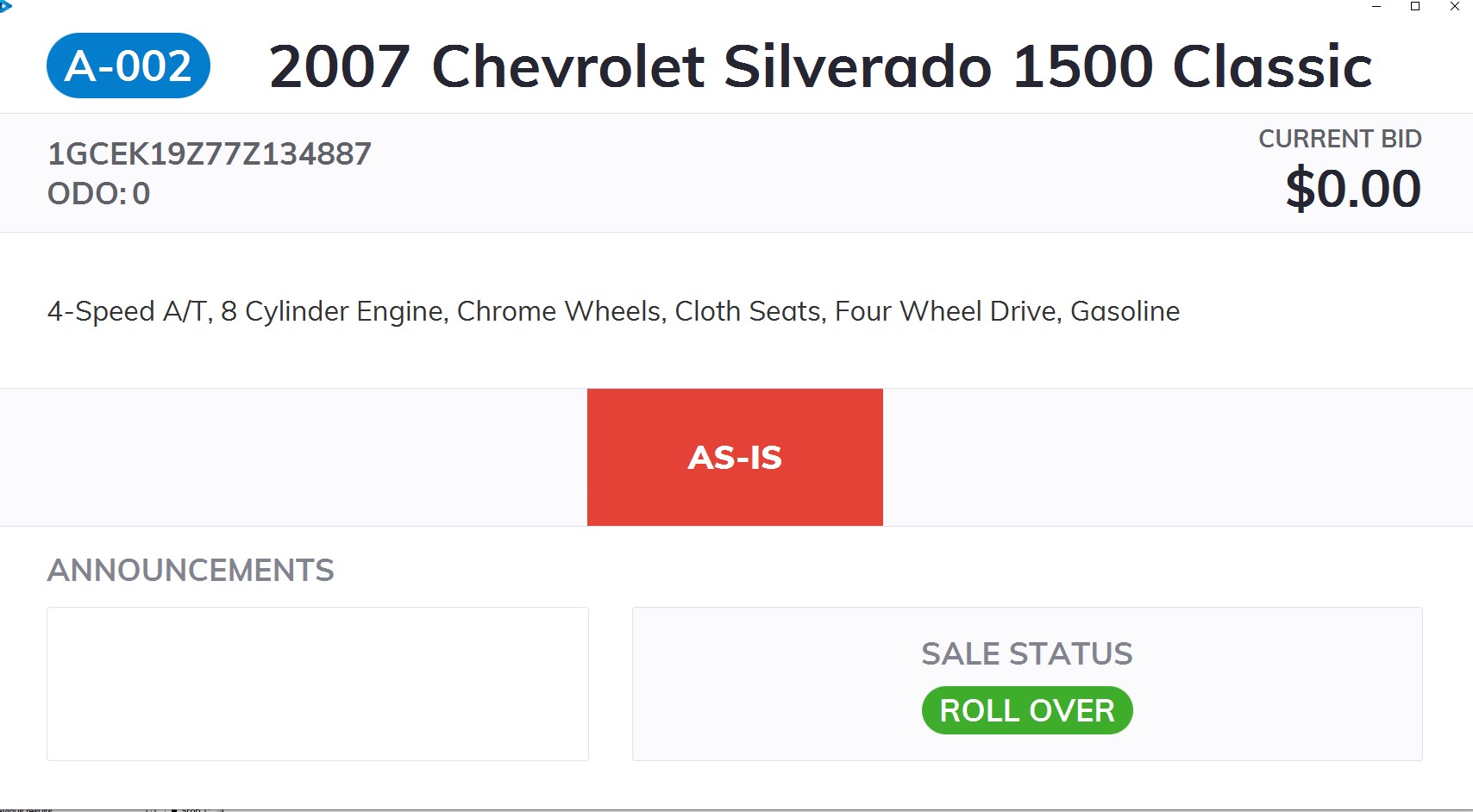
TheLCDy will appear on the screen. This window should be dragged onto the 2nd monitor connected to the PC used in the Lane. As the vehicle is updated with Announcements or Current Bid information the LCDy will reflect these changes.
Setting 'Audio' on by clicking the 'Audio' button then the Audio setting menu will pop up.
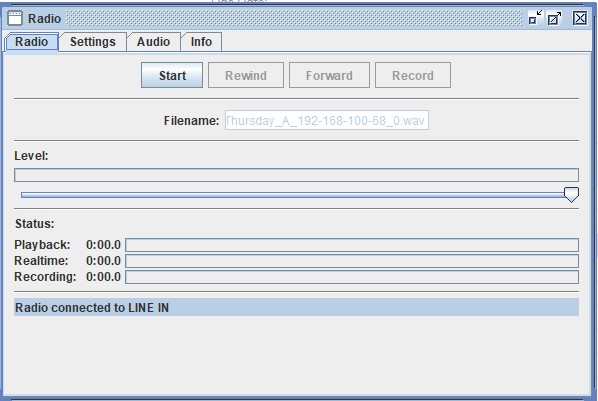
On clicking the "Start" button will begin the recording of the auctioneer's voice. A feed from the PA (public address) system into the audio jack in the back of the PC is necessary.
No Comments