
Vendor Profile
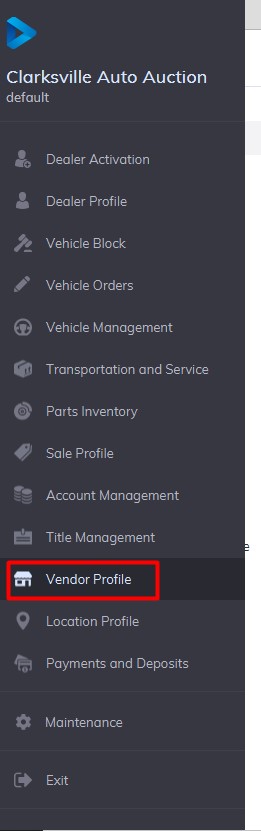
Select Vendor Profile Application>>
Vendor accounts may be accessed, added, or edited through the Vendor Profile Application. Vendors are listed in alphabetical and customer number order. Each Vendor is assigned a Vendor ID.
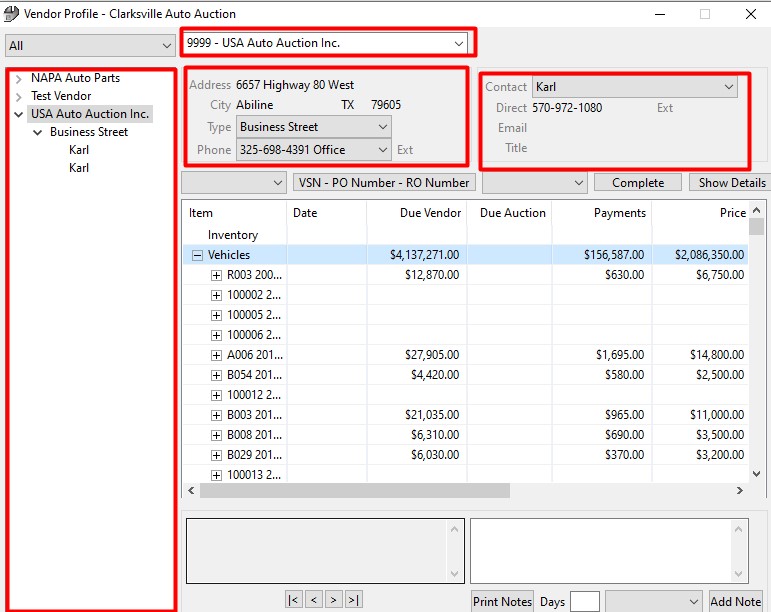
The summary section contains Address and Contact Information. The grid will have accounting information when complete.
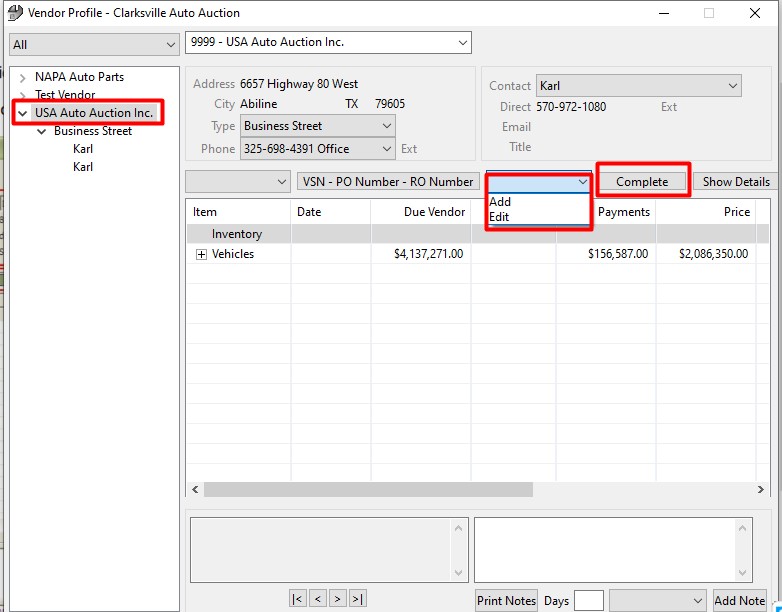
To view information regarding add/edit orders, click on the Vendor Account and then the Order Drop-down menu.
Add Vendor
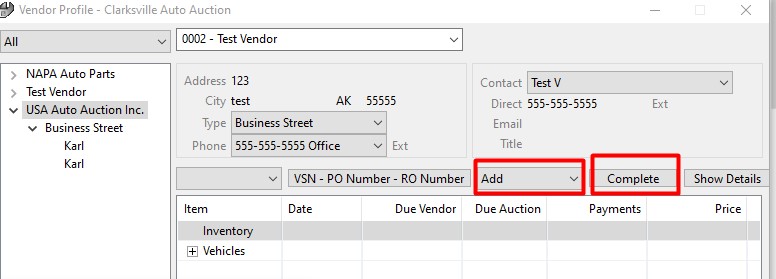
Select the 'Add' order from the combo box of the Vendor Profile and click 'Complete' to launch the form.
Fill out the required fields outlined in red.
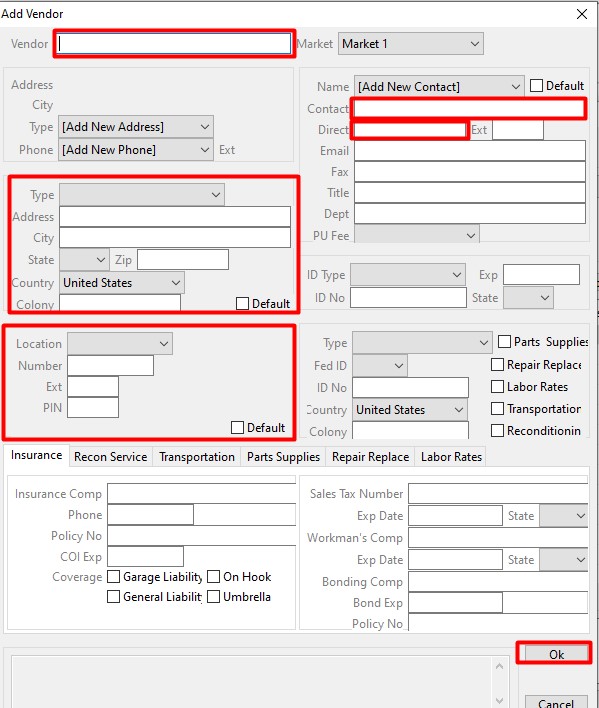
Complete Add Vendor form with the Details
Click on ‘OK’ to save
A Vendor ID will be assigned
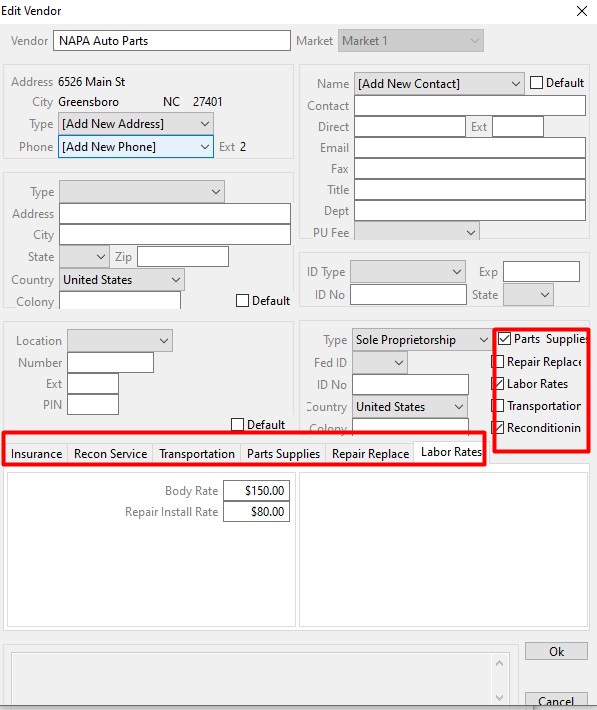
And the bottom of the form you will notice some Tabs. Each tab corresponds to a Vendor service. A given vendor may supply more than one service. The checkboxes tell the application what services this Vendor is providing:
- Insurance - Vendor's Insurance Company
- Recon Service - Vehicle Reconditioning
- Transportation - Transportation pickup and delivery
- Parts Supplies - Parts Supplies
- Repair Replace - Mechanical repair rates
- Labor Rates – Mechanical body repair rates
See below for additional information on these services.
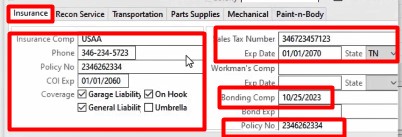
Insurance - Vendor's Insurance Company and Policy
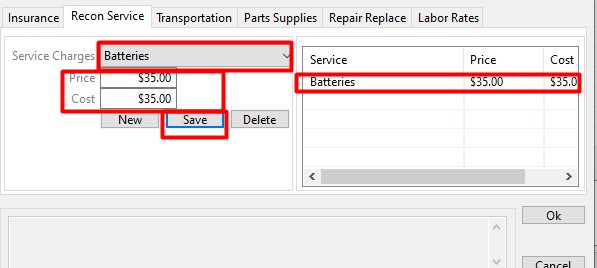
Recon Services
Select the Service Charges, add the retail 'Price' and wholesale 'Cost' then click 'Save' to add the service to the list.
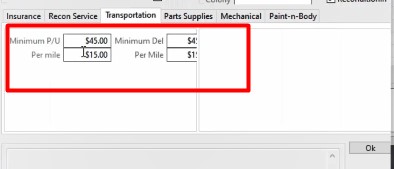
Transportation - Vendor's Pick-up and Delivery Service charges
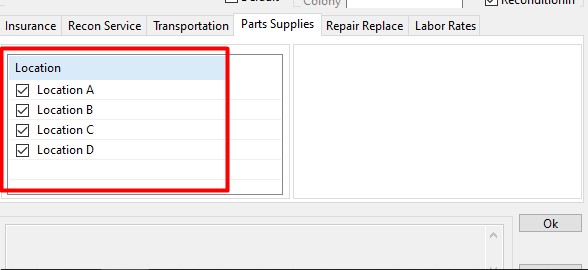
Parts Supplies - Select the Inventory Location the Vendor will supply Parts for.
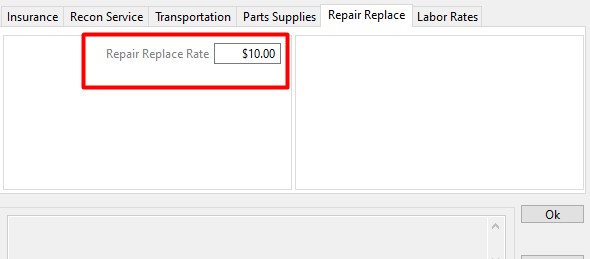
Repair Replace (Mechanical) - Add the Shop rate for Mechanical Repairs
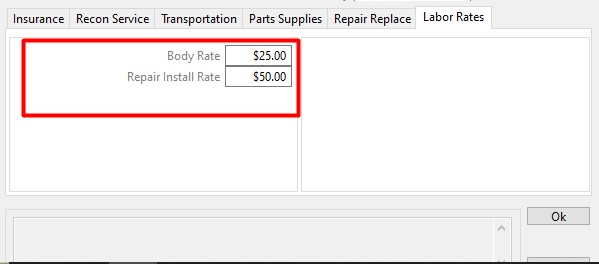
Labor Rates - Add the Shop rate for Mechanical labor Repairs
Note: Vendors and vendor services appear in other parts of the application. Follow the links below for examples of how Vendors are used in Repair Orders and Transportation Orders:
- Amend RO (parts, recon, mechanical)
- Transportation Orders (pick up)
Edit Vendor
Select the 'Edit' order from the combo box of the Vendor Profile and click 'Complete' to launch the form.
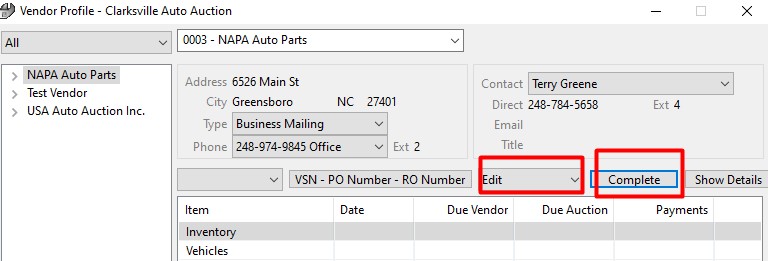
Make changes
Click on 'OK' to save when complete.
No Comments