
Sales Report part 1
Line of Business Report
The Line of Business report is similar to the Top Seller's report but lists only deals associated with a Dealer who has a defined Line of Business.
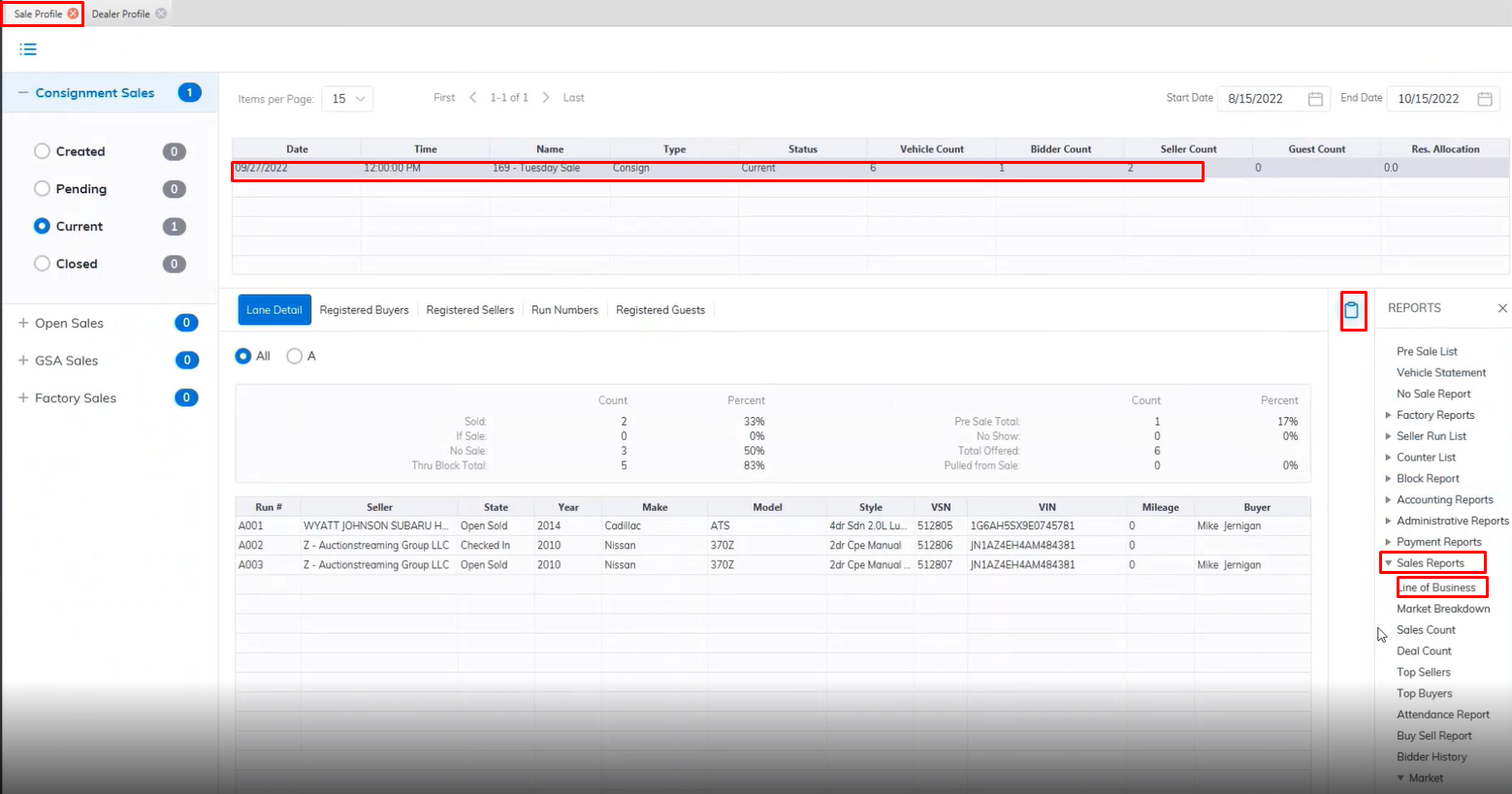
- Open the Sale Profile application.
- Select the Sale Date
- Select the Reports Menu
- Then select the Sales Reports sub-menu > Line of Business.
- This will launch the report wizard.
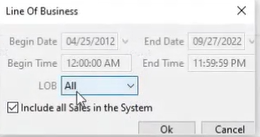
- Select the desired 'Begin' and 'End' dates or we can check the 'Include all Sales in the system' checkbox.
- In the Line of Business (in this example we use All).
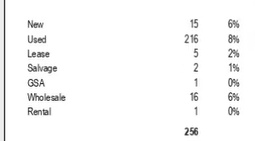
- Click 'OK' when done to create and print the report.
Market Breakdown Report
The Market Breakdown report is used to view the sale prices of vehicles over time.
Note: You must select the Sale Date from the grid before running the report
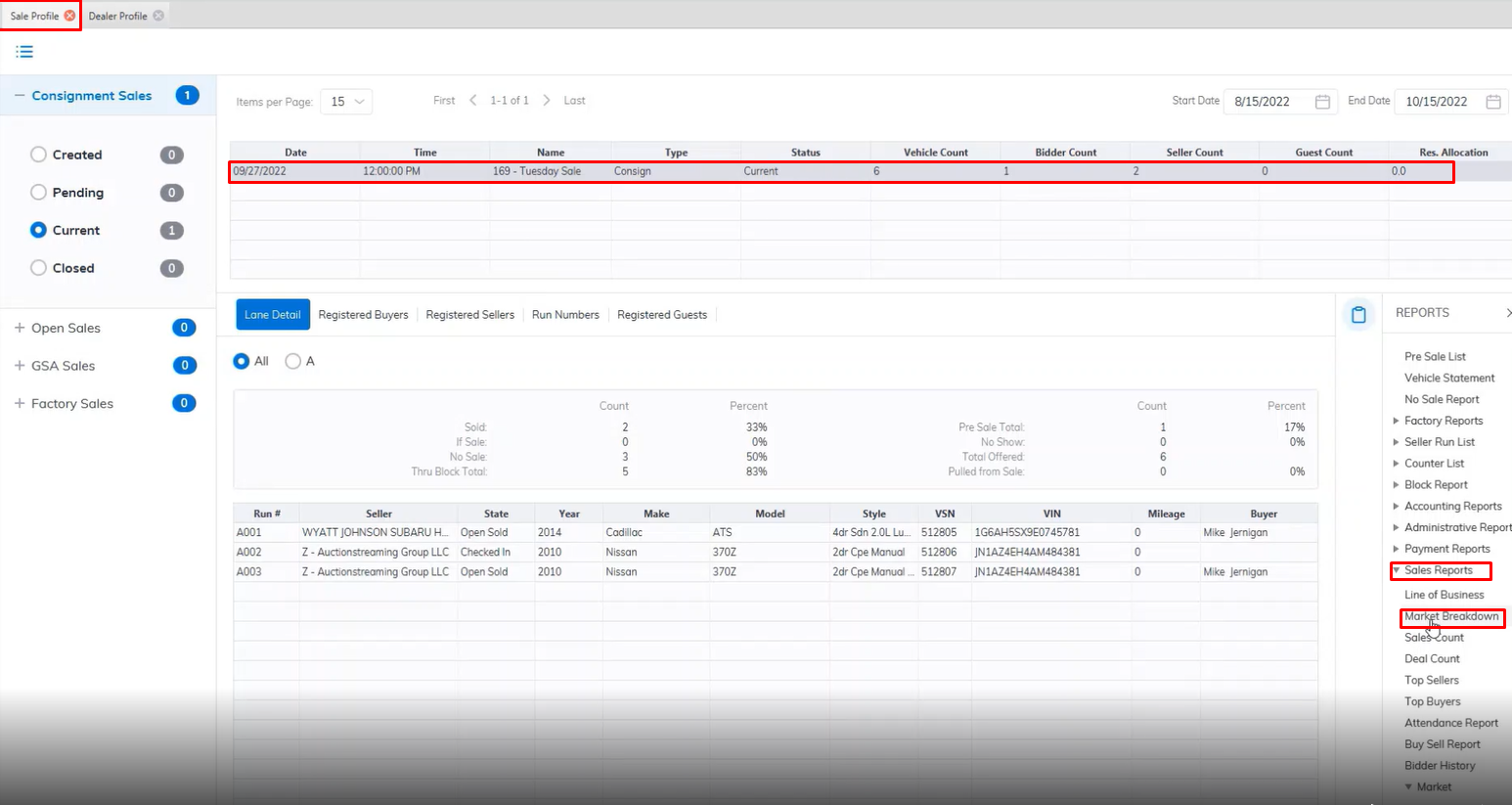
- Open the Sale Profile application.
- Select the Sale Date
- Select the Reports Menu
- Then select the Market Breakdown report sub-menu
- This will launch the report wizard.
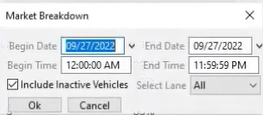
- You may select a 'Begin' and 'End' date if you wish to view information on more than one Sale.
- You can check the 'Include Inactive Vehicles' because we want to have a comprehensive report on all vehicles even if they have left the site.
- Click 'OK' when done to create and print the report
Sales Count Report
The sale Count report is used to track the number of deals for a specific Sale person or all salespersons.
Note: You must select the Sale Date from the grid before running the report
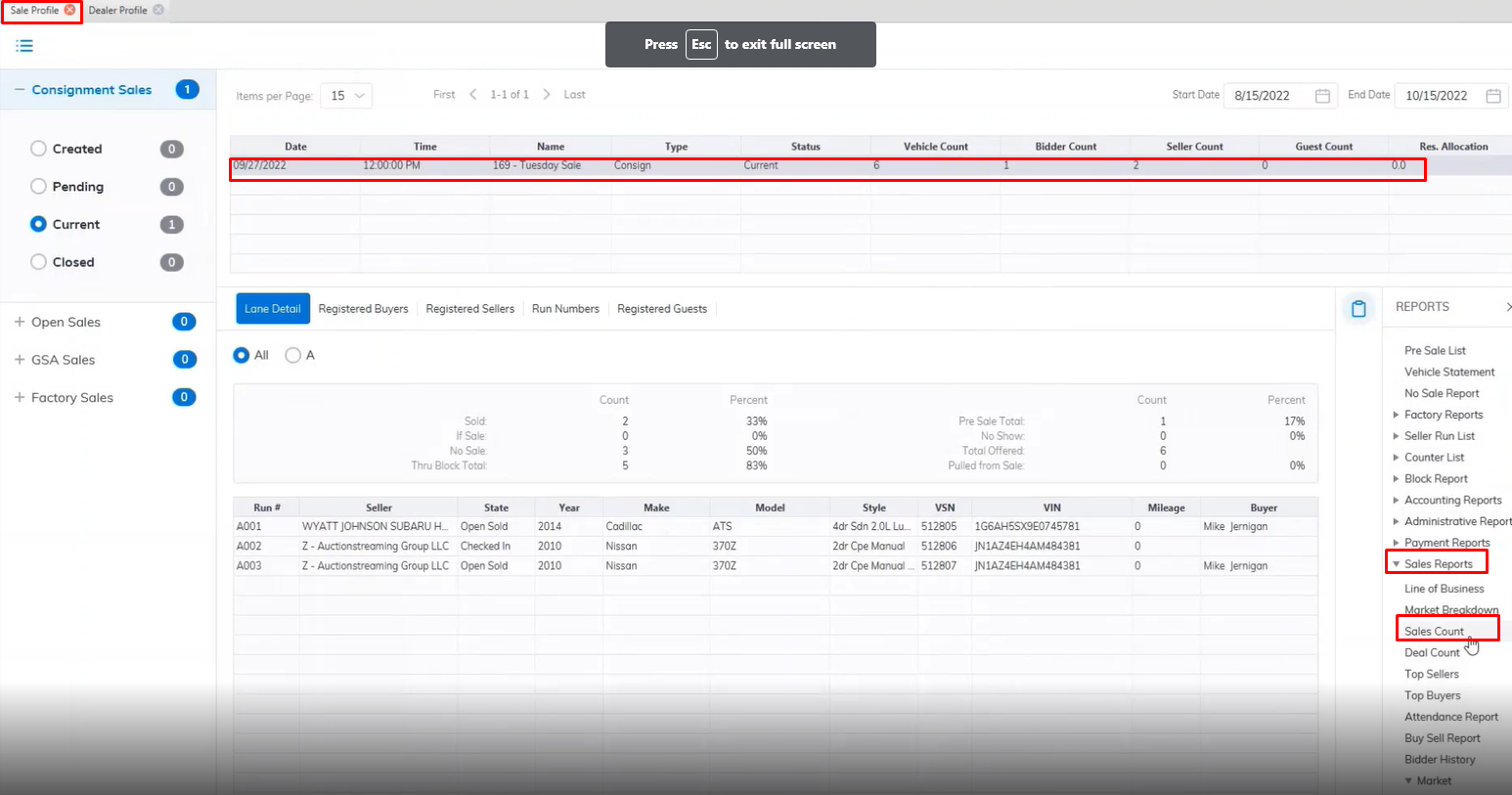
- Open the Sale Profile application.
- Select the Sale Date
- Select the Reports Menu
- Then select the Sale Count report sub-menu
- This will launch the report wizard.
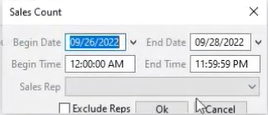
- You may select a 'Begin' and 'End' date if you wish to view information on more than one Sale.
- You may select a specific Sales Rep or Select 'All'.
- Click 'OK' when done to create and print the report.
Deal Count Report
The Deal Count report is used to view buy and sell deals according to Dealer and may be listed by Dealer Name or Percentage Sold.
Note: You must select the Sale Date from the grid prior to running the report
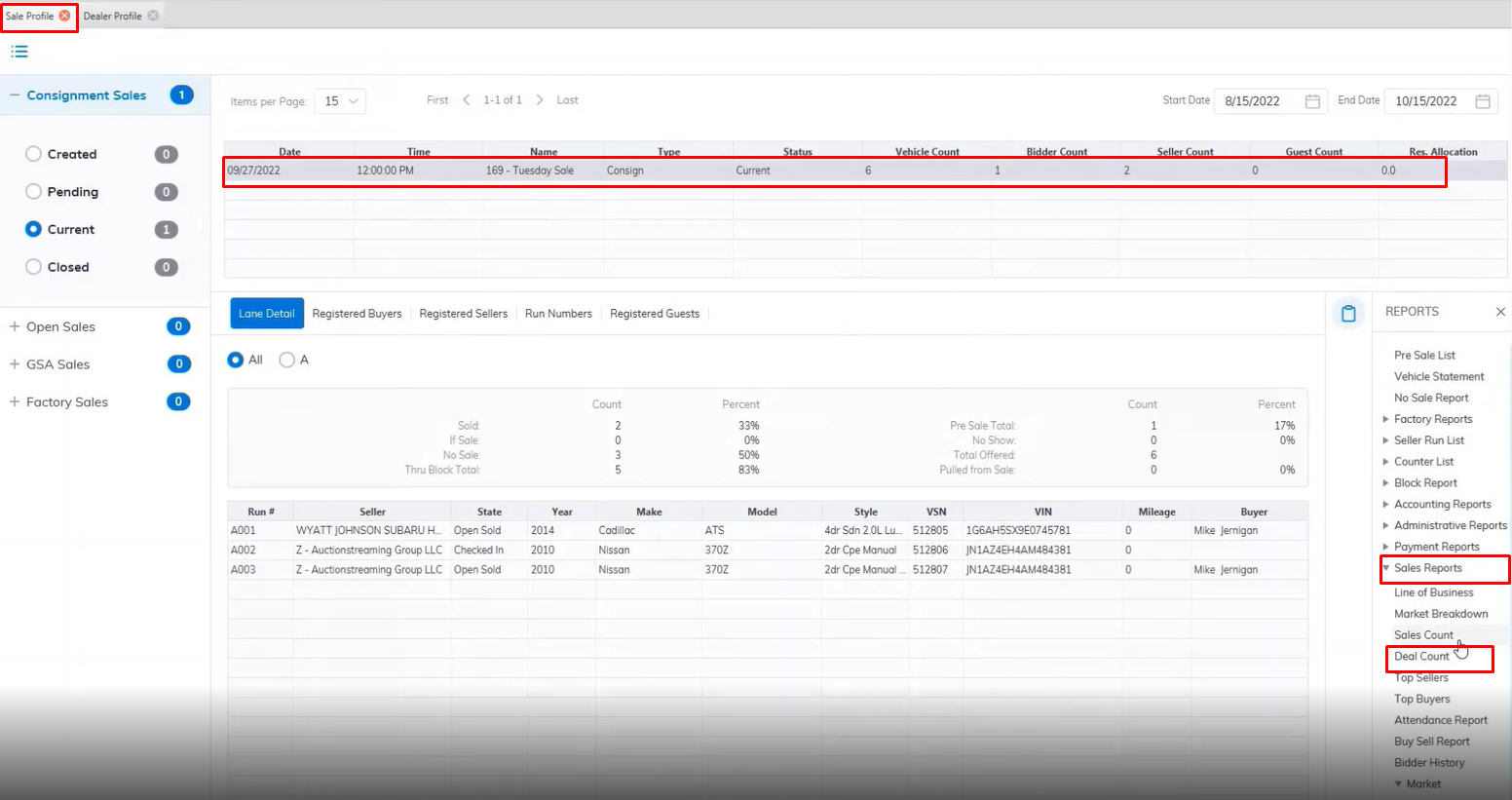
- Open the Sale Profile application.
- Select the Sale Date
- Select the Reports Menu
- Then select the Deal Count report sub-menu
- This will launch the report wizard.
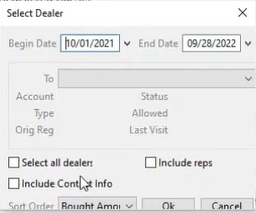
- You may select a 'Begin' and 'End' date if you wish to view information on more than one Sale.
- You may select a specific Dealer or the 'Select all dealers' checkbox.
- To include the rep check the checkbox.
- You can sort the report by Bought Amount, Bought Count, Dealer Name, Sold Amount, Sold Count, and or Sold percentage.
- Click 'OK' when done to create and print the report.
The Deal count report generates both a PDF and Graph report for a visual representation of the PDF data.
No Comments