
Sales Report part 2
Top Sellers Report
The Top Seller report is used to view selling Dealers ranked from most to least deals. The report includes:
- Maximum Price
- Average Price
- Minimum Price
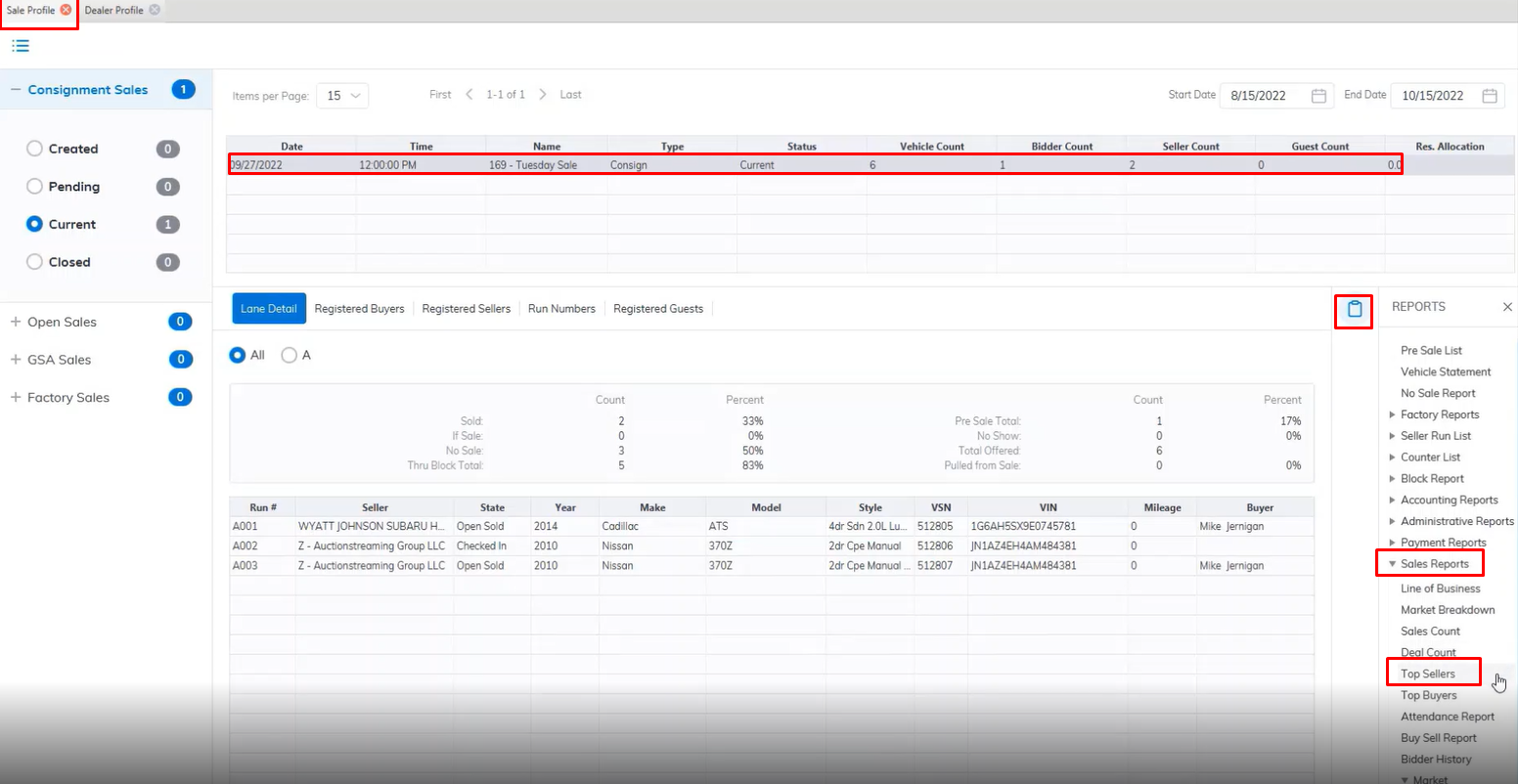
- Open the Sale Profile application.
- Select the Sale Date (You must select the Sale Date from the grid)
- Select the Reports Menu
- Then select the Top Sellers Reports sub-menu
- This will launch the report wizard.
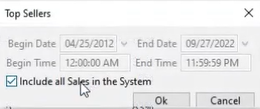
- Select the desired 'Begin' and 'End' dates or we can check the 'Include all Sales in the system' checkbox.
- Click 'OK' when done to create and print the report.
Top Buyers Report
The Top Buyers report is used to view buying Dealers ranked from most to least deals. The report includes:
- Maximum Price
- Average Price
- Minimum Price
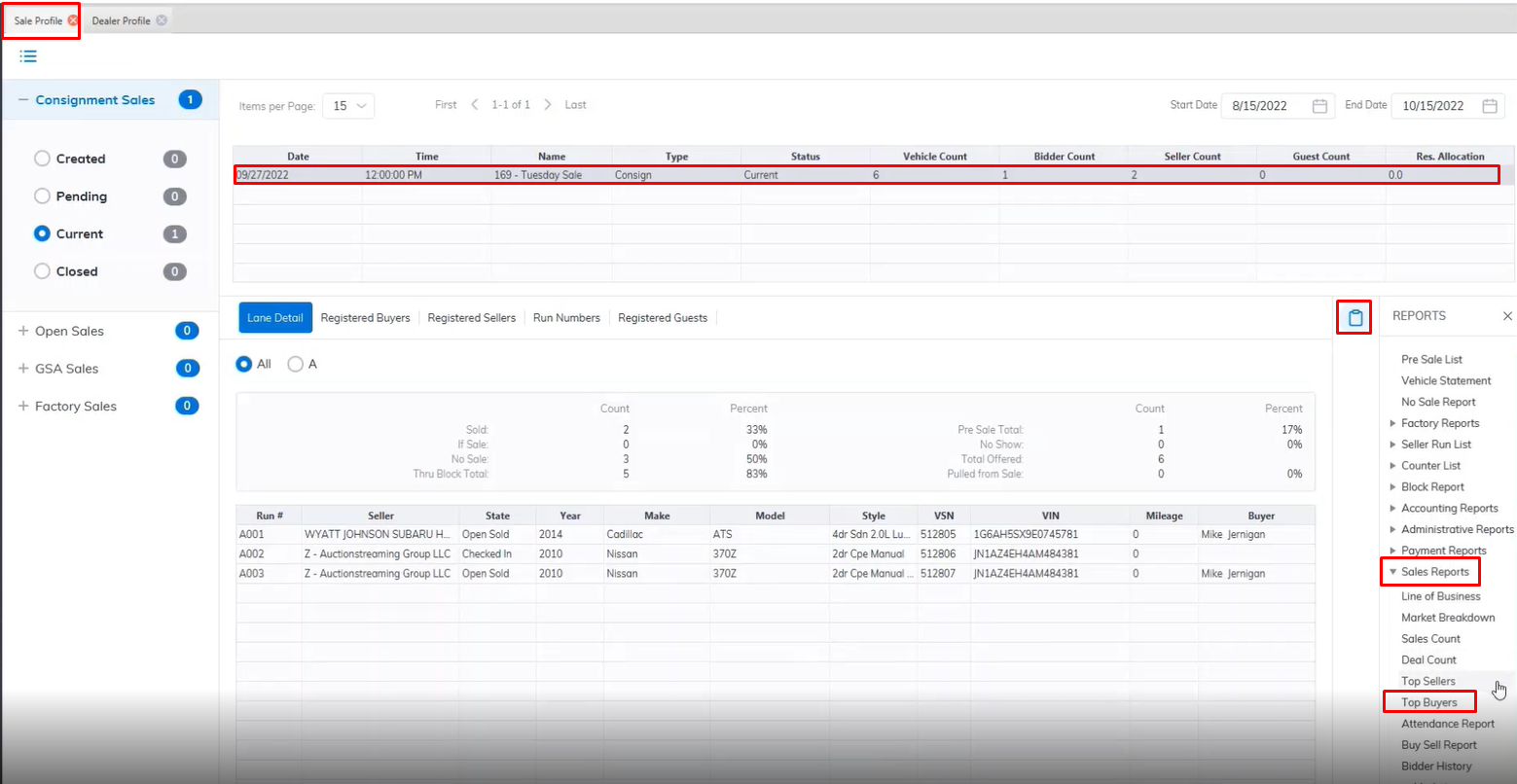
- Open the Sale Profile application.
- Select the Sale Date (You must select the Sale Date from the grid)
- Select the Reports Menu
- Then select the Top Buyers Reports sub-menu
- This will launch the report wizard.
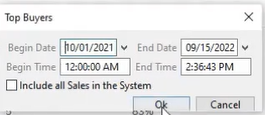
- Select the desired 'Begin' and 'End' dates or we can check the 'Include all Sales in the system' checkbox.
- Click 'OK' when done to create and print the report.
Attendance Report
The Attendance report lists all bidders for the selected Sale Date and runs from the Sale Profile. It is used to prospect bidders who most recently attended a sale. However, you may run the report for any selected sale date.
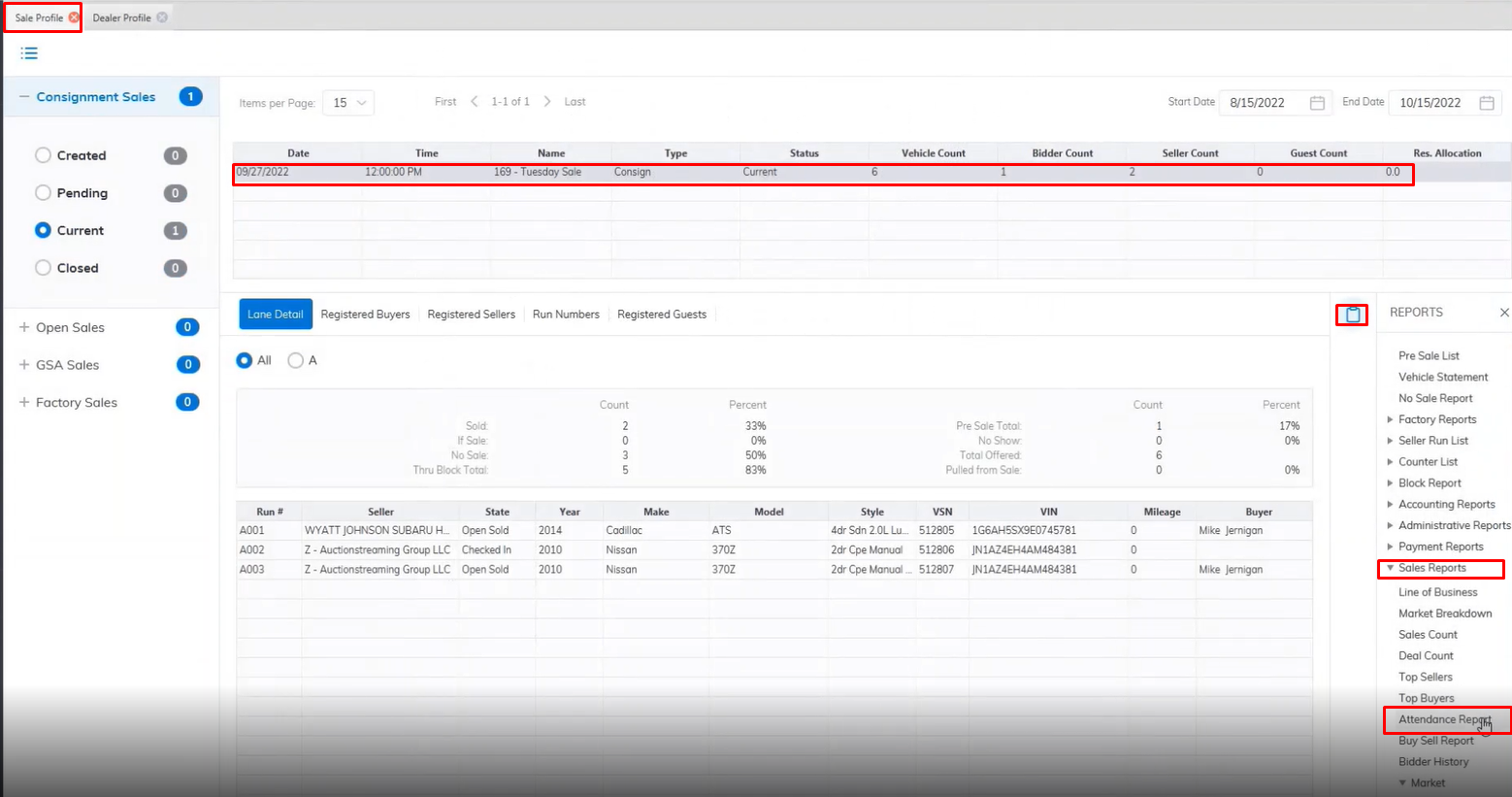
- Open the Sale Profile application.
- Select the Sale Date (You must select the Sale Date from the grid)
- Select the Reports Menu
- Then select the Attendance Reports sub-menu
- This will launch the report wizard.
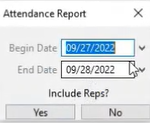
- Select the desired 'Begin' and 'End' dates.
- Click 'Yes' when done to create and print the report.
Buy Sell Report
This report only runs for a single sale. There is no date range. This report list the total number of Sold vehicles and their buyers and their corresponding sellers.
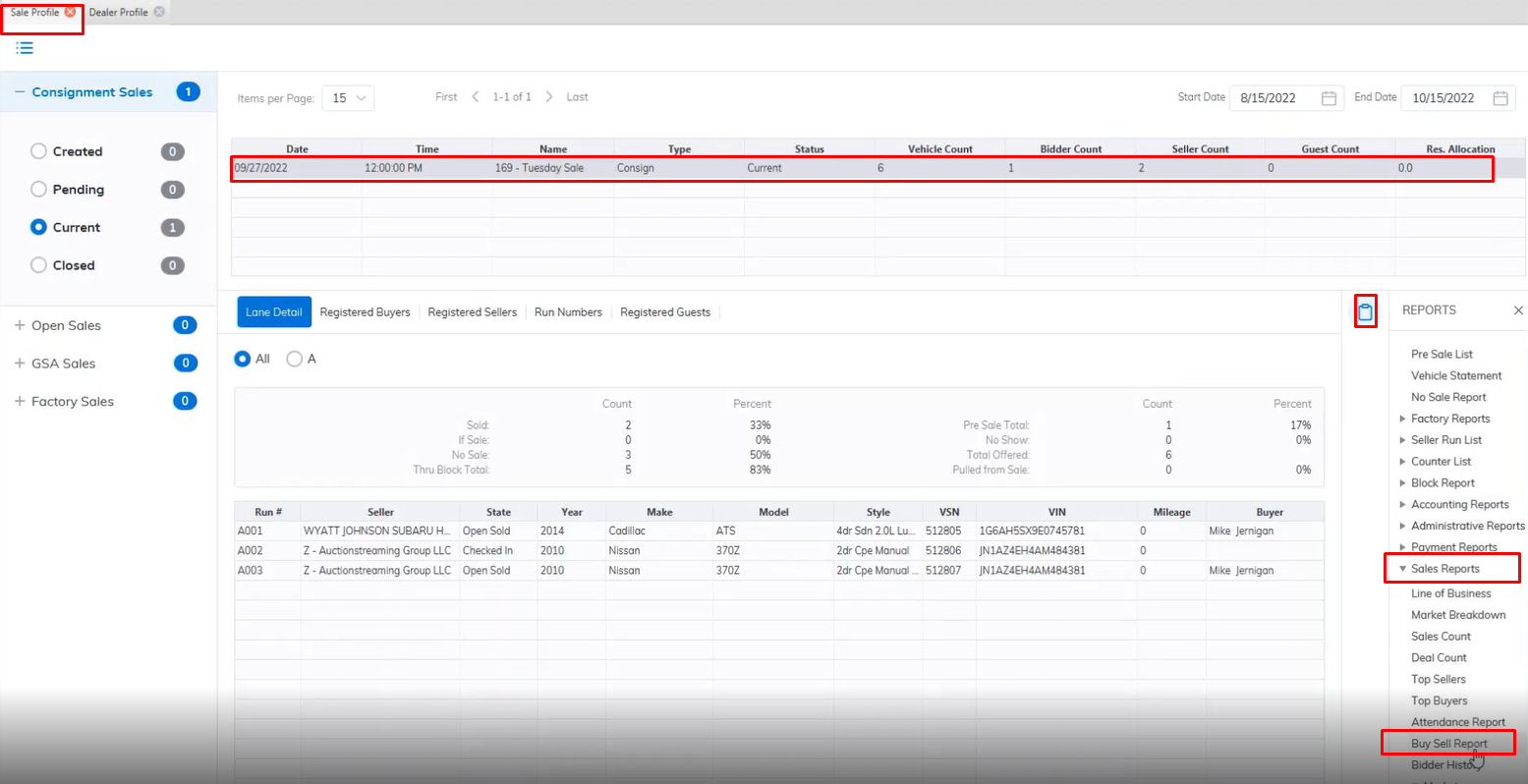
- Open the Sale Profile application.
- Select the Sale Date (You must select the Sale Date from the grid)
- Select the Reports Menu
- Then select the Buy Sell Reports sub-menu
- This will launch the report wizard.
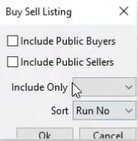
- Here you can select the "Include Public buyers" and "Include Public Sellers" checkboxes if you are a Public Auction.
- You can Filter the report by a specific lane by selecting the lane in the Include Only field.
- You can sort the report by Run Number, Buyer, Seller, etc. from the Sort field.
- Click 'OK' when done to create and print the report.
Bidder History Report
This report is designed to provide the Auction with a historical perspective of bidder attendance frequency and city origination over 12 weeks.
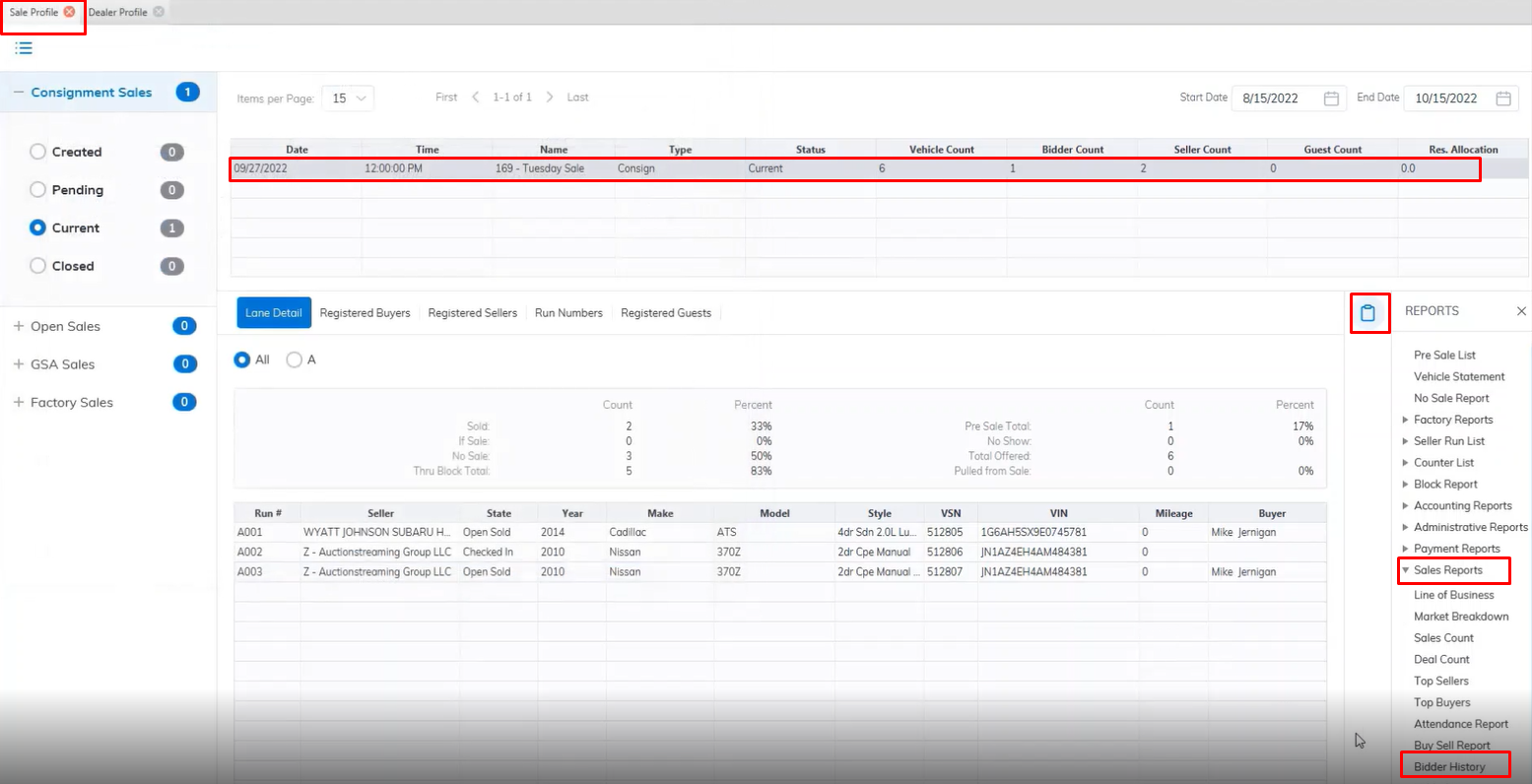
- Open the Sale Profile application.
- Select the Sale Date (You must select the Sale Date from the grid)
- Select the Reports Menu
- Then select the Bidder History Reports sub-menu
- This will launch the report wizard.
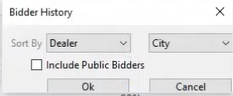
- The report is broken into 2 sections listing Dealer attendance and City of Origin. Sorting is done by Dealer Name or City. You may wish to 'Include Public Bidders' by clicking the Check box.
- Click 'OK' when done to create and print the report.
Market Report
The Market Report is used to provide historical information on the vehicle and its sale price.
- Open the Sale Profile application.
- Select the Sale Date (You must select the Sale Date from the grid)
- Select the Reports Menu
- Then select the Market Reports sub-menu (Here You may also run the CSV version of the same report.)
- This will launch the report wizard.
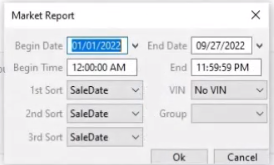
- You may select a 'Begin' and 'End' date if you wish to view information on more than one Sale.
- There are 3 sorting options: Sale Date, Make, Year, Price, and or Model.
- Click 'OK' when done to create and print the report.
Sales Report part 2
No Comments