# Sales Report part 2
##### **Top Sellers Report**
The Top Seller report is used to view selling Dealers ranked from most to least deals. The report includes:
- **Maximum Price**
- **Average Price**
- **Minimum Price**
[](https://cam3-wiki.auctionstreaming.com/uploads/images/gallery/2022-10/image-1664985753127.png)
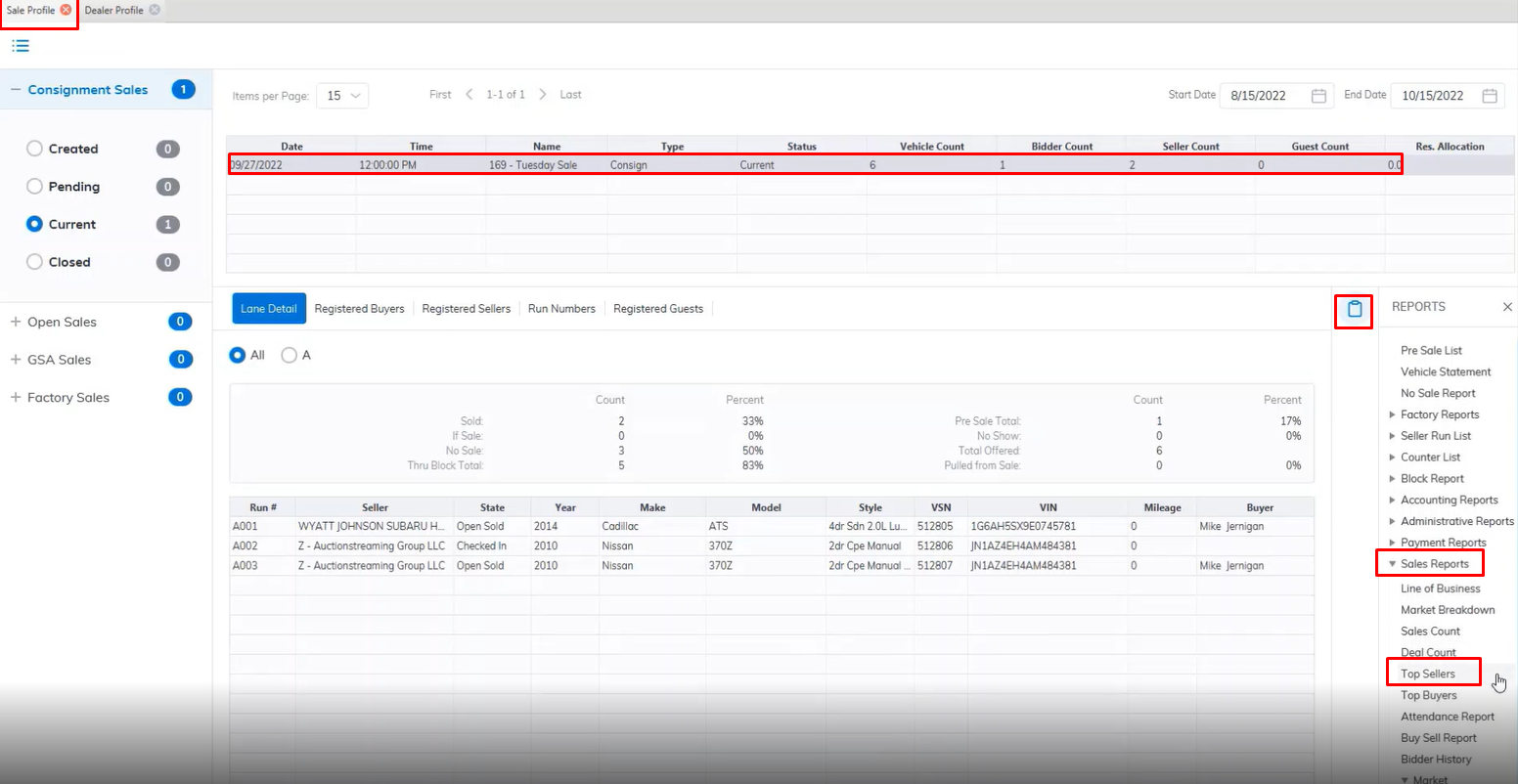
- Open the **[Sale Profile](https://cam3-wiki.auctionstreaming.com/books/cams-3-wiki-faq/page/sale-profile)** application.
- Select the Sale Date (**You must select the Sale Date from the grid**)
- Select the Reports Menu
- Then select the Top Sellers Reports sub-menu
- This will launch the report wizard.
[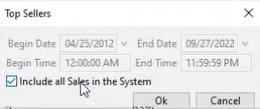](https://cam3-wiki.auctionstreaming.com/uploads/images/gallery/2022-10/image-1664985901124.png)
- Select the desired 'Begin' and 'End' dates or we can check the 'Include all Sales in the system' checkbox.
- Click 'OK' when done to create and print the report.
##### **Top Buyers Report**
The Top Buyers report is used to view buying Dealers ranked from most to least deals. The report includes:
- **Maximum Price**
- **Average Price**
- **Minimum Price**
[](https://cam3-wiki.auctionstreaming.com/uploads/images/gallery/2022-10/image-1664985817722.png)
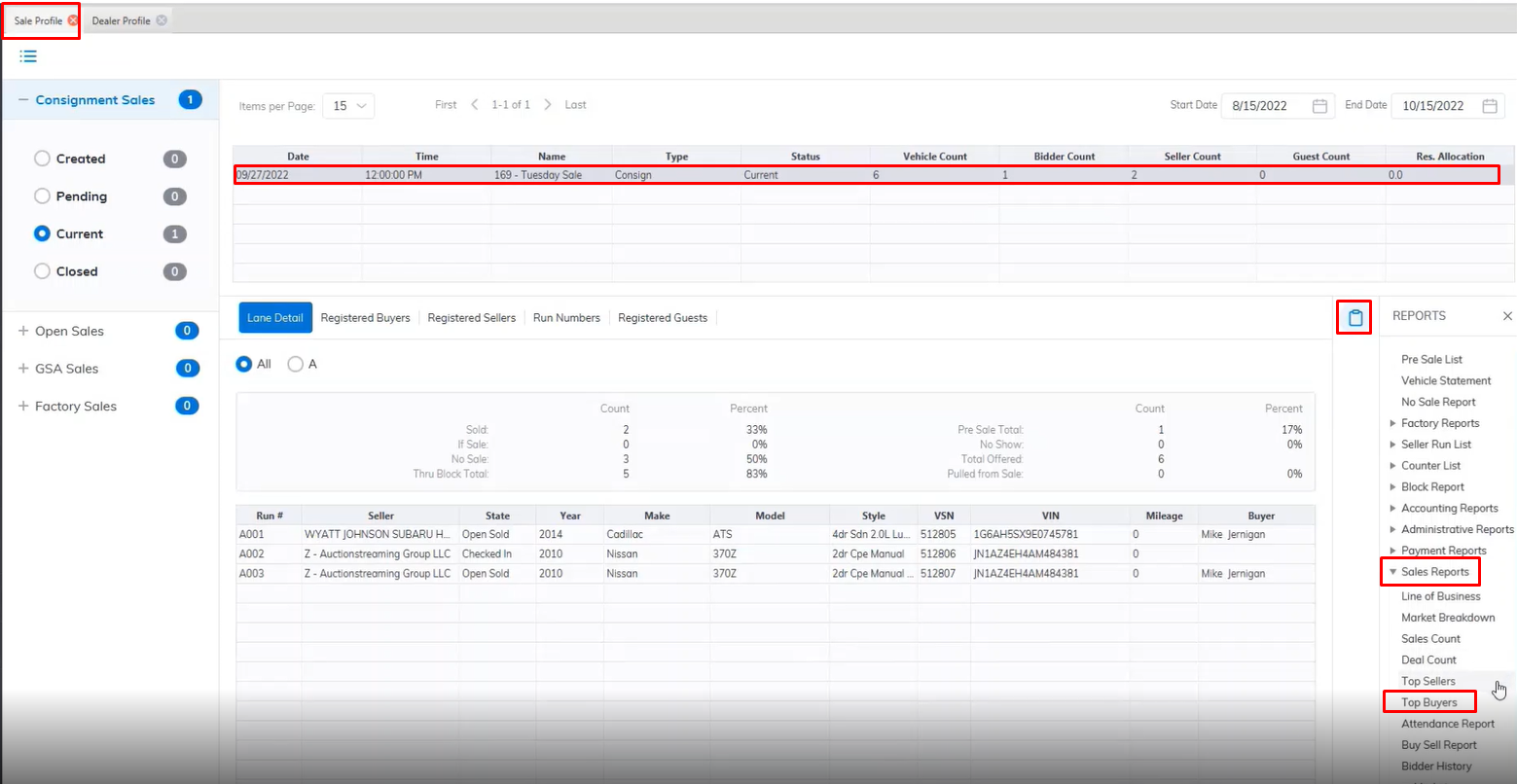
- Open the **[Sale Profile](https://cam3-wiki.auctionstreaming.com/books/cams-3-wiki-faq/page/sale-profile)** application.
- Select the Sale Date (**You must select the Sale Date from the grid**)
- Select the Reports Menu
- Then select the Top Buyers Reports sub-menu
- This will launch the report wizard.
[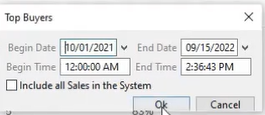](https://cam3-wiki.auctionstreaming.com/uploads/images/gallery/2022-10/image-1664986280083.png)
- Select the desired 'Begin' and 'End' dates or we can check the 'Include all Sales in the system' checkbox.
- Click 'OK' when done to create and print the report.
##### **Attendance Report**
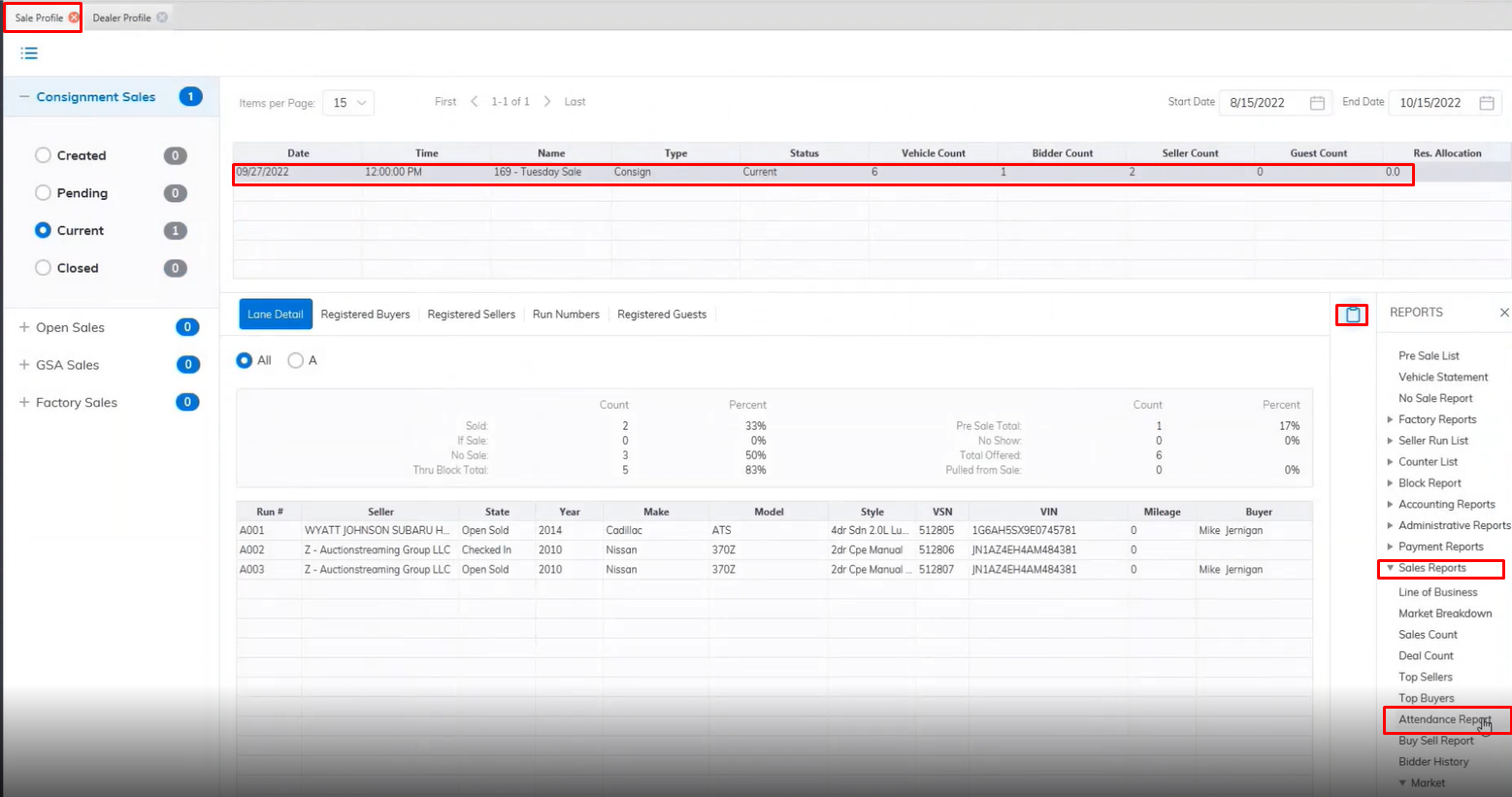
The Attendance report lists all bidders for the selected Sale Date and runs from the Sale Profile. It is used to prospect bidders who most recently attended a sale. However, you may run the report for any selected sale date.
[](https://cam3-wiki.auctionstreaming.com/uploads/images/gallery/2022-10/image-1664986412232.png)
- Open the **[Sale Profile](https://cam3-wiki.auctionstreaming.com/books/cams-3-wiki-faq/page/sale-profile)** application.
- Select the Sale Date (**You must select the Sale Date from the grid**)
- Select the Reports Menu
- Then select the Attendance Reports sub-menu
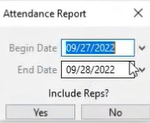
- This will launch the report wizard.
[](https://cam3-wiki.auctionstreaming.com/uploads/images/gallery/2022-10/image-1664986485655.png)
- Select the desired 'Begin' and 'End' dates.
- Click 'Yes' when done to create and print the report.
##### **Buy Sell Report**
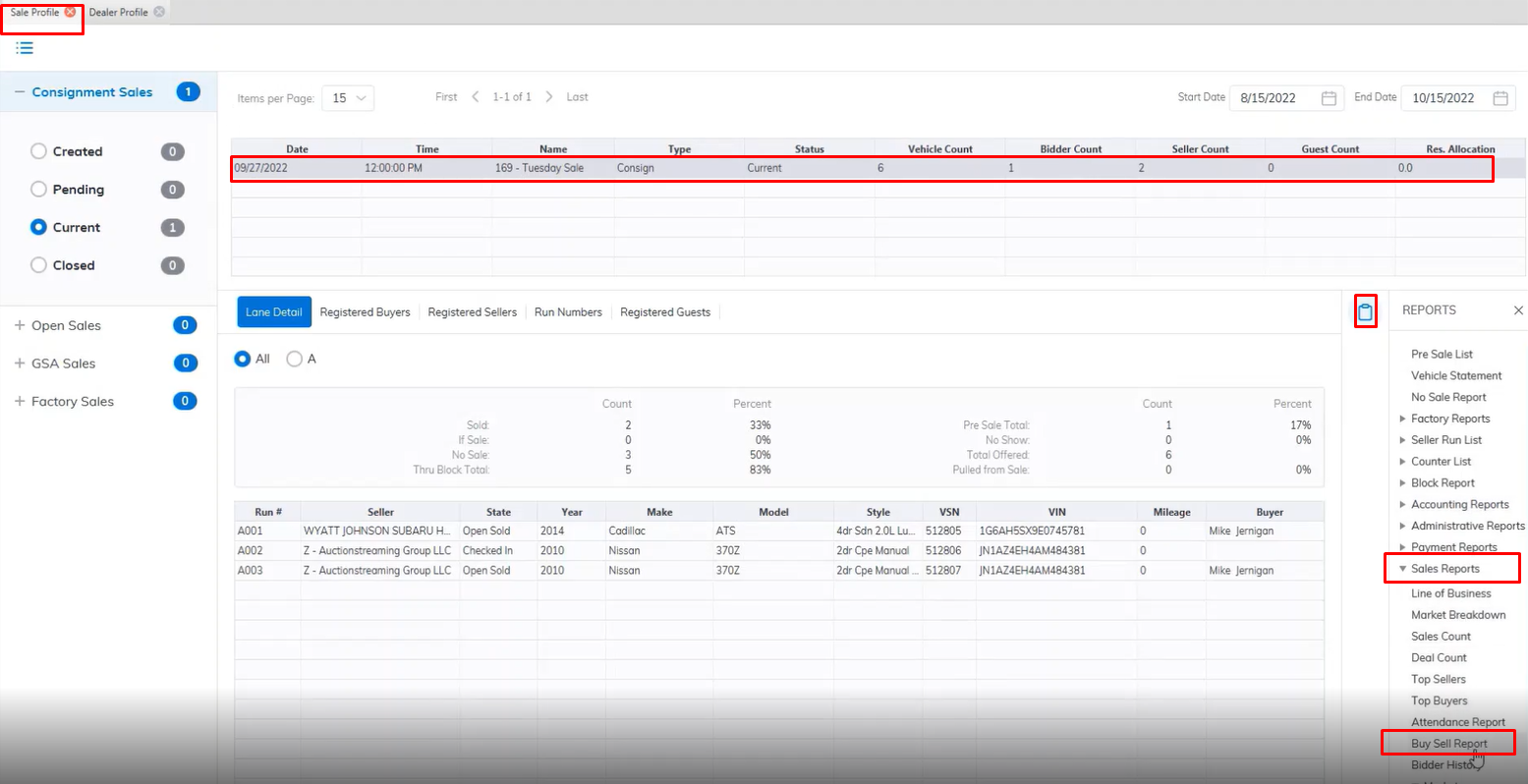
This report only runs for a single sale. There is no date range. This report list the total number of Sold vehicles and their buyers and their corresponding sellers.
[](https://cam3-wiki.auctionstreaming.com/uploads/images/gallery/2022-10/image-1664986795302.png)
- Open the **[Sale Profile](https://cam3-wiki.auctionstreaming.com/books/cams-3-wiki-faq/page/sale-profile)** application.
- Select the Sale Date (**You must select the Sale Date from the grid**)
- Select the Reports Menu
- Then select the Buy Sell Reports sub-menu
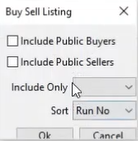
- This will launch the report wizard.
[](https://cam3-wiki.auctionstreaming.com/uploads/images/gallery/2022-10/image-1664987030772.png)
- Here you can select the "Include Public buyers" and "Include Public Sellers" checkboxes if you are a Public Auction.
- You can Filter the report by a specific lane by selecting the lane in the Include Only field.
- You can sort the report by Run Number, Buyer, Seller, etc. from the Sort field.
- Click 'OK' when done to create and print the report.
##### **Bidder History Report**
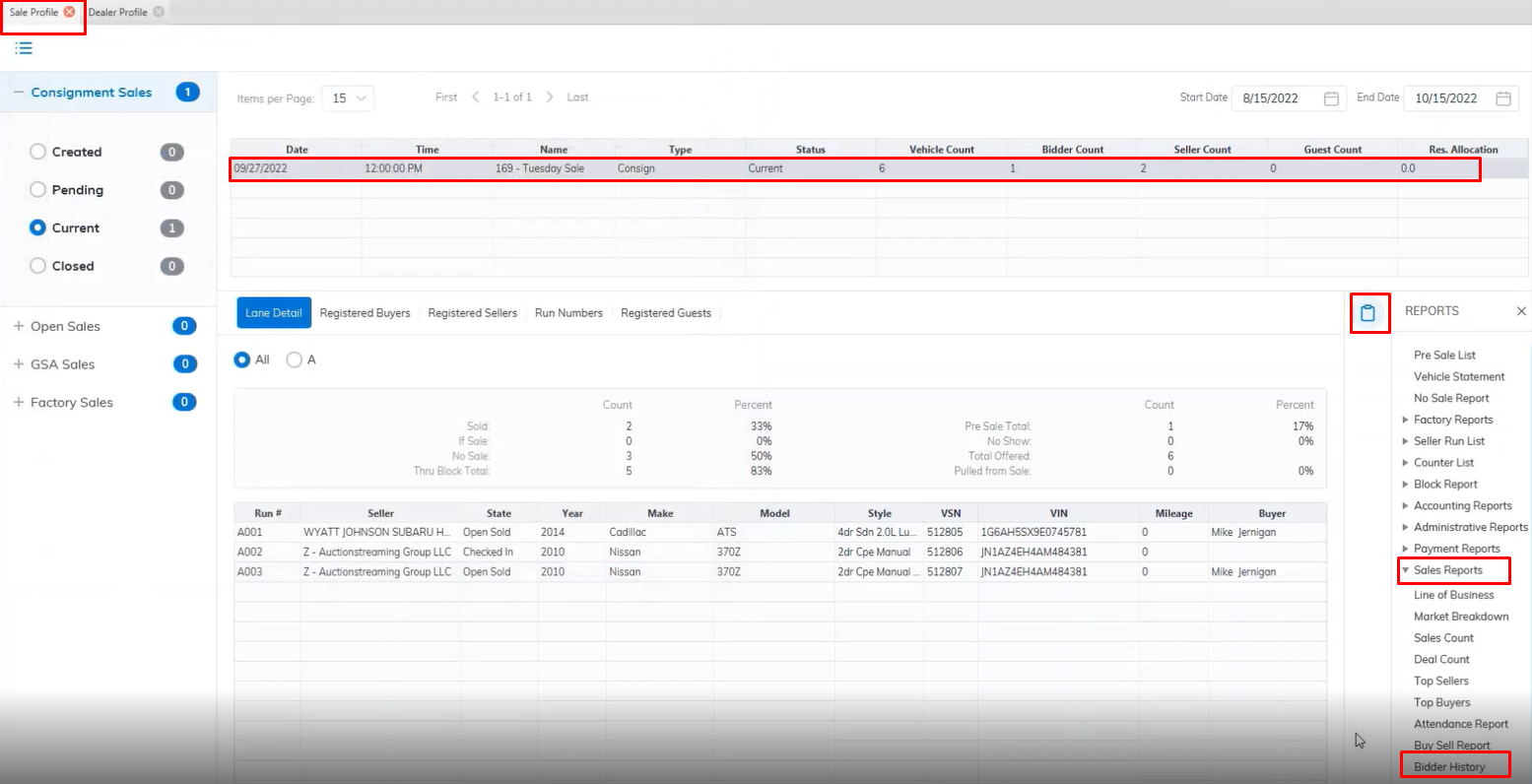
This report is designed to provide the Auction with a historical perspective of bidder attendance frequency and city origination over 12 weeks.
[](https://cam3-wiki.auctionstreaming.com/uploads/images/gallery/2022-10/image-1664987638994.png)
- Open the **[Sale Profile](https://cam3-wiki.auctionstreaming.com/books/cams-3-wiki-faq/page/sale-profile)** application.
- Select the Sale Date (**You must select the Sale Date from the grid**)
- Select the Reports Menu
- Then select the Bidder History Reports sub-menu
- This will launch the report wizard.
[](https://cam3-wiki.auctionstreaming.com/uploads/images/gallery/2022-10/image-1664987796272.png)
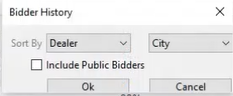
- The report is broken into 2 sections listing Dealer attendance and City of Origin. Sorting is done by Dealer Name or City. You may wish to 'Include Public Bidders' by clicking the Check box.
- Click 'OK' when done to create and print the report.
##### **Market Report**
The Market Report is used to provide historical information on the vehicle and its sale price.
- Open the **[Sale Profile](https://cam3-wiki.auctionstreaming.com/books/cams-3-wiki-faq/page/sale-profile)** application.
- Select the Sale Date (**You must select the Sale Date from the grid**)
- Select the Reports Menu
- Then select the Market Reports sub-menu (**Here You may also run the CSV version of the same report.**)
- This will launch the report wizard.
[](https://cam3-wiki.auctionstreaming.com/uploads/images/gallery/2022-10/image-1664988081320.png)
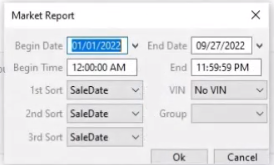
- You may select a 'Begin' and 'End' date if you wish to view information on more than one Sale.
- There are 3 sorting options: Sale Date, Make, Year, Price, and or Model.
- Click 'OK' when done to create and print the report.
**Sales Report part 2******