
Transportation and Service
Transportation and Service application - displays Vehicles in Stock (Fleet / Lease). The summary sections contain a selected Vehicle's make, model, and current state. All 'Active' and 'Off-Site' Vehicles are loaded into this application.
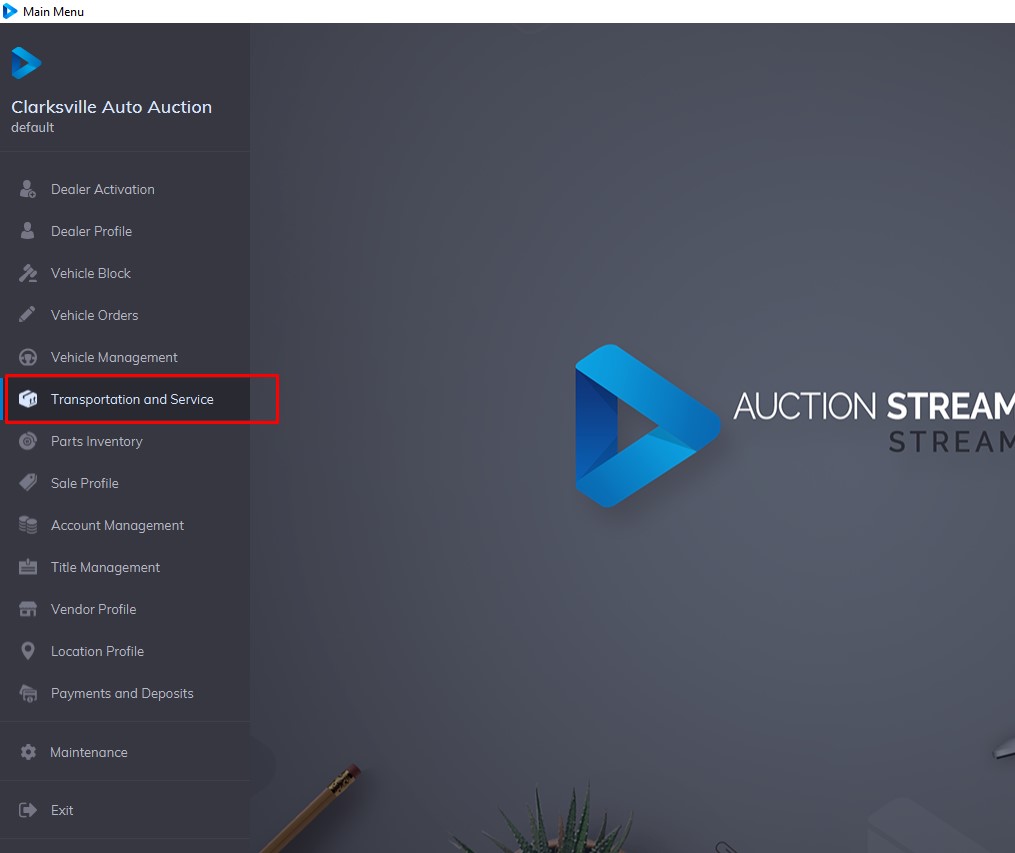
The grid displays Vehicles based on the sash and button(s) selected. The 3 sashes or groups of Vehicle States are:
- Pick Up
- Service
- Delivery
It is possible to Search for a vehicle according to VIN8 (last 8 digits of the VIN) or VSN (6 digits).
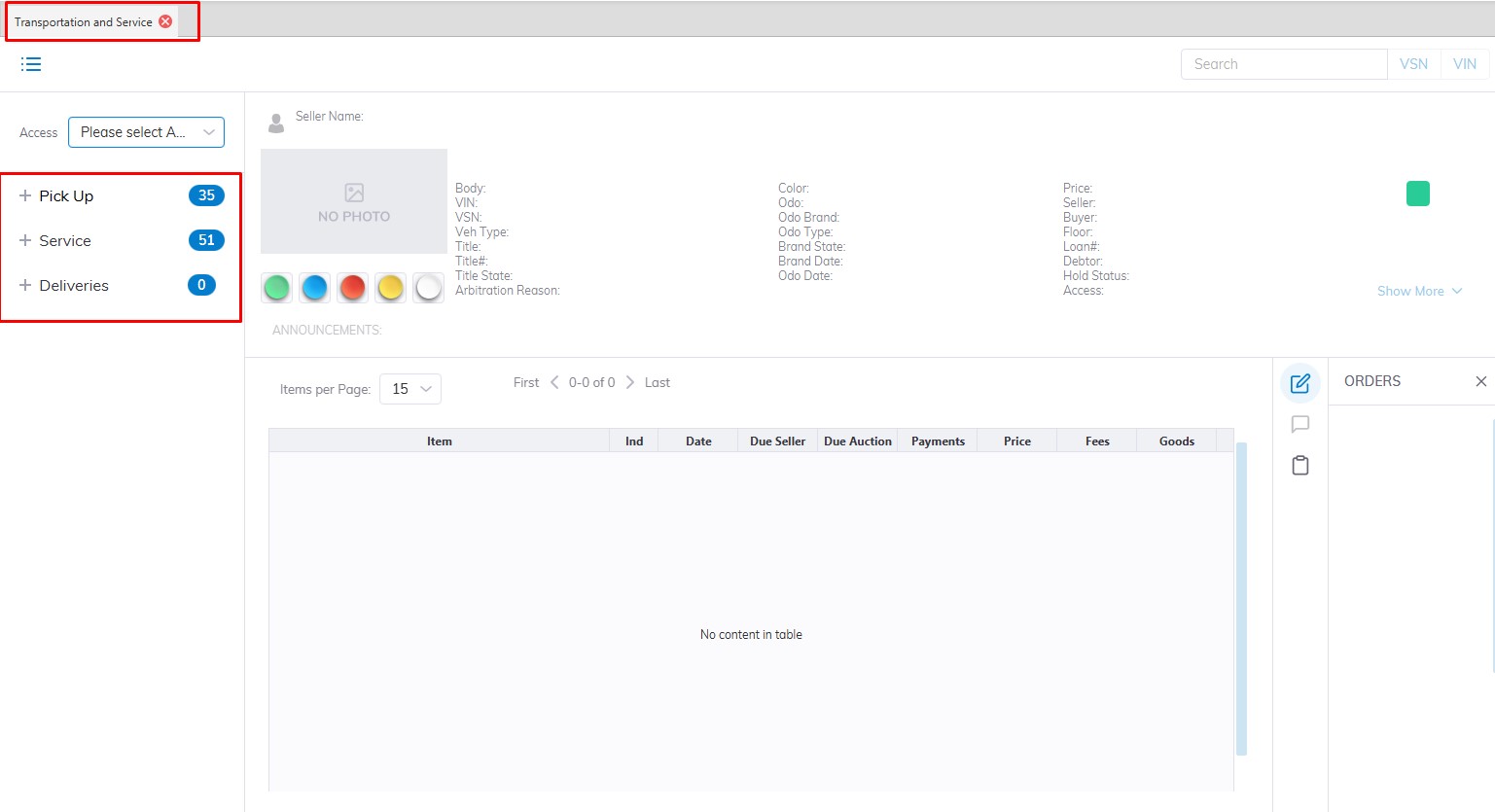
Pick Up Sash - contains 3 buttons, each corresponding to a Pick Up State. Each Vehicle has a 2-digit indicator showing the Vehicles' state indicated in red.
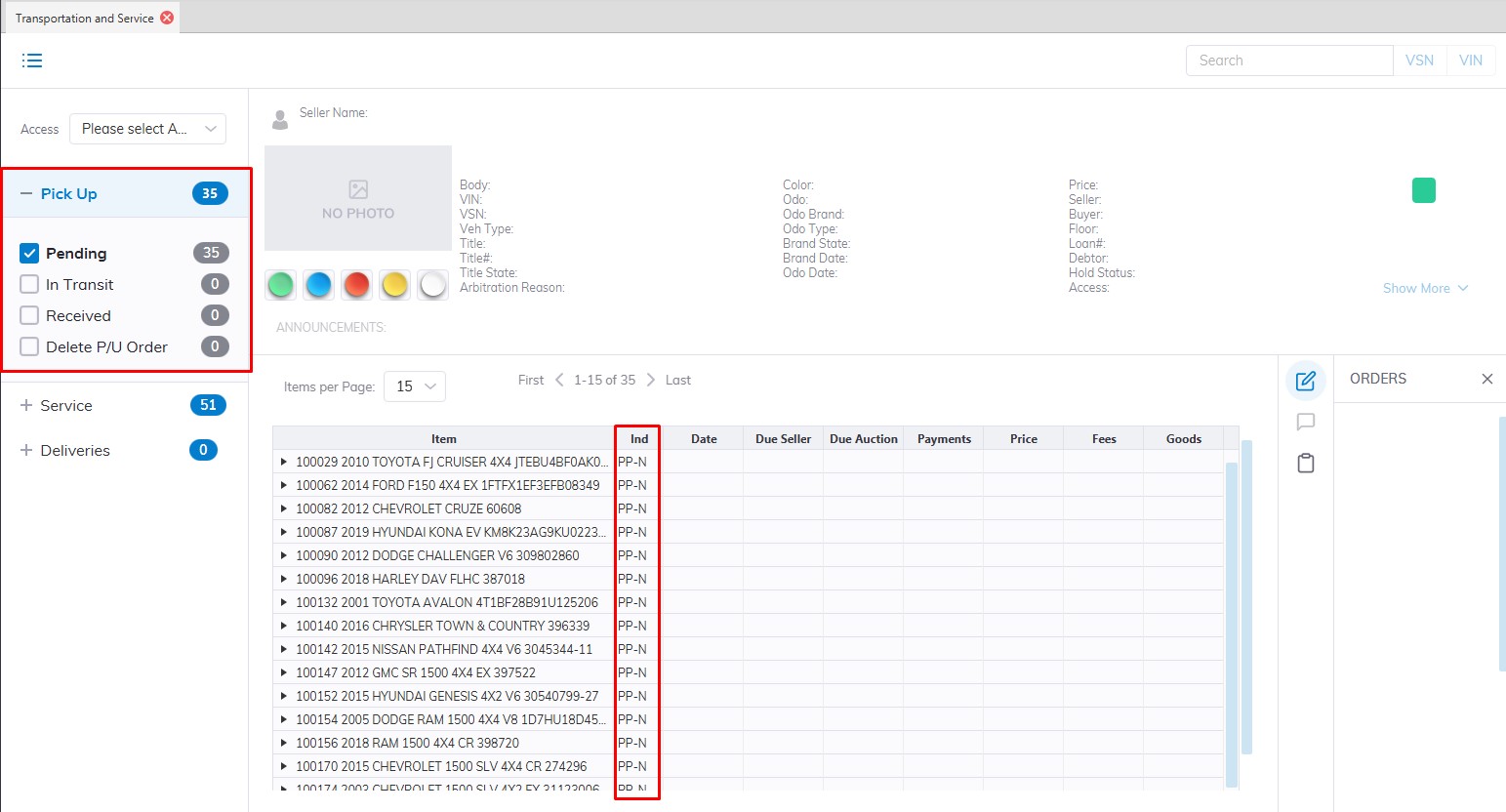
Hold Pick Up (HP)
A Hold Pick Up is the result of a Pick-Up InTransit being 'Held' pending some action by the Auction. This Vehicle also appears in the Inventory Tab of the Dealer Profile application.
- You may do a Reinstate Pick Up order to go back to In Transit
- You may do a Delete Pick Up order to start over.
- You may also add a Charge or Adjustment.
Pick Up In Transit (PT)
This Vehicle is in Transit to the Auction. This Vehicle also appears in the Inventory Tab of the Dealer Profile application.
- You may do an Arrive order to bill the Vehicle for the Transportation fees.
- You may do a Hold order to place the Vehicle Transportation on hold.
- You may do an Edit order to change Pick Up or Delivery Locations.
- You may also add a Charge or Adjustment.
Arrived Pick Up (AP)
This Vehicle has Arrived or has been received at the Auction but remains outside the gate. This Vehicle also appears in the Inventory Tab of the Dealer Profile application.
- You may do a Stock In order to make the VSN Active.
- You may also add a Charge or Adjustment.
Service Sash - contains 4 buttons each corresponding to a Service State. There are 5 states described below, Un Sold Settle is nested in the Ready button. Each Vehicle has a 2-digit indicator showing the Vehicles' state. See below for a discussion of the four Vehicle States and the Show Details button.
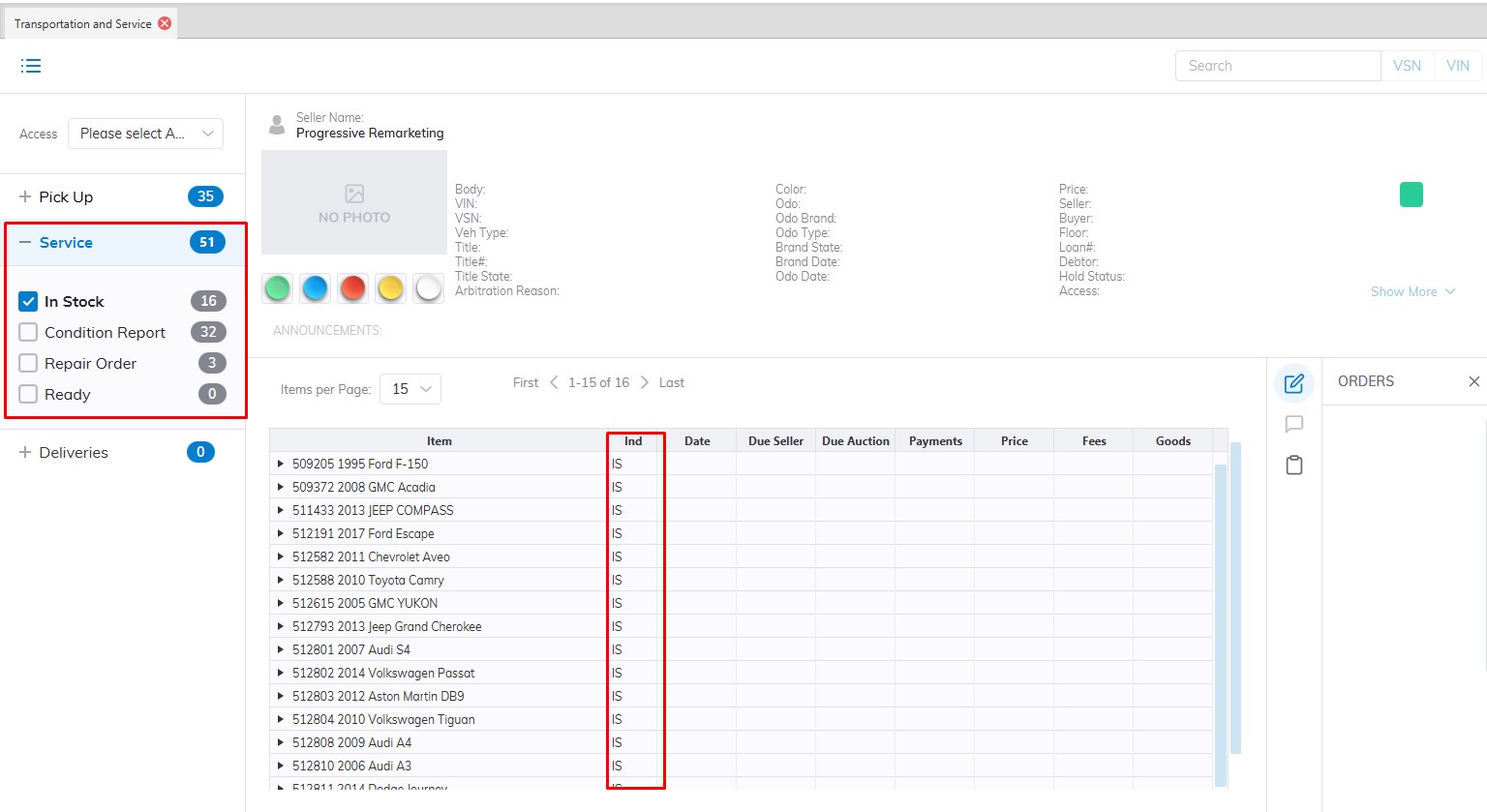
In Stock (IS)
These Vehicles are usually Fleet / Lease Vehicles. This Vehicle also appears in the Inventory Tab of the Dealer Profile application.
- You may do a Condition Report Order to input a Condition Report.
- You may do an Issue RO order to create a Repair Order.
- You may do a Sale Check In order to move the VSN into a Sale.
- You may do an Un-Sold Settle order if the Seller wishes to remove the Vehicle from the Sale.
- You may also add a Charge or Adjustment.
Condition Report (CR)
This Vehicle also appears in the Inventory Tab of the Dealer Profile application.
- You may do an Issue RO order to create a Repair Order.
- You may do a Sale Check In order to move the VSN into a Sale.
- You may do an Un-Sold Settle order if the Seller wishes to remove the Vehicle from the Sale.
- You may also add a Charge or Adjustment
Repair Order (RP)
These Vehicles are in for Repairs. This Vehicle also appears in the Inventory Tab of the Dealer Profile application.
- You may do an Amend RO order to post charges for Parts, Labor, Sublet, or Services.
- You may do a Close RO order to post RO charges to the Vehicle balance.
- You may also add a Charge or Adjustment.
Ready (RY)
These Vehicles are ready to be placed into a Sale. This Vehicle also appears in the Inventory Tab of the Dealer Profile application.
- You may do a Condition Report Order to input a Condition Report.
- You may do an Issue RO order to create a Repair Order.
- You may do a Sale Check In order to move the VSN into a Sale.
- You may do an Un-Sold Settle order if the Seller wishes to remove the Vehicle from the Sale.
- You may also add a Charge or Adjustment.
Un Sold Settle (US) - nested in Ready
These Vehicles are being taken out of Inventory. This Vehicle also appears in the Inventory Tab of the Dealer Profile application.
- You may do a Departure order to move the VSN to In Active.
- You may also add a Charge or Adjustment.
No Comments