
Pre-Sale list and Counter list
Pre Sale Report
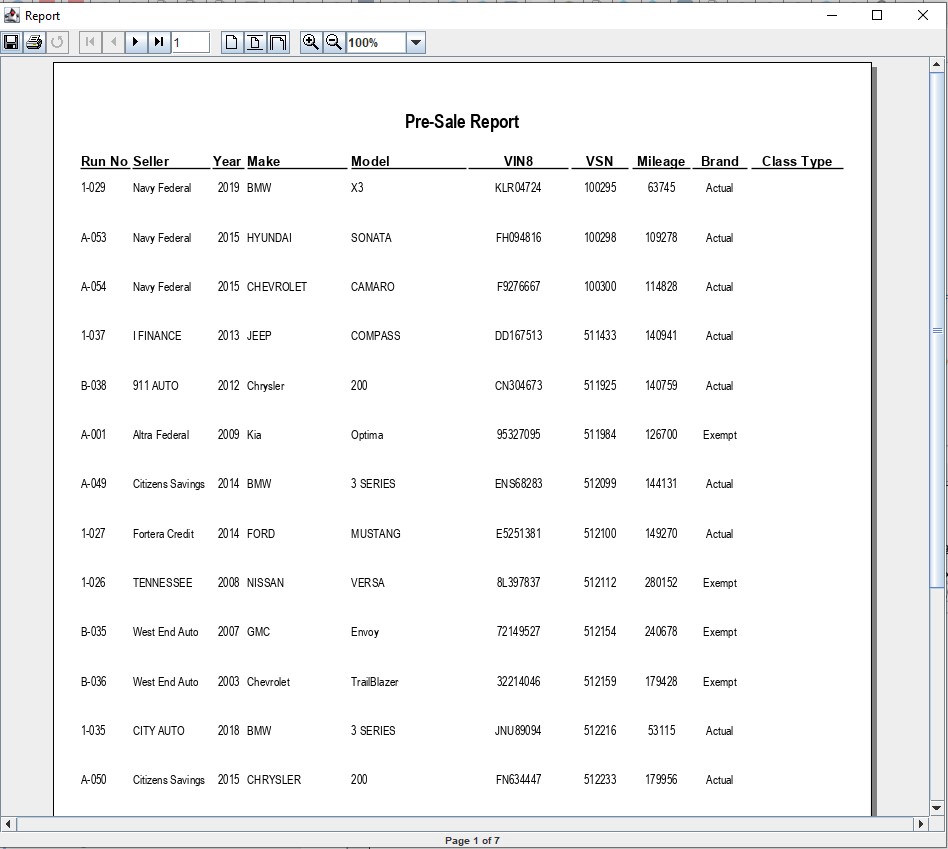
The Pre Sale report is for buyers who need a list of what is available for sale. It does contain the name of the Selling Dealer. If you need the same report without the Selling dealer run the Counter List report. You may run the report from the Sale Profile or the Vehicle Block applications.
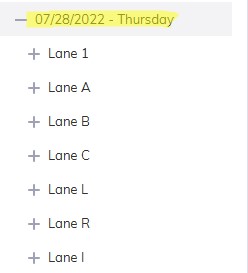
Note: You must select the 'Sale Description' (click the '+' sign next to the Sale Date' and select a Lane) to run the report.
- Select the Vehicle Block application
- Select Reports Menu
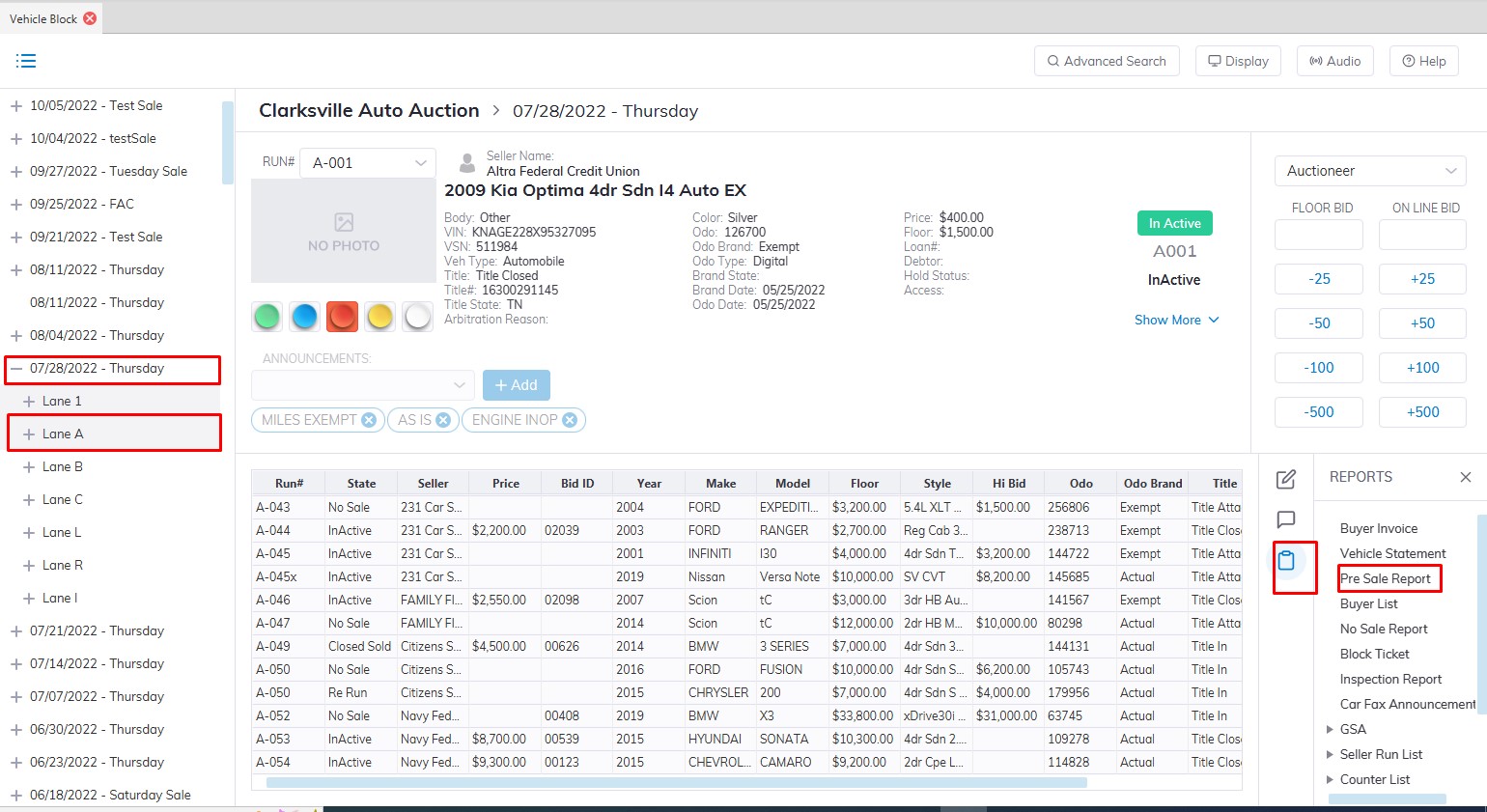
- Then Select the submenu Pre Sale Report.
- This will launch the report wizard
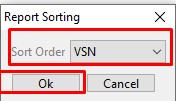
- Here you can Sort the Report before creating and printing it. You can sort by VSN, Class type, and Run number.
- Click 'OK' when done to create and print the report.
Counter List
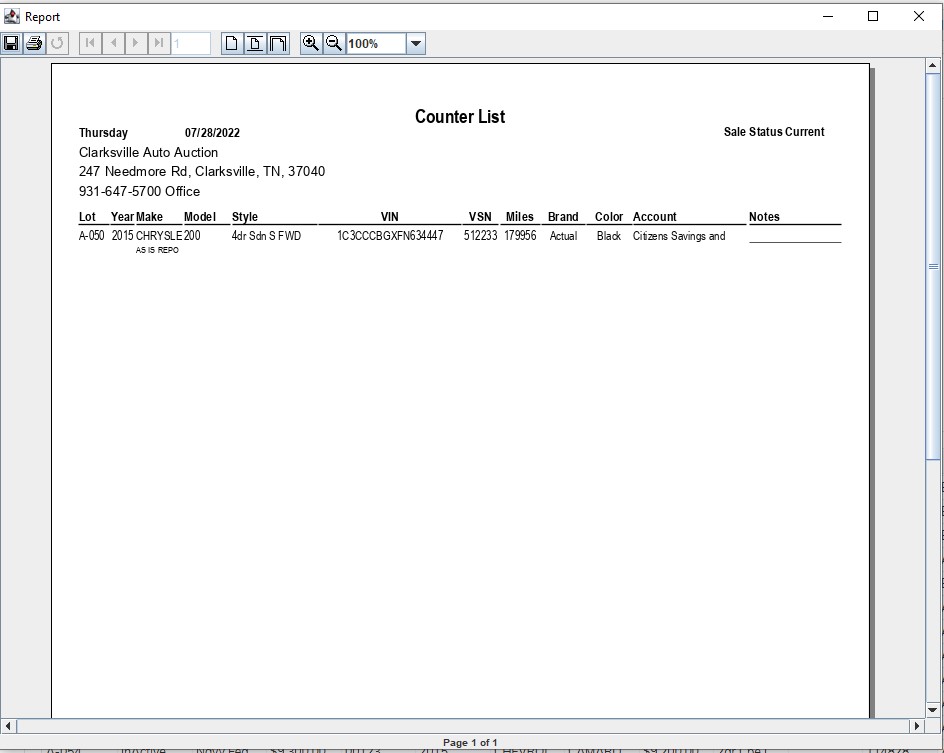
The Counter List report is for buyers who need a list of what is available for sale. It does not contain the name of the Selling Dealer. You may run the report from the Sale Profile or the Vehicle Block applications.
Note: You must select the 'Sale Description' (click the '+' sign next to the Sale Date' and select a Lane) to run the report.
- Select the Vehicle Block application
- Select Reports Menu
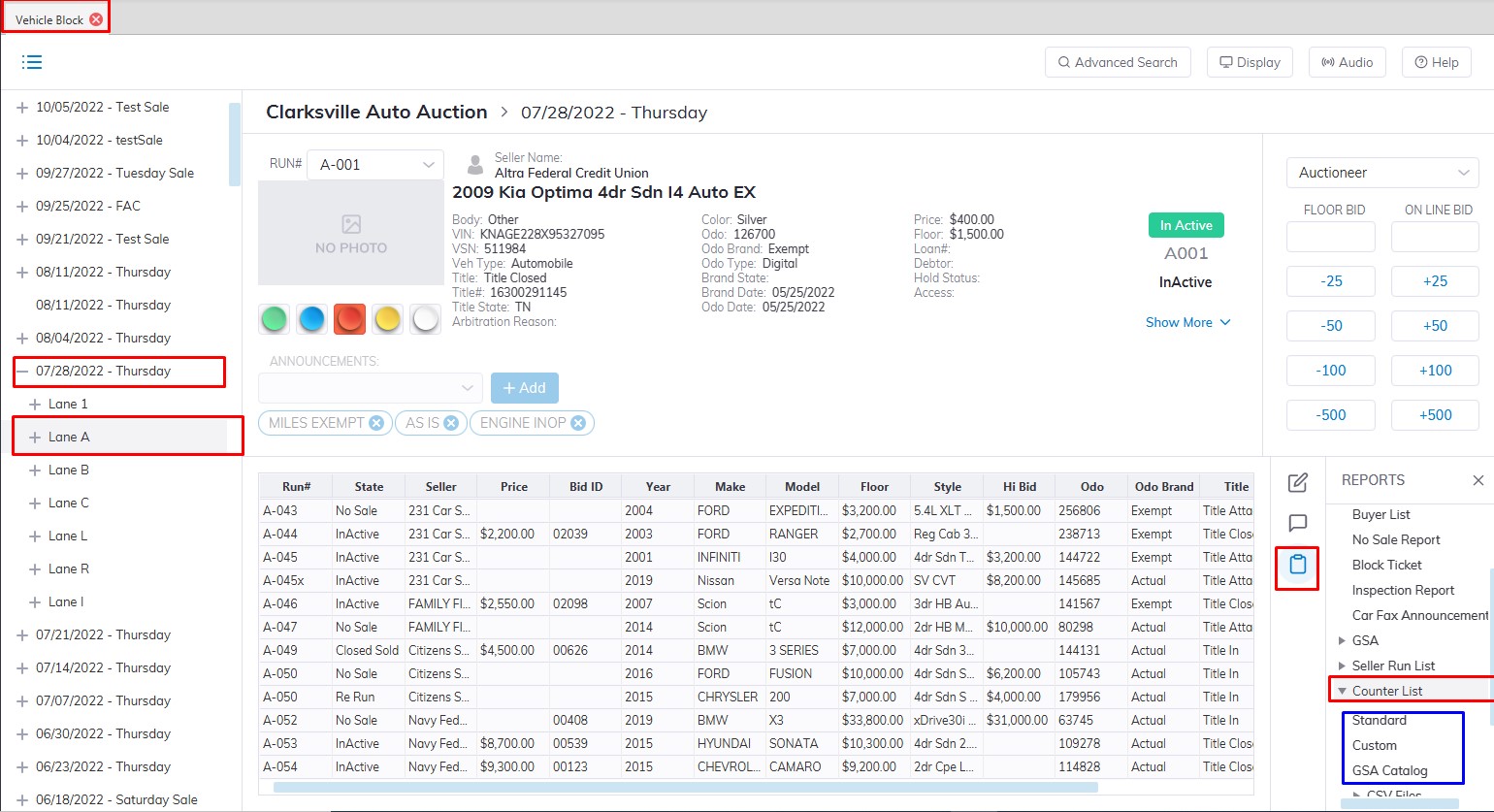
- Then Select the submenu Counter List Report here you have several report types Standard, Custom GSA Catalog, and CSV files.
- In this example we choose Standard.
-
You may also run 2 CSV versions of the Counter List report for 'Run List' or 'Damage'. The 'Damage' file contains the Condition Report items, the Run List contains vehicles for sale. Both files may be used to forward to OnLine Ringman.
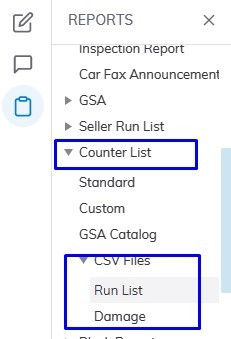
- This will launch the report wizard
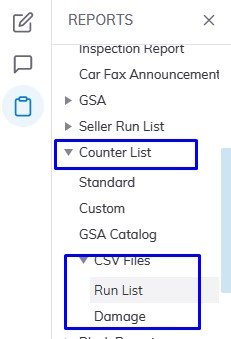
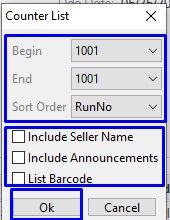
- You may choose from the following sort options and you may or may not include the name of the seller or any announcements on the report. If you wish the report to begin at a specific Run No. you may choose this as well
- Begin Run Number
- End Run Number
- VSN (vehicle stock number)
- Make-Model
- Begin Run Number
- Click 'OK' when done to create and print the report.
No Comments