
Sale Profile
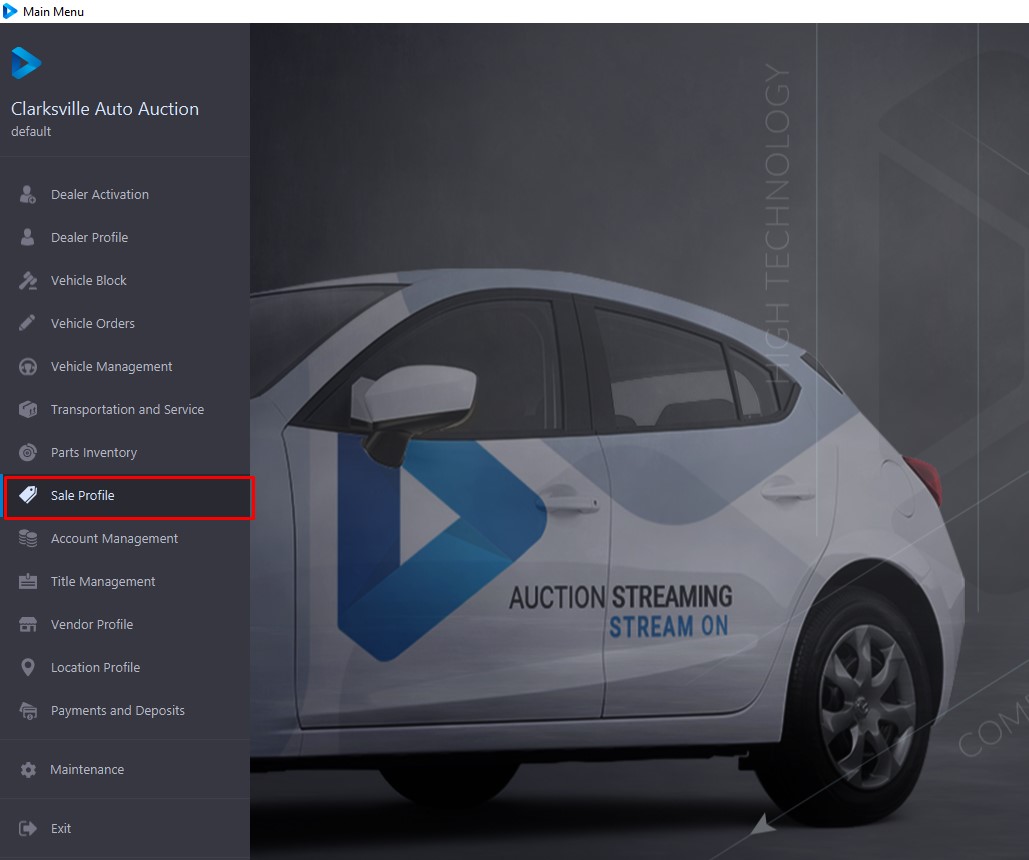
Sale Profile application - a view of the Sale by Sale Type and by Sale Status. Each of the 4 sashes represents a Sale Type. To Open the Sale Profile Application you access it from the Main Menu.
Each Sale Type has 4 Sale Status buttons that are used to filter the display. The buttons are cumulative. Sale Status may be controlled or changed in the Auction Administration's Sale Tab. The 4 Sale Status Types are described below.
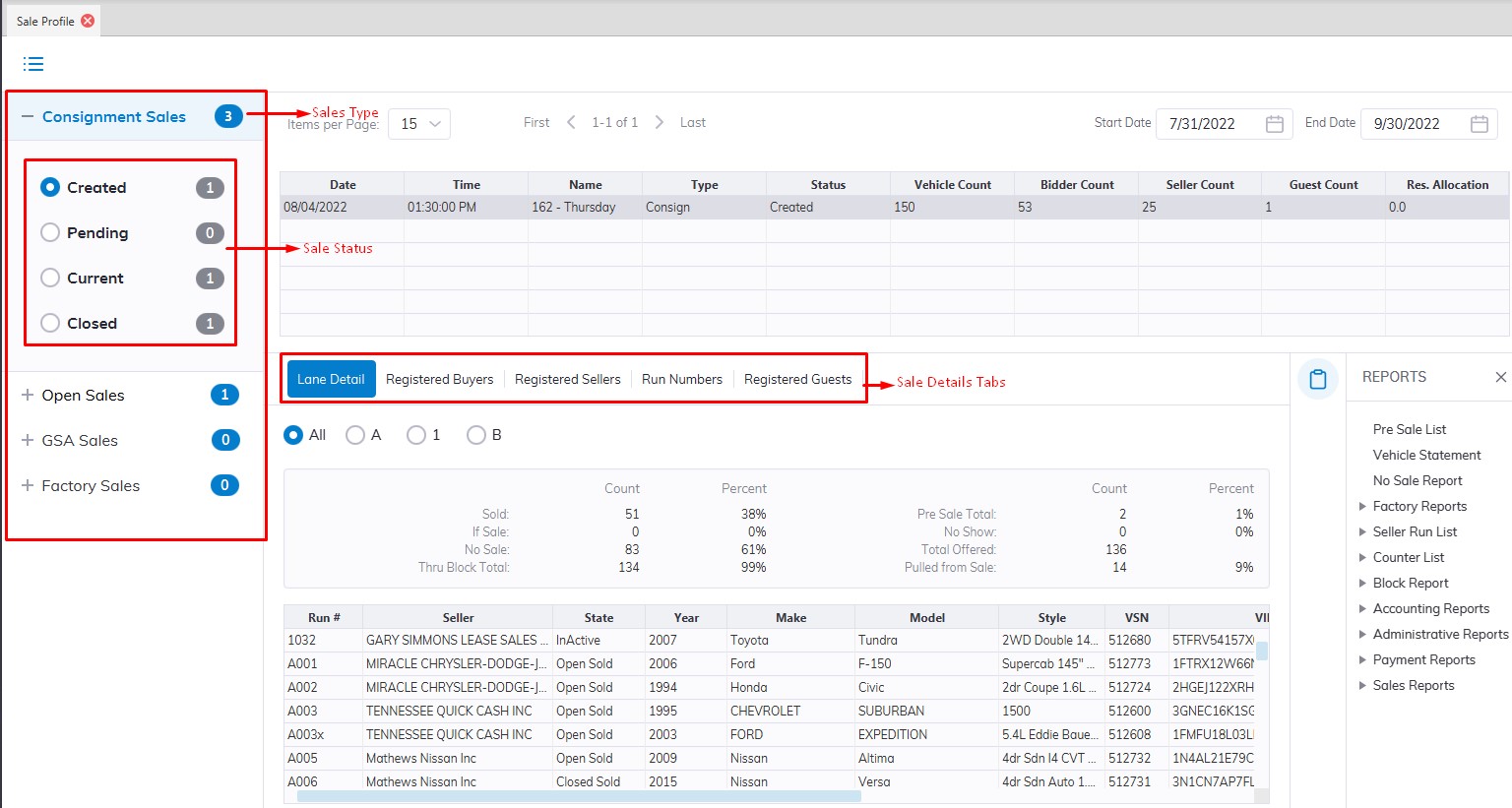
Sale Type
- Consignment Sales
- Open Sales
- GSA Sales
- Factory Sales
Sale Status
- Created - A Sale that exists but is not available for Vehicle or Buyer Check-In.
- Pending - A Sale which is available for Vehicle and Buyer Check-In.
- Current - A Sale with Registered Vehicles and Buyers.
- Closed - A Sale that has no Active Vehicles in it
The Sale Status is used to track the life cycle of a Sale.
Sale Details
The date in the Date column of the grid is the sale date. You may sort by any column heading. Click on a Date for detailed information on that Sale. Detailed information is presented in the 5 tabs below the grid.
- Lane Detail
- Registered Buyers
- Registered Sellers
- Run Numbers
- Registered Guests
Lane Detail
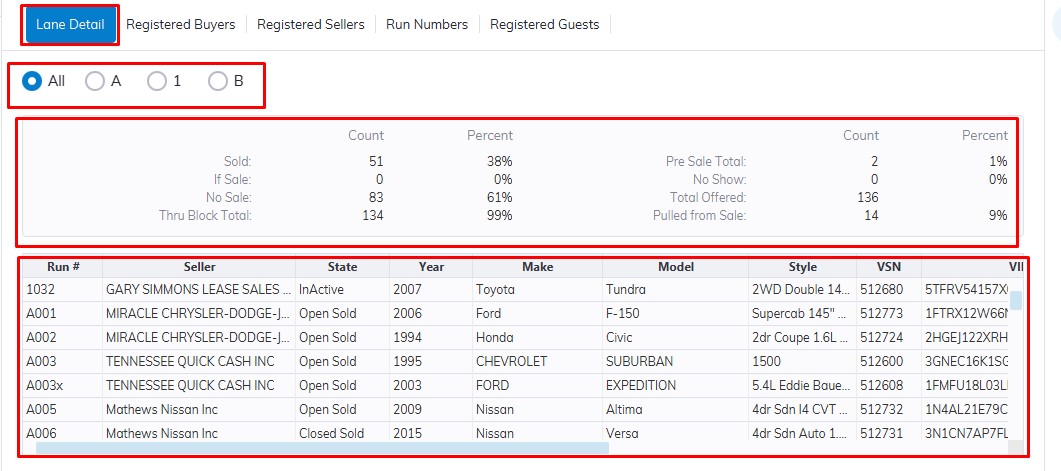
Select a Date in the top grid and the Lane Detail tab will populate with all the Vehicles for that Sale Date. You can choose a specific lane or All to display information on all the lanes. You can click the radial button (A) to view sales percentages by lane.
The statistics below the Lane selection show counts and percentage of participation by all vehicles in the sale. The grid below is a listing of the Vehicles that participated in the sale.
Click on a column heading to sort the grid in ascending order, and click again to reverse the sort order.
Registered Buyers
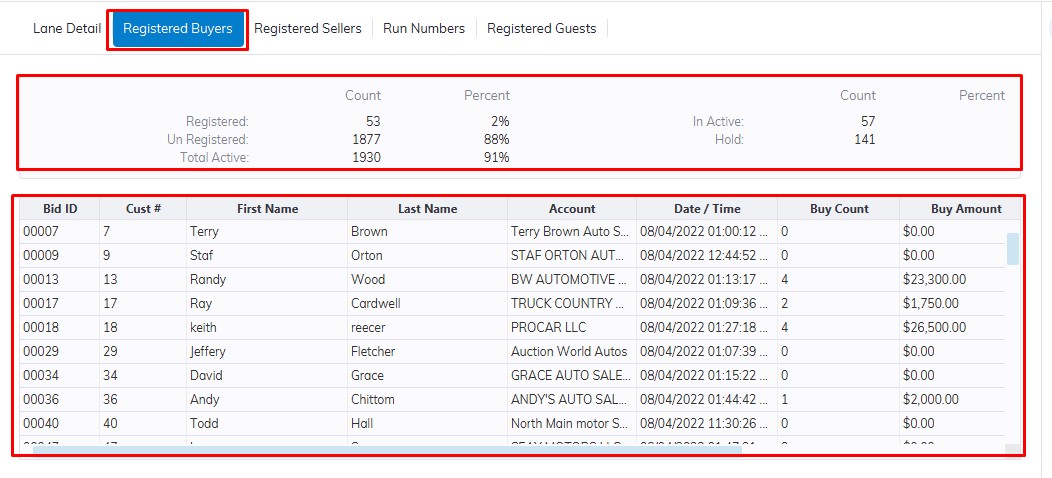
Select a Date in the top grid and the Registered Buyers tab will populate with all the Registered Buyers for that Sale Date.
The statistics show counts and percentages of participation by all accounts in the system at the time of the sale. This Sale has a 2% participation rate. The grid below this section is a listing of the Registered Buyers that participated in the sale. Click on a column heading to sort the grid in ascending order, and click again to reverse the sort order.
Note: You can also Reprint A Bidder Badge here
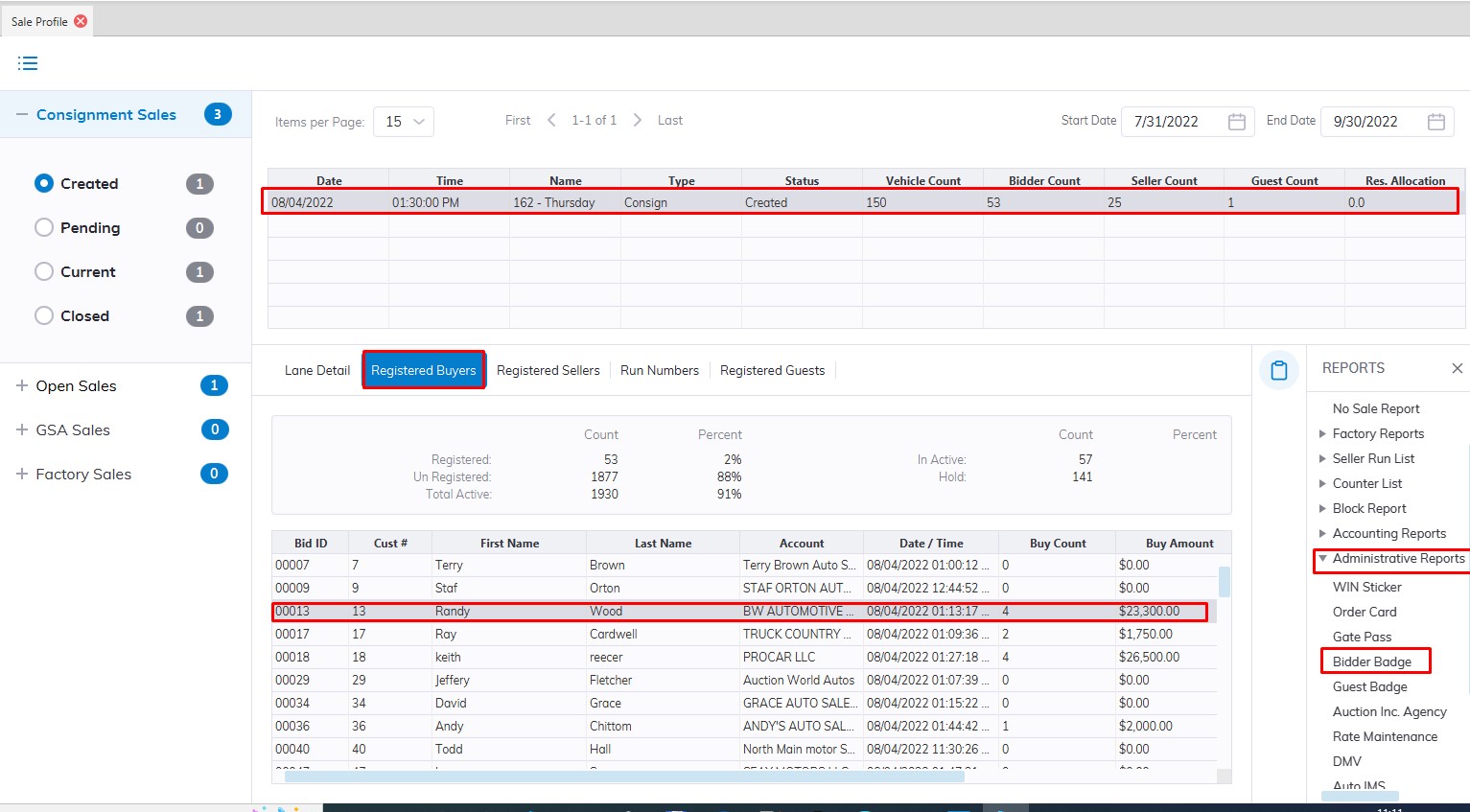
Select
- Sale Date
- Registered Buyers Tab
- Next Find the Buyer by Name, Last Name, Bid ID, Customer Number, or Dealer Account in the Grid.
- Click under the Reports on the right>>Administrative Reports>>Bidder Badge
Registered Sellers
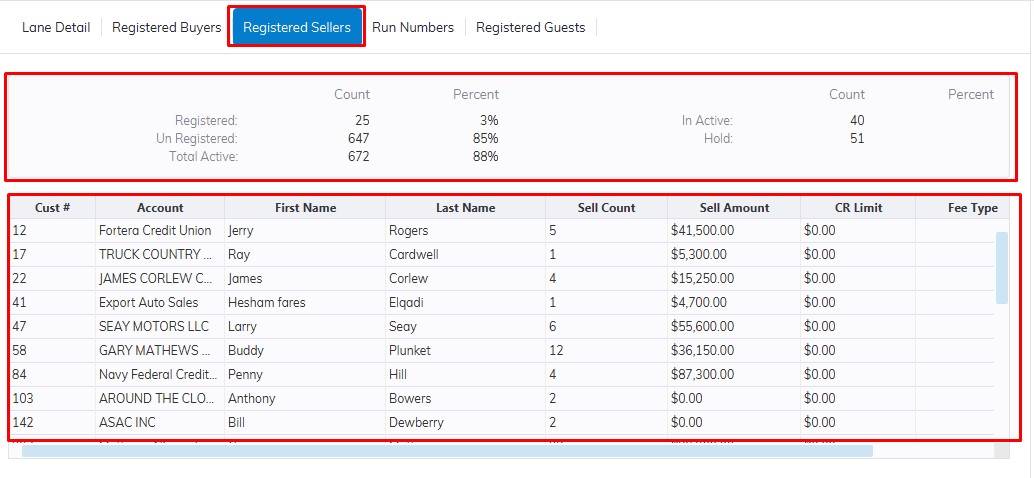
Select a Date in the top grid and the Registered Sellers tab will populate with all the Registered Sellers for that Sale Date.
The statistics show counts and percentage of participation by all accounts in the system at the time of the sale. This Sale has a 3% participation rate. The grid below this section is a listing of the Registered Sellers that participated in the sale. Click on a column heading to sort the grid in ascending order, and click again to reverse the sort order.
Run Numbers
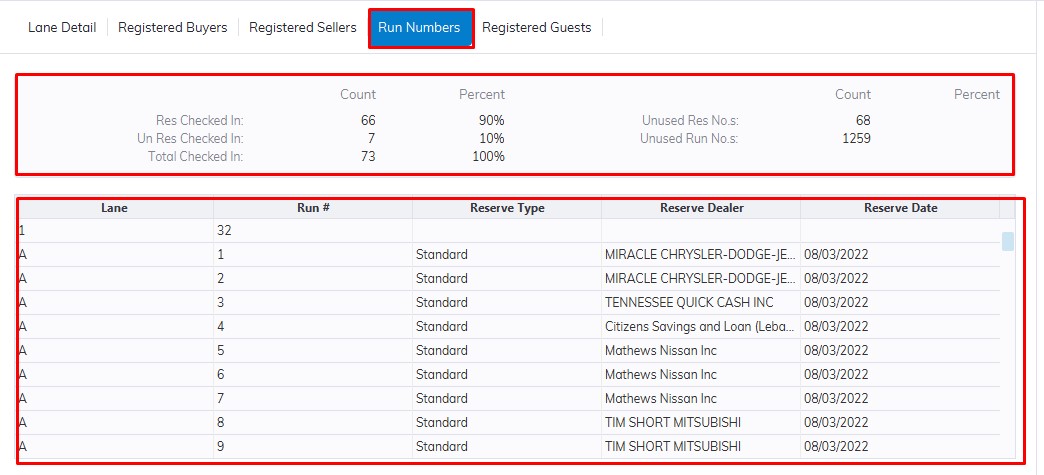
Select a Date in the top grid and the Run Numbers tab will populate with all the Run Numbers for that Sale Date regardless of whether they are used or not.
The statistics show counts and percentage of participation of reserved vs. un -reserved run numbers. The grid below this section is a listing of the Run Numbers that participated in the sale. Click on a column heading to sort the grid in ascending order, and click again to reverse the sort order.
Registered Guests
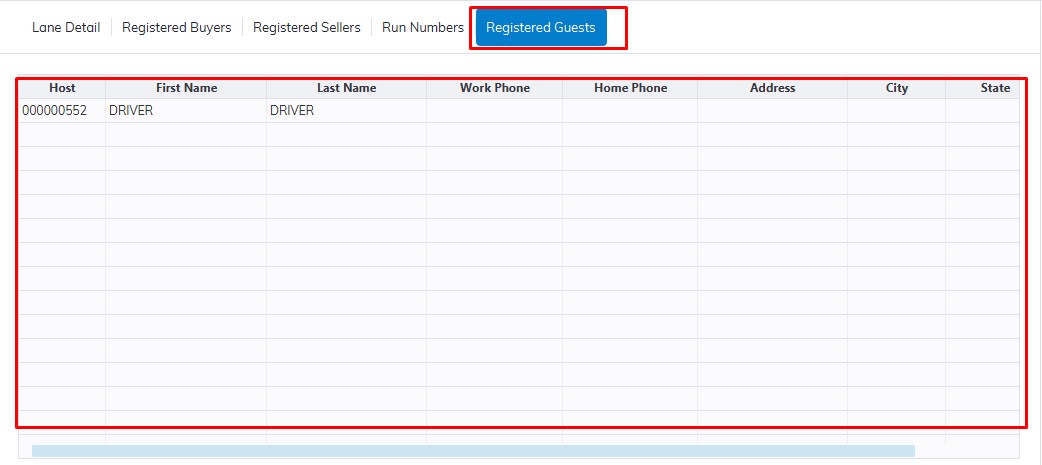
Select a Date in the top grid and the Registered Guests tab will populate with all the Registered Guests and Drivers for that Sale Date. Click on a column heading to sort the grid in ascending order, and click again to reverse the sort order.
No Comments