
Dealer Profile
Select the Dealer Profile Application from Main Menu to access
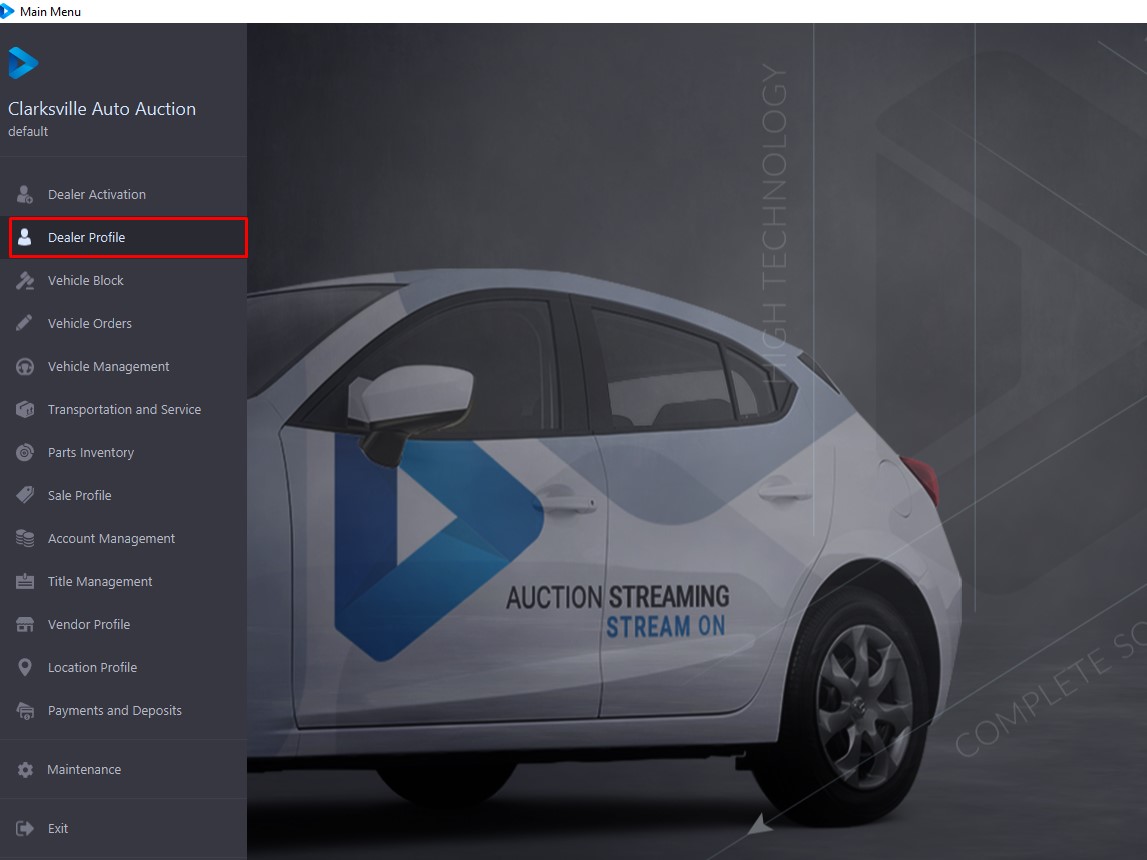
Dealer accounts may be accessed through the Dealer Profile Application. Dealers are listed in alphabetical and customer number order. Customer numbers are assigned during Dealer Activation. You may search for vehicles using VIN or the vehicle stock number (VSN).
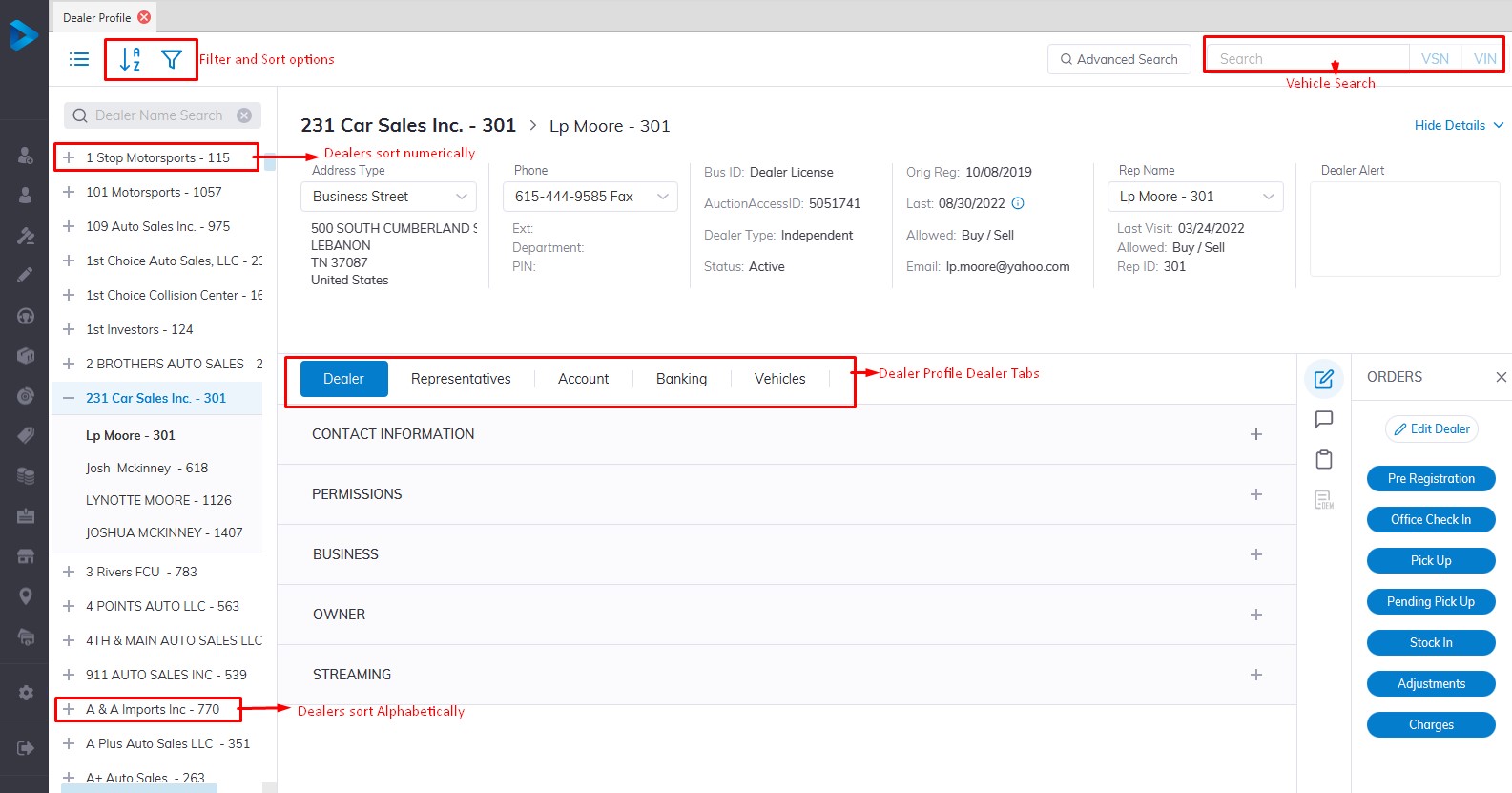
The Dealer Profile is used to access information about the Dealer, Representatives, and Vehicles. The summary sections include contact information and the 'Show Details' button may be used to see the hidden information.
There are 5 tabs for each Dealer.
- Dealer - The Dealer Tab shows 5 sections (Contact Information, Permissions, Business, Owner, Streaming)
- Contact Information: Dealers' Business information as well as a logo
- Permissions: Buyer/Seller permissions and method methods.
- Business: Shows the kind of business the dealer is and the taxes that are applied.
- Owner: Name and information about the owner and sellers check deductions
- Streaming: System generated no changes are allowed here.
- Representatives: Contains summary information about Representatives
- Account: Displays a summary of A/R amounts for Dealers, representatives (s), and Vehicles that were Bought, Sold. Unsold from week to date and year to date, also Account Refund and Reverse Settlement.
- Banking: Dealers Banking Information
- Vehicles: Contains Vehicles that have been Checked into a Sale or vehicles that are currently in the process of being finished or worked on. Under the Vehicles Tab, we have 4 categories.
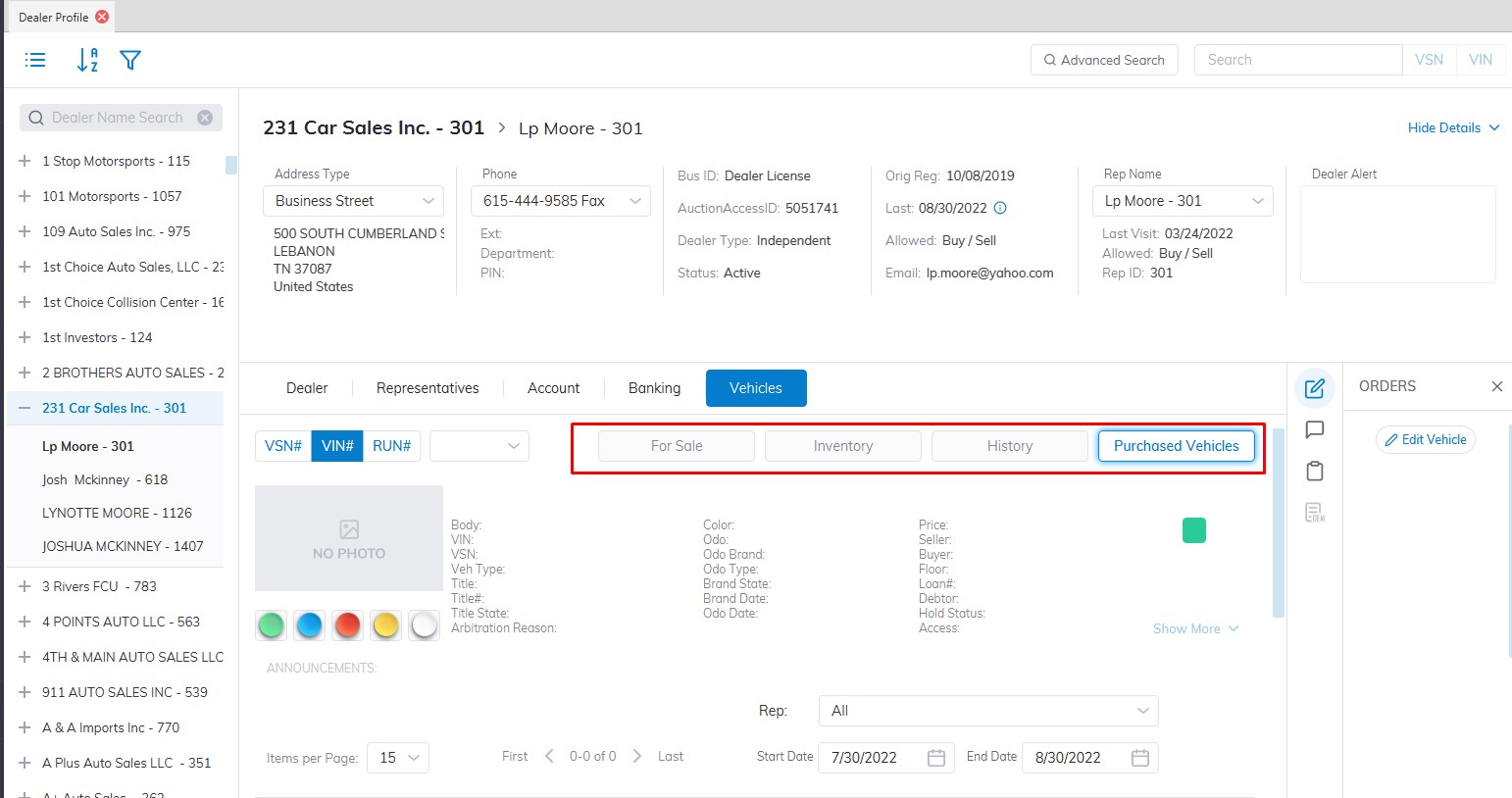
- For Sale: Shows the vehicles that are for sale or checked in to a sale.
- Inventory: Shows vehicles that are on-site or in stock as well as vehicles that are being transported or repaired.
- History: Vehicles that are set to inactive are placed here as well as Off-site vehicles.
- Purchased Vehicles: This shows the vehicles that were purchased you can filter by Representatives and Date range
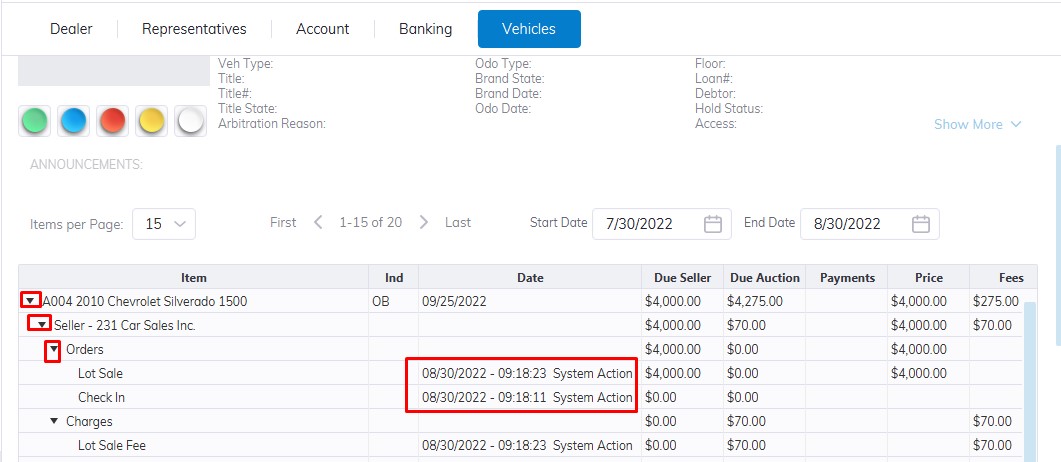
If you want information about the orders or to track who does what and when simply click on the arrow sign on the selected vehicle to expend. In this example, we can that a vehicle was checked In on 8/30/2022 at 9:18:23 am by user System Action, and a Lot Sale was done by the same user right after.
Dealer Search
You can also do a Dealer search in the Dealer Profile Application.
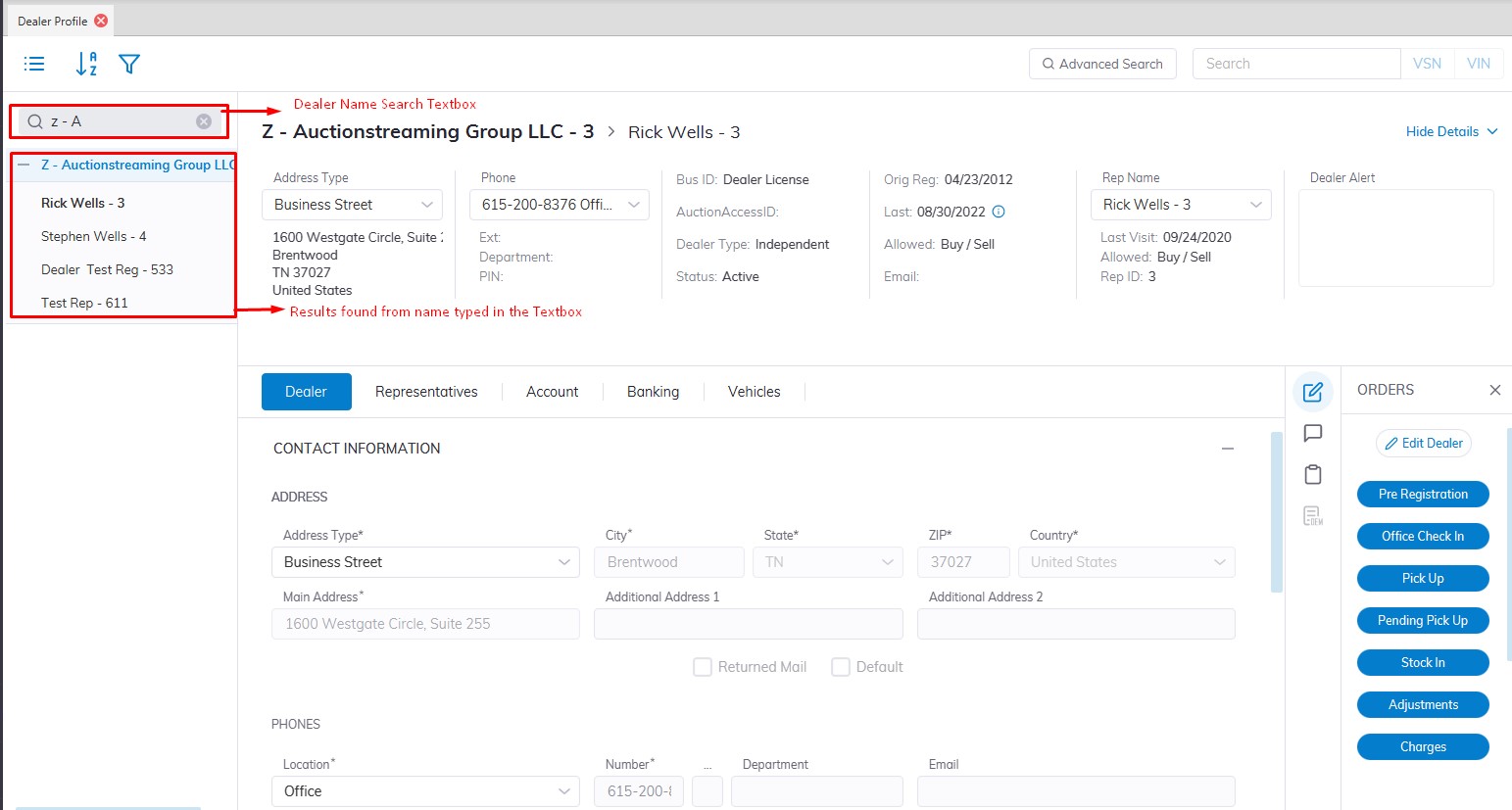
- Open Dealer Profile
- Locate the Dealer Name Search Textbox on the left side of the screen.
- Type in the name of the Dealer you are looking for
No Comments