
User Permissions
User Permissions - control security and access to the AMS system
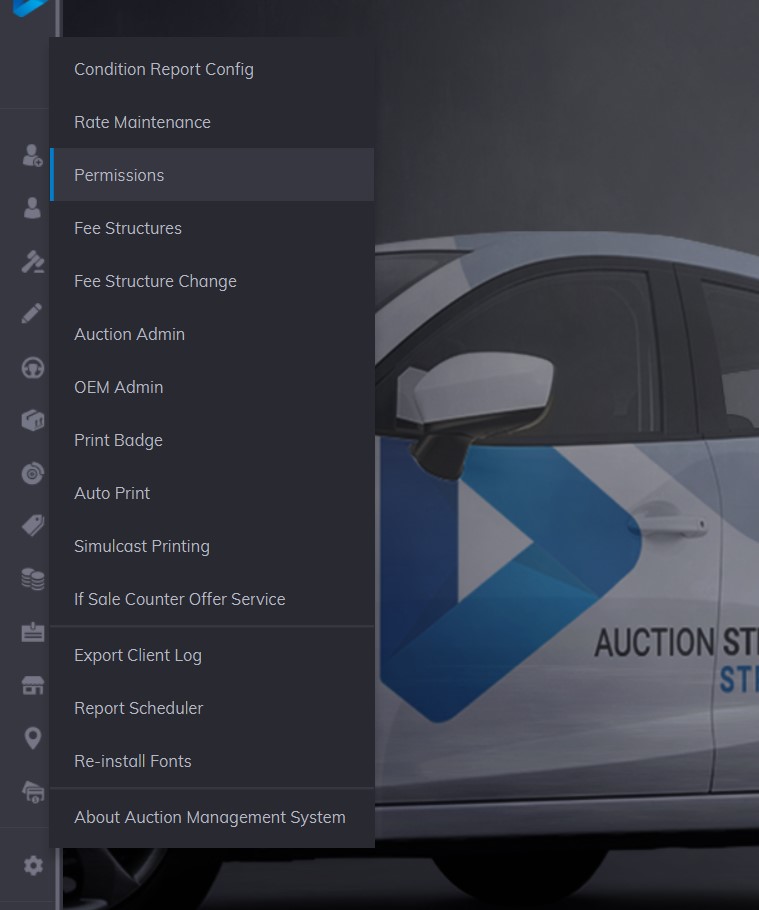
You can access the Permissions app by going to the Main Menu>>Maintenance>>Permissions
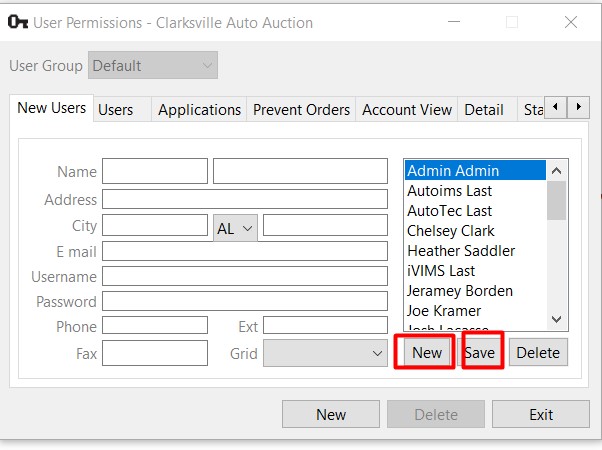
Add New Users
Basic contact information must be captured when adding new users. These required fields are:
- First Name
- Last Name
- Telephone
- User ID
- Password
By clicking the small 'new' button (located under the list of users) the form will clear itself. Once the fields are completed the user may click the 'save' button and the user will be added although the user has yet to be assigned to a Group.
New Group - Add New Group
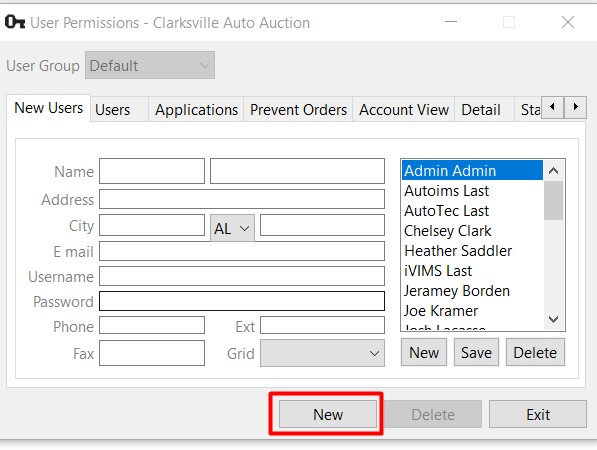
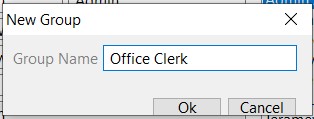
A user must be part of a group. A new group is created by clicking on the larger 'new' button and then naming the Group. A dialog box will appear asking for the name of the new group. In this case, the name of the new group is 'Office Clerk'. Click OK to add the group.
User Permissions - Assign User to Group
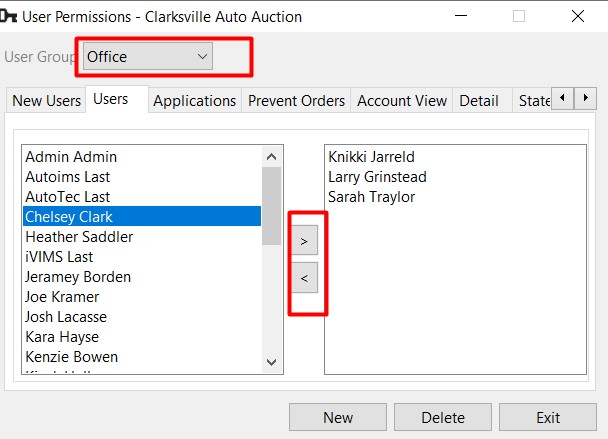
Click on the 'User' tab and select the Group from the combo box drop-down menu then assign users to the selected Group. The ' > ' button will move the selected user on the left pane to the right pane. All users in the right pane are a part of the group that is displayed in the combo box, in this case, the 'Office Group'.
User Permissions - Assigning Applications to a Group
By selecting the Group and clicking the 'Application' tab, the user may make assignments of Applications found on the Main Menu to a User Group. The ' > ' button will move applications from the left pane to the right pane. All applications in the right pane are assigned to the selected user group, in this case, the 'Office Group'.
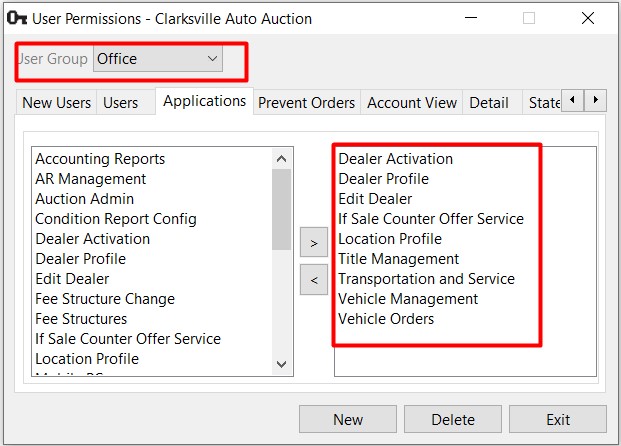
Applications or Features that may be assigned to a user group include:
- Accounting Reports
- AR Management
- Auction Admin
- Condition Report Config
- Dealer Activation
- Dealer Profile
- Edit Dealer
- Fee Structure Change
- Fee Structures
- Location Profile
- Parts Inventory
- Payments and Deposits
- Rate Maintenance
- Reminders
- Sale Profile
- Seller Check
- Title Management
- Transportation and Service
- User Permissions
- Vehicle Block
- Vehicle Management
- Vehicle Orders
- Vendor Profile
User Permissions - Assigning Prevent Orders to a Group
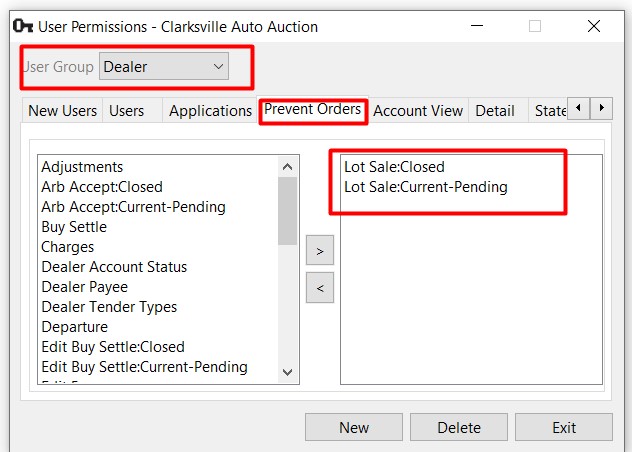
Users are able to execute any Vehicle Order unless their User ID is part of a User Group that contains 'Prevent Orders'. This will prevent the following orders for Pending, Current or Closed Sales:
No Comments