
Badges
Note: Make sure you are on the correct dealer.
The 'Rep Check In' Order is used to assign a Bidder ID for a buying Rep and to print a Bidder badge.
You may reprint a bid badge the same way the original bid badge is printed in the Dealer Profile Application.
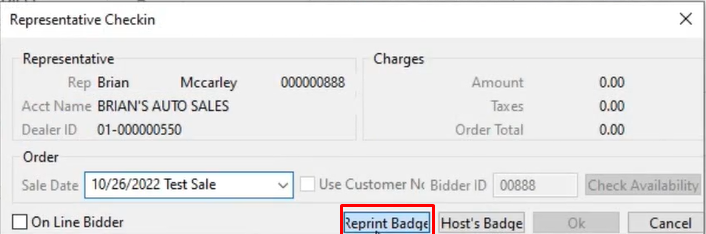
Re-printing a bid badge may also be done from a different application than the original printing ' Rep Check In ' order. This allows the Auction to guard against printing multiple bid badges with the same bidder id. Since reprints are done from the Sale Profile application protecting against numerous copies of a bidder badge is easy. As only authorized persons with user permission can print and register the original buyer in the Dealer Profile application. While other staff can be permitted only to reprint what was already generated upon request from the Sale Profile Application.
To print a Guest Badge:
Select
- Click the Rep Check In order
- Sale Date
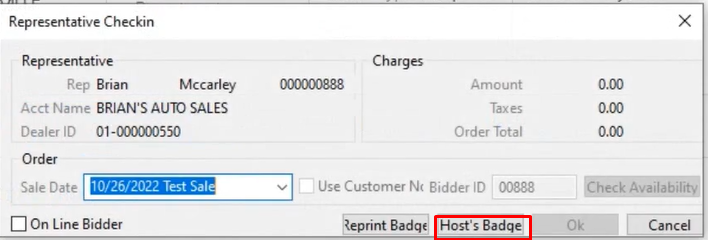
- Click on Host's Badge to launch the Guest/Driver Check-in form - see below
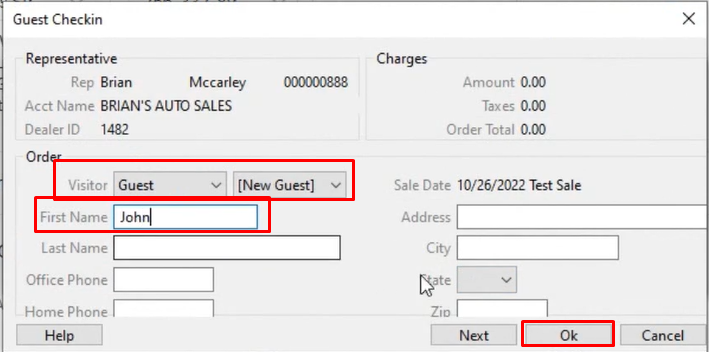
- Fill out the guest name and click 'OK'
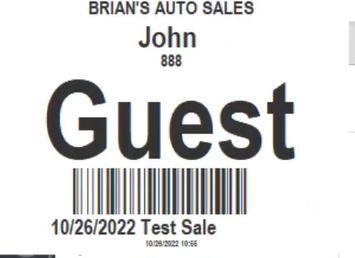
- The guest badge will automatically print
To print a Driver Badge:
Select
- Click the Rep Check In order
- Sale Date
- Click on Host's Badge to launch the Guest/Driver Check-in form - see below
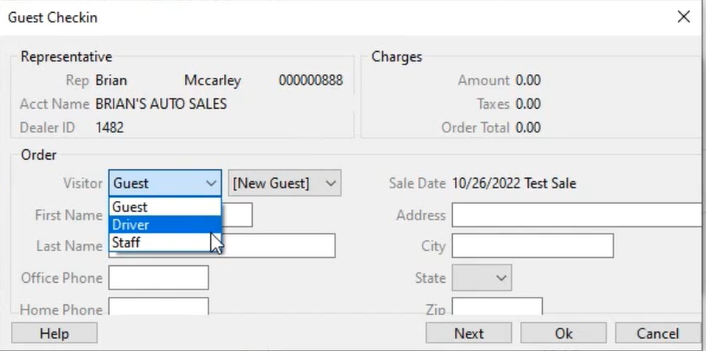
- Here you can choose the type of visitor in this example we choose Driver.
- Fill out the guest name and click 'OK'
- Driver Badge will automatically print.
No Comments