# Badges
**Note: Make sure you are on the correct dealer. **
The '[**Rep Check In**](https://cam3-wiki.auctionstreaming.com/books/cams-3-wiki-faq/page/rep-check-in)' Order is used to assign a Bidder ID for a buying Rep and to **print a Bidder badge**.
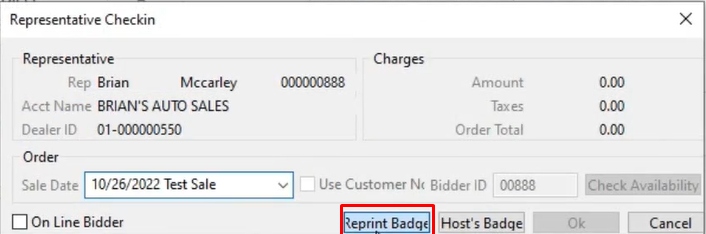
You may **reprint** a bid badge the same way the original bid badge is printed in the Dealer Profile Application.
[](https://cam3-wiki.auctionstreaming.com/uploads/images/gallery/2022-11/image-1667337838792.png)
Re-printing a bid badge may also be done from a different application than the original printing ' Rep Check In ' order. This allows the Auction to guard against printing multiple bid badges with the same bidder id. Since reprints are done from the Sale Profile application protecting against numerous copies of a bidder badge is easy. As only authorized persons with user permission can print and register the original buyer in the **[Dealer Profile](https://cam3-wiki.auctionstreaming.com/books/cams-3-wiki-faq/page/dealer-profile)** application. While other staff can be permitted only to reprint what was already generated upon request from the **[Sale Profile](https://cam3-wiki.auctionstreaming.com/books/cams-3-wiki-faq/page/sale-profile "Sale Profile")** Application.
To print a **Guest Badge:**
Select
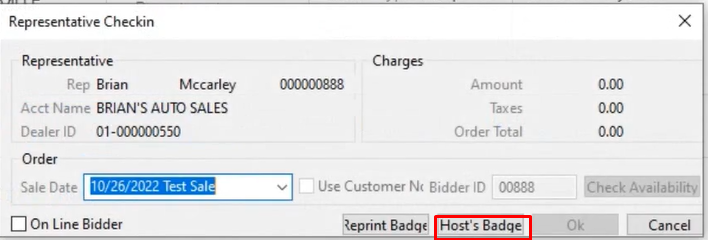
- Click the Rep Check In order
- Sale Date
[](https://cam3-wiki.auctionstreaming.com/uploads/images/gallery/2022-11/image-1667338310387.png)
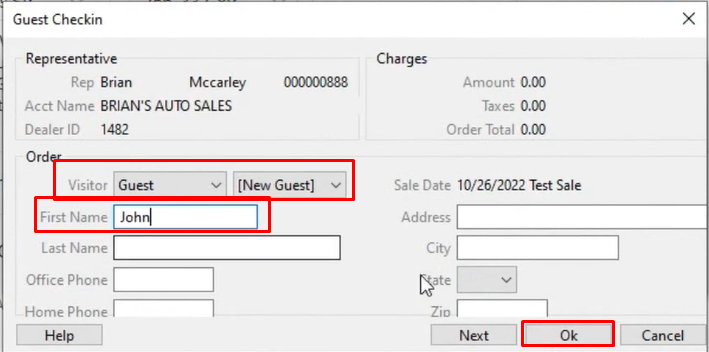
- Click on Host's Badge to launch the Guest/Driver Check-in form - see below
[](https://cam3-wiki.auctionstreaming.com/uploads/images/gallery/2022-11/image-1667338421542.png)
- Fill out the guest name and click 'OK'
[](https://cam3-wiki.auctionstreaming.com/uploads/images/gallery/2022-11/image-1667338476367.png)
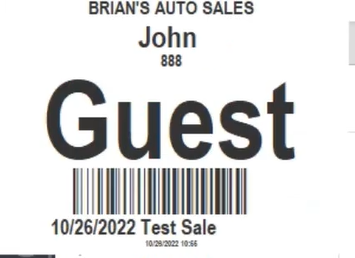
- The guest badge will automatically print
To print a **Driver Badge:**
Select
- Click the Rep Check In order
- Sale Date
[](https://cam3-wiki.auctionstreaming.com/uploads/images/gallery/2022-11/image-1667338310387.png)
- Click on Host's Badge to launch the Guest/Driver Check-in form - see below
[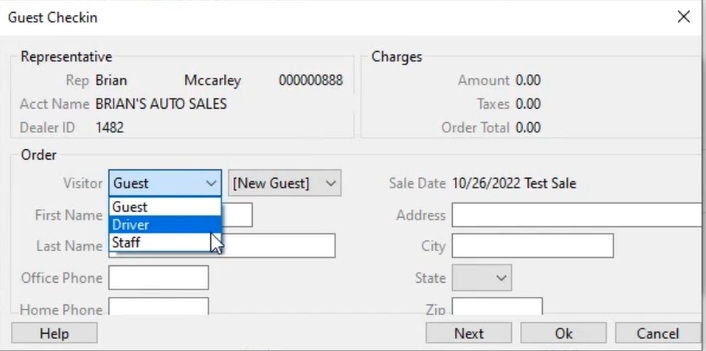](https://cam3-wiki.auctionstreaming.com/uploads/images/gallery/2022-11/image-1667338557163.png)
- Here you can choose the type of visitor in this example we choose Driver.
- Fill out the guest name and click 'OK'
- Driver Badge will automatically print.