
Auto Check Report
You may create a file to send to Auto Check for verification of the title. You must have an agreement with Auto Check for this service even though you may create the file at any time.
- Select the Vehicle Block application
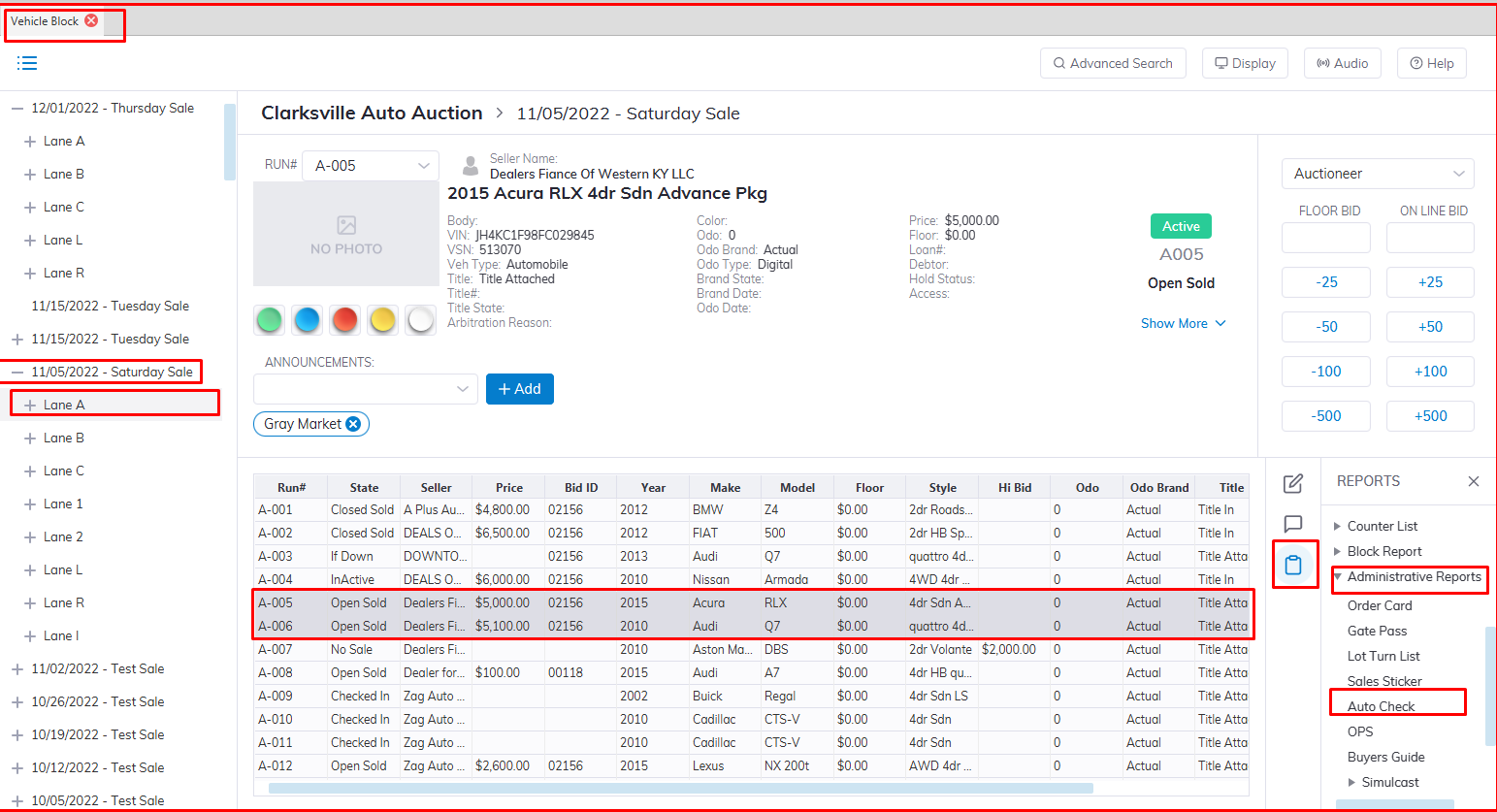
- Select the Sales Date then the Lane
- Select the vehicle you want to run the report for
- Select Reports then Administrative Reports Sub menu
- Select the Auto Check Report.
Note: The report will contain Checked In [CI] vehicles ONLY. Rollover [RO] vehicles will NOT be included in the file. There are two ways to do an Auto Check:
- Create a CSV file for uploading to www.autocheckauctions.com and wait for an email or fax response
- Use 'Online Paperless System' to communicate directly with Auto Check through the Internet
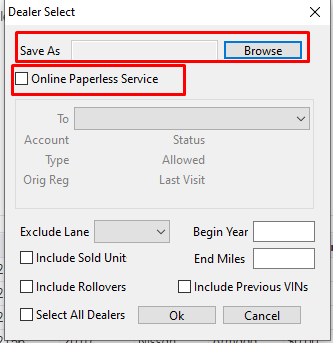
Using a CSV file
Click 'Browse' to set the path where you would like to save the file that will be created. Select the filtering criteria for the VINs
- Dealer (select one or all)
- Begin Year (1997 - current)
- End Mileage (0 - 100000)
- Exclude Lane (salvage or in-ops lane)
- Include Previous VINs
- Click 'OK' to create the file
Once created the file will appear on the desktop or C drive of your PC.
Using the Online Paperless System (OPS)
Click the check box 'Online Paperless System'. Select the filtering criteria for the VINs.
- Dealer (select one or all)
- Begin Year (1997 - current)
- End Mileage (0 - 100000)
- Exclude Lane (salvage or in-ops lane)
- Include Previous VINs
- Click 'OK' to begin live communication with Auto Check. Two reports will appear after 10 - 15 seconds:
Odometer Discrepancy report
Exception report
The exception report will automatically update the VSN's record with any announcements. The Odometer Discrepancy, Theft, and History reports will NOT update the VSN automatically.
Note: The OPS procedure will require a full-time Internet connection and a Static IP address, otherwise communication will fail.
No Comments