# Transportation and Service
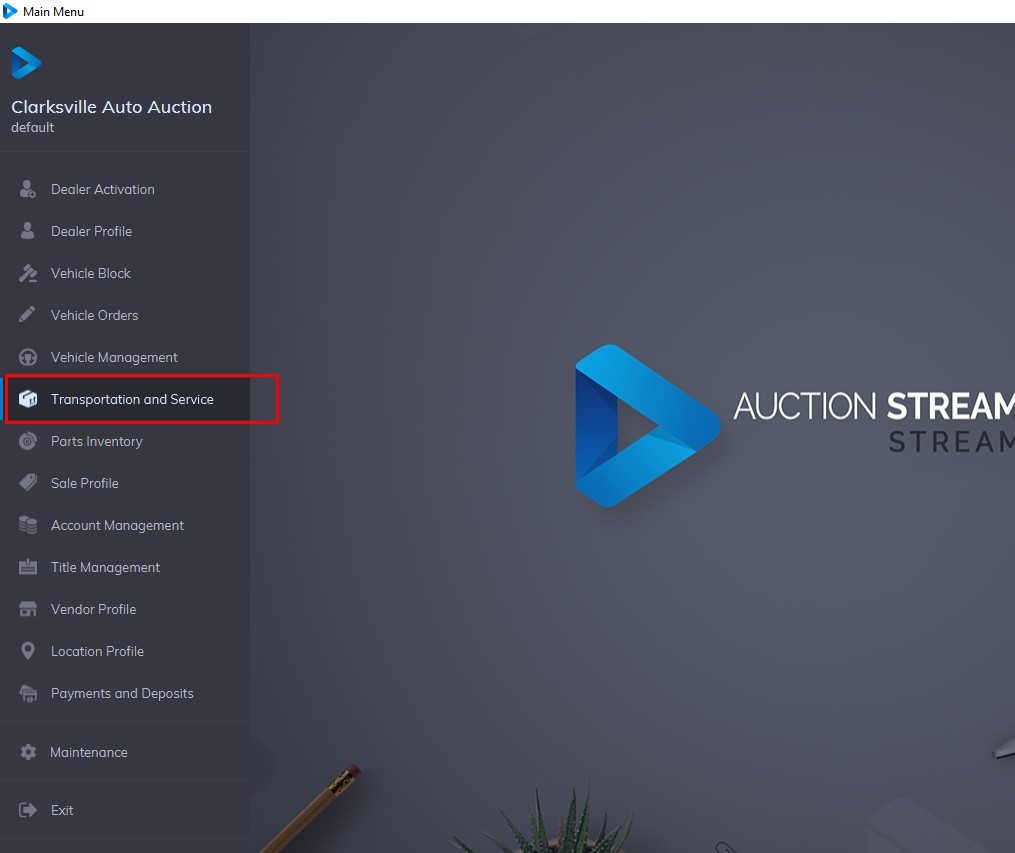
Transportation and Service application - displays Vehicles in Stock (Fleet / Lease). The summary sections contain a selected Vehicle's make, model, and current state. All 'Active' and 'Off-Site' Vehicles are loaded into this application.
[](https://cam3-wiki.auctionstreaming.com/uploads/images/gallery/2022-09/main.jpg)
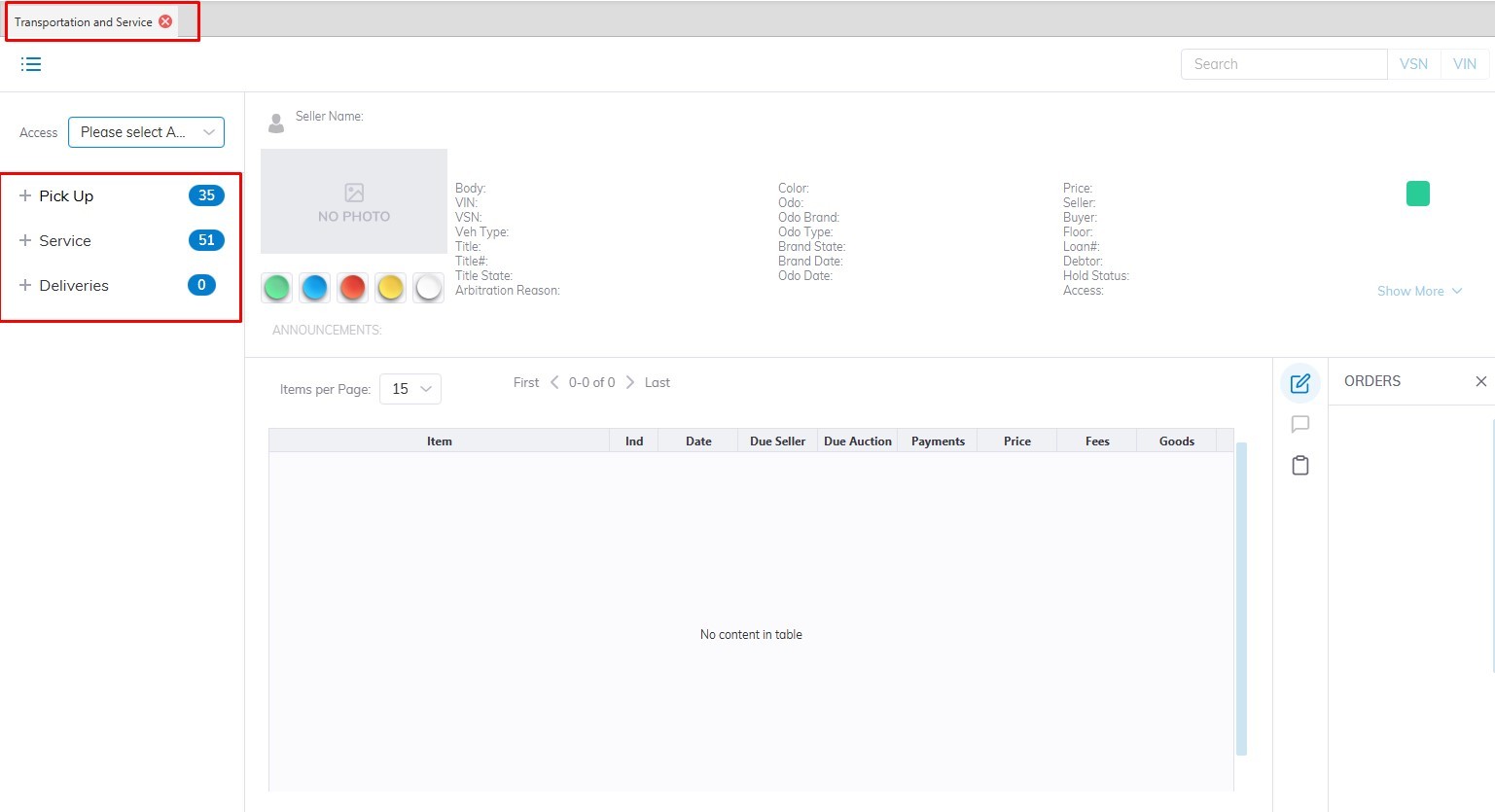
The grid displays Vehicles based on the sash and button(s) selected. The 3 sashes or groups of Vehicle States are:
- **Pick Up**
- **Service**
- **Delivery**
It is possible to Search for a vehicle according to VIN8 (last 8 digits of the VIN) or VSN (6 digits).
[](https://cam3-wiki.auctionstreaming.com/uploads/images/gallery/2022-09/trans1.jpg)
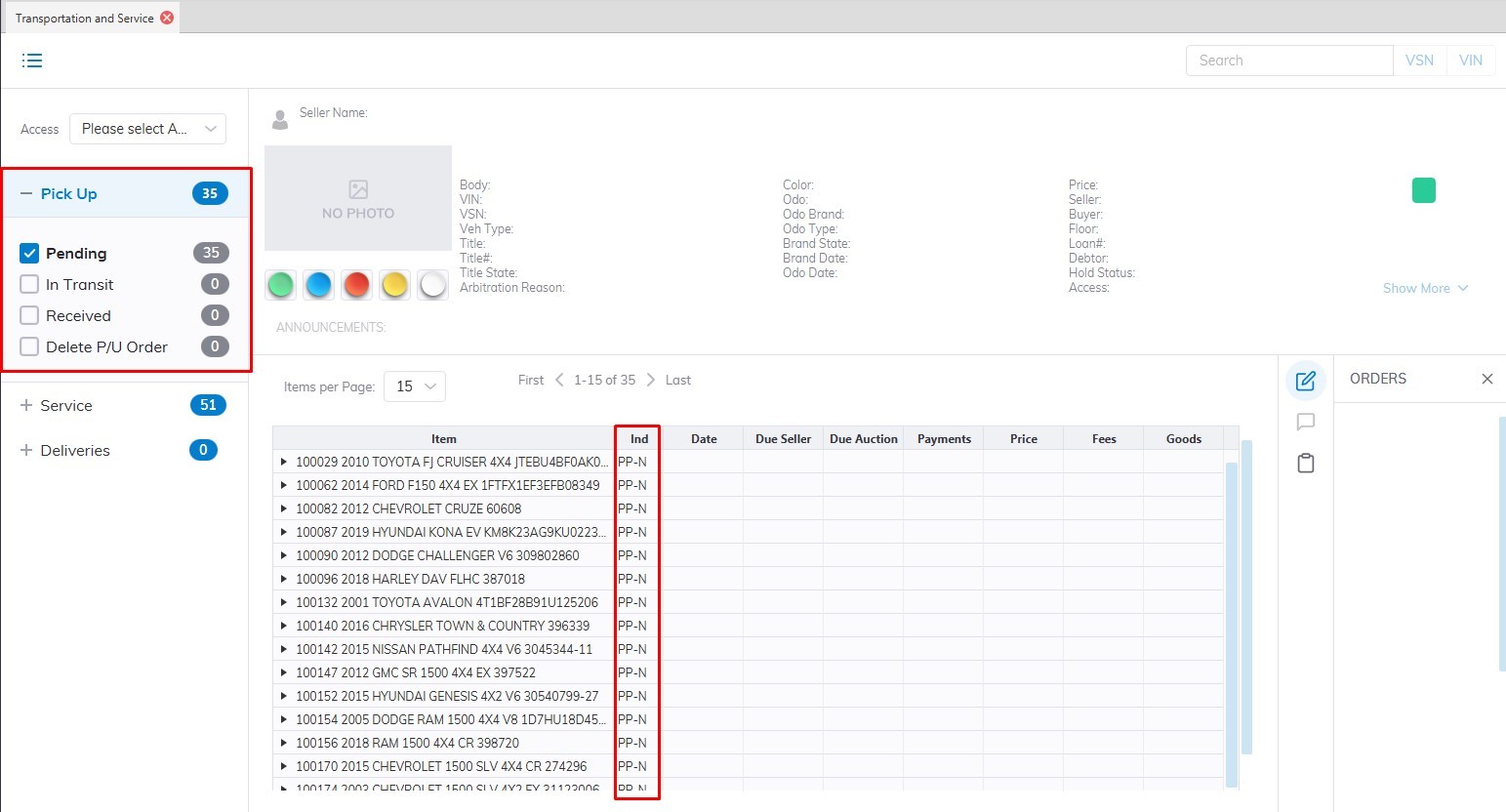
**Pick Up Sash** - contains 3 buttons, each corresponding to a Pick Up State. Each Vehicle has a 2-digit indicator showing the Vehicles' state indicated in red.
[](https://cam3-wiki.auctionstreaming.com/uploads/images/gallery/2022-09/pickup.jpg)
**Hold Pick Up (HP)**
A Hold Pick Up is the result of a Pick-Up InTransit being 'Held' pending some action by the Auction. This Vehicle also appears in the Inventory Tab of the Dealer Profile application.
- You may do a Reinstate Pick Up order to go back to In Transit
- You may do a Delete Pick Up order to start over.
- You may also add a Charge or Adjustment.
**Pick Up In Transit (PT)**
This Vehicle is in Transit to the Auction. This Vehicle also appears in the Inventory Tab of the Dealer Profile application.
- You may do an Arrive order to bill the Vehicle for the Transportation fees.
- You may do a Hold order to place the Vehicle Transportation on hold.
- You may do an Edit order to change Pick Up or Delivery Locations.
- You may also add a Charge or Adjustment.
**Arrived Pick Up (AP)**
This Vehicle has Arrived or has been received at the Auction but remains outside the gate. This Vehicle also appears in the Inventory Tab of the Dealer Profile application.
- You may do a Stock In order to make the VSN Active.
- You may also add a Charge or Adjustment.
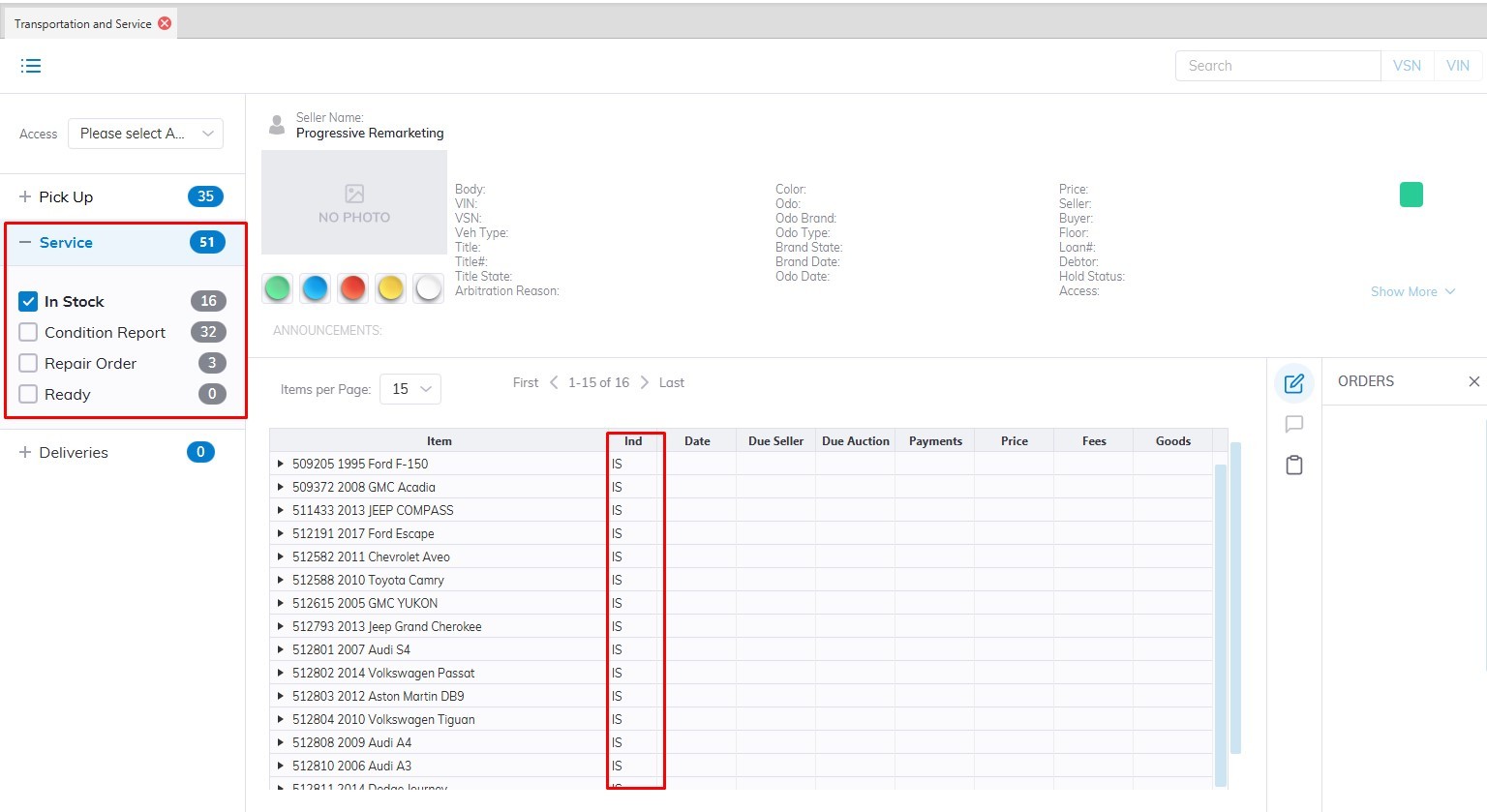
**Service Sash** - contains 4 buttons each corresponding to a Service State. There are 5 states described below, Un Sold Settle is nested in the Ready button. Each Vehicle has a 2-digit indicator showing the Vehicles' state. See below for a discussion of the four Vehicle States and the Show Details button.
[](https://cam3-wiki.auctionstreaming.com/uploads/images/gallery/2022-09/service.jpg)
**In Stock (IS)**
These Vehicles are usually Fleet / Lease Vehicles. This Vehicle also appears in the Inventory Tab of the Dealer Profile application.
- You may do a Condition Report Order to input a Condition Report.
- You may do an Issue RO order to create a Repair Order.
- You may do a Sale Check In order to move the VSN into a Sale.
- You may do an Un-Sold Settle order if the Seller wishes to remove the Vehicle from the Sale.
- You may also add a Charge or Adjustment.
**Condition Report (CR)**
This Vehicle also appears in the Inventory Tab of the Dealer Profile application.
- You may do an Issue RO order to create a Repair Order.
- You may do a Sale Check In order to move the VSN into a Sale.
- You may do an Un-Sold Settle order if the Seller wishes to remove the Vehicle from the Sale.
- You may also add a Charge or Adjustment
**Repair Order (RP)**
These Vehicles are in for Repairs. This Vehicle also appears in the Inventory Tab of the Dealer Profile application.
- You may do an Amend RO order to post charges for Parts, Labor, Sublet, or Services.
- You may do a Close RO order to post RO charges to the Vehicle balance.
- You may also add a Charge or Adjustment.
**Ready (RY)**
These Vehicles are ready to be placed into a Sale. This Vehicle also appears in the Inventory Tab of the Dealer Profile application.
- You may do a Condition Report Order to input a Condition Report.
- You may do an Issue RO order to create a Repair Order.
- You may do a Sale Check In order to move the VSN into a Sale.
- You may do an Un-Sold Settle order if the Seller wishes to remove the Vehicle from the Sale.
- You may also add a Charge or Adjustment.
**Un Sold Settle (US)** - nested in Ready
These Vehicles are being taken out of Inventory. This Vehicle also appears in the Inventory Tab of the Dealer Profile application.
- You may do a Departure order to move the VSN to In Active.
- You may also add a Charge or Adjustment.