# Sales Report part 1
##### **Line of Business Report**
The Line of Business report is similar to the Top Seller's report but lists only deals associated with a Dealer who has a defined Line of Business.
[](https://cam3-wiki.auctionstreaming.com/uploads/images/gallery/2022-10/image-1664815929883.png)
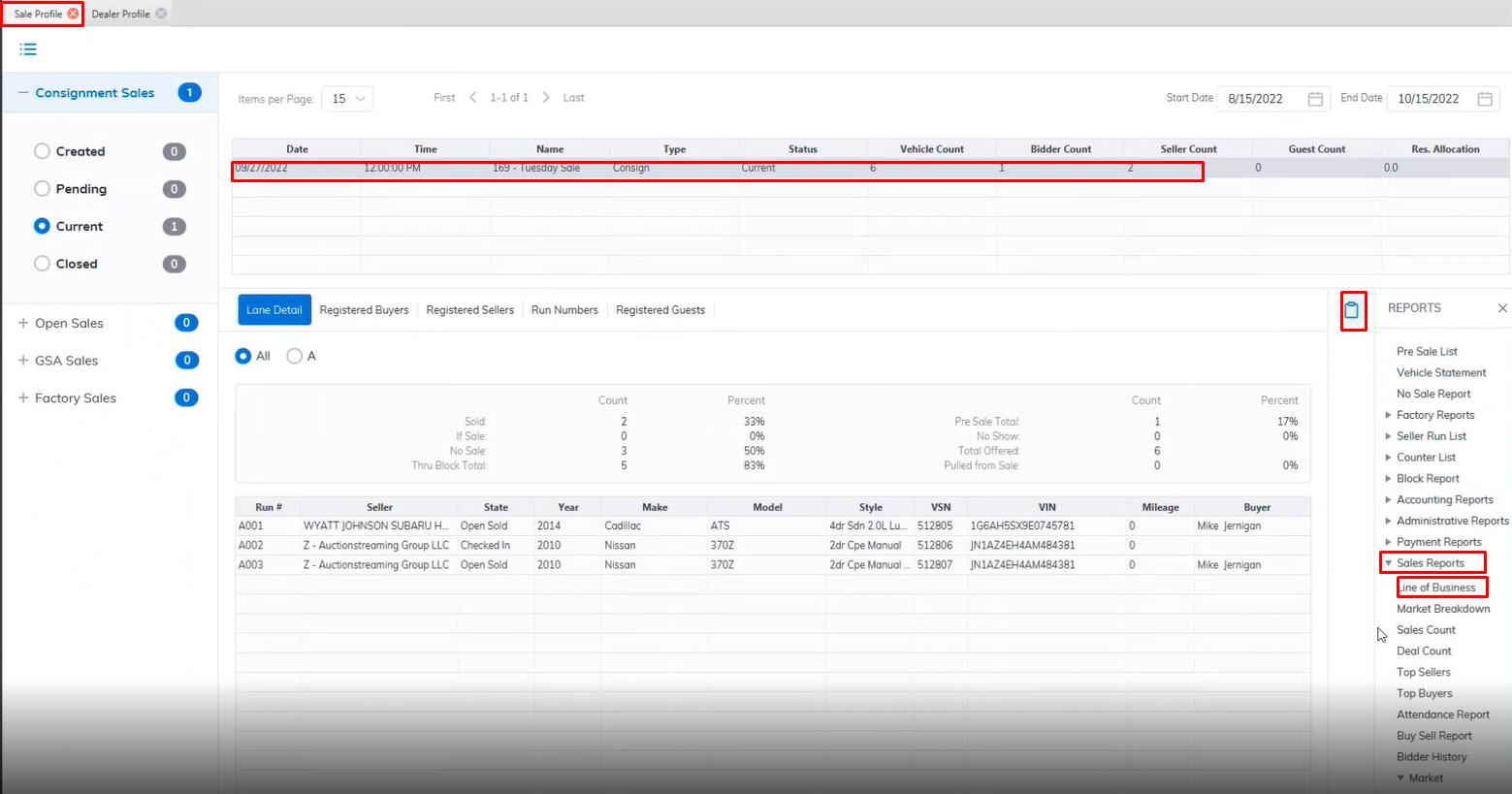
- Open the **[Sale Profile](https://cam3-wiki.auctionstreaming.com/books/cams-3-wiki-faq/page/sale-profile)** application.
- Select the Sale Date
- Select the Reports Menu
- Then select the Sales Reports sub-menu > Line of Business.
- This will launch the report wizard.
[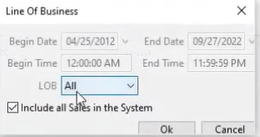](https://cam3-wiki.auctionstreaming.com/uploads/images/gallery/2022-10/image-1664815341666.png)
- Select the desired 'Begin' and 'End' dates or we can check the 'Include all Sales in the system' checkbox.
- In the Line of Business (in this example we use All).
[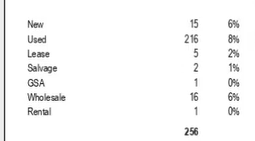](https://cam3-wiki.auctionstreaming.com/uploads/images/gallery/2022-10/image-1664815803791.png)
- Click 'OK' when done to create and print the report.
##### **Market Breakdown Report**
The Market Breakdown report is used to view the sale prices of vehicles over time.
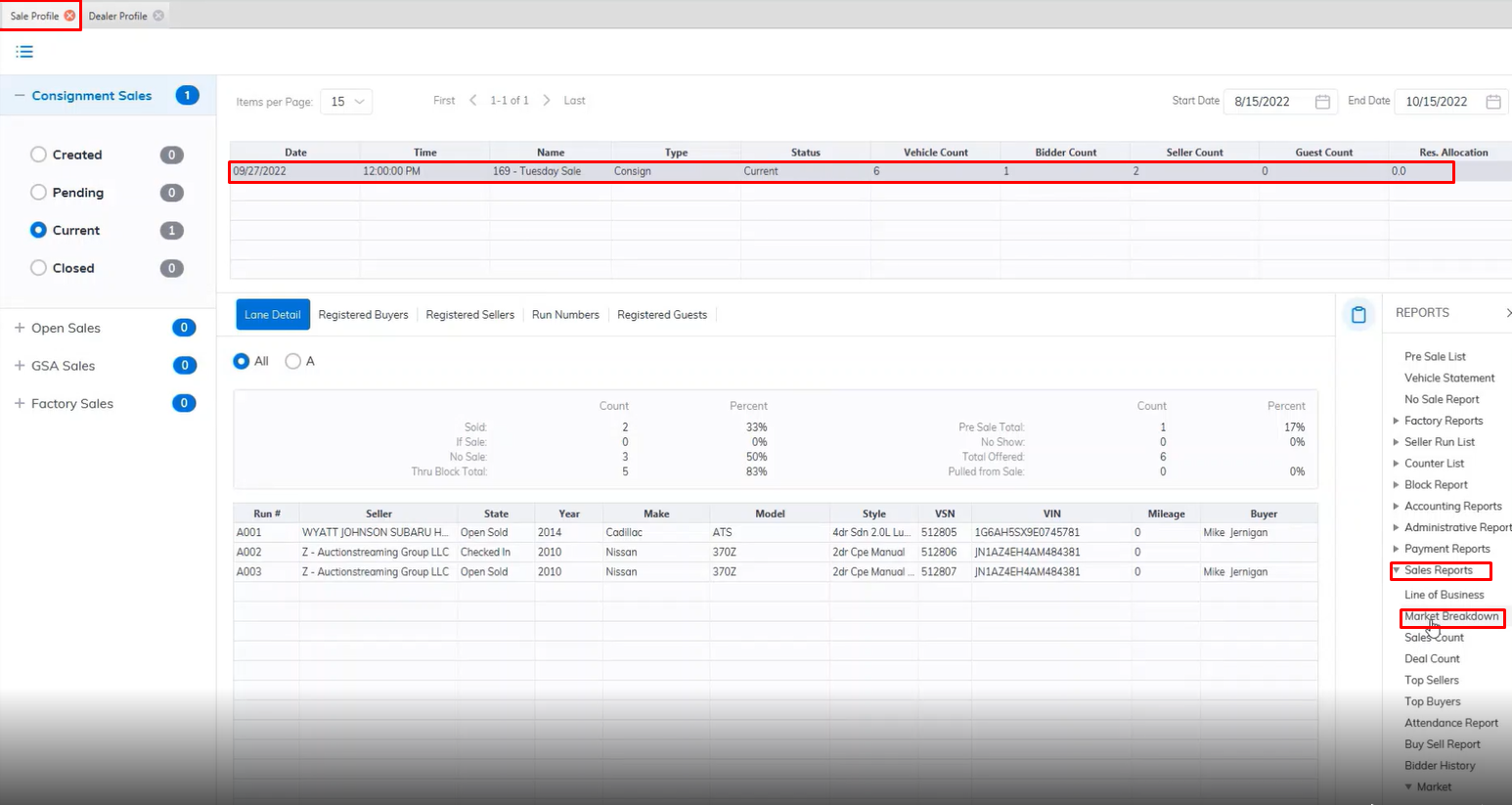
**Note: You must select the Sale Date from the grid before running the report**
[](https://cam3-wiki.auctionstreaming.com/uploads/images/gallery/2022-10/image-1664816245032.png)
- Open the **[Sale Profile](https://cam3-wiki.auctionstreaming.com/books/cams-3-wiki-faq/page/sale-profile)** application.
- Select the Sale Date
- Select the Reports Menu
- Then select the Market Breakdown report sub-menu
- This will launch the report wizard.
[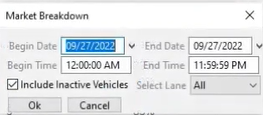](https://cam3-wiki.auctionstreaming.com/uploads/images/gallery/2022-10/image-1664816345480.png)
- You may select a 'Begin' and 'End' date if you wish to view information on more than one Sale.
- You can check the 'Include Inactive Vehicles' because we want to have a comprehensive report on all vehicles even if they have left the site.
- Click 'OK' when done to create and print the report
##### **Sales Count Report**
The sale Count report is used to track the number of deals for a specific Sale person or all salespersons.
**Note: You must select the Sale Date from the grid before running the report**
[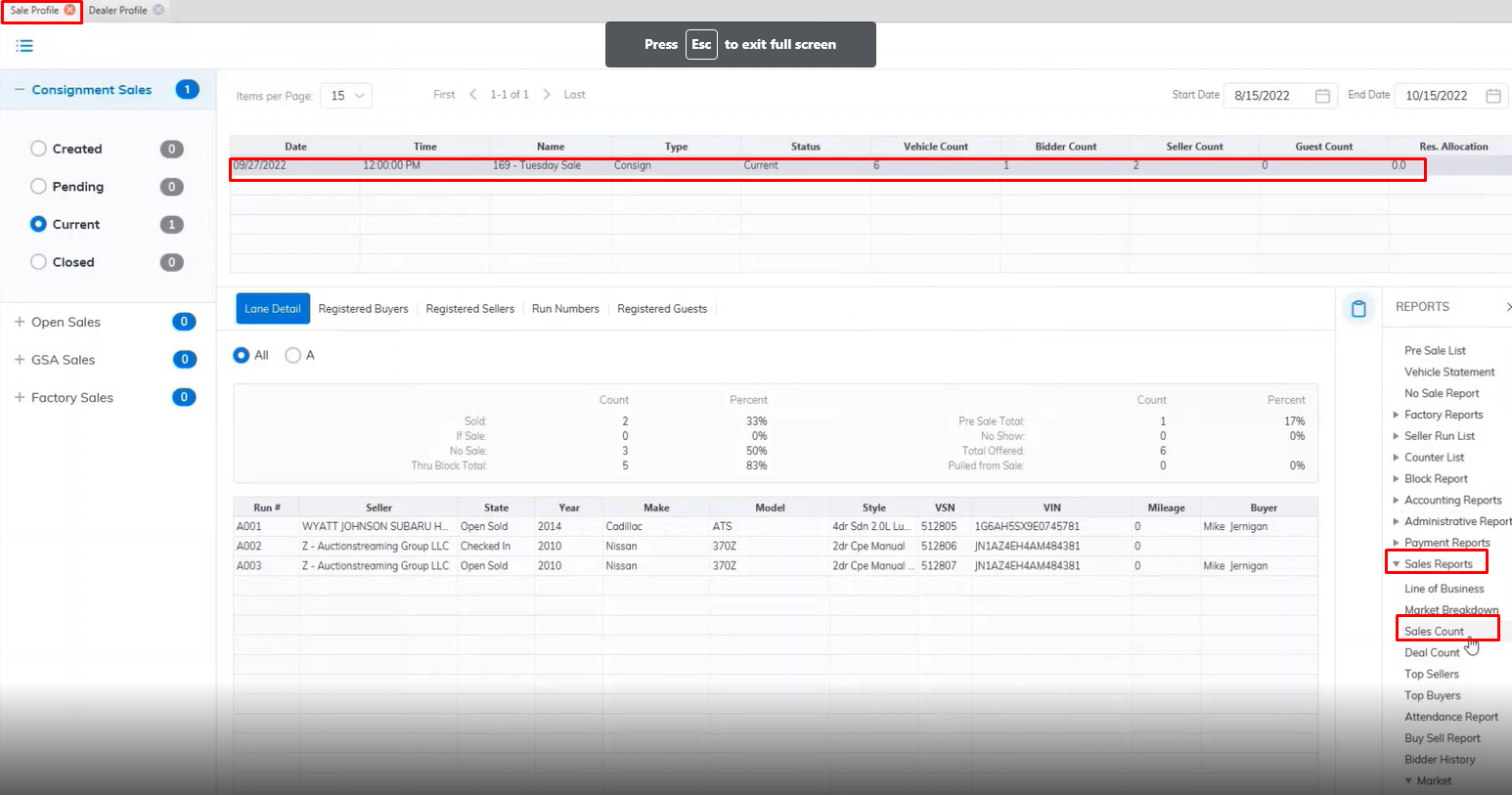](https://cam3-wiki.auctionstreaming.com/uploads/images/gallery/2022-10/image-1664816828561.png)
- Open the **[Sale Profile](https://cam3-wiki.auctionstreaming.com/books/cams-3-wiki-faq/page/sale-profile)** application.
- Select the Sale Date
- Select the Reports Menu
- Then select the Sale Count report sub-menu
- This will launch the report wizard.
[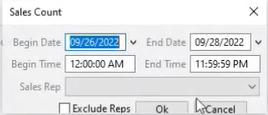](https://cam3-wiki.auctionstreaming.com/uploads/images/gallery/2022-10/image-1664817252990.png)
- You may select a 'Begin' and 'End' date if you wish to view information on more than one Sale.
- You may select a specific Sales Rep or Select 'All'.
- Click 'OK' when done to create and print the report.
##### **Deal Count Report**
The Deal Count report is used to view buy and sell deals according to Dealer and may be listed by Dealer Name or Percentage Sold.
**Note: You must select the Sale Date from the grid prior to running the report**
[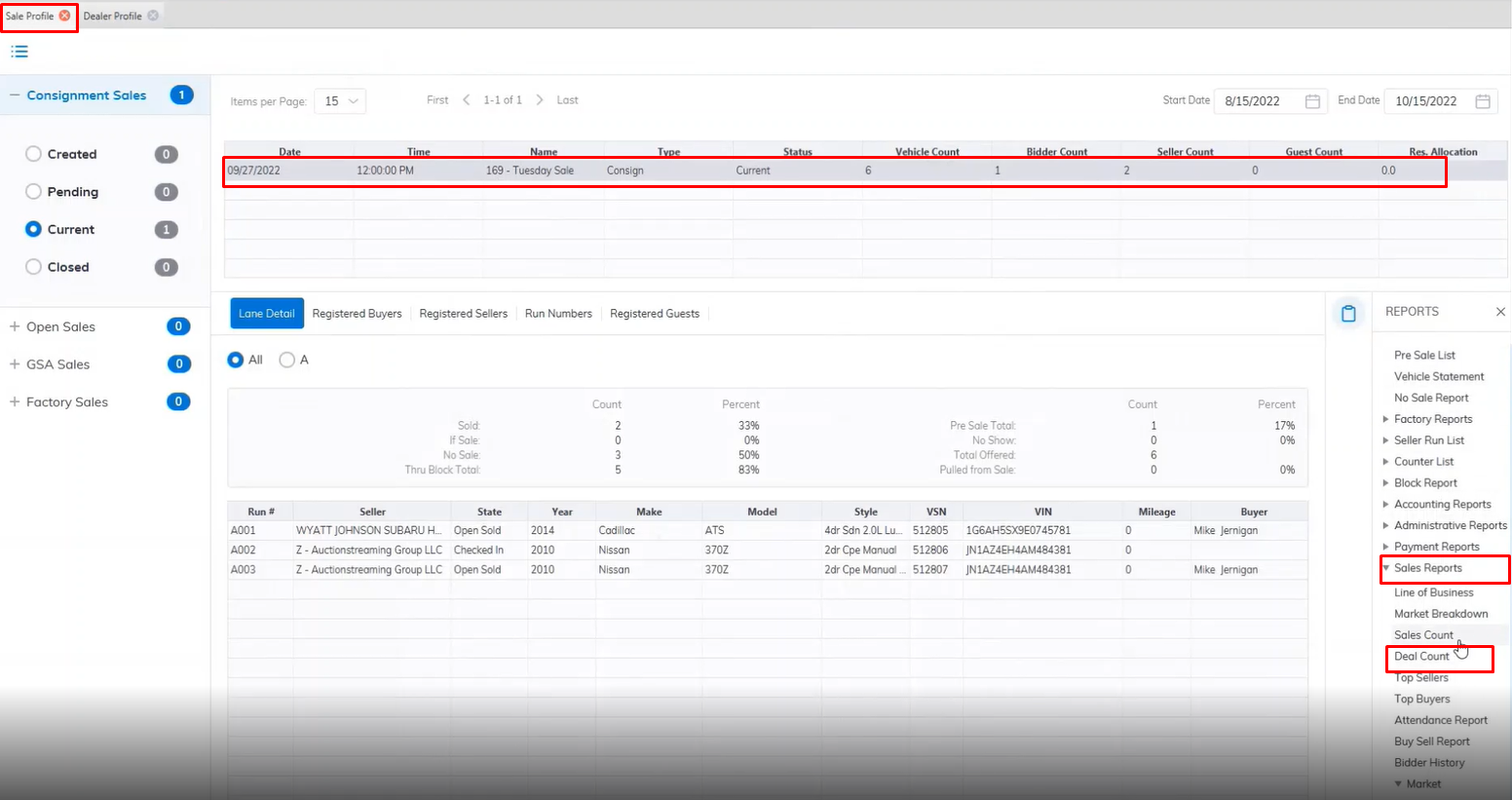](https://cam3-wiki.auctionstreaming.com/uploads/images/gallery/2022-10/image-1664817140204.png)
- Open the **[Sale Profile](https://cam3-wiki.auctionstreaming.com/books/cams-3-wiki-faq/page/sale-profile)** application.
- Select the Sale Date
- Select the Reports Menu
- Then select the Deal Count report sub-menu
- This will launch the report wizard.
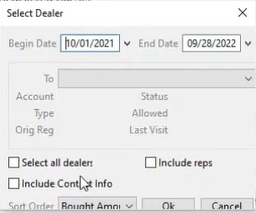
- You may select a 'Begin' and 'End' date if you wish to view information on more than one Sale.
- You may select a specific Dealer or the 'Select all dealers' checkbox.
- To include the rep check the checkbox.
- You can sort the report by Bought Amount, Bought Count, Dealer Name, Sold Amount, Sold Count, and or Sold percentage.
- Click 'OK' when done to create and print the report.
The Deal count report generates both a PDF and Graph report for a visual representation of the PDF data.