
Vehicle Block
Select Vehicle Block Application>>
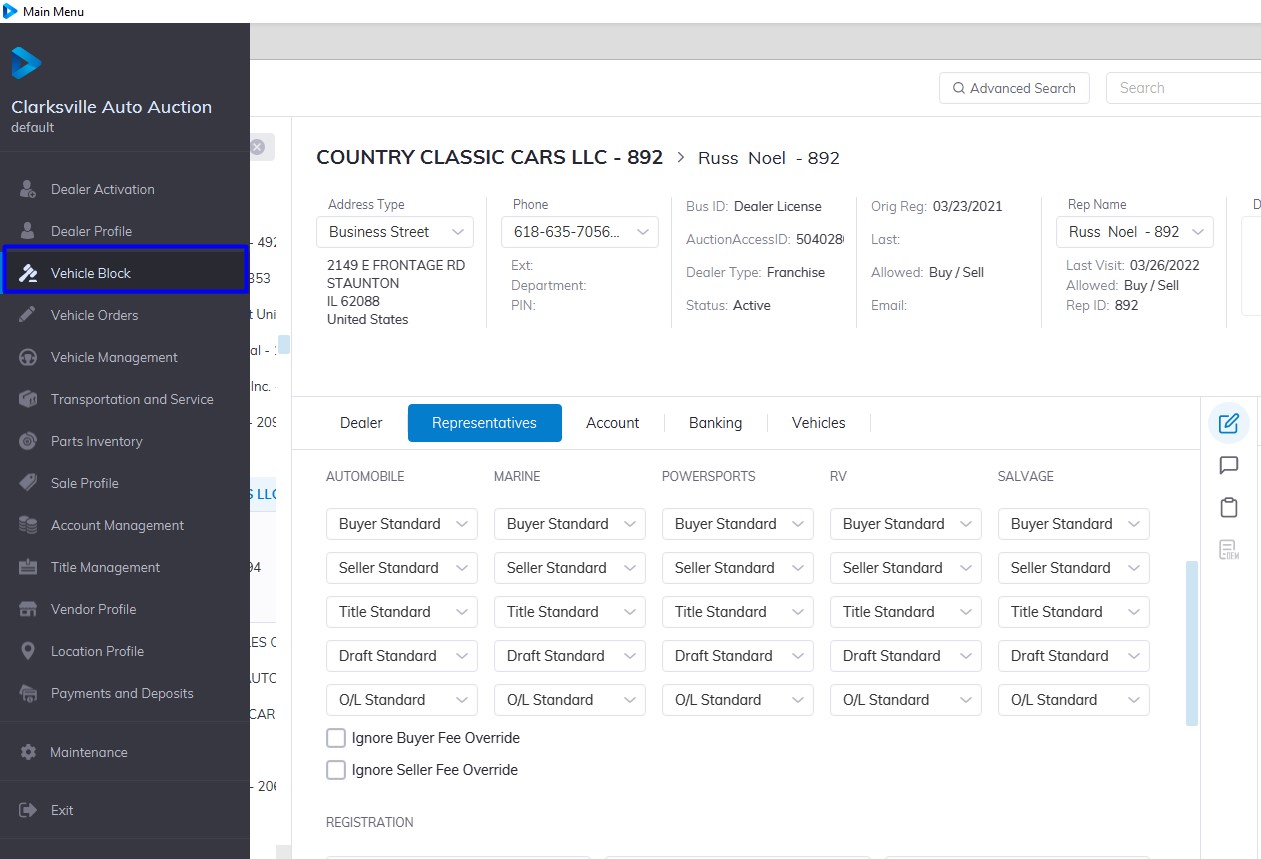
On the right-hand side Click the 'Sale Date' then ‘Lane’ you want this will launch the lane content in the middle window.
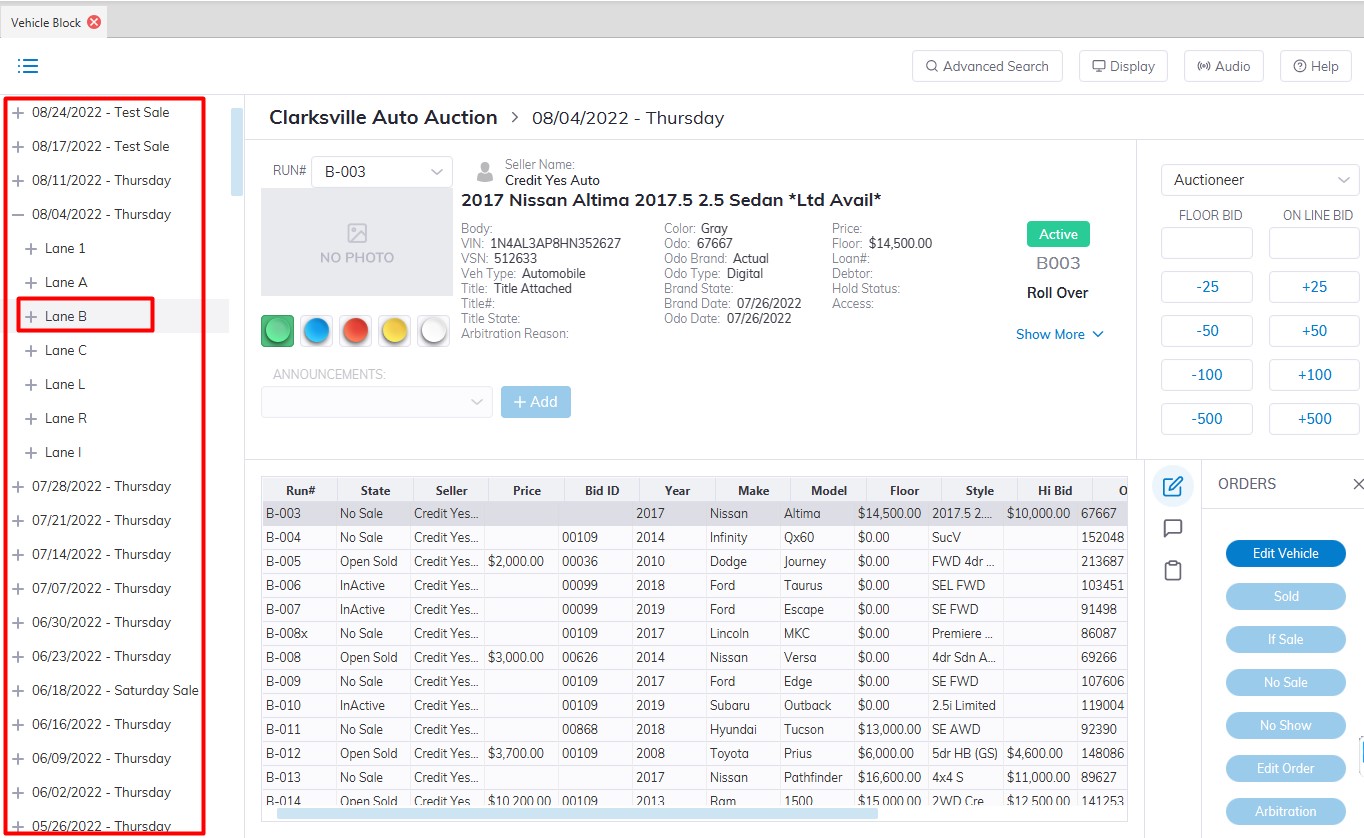
Select the Vehicle from the list in the middle window. The Orders which are allowed to be executed on this vehicle will be available
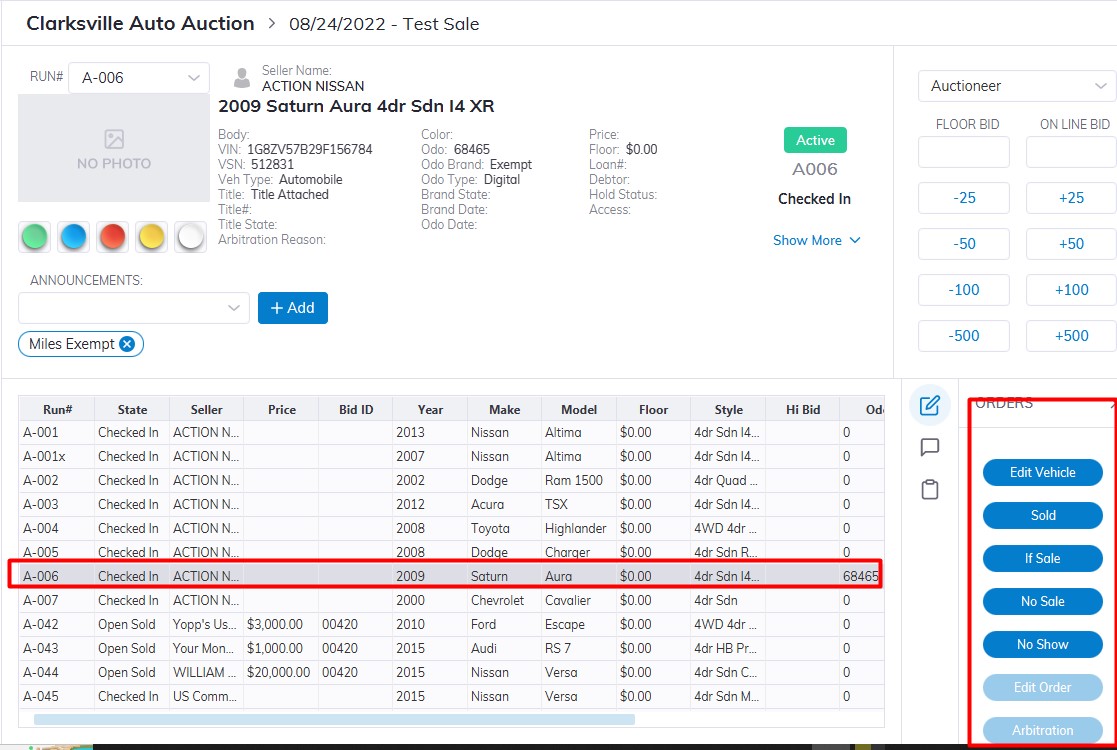
Type or select announcements (optional)
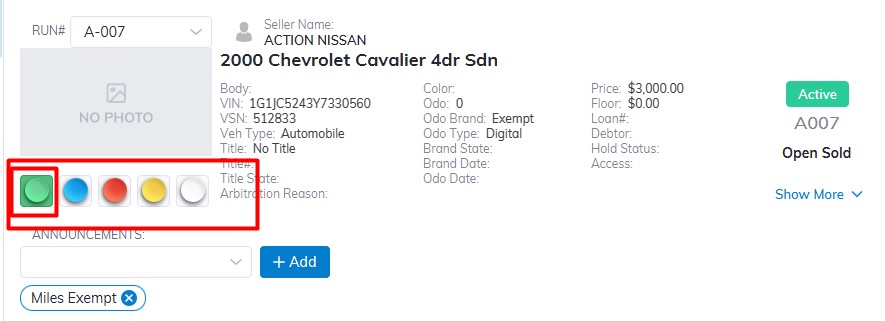
Set the lights
You will cause a resort of the grid by clicking on a column heading. Click once to sort ascending, and click again to reverse the sort.
To Skip to a particular Run Number
You may also skip to a particular Run Number by selecting it from the drop-down menu. Each Vehicle in the Vehicle Block application will have the following orders:
- Sold
- If Sale
- No Sale
- No Show
- Edit Vehicle
- Edit Order
- Arbitration
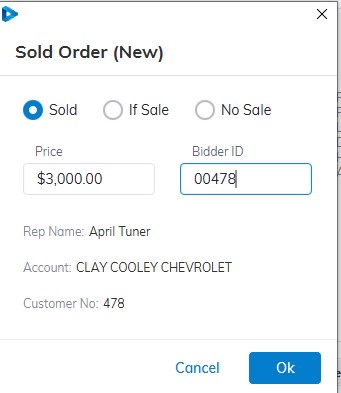
In this example, we Click on the 'Sold' order button, the vehicle was sold for $3000 to April Turner of Clay Cooley Chevrolet
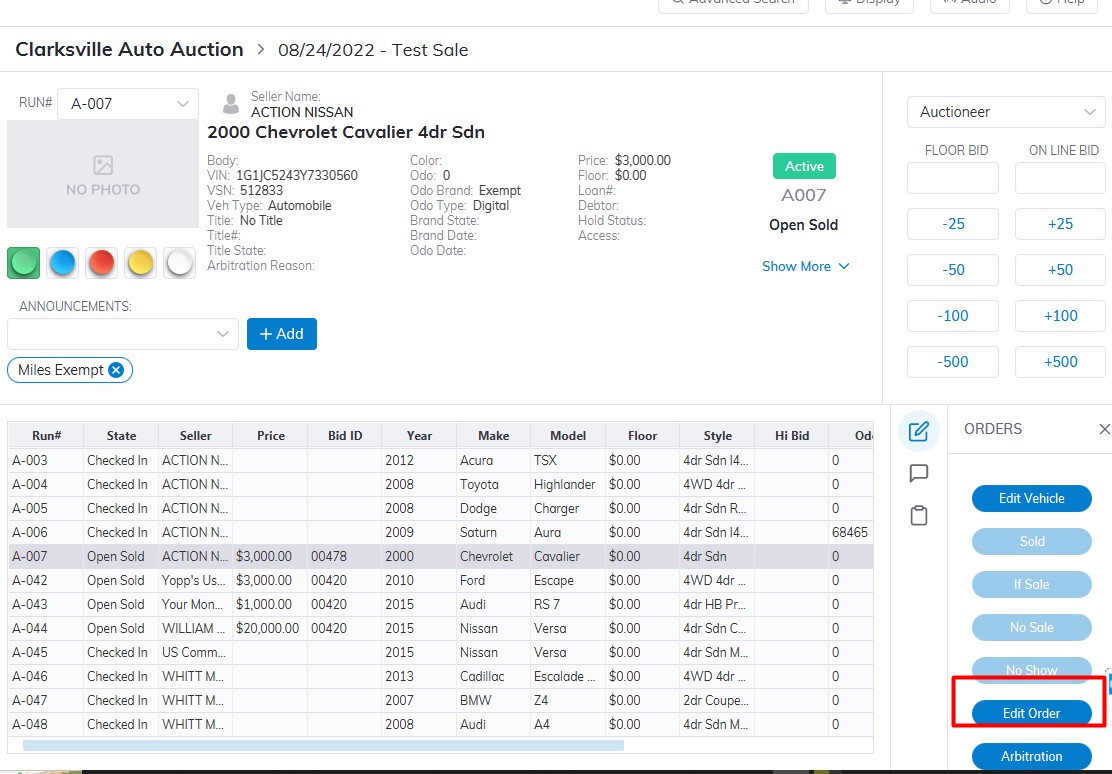
In some cases, you may do an 'Edit Order' in the event of a user input error during the Sale.
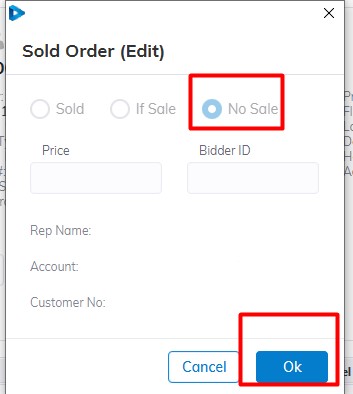
Vehicle Order was edited and change from Sold to No Sale
After a Vehicle is: Sold, If Sale, No Sale the cursor will automatically advance to the next unit.
Vehicleblock_vehicleorders.mp4
Lane Display
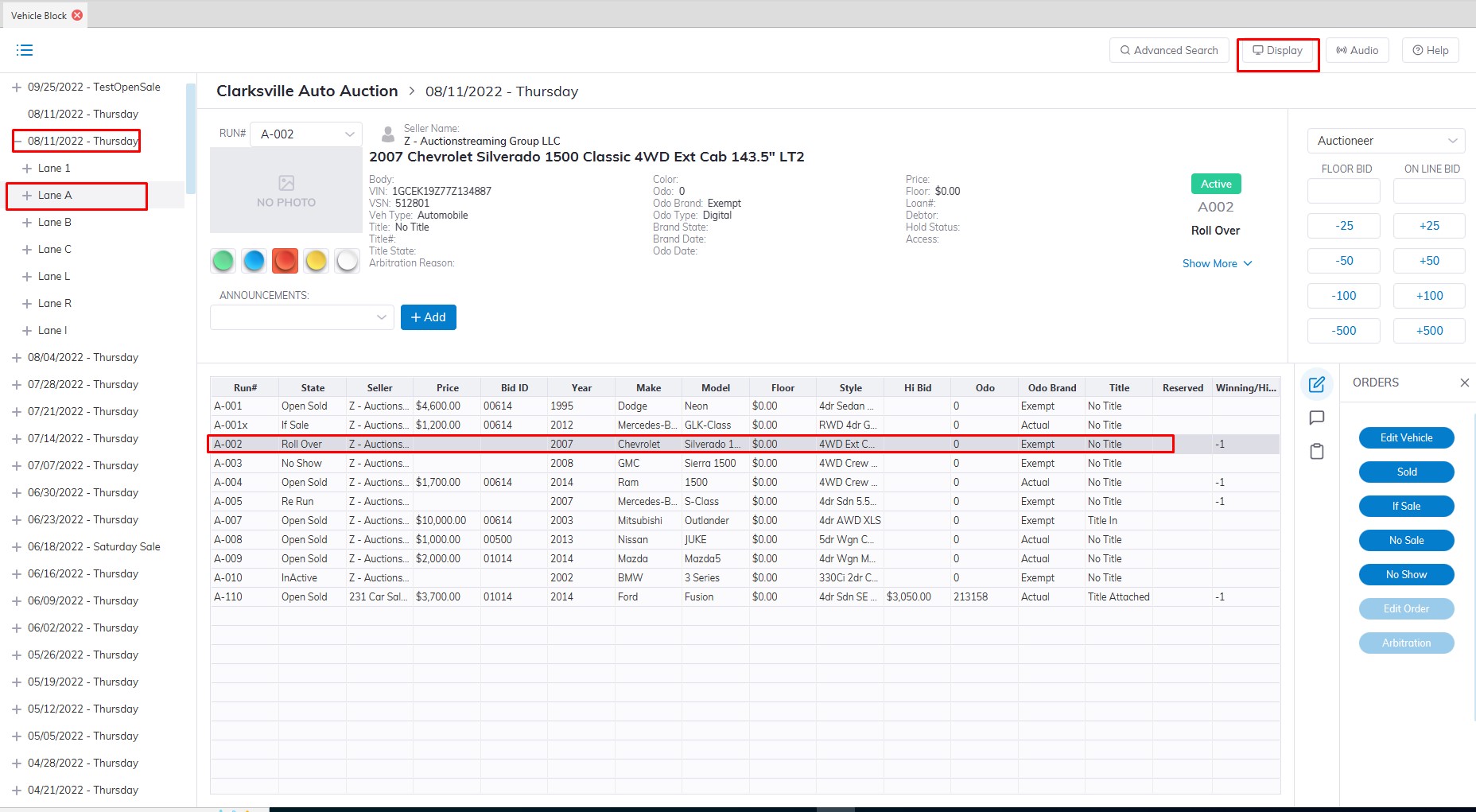
This part of the Vehicle Block Application which from the Main menu.
- Select the Sale Date.
- Select the Lane.
- Select an unsold vehicle in the grid.
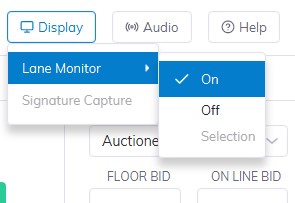
- Select the "Display" on the top right of the screen.
- Select 'On' from the menu 'Display' dropdown menu
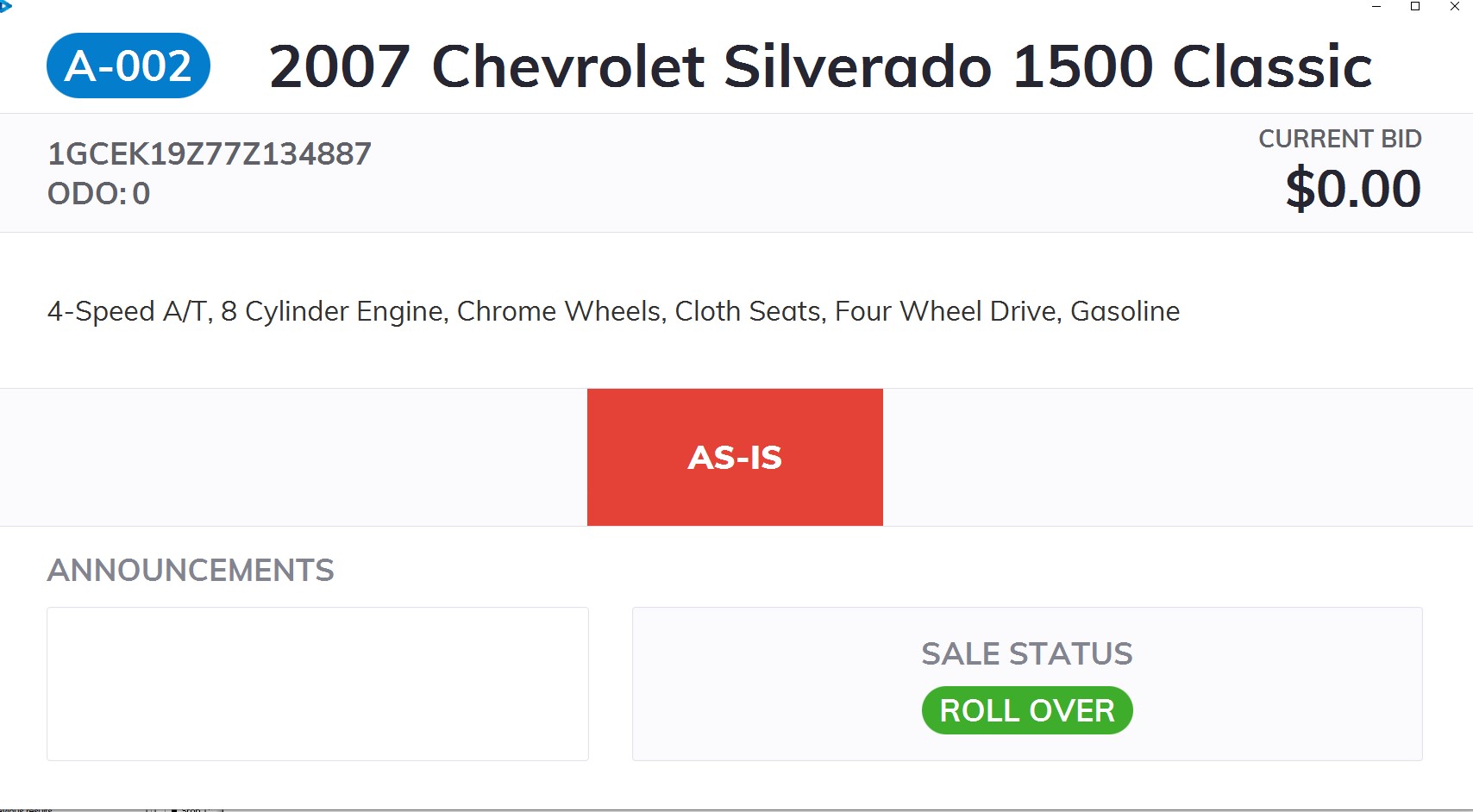
TheLCDy will appear on the screen. This window should be dragged onto the 2nd monitor connected to the PC used in the Lane. As the vehicle is updated with Announcements or Current Bid information the LCDy will reflect these changes.
Setting 'Audio' on by clicking the 'Audio' button then the Audio setting menu will pop up.
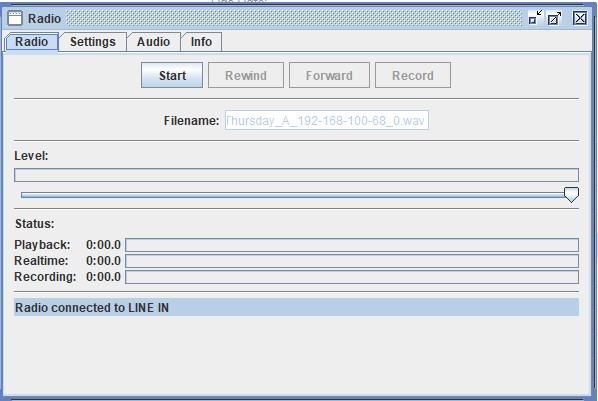
On clicking the "Start" button will begin the recording of the auctioneer's voice. A feed from the PA (public address) system into the audio jack in the back of the PC is necessary.