# Window Sticker

**<span style="font-family: Arial;"><span style="color: #808000;"><span style="font-size: large;"><span style="color: #000000;">WIN</span> <span style="color: #000000;">Sticker</span></span> </span></span>**

**<span style="font-family: Arial;"><span style="font-family: Arial; font-size: small;"><span style="font-size: large;">Win (window) Sticker</span></span></span>**

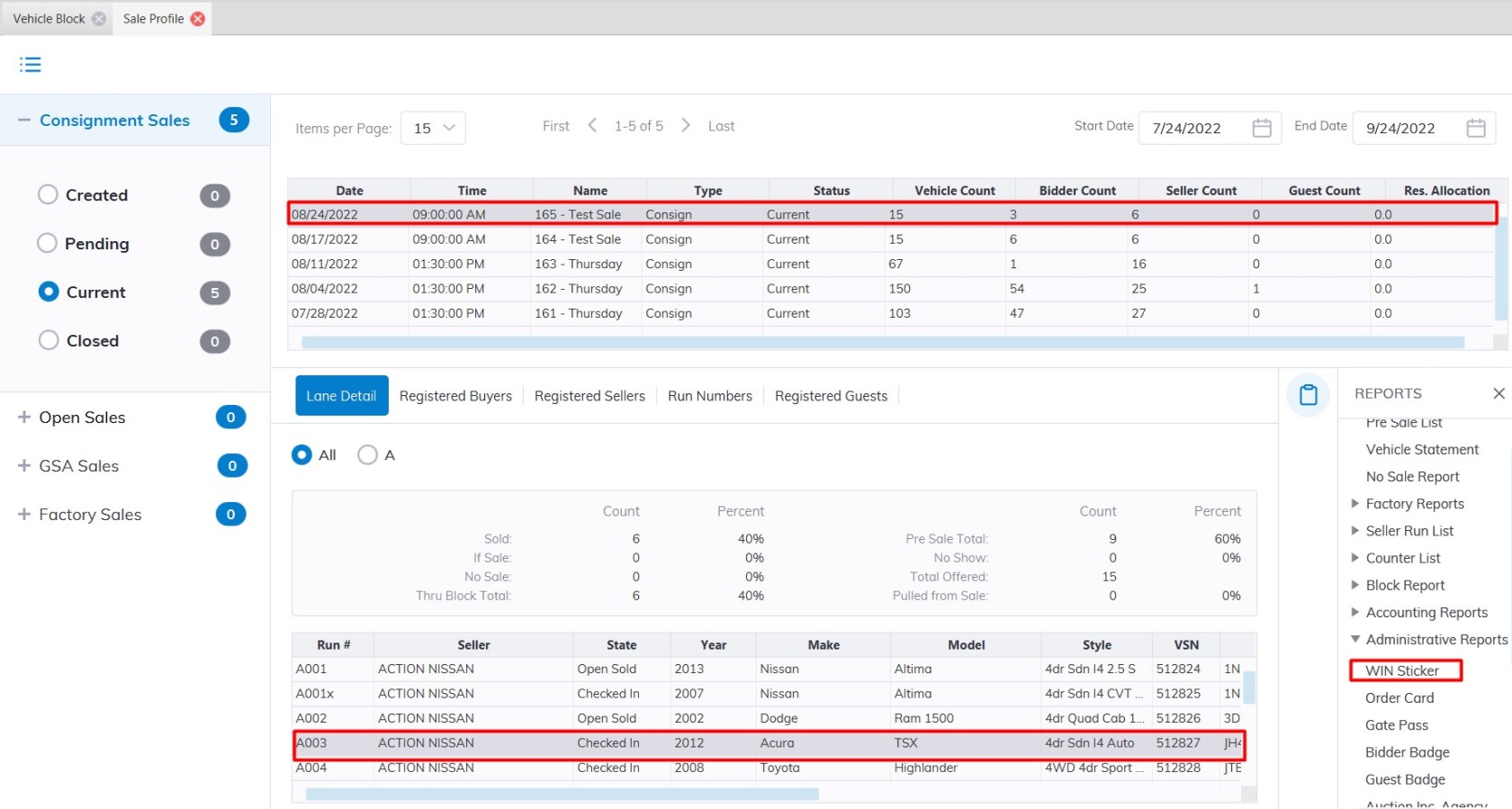
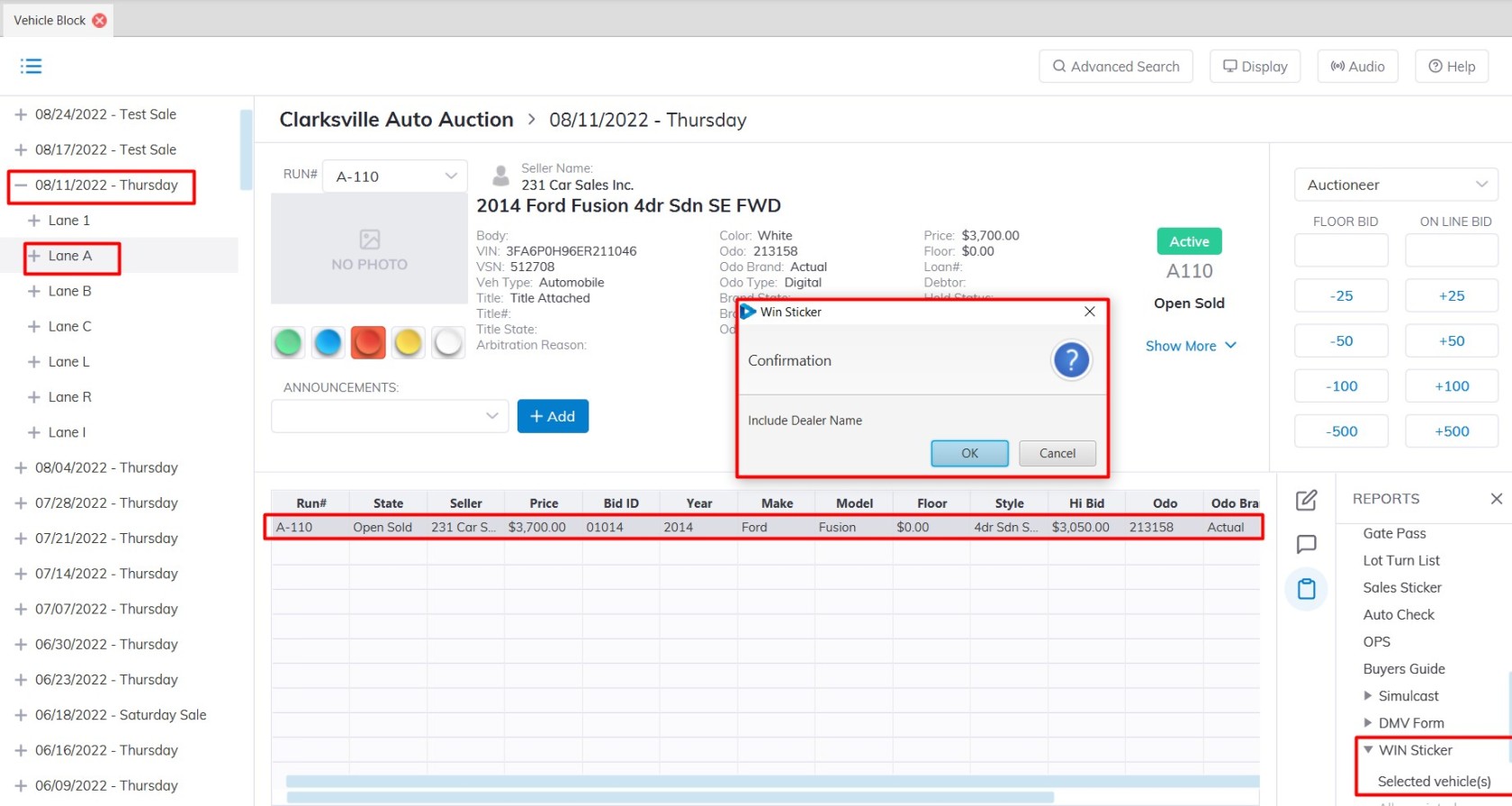
<span style="font-size: medium;">This report is designed to provide larger and more readable information for a vehicle than the Sales Sticker. You may run this report from the [**Sale Profile**](https://cam3-wiki.auctionstreaming.com/books/cams-3-wiki-faq/page/sale-profile) or the [**Vehicle Block**](https://cam3-wiki.auctionstreaming.com/books/cams-3-wiki-faq/page/vehicle-block) application.</span>

<span style="font-size: medium;">Select </span>

- <span style="font-size: medium;">The Sale Profile application &gt; Reports &gt; Administrative Reports &gt; Win Sticker</span>

<span style="font-size: medium;">[![win-saleP.jpg](https://cam3-wiki.auctionstreaming.com/uploads/images/gallery/2022-08/scaled-1680-/win-salep.jpg)](https://cam3-wiki.auctionstreaming.com/uploads/images/gallery/2022-08/win-salep.jpg)</span>

- <span style="font-size: medium;">The Vehicle Block application &gt; Reports &gt; Administrative Reports &gt; Win Sticker</span>

<span style="font-size: medium;">[![Win-vB.jpg](https://cam3-wiki.auctionstreaming.com/uploads/images/gallery/2022-08/scaled-1680-/win-vb.jpg)](https://cam3-wiki.auctionstreaming.com/uploads/images/gallery/2022-08/win-vb.jpg)</span>

<span style="font-size: medium;">**Note**: **You must select the 'Sale Description' (click the '+' sign next to the Sale Date') to run the report and select a vehicle.**</span>

<span style="font-size: medium;">**<video controls="controls" height="400" width="800"><source src="https://cam3-wiki.auctionstreaming.com/attachments/27"></source></video>**</span>