# Vehicle Orders
Vehicle Orders application - displays Vehicles that have a Run Number, in addition, all 'Active ' and 'Off-Site ' Vehicles are loaded into this application (regardless of Sale Date). The summary sections contain a selected Vehicle's make, model, and state.
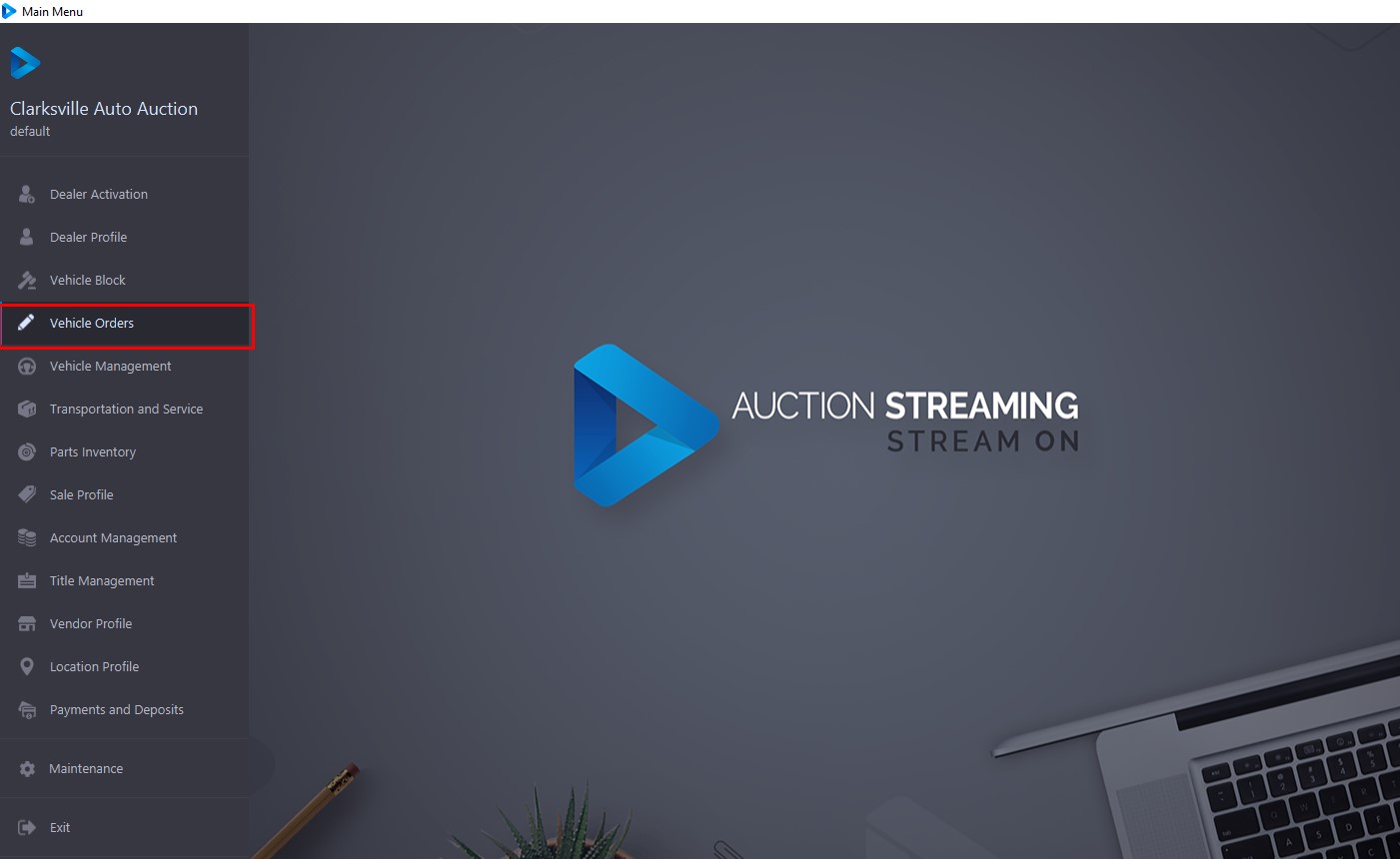
To Open the Vehicle Order application go to the Main Menu >> Select Vehicle Order
[](https://cam3-wiki.auctionstreaming.com/uploads/images/gallery/2022-09/vomenu.jpg)
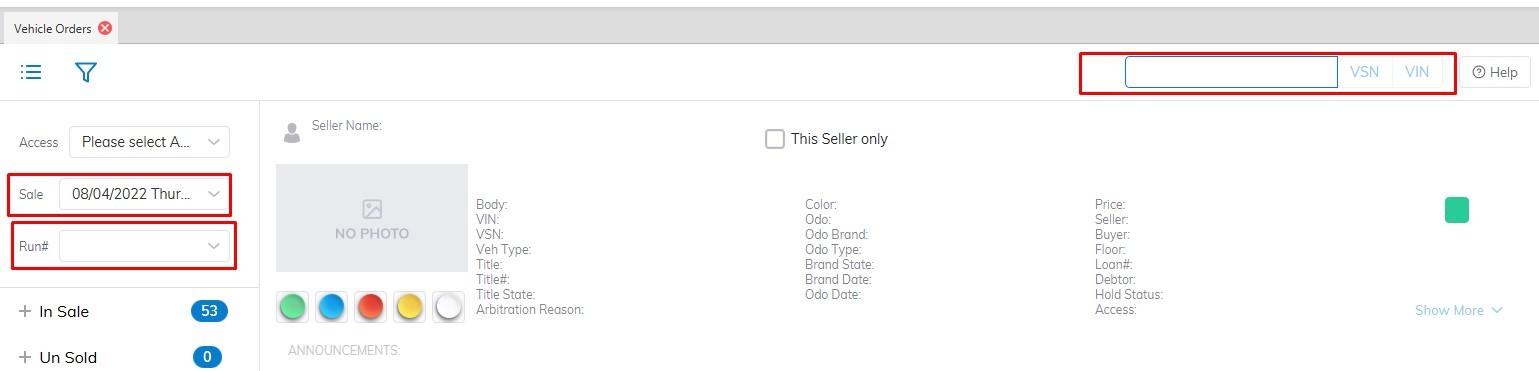
It is possible to Search for a vehicle according to VIN8 (last 8 digits of the VIN) or VSN (6 digits). The application will find the specific vehicle and highlight it in the grid.
[](https://cam3-wiki.auctionstreaming.com/uploads/images/gallery/2022-09/vo2.jpg)
Select Sale Date and Run Number and the application will find the vehicle and highlight it in the grid.
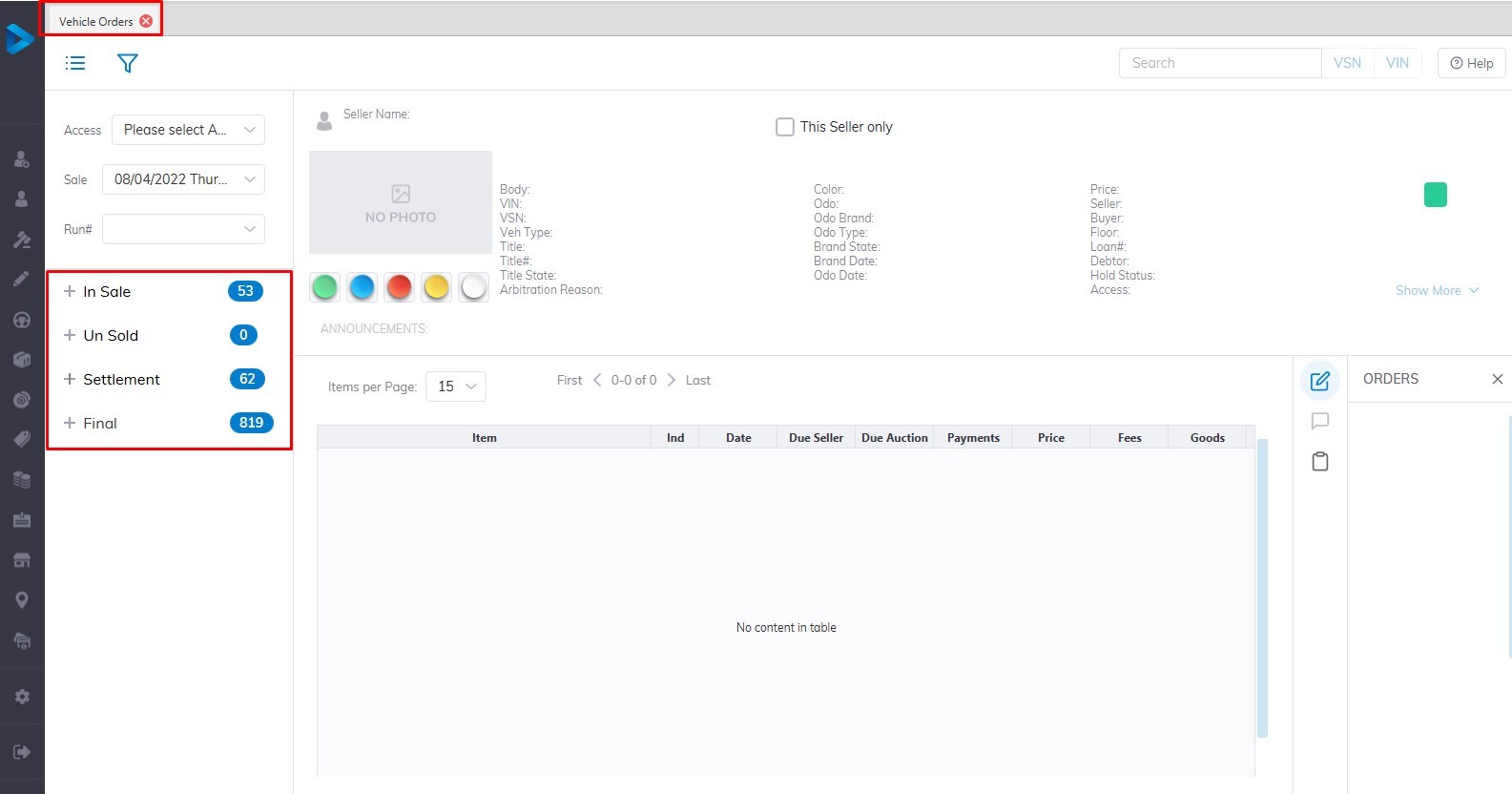
The grid displays Vehicles based on the combination of sash/button selection. The 4 sashes are:
- **In Sale**
- **Un Sold**
- **Settlement**
- **Final**
**[](https://cam3-wiki.auctionstreaming.com/uploads/images/gallery/2022-09/vo1.jpg)**
**In Sale Section**
**[](https://cam3-wiki.auctionstreaming.com/uploads/images/gallery/2022-09/vo3.jpg)**
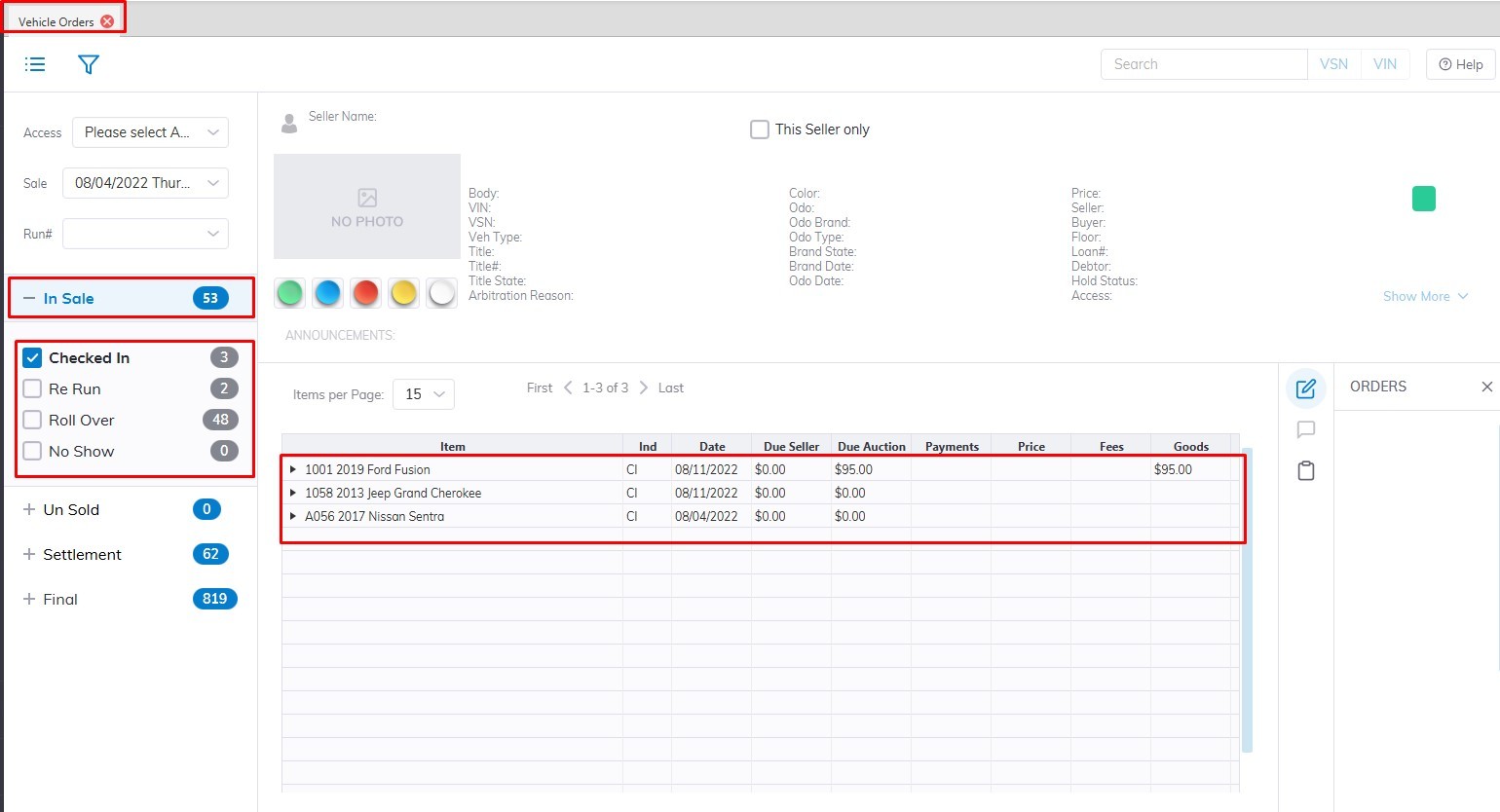
In Sale Sash - (outlined in red) contains 4 buttons; each corresponding to a vehicle's State (2 digit indicator - outlined in red)
- **[Checked In](https://cam3-wiki.auctionstreaming.com/books/cams-3-wiki-faq/page/check-in-order)** **\[CI\]**
This Vehicle State means the unit has a Run Number and appears in the Vehicle Block application ready for Sale. It also appears in the Vehicle Tab of the Dealer Profile application.
- - - You may do a Re Run order to change the Run Number.
- You may do a Roll Over order to change the Sale Date and Run Number.
- You may do an UnSold Settle order if the Seller wishes to remove the Vehicle from the Sale.
- You may do a 'Stock In' Order to move this Vehicle into Inventory.
- You may do a 'Lot Sale' order to sell this Vehicle off the Lot.
- You may also add a Charge or Adjustment.
- You may do a Replace Seller order to swap the Selling party.
- [**Re Run** ](https://cam3-wiki.auctionstreaming.com/books/cams-3-wiki-faq/page/re-run-order)**\[RR\]**
This Vehicle State means the Vehicle has already crossed the Block and will be Re Run again. It will appear in the Vehicle Block application ready for Sale (again). It also appears in the Vehicle Tab of the Dealer Profile application.
- **[Roll Over](https://cam3-wiki.auctionstreaming.com/books/cams-3-wiki-faq/page/roll-over-order)** **\[RO\]**
This Vehicle State means the Vehicle was in a previous Sale and the unit has a Run Number and appears in the Vehicle Block application ready for Sale. It also appears in the Vehicle Tab of the Dealer Profile application.
- - - You may do a Re Run order to change the Run Number.
- You may do an UnSold Settle order if the Seller wishes to remove the Vehicle from the Sale.
- You may do a 'Stock In' Order to move this Vehicle into Inventory.
- You may do a 'Lot Sale' order to sell this Vehicle off the Lot.
- You may also add a Charge or Adjustment.
- You may do a Replace Seller order to swap the Selling party.
- No Show **\[SH\]**
This Vehicle State means the Vehicle has never crossed the Block and was a No Show. It will appear in the Vehicle Block application ready for Sale. It also appears in the Vehicle Tab of the Dealer Profile application.
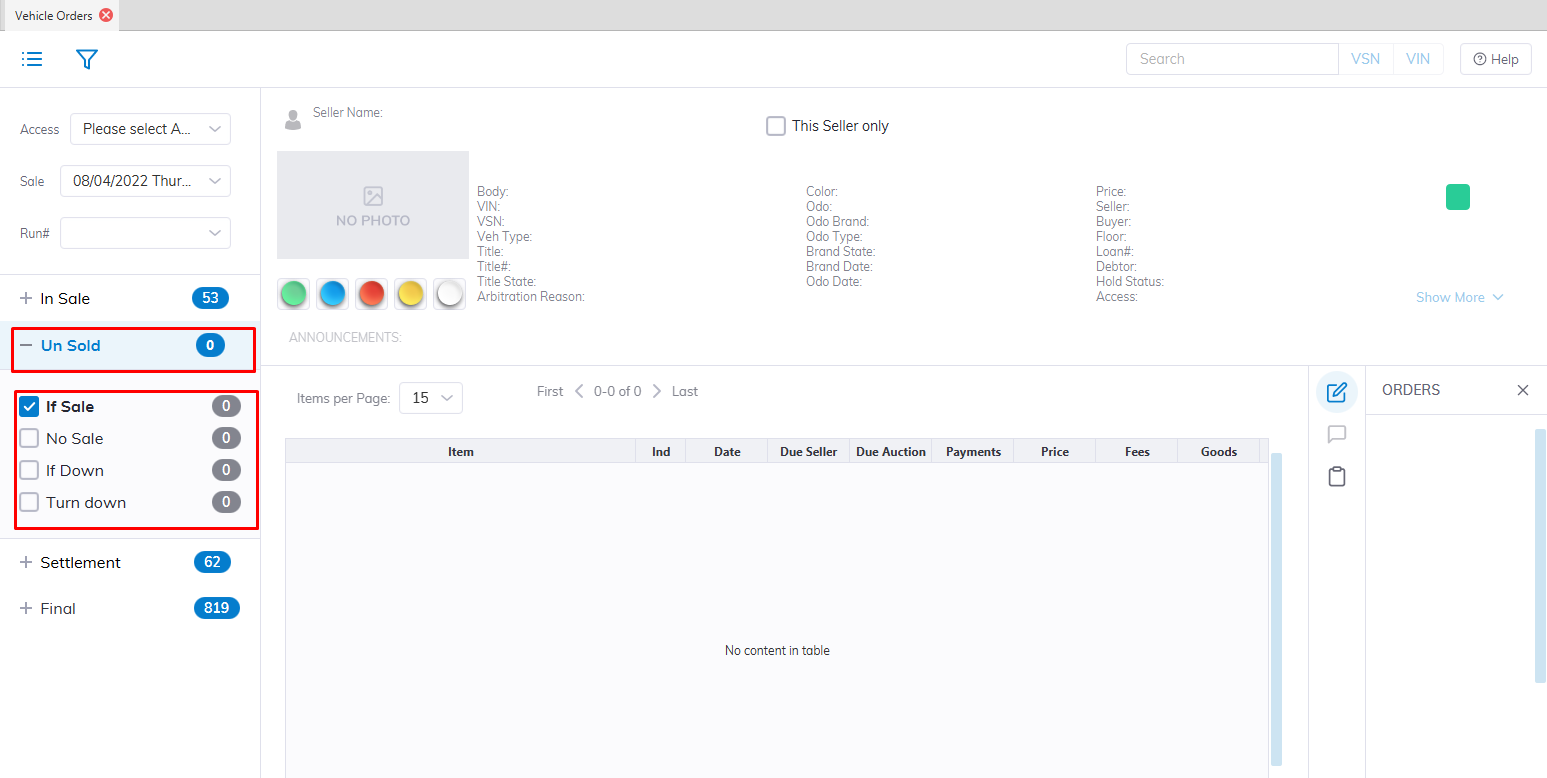
**Un Sold Section**
[](https://cam3-wiki.auctionstreaming.com/uploads/images/gallery/2022-09/image-1663013491911.png)
****
Un Sold Sash - (outlined in red) contains 4 buttons; each corresponding to a vehicle's State (2 digit indicator - outlined in red)
- [**If Sale**](https://cam3-wiki.auctionstreaming.com/books/cams-3-wiki-faq/page/if-sale) **\[IF\]**
This Vehicle is an If Sale or 'with-a-call' Sale and has a price the buyer is willing to pay (pending the approval of the seller). The offers back and forth between buyer and seller may be logged using the 'Edit Order '. This Vehicle also appears in the Vehicle Block application and the Vehicle Tab of the Dealer Profile application.
You must do an [**'If Accept'**](https://cam3-wiki.auctionstreaming.com/books/cams-3-wiki-faq/page/if-accept) order to finalize an If Sale.
- **[No Sale](https://cam3-wiki.auctionstreaming.com/books/cams-3-wiki-faq/page/no-sale)** **\[NS\]**
This Vehicle has crossed the Vehicle Block without a winning bid. It may have the Hi bidder and Hi bid amount but there is no deal. This Vehicle also appears in the Vehicle Tab of the Dealer Profile application.
- - - You may do a Roll Over order to change the Sale Date and Run Number.
- You may do an UnSold Settle order if the Seller wishes to remove the Vehicle from the Sale.
- You may do a 'Stock In' Order to move this Vehicle into Inventory.
- You may do a 'Lot Sale' order to sell this Vehicle off the Lot.
- You may also add a Charge or Adjustment.
- You may do a Replace Seller order to swap the Selling party.
- **If Down** **\[ID\]**
This Vehicle has an If Sale offer which was ultimately rejected by the Seller. This Vehicle also appears in the Vehicle Tab of the Dealer Profile application.
- - - You may do a Roll Over order to change the Sale Date and Run Number.
- You may do an UnSold Settle order if the Seller wishes to remove the Vehicle from the Sale.
- You may do a 'Stock In' Order to move this Vehicle into Inventory.
- You may do a 'Lot Sale' order to sell this Vehicle off the Lot.
- You may also add a Charge or Adjustment.
- You may do a Replace Seller order to swap the Selling party.
- [**Turn Down**](https://cam3-wiki.auctionstreaming.com/books/cams-3-wiki-faq/page/arb-and-arb-accept) **\[TD\]**
This Vehicle was in Arbitration and was rejected by the Buyer with the approval of the Auction. This Vehicle also appears in the Vehicle Tab of the Dealer Profile application.
- - - You may do a Roll Over order to change the Sale Date and Run Number.
- You may do an UnSold Settle order if the Seller wishes to remove the Vehicle from the Sale.
- You may do a 'Stock In' Order to move this Vehicle into Inventory.
- You may do a 'Lot Sale' order to sell this Vehicle off the Lot.
- You may also add a Charge or Adjustment
- You may do a Replace Seller order to swap the Selling party.
**Settlement Section****[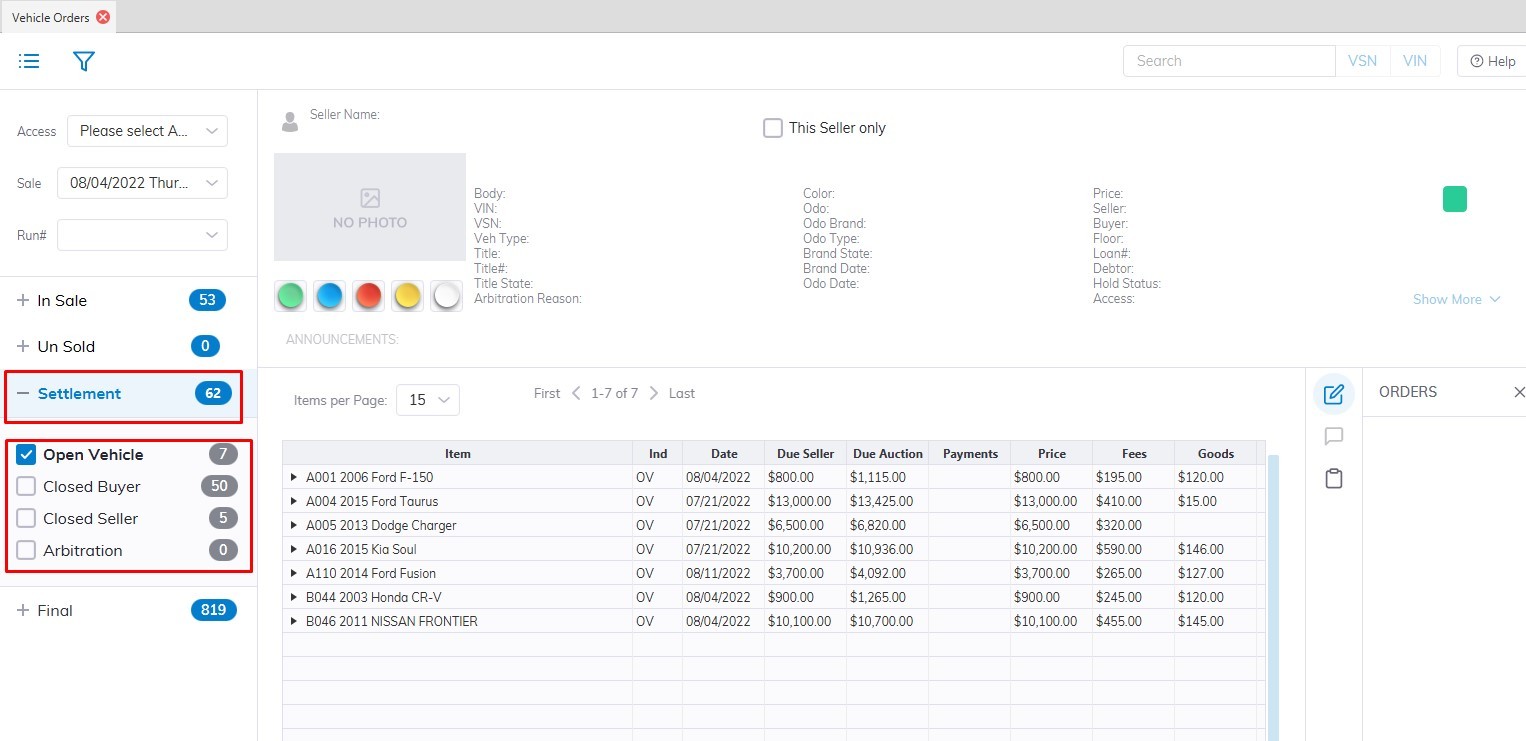](https://cam3-wiki.auctionstreaming.com/uploads/images/gallery/2022-09/vo4.jpg)**
Settlement Sash - (outlined in red) contains 4 buttons; each corresponding to a vehicle's State (2-digit indicator - outlined in red)
- **Open Vehicle** **\[OV\] **
This Vehicle state is a Sold Vehicle with no Buyer payment or a Seller's Check. Both sides (buyer and seller) of this deal are Open. This Vehicle may also be seen in the Vehicle Tab of the Dealer Profile with an OB for the buying rep and an OS for the selling rep.
- - - You may do a Buy Settle order to receive payment from the Buyer.
- You may do a Sell Settle order to issue payment to a Seller.
- You may do an Edit Order order to change the Price or Bid ID information
- You may also add a Charge or Adjustment.
- You may do a Replace Seller or Replace Buyer order.
- **Closed Buyer** **\[CB\]**
This Vehicle state is a Sold Vehicle where the Buyer has paid but the Seller has not been issued a check. This Vehicle may also be seen in the Vehicle Tab of the Dealer Profile with a **CB** for the buying rep and an OS for the selling rep.
- - - You may do a Buy Settle order to receive payment from the Buyer, but only if there is an outstanding balance due to partial payment.
- You may do a Sell Settle order to issue payment to a Seller.
- You may also add a Charge or Adjustment.
- You may do a Replace Seller or Replace Buyer order.
- **Closed Seller** **\[CS\] **
This Vehicle state is a Sold Vehicle where the Buyer has not paid but the Seller has been issued a check. This Vehicle may also be seen in the Vehicle Tab of the Dealer Profile with an OB for the buying rep and a **CS** for the selling rep.
- - - You may do a Buy Settle order to receive payment from the Buyer.
- You may also add a Charge or Adjustment.
- You may do a Replace Seller or Replace Buyer order.
- [**Arbitration**](https://cam3-wiki.auctionstreaming.com/books/cams-3-wiki-faq/page/arb-and-arb-accept) **\[AR\]**
This Vehicle state is used to show a Vehicle that is currently being Arbitrated. This Vehicle may also be seen in the Vehicle Tab of the Dealer Profile with an **AR** indicator.
- - - You may do an **Arb Accept** order to finalize the Arbitration.
- You may also add a Charge or Adjustment.
**Final Section****[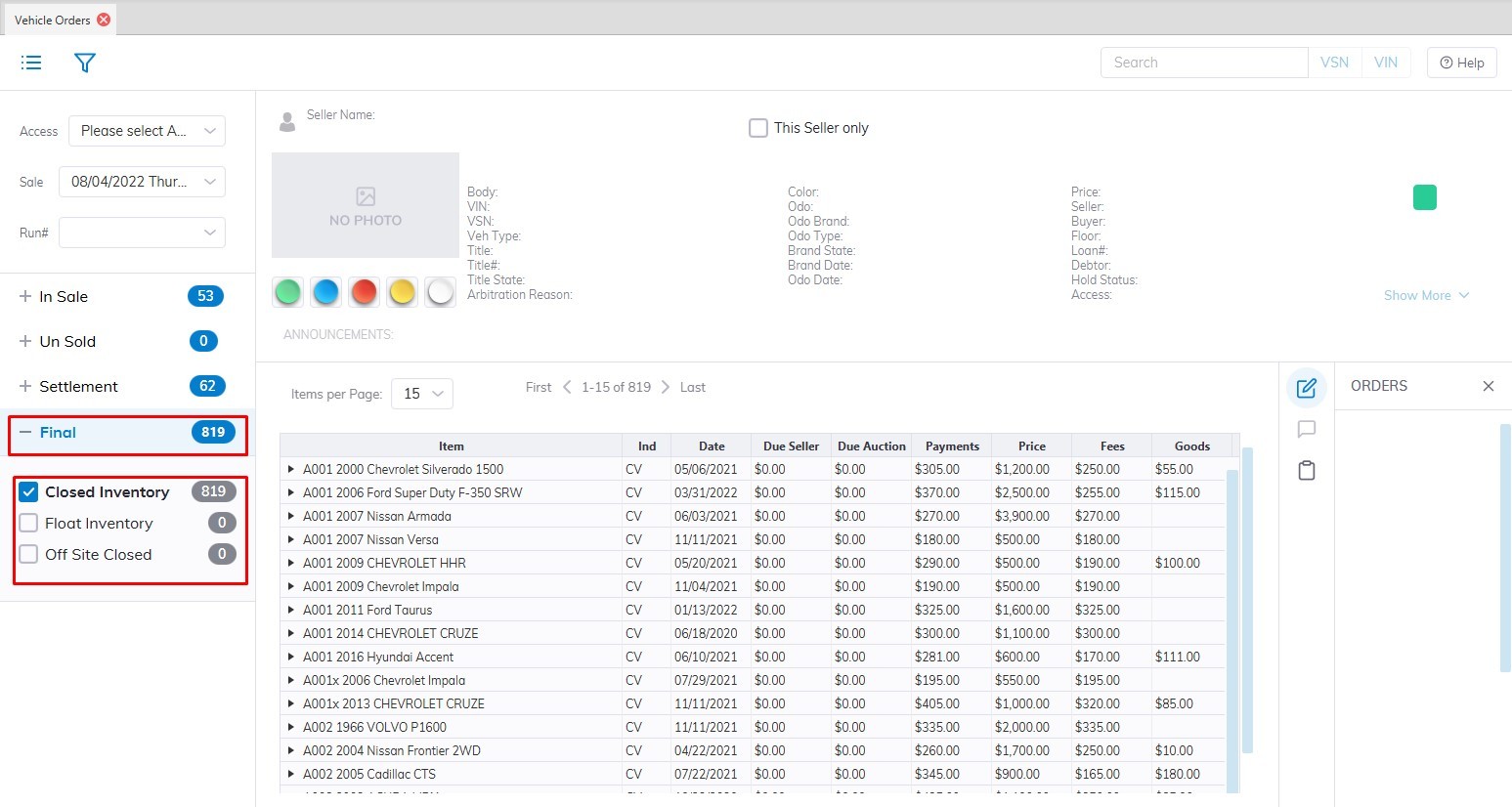](https://cam3-wiki.auctionstreaming.com/uploads/images/gallery/2022-09/vo5.jpg)**
The final sash - (outlined in red) contains 3 buttons (one is not used); each corresponding to a vehicle's State (2 digit indicator - outlined in red)
- **Closed Vehicle \[CV\] **
This Vehicle state is a Sold Vehicle with a Buyer payment and a Seller's Check issued. Both sides (buyer and seller) of this deal are Closed. This Vehicle may also be seen in the VehicleTab of the Dealer Profile with a **CB** for the buying rep and a **CS** for the selling rep.
- - - You may do a Departure order to make the VSN In Active.
- You may do an Arbitration order for the Buyer to dispute the Price.
- **Un Sold Settled** **\[US\]**
This Vehicle state is an UnSold Vehicle. This Vehicle may also be seen in the Vehicle Tab of the Dealer Profile.
- - - You may do a Buy Settle order to receive payment from the Buyer.
- You may do a Departure Order.