# Title Absent Report
The Title Absent report provides information for vehicles whose titles are outstanding as Title Absent or Title Float. You may run this report from the **[Sale Profile](https://cam3-wiki.auctionstreaming.com/books/cams-3-wiki-faq/page/sale-profile)** or **[Payments and Deposits](https://cam3-wiki.auctionstreaming.com/books/cams-3-wiki-faq/page/payments-and-deposits)** application.
##### **From Sale Profile**
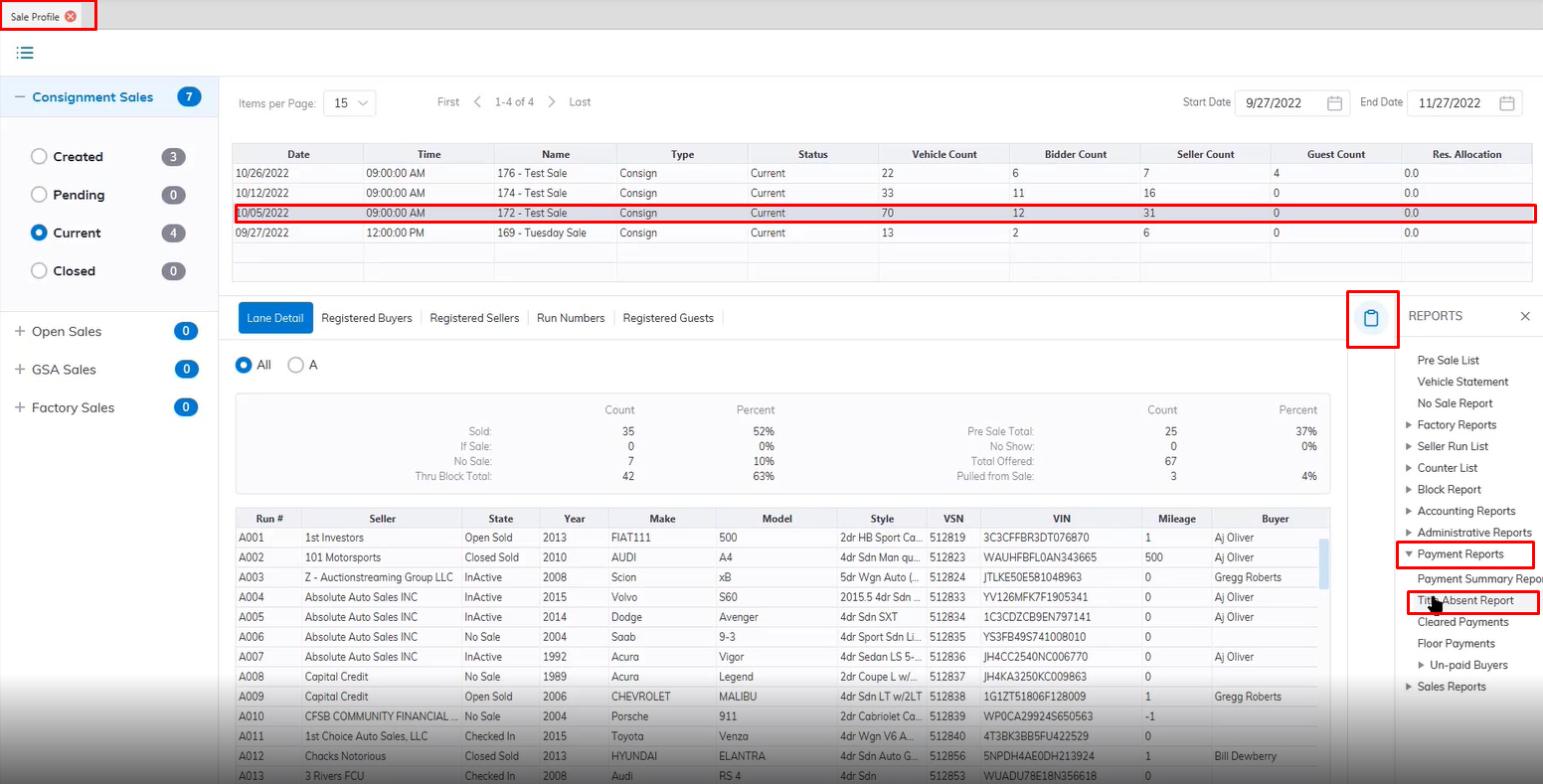
- Select the **[Sale Profile](https://cam3-wiki.auctionstreaming.com/books/cams-3-wiki-faq/page/sale-profile)** application
[](https://cam3-wiki.auctionstreaming.com/uploads/images/gallery/2022-11/image-1667855286630.png)
- Select the Sale Date from the top grid
- Select Reports menu
- Select the Payments Report submenu then Title Absent Report
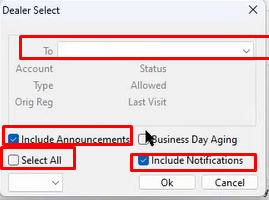
- This will launch the Report wizard
[](https://cam3-wiki.auctionstreaming.com/uploads/images/gallery/2022-11/image-1667855515885.png)
- You can customize your report by selecting a specific Dealer or selecting the Select All checkbox for all dealers.
- You can include Notifications and Include Announcements by selecting the checkbox in your report.
- When finished Click "OK" to create and print your report.
##### **From Payments and Deposits**
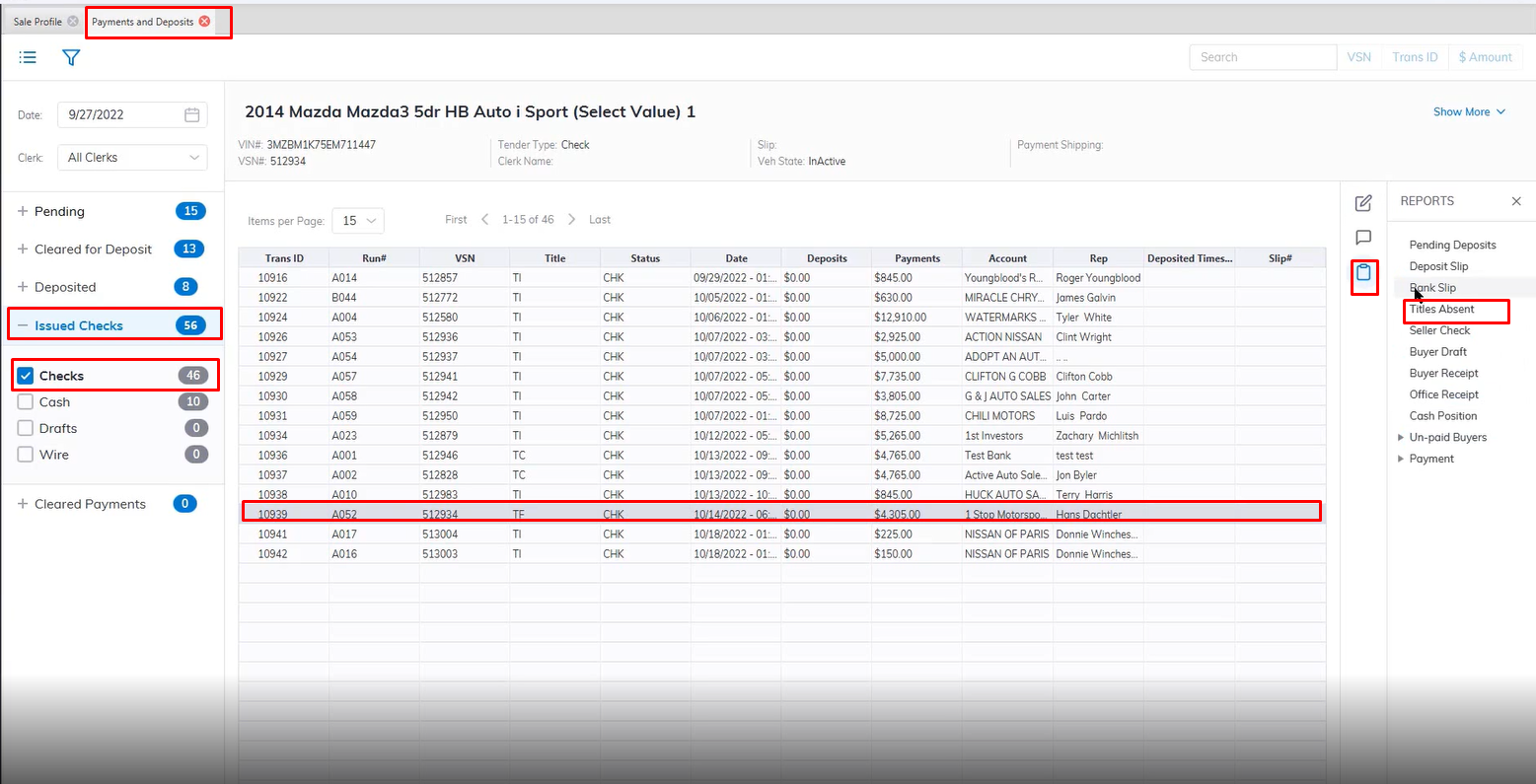
- Select the**[ Payments and Deposits](https://cam3-wiki.auctionstreaming.com/books/cams-3-wiki-faq/page/payments-and-deposits)** application
[](https://cam3-wiki.auctionstreaming.com/uploads/images/gallery/2022-11/image-1667855836616.png)
- Select the Issued Checks Sash then Checks Section
- Select the Vehicle with a status of **TF** or **Title Float**
- Select Reports menus
- Select the Title Absent Report
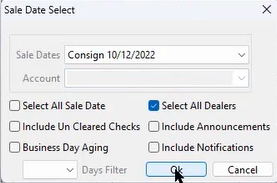
- This will launch the Report wizard
[](https://cam3-wiki.auctionstreaming.com/uploads/images/gallery/2022-11/image-1667856158332.png)
- You can customize your report by selecting a specific Dealer in the Account field Dropdown or selecting the Select All checkbox for all dealers.
- Select the Sale Date from the Dropdown
- You can include Notifications and Include Announcements by selecting the checkbox in your report.
- When finished Click "OK" to create and print your report.