# Seller Run List
The Seller Listing report is a record of the vehicle begin offered for sale. You may run this report from the [**Sale Profile**](https://cam3-wiki.auctionstreaming.com/books/cams-3-wiki-faq/page/sale-profile) or [**Vehicle Block**](https://cam3-wiki.auctionstreaming.com/books/cams-3-wiki-faq/page/vehicle-block) application.
- Select The Vehicle Block application > Reports > Seller Run List
[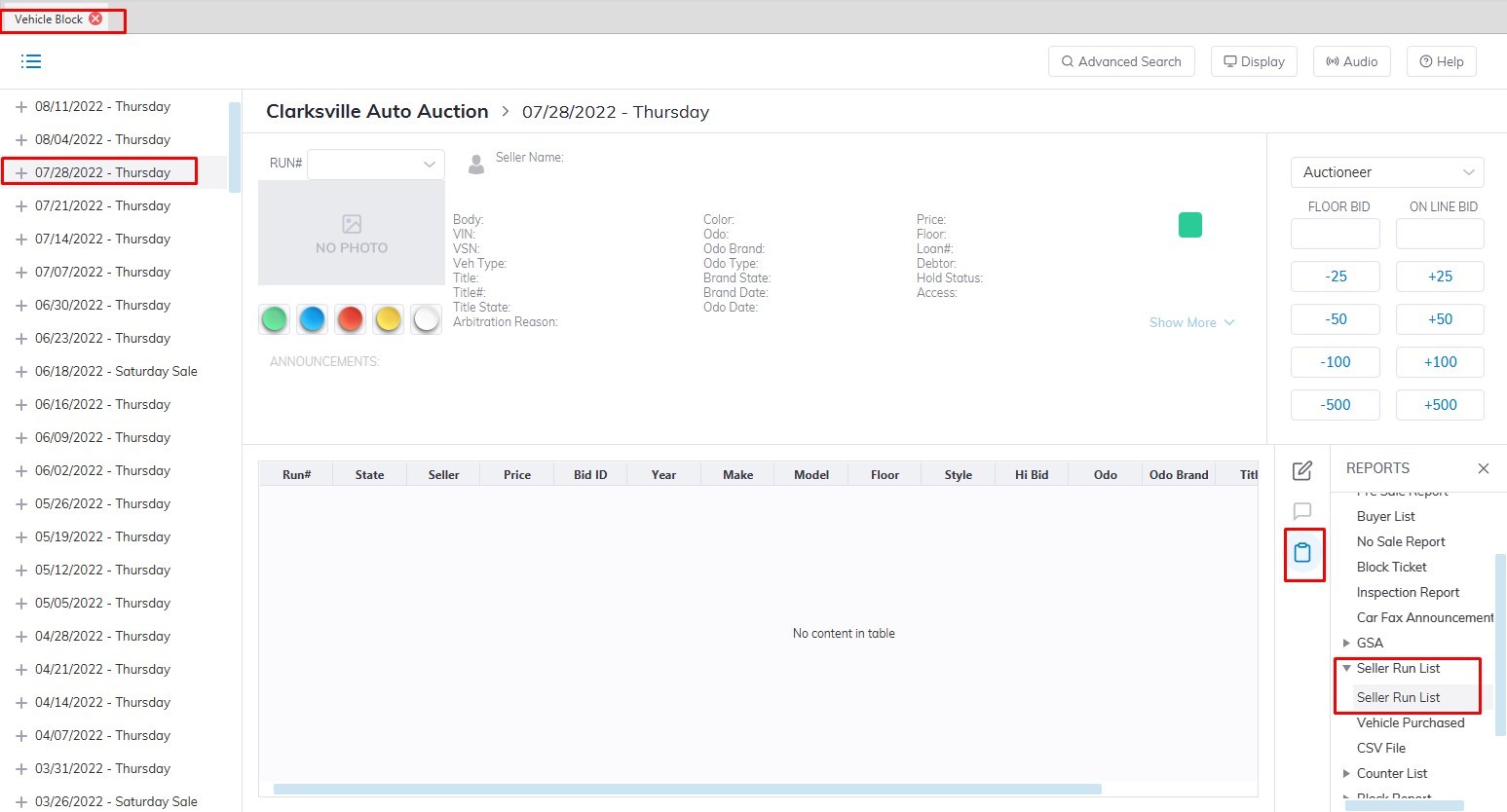](https://cam3-wiki.auctionstreaming.com/uploads/images/gallery/2022-09/seller1.jpg)
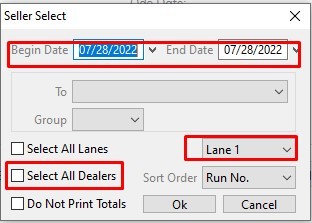
- This will launch the Seller Run list form.
[](https://cam3-wiki.auctionstreaming.com/uploads/images/gallery/2022-09/seller2.jpg)
- Select the Sale Date Range you would like to run the report for.
- Select the specific Lane or you can choose the "Select All lanes" checkbox to run the report for all Lanes
- Select if you need 'All Dealers' or select a single selling Dealer from the drop-down listing in the To field.
- Click 'OK' when complete to generate the report.
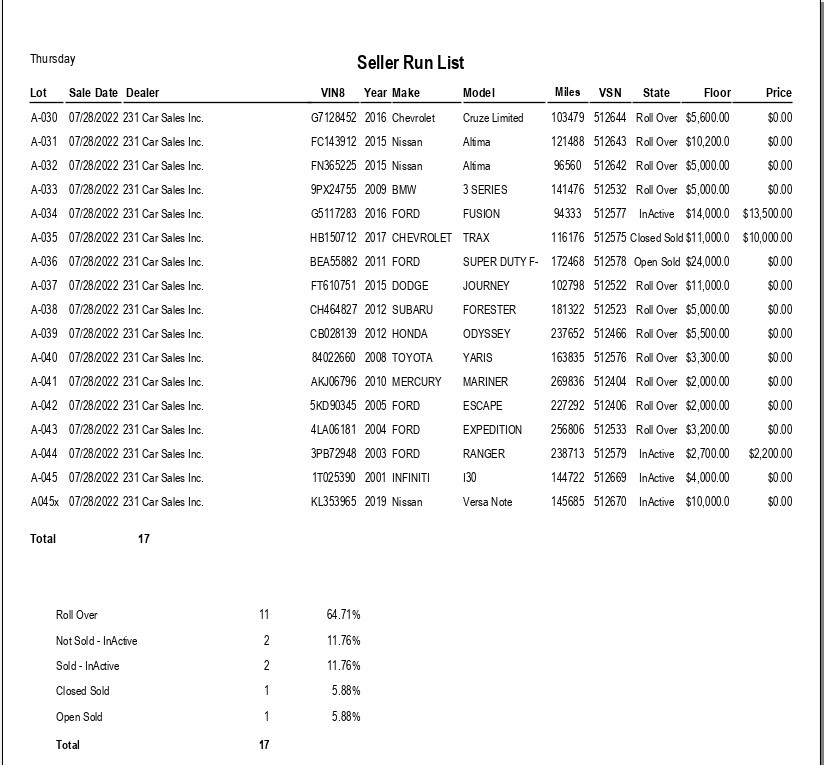
Sample of the report that was generated.
[](https://cam3-wiki.auctionstreaming.com/uploads/images/gallery/2022-09/seller3.jpg)