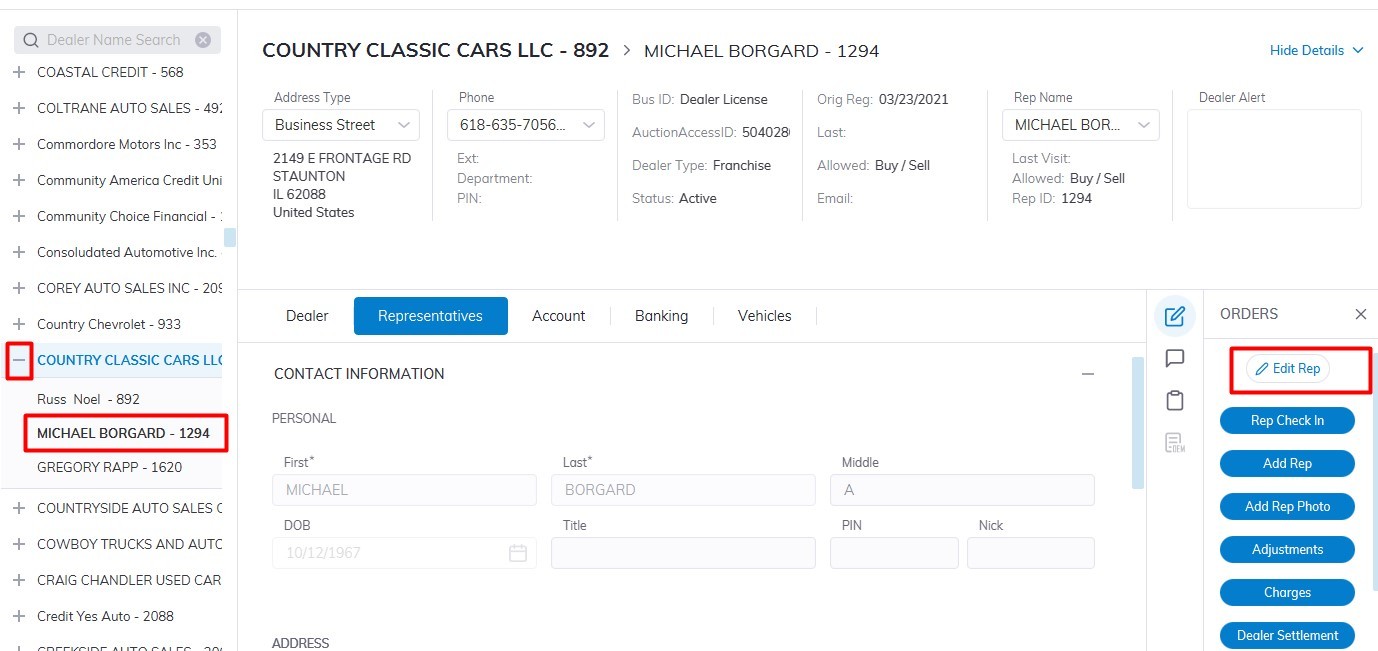
In the left-hand pane Expand the Dealer by Clicking the + then Select the Rep you which to edit
On the right-hand side Click the **'Edit Rep'** order button
[](https://cam3-wiki.auctionstreaming.com/uploads/images/gallery/2022-08/per1.jpg)
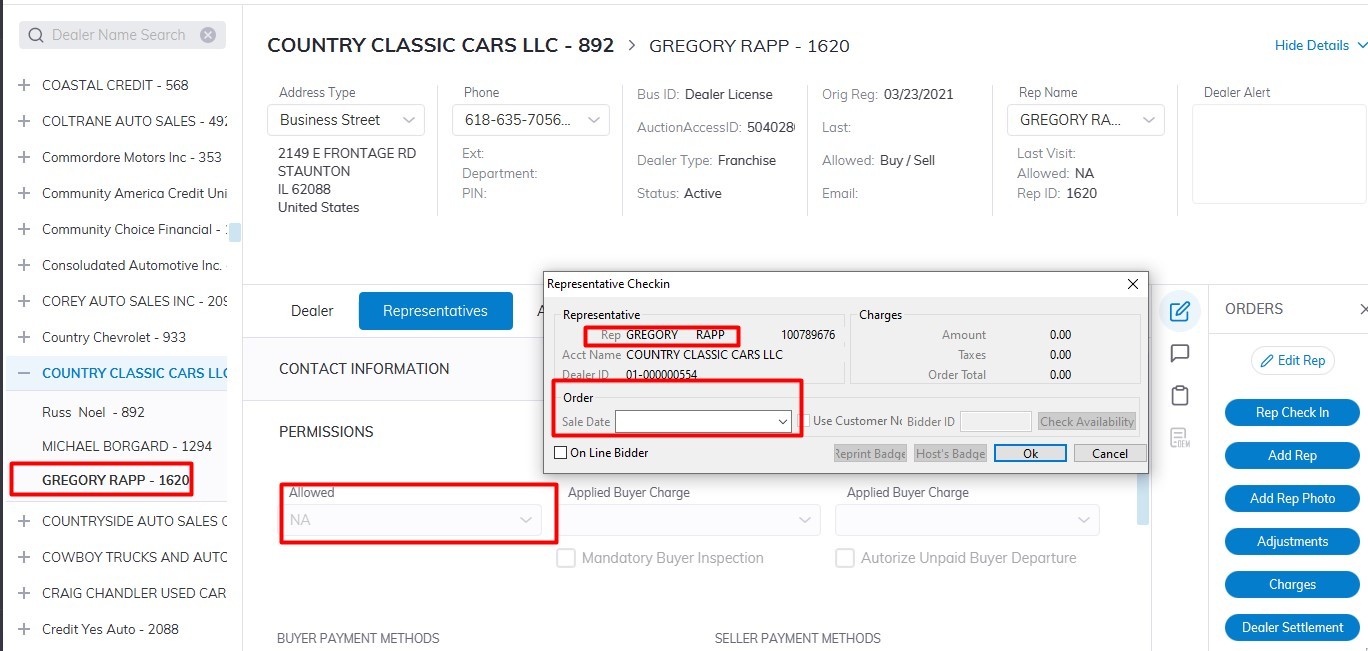
Scroll and click on the Permissions Tab to expand to edit Reps' Information.
**Allowed filed**
- **NA** - No Buying and No Selling. The Dealer and its Reps will not be able to Register Vehicles for Sale or Check-in as a Buyer for any Sale.
- **Buy** - Buying Only. The Dealer and its Reps may obtain a Bid badge through Rep Check In, although they will not be able to Register Vehicles for Sale.
- **Sell** - Selling Only. The Dealer and its Reps may Register Vehicles for Sale, although they will not be able to Check-in as a Buyer.
- **Buy / Sell** - Buying and Selling. The Dealer and its Reps may Register Vehicles for Sale as well as Check in as a Buyer.
- **Pre Reg** - Pre Registration is used to indicate the Dealer Registration is incomplete and permission for Buying and Selling is not granted.
- **Marketing** - Marketing is used to indicate the Dealer Registration is for Marketing purposes only and permission for Buying and Selling is not granted.
- **Exclude Mailing:** Setting the 'Exclude Mailing' value to true (clicking the check box) will exclude this dealer from being included in the Mailing Label report.
**Note: By selecting 'NA' you will set the Representative to 'In Active' status and they will not be able to Buy or Sell or Check-In for a Sale.**
[](https://cam3-wiki.auctionstreaming.com/uploads/images/gallery/2022-08/per2.jpg)
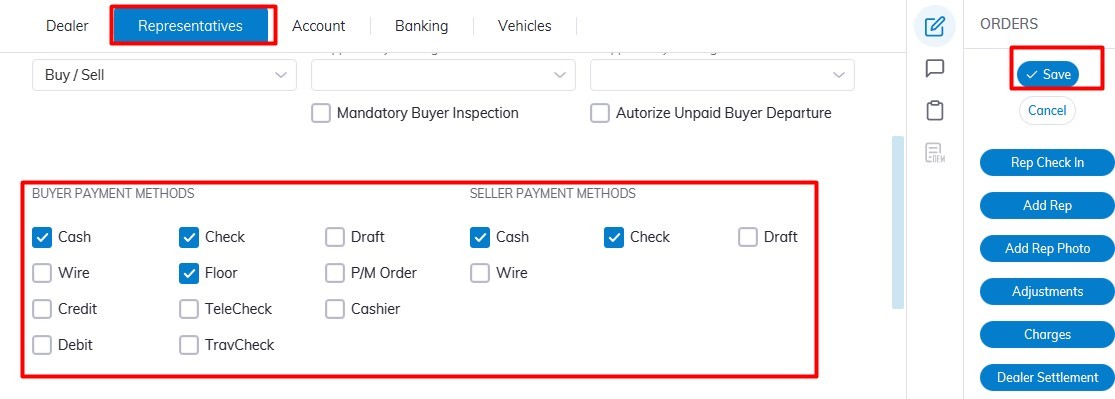
In the permissions section you can Input the following Payment Method for Buying and Selling:
##### Payment Methods
Select Payment Type for use in [**Seller Settlement**](https://cam3-wiki.auctionstreaming.com/books/cams-3-wiki-faq/page/vehicle-settle-buy-settle-and-sell-settle-orders).
Cash, Check, Draft and Wire
Select Payment Type for use in [**Buyer Settlement**.](https://cam3-wiki.auctionstreaming.com/books/cams-3-wiki-faq/page/vehicle-settle-buy-settle-and-sell-settle-orders)
Cash, Check, Credit,
Debit, Wire, P/M Order,
Draft, Floor Plan, TeleCheck,
Travelers Check, Cashier
[](https://cam3-wiki.auctionstreaming.com/uploads/images/gallery/2022-08/per3.jpg)
Click 'Save' to Save.
**Setting Permission**
#####
**Payment Method**