# Rep Check In
**Note: Make sure you are on the correct dealer. **
The 'Rep Check In' Order is used to assign a Bidder ID for a buying Rep and to print a Bidder badge.
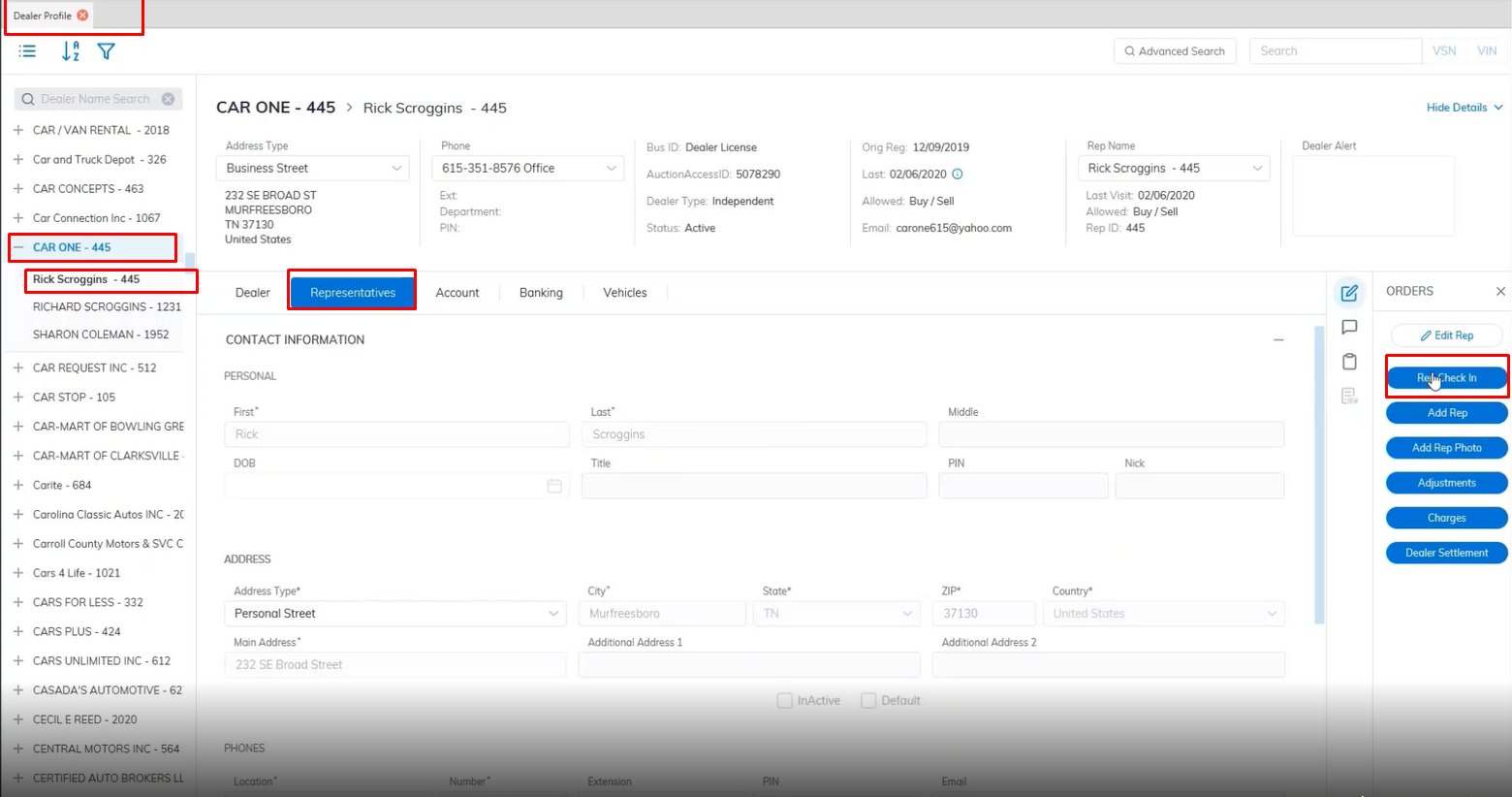
- Select **[Dealer Profile](https://cam3-wiki.auctionstreaming.com/books/cams-3-wiki-faq/page/dealer-profile)** Application>> Select the Dealer>>Select Representative Tab
- Select the Rep
- Select 'Rep Check In' Order
[](https://cam3-wiki.auctionstreaming.com/uploads/images/gallery/2022-10/image-1666814880003.png)
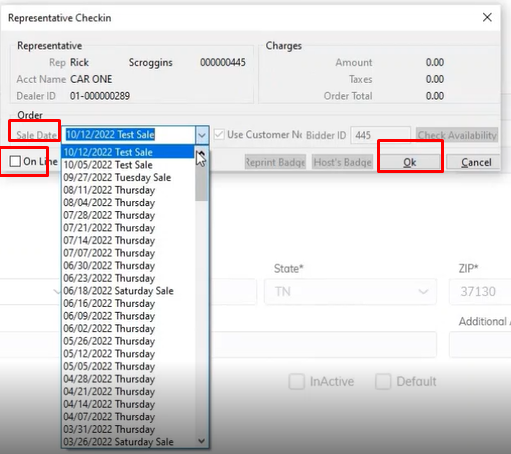
- This will launch the 'Representative Checkin' form - see below
[](https://cam3-wiki.auctionstreaming.com/uploads/images/gallery/2022-10/image-1666814992445.png)
- Select the Sale Date you want the Rep to participate in
- Click 'OK' to complete the bid badge, which will automatically print at the left corner of your screen.