# Refund Settlement
Refund Settlements are used to write Checks to a Buyer who has Credit on their Account. Refund checks may be written for 'Credits' resulting from the following transactions:
**[Buy Settle](https://cam3-wiki.auctionstreaming.com/books/cams-3-wiki-faq/page/vehicle-settle-buy-settle-and-sell-settle-orders)** with an Over-payment
**[No Sale](https://cam3-wiki.auctionstreaming.com/books/cams-3-wiki-faq/page/no-sale)** order when the buyer's check has been deposited
**Note: Refund checks may not be issued for any other reason than those listed above. You may not issue a negative Adjustment to a buyer's account and then write a Refund check for the balance.**
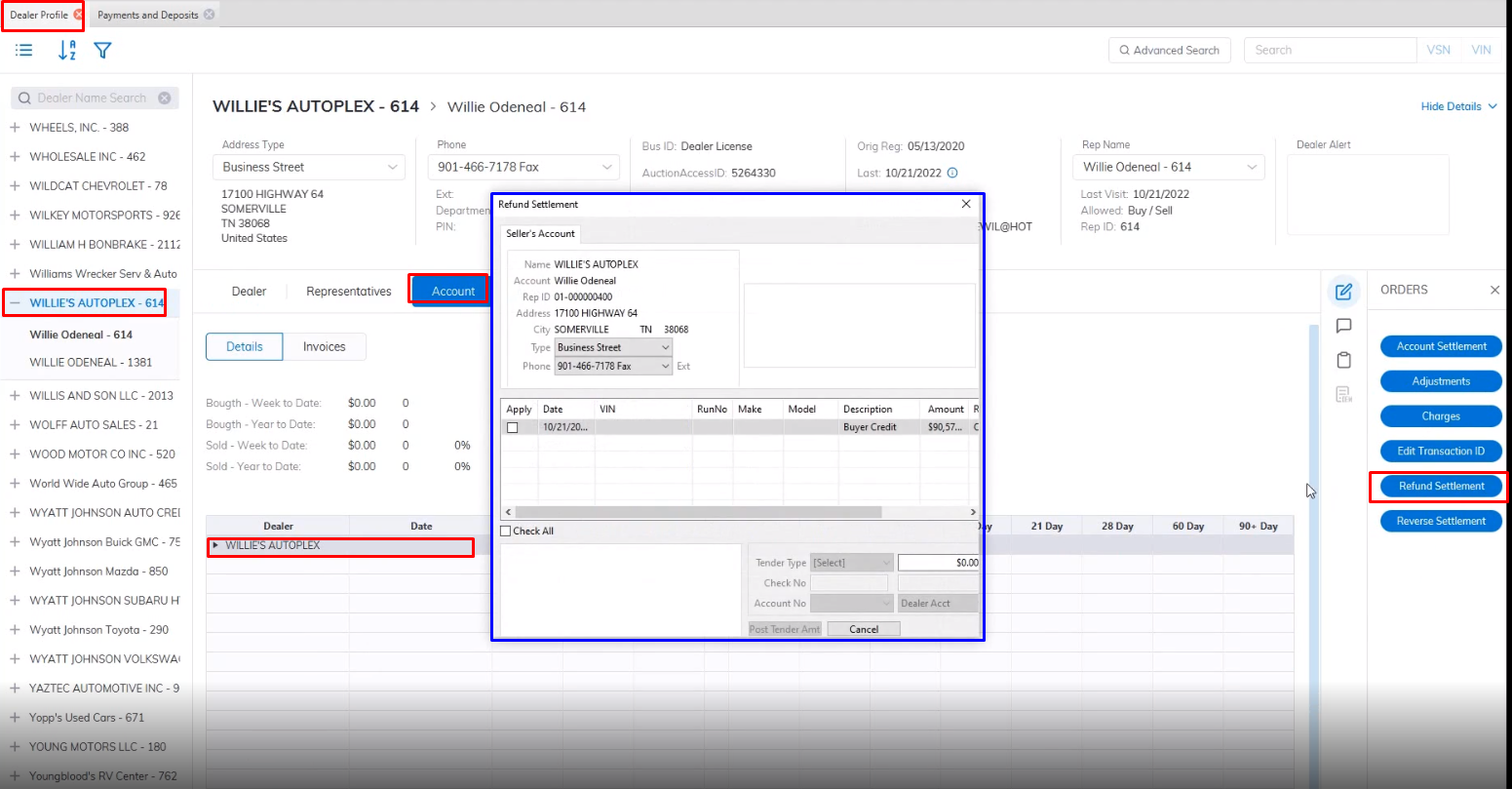
- Open the Buyer account of the vehicle you wish to execute the Refund Settlement on.
- Select the 'Refund Settlement' order from the Account Tab of the [**Dealer Profile**](https://cam3-wiki.auctionstreaming.com/books/cams-3-wiki-faq/page/dealer-profile) and click to launch the form.
[](https://cam3-wiki.auctionstreaming.com/uploads/images/gallery/2022-10/image-1666901308595.png)
- Select the Check of the Refund
- Select the Tender you will use to make the payment. If you choose the Check option the system will auto-generate the next Check No.
- Click the Post Tender button when done to complete.
Once you have completed the 'Refund Settlement' order it will appear in the 'Orders' node in the Account Tab of the **[Dealer Profile](https://cam3-wiki.auctionstreaming.com/books/cams-3-wiki-faq/page/dealer-profile)** along with the check number if a check was used.