# Re Run Order
The Re Run order changes the Run Number of a vehicle (not the Sale Date).
[](https://cam3-wiki.auctionstreaming.com/uploads/images/gallery/2022-08/rr1.jpg)
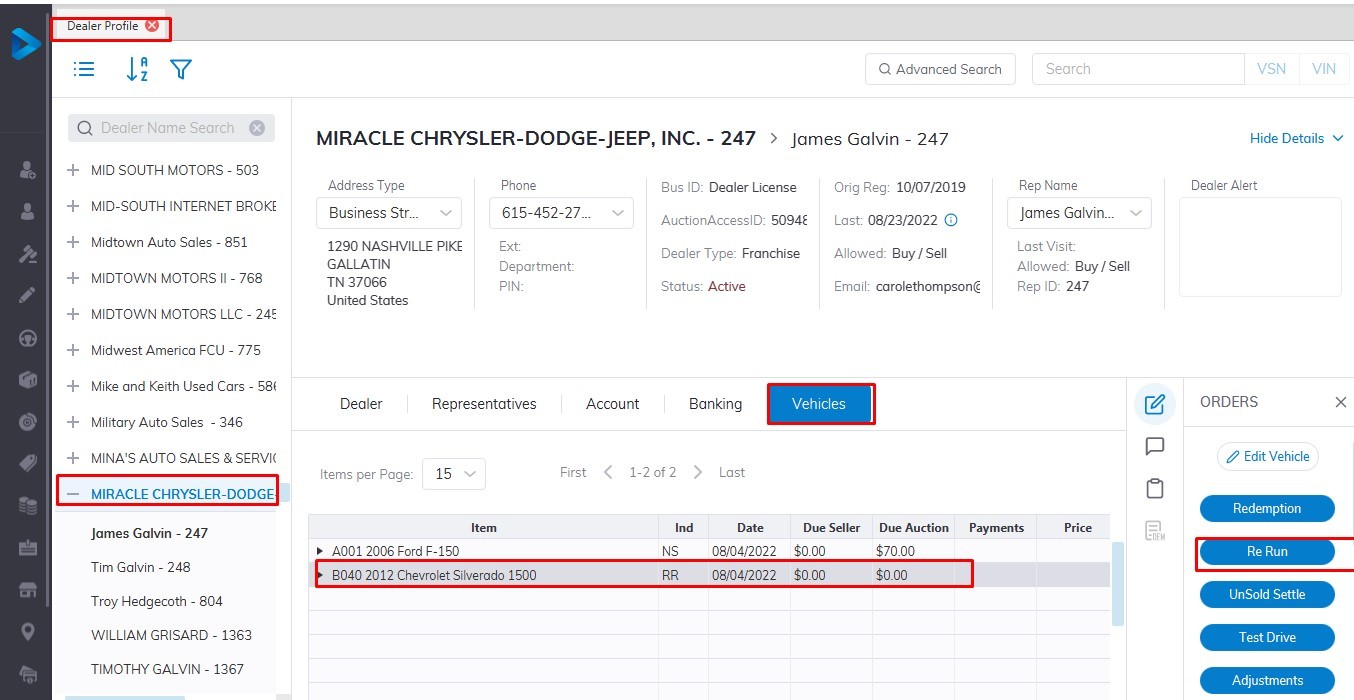
from the **[Dealer Profile](https://cam3-wiki.auctionstreaming.com/books/cams-3-wiki-faq/page/dealer-profile)** select
- The Dealer
- select the vehicle tab
- Select the vehicle you wish to re run in the grid.
- Then select the Re Run order button
- Click 'OK' to launch the form
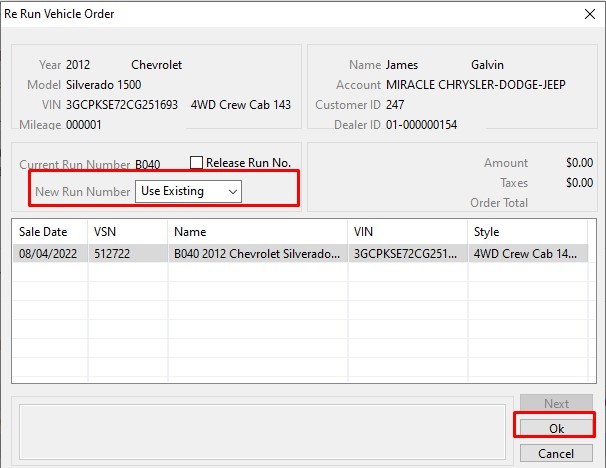
**Input**
**[](https://cam3-wiki.auctionstreaming.com/uploads/images/gallery/2022-08/rr2.jpg)**
**Run Number** from the list box
Click **'OK'** to Save
**Note: You may not select Run Numbers that have already been Checked In. It may be necessary to Release a reserved Run Number from another Dealer before you can use it. **
The Re Run order may be performed on:
- [**Checked In**](https://cam3-wiki.auctionstreaming.com/books/cams-3-wiki-faq/page/check-in-order) (CI) Vehicles
- [**Re Run**](https://cam3-wiki.auctionstreaming.com/books/cams-3-wiki-faq/page/re-run-order) (RR) Vehicles
- [**Roll Over**](https://cam3-wiki.auctionstreaming.com/books/cams-3-wiki-faq/page/roll-over-order) (RO) Vehicles
- **No Show** (SH) Vehicle