# No Sale

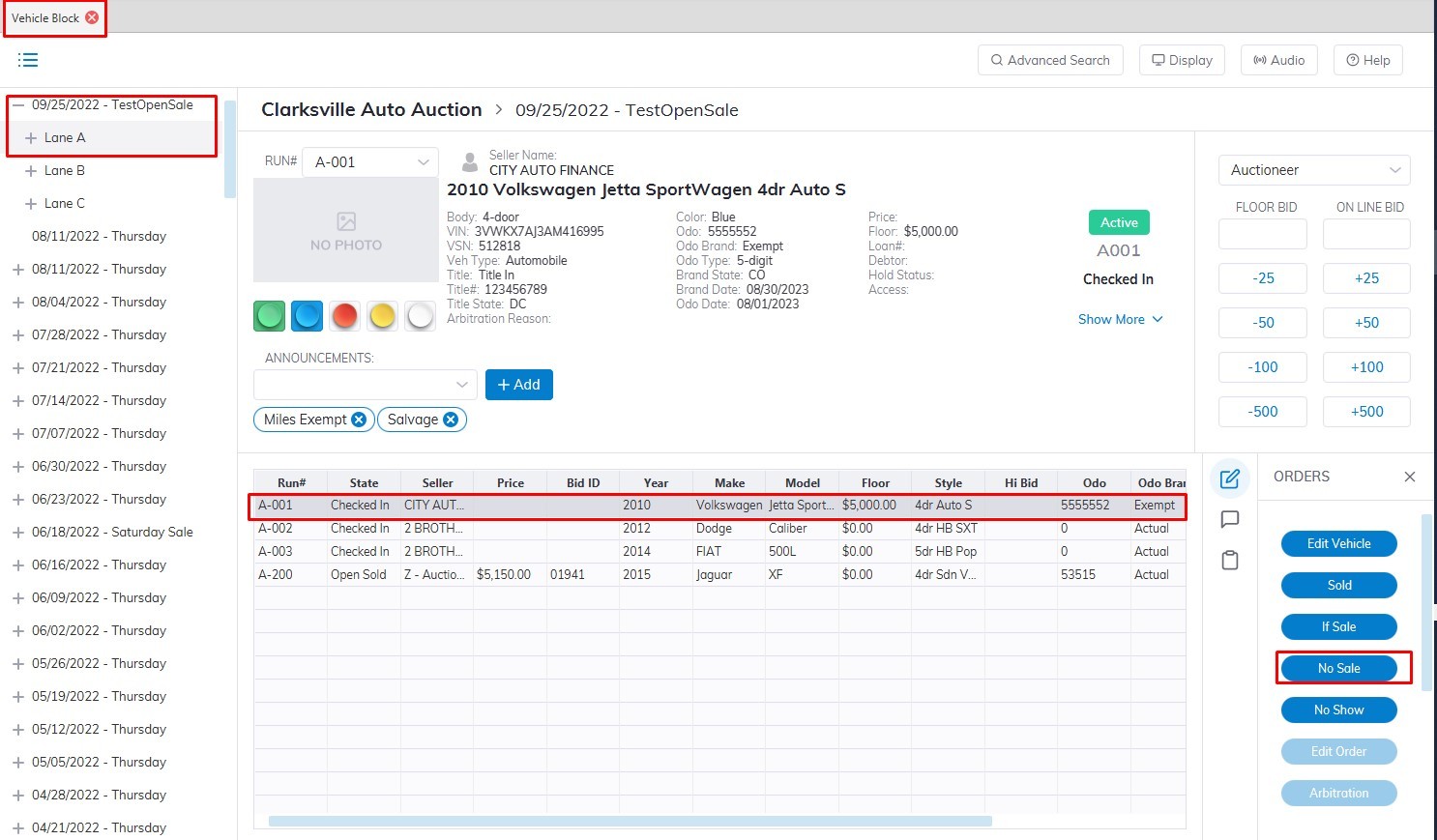
<span style="font-size: medium;">To **No Sale** a vehicle we need to open the **[Vehicle Block](https://cam3-wiki.auctionstreaming.com/books/cams-3-wiki-faq/page/vehicle-block)** Application.</span>

<span style="font-size: medium;">[![NS.jpg](https://cam3-wiki.auctionstreaming.com/uploads/images/gallery/2022-08/scaled-1680-/ns.jpg)](https://cam3-wiki.auctionstreaming.com/uploads/images/gallery/2022-08/ns.jpg)</span>

- <span style="font-size: medium;">Select the **'Sale Date'** </span>
- <span style="font-size: medium;">Then select which **'Lane'** the vehicle is assigned to.  
    </span>
- <span style="font-size: medium;">Select the Vehicle in the grid </span>
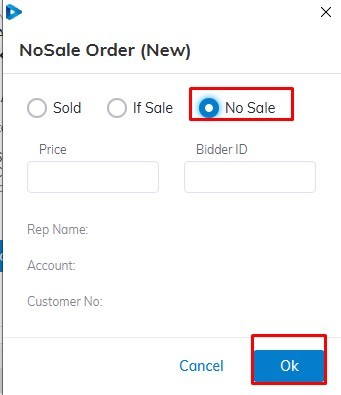
- <span style="font-size: medium;">Click the **'No Sale'** button with the mouse or press **F7** on the keyboard button to launch the 'No Sale' form.</span>

<span style="font-size: medium;">[![NS1.jpg](https://cam3-wiki.auctionstreaming.com/uploads/images/gallery/2022-08/scaled-1680-/ns1.jpg)](https://cam3-wiki.auctionstreaming.com/uploads/images/gallery/2022-08/ns1.jpg)</span>

<span style="font-size: medium;"><span style="font-family: Arial;">click **'OK'** or simply hit the enter key to complete the order</span></span>

<span style="font-size: medium;"><span style="font-family: Arial;"><video controls="controls" height="400" width="800"><source src="https://cam3-wiki.auctionstreaming.com/attachments/59"></source></video></span></span>