# If Accept
The 'If Accept' order is used to finalize an **[If Sale](https://cam3-wiki.auctionstreaming.com/books/cams-3-wiki-faq/page/if-sale)**. The 'If Accept' is launched from the [**Dealer Profile** ](https://cam3-wiki.auctionstreaming.com/books/cams-3-wiki-faq/page/dealer-profile)or Vehicle Orders application.
- Select **[Dealer Profile ](https://cam3-wiki.auctionstreaming.com/books/cams-3-wiki-faq/page/dealer-profile)**Application.
- Search vehicle VSN or VIN or Scroll to the Seller Name.
- Select the Vehicles tab if you search by Seller Name to find the vehicle.
- Once the IF Sale Vehicle is found and Highlighted
- Select the 'IF Accept' button from the Order menu to launch the form.
[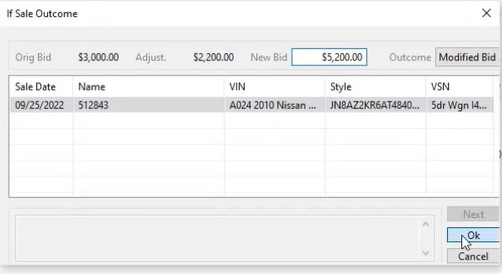](https://cam3-wiki.auctionstreaming.com/uploads/images/gallery/2022-09/ifaccept.jpg)
- You can change the bid amount here in the "New bid" field in this example the $5200.
- If the Deal falls apart input $0.00 in the "New Bid" field.
- Click the "OK" Button to complete.
**Note: Do not use this order unless you are ready to Sell or 'If' Down the vehicle.**