# Edit Vehicle
Vehicles may be Edited from the **[Dealer Profile](https://cam3-wiki.auctionstreaming.com/books/cams-3-wiki-faq/page/dealer-profile)**, **[Vehicle Block](https://cam3-wiki.auctionstreaming.com/books/cams-3-wiki-faq/page/vehicle-block)**, or **[Vehicle Management](https://cam3-wiki.auctionstreaming.com/books/cams-iii-training-videos/page/vehicle-management)** applications.
**Note: You may also double-click on the vehicle in the grid of the Dealer Profile or Vehicle Orders application to bring up the 'Edit Vehicle' form.****From [Dealer Profile](https://cam3-wiki.auctionstreaming.com/books/cams-3-wiki-faq/page/dealer-profile)****[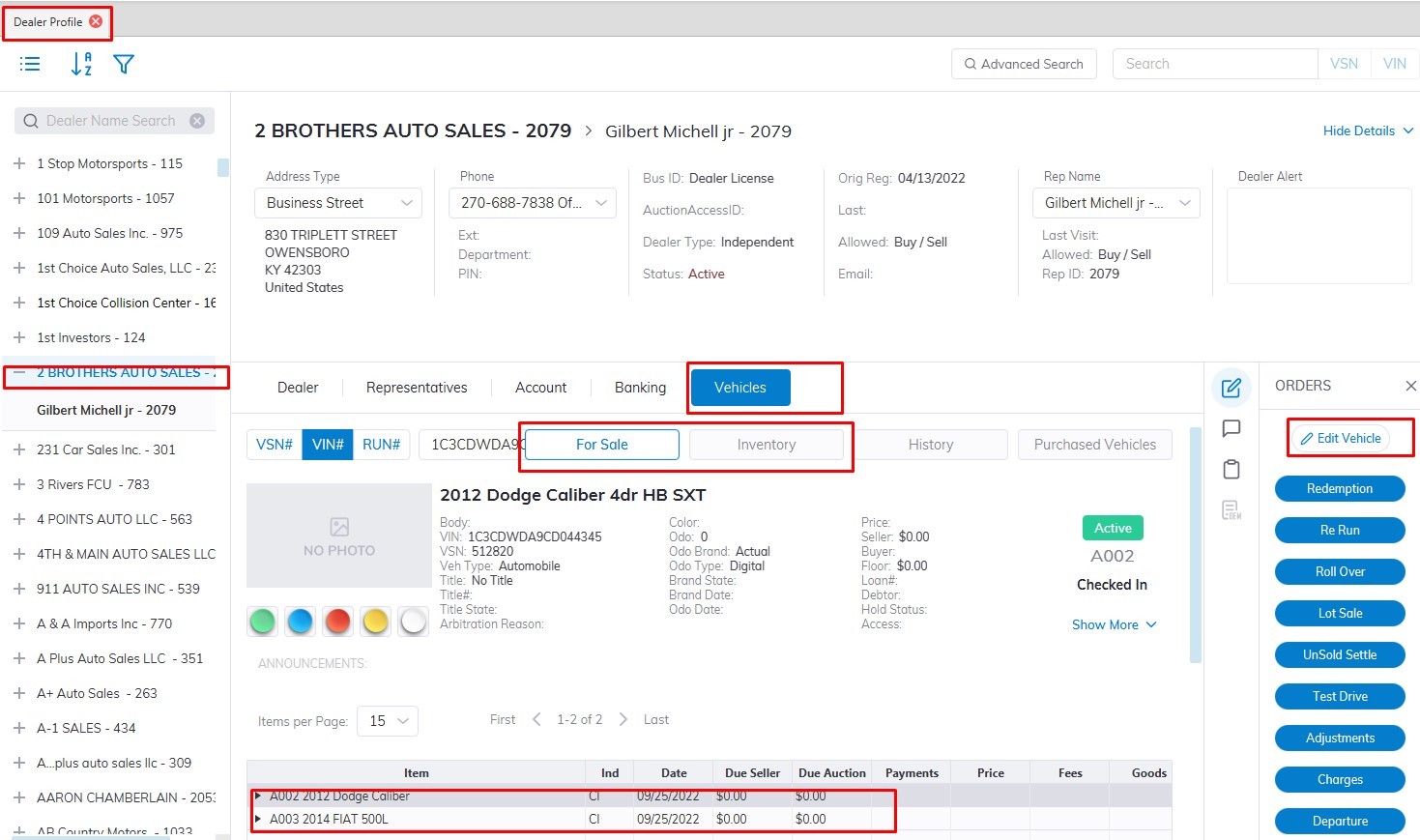](https://cam3-wiki.auctionstreaming.com/uploads/images/gallery/2022-08/edit1dp.jpg)**
- Select the **[Dealer Profile](https://cam3-wiki.auctionstreaming.com/books/cams-3-wiki-faq/page/dealer-profile)** Application
- Select the Dealer where the Vehicle you wish to Edit.
- Select Vehicle Tab.
- Then Select any vehicle in the Subsection **For Sale** or **Inventory** in the grid.
- Select the **'Edit Vehicle'** button from the 'Orders' menu on the right side to launch the form.
**From Vehicle Block Application**
- Select the **[Vehicle Block](https://cam3-wiki.auctionstreaming.com/books/cams-3-wiki-faq/page/vehicle-block)** Application
- Select the 'Sale Date' and 'Lane' where the Vehicle you wish to Edit is Checked In.
- Select the Vehicle in the grid.
- Select the **'Edit Vehicle'** button from the 'Orders' menu on the right side to launch the form.
[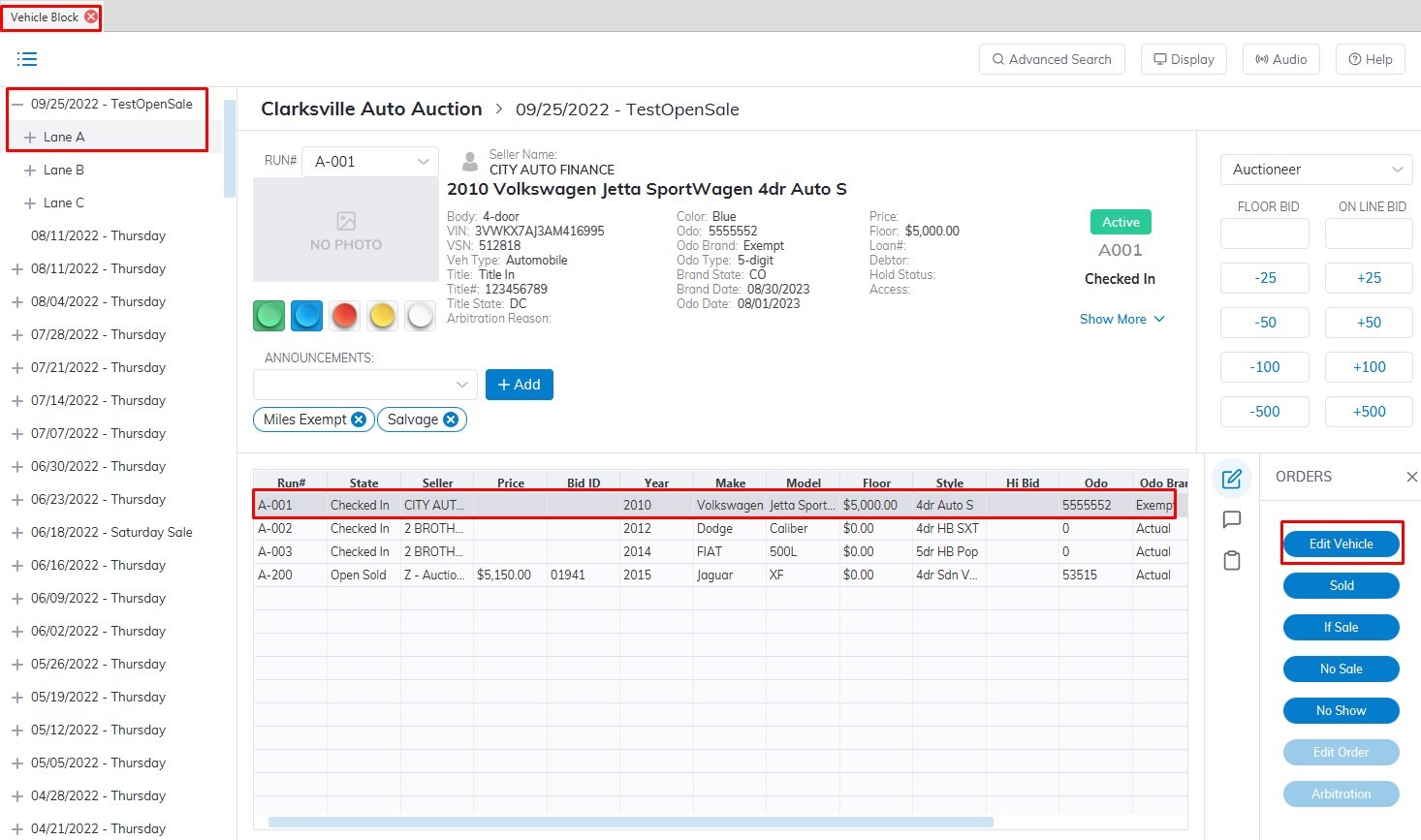](https://cam3-wiki.auctionstreaming.com/uploads/images/gallery/2022-08/editvb.jpg)
**From [Vehicle Management](https://cam3-wiki.auctionstreaming.com/books/cams-iii-training-videos/page/vehicle-management) Application****[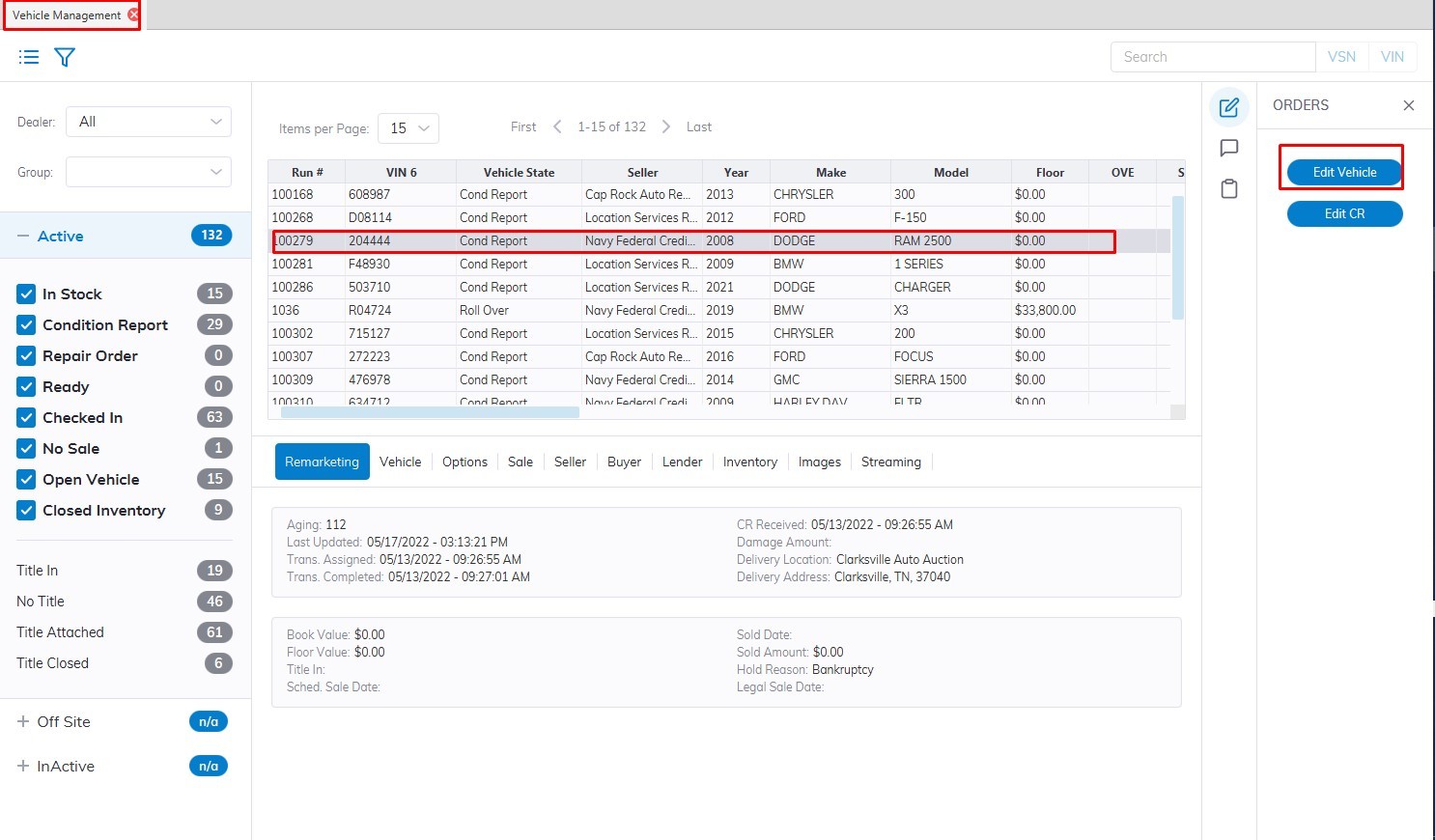](https://cam3-wiki.auctionstreaming.com/uploads/images/gallery/2022-08/vm.jpg)**
- Select the **[Vehicle Management](https://cam3-wiki.auctionstreaming.com/books/cams-iii-training-videos/page/vehicle-management)** Application
- Search and Select the Vehicle in the grid.
- Select the **'Edit Vehicle'** button from the 'Orders' menu on the right side to launch the form.
[](https://cam3-wiki.auctionstreaming.com/uploads/images/gallery/2022-08/edit1adp.jpg)
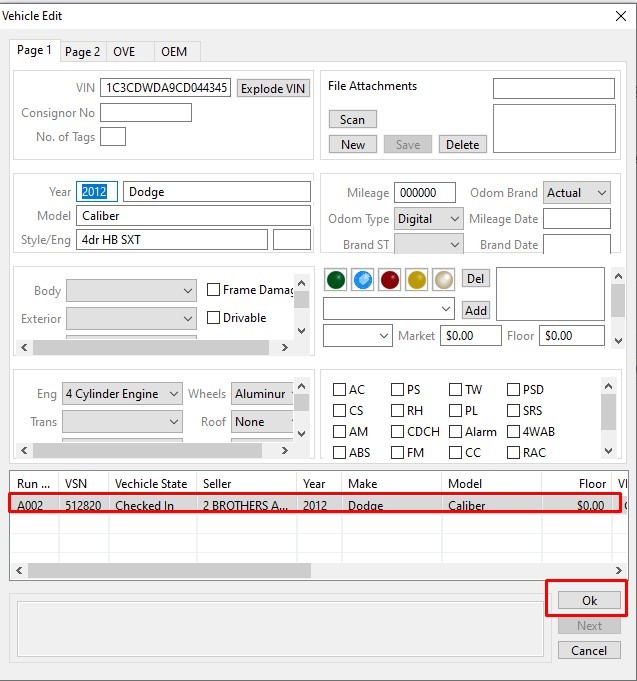
**Edit vehicle form allows you to edit Basic vehicle information:**
- **VIN** - use the 'Explode VIN' button to re-explode VIN (style input may be required)
- **File attachments** may be added to a vehicle (click the 'new' button, name the file and click 'save')
- **Year**
- **Make**
- **Model**
- **Style**
- **Consignor Stock Number** (used for tracking purposes)
- **Odometer Reading**
- **Unit of Measure** (default it English)
- **Odometer Brand State**
- **Odometer Brand** (actual, exceeds, rollback, broken, not actual, unknown, repaired, replaced, or exempt)
- **Mileage Date** (today's date)
- **Brand Date** (date of branding - today's date)
- **Page 2**
**Options and Announcements can be Edited**
- **Body**
- **Exterior Color**
- **Interior Color**
- **Seating**
- **Frame Damage**
- **Drivable**
- **Ignition Keys**
- **Trunk Keys**
- **Remote Keys**
- **Lights** (Green, Blue, Red, Yellow, and White)
- **Grade**
- **Market Value**
- **Floor Amount**
- **Announcements** (Add on the 'fly' or select from the list)
[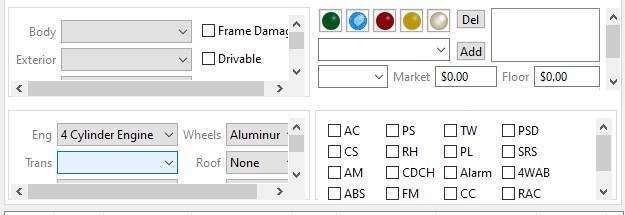](https://cam3-wiki.auctionstreaming.com/uploads/images/gallery/2022-08/optionedit1.jpg)
Click the **'Add'** button
Use \*P after any announcement to make it permanent to the VIN for future use. Any two-digit number before any announcement will code the announcement as 'Internal Only' and will not appear on any paperwork.
***Note: If a user adds an announcement 'on the fly it will not be kept in the database for future use in other announcements.***
- **Engine**
- **Wheels**
- **Transmission**
- **Roof**
- **Fuel**
- **Upholstery**
- **Drive Train**
- **Body**
- **Exterior**
- **Interior **
- **Seating**
- **Air Conditioning**
- **Power Steering**
- **Tilt Wheel**
- **Power Seat Driver**
- **Cassette**
- **Power Lock**
- **Supplemental Restraint**
- **AM Radio**
- **CD Changer**
- **Alarm**
- **4 Wheel Anti-Lock Brakes**
- **Anti-Lock Brakes**
- **FM Radio**
- **Cruise Control**
- **Rear Air Conditioning**
- **CD Player**
- **Power Windows**
**Also, we can edit Page 2**
[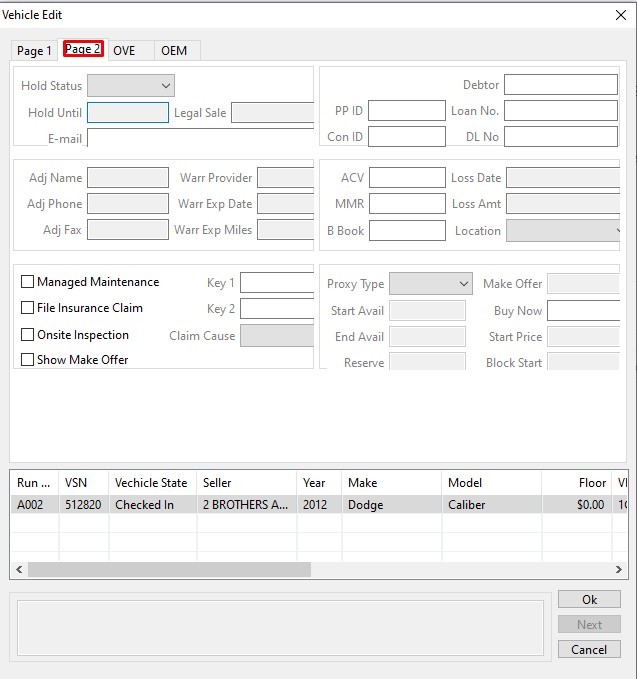](https://cam3-wiki.auctionstreaming.com/uploads/images/gallery/2022-08/optionedit2.jpg)Repossession and Lender Information is used to keep track of the contact and account information from the bank or finance company that repossessed the vehicle.
**Auto IMS settings (shaded attributes controlled only by Auto IMS)**
Here you can Edit:
- **Hold Status**
- **Hold Until**
- **Legal Sale Date**
- **Email contact**
- **Debtor Name, Loan Number, and Driver License Number**
- **Adjusters' Name, Phone, and Fax**
- **Warranty Provider, Exp Date, and Exp Miles**
- **ACV (actual cash value), MMR (Manheim market report), Blackbook**
- **Loss Date, Amount, and Location**
- **Managed Maintenance, File Insurance claims, Request On-Site Inspection and Show Make Offer**
- **Key Code 1, Key Code 2, Claim Cause**
**Auction Pipeline Settings:**
- **Simulcast Proxy Type, Proxy Start Date, End Proxy Date**
- **Make Offer Amount, Buy Now Amount, Start Price, Block Start**