# Edit, Hold and Delete Pickup
##### **Hold Pick Up**
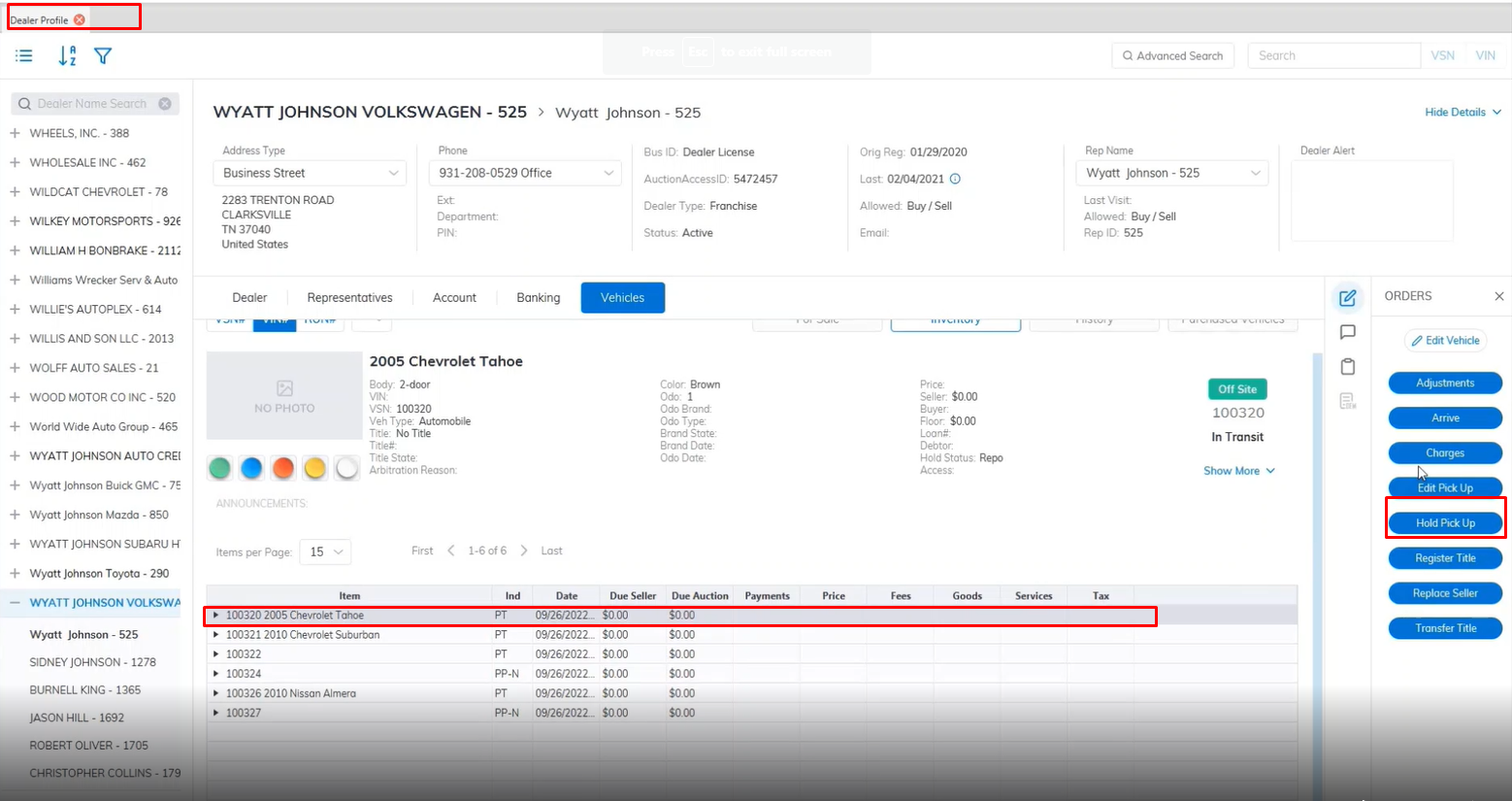
- Select **[Transporation and Service](https://cam3-wiki.auctionstreaming.com/books/cams-3-wiki-faq/page/transportation-and-service)** or **[Dealer Profile](https://cam3-wiki.auctionstreaming.com/books/cams-3-wiki-faq/page/dealer-profile)** Application
[](https://cam3-wiki.auctionstreaming.com/uploads/images/gallery/2022-10/image-1665775990550.png)
- Select the Vehicle
- Then select the 'Hold Pick Up' order under the Orders menu on the right.
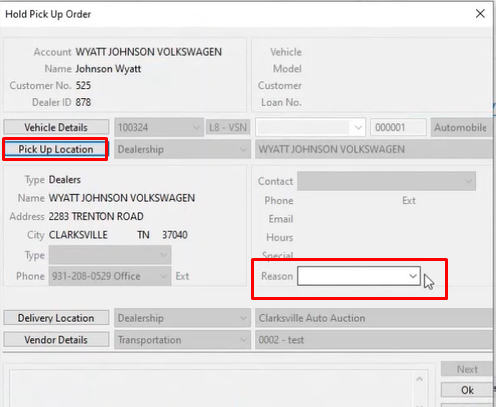
- This will launch the Hold Pick Up form.
[](https://cam3-wiki.auctionstreaming.com/uploads/images/gallery/2022-10/image-1665776180082.png)
- Select the Reason code
- Click 'OK' to close the form
Hold orders can only be issued for Pick Up orders in transit (PT). If you issue a Hold order you will be asked for a Reason code.
##### **Edit Pick Up**
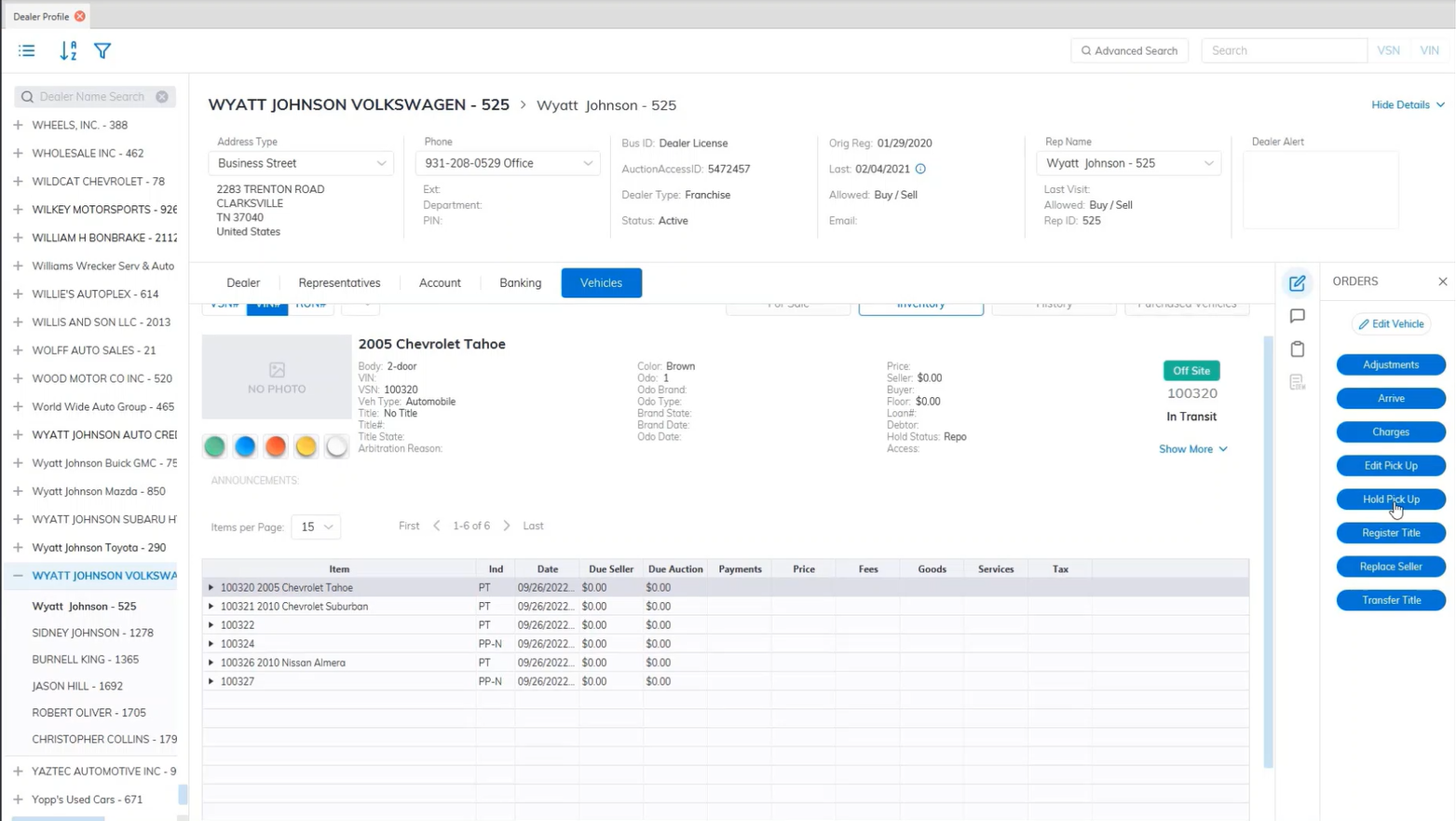
- Select **[Transporation and Service](https://cam3-wiki.auctionstreaming.com/books/cams-3-wiki-faq/page/transportation-and-service)** or **[Dealer Profile](https://cam3-wiki.auctionstreaming.com/books/cams-3-wiki-faq/page/dealer-profile)** Application
[](https://cam3-wiki.auctionstreaming.com/uploads/images/gallery/2022-10/image-1665776898729.png)
- Select the Vehicle
- Then select the 'Edit Pick Up' order under the Orders menu on the right.
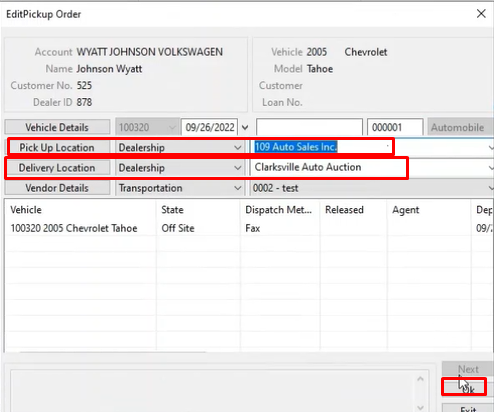
- This will launch the Edit Pick-Up form.
[](https://cam3-wiki.auctionstreaming.com/uploads/images/gallery/2022-10/image-1665777014433.png)
- Here you choose the Pick Up Location information
- Here you choose the Delivery Location information
- Click 'OK' to save and close the form
##### **Delete Pick Up**
- Select **[Transporation and Service](https://cam3-wiki.auctionstreaming.com/books/cams-3-wiki-faq/page/transportation-and-service)** or **[Dealer Profile](https://cam3-wiki.auctionstreaming.com/books/cams-3-wiki-faq/page/dealer-profile)** Application
[](https://cam3-wiki.auctionstreaming.com/uploads/images/gallery/2022-10/image-1665776542507.png)
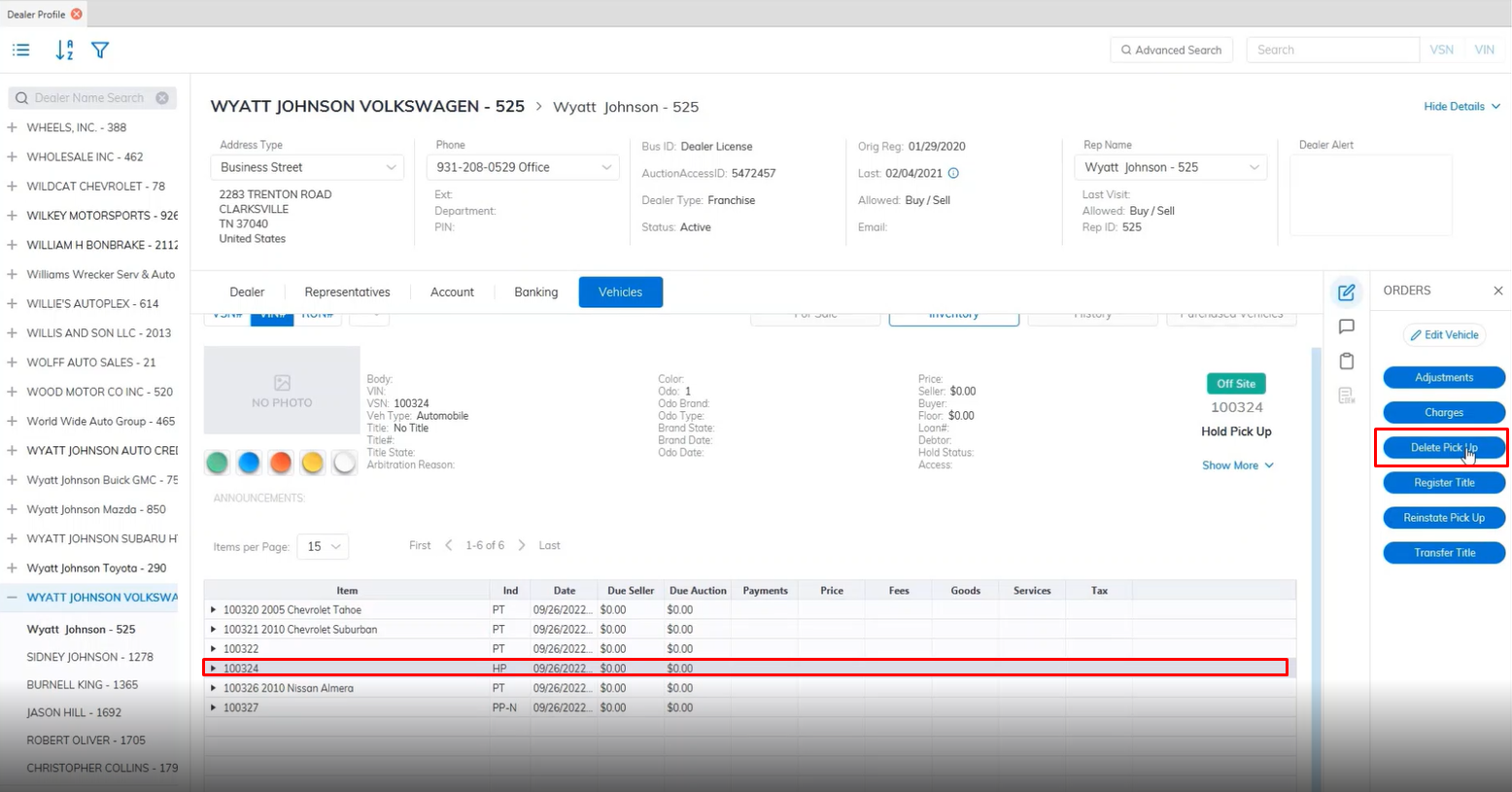
- Select the Vehicle
- Then select the 'Delete Pick Up' order under the Orders menu on the right.
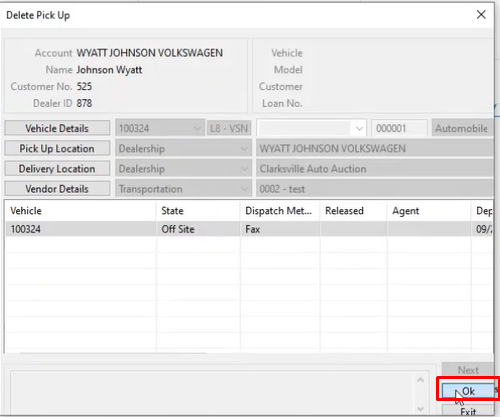
- This will launch the Delete Pick Up form.
[](https://cam3-wiki.auctionstreaming.com/uploads/images/gallery/2022-10/image-1665776680842.png)
- Click 'OK' to close the form and Delete the Pickup.