Dealer Editing
Under Dealer Profile you can use the Dealers - Filters icon to filter which dealer types appear in the Dealer Profile application. At the top of the Dealer Profile application, you’ll see 3 icons; The one you need is the funnel shape icon for filtering by Dealer Type and Status.
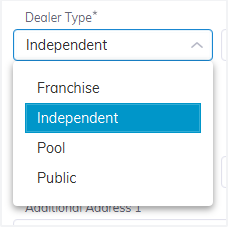
Select the Funnel shape icon > 'Dealer Type' > then select the types you want to see;
- Public - Select if you wish to view all Public vehicle dealers
- Pool - Select if you want to view all Pool vehicle dealers
- Franchise - Select if you want to view all Franchise accounts
- Independent -Select if you want to view all Independent Accounts
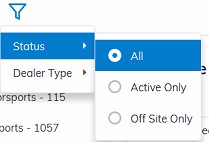
Select the Funnel shape icon > 'Status' > then select the types you want to see;
- All - Select if you want to view All Dealers
- Active Only - Select if you want to view Active accounts only
- Off-Site Only - Select if you want to view Off-Site accounts only.
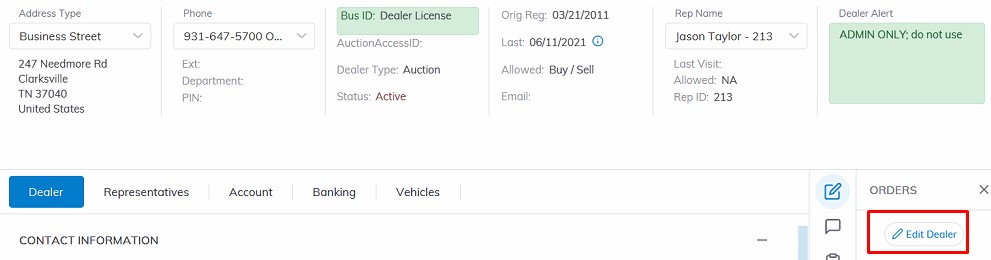
Select
'Edit Dealer'
Click 'Save' when you have completed editing the dealer.
Note: Before issuing the Edit Dealer Order, ensure you have selected the dealer you want to edit and that your login has permission for the Edit Dealer order.
The Edit Dealer form has 4 groups of information to edit; Contact Information, Permission, Business, and Owner.
The Summary information:
- Contact Information: The Business Address, Phone number, Email Address, and Dealership Logo Image.
- Permission: Buyer and Seller Permission where you can add or remove payment methods. e.g. cash, debit, credit, checks, wire, etc.
- Business: This section the type of business the dealer is as well as what type of taxes are applied to this business.
- Owner: Detail information of the Business Owner and Seller Check deductions
- Streaming: section is system generated no change can be made here.