# Condition Report (CR)
##### **Condition Report order**
- Select the [**Transportation and Service**](https://cam3-wiki.auctionstreaming.com/books/cams-3-wiki-faq/page/transportation-and-service "Transportation and Service") application.
- Select an 'In Stock' (IS) vehicle.
- Select the 'Condition Report' order
- This will launch the form
[](https://cam3-wiki.auctionstreaming.com/uploads/images/gallery/2022-11/image-1668612880831.png)
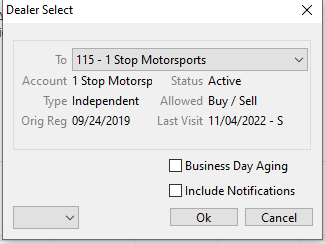
- Select the Dealer Click 'OK'
[](https://cam3-wiki.auctionstreaming.com/uploads/images/gallery/2022-11/image-1668613071296.png)
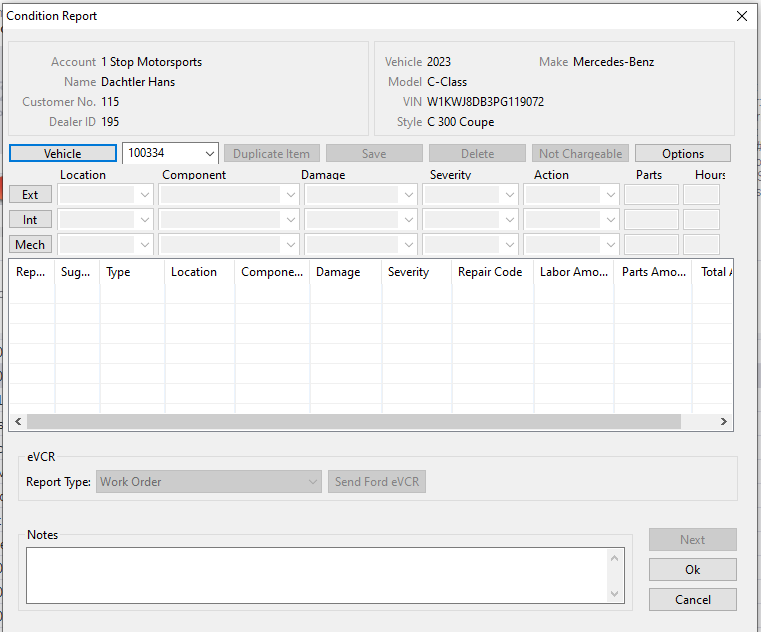
- Input/Fill in the information for the vehicle in this form which is an electronic record of the Condition of a Vehicle and a summary of the Vehicle's reconditioning needs.
- Click 'OK' when done to create and record the Condition Report CR under the vehicle. CR will be represented under the vehicle history under Orders with a CR followed by numbers e.g. CR2985
The Condition Report is based on a pattern from the Condition Report Configuration (CRC) application.
##### **Condition Report**
The Condition Report is available only for vehicles with a Condition Report order as shown above.
Select the **[Vehicle Management](https://cam3-wiki.auctionstreaming.com/books/cams-3-wiki-faq/page/vehicle-management "Vehicle Management")** application > Reports > Condition Report