# Check In Order
Office Check-In - order places a vehicle into a Sale (consignment) vs. In Stock (fleet/lease).
**Reminder: Whenever you go into Dealer Profile, select the dealer you wish to work with!**
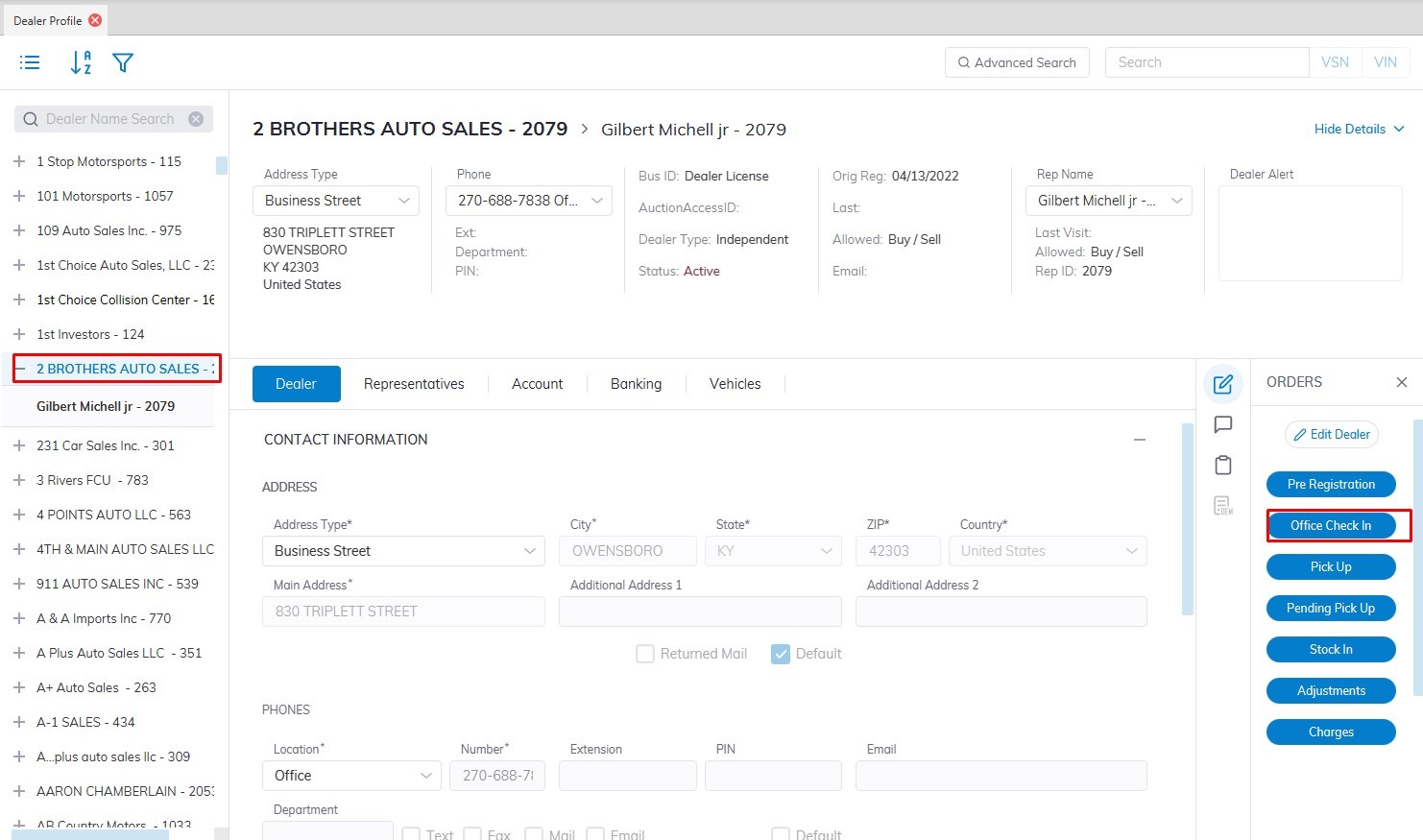
- Select **[Dealer Profile](https://cam3-wiki.auctionstreaming.com/books/cams-3-wiki-faq/page/dealer-profile)** Application
- Then select the Dealer, you want to Check-In a vehicle.
- Select the 'Check In' order button under the Order column on the right side
- This will launch the Check-In form for you to complete.
[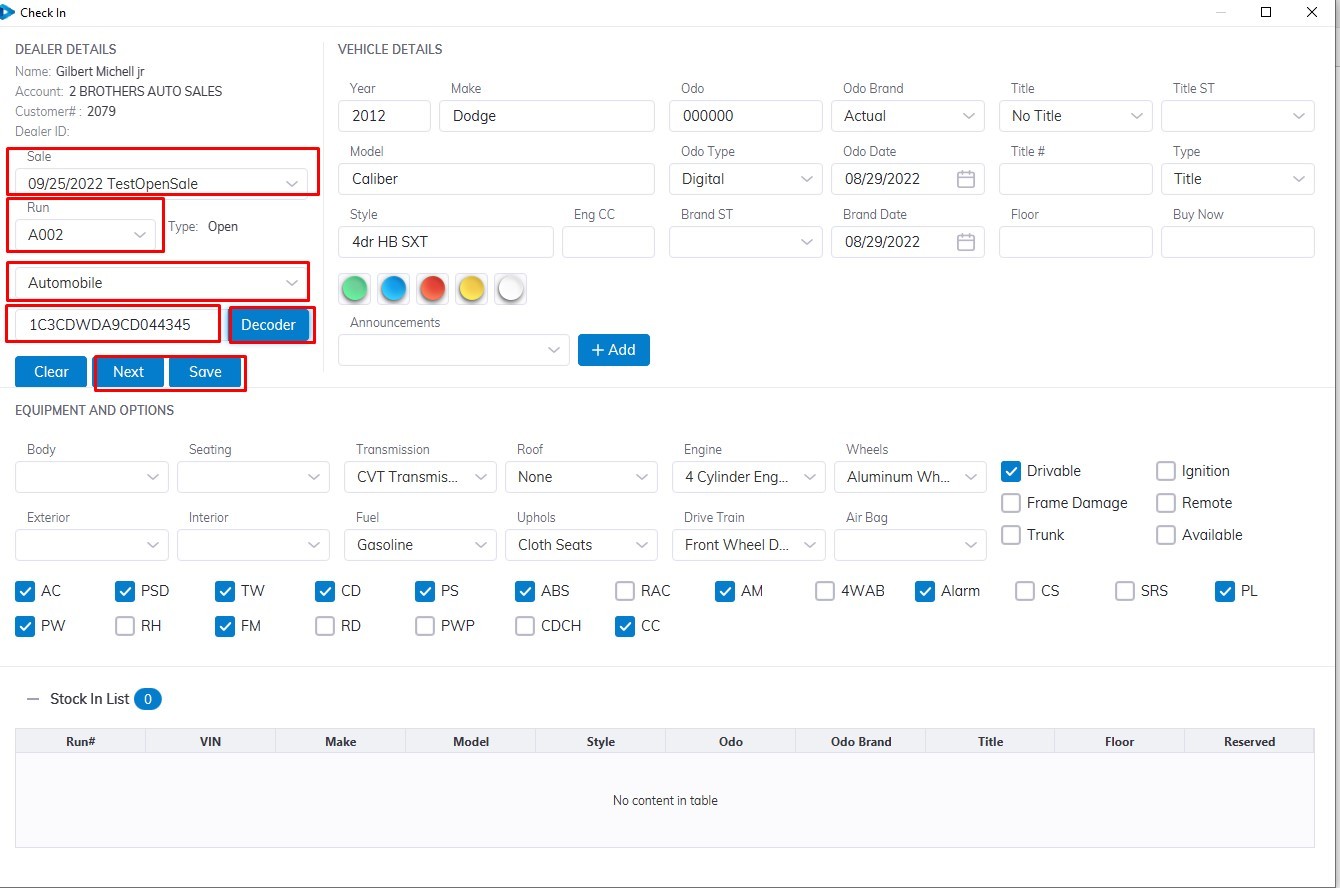](https://cam3-wiki.auctionstreaming.com/uploads/images/gallery/2022-08/check1a.jpg)
**Please note that the VIN must contain 17 digits.**
Input the
- **VIN**
Then select
- **Sale Date**
- **Vehicle Type** ( Automobile is the default you can select from the Dropdown)
- **Run Number** (If there are no pre-registered run numbers for this Dealer, the system will attempt to **'Auto Assign'** the next available one unless you manually select an alternative.)
- Select the **Decoder** button to decode the vehicle trim level and style.
- Check if vehicle information is correct then select the **'Save'** button to Complete the Check-In form.
- In the case of multiple vehicles for the same Dealer, you can select the **'Next'** button to enter another vehicle for Check In
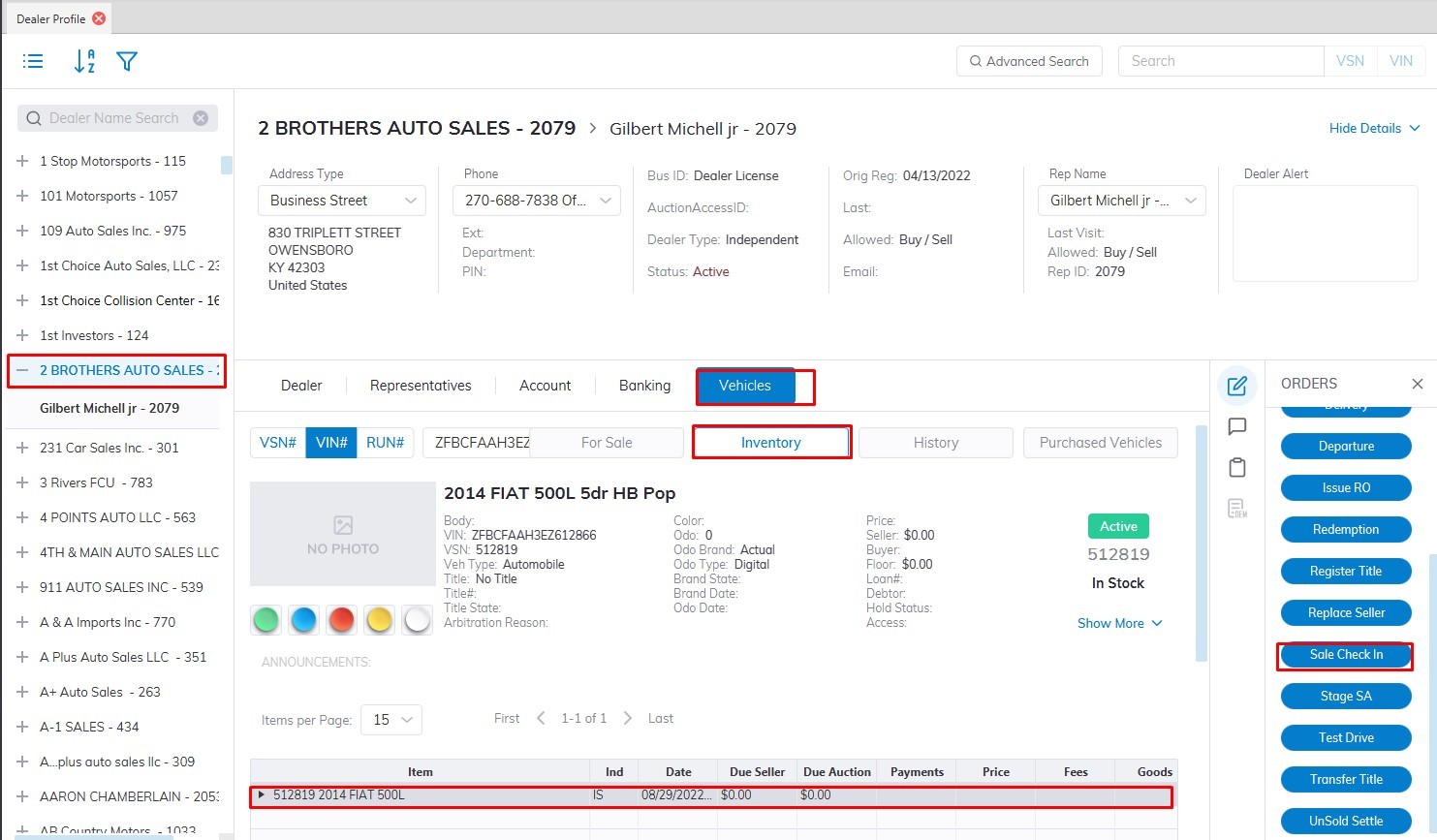
Or you can **Check-In** from the **Inventory Tab** under the **Vehicle Tab** for vehicles that were already **[Stock In](https://cam3-wiki.auctionstreaming.com/books/cams-3-wikifaq/page/stock-in-orders).**
[](https://cam3-wiki.auctionstreaming.com/uploads/images/gallery/2022-08/check2.jpg)
- Select the Vehicle Tab then Inventory Tab
- Select the vehicle you wish to Check-In for Sale.
- Select the Sale Check-In button on the right under Orders
- This will launch the Check-In form for you to complete.
[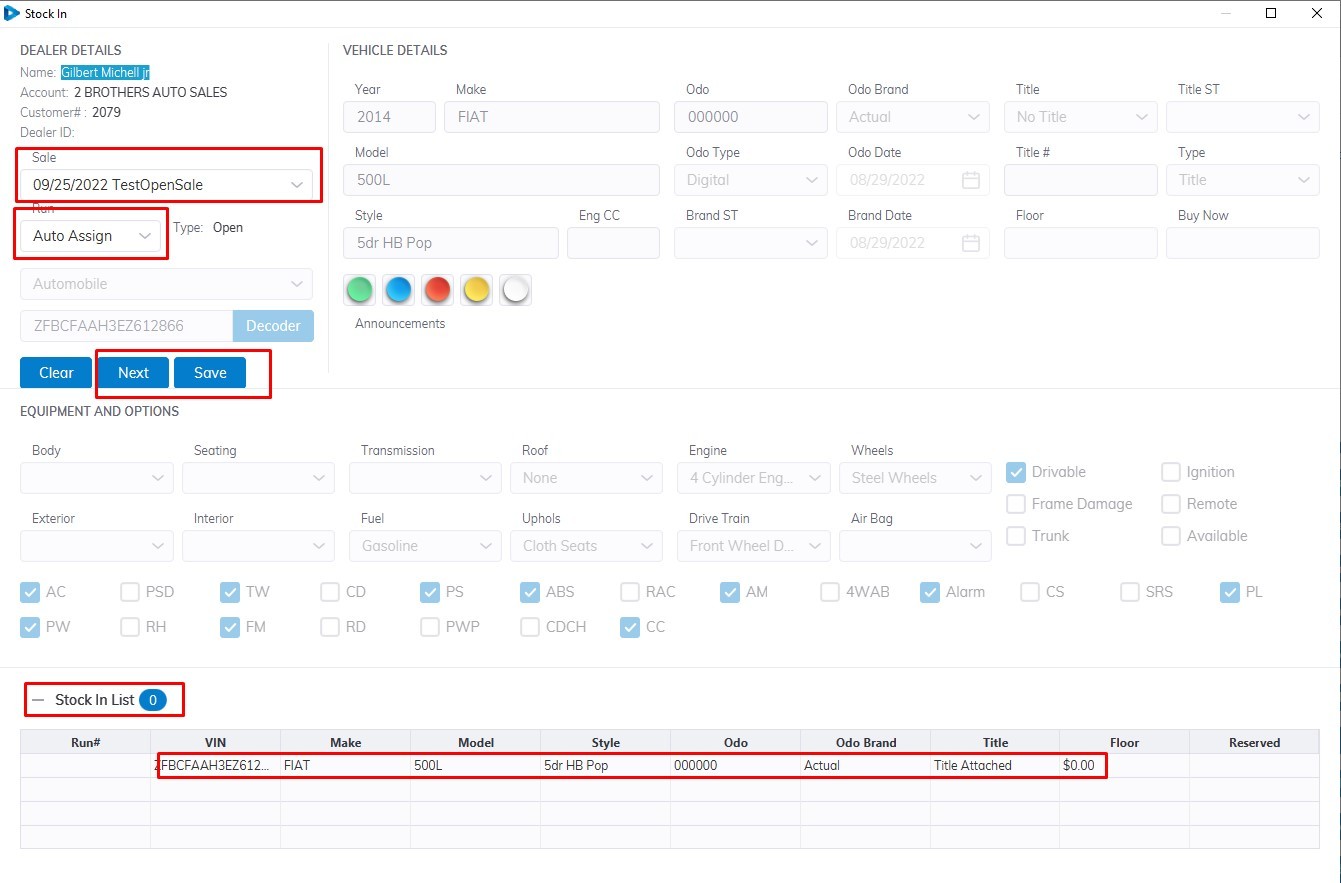](https://cam3-wiki.auctionstreaming.com/uploads/images/gallery/2022-08/check2a.jpg)
Then select
- **Sale Date**
- **Run Number** (If there are no pre-registered run numbers for this Dealer, the system will attempt to **'Auto Assign'** the next available unless you manually select an alternative.)
- Check if vehicle information is correct then select the **'Save'** button to Complete the Check-In form.
- In the case of multiple vehicles for the same Dealer, you can select the **'Next'** button to enter another vehicle for Check In
[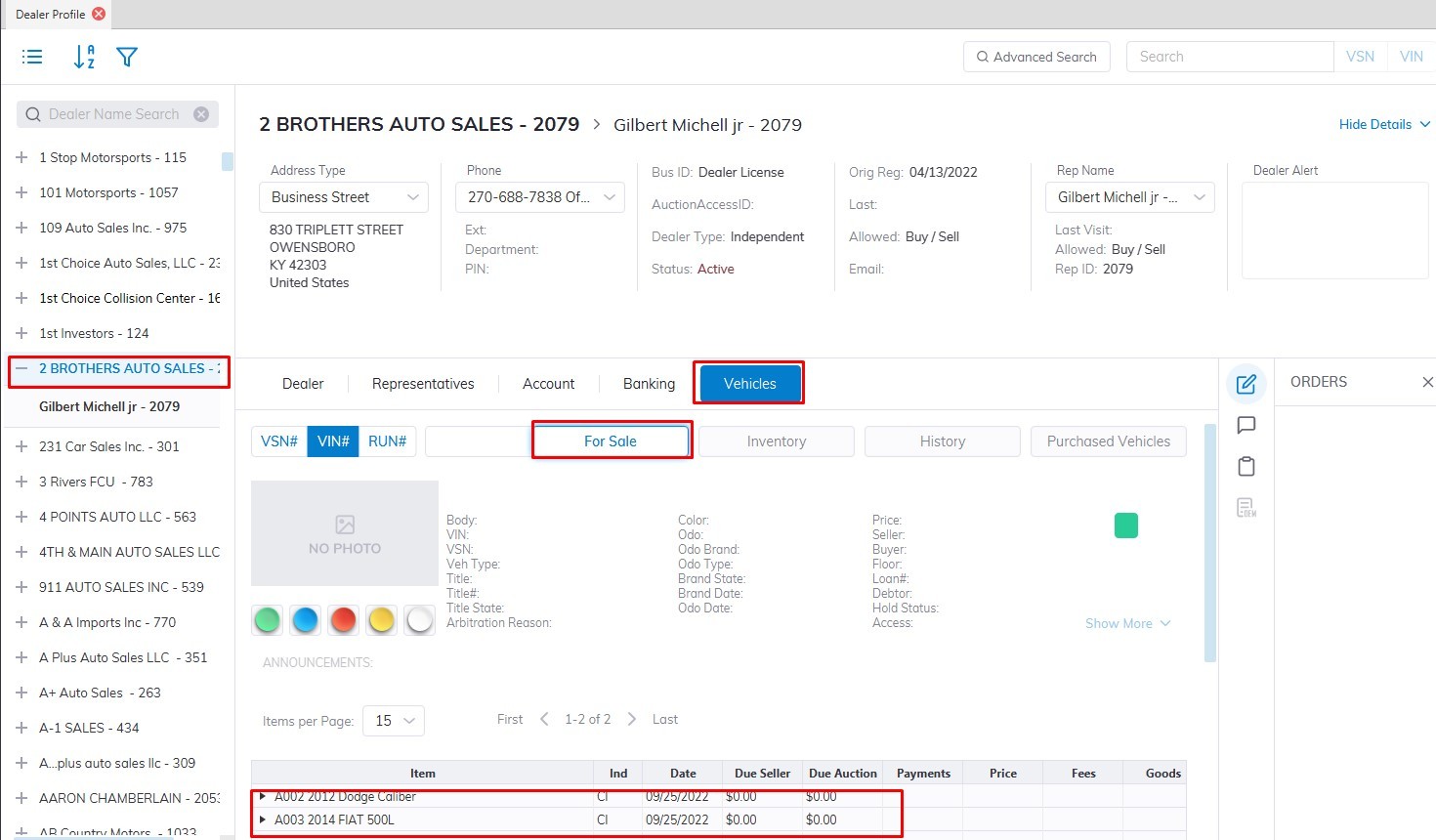](https://cam3-wiki.auctionstreaming.com/uploads/images/gallery/2022-08/checkfin.jpg)
After Check In the vehicle will be added to the Dealers **For Sale Tab** under the **Vehicle Tab.**