# Block Ticket Report
The Block ticket is a miniature version of the Buyer Invoice but is not a legal document. It can be printed from the [**Vehicle Block**](https://cam3-wiki.auctionstreaming.com/books/cams-3-wiki-faq/page/vehicle-block) and [**Dealer Profile**](https://cam3-wiki.auctionstreaming.com/books/cams-3-wiki-faq/page/dealer-profile) Application.
[](https://cam3-wiki.auctionstreaming.com/uploads/images/gallery/2022-10/image-1664809871309.png)
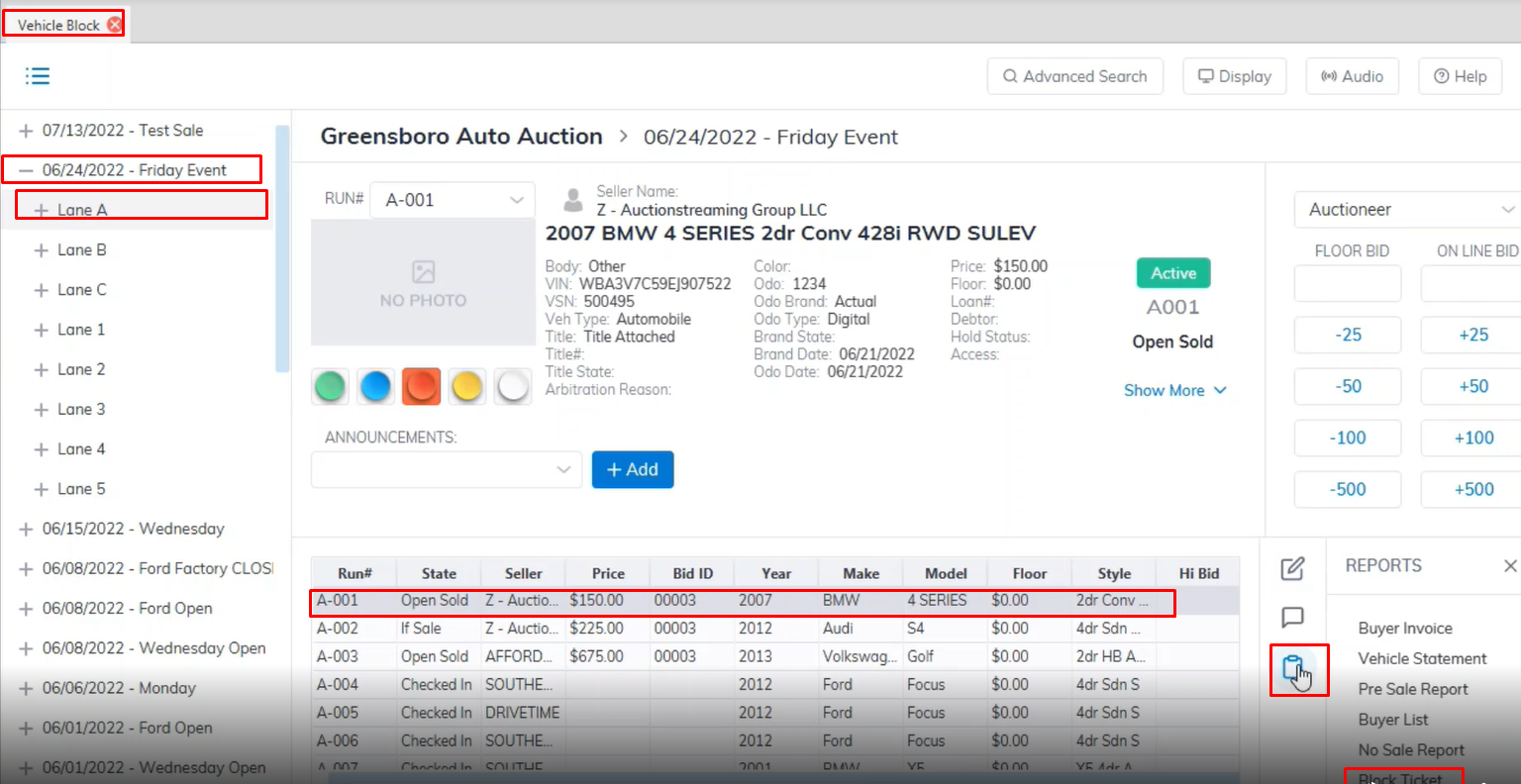
- Open the [**Vehicle Block**](https://cam3-wiki.auctionstreaming.com/books/cams-3-wiki-faq/page/vehicle-block) application
- Select the Sale Date then click the + sign to choose the Lane.
- Select the vehicle from the grid. (vehicle must be in Sold state)
- Select the Reports menu then the Block Ticket sub-menu.
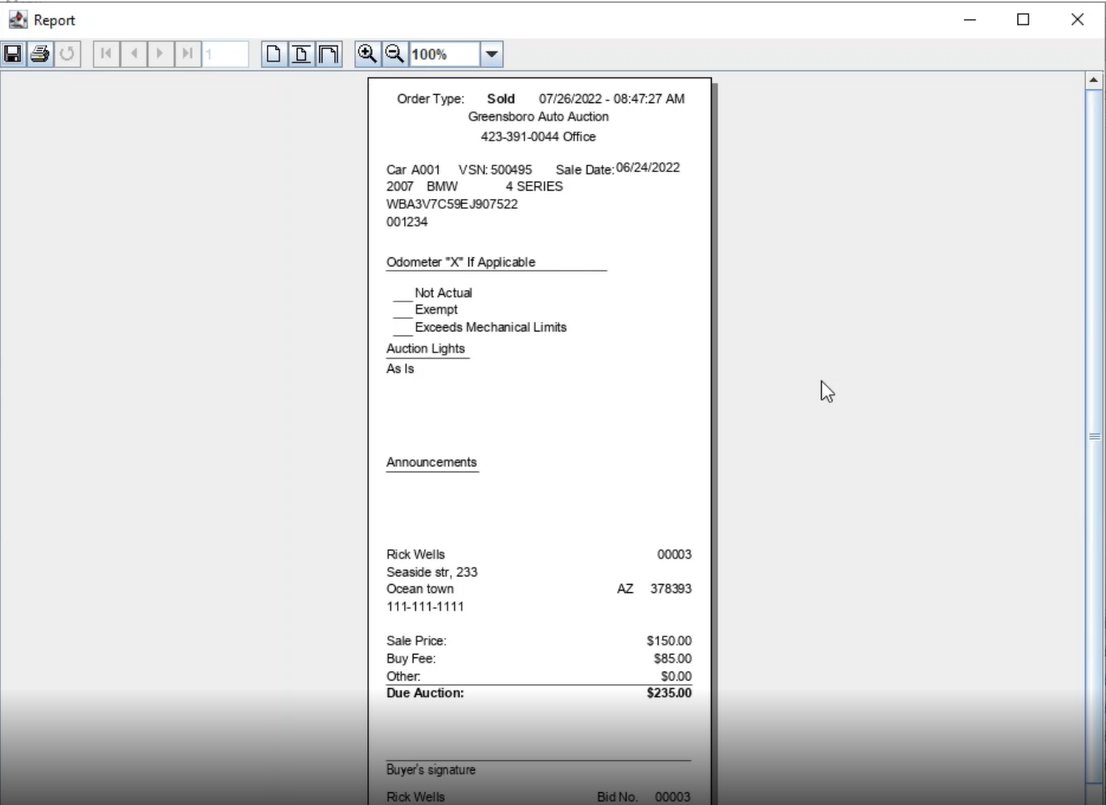
Block Ticket Show the Mileage, the Lights, Announcements, Sold price, and Seller and Buyer.
[](https://cam3-wiki.auctionstreaming.com/uploads/images/gallery/2022-10/image-1664809619452.png)