# Bank and Bank Branch
Bank and Bank Branch - is stored as part of the Maintenance Menu under Auction Administration. [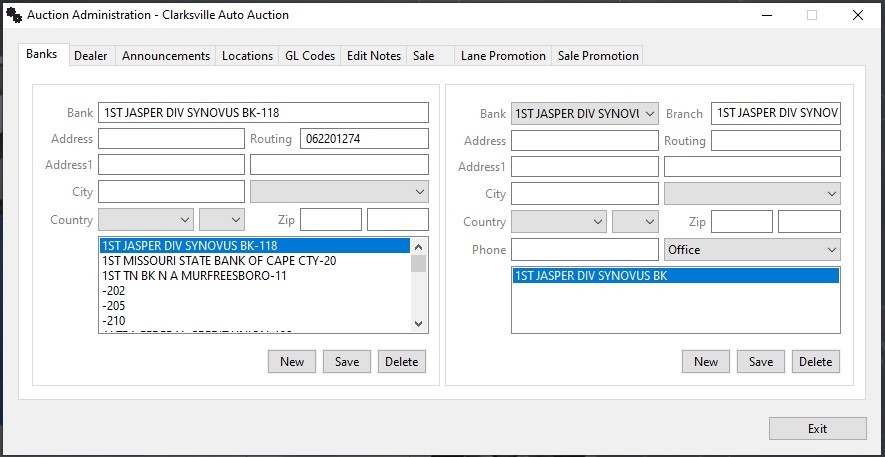](https://cam3-wiki.auctionstreaming.com/uploads/images/gallery/2022-09/bank1.jpg)
Specific account numbers for a particular branch are part of the **[Dealer Profile](https://cam3-wiki.auctionstreaming.com/books/cams-3-wiki-faq/page/dealer-profile)**'s Deposits tab. Banks may possess multiple Branches (auction administration) and Branches may possess multiple Accounts (**[dealer profile](https://cam3-wiki.auctionstreaming.com/books/cams-3-wiki-faq/page/dealer-profile)** - deposit tab).
**Creating New Bank**
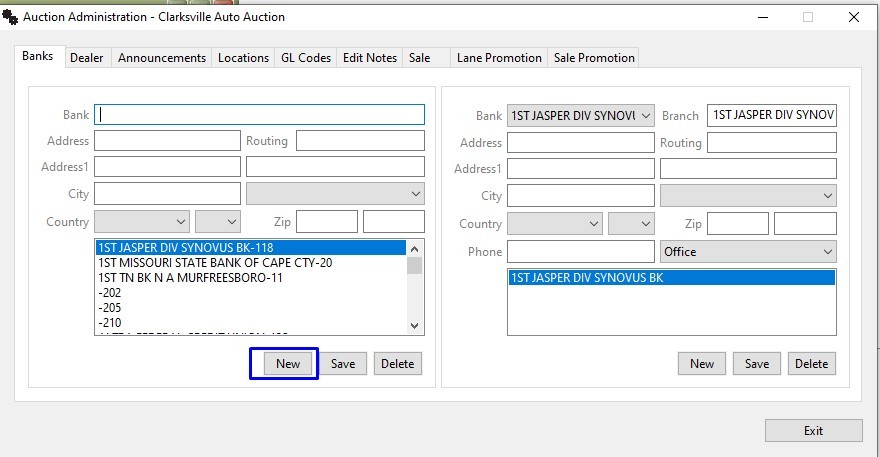
Step 1 . Clicking the 'New' button clears the Bank Name field. Type in the Name of the Bank.
[](https://cam3-wiki.auctionstreaming.com/uploads/images/gallery/2022-09/bankstep1.jpg)
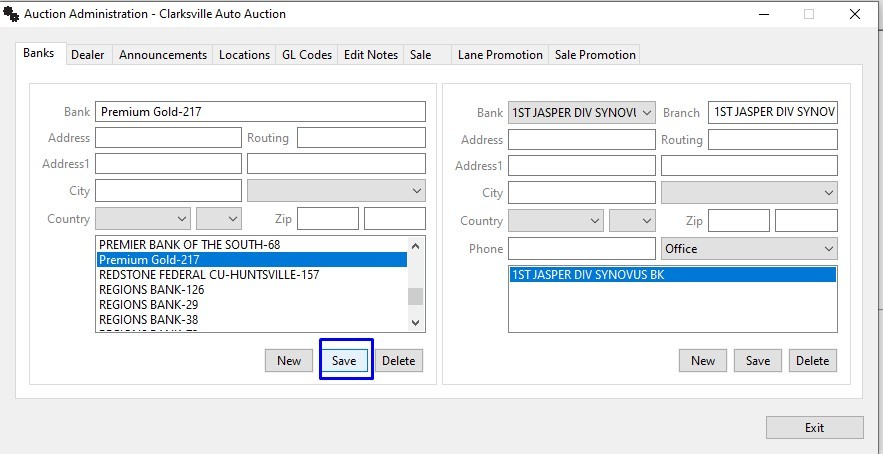
Step 2. Type the Name of the Bank and click 'Save'. The name of the bank will be added to the list box below.
[](https://cam3-wiki.auctionstreaming.com/uploads/images/gallery/2022-09/bankstep2.jpg)
Now that we have our Bank created and added next step is to add the branch for the created Bank.
**Adding Branch to New Bank**
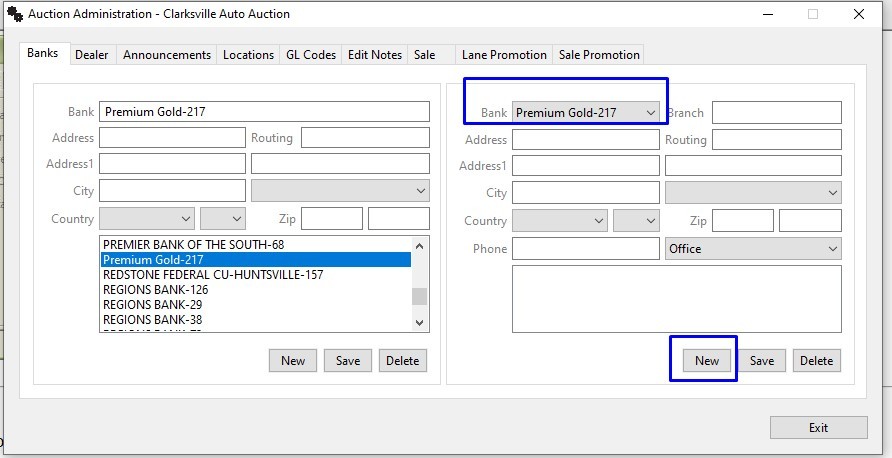
Step 1. Select the newly added bank from the list in the top right (bank branch) of the form and then click new.
[](https://cam3-wiki.auctionstreaming.com/uploads/images/gallery/2022-09/branchstep1.jpg)
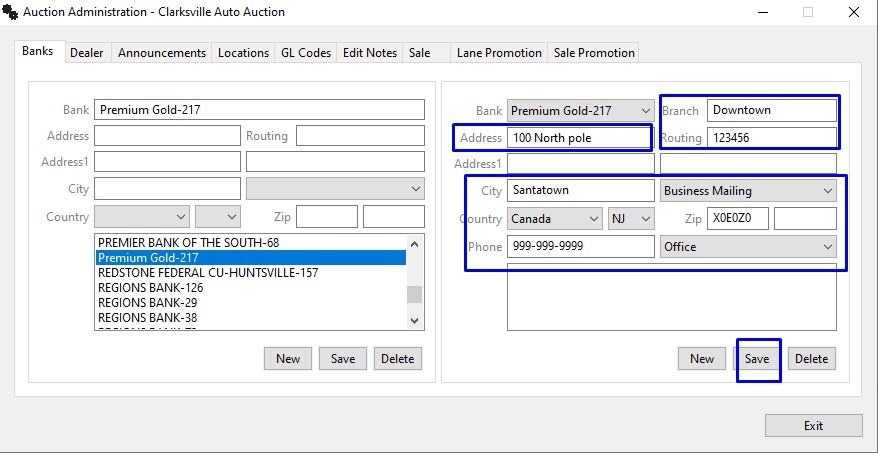
Step 2. Complete the form and click the 'Save' button to add the Branch information to the Bank information.
[](https://cam3-wiki.auctionstreaming.com/uploads/images/gallery/2022-09/branchstep2.jpg)
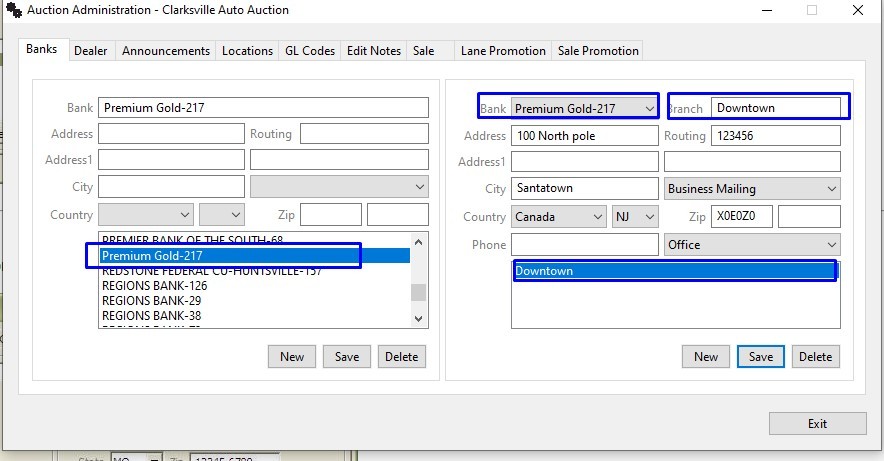
Step 3. The New Bank and New Branch information has been added and a Bank Account using the new Bank and Branch may be added to the Dealer's account.
[](https://cam3-wiki.auctionstreaming.com/uploads/images/gallery/2022-09/branchstep3.jpg)