# Aged Trial Balance
The 'Aged' Trial Balance provides a view of Receivables relative to the passage of time since posting. This may help to identify which Dealers to collect from first. The report is aged according to:
Total Due
Current
7 - Day
14 - Day
21 - Day
30 - Day
60 - Day
90 - Day
Select
- The **[Account Management](https://cam3-wiki.auctionstreaming.com/books/cams-3-wiki-faq/page/account-management) application** > Reports > Aged Trial Balance
[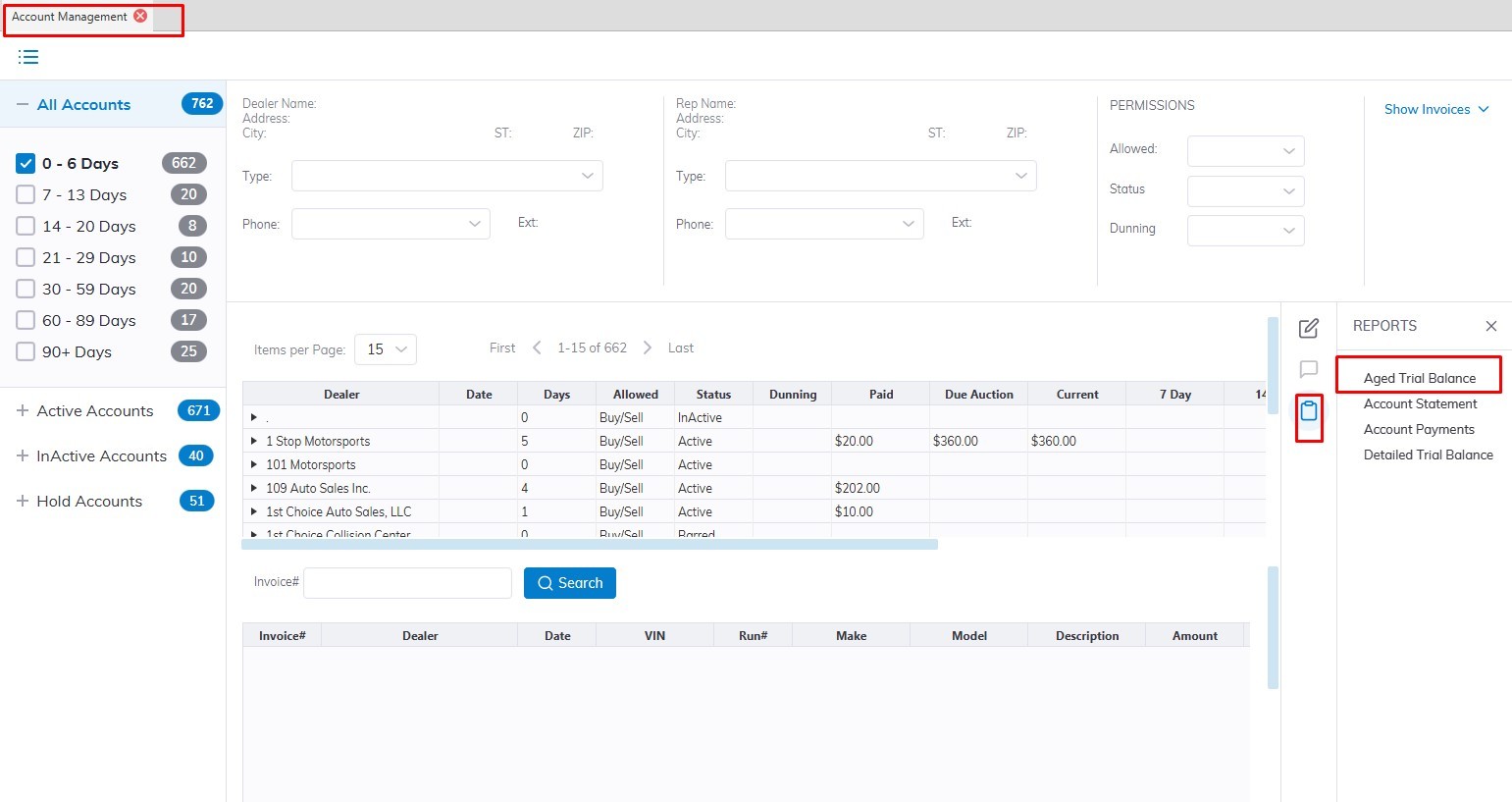](https://cam3-wiki.auctionstreaming.com/uploads/images/gallery/2022-09/age1.jpg)
- This will launch the report wizard [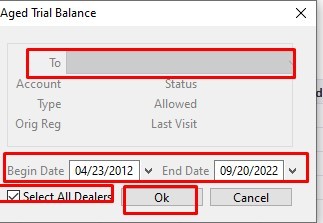](https://cam3-wiki.auctionstreaming.com/uploads/images/gallery/2022-09/age2.jpg)
- Select the specific Dealer in the To: Filed or 'All Dealers' checkbox
- Select the Date range that you would like to generate the report.
- Click 'OK' when done to create and print the report.[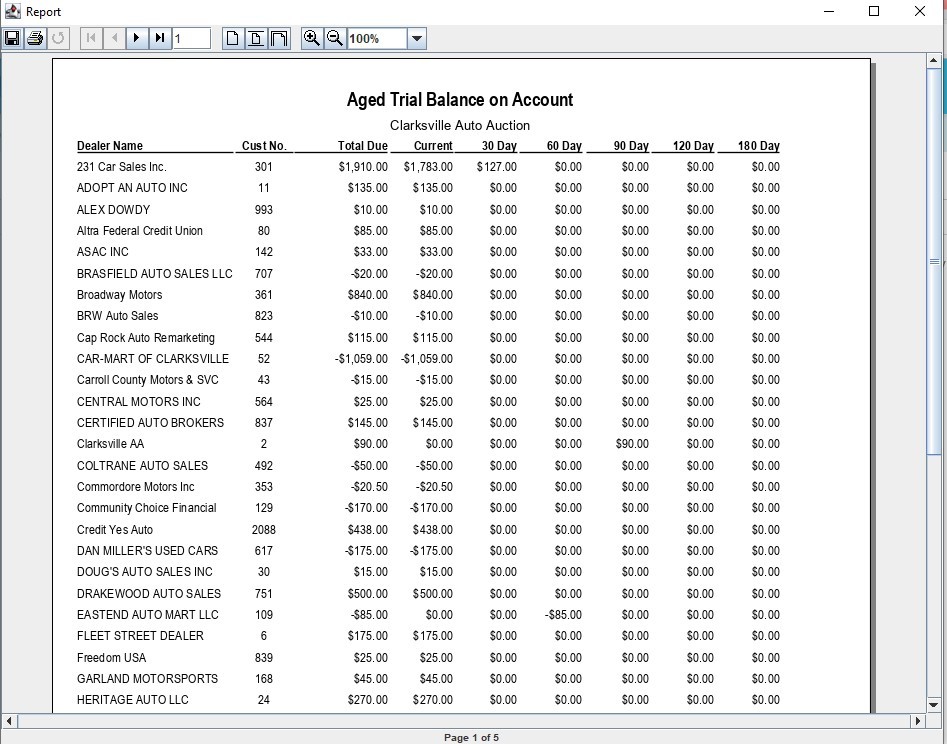](https://cam3-wiki.auctionstreaming.com/uploads/images/gallery/2022-09/age3.jpg)