Summary Statements FAQ
1. Dealer Summary Statement Reports 2. Buyer Summary 3. Seller Summary 4. No Sale Summary 5. IF Sale Summary 6. Combine Summary
- Dealer Summary Statement Reports
- Buyer Summary
- Seller Summary
- No Sale Summary
- IF Sale Summary
- Combine Summary
Dealer Summary Statement Reports
The Dealer Summary Statement report is a suite of reports designed to provide the Dealer with a complete breakdown of all their 'Active' vehicles. Off-Site and/or Inactive vehicles are not included.
Buyer Summary
Select
- The Dealer Profile application > Reports > Summary Statements> Buyer Summary.
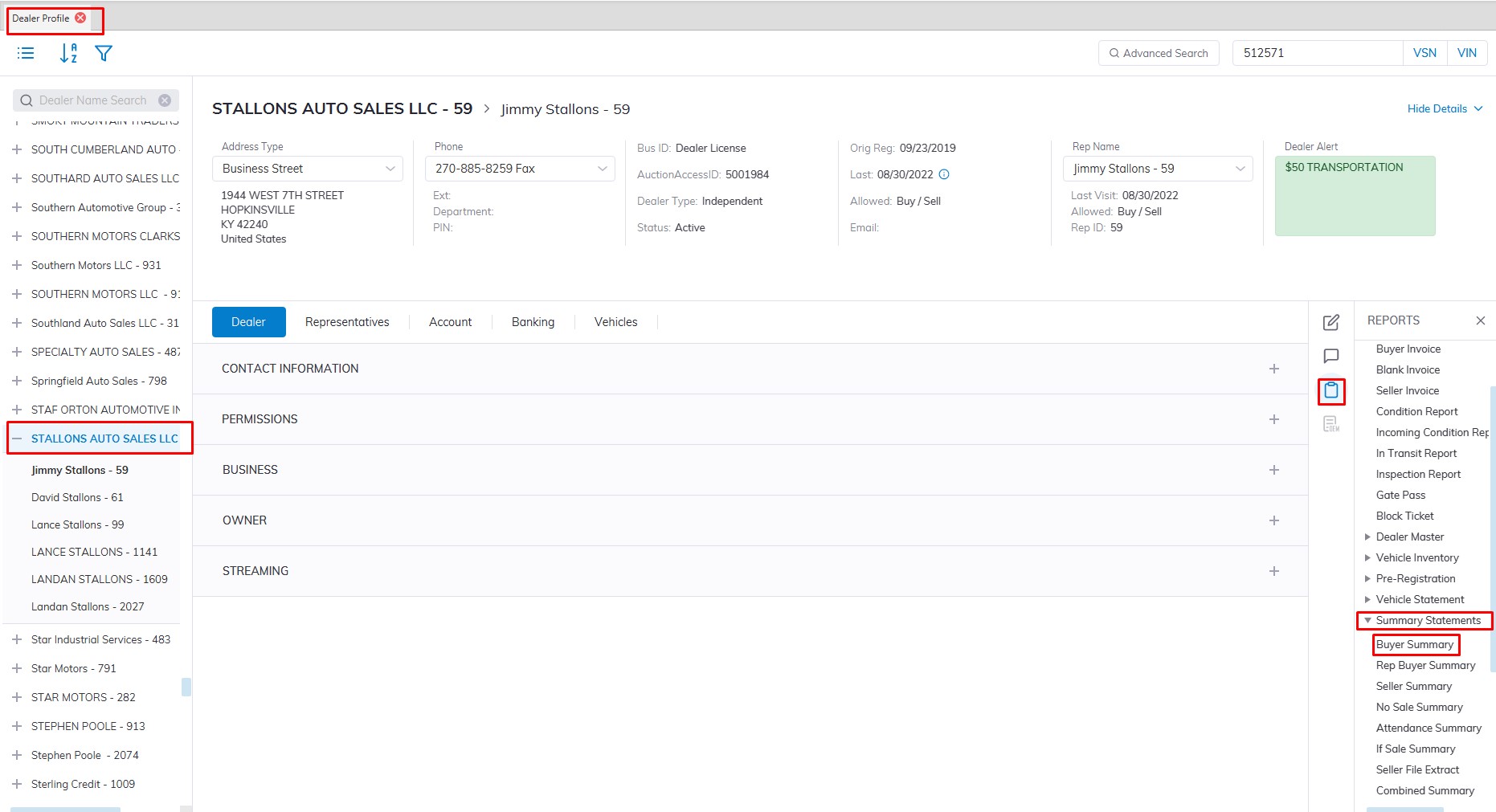
- This will launch the buyer summary report form to be filled out.
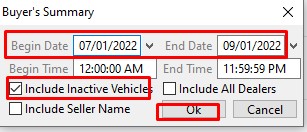
- In this form, you need to fill in the Sale Date ranch you would like to run the report for.
- Next, you need to select the "include Inactive Vehicle" checkbox so you can get a comprehensive report on everything.
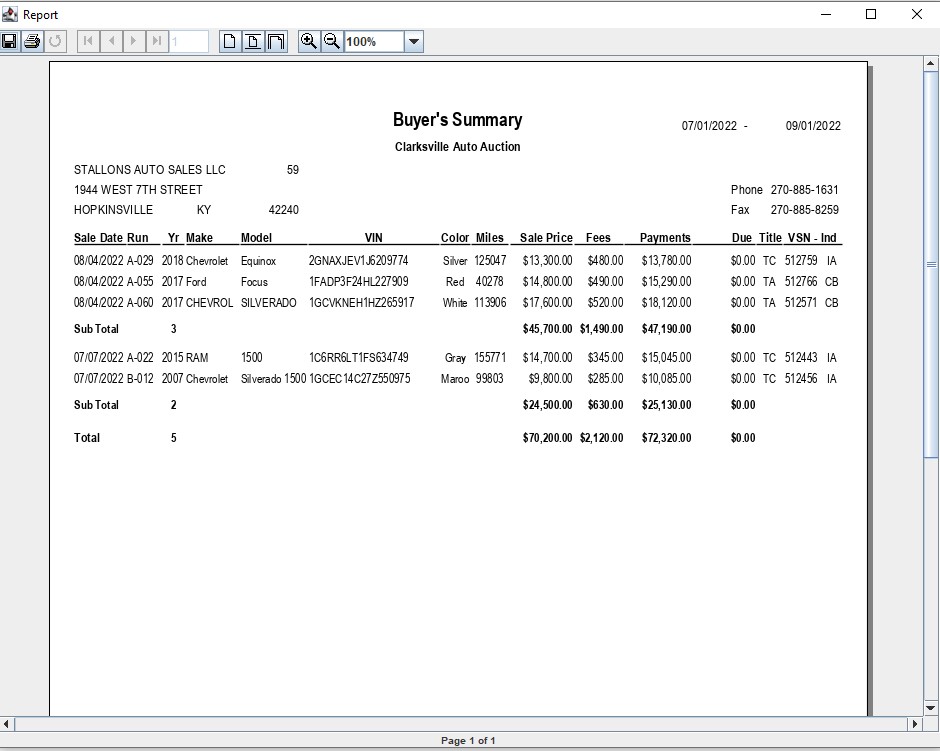
- Click 'OK' to create and print the report.
Seller Summary
Select
- The Dealer Profile application > Reports > Summary Statements> Seller Summary.
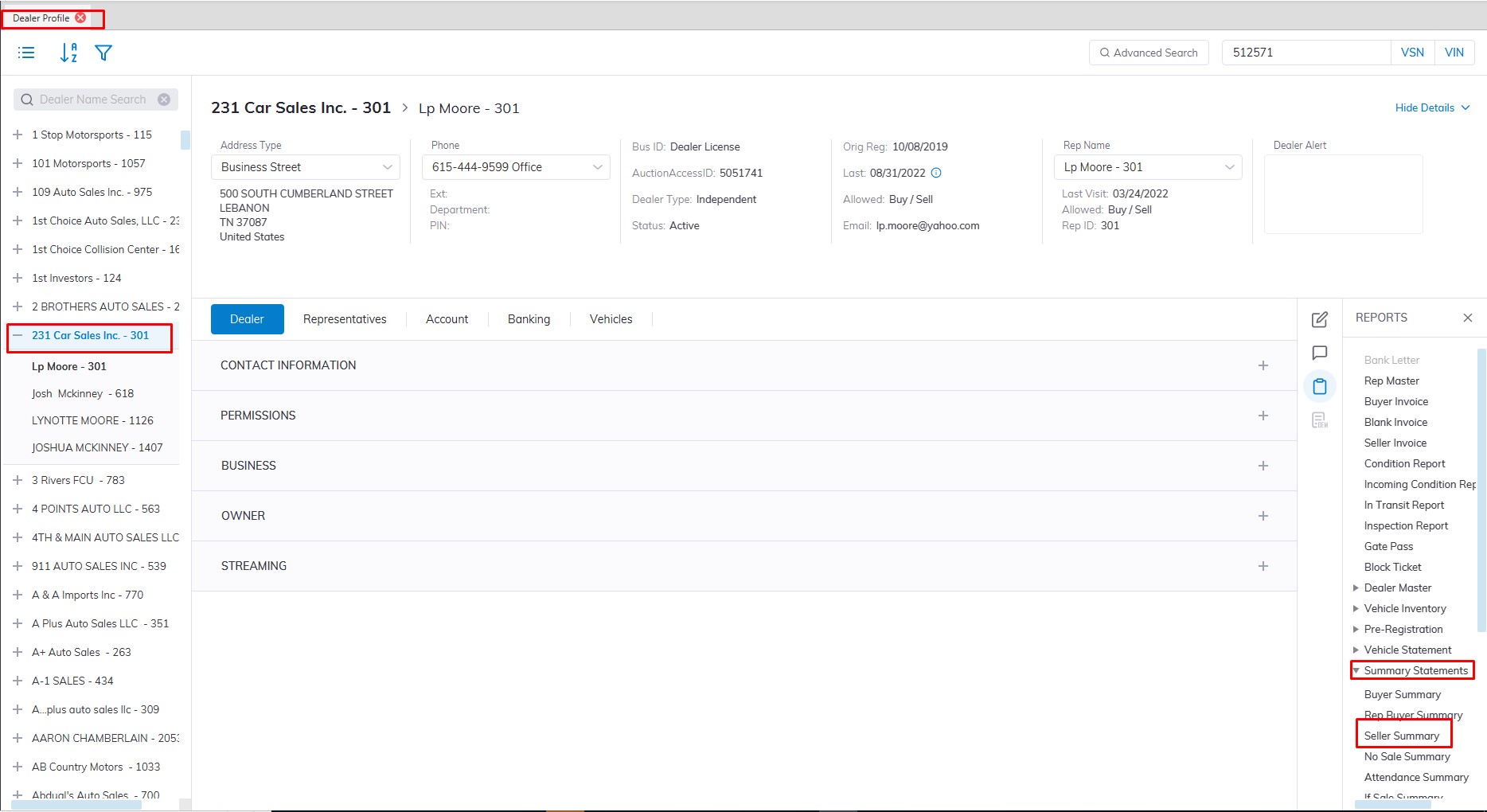
- This will launch the Seller Summary report form to be filled out.
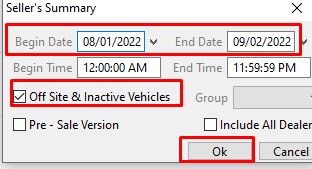
- In this form, you need to fill in the Sale Date ranch you would like to run the report for.
- Next, you need to select the "Off-Site & Inactive Vehicle" checkbox so you can get a comprehensive report on everything.
- Click 'OK' to create and print the report.
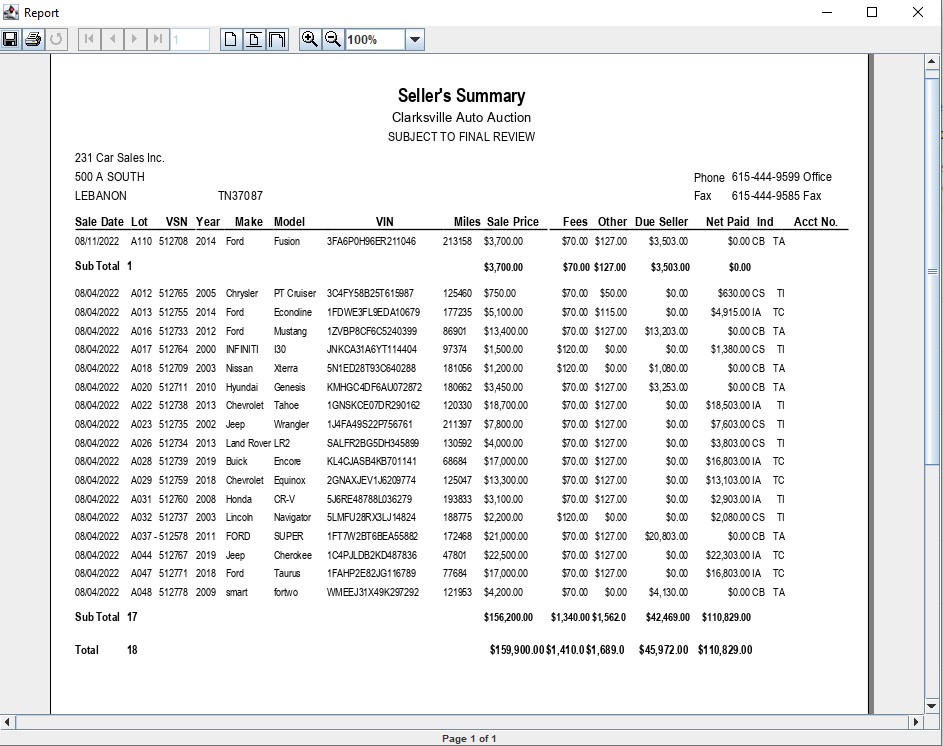
No Sale Summary
Select
- The Dealer Profile application > Reports > Summary Statements> No Sale Summary.
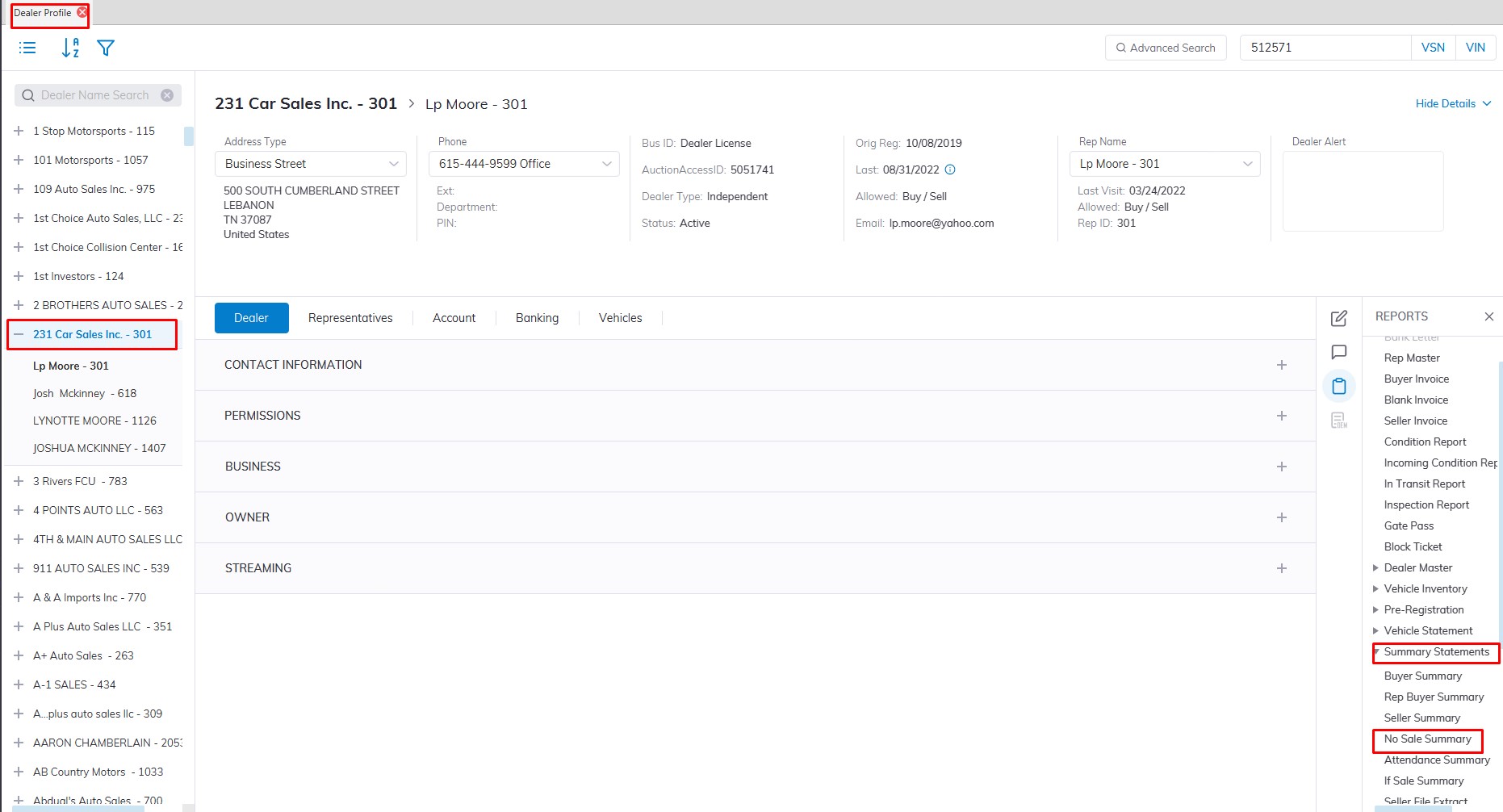
- This will launch the No Sale Summary report form to be filled out.
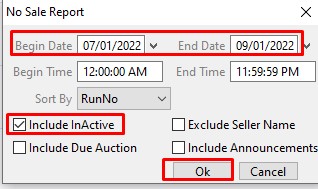
- In this form, you need to fill in the Sale Date ranch you would like to run the report for.
- Next, you need to select the "include Inactive" checkbox so you can get a comprehensive report on everything.
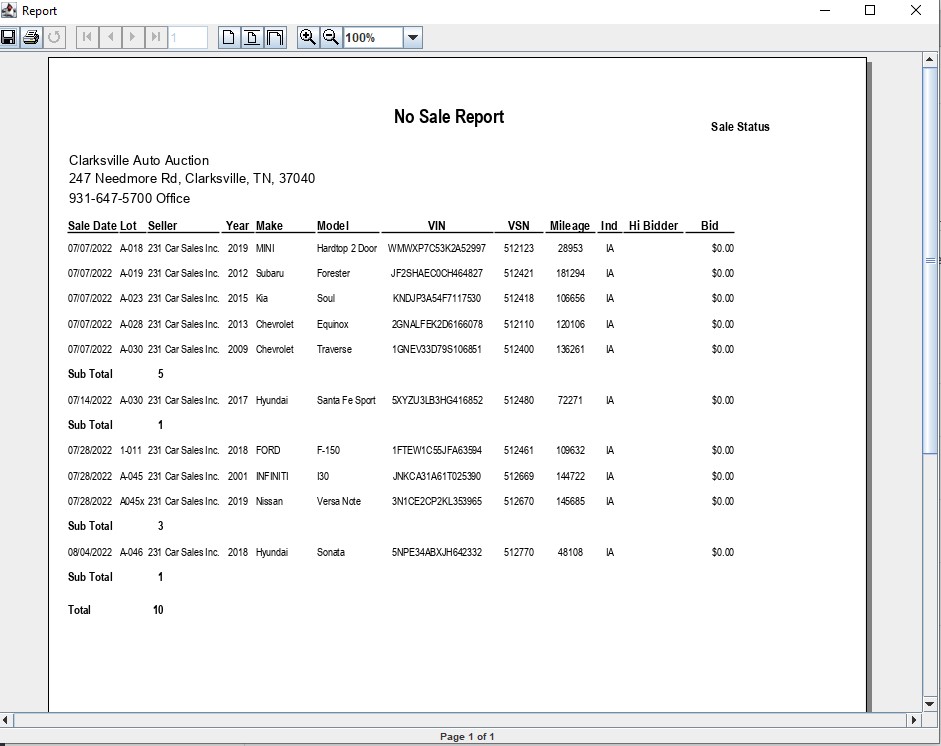
- Click 'OK' to create and print the report.
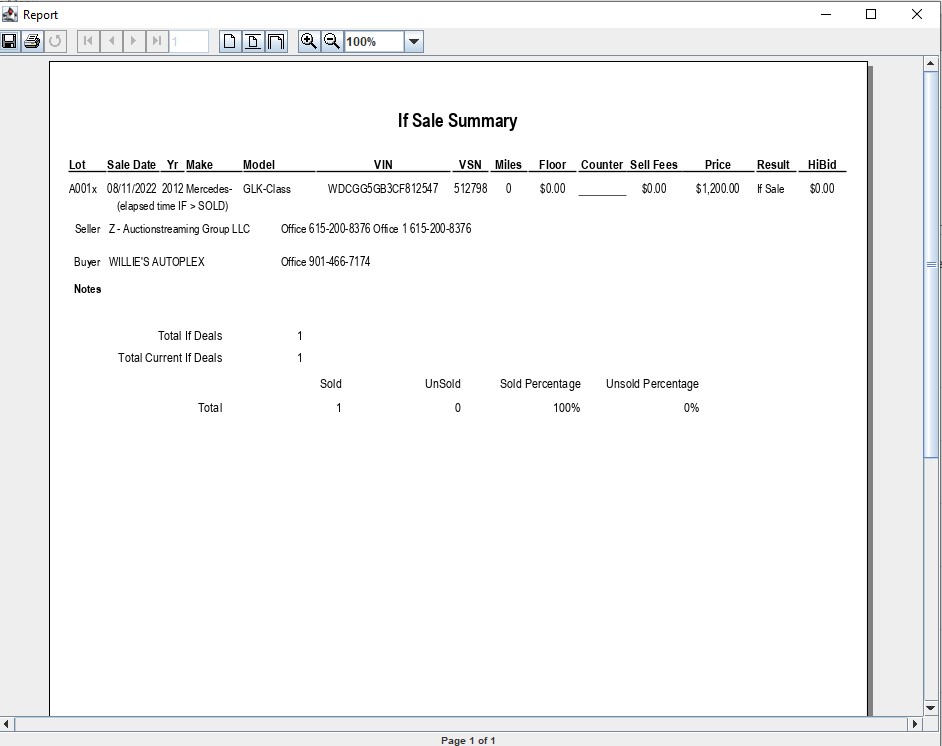
IF Sale Summary
Select
- The Dealer Profile application > Reports > Summary Statements> IF Sale Summary.
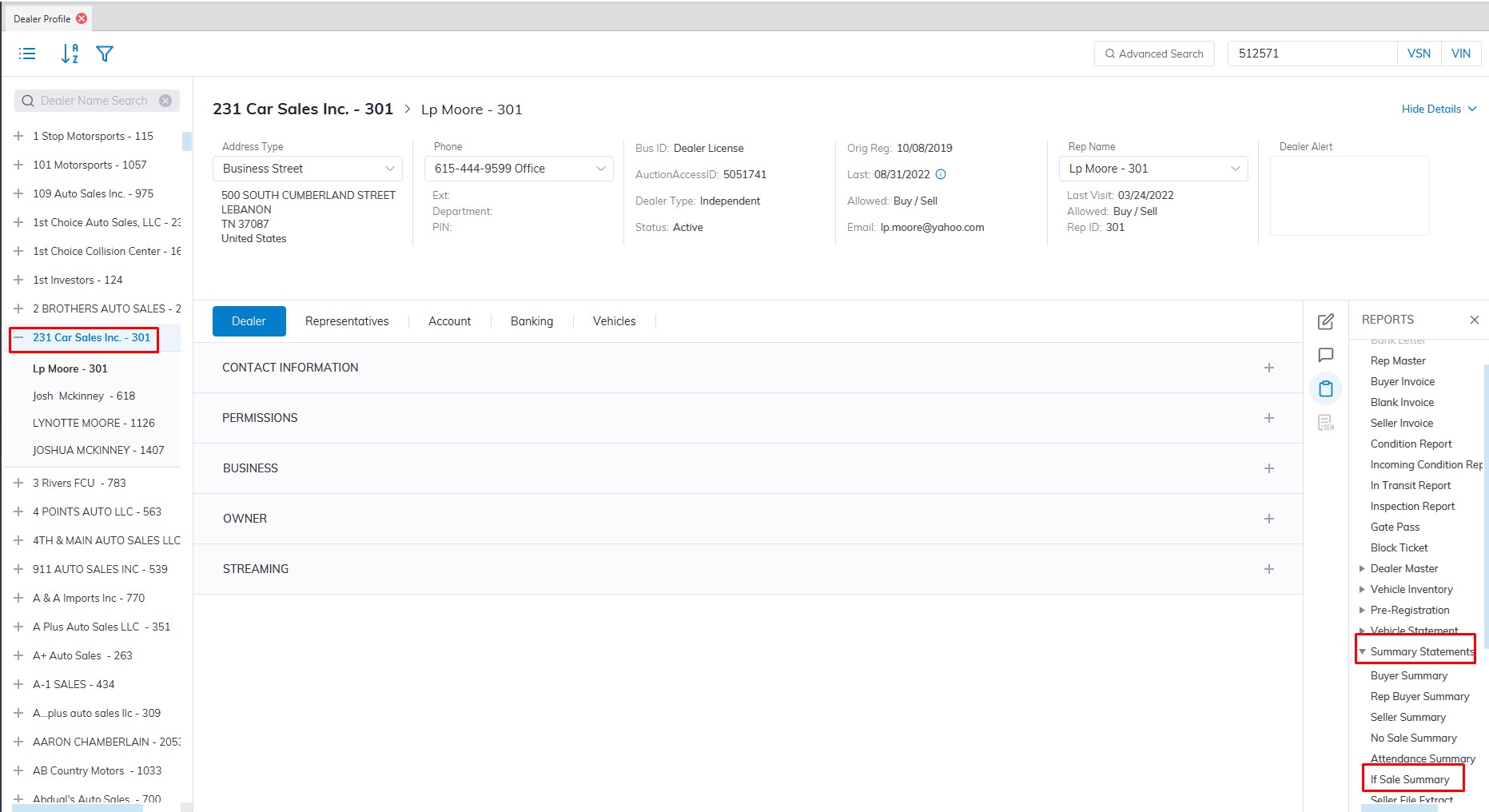
- This will launch the IF Sale Summary report form to be filled out.
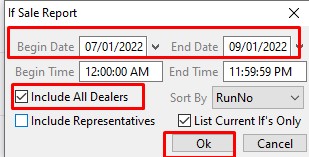
- In this form, you need to fill in the Sale Date ranch you would like to run the report for.
- Next, you need to select the "include All Dealers" checkbox so you can get a comprehensive report on everything.
- Click 'OK' to create and print the report.
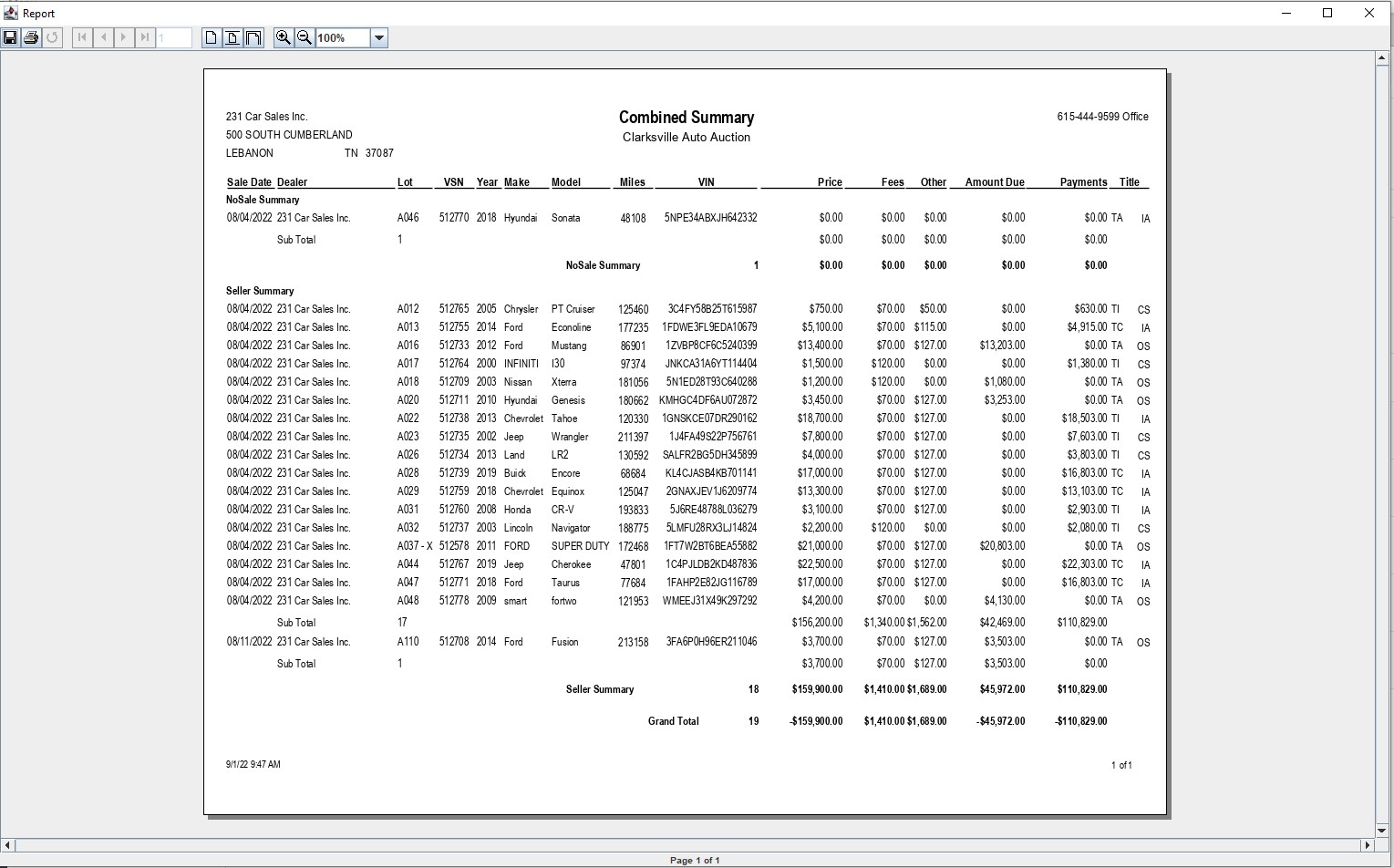
Combine Summary
Select
- The Dealer Profile application > Reports > Summary Statements> Combine Summary.
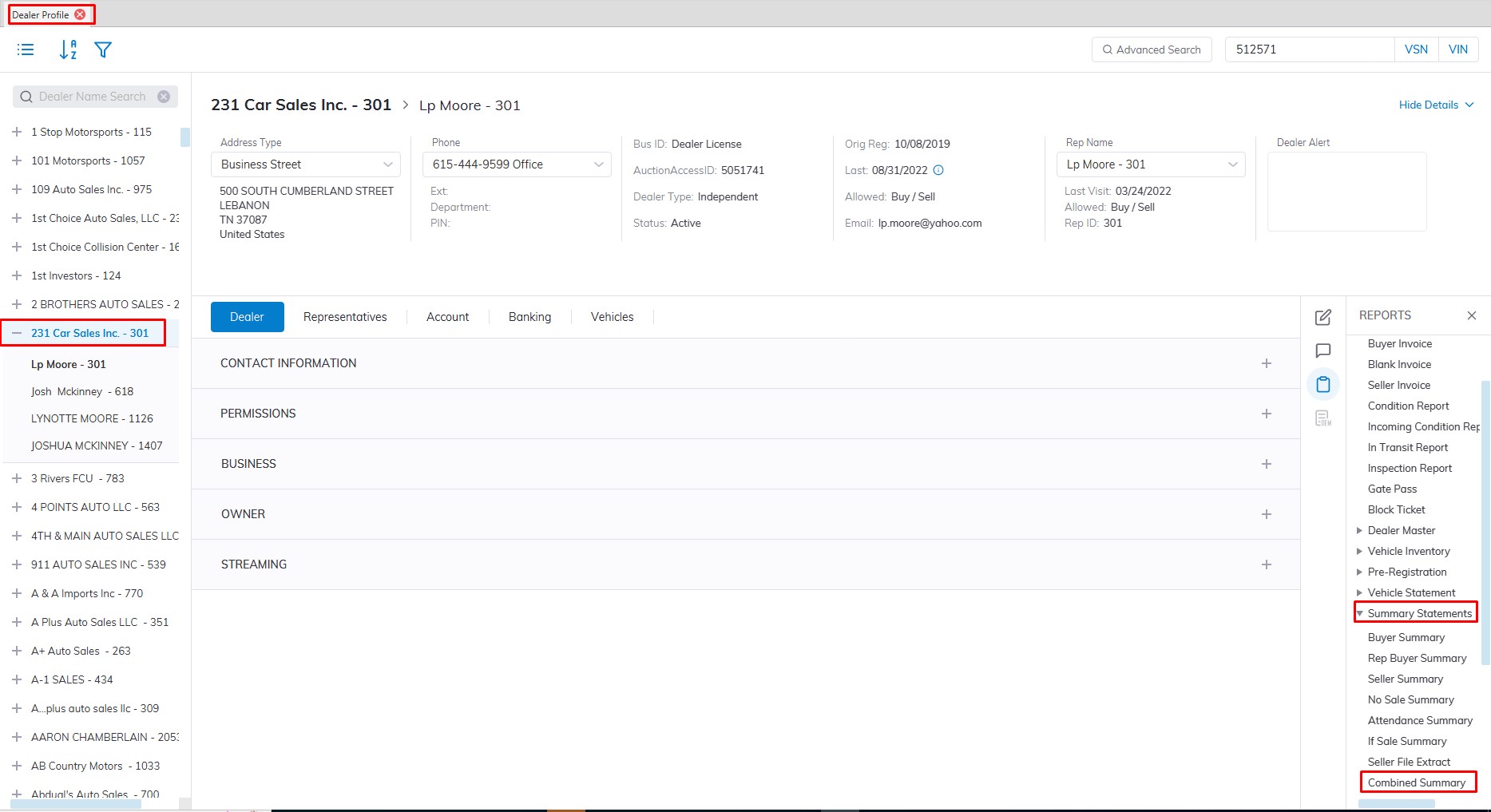
- This will launch the Combine Summary report form to be filled out.
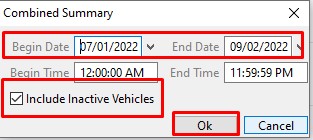
- In this form, you need to fill in the Sale Date ranch you would like to run the report for.
- Next, you need to select the "include Inactive Vehicles" checkbox so you can get a comprehensive report on everything.
- Click 'OK' to create and print the report.