# Reports FAQ
1. Seller Run List
2. Vehicle Purchased
3. Block Ticket Report
4. Buyer Listing Report
5. Dealer Master Report
6. Post Sale Inspection Report and Post Sale Summary Report
7. Seller Check Report
8. Block Ticket Report
9. Buyer Listing Report
10. Auto Check Report
11. Condition Report (CR)
# Seller Run List
The Seller Listing report is a record of the vehicle begin offered for sale. You may run this report from the [**Sale Profile**](https://cam3-wiki.auctionstreaming.com/books/cams-3-wiki-faq/page/sale-profile) or [**Vehicle Block**](https://cam3-wiki.auctionstreaming.com/books/cams-3-wiki-faq/page/vehicle-block) application.
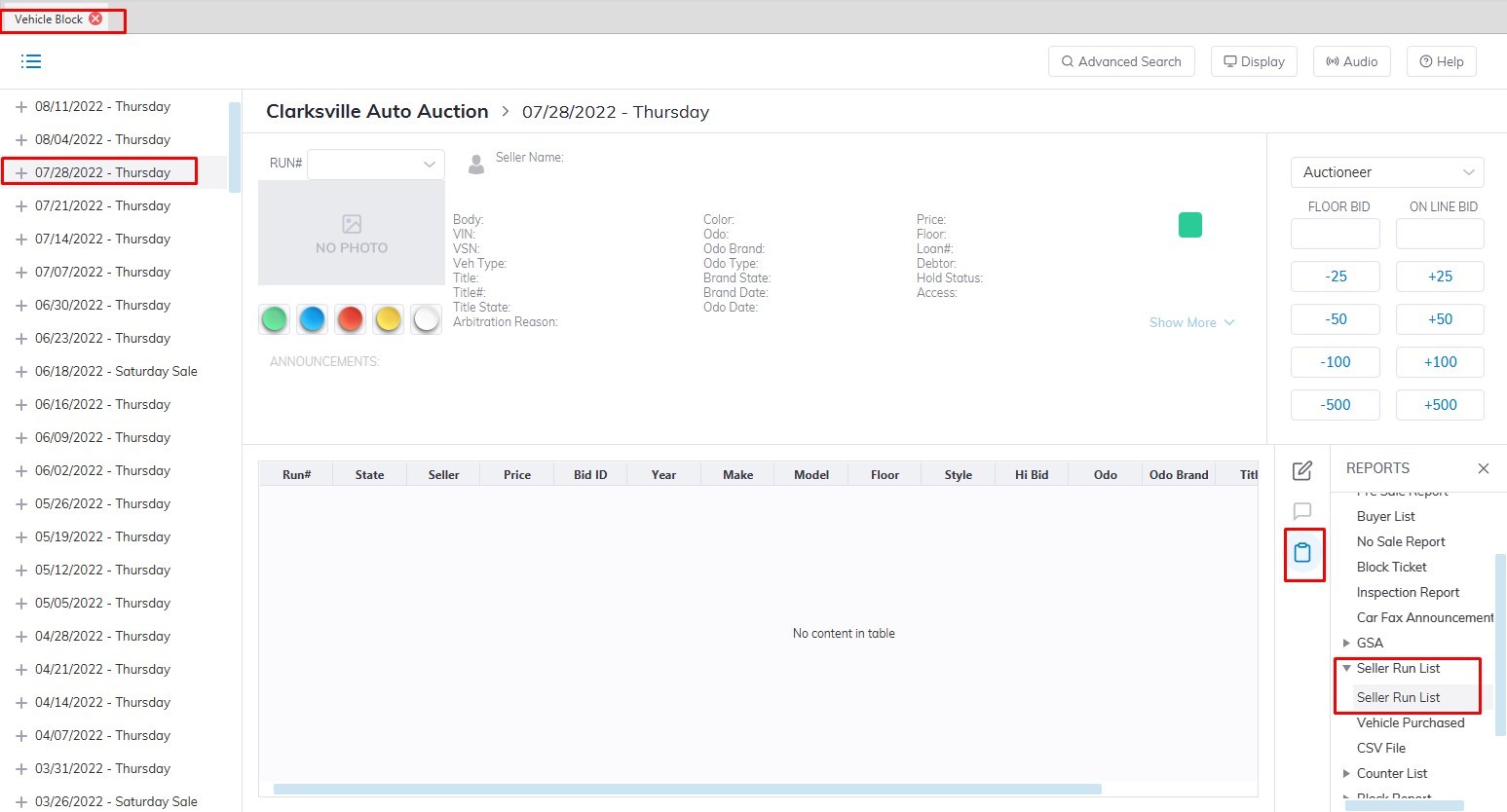
- Select The Vehicle Block application > Reports > Seller Run List
[](https://cam3-wiki.auctionstreaming.com/uploads/images/gallery/2022-09/seller1.jpg)
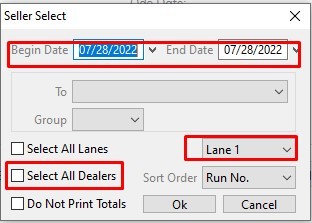
- This will launch the Seller Run list form.
[](https://cam3-wiki.auctionstreaming.com/uploads/images/gallery/2022-09/seller2.jpg)
- Select the Sale Date Range you would like to run the report for.
- Select the specific Lane or you can choose the "Select All lanes" checkbox to run the report for all Lanes
- Select if you need 'All Dealers' or select a single selling Dealer from the drop-down listing in the To field.
- Click 'OK' when complete to generate the report.
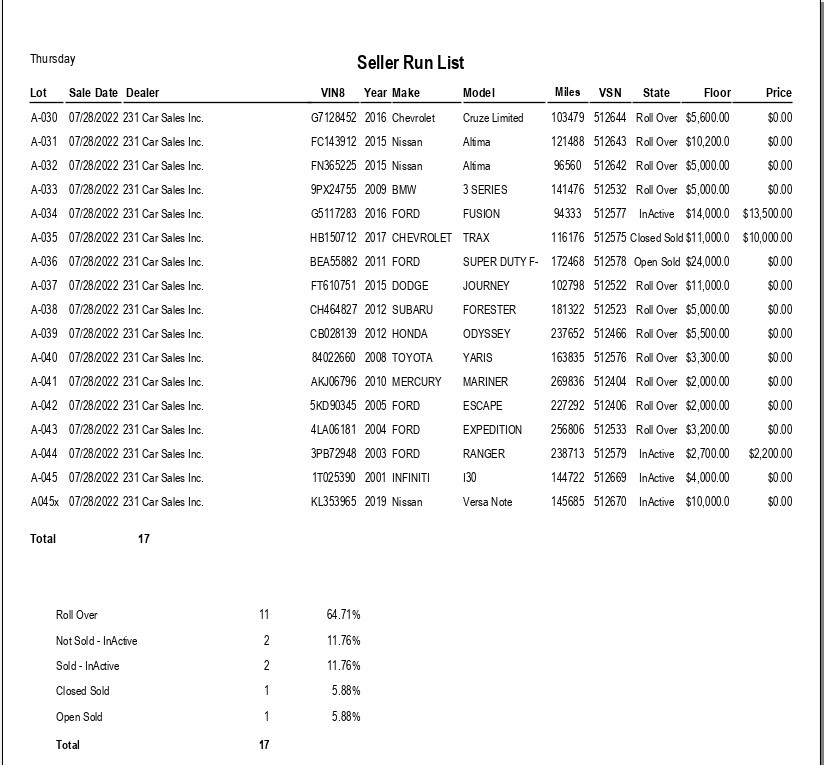
Sample of the report that was generated.
[](https://cam3-wiki.auctionstreaming.com/uploads/images/gallery/2022-09/seller3.jpg)
# Vehicles Purchased
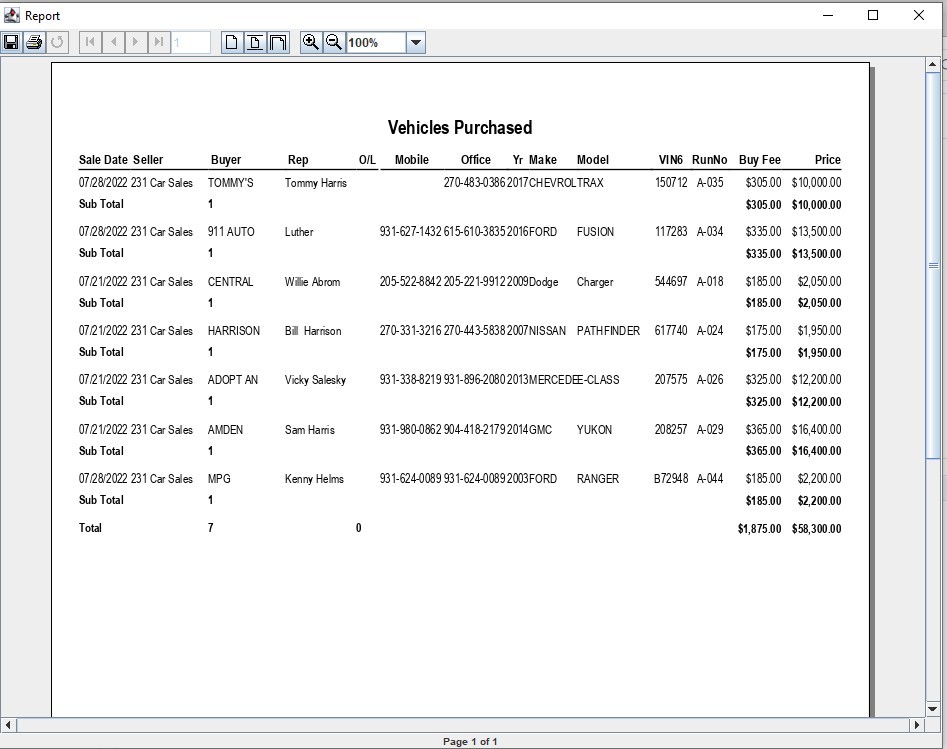
The Vehicles Purchased report lists purchased vehicles for a selected seller.
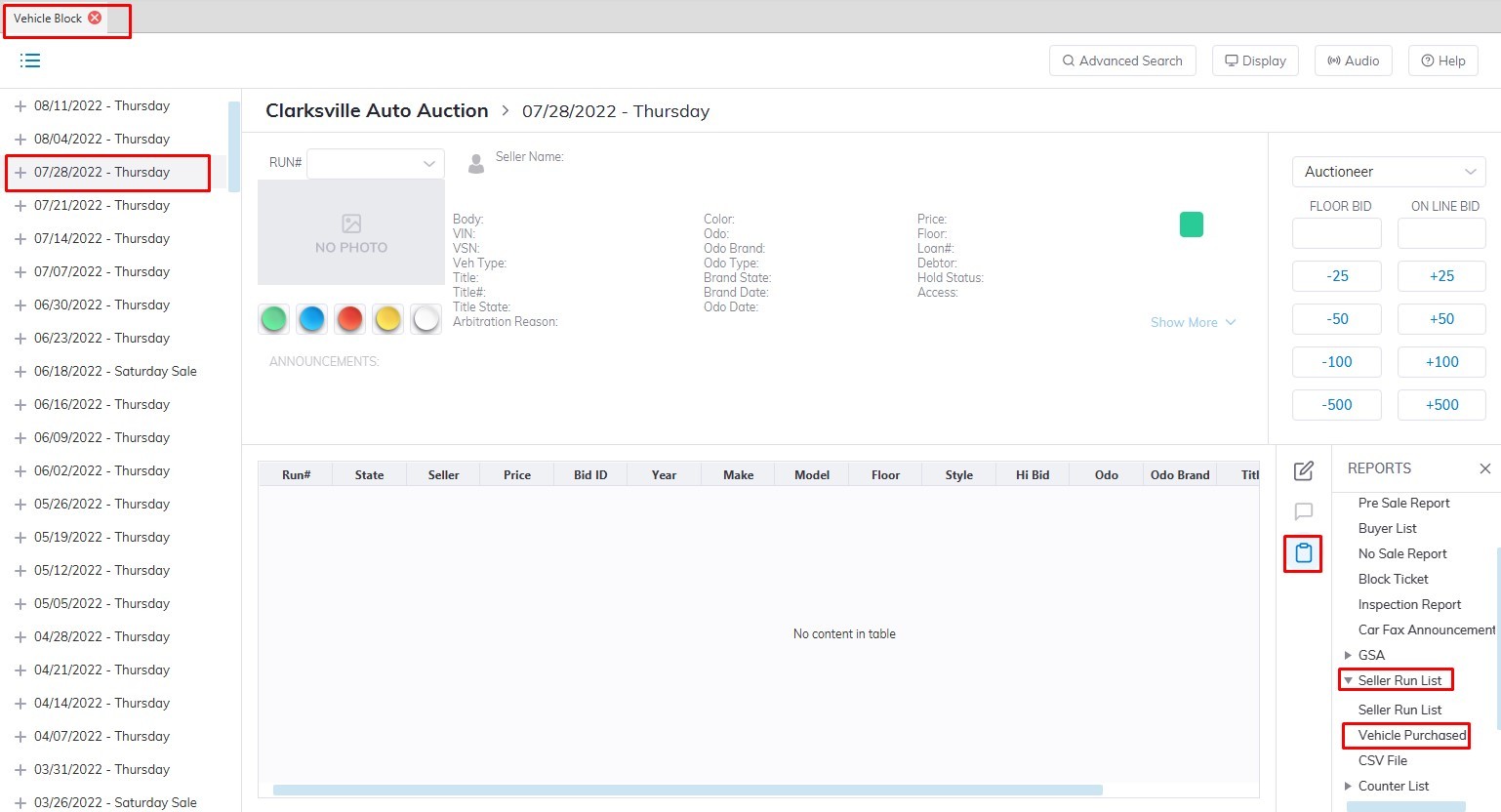
Select the Vehicle Block application > Reports> Seller Run List > Vehicles Purchased
[](https://cam3-wiki.auctionstreaming.com/uploads/images/gallery/2022-09/vehiclep1.jpg)
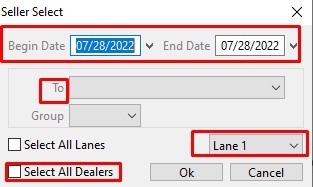
- This will launch the Seller Run list form.
[](https://cam3-wiki.auctionstreaming.com/uploads/images/gallery/2022-09/vehiclep2.jpg)
- Select the Sale Date Range you would like to run the report for.
- Select the specific Lane or you can choose the "Select All lanes" checkbox to run the report for all Lanes
- Select if you need 'All Dealers' or select a single selling Dealer from the drop-down listing in the To field.
- Click 'OK' when complete to generate the report.
Sample of the report that was generated.
[](https://cam3-wiki.auctionstreaming.com/uploads/images/gallery/2022-09/reportvehicle.jpg)
# Block Ticket Report
The Block ticket is a miniature version of the Buyer Invoice but is not a legal document. It can be printed from the [**Vehicle Block**](https://cam3-wiki.auctionstreaming.com/books/cams-3-wiki-faq/page/vehicle-block) and [**Dealer Profile**](https://cam3-wiki.auctionstreaming.com/books/cams-3-wiki-faq/page/dealer-profile) Application.
[](https://cam3-wiki.auctionstreaming.com/uploads/images/gallery/2022-10/image-1664809871309.png)
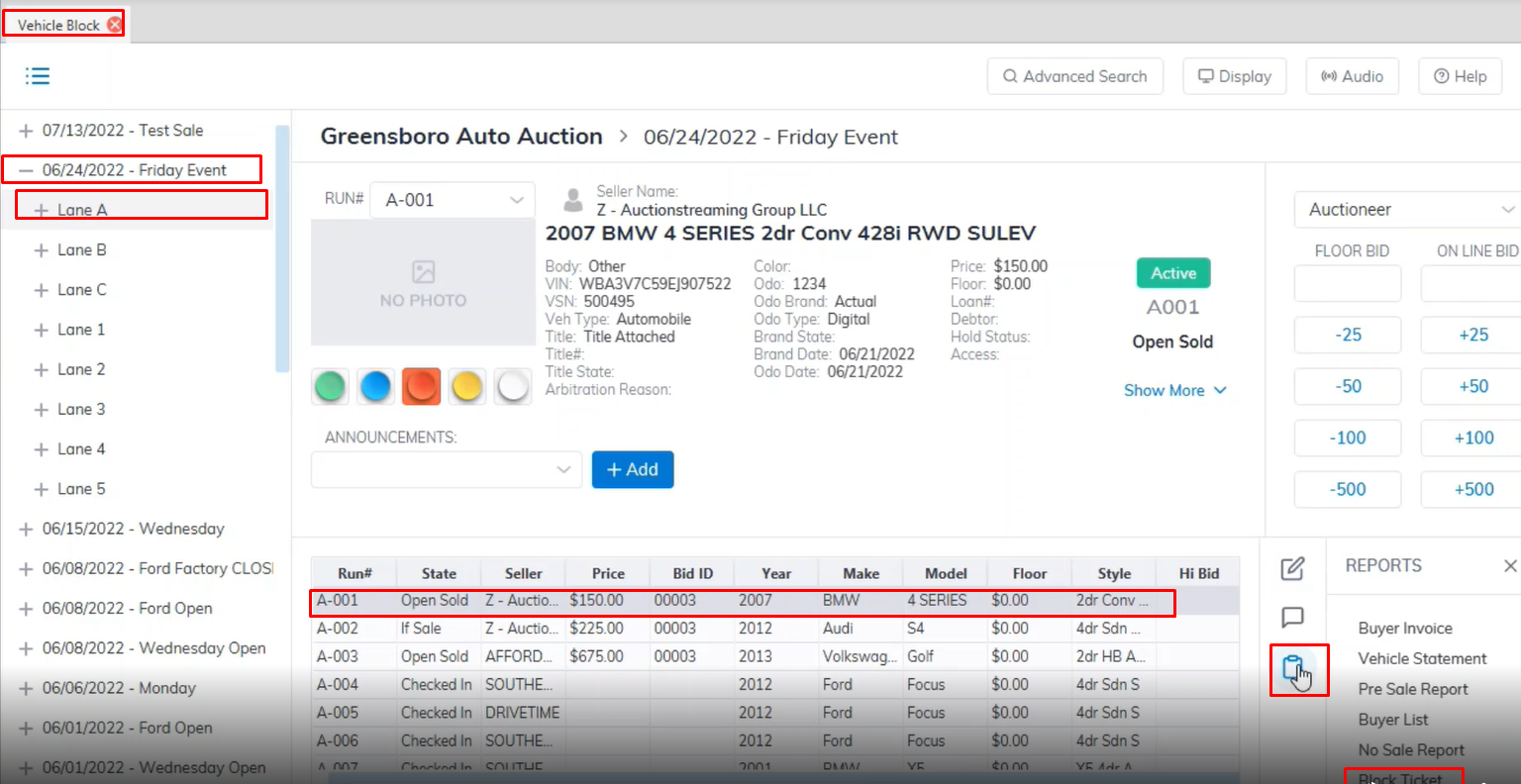
- Open the [**Vehicle Block**](https://cam3-wiki.auctionstreaming.com/books/cams-3-wiki-faq/page/vehicle-block) application
- Select the Sale Date then click the + sign to choose the Lane.
- Select the vehicle from the grid. (vehicle must be in Sold state)
- Select the Reports menu then the Block Ticket sub-menu.
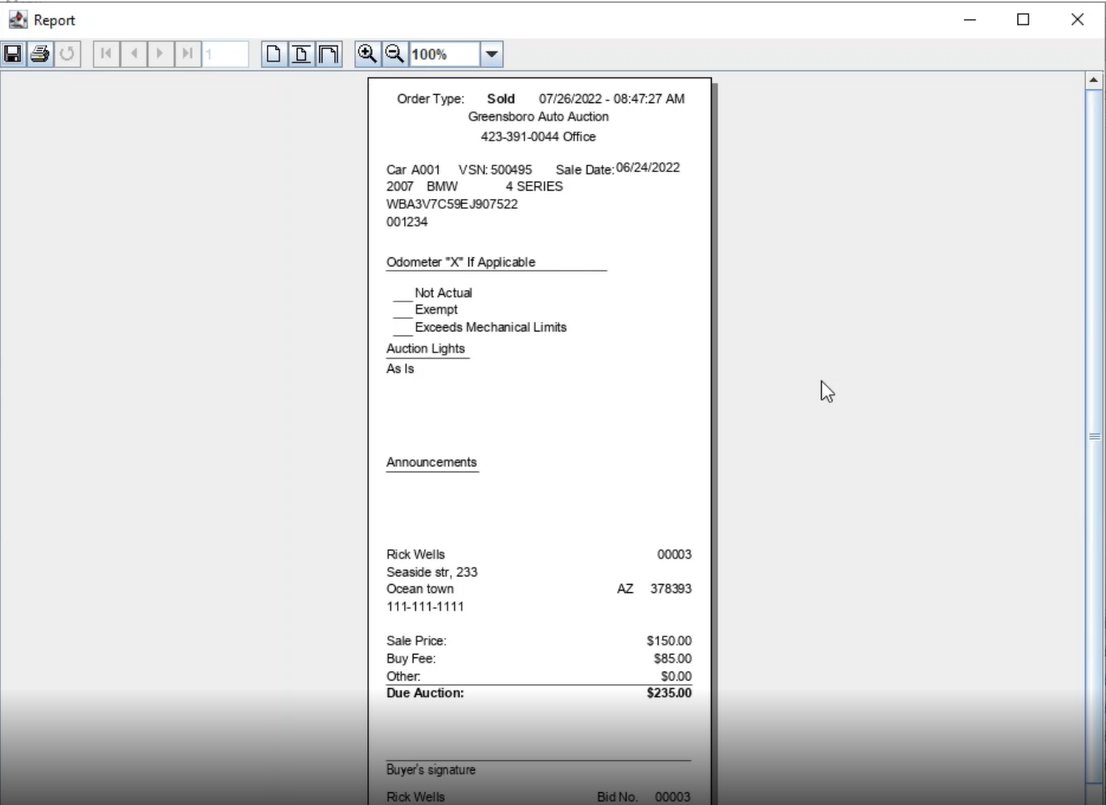
Block Ticket Show the Mileage, the Lights, Announcements, Sold price, and Seller and Buyer.
[](https://cam3-wiki.auctionstreaming.com/uploads/images/gallery/2022-10/image-1664809619452.png)
# Buyer Listing Report
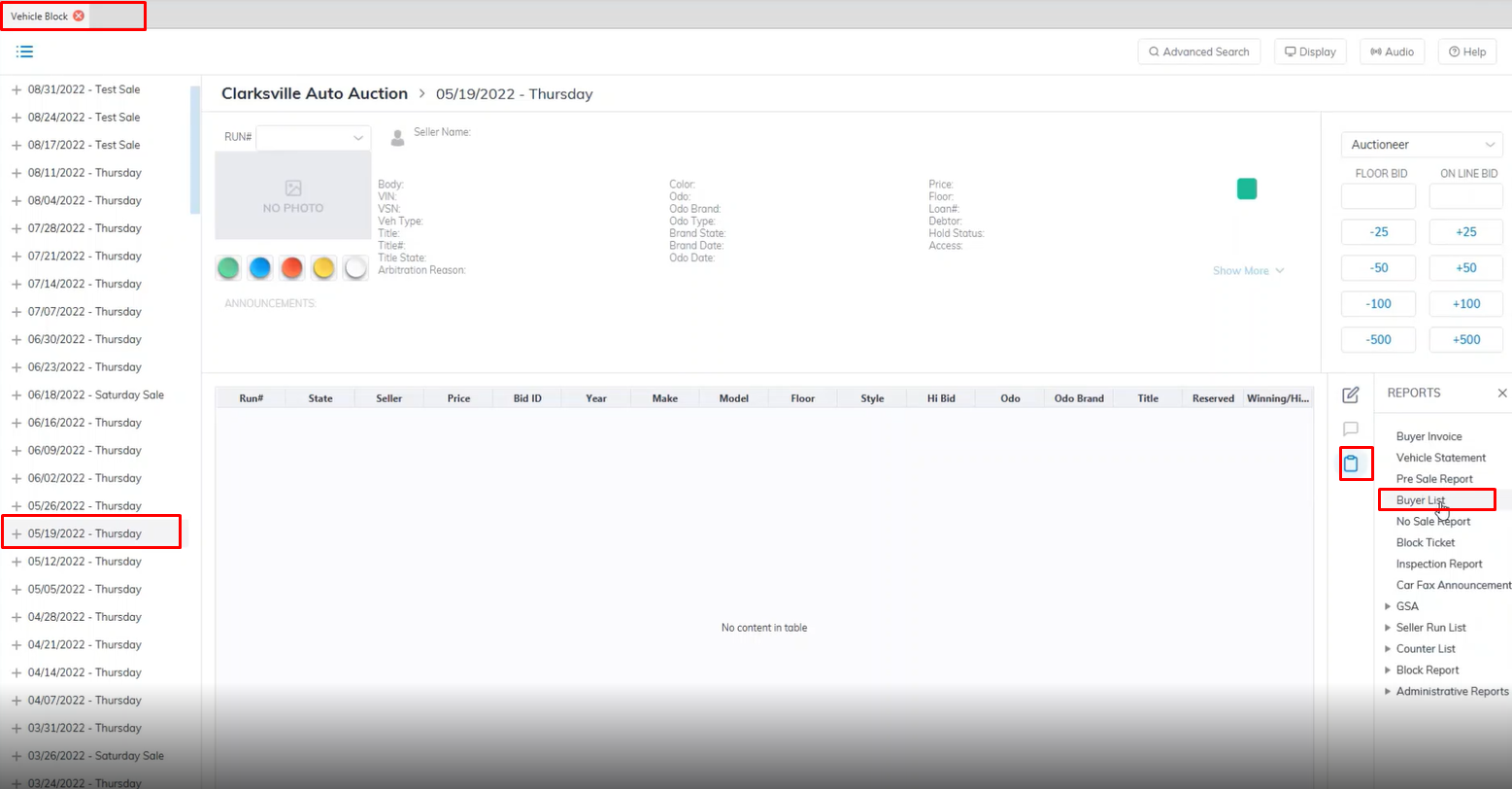
The Buyer Listing report records the vehicle purchased by the Dealer(s). You may run this report from the [**Sale Profile**](https://cam3-wiki.auctionstreaming.com/books/cams-3-wiki-faq/page/sale-profile) or [**Vehicle Block**](https://cam3-wiki.auctionstreaming.com/books/cams-3-wiki-faq/page/vehicle-block) application.
[](https://cam3-wiki.auctionstreaming.com/uploads/images/gallery/2022-10/image-1664810555497.png)
- Open the [**Vehicle Block**](https://cam3-wiki.auctionstreaming.com/books/cams-3-wiki-faq/page/vehicle-block) application
- Select the Sale Date.
- Select the Reports menu then the Buyer List sub-menu.
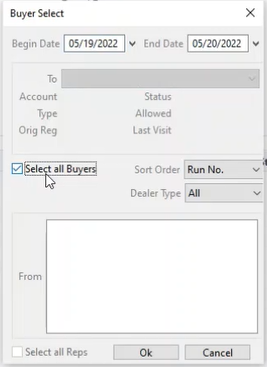
- This will launch the report wizard
[](https://cam3-wiki.auctionstreaming.com/uploads/images/gallery/2022-10/image-1664810602142.png)
- You may spas sale dates using the 'Begin' and 'End' dates.
- You may run for a specific Dealer in the To field or click the box 'Select all Buyers' for all buying dealers. If a Dealer has more than one buying Representative you may click the box 'Select All Reps' or select one of the individual representatives.
- You may also sort the report by Run Number, Make, or Model.
- Click 'OK' when done to create and print the report.
# Dealer Master Report
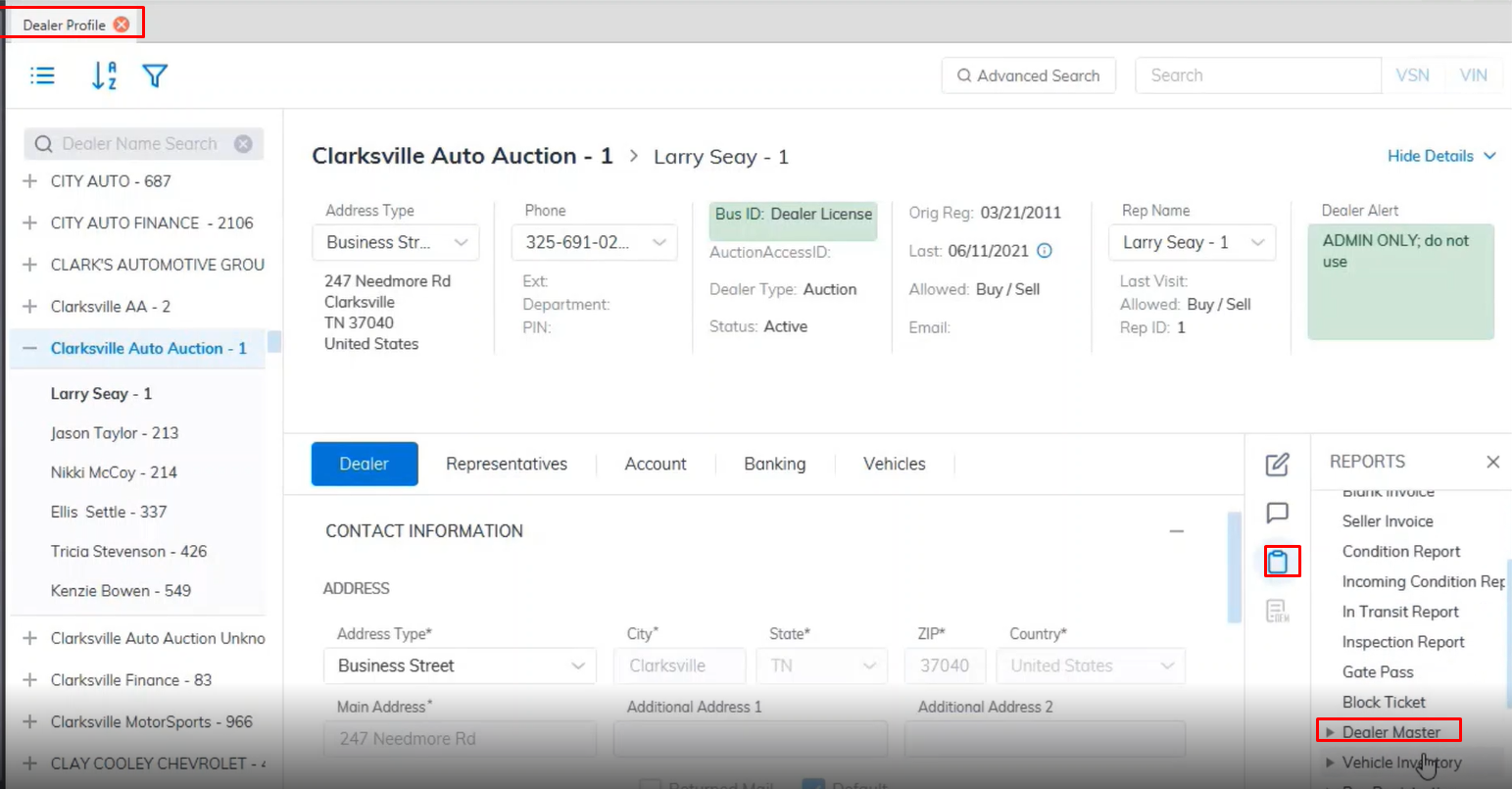
The Dealer Master can be used as a contact list for the Sales department or saved as a . CSV file for use as a spreadsheet. You may run this report from the **[Dealer profile](https://cam3-wiki.auctionstreaming.com/books/cams-3-wiki-faq/page/dealer-profile)** Application.
[](https://cam3-wiki.auctionstreaming.com/uploads/images/gallery/2022-10/image-1664811927460.png)
- Open the **[Dealer Profile](https://cam3-wiki.auctionstreaming.com/books/cams-3-wiki-faq/page/dealer-profile)** application
- Select the Reports Menu
- Then select the Dealer Master sub-menu.
- You have the option of printing it as a PDF or CSV
- In this example, we'll choose PDF so we select Dealer Master
- This will launch the report wizard.
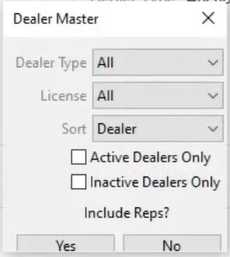
- You may or may not include individual representatives in the report. Sorting options include: Dealer Name
City, State, Zip.
- You may also select the Dealer Type: franchise, Classic Car, Lease, or Used.
- If you wish to list only Active Dealers select the Check box or the Inactive Dealers check box. In this example, we'll not check either since we're running the report for 'All' Dealers.
- When done Click "Yes" to create and print the report.
# Post Sale Inspection Report and Post Sale Summary Report
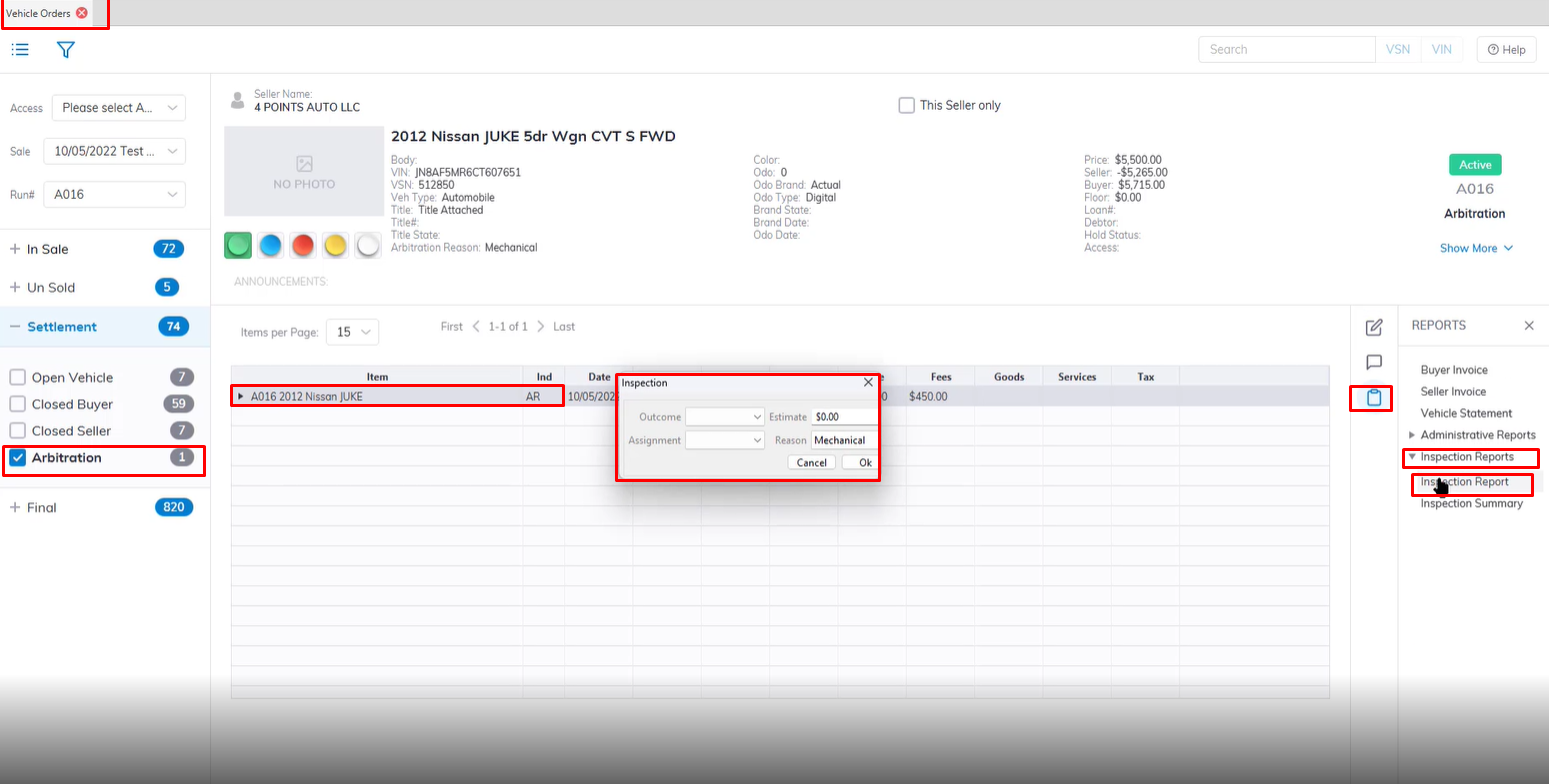
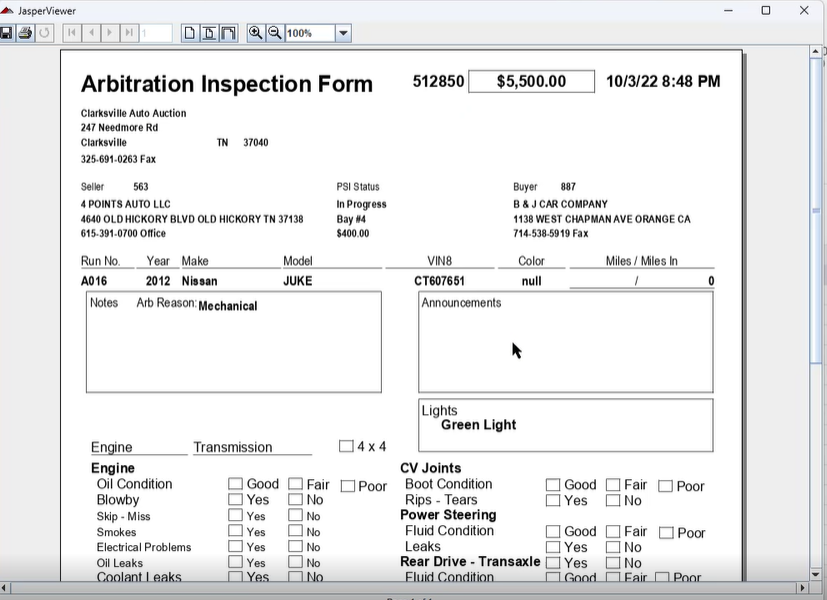
The **Post Sale Inspection form** is used for Buyers who wish to have purchases inspected prior to Departure.
Select the **[Dealer Profile ](https://cam3-wiki.auctionstreaming.com/books/cams-3-wiki-faq/page/dealer-profile)or [Vehicle Order](https://cam3-wiki.auctionstreaming.com/books/cams-3-wiki-faq/page/vehicle-orders)** application > Reports > Administrative Reports > Post Sale Inspection
[](https://cam3-wiki.auctionstreaming.com/uploads/images/gallery/2022-10/image-1666122541480.png)
**Note: You must select a vehicle in the grid of the Dealer Profile application. **
[](https://cam3-wiki.auctionstreaming.com/uploads/images/gallery/2022-10/image-1666122633402.png)
After printing this form you can run the inspection on the vehicle to see if fail or pass the buyer's stipulation.
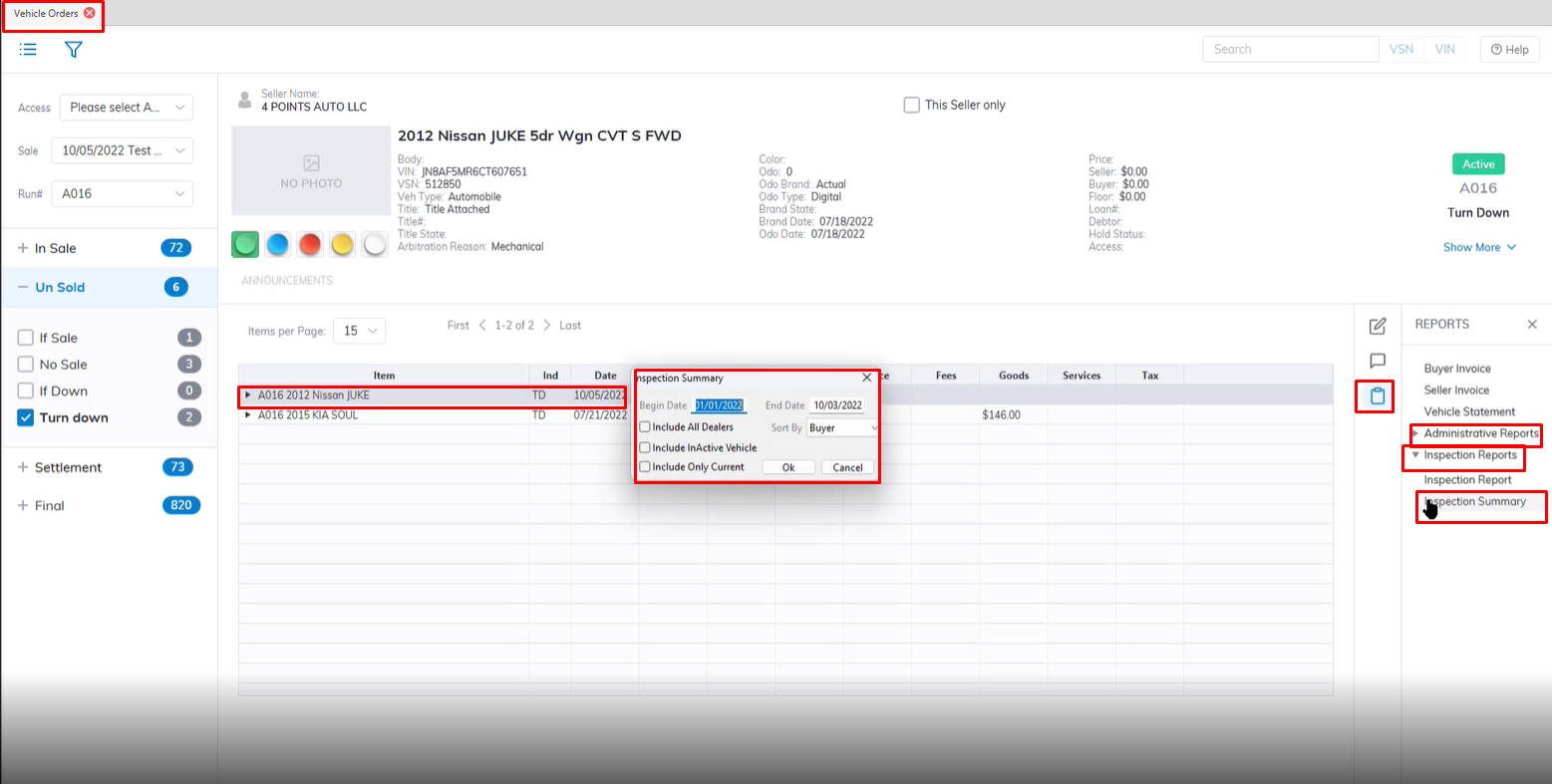
Select the **[Dealer Profile ](https://cam3-wiki.auctionstreaming.com/books/cams-3-wiki-faq/page/dealer-profile)or [Vehicle Order](https://cam3-wiki.auctionstreaming.com/books/cams-3-wiki-faq/page/vehicle-orders)** application > Reports > Administrative Reports > Inspection Summary
[](https://cam3-wiki.auctionstreaming.com/uploads/images/gallery/2022-10/image-1666123604888.png)
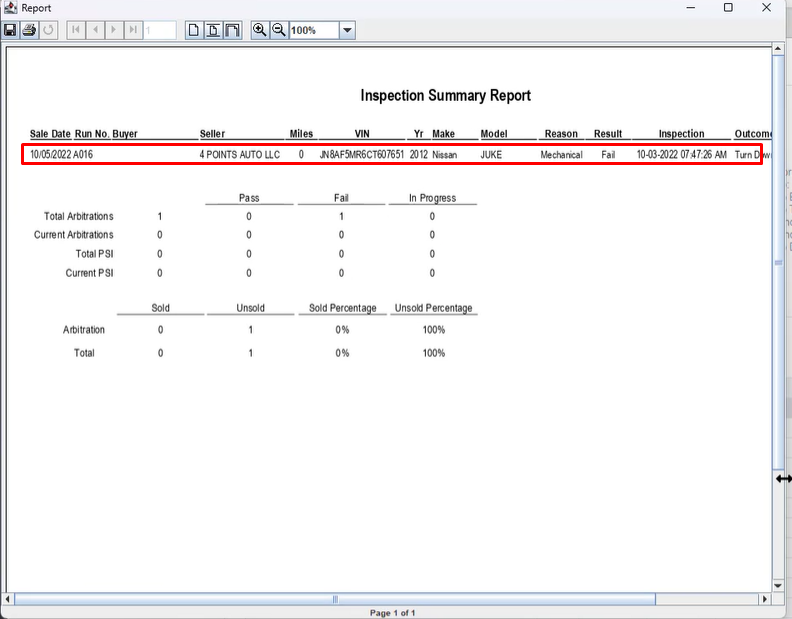
Click 'OK' when done to print the summary report.
[](https://cam3-wiki.auctionstreaming.com/uploads/images/gallery/2022-10/image-1666123699866.png)
# Seller Check Report
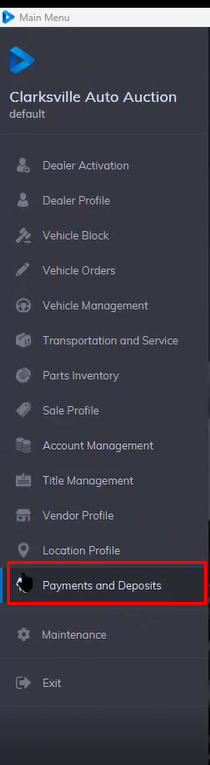
The Seller Check is automatically printed for **[Sell Settle](https://cam3-wiki.auctionstreaming.com/books/cams-3-wiki-faq/page/vehicle-settle-buy-settle-and-sell-settle-orders)** and **Edit Sell Settle** orders. It may be re-printed from the **[Payments and Deposits](https://cam3-wiki.auctionstreaming.com/books/cams-3-wiki-faq/page/payments-and-deposits)** application. Each check is unique to the Auction.
- Select the [**Payments and Deposits application**](https://cam3-wiki.auctionstreaming.com/books/cams-3-wiki-faq/page/payments-and-deposits)
[](https://cam3-wiki.auctionstreaming.com/uploads/images/gallery/2022-11/image-1667587429624.png)
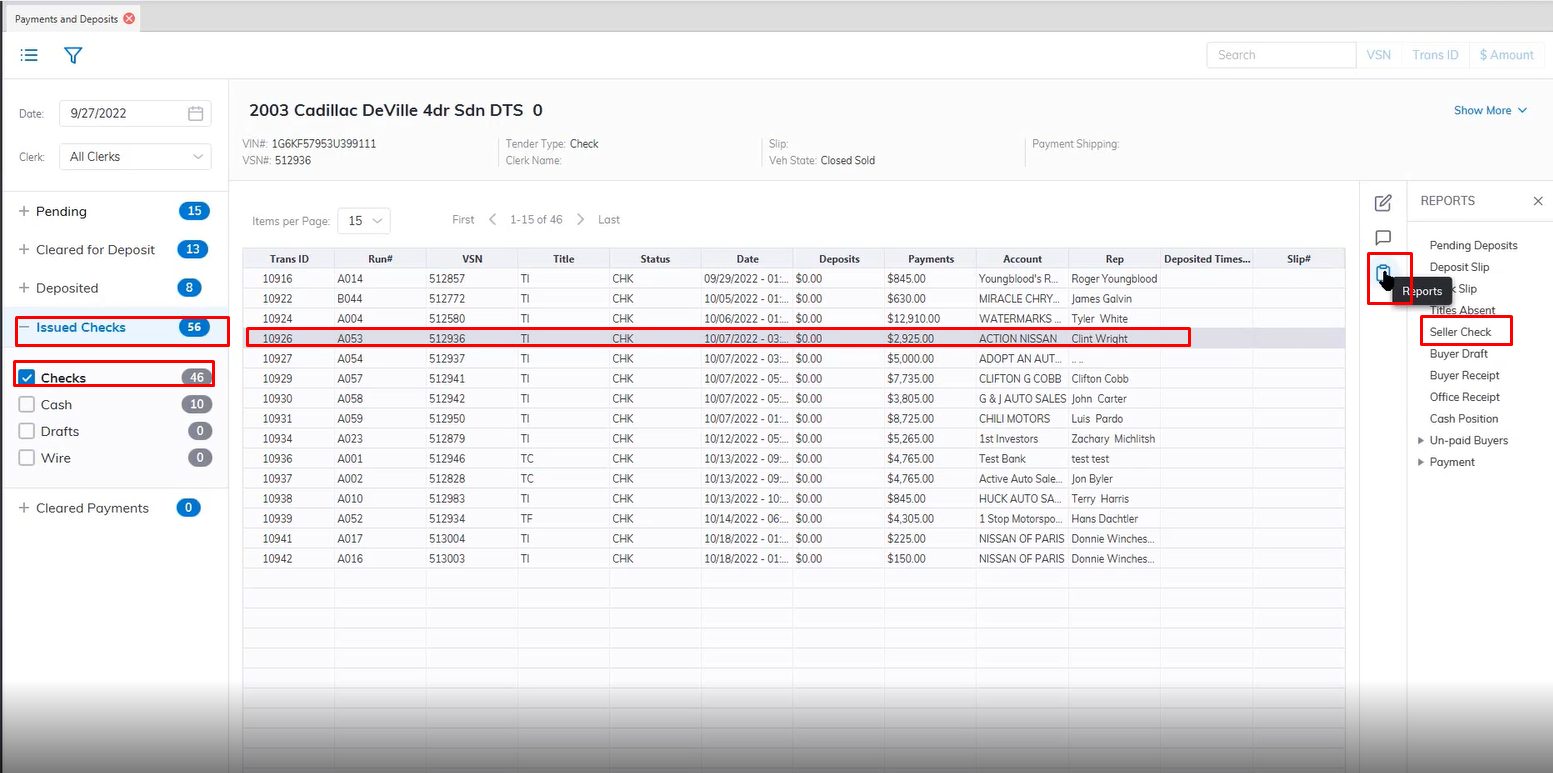
- Once the application loads select the issued check section
- Select check option
- Select the vehicle you want to reprint the seller's Check for
- Then click Reports then Seller Check order.
[](https://cam3-wiki.auctionstreaming.com/uploads/images/gallery/2022-11/image-1667587669885.png)
- This will bring up the print preview of the Seller check for reprinting.
# Block Ticket Report
The Block ticket is a small version of the Buyer Invoice but is not a legal document. The Block Ticket report can be printed from the [**Dealer Profile**](https://cam3-wiki.auctionstreaming.com/books/cams-3-wiki-faq/page/dealer-profile "Dealer Profile") and [**Vehicle Block**](https://cam3-wiki.auctionstreaming.com/books/cams-3-wiki-faq/page/vehicle-block) applications.
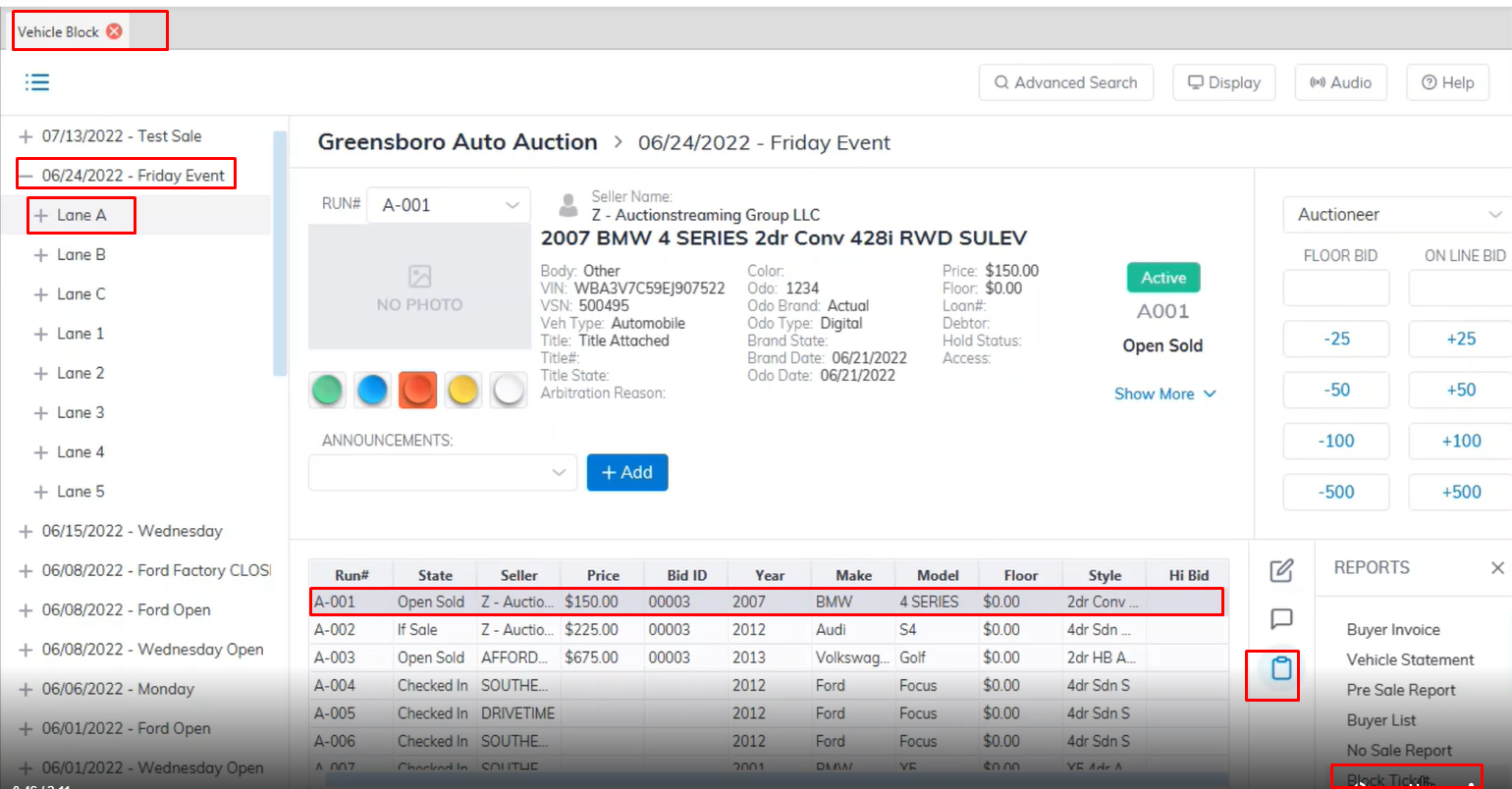
- Select the [**Vehicle Block**](https://cam3-wiki.auctionstreaming.com/books/cams-3-wiki-faq/page/vehicle-block) application
[](https://cam3-wiki.auctionstreaming.com/uploads/images/gallery/2022-11/image-1668204671610.png)
- Select a Sale date
- Select the Lane
- Select the vehicle you want to print the Block ticket for (The vehicle must be in a Sold State)
- Select the Reports menu
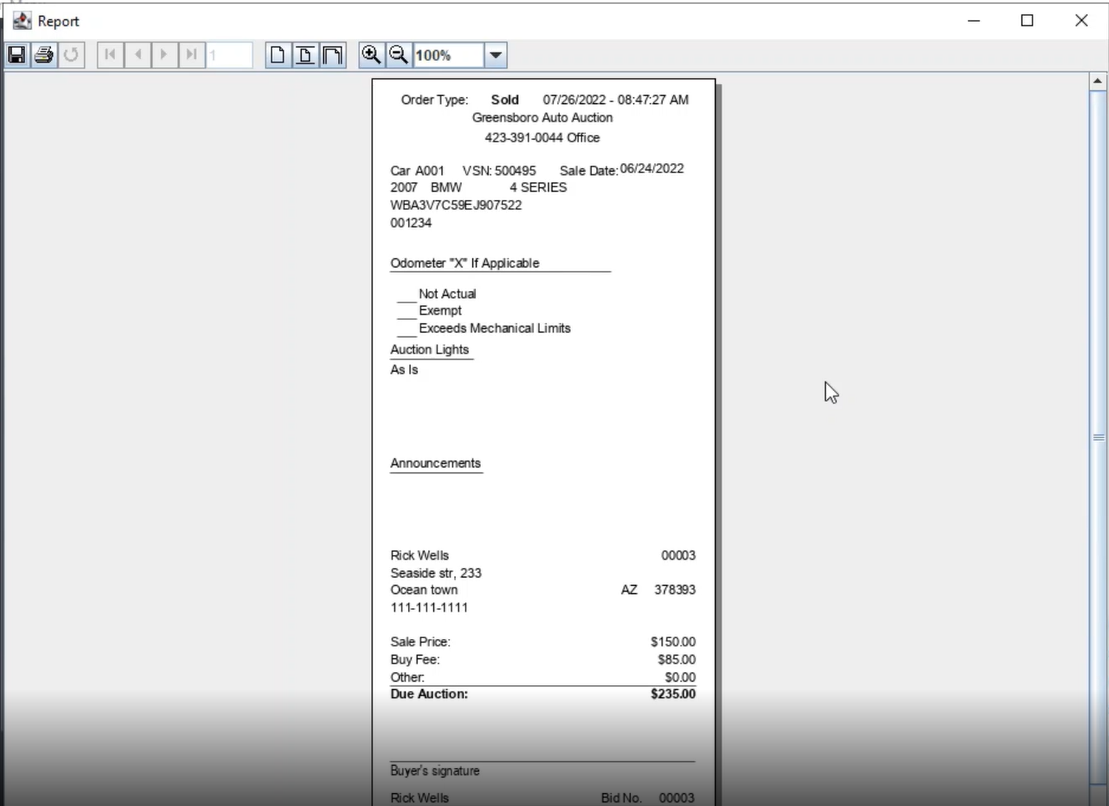
- Then here you select the Block Ticket sub-menu to generate a preview of the Block Ticket report for printing.
[](https://cam3-wiki.auctionstreaming.com/uploads/images/gallery/2022-11/image-1668204985514.png)
- When you are done reviewing click the printer icon to print the Block ticket report.
# Buyer Listing Report
The Buyer Listing report records the vehicle purchased by the Dealer(s). You may run this report from the **[Sale Profile](https://cam3-wiki.auctionstreaming.com/books/cams-3-wiki-faq/page/sale-profile)** or **[Vehicle Block](https://cam3-wiki.auctionstreaming.com/books/cams-3-wiki-faq/page/vehicle-block)** application.
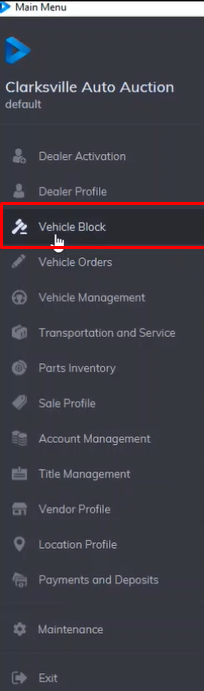
- Select the **[Vehicle Block](https://cam3-wiki.auctionstreaming.com/books/cams-3-wiki-faq/page/vehicle-block)** application from the main menu.
[](https://cam3-wiki.auctionstreaming.com/uploads/images/gallery/2022-11/image-1668114986694.png)
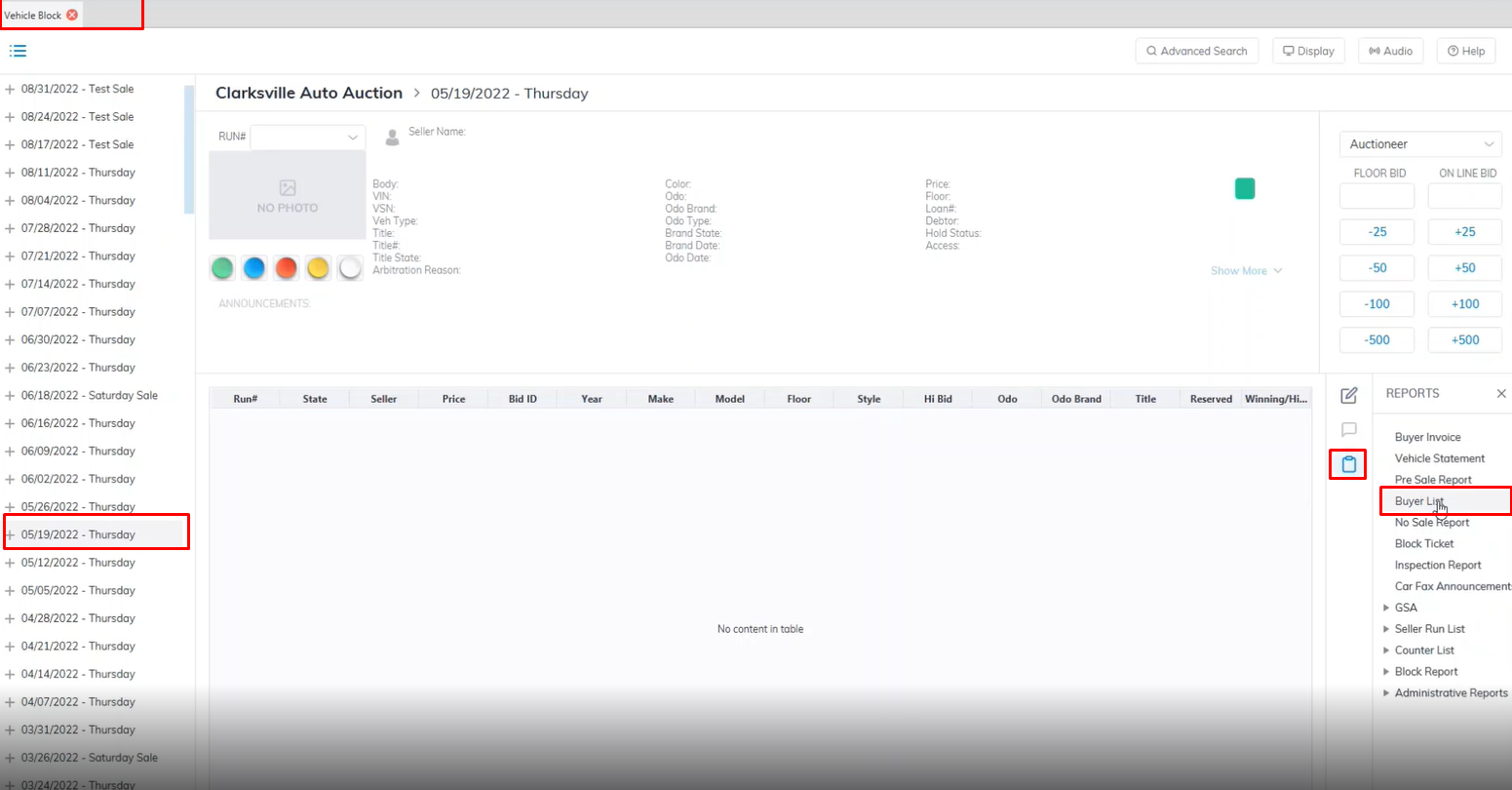
- This will launch the application then you need to select the Sale date you want to run the report on
[](https://cam3-wiki.auctionstreaming.com/uploads/images/gallery/2022-11/image-1668115314069.png)
- Select the Reports menu then the Buyer List sub-menu.
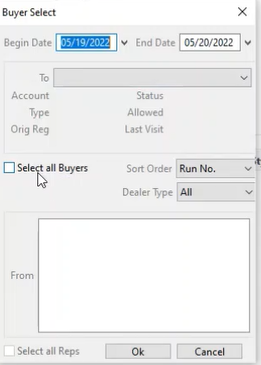
- This launch the Buyer Listing report wizard
[](https://cam3-wiki.auctionstreaming.com/uploads/images/gallery/2022-11/image-1668115387667.png)
- The Begin Date and End will auto-populate based on the previous Sale date selection if you wish to change you can do so here.
- You can select the All Buyers checkbox to include all buyers or Select a Specific Dealer from the Dropdown.
- Here you can choose how to sort the report from the Sort Order Drop down in this example we used the Run No.
- You can also filter by Dealer Type however we will choose "All" to include all dealer types in our report.
- Click 'OK' when done to create and print the report.
# Auto Check Report
You may create a file to send to Auto Check for verification of the title. You must have an agreement with Auto Check for this service even though you may create the file at any time.
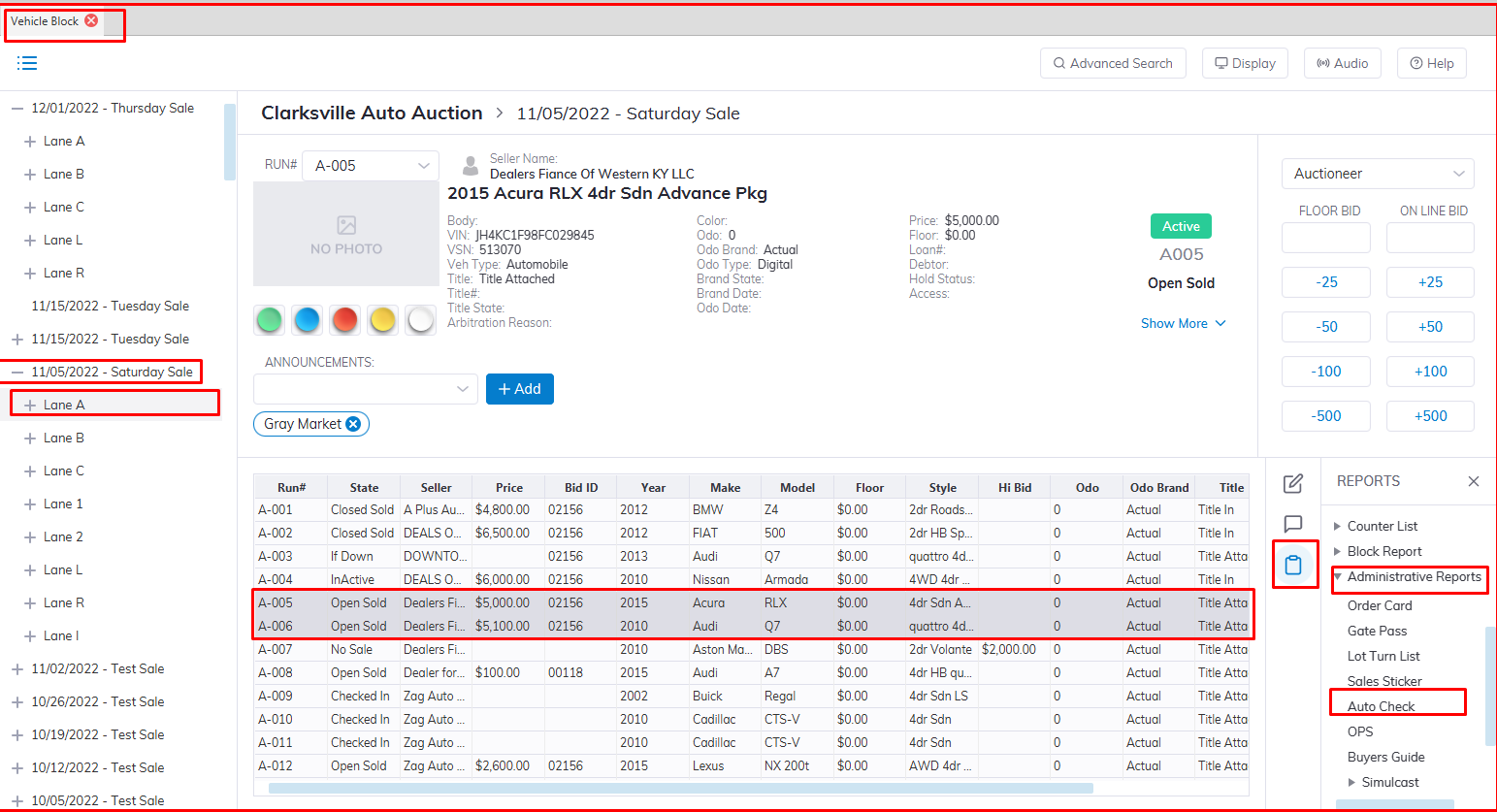
- Select the [**Vehicle Block**](https://cam3-wiki.auctionstreaming.com/books/cams-3-wiki-faq/page/vehicle-block) application
[](https://cam3-wiki.auctionstreaming.com/uploads/images/gallery/2022-11/image-1668613679497.png)
- Select the Sales Date then the Lane
- Select the vehicle you want to run the report for
- Select Reports then Administrative Reports Sub menu
- Select the Auto Check Report.
**Note: The report will contain Checked In \[CI\] vehicles ONLY. Rollover \[RO\] vehicles will NOT be included in the file. There are two ways to do an Auto Check:**
- Create a CSV file for uploading to www.autocheckauctions.com and wait for an email or fax response
- Use 'Online Paperless System' to communicate directly with Auto Check through the Internet
[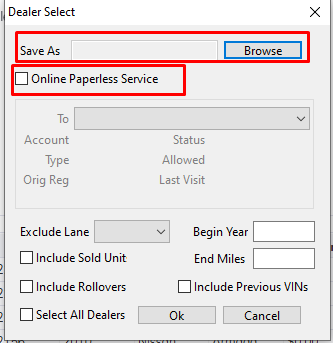](https://cam3-wiki.auctionstreaming.com/uploads/images/gallery/2022-11/image-1668613718387.png)
##### **Using a CSV file**
Click 'Browse' to set the path where you would like to save the file that will be created. Select the filtering criteria for the VINs
- Dealer (select one or all)
- Begin Year (1997 - current)
- End Mileage (0 - 100000)
- Exclude Lane (salvage or in-ops lane)
- Include Previous VINs
- Click 'OK' to create the file
Once created the file will appear on the desktop or C drive of your PC.
##### **Using the Online Paperless System (OPS)**
Click the check box 'Online Paperless System'. Select the filtering criteria for the VINs.
- Dealer (select one or all)
- Begin Year (1997 - current)
- End Mileage (0 - 100000)
- Exclude Lane (salvage or in-ops lane)
- Include Previous VINs
- Click 'OK' to begin live communication with Auto Check. Two reports will appear after 10 - 15 seconds:
Odometer Discrepancy report
Exception report
The exception report will automatically update the VSN's record with any announcements. The Odometer Discrepancy, Theft, and History reports will NOT update the VSN automatically.
**Note: The OPS procedure will require a full-time Internet connection and a Static IP address, otherwise communication will fail.**
# Condition Report (CR)
##### **Condition Report order**
- Select the [**Transportation and Service**](https://cam3-wiki.auctionstreaming.com/books/cams-3-wiki-faq/page/transportation-and-service "Transportation and Service") application.
- Select an 'In Stock' (IS) vehicle.
- Select the 'Condition Report' order
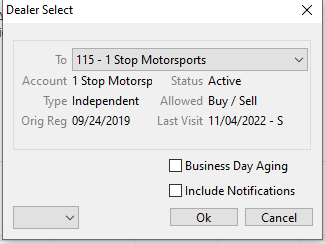
- This will launch the form
[](https://cam3-wiki.auctionstreaming.com/uploads/images/gallery/2022-11/image-1668612880831.png)
- Select the Dealer Click 'OK'
[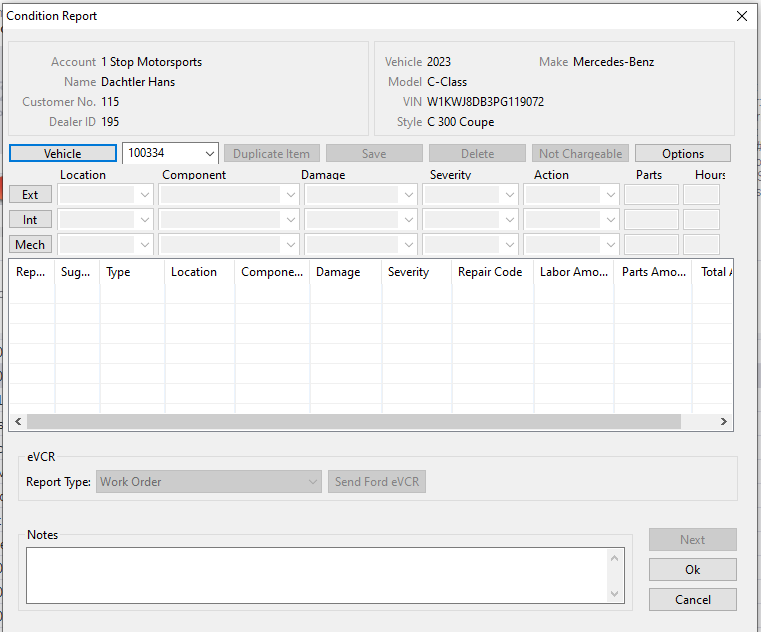](https://cam3-wiki.auctionstreaming.com/uploads/images/gallery/2022-11/image-1668613071296.png)
- Input/Fill in the information for the vehicle in this form which is an electronic record of the Condition of a Vehicle and a summary of the Vehicle's reconditioning needs.
- Click 'OK' when done to create and record the Condition Report CR under the vehicle. CR will be represented under the vehicle history under Orders with a CR followed by numbers e.g. CR2985
The Condition Report is based on a pattern from the Condition Report Configuration (CRC) application.
##### **Condition Report**
The Condition Report is available only for vehicles with a Condition Report order as shown above.
Select the **[Vehicle Management](https://cam3-wiki.auctionstreaming.com/books/cams-3-wiki-faq/page/vehicle-management "Vehicle Management")** application > Reports > Condition Report