# Main Menu FAQ
1. Vehicle Block
2. Vendor Profile
3. Dealer Profile
4. Sale Profile
5. Vehicle Order
6. Vehicle Management
7. Transportation and Service
8. Title Management
9. Payments and Deposits
10. Account Management
# Vehicle Block
Select Vehicle Block Application>>
[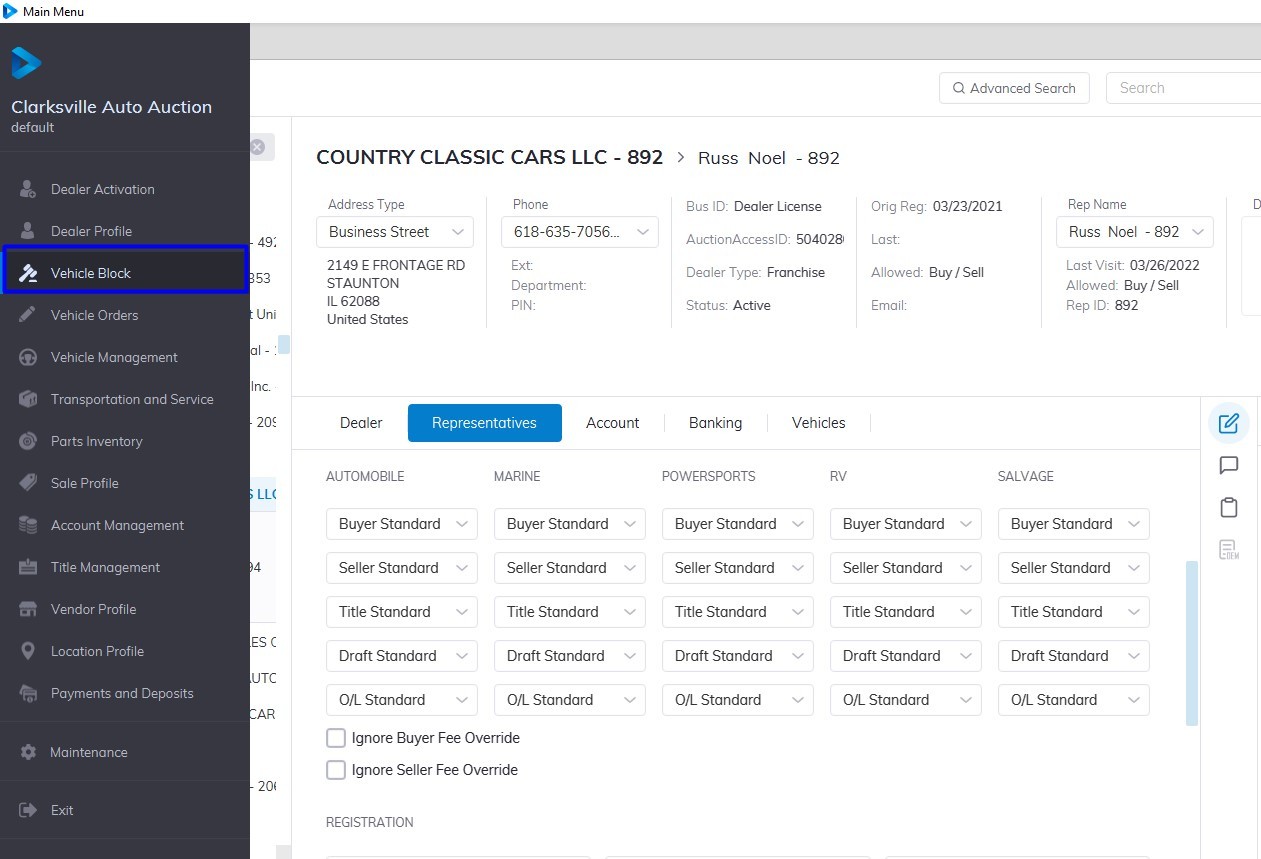](https://cam3-wiki.auctionstreaming.com/uploads/images/gallery/2022-08/vb.jpg)
On the right-hand side Click the **'Sale Date'** then **‘Lane’** you want this will launch the lane content in the middle window.
#### **Lane Display**
[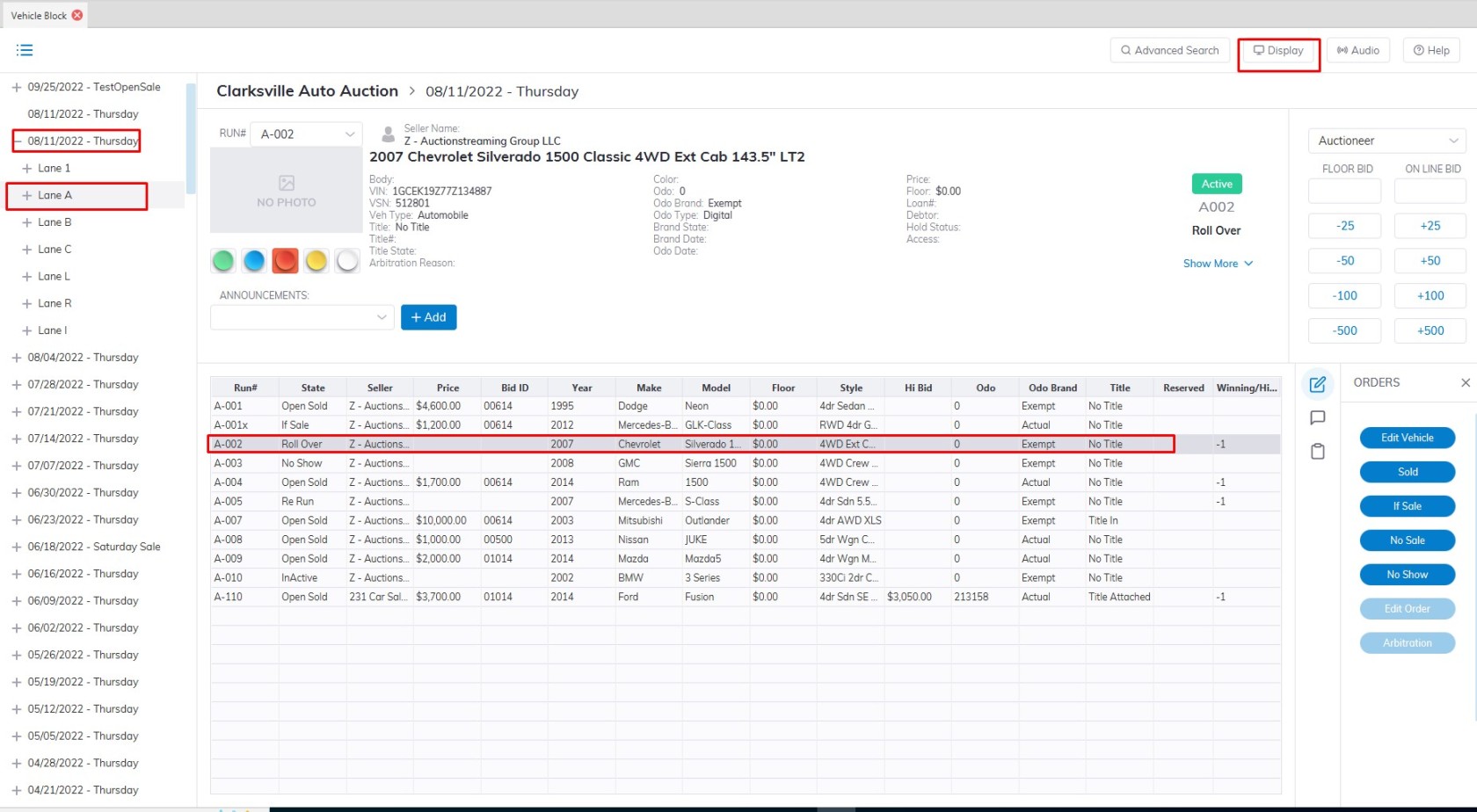](https://cam3-wiki.auctionstreaming.com/uploads/images/gallery/2022-08/lcd.jpg)
This part of the Vehicle Block Application which from the Main menu.
- Select the Sale Date.
- Select the Lane.
- Select an unsold vehicle in the grid.
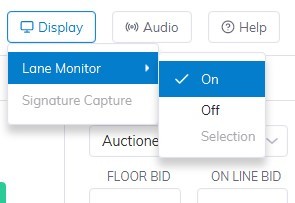
- Select the "**Display**" on the top right of the screen.
- Select 'On' from the menu 'Display' dropdown menu
[](https://cam3-wiki.auctionstreaming.com/uploads/images/gallery/2022-08/lcd1.jpg)
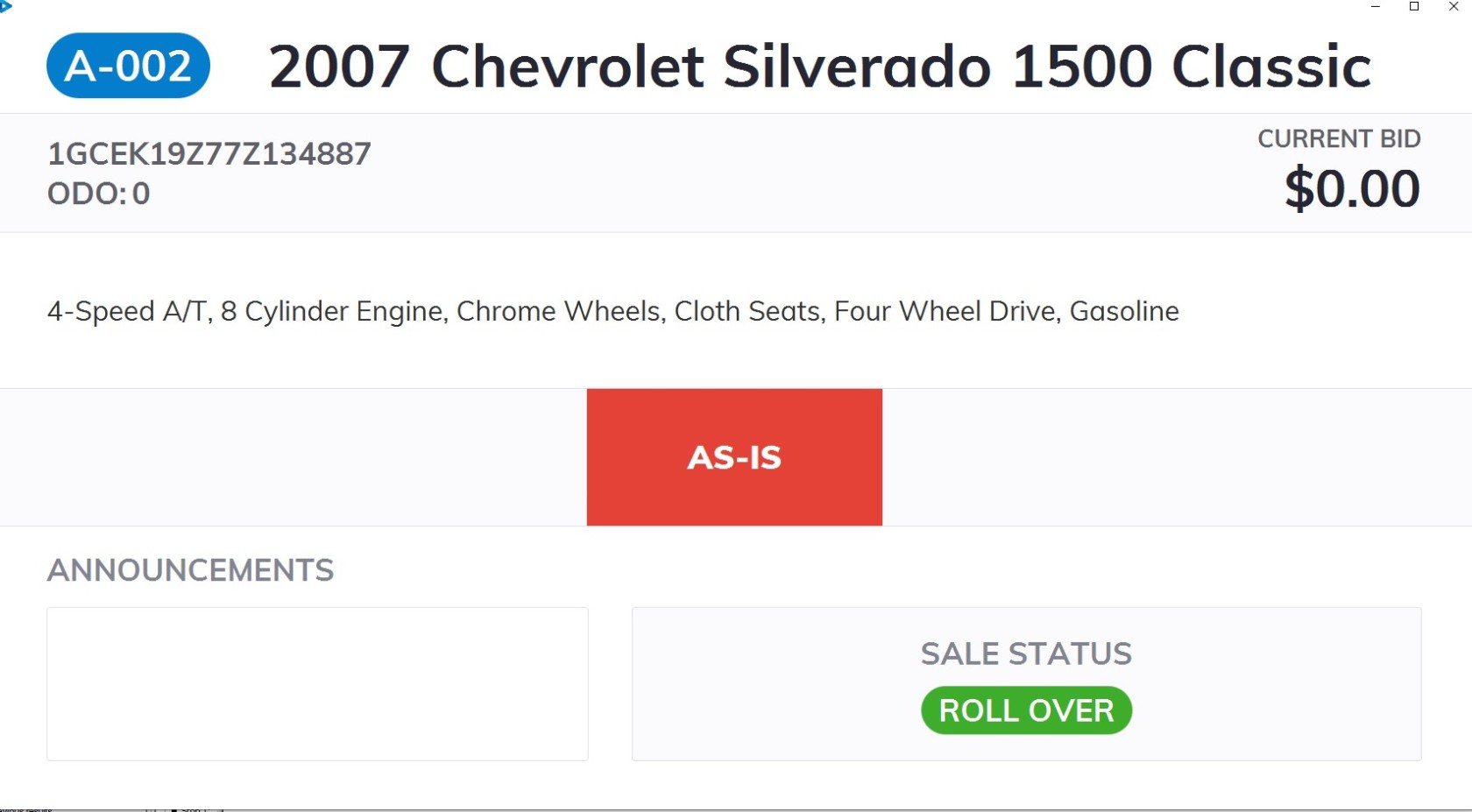
TheLCDy will appear on the screen. This window should be dragged onto the 2nd monitor connected to the PC used in the Lane. As the vehicle is updated with Announcements or Current Bid information the LCDy will reflect these changes.
[](https://cam3-wiki.auctionstreaming.com/uploads/images/gallery/2022-08/lcd3.jpg)
**"Audio" Button**
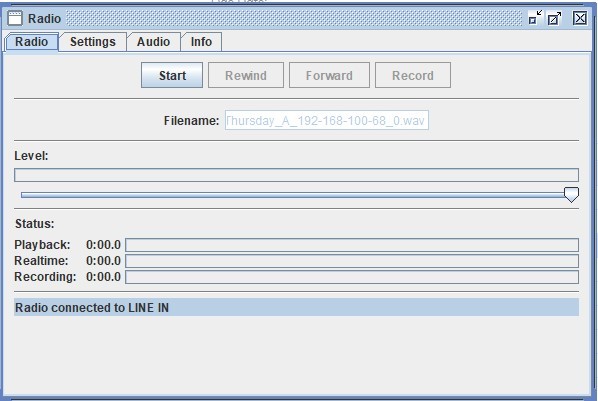
Setting 'Audio' on by clicking the 'Audio' button then the Audio setting menu will pop up.
[](https://cam3-wiki.auctionstreaming.com/uploads/images/gallery/2022-08/audio.jpg)
On clicking the "**Start**" button will begin the recording of the auctioneer's voice. A feed from the PA (public address) system into the audio jack in the back of the PC is necessary.
# Vendor Profile
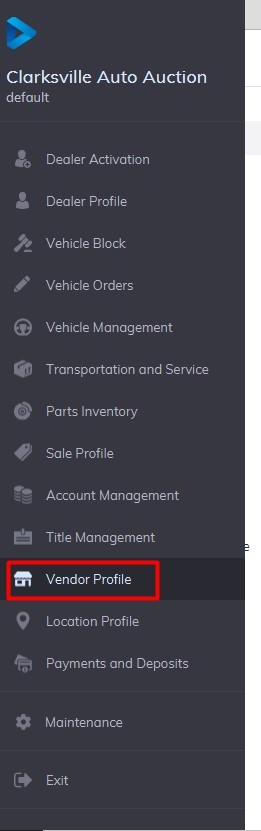
Select Vendor Profile Application>>
Vendor accounts may be accessed, added, or edited through the Vendor Profile Application. Vendors are listed in alphabetical and customer number order. Each Vendor is assigned a Vendor ID.
[](https://cam3-wiki.auctionstreaming.com/uploads/images/gallery/2022-08/vpmenu.jpg)
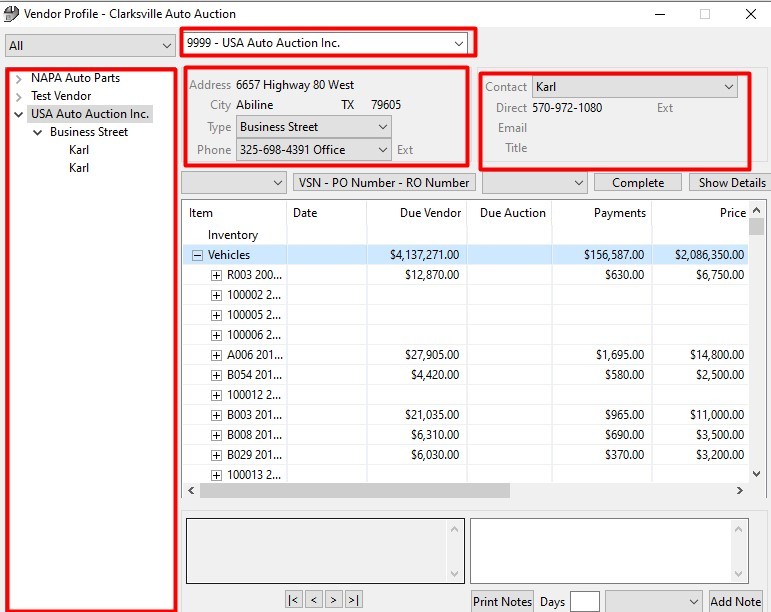
The summary section contains Address and Contact Information. The grid will have accounting information when complete.
[](https://cam3-wiki.auctionstreaming.com/uploads/images/gallery/2022-08/vp1.jpg)
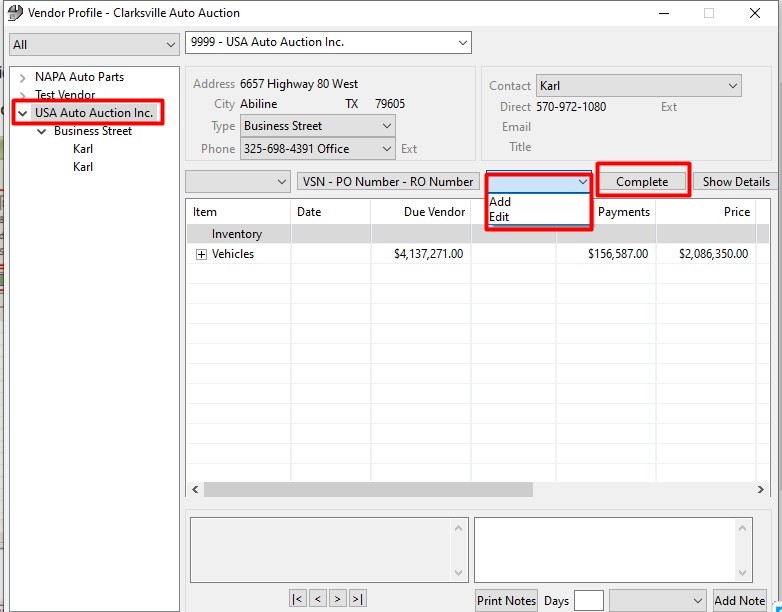
To view information regarding add/edit orders, click on the Vendor Account and then the Order Drop-down menu.
[](https://cam3-wiki.auctionstreaming.com/uploads/images/gallery/2022-08/vpadd-edit.jpg)
**Add Vendor**
Main Menu >> Vendor Profile >> Select Vendor >> Add Vendor
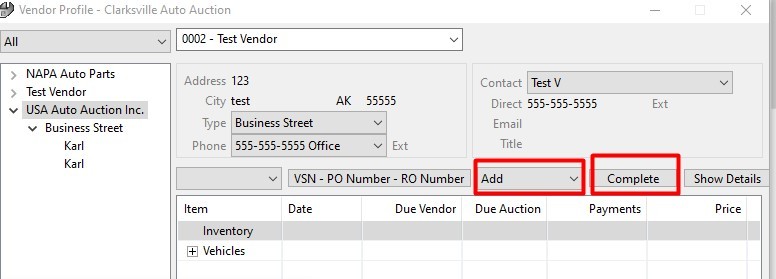
Select the **'Add'** order from the combo box of the Vendor Profile and click **'Complete'** to launch the form.
[](https://cam3-wiki.auctionstreaming.com/uploads/images/gallery/2022-08/vp-add.jpg)
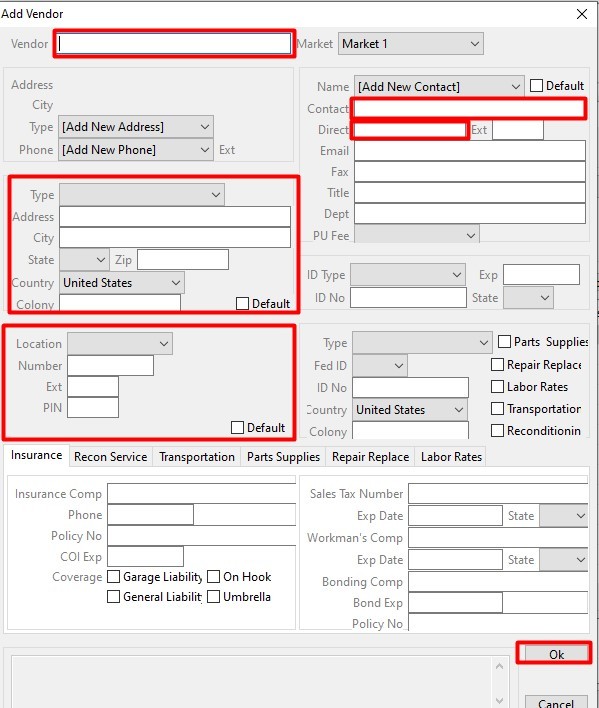
Fill out the required fields outlined in red.
[](https://cam3-wiki.auctionstreaming.com/uploads/images/gallery/2022-08/vp-form.jpg)
Complete Add Vendor form with the Details
Click on ‘OK’ to save
A Vendor ID will be assigned
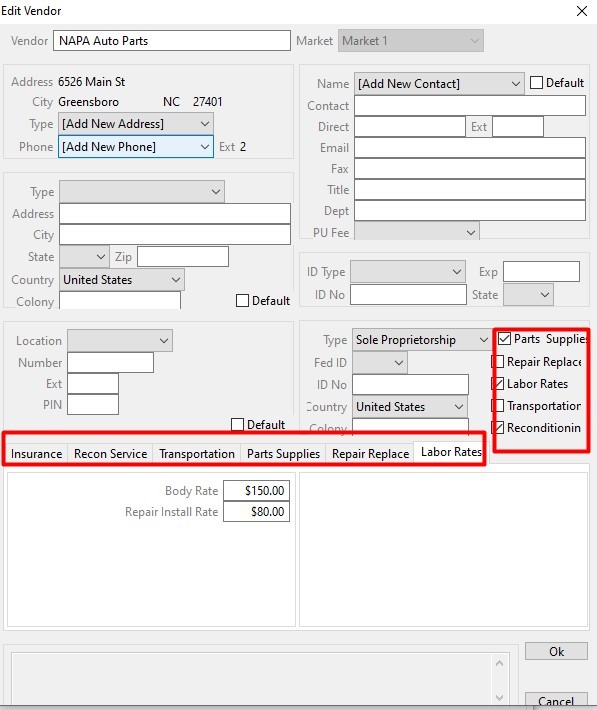
And the bottom of the form you will notice some Tabs. Each tab corresponds to a Vendor service. A given vendor may supply more than one service. The checkboxes tell the application what services this Vendor is providing:
- **Insurance** - Vendor's Insurance Company
- **Recon Service** - Vehicle Reconditioning
- **Transportation** - Transportation pickup and delivery
- **Parts Supplies** - Parts Supplies
- **Repair Replace** - Mechanical repair rates
- **Labor Rates** – Mechanical body repair rates
See below for additional information on these services.
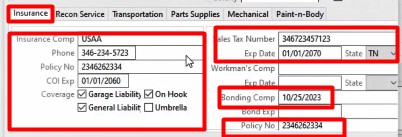
**Insurance** - Vendor's Insurance Company and Policy
[](https://cam3-wiki.auctionstreaming.com/uploads/images/gallery/2022-08/insurance-services.jpg)
**Recon Services**
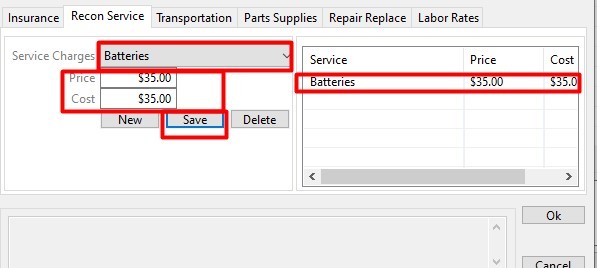
Select the **Service Charges**, add the retail **'Price'** and wholesale **'Cost'** then click **'Save'** to add the service to the list.
[](https://cam3-wiki.auctionstreaming.com/uploads/images/gallery/2022-08/recon-services.jpg)
**Transportation -** Vendor's Pick-up and Delivery Service charges
[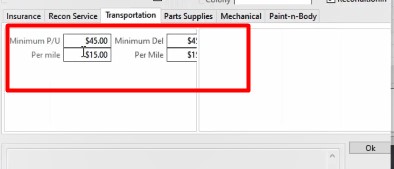](https://cam3-wiki.auctionstreaming.com/uploads/images/gallery/2022-08/transportation.jpg)
**Parts Supplies -** Select the Inventory Location the Vendor will supply Parts for.
[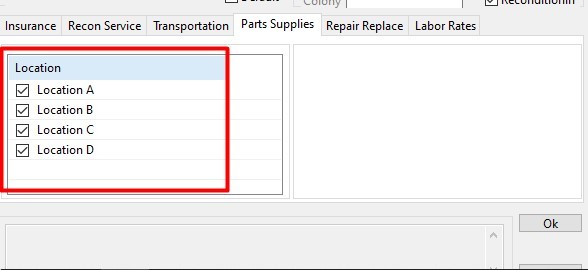](https://cam3-wiki.auctionstreaming.com/uploads/images/gallery/2022-08/parts-supplies.jpg)
**Repair Replace (Mechanical) -** Add the Shop rate for Mechanical Repairs
[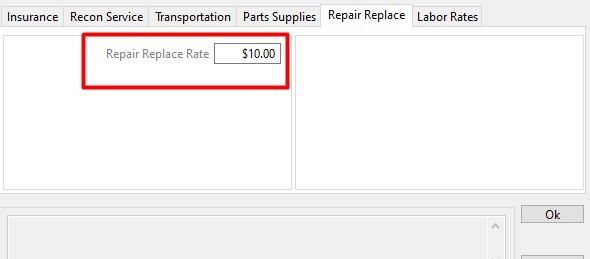](https://cam3-wiki.auctionstreaming.com/uploads/images/gallery/2022-08/repair-replace.jpg)
**Labor Rates -** Add the Shop rate for Mechanical labor Repairs
[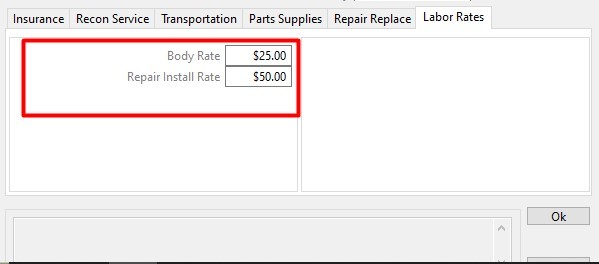](https://cam3-wiki.auctionstreaming.com/uploads/images/gallery/2022-08/labor-rate.jpg)
**Note:** Vendors and vendor services appear in other parts of the application. Follow the links below for examples of how Vendors are used in **Repair Orders** and **Transportation Orders**:
- **Amend RO** (parts, recon, mechanical)
- **Transportation Orders** (pick up)
**Edit Vendor**
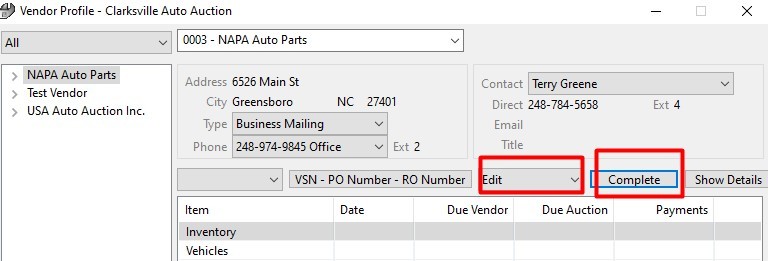
Main Menu >> Vendor Profile >> Select Vendor >> Edit Vendor
Select the **'Edit'** order from the combo box of the Vendor Profile and click **'Complete'** to launch the form.
[](https://cam3-wiki.auctionstreaming.com/uploads/images/gallery/2022-08/edit1.jpg)
Make changes
[](https://cam3-wiki.auctionstreaming.com/uploads/images/gallery/2022-08/edit.jpg)
Click on 'OK' to save when complete.
# Dealer Profile
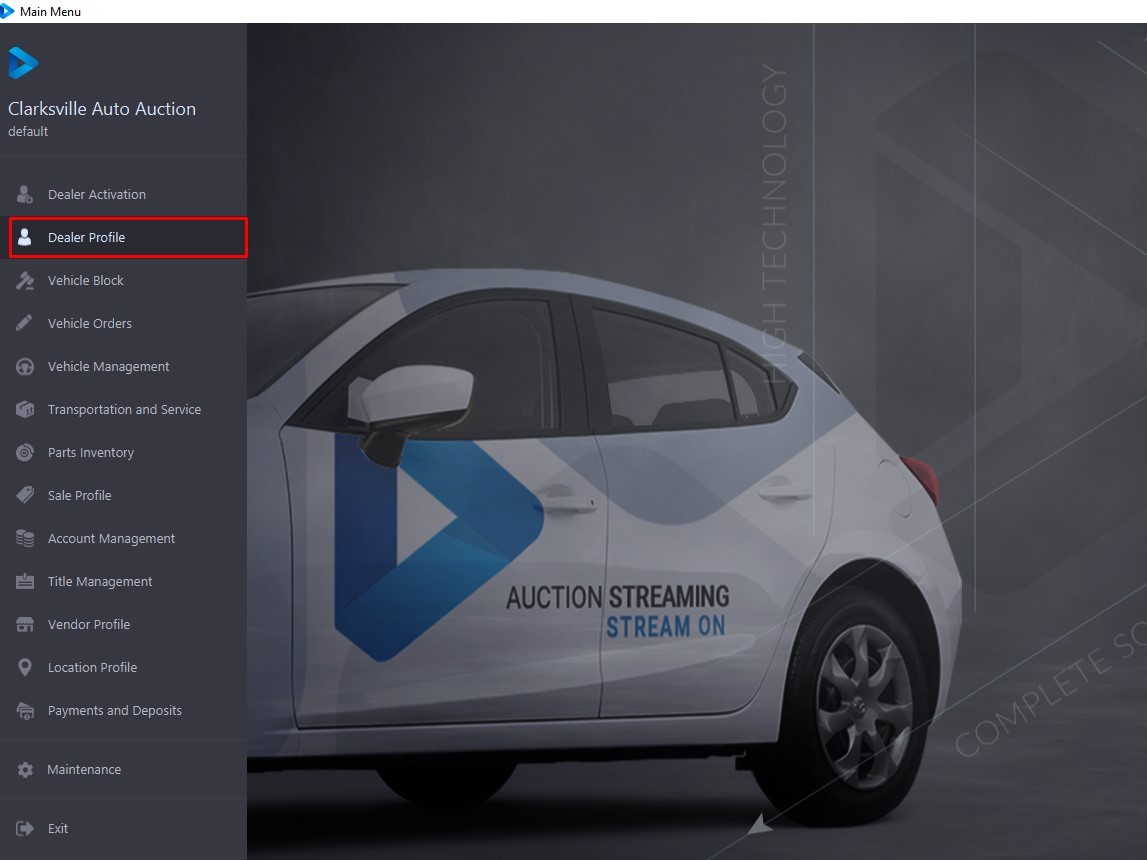
Select the Dealer Profile Application from Main Menu to access
[](https://cam3-wiki.auctionstreaming.com/uploads/images/gallery/2022-08/dpmenu.jpg)
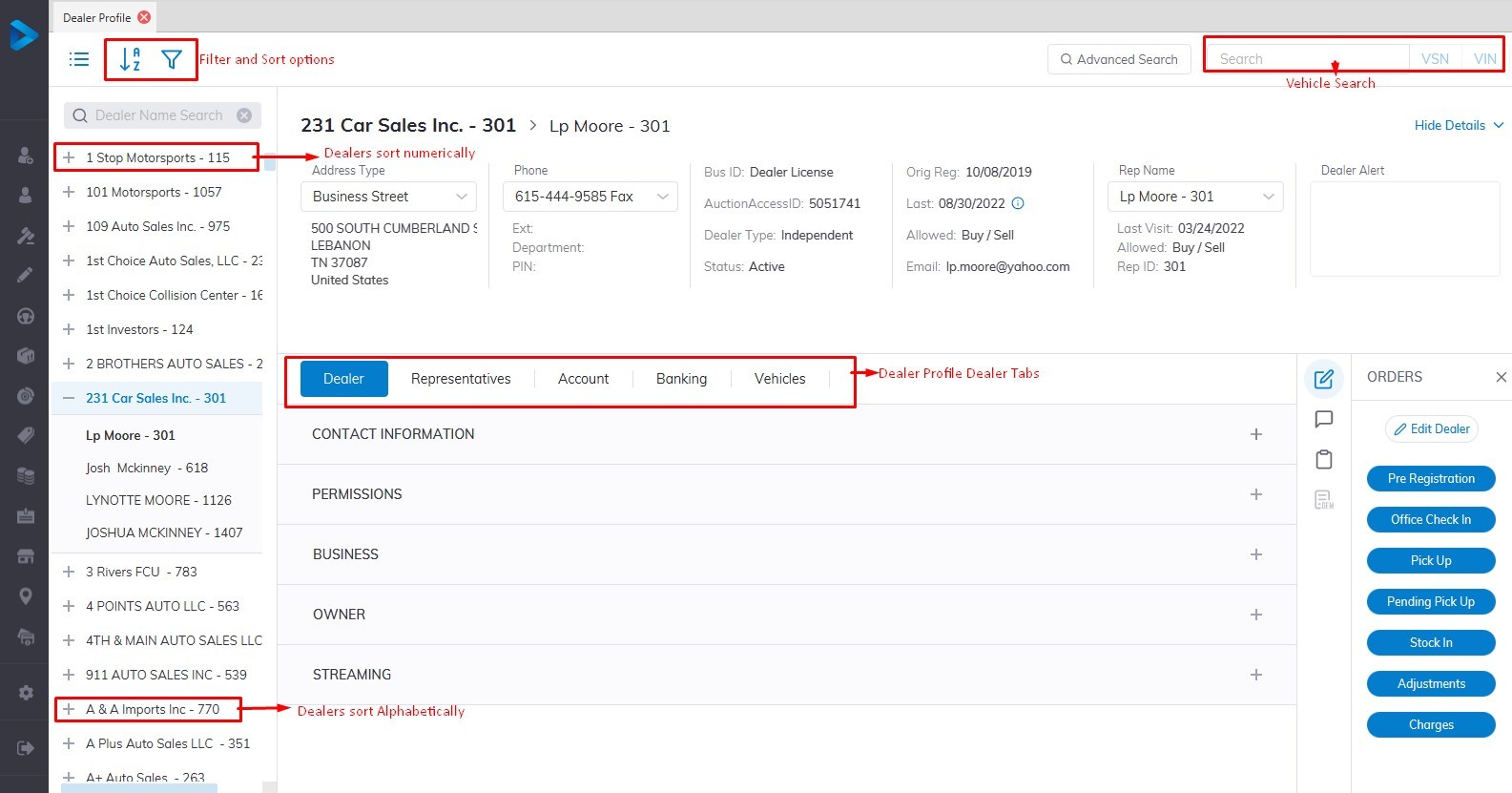
Dealer accounts may be accessed through the Dealer Profile Application. Dealers are listed in alphabetical and customer number order. Customer numbers are assigned during **[Dealer Activation](https://cam3-wiki.auctionstreaming.com/books/cams-3-wiki-faq/page/dealer-activation)**. You may search for vehicles using VIN or the vehicle stock number (VSN).
[](https://cam3-wiki.auctionstreaming.com/uploads/images/gallery/2022-08/dp1.jpg)
The Dealer Profile is used to access information about the Dealer, Representatives, and Vehicles. The summary sections include contact information and the [**'Show Details'** ](https://cam3-wiki.auctionstreaming.com/books/cams-3-wiki-faq/page/show-details-button)button may be used to see the hidden information.
There are 5 tabs for each Dealer.
- **Dealer** - The Dealer Tab shows 5 sections (Contact Information, Permissions, Business, Owner, Streaming)
1. [**Contact Information**](https://cam3-wiki.auctionstreaming.com/books/cams-3-wiki-faq/page/contact-information): Dealers' Business information as well as a logo
2. [**Permissions**](https://cam3-wiki.auctionstreaming.com/books/cams-3-wiki-faq/page/permission): Buyer/Seller permissions and method methods.
3. [**Business**](https://cam3-wiki.auctionstreaming.com/books/cams-3-wiki-faq/page/business): Shows the kind of business the dealer is and the taxes that are applied.
4. [**Owner**](https://cam3-wiki.auctionstreaming.com/books/cams-3-wiki-faq/page/owner): Name and information about the owner and sellers check deductions
5. **Streaming**: System generated no changes are allowed here.
- [**Representatives**](https://cam3-wiki.auctionstreaming.com/books/cams-3-wiki-faq/page/add-new-rep): Contains summary information about Representatives
- **Account:** Displays a summary of A/R amounts for Dealers, representatives (s), and Vehicles that were Bought, Sold. Unsold from week to date and year to date, also Account Refund and Reverse Settlement.
- **Banking:** Dealers Banking Information
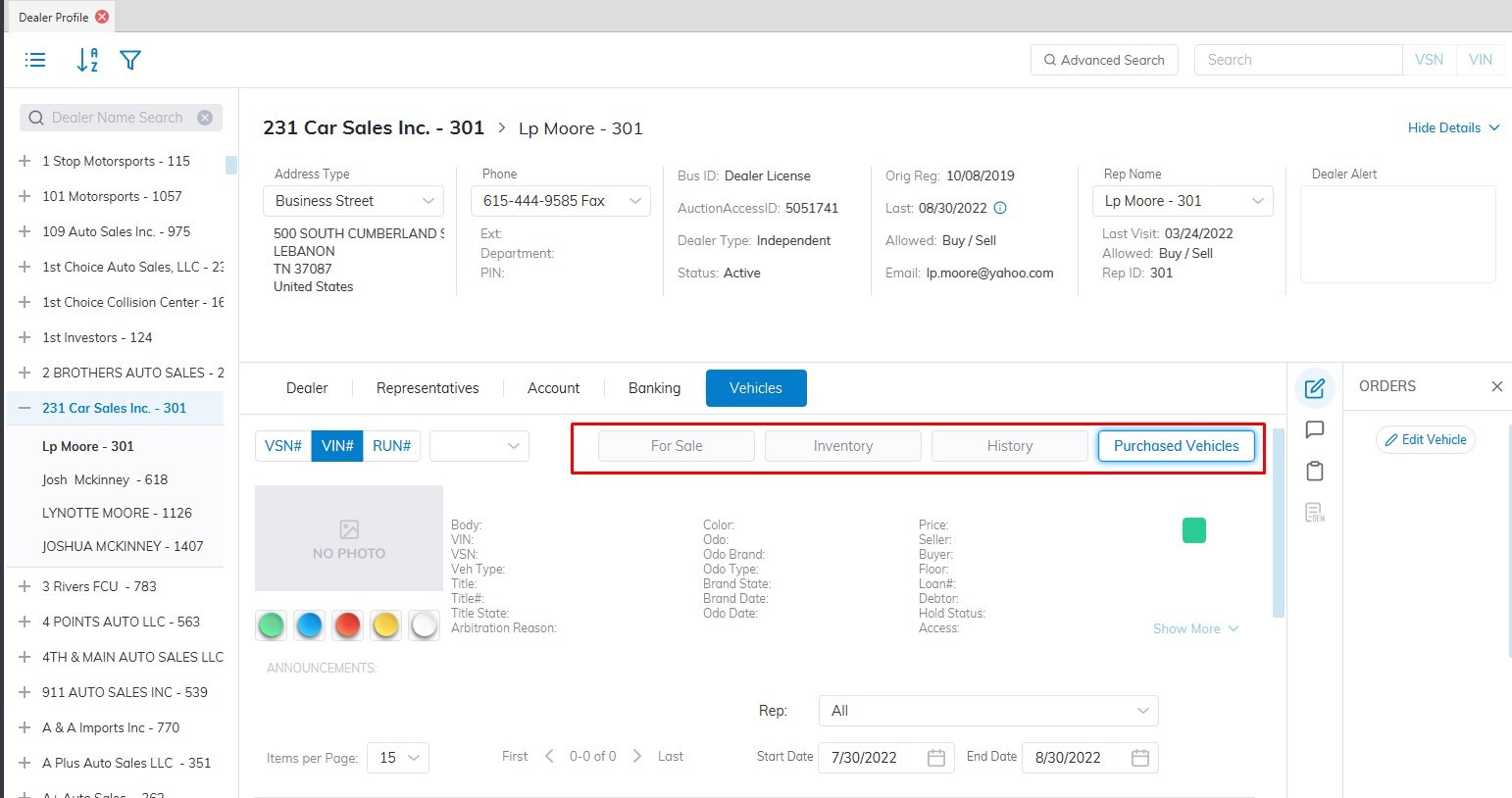
- **Vehicles**: Contains Vehicles that have been Checked into a Sale or vehicles that are currently in the process of being finished or worked on. Under the Vehicles Tab, we have 4 categories.
[](https://cam3-wiki.auctionstreaming.com/uploads/images/gallery/2022-08/dp2.jpg)
1. **For Sale:** Shows the vehicles that are for sale or checked in to a sale.
2. **Inventory:** Shows vehicles that are on-site or in stock as well as vehicles that are being transported or repaired.
3. **History:** Vehicles that are set to inactive are placed here as well as Off-site vehicles.
4. **Purchased Vehicles:** This shows the vehicles that were purchased you can filter by Representatives and Date range
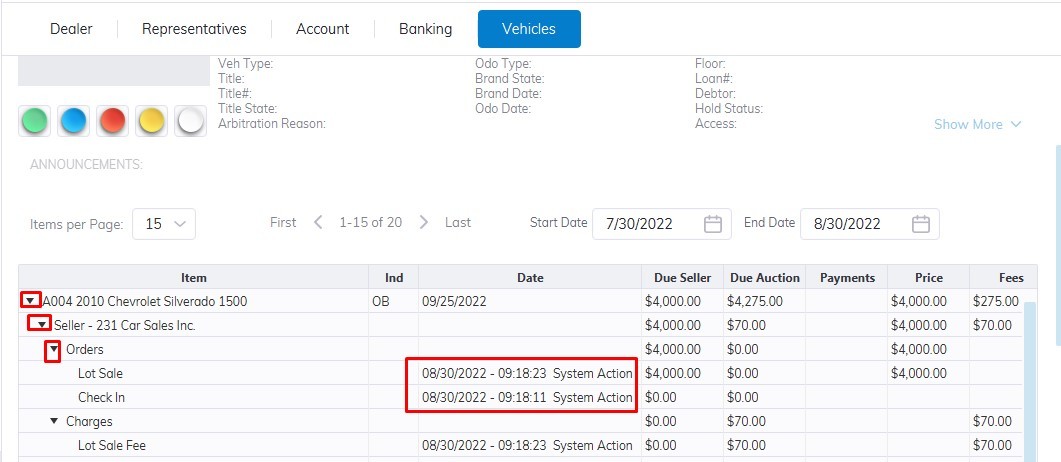
If you want information about the orders or to track who does what and when simply click on the arrow sign on the selected vehicle to expend. In this example, we can that a vehicle was checked In on 8/30/2022 at 9:18:23 am by user System Action, and a Lot Sale was done by the same user right after.
[](https://cam3-wiki.auctionstreaming.com/uploads/images/gallery/2022-08/dp3.jpg)
#### Dealer Search
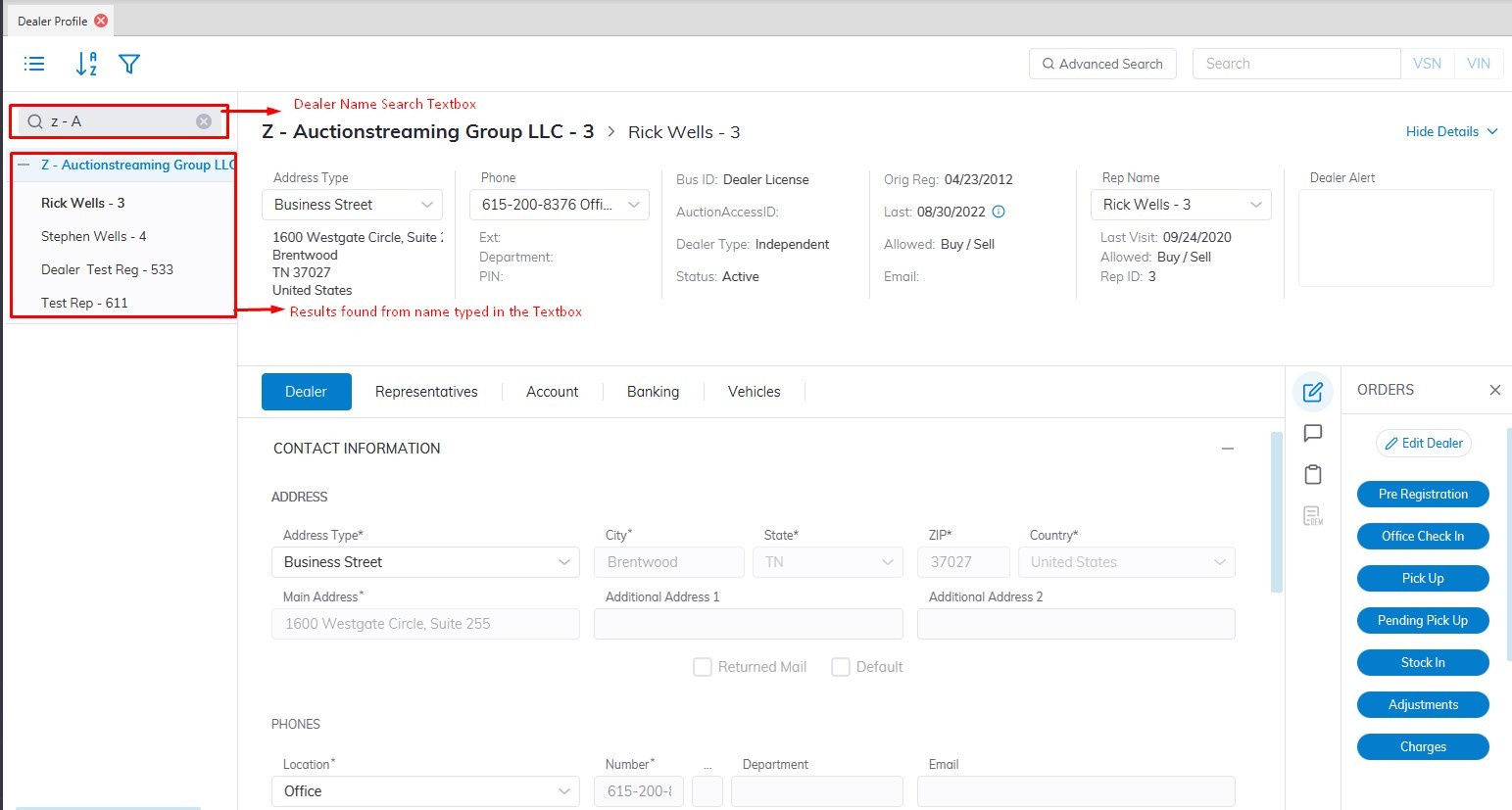
You can also do a Dealer search in the Dealer Profile Application.
[](https://cam3-wiki.auctionstreaming.com/uploads/images/gallery/2022-08/dp4.jpg)
- Open Dealer Profile
- Locate the Dealer Name Search Textbox on the left side of the screen.
- Type in the name of the Dealer you are looking for
# Sale Profile
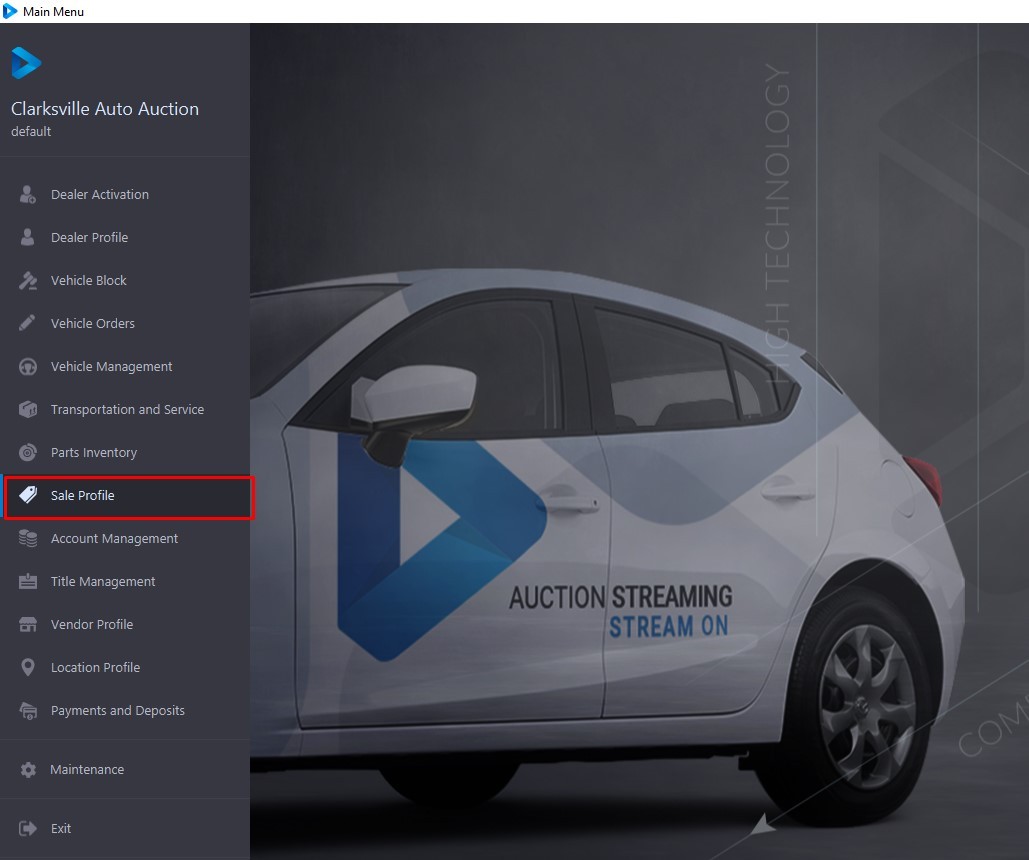
Sale Profile application - a view of the Sale by Sale Type and by Sale Status. Each of the 4 sashes represents a Sale Type. To Open the Sale Profile Application you access it from the Main Menu.
[](https://cam3-wiki.auctionstreaming.com/uploads/images/gallery/2022-08/spmenu.jpg)
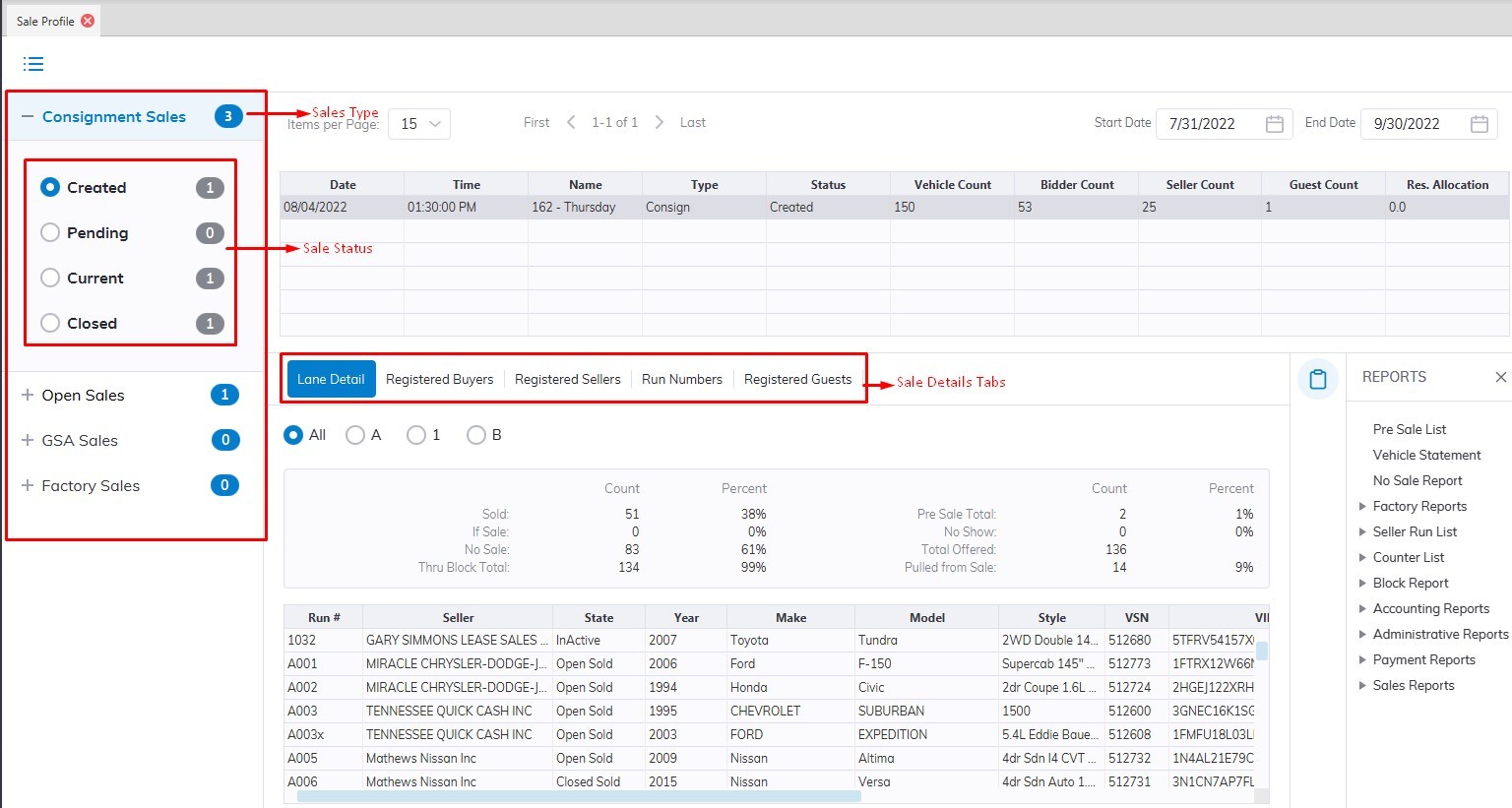
Each **Sale Type** has 4 **Sale Status** buttons that are used to filter the display. The buttons are cumulative. Sale Status may be controlled or changed in the Auction Administration's Sale Tab. The 4 Sale Status Types are described below.
[](https://cam3-wiki.auctionstreaming.com/uploads/images/gallery/2022-08/F2csp1.jpg)
**Sale Type**
- **Consignment Sales**
- **Open Sales**
- **GSA Sales**
- **Factory Sales**
**Sale Status**
- **Created** - A Sale that exists but is not available for Vehicle or Buyer Check-In.
- **Pending** - A Sale which is available for Vehicle and Buyer Check-In.
- **Current** - A Sale with Registered Vehicles and Buyers.
- **Closed** - A Sale that has no Active Vehicles in it
The Sale Status is used to track the life cycle of a Sale.
**Sale Details**
The date in the Date column of the grid is the sale date. You may sort by any column heading. Click on a Date for detailed information on that Sale. Detailed information is presented in the 5 tabs below the grid.
1. **Lane Detail**
2. **Registered Buyers**
3. **Registered Sellers**
4. **Run Numbers**
5. **Registered Guests**
**Lane Detail****[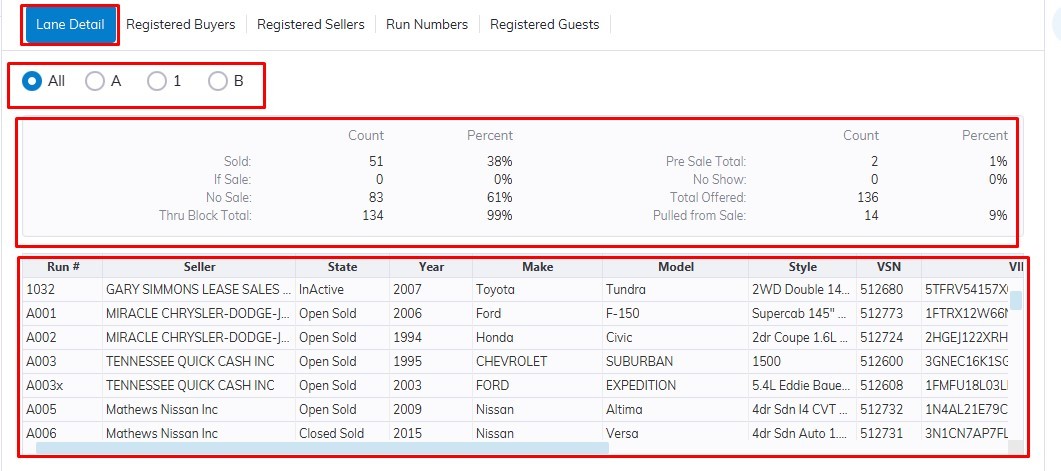](https://cam3-wiki.auctionstreaming.com/uploads/images/gallery/2022-08/sptab1.jpg)**
Select a Date in the top grid and the Lane Detail tab will populate with all the Vehicles for that Sale Date. You can choose a specific lane or All to display information on all the lanes. You can click the radial button (A) to view sales percentages by lane.
The statistics below the Lane selection show counts and percentage of participation by all vehicles in the sale. The grid below is a listing of the Vehicles that participated in the sale.
Click on a column heading to sort the grid in ascending order, and click again to reverse the sort order.
**Registered Buyers**
[](https://cam3-wiki.auctionstreaming.com/uploads/images/gallery/2022-08/sptab2.jpg)
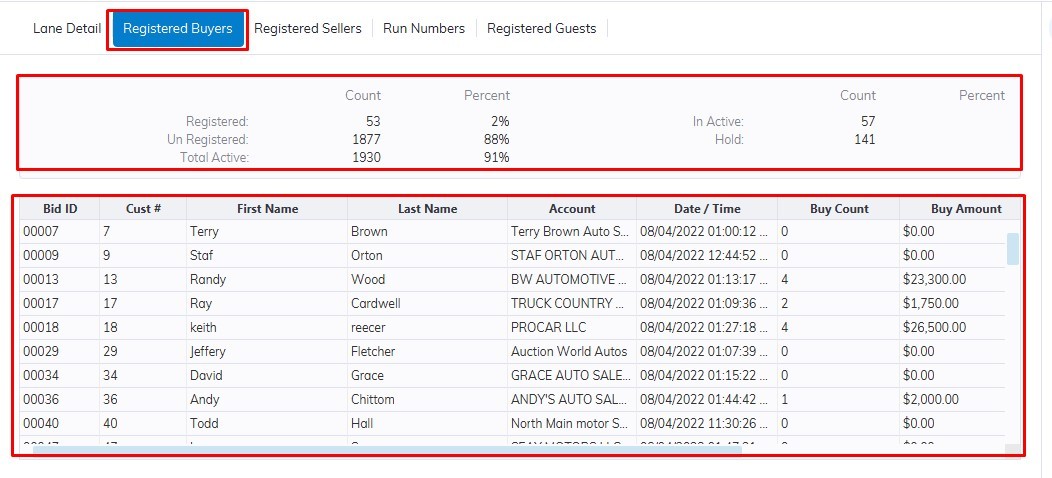
Select a Date in the top grid and the Registered Buyers tab will populate with all the Registered Buyers for that Sale Date.
The statistics show counts and percentages of participation by all accounts in the system at the time of the sale. This Sale has a 2% participation rate. The grid below this section is a listing of the Registered Buyers that participated in the sale. Click on a column heading to sort the grid in ascending order, and click again to reverse the sort order.
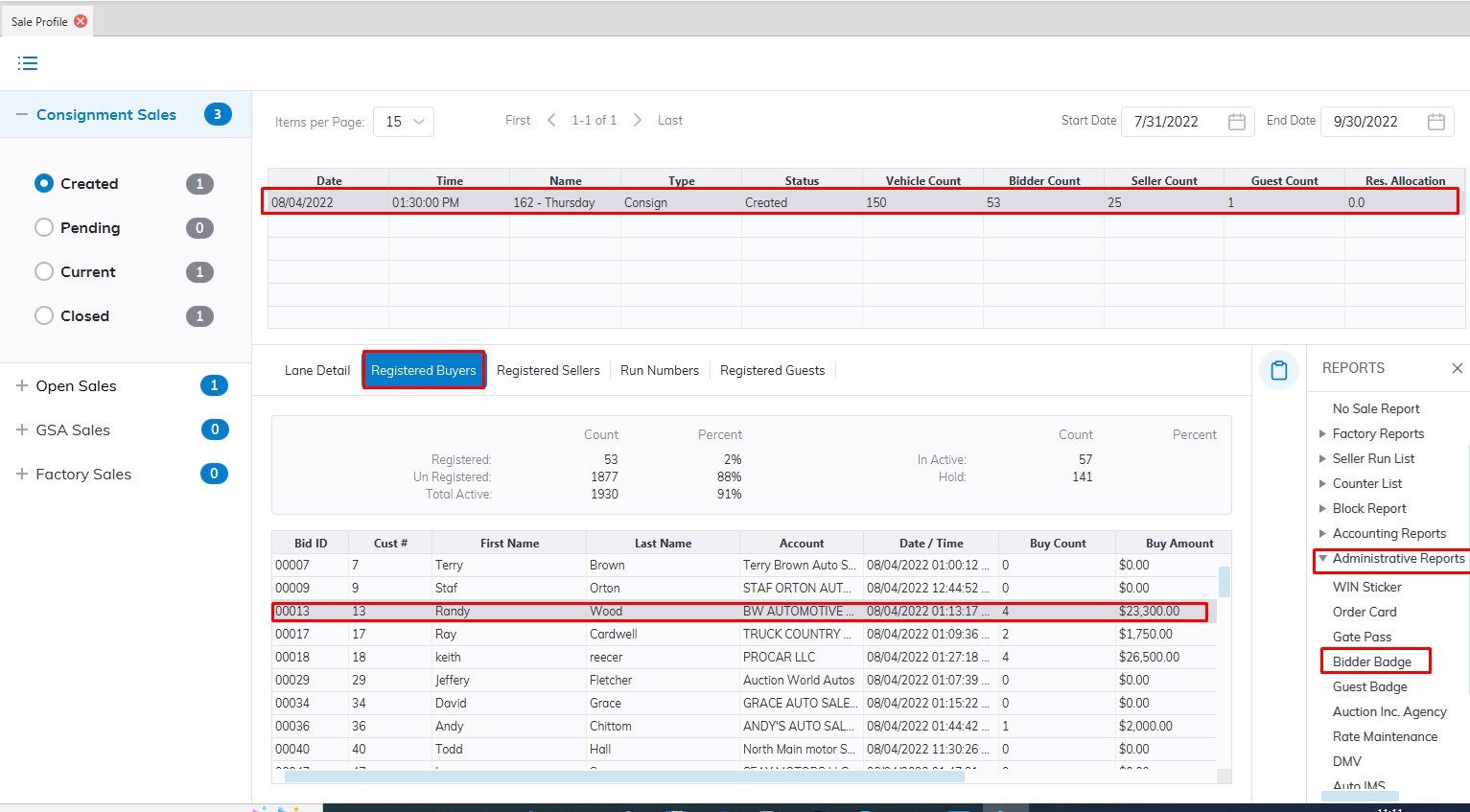
**Note: You can also Reprint A Bidder Badge here**
**[](https://cam3-wiki.auctionstreaming.com/uploads/images/gallery/2022-08/spbid.jpg)**
Select
- Sale Date
- Registered Buyers Tab
- Next Find the Buyer by Name, Last Name, Bid ID, Customer Number, or Dealer Account in the Grid.
- Click under the Reports on the right>>Administrative Reports>>Bidder Badge
**Registered Sellers**
[](https://cam3-wiki.auctionstreaming.com/uploads/images/gallery/2022-08/sptab3.jpg)
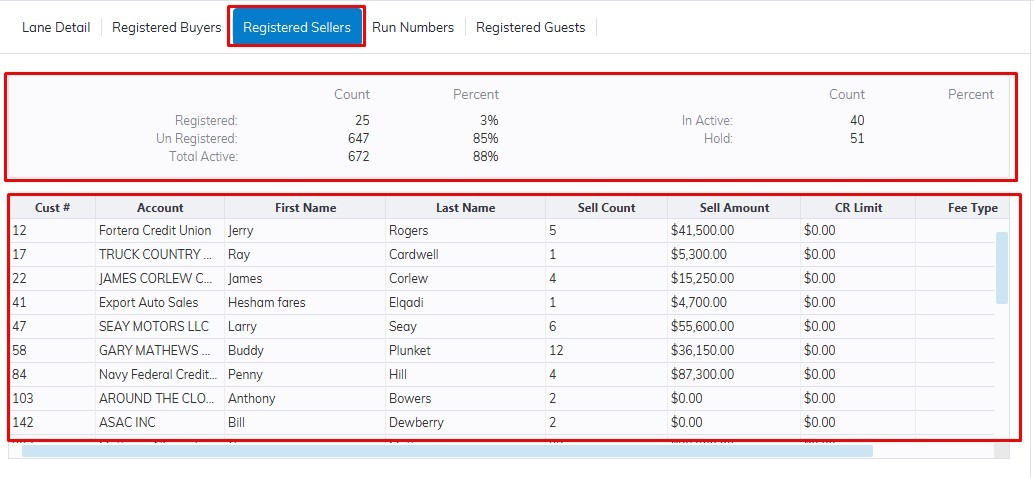
Select a Date in the top grid and the Registered Sellers tab will populate with all the Registered Sellers for that Sale Date.
The statistics show counts and percentage of participation by all accounts in the system at the time of the sale. This Sale has a 3% participation rate. The grid below this section is a listing of the Registered Sellers that participated in the sale. Click on a column heading to sort the grid in ascending order, and click again to reverse the sort order.
**Run Numbers**
[](https://cam3-wiki.auctionstreaming.com/uploads/images/gallery/2022-08/sptab4.jpg)
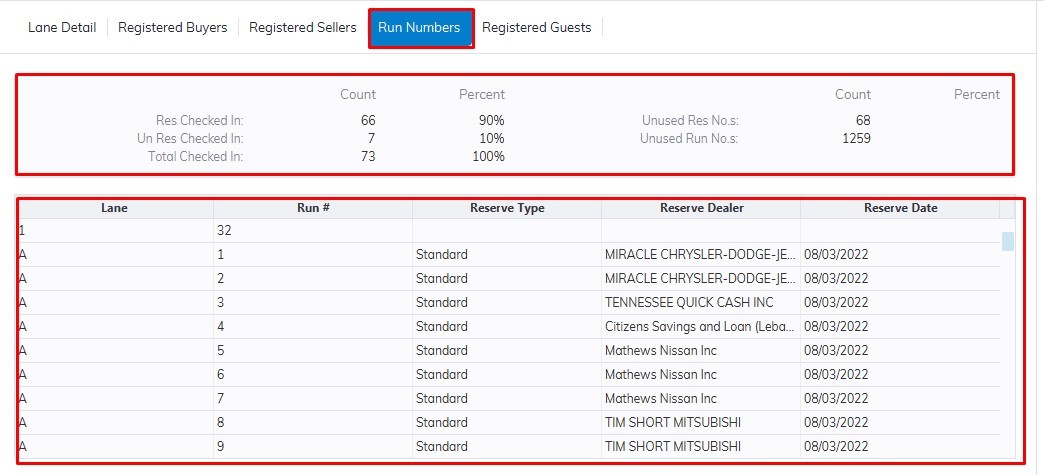
Select a Date in the top grid and the Run Numbers tab will populate with all the Run Numbers for that Sale Date regardless of whether they are used or not.
The statistics show counts and percentage of participation of reserved vs. un -reserved run numbers. The grid below this section is a listing of the Run Numbers that participated in the sale. Click on a column heading to sort the grid in ascending order, and click again to reverse the sort order.
**Registered Guests**
[](https://cam3-wiki.auctionstreaming.com/uploads/images/gallery/2022-08/sptab5.jpg)
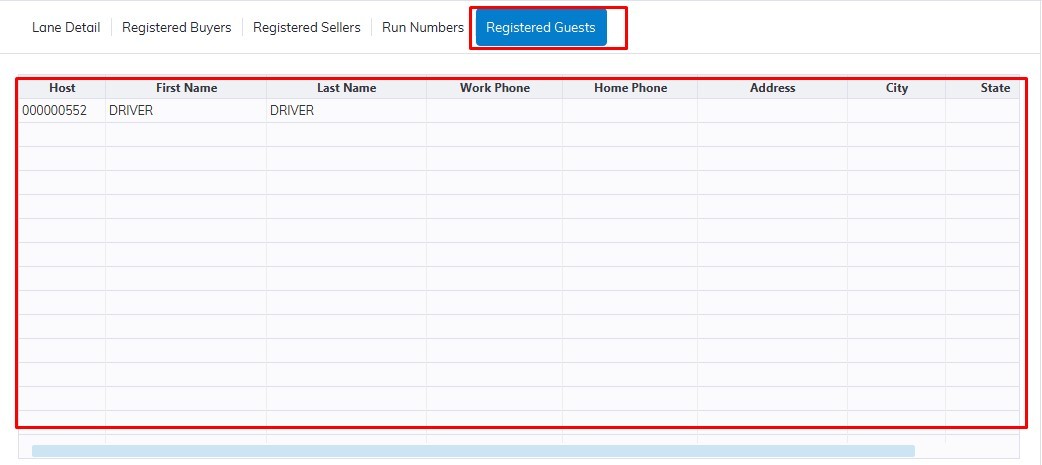
Select a Date in the top grid and the Registered Guests tab will populate with all the Registered Guests and Drivers for that Sale Date. Click on a column heading to sort the grid in ascending order, and click again to reverse the sort order.
# Vehicle Orders
Vehicle Orders application - displays Vehicles that have a Run Number, in addition, all 'Active ' and 'Off-Site ' Vehicles are loaded into this application (regardless of Sale Date). The summary sections contain a selected Vehicle's make, model, and state.
To Open the Vehicle Order application go to the Main Menu >> Select Vehicle Order
[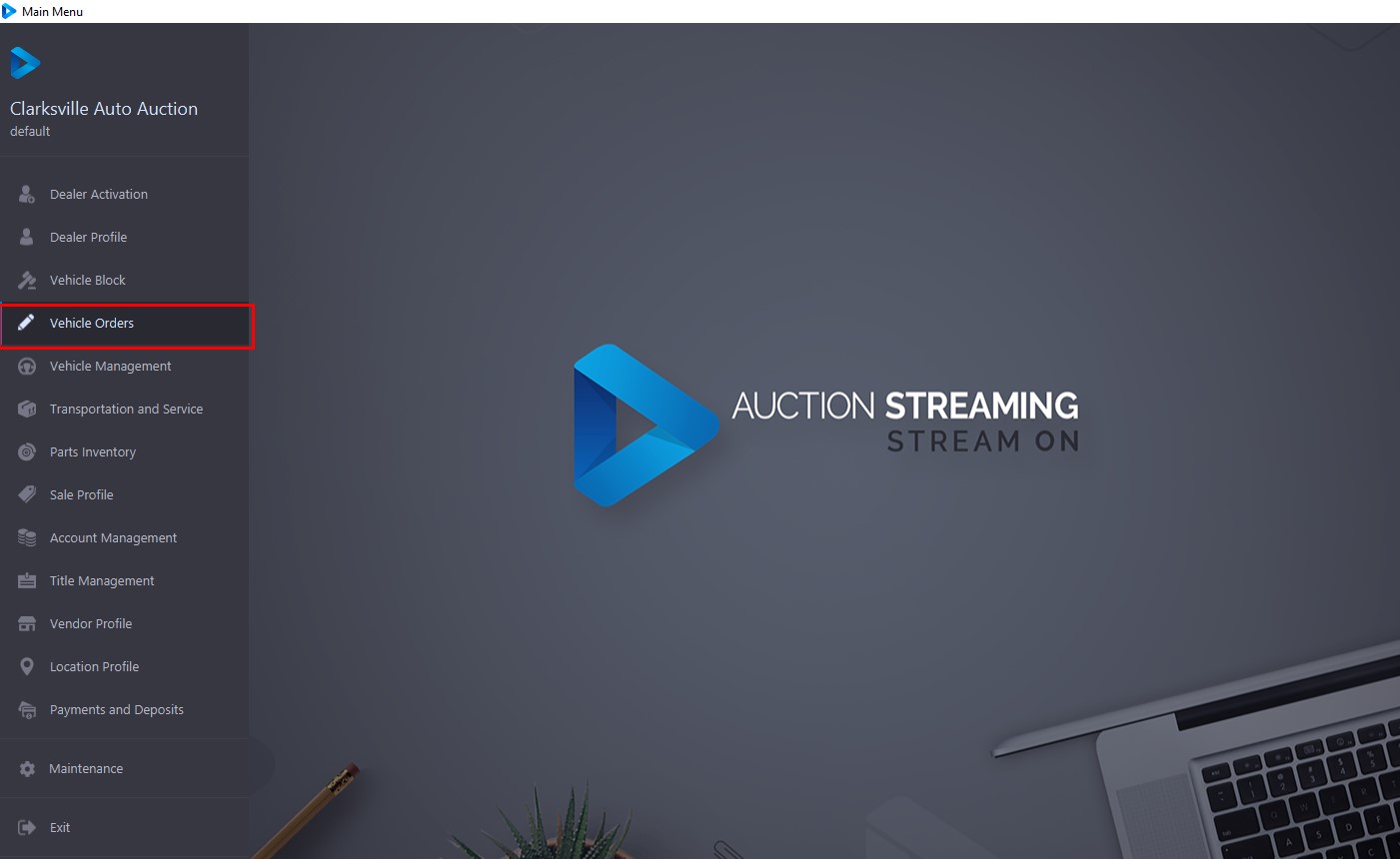](https://cam3-wiki.auctionstreaming.com/uploads/images/gallery/2022-09/vomenu.jpg)
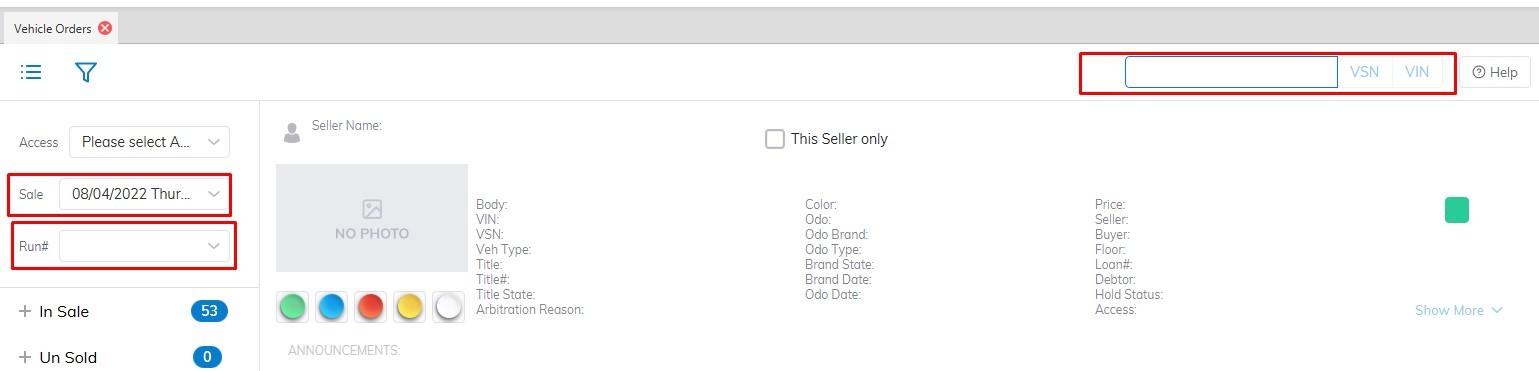
It is possible to Search for a vehicle according to VIN8 (last 8 digits of the VIN) or VSN (6 digits). The application will find the specific vehicle and highlight it in the grid.
[](https://cam3-wiki.auctionstreaming.com/uploads/images/gallery/2022-09/vo2.jpg)
Select Sale Date and Run Number and the application will find the vehicle and highlight it in the grid.
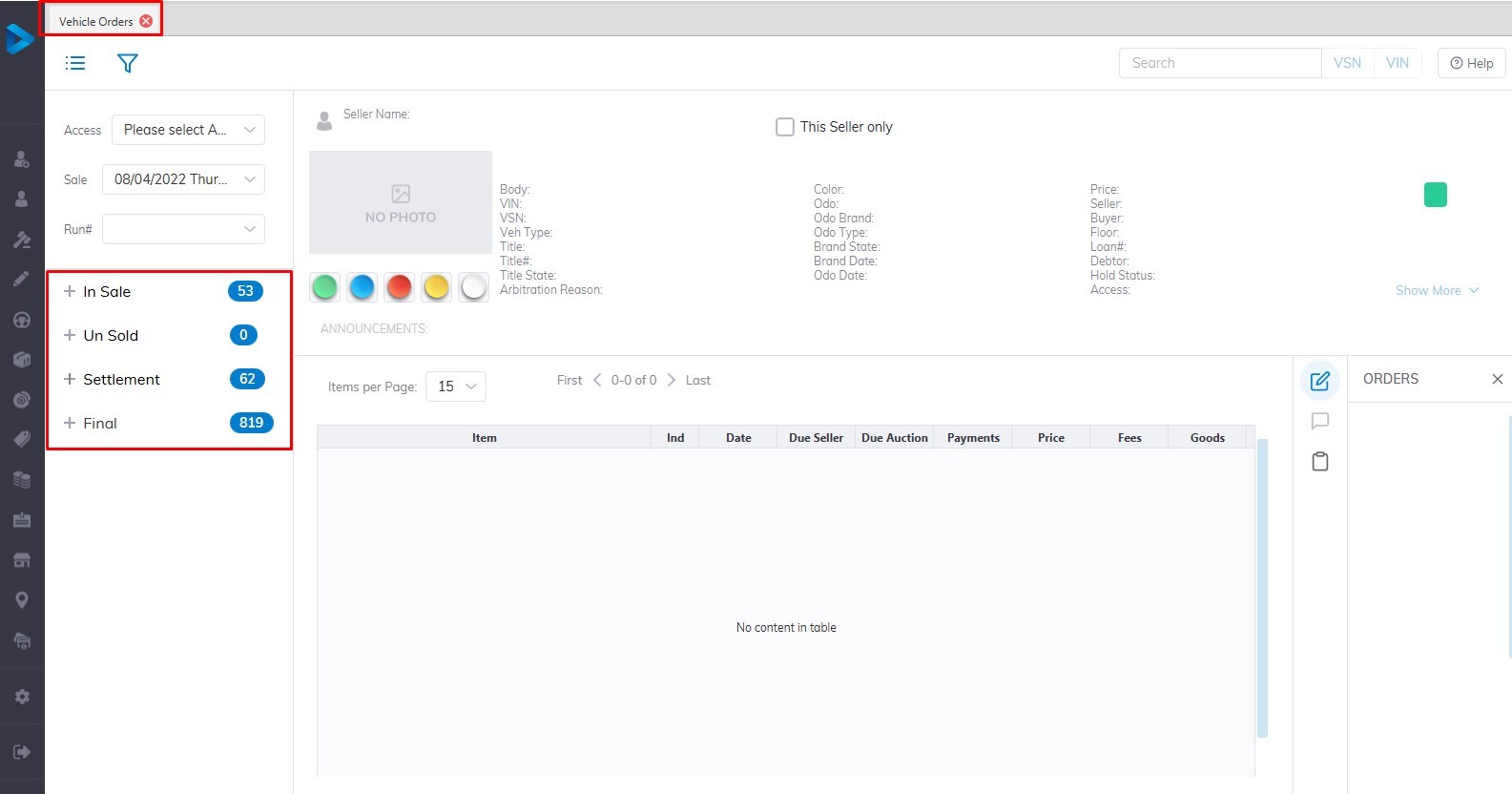
The grid displays Vehicles based on the combination of sash/button selection. The 4 sashes are:
- **In Sale**
- **Un Sold**
- **Settlement**
- **Final**
**[](https://cam3-wiki.auctionstreaming.com/uploads/images/gallery/2022-09/vo1.jpg)**
**In Sale Section**
**[](https://cam3-wiki.auctionstreaming.com/uploads/images/gallery/2022-09/vo3.jpg)**
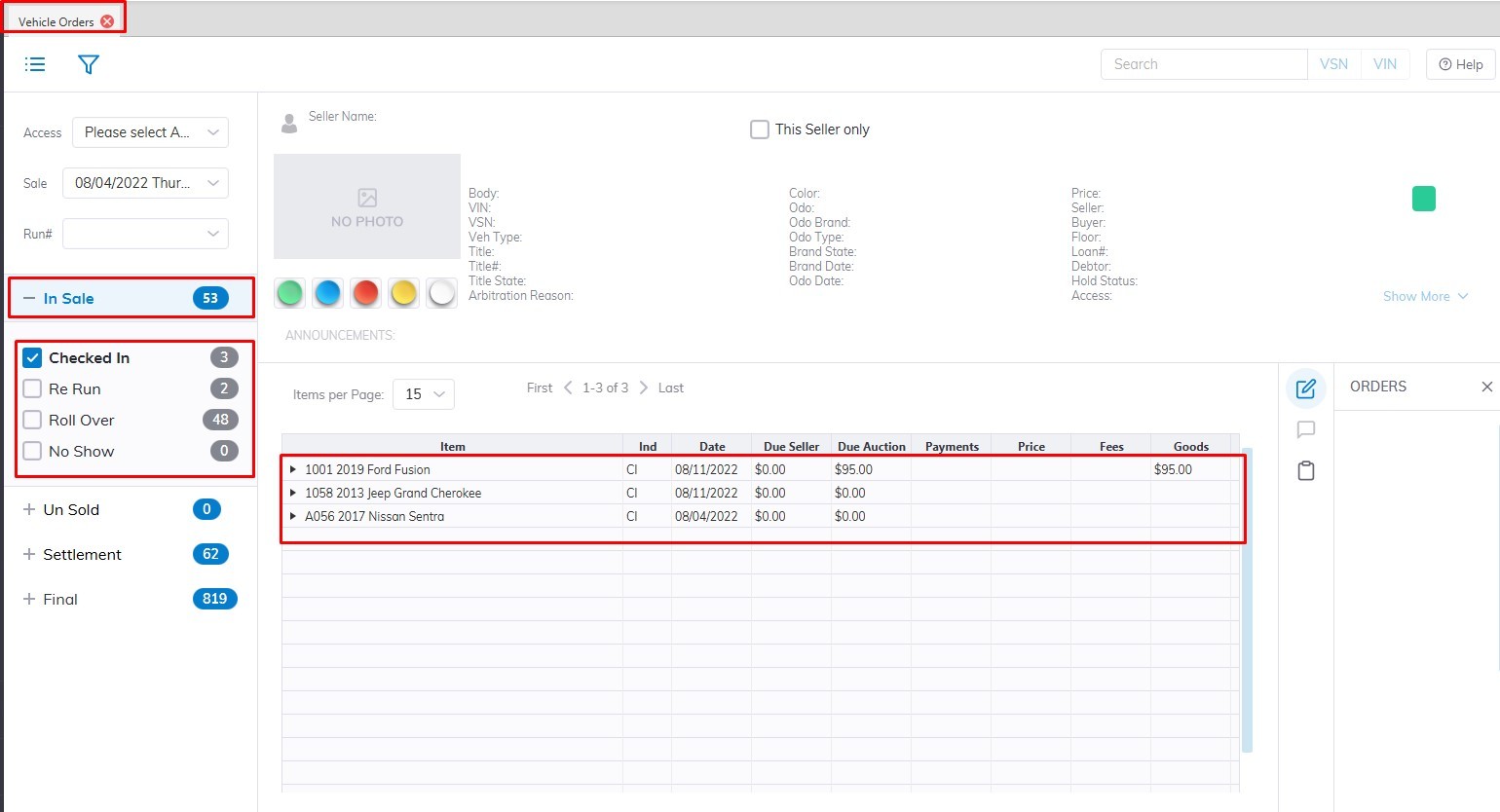
In Sale Sash - (outlined in red) contains 4 buttons; each corresponding to a vehicle's State (2 digit indicator - outlined in red)
- **[Checked In](https://cam3-wiki.auctionstreaming.com/books/cams-3-wiki-faq/page/check-in-order)** **\[CI\]**
This Vehicle State means the unit has a Run Number and appears in the Vehicle Block application ready for Sale. It also appears in the Vehicle Tab of the Dealer Profile application.
- - - You may do a Re Run order to change the Run Number.
- You may do a Roll Over order to change the Sale Date and Run Number.
- You may do an UnSold Settle order if the Seller wishes to remove the Vehicle from the Sale.
- You may do a 'Stock In' Order to move this Vehicle into Inventory.
- You may do a 'Lot Sale' order to sell this Vehicle off the Lot.
- You may also add a Charge or Adjustment.
- You may do a Replace Seller order to swap the Selling party.
- [**Re Run** ](https://cam3-wiki.auctionstreaming.com/books/cams-3-wiki-faq/page/re-run-order)**\[RR\]**
This Vehicle State means the Vehicle has already crossed the Block and will be Re Run again. It will appear in the Vehicle Block application ready for Sale (again). It also appears in the Vehicle Tab of the Dealer Profile application.
- **[Roll Over](https://cam3-wiki.auctionstreaming.com/books/cams-3-wiki-faq/page/roll-over-order)** **\[RO\]**
This Vehicle State means the Vehicle was in a previous Sale and the unit has a Run Number and appears in the Vehicle Block application ready for Sale. It also appears in the Vehicle Tab of the Dealer Profile application.
- - - You may do a Re Run order to change the Run Number.
- You may do an UnSold Settle order if the Seller wishes to remove the Vehicle from the Sale.
- You may do a 'Stock In' Order to move this Vehicle into Inventory.
- You may do a 'Lot Sale' order to sell this Vehicle off the Lot.
- You may also add a Charge or Adjustment.
- You may do a Replace Seller order to swap the Selling party.
- No Show **\[SH\]**
This Vehicle State means the Vehicle has never crossed the Block and was a No Show. It will appear in the Vehicle Block application ready for Sale. It also appears in the Vehicle Tab of the Dealer Profile application.
**Un Sold Section**
[](https://cam3-wiki.auctionstreaming.com/uploads/images/gallery/2022-09/image-1663013491911.png)
****
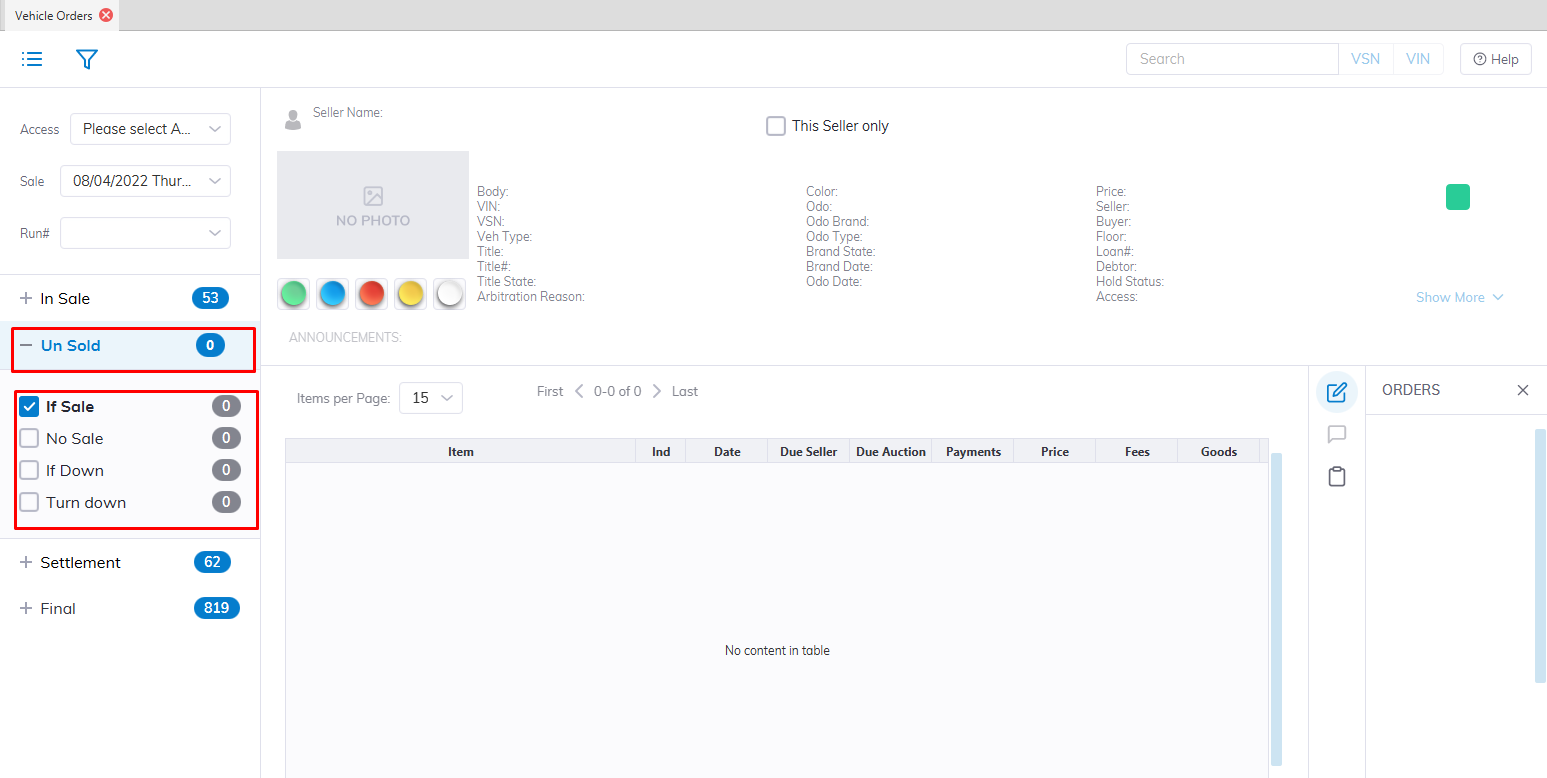
Un Sold Sash - (outlined in red) contains 4 buttons; each corresponding to a vehicle's State (2 digit indicator - outlined in red)
- [**If Sale**](https://cam3-wiki.auctionstreaming.com/books/cams-3-wiki-faq/page/if-sale) **\[IF\]**
This Vehicle is an If Sale or 'with-a-call' Sale and has a price the buyer is willing to pay (pending the approval of the seller). The offers back and forth between buyer and seller may be logged using the 'Edit Order '. This Vehicle also appears in the Vehicle Block application and the Vehicle Tab of the Dealer Profile application.
You must do an [**'If Accept'**](https://cam3-wiki.auctionstreaming.com/books/cams-3-wiki-faq/page/if-accept) order to finalize an If Sale.
- **[No Sale](https://cam3-wiki.auctionstreaming.com/books/cams-3-wiki-faq/page/no-sale)** **\[NS\]**
This Vehicle has crossed the Vehicle Block without a winning bid. It may have the Hi bidder and Hi bid amount but there is no deal. This Vehicle also appears in the Vehicle Tab of the Dealer Profile application.
- - - You may do a Roll Over order to change the Sale Date and Run Number.
- You may do an UnSold Settle order if the Seller wishes to remove the Vehicle from the Sale.
- You may do a 'Stock In' Order to move this Vehicle into Inventory.
- You may do a 'Lot Sale' order to sell this Vehicle off the Lot.
- You may also add a Charge or Adjustment.
- You may do a Replace Seller order to swap the Selling party.
- **If Down** **\[ID\]**
This Vehicle has an If Sale offer which was ultimately rejected by the Seller. This Vehicle also appears in the Vehicle Tab of the Dealer Profile application.
- - - You may do a Roll Over order to change the Sale Date and Run Number.
- You may do an UnSold Settle order if the Seller wishes to remove the Vehicle from the Sale.
- You may do a 'Stock In' Order to move this Vehicle into Inventory.
- You may do a 'Lot Sale' order to sell this Vehicle off the Lot.
- You may also add a Charge or Adjustment.
- You may do a Replace Seller order to swap the Selling party.
- [**Turn Down**](https://cam3-wiki.auctionstreaming.com/books/cams-3-wiki-faq/page/arb-and-arb-accept) **\[TD\]**
This Vehicle was in Arbitration and was rejected by the Buyer with the approval of the Auction. This Vehicle also appears in the Vehicle Tab of the Dealer Profile application.
- - - You may do a Roll Over order to change the Sale Date and Run Number.
- You may do an UnSold Settle order if the Seller wishes to remove the Vehicle from the Sale.
- You may do a 'Stock In' Order to move this Vehicle into Inventory.
- You may do a 'Lot Sale' order to sell this Vehicle off the Lot.
- You may also add a Charge or Adjustment
- You may do a Replace Seller order to swap the Selling party.
**Settlement Section****[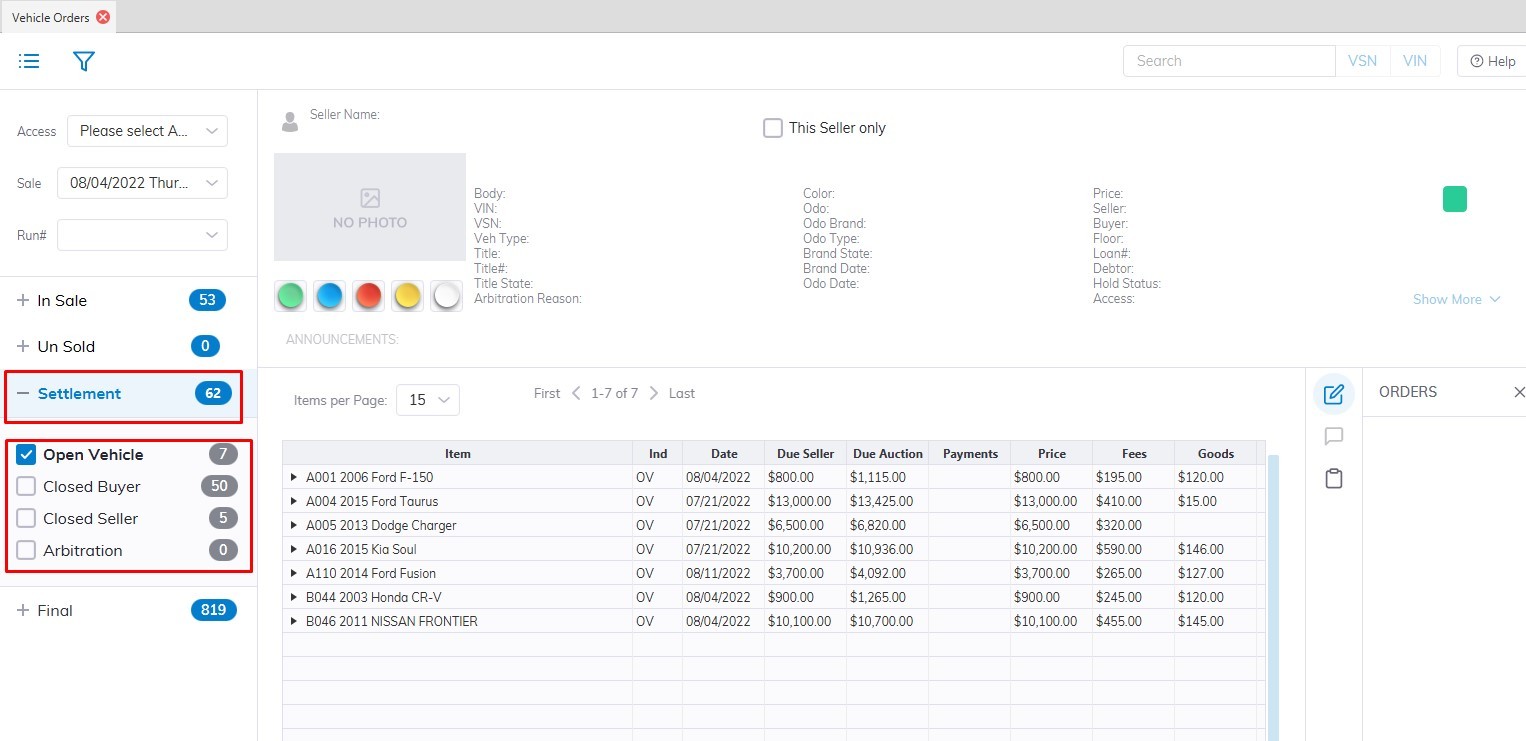](https://cam3-wiki.auctionstreaming.com/uploads/images/gallery/2022-09/vo4.jpg)**
Settlement Sash - (outlined in red) contains 4 buttons; each corresponding to a vehicle's State (2-digit indicator - outlined in red)
- **Open Vehicle** **\[OV\] **
This Vehicle state is a Sold Vehicle with no Buyer payment or a Seller's Check. Both sides (buyer and seller) of this deal are Open. This Vehicle may also be seen in the Vehicle Tab of the Dealer Profile with an OB for the buying rep and an OS for the selling rep.
- - - You may do a Buy Settle order to receive payment from the Buyer.
- You may do a Sell Settle order to issue payment to a Seller.
- You may do an Edit Order order to change the Price or Bid ID information
- You may also add a Charge or Adjustment.
- You may do a Replace Seller or Replace Buyer order.
- **Closed Buyer** **\[CB\]**
This Vehicle state is a Sold Vehicle where the Buyer has paid but the Seller has not been issued a check. This Vehicle may also be seen in the Vehicle Tab of the Dealer Profile with a **CB** for the buying rep and an OS for the selling rep.
- - - You may do a Buy Settle order to receive payment from the Buyer, but only if there is an outstanding balance due to partial payment.
- You may do a Sell Settle order to issue payment to a Seller.
- You may also add a Charge or Adjustment.
- You may do a Replace Seller or Replace Buyer order.
- **Closed Seller** **\[CS\] **
This Vehicle state is a Sold Vehicle where the Buyer has not paid but the Seller has been issued a check. This Vehicle may also be seen in the Vehicle Tab of the Dealer Profile with an OB for the buying rep and a **CS** for the selling rep.
- - - You may do a Buy Settle order to receive payment from the Buyer.
- You may also add a Charge or Adjustment.
- You may do a Replace Seller or Replace Buyer order.
- [**Arbitration**](https://cam3-wiki.auctionstreaming.com/books/cams-3-wiki-faq/page/arb-and-arb-accept) **\[AR\]**
This Vehicle state is used to show a Vehicle that is currently being Arbitrated. This Vehicle may also be seen in the Vehicle Tab of the Dealer Profile with an **AR** indicator.
- - - You may do an **Arb Accept** order to finalize the Arbitration.
- You may also add a Charge or Adjustment.
**Final Section****[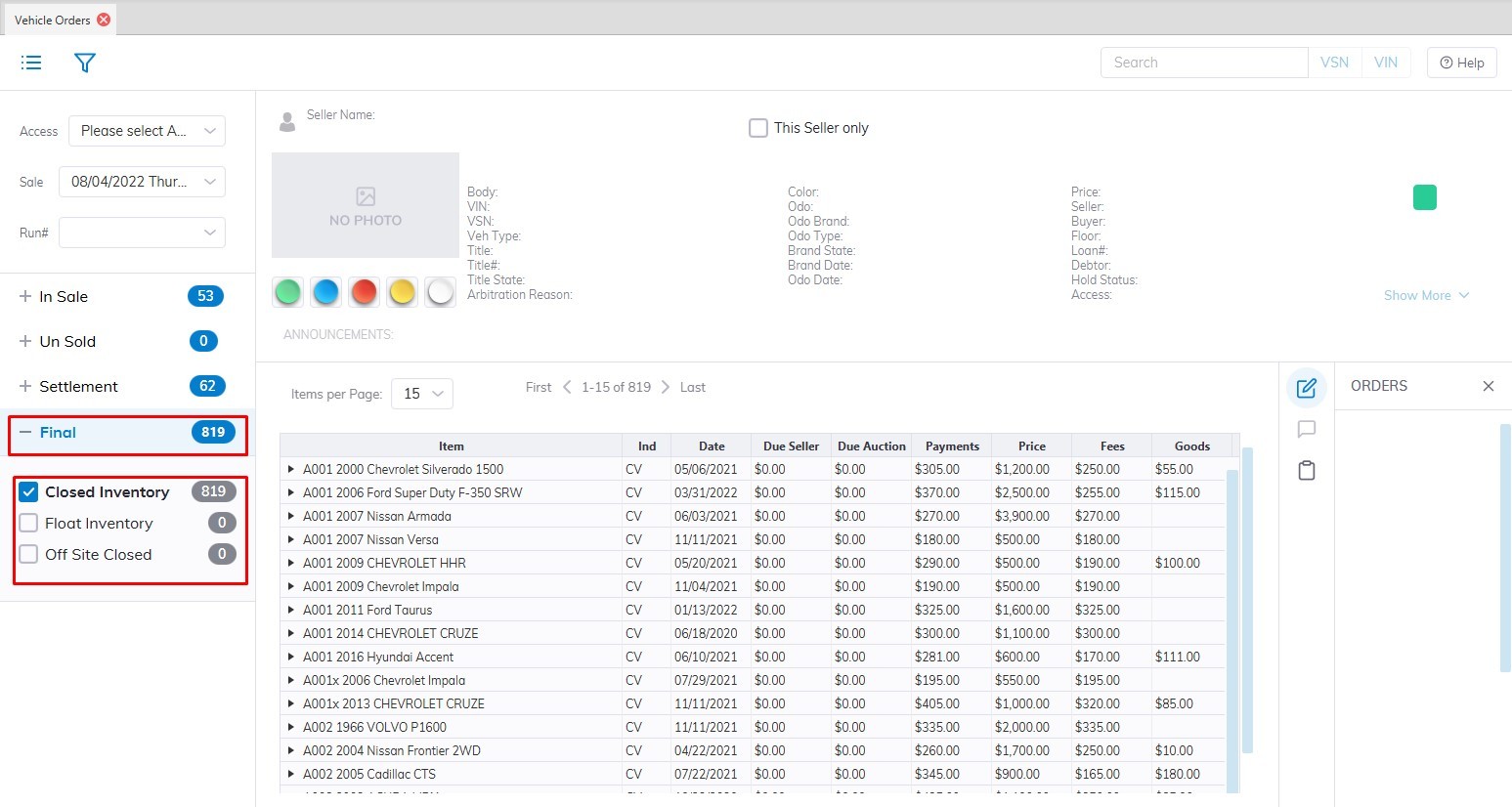](https://cam3-wiki.auctionstreaming.com/uploads/images/gallery/2022-09/vo5.jpg)**
The final sash - (outlined in red) contains 3 buttons (one is not used); each corresponding to a vehicle's State (2 digit indicator - outlined in red)
- **Closed Vehicle \[CV\] **
This Vehicle state is a Sold Vehicle with a Buyer payment and a Seller's Check issued. Both sides (buyer and seller) of this deal are Closed. This Vehicle may also be seen in the VehicleTab of the Dealer Profile with a **CB** for the buying rep and a **CS** for the selling rep.
- - - You may do a Departure order to make the VSN In Active.
- You may do an Arbitration order for the Buyer to dispute the Price.
- **Un Sold Settled** **\[US\]**
This Vehicle state is an UnSold Vehicle. This Vehicle may also be seen in the Vehicle Tab of the Dealer Profile.
- - - You may do a Buy Settle order to receive payment from the Buyer.
- You may do a Departure Order.
# Vehicle Management
**Vehicle Management** application - used as a 'Global' view for all Auction Vehicles that the auction possesses:
[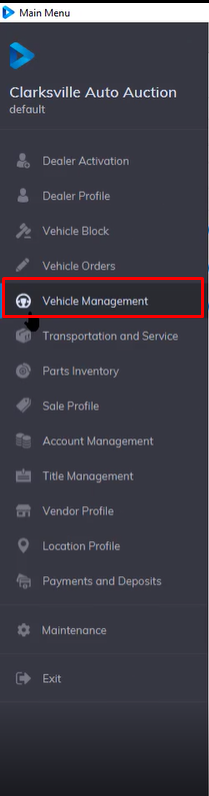](https://cam3-wiki.auctionstreaming.com/uploads/images/gallery/2022-10/image-1665073370463.png)
This application filters the listing by 3 Buttons with a + sign on the left. (**Active, Off-site, In-Active**) are also used to further distinguish between different vehicle statuses.
There are 10 tabs of information for each Vehicle as outlined in red. The upper portion of the application summarizes vehicle and title counts for the selected Dealer; State Farm in this example.
- **Remarketing**
- **Vehicle**
- **Options**
- **Sale**
- **Seller**
- **Buyer**
- **Lender**
- **Inventory**
- **Images**
- **streaming**
[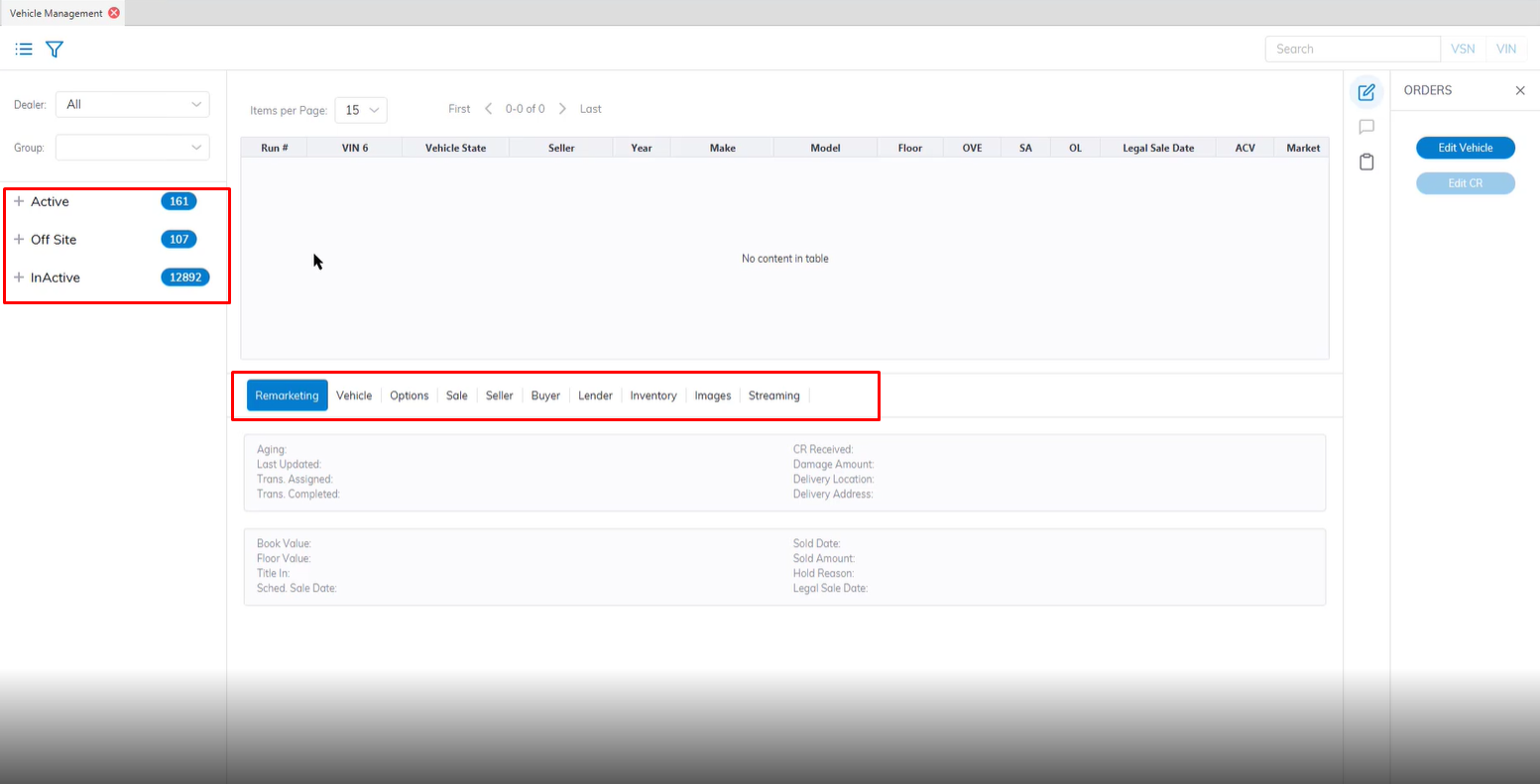](https://cam3-wiki.auctionstreaming.com/uploads/images/gallery/2022-10/image-1665073485724.png)
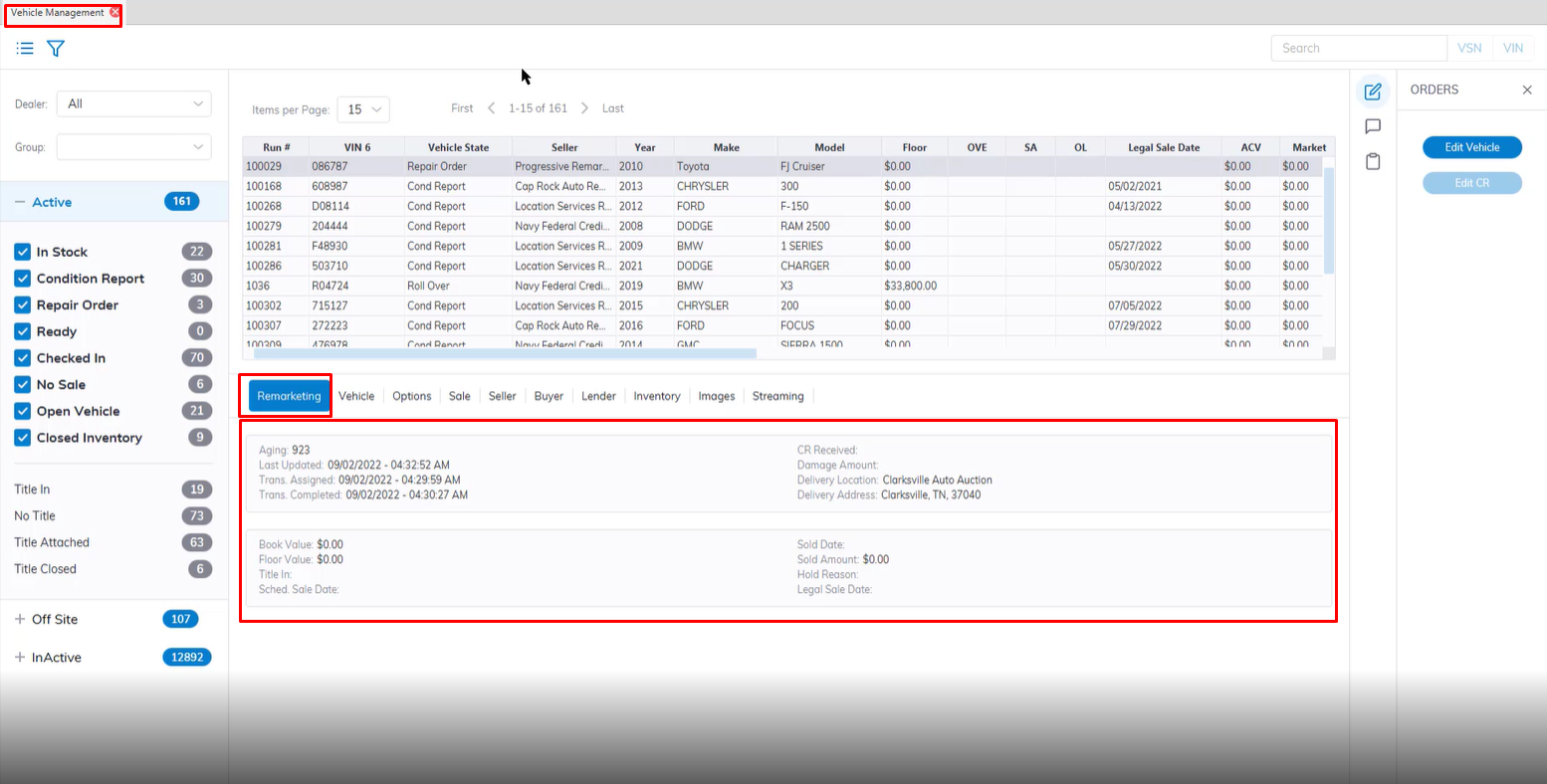
##### **Remarketing Tab**
**Remarketing** - contains basic read-only information about Remarketing attributes.
[](https://cam3-wiki.auctionstreaming.com/uploads/images/gallery/2022-10/image-1665074250203.png)
In some cases, you may wish to allow a Fleet account to access its own inventory for viewing and reporting purposes. The Remarketing tab summarizes the most relevant information for their use.
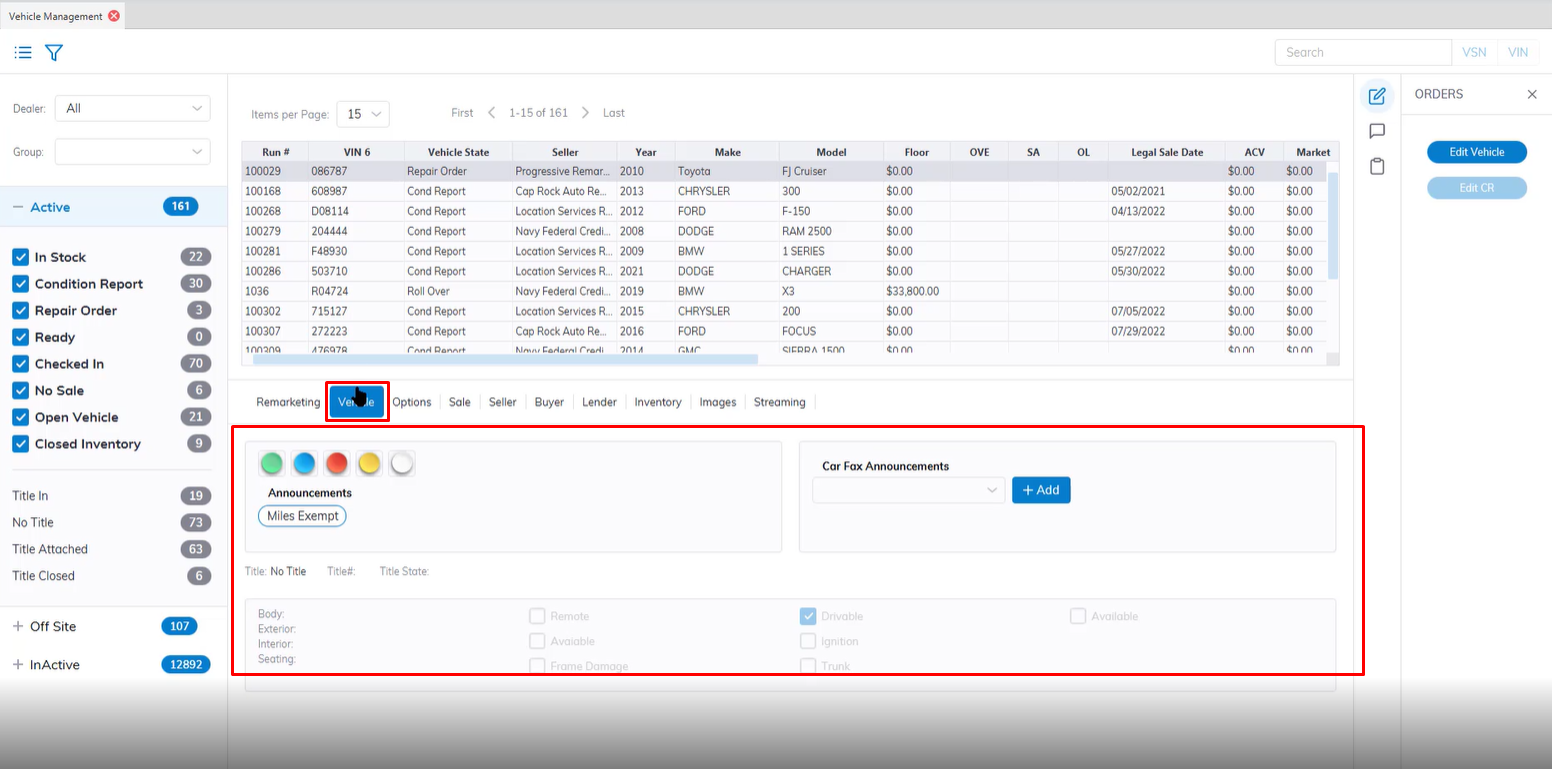
##### **Vehicle Tab**
**Vehicle Tab** - contains basic read-only information about the Vehicle including:
[](https://cam3-wiki.auctionstreaming.com/uploads/images/gallery/2022-10/image-1665074934715.png)
- **Lights and Announcements**
- **Mileage**
- **Vehicle Options Group 1**
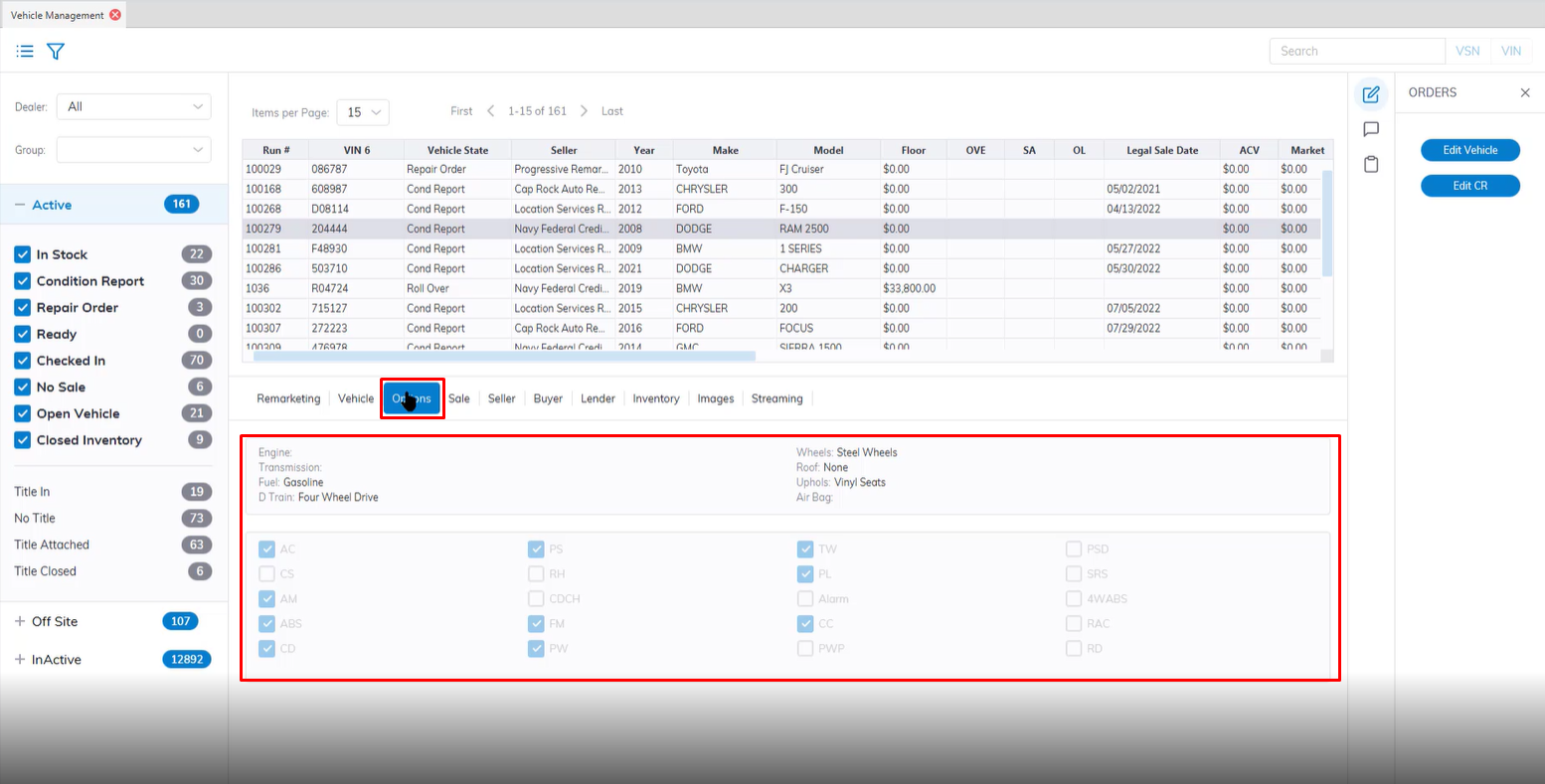
##### **Options Tab**
**Options Tab** - contains basic read-only information about the Vehicle including:
[](https://cam3-wiki.auctionstreaming.com/uploads/images/gallery/2022-10/image-1665075009593.png)
- **Vehicle Options Group 2**
- **Vehicle Options Group 3**
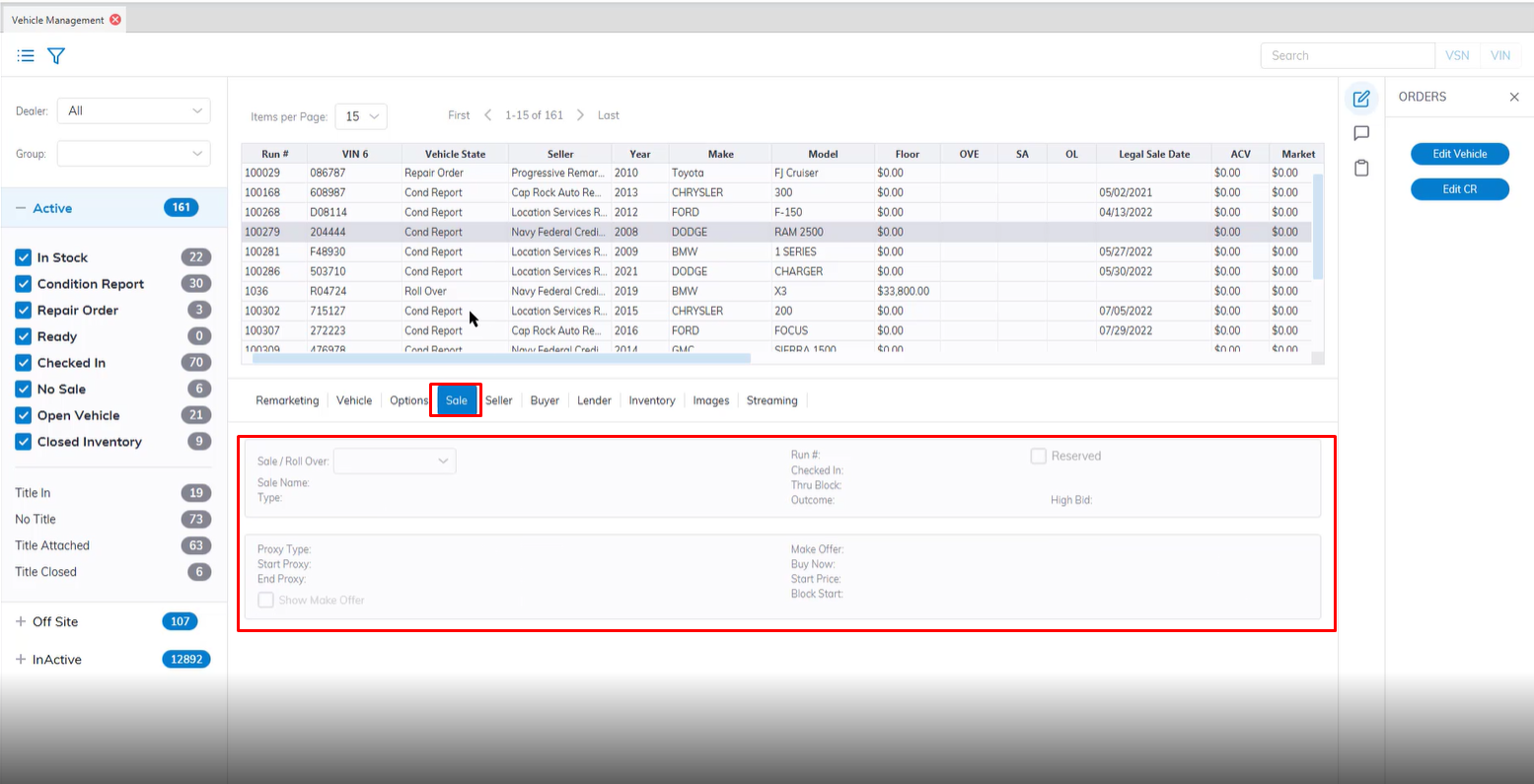
##### **Sale Tab**
**Sale Tab** - contains basic read-only information about the Sale including:
[](https://cam3-wiki.auctionstreaming.com/uploads/images/gallery/2022-10/image-1665075085270.png)
- **All offerings for each Sale / Roll Over date and its Name, Type, and Run Number (may be multiples)**
- **Date / Time stamp of Check In**
- **Date / Time stamp of Thru Block**
- **Outcome of Block**
- **Hi Bid**
##### **Seller Tab**
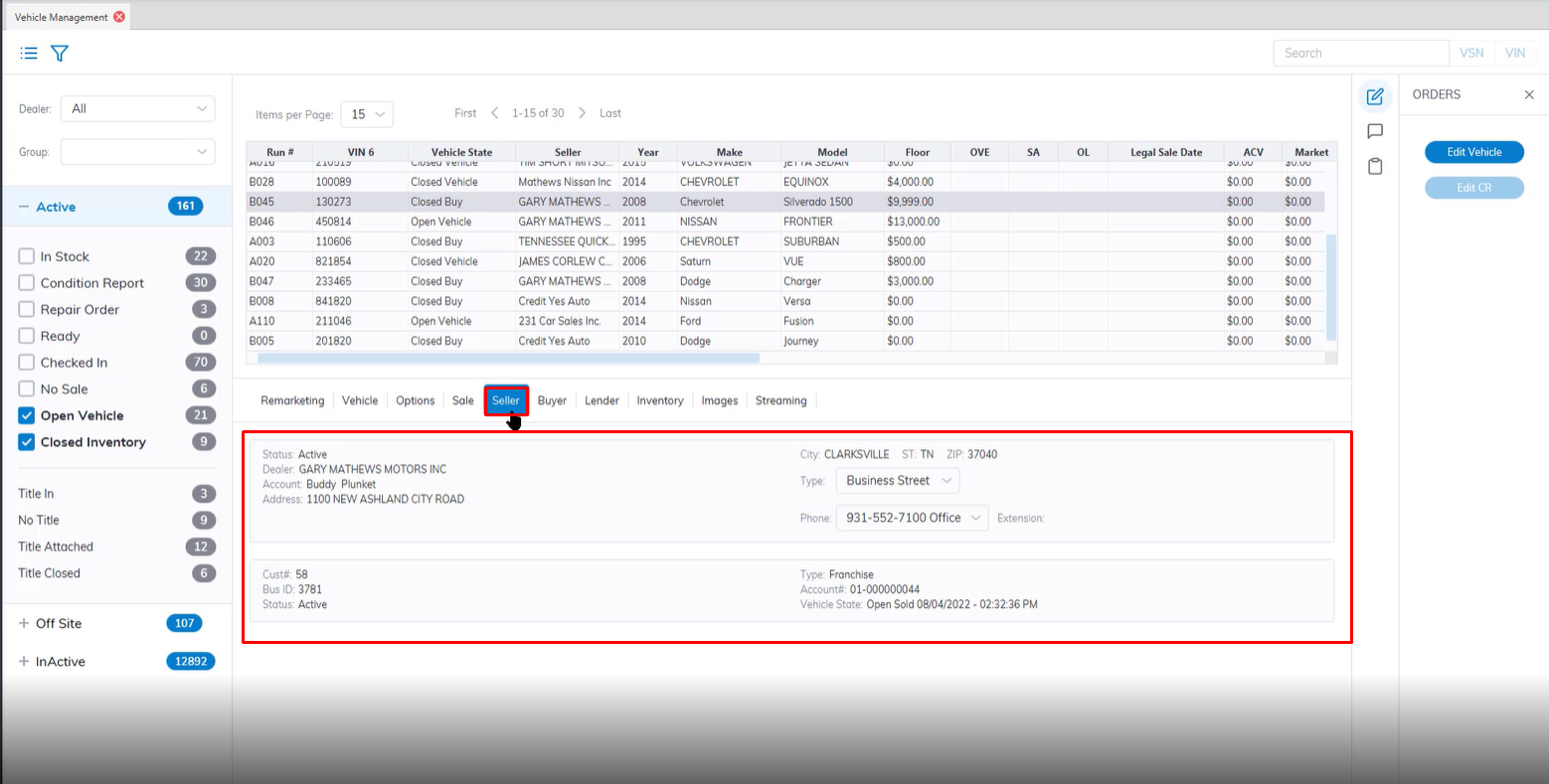
**Seller Tab** - contains basic read-only information about the Seller including:
[](https://cam3-wiki.auctionstreaming.com/uploads/images/gallery/2022-10/image-1665075185926.png)
- **Seller Account Status**
- **Dealer Name, Rep Name, and Contact Information**
- **Customer Number and Account Information**
##### **Buyer Tab**
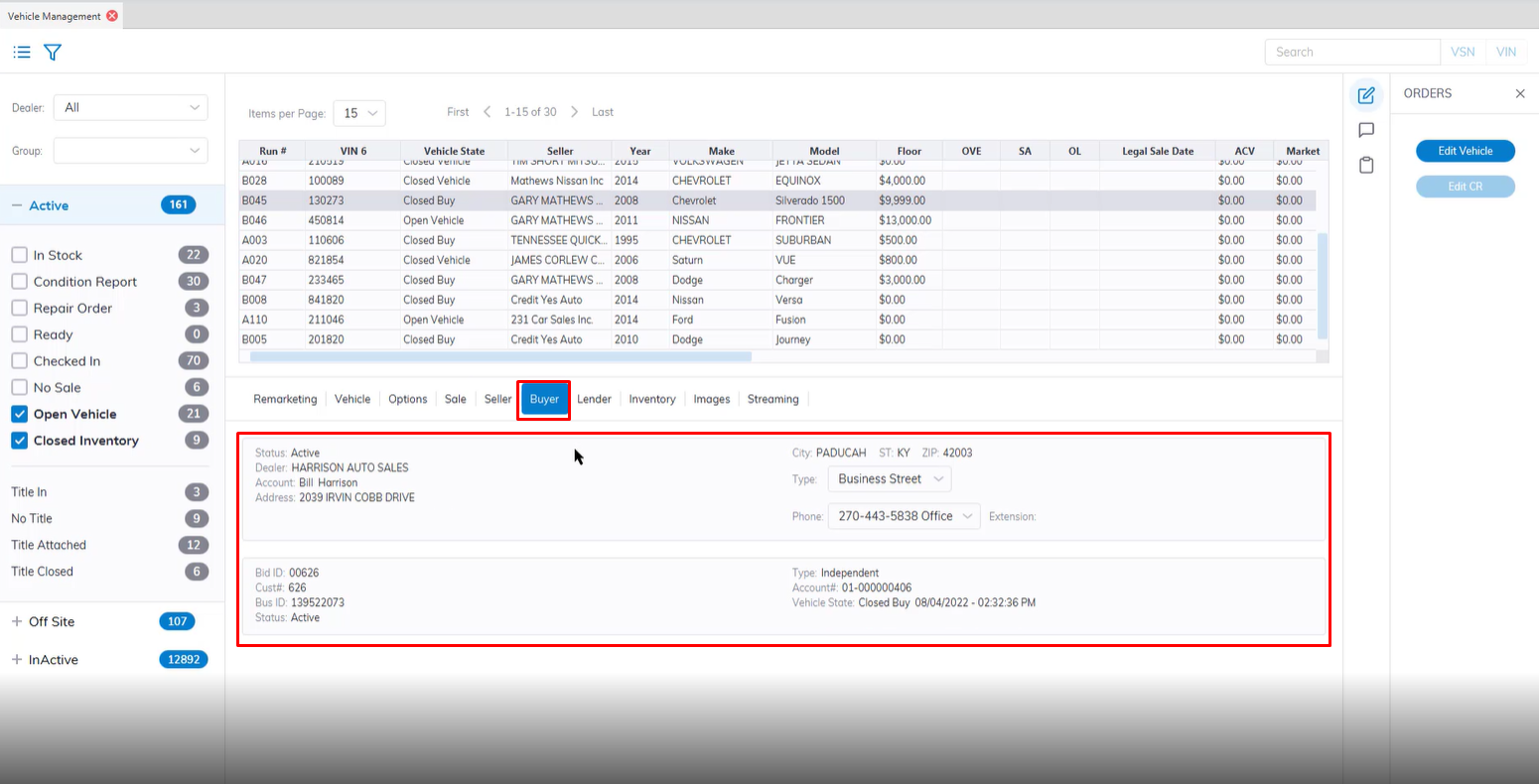
**Buyer Tab** - contains basic read-only information about the Buyer including:
[](https://cam3-wiki.auctionstreaming.com/uploads/images/gallery/2022-10/image-1665075271320.png)
- **Buyer Account Status**
- **Dealer Name, Rep Account Name, and Contact Information**
- **Bid ID and Account Information**
##### **Lender Tab**
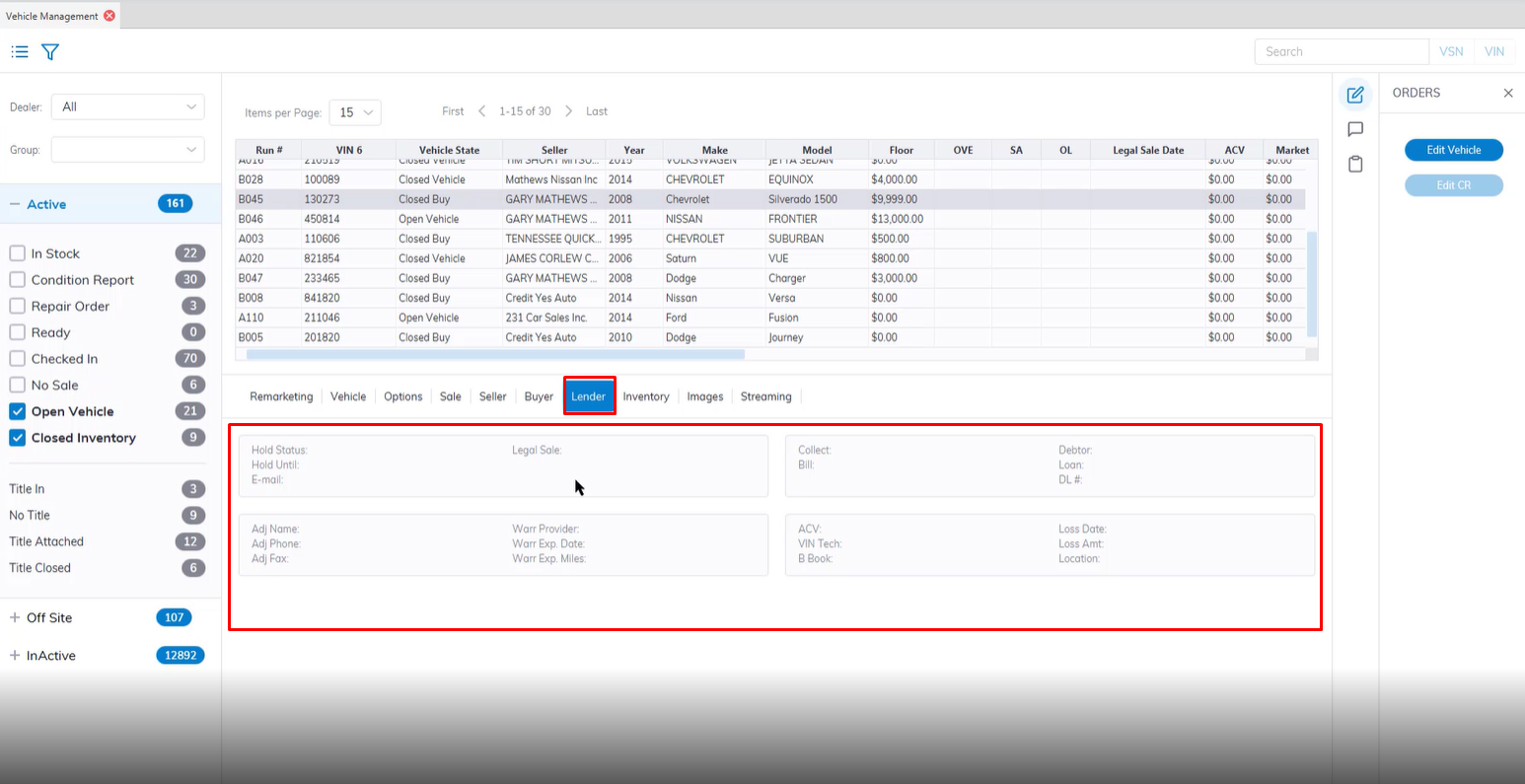
**Lender Tab** - contains basic read-only information about the Lender including:
[](https://cam3-wiki.auctionstreaming.com/uploads/images/gallery/2022-10/image-1665075773679.png)
- **Reason code**
- **Authorizing person's name and contact info.**
- **In Hand (paperwork) including Release for Sale date, Debtor Name, Loan Number, and Driver's License Number**
- **Collected amount from the debtor and Bill amount to the bank**
##### **Inventory Tab**
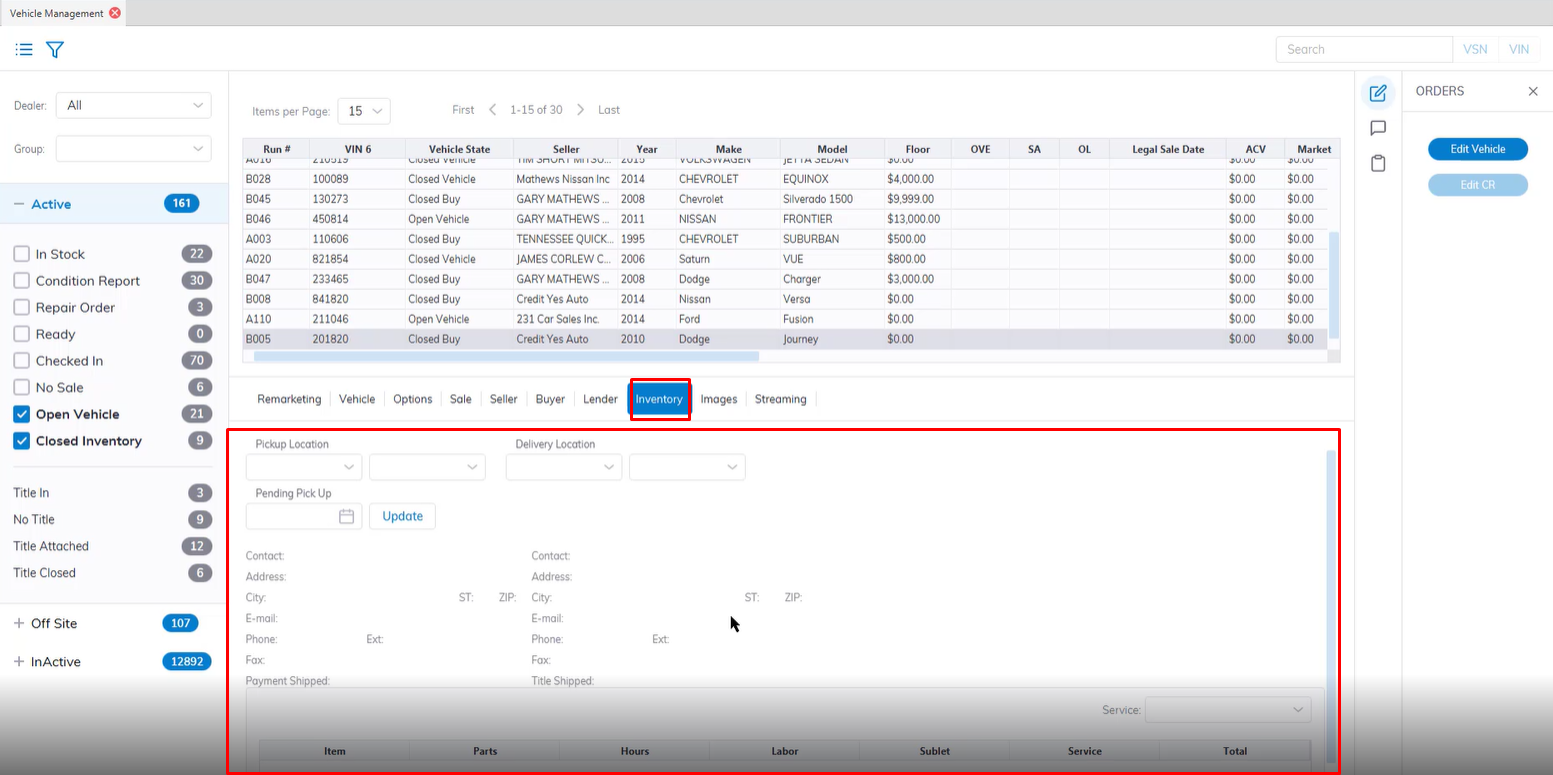
**Inventory Tab** - contains basic read-only information about Transportation and Services including:
[](https://cam3-wiki.auctionstreaming.com/uploads/images/gallery/2022-10/image-1665075863078.png)
- **Transportation Pick Up PO**
- **Vendor for Transportation Order**
- **PO Number and Method of communication**
- **Est. Pick Up / Location and Est. Delivery / Location**
- **Condition Report or Repair Order Number**
- **Listing of Items, Parts, Hours, Labor, Sublet, Services, and Total**
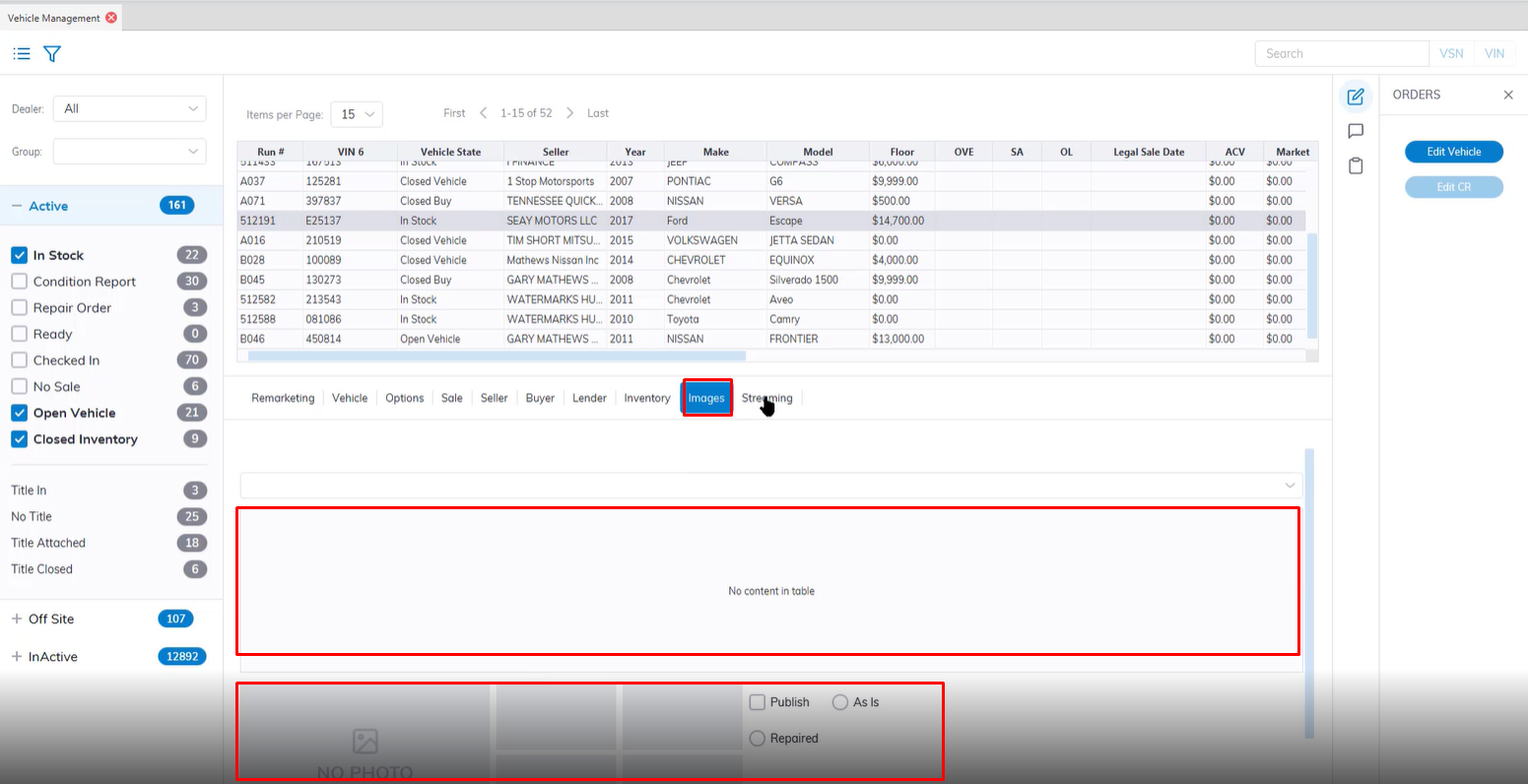
##### **Images Tab**
**Images Tab** - contains up to four images entered into the system. For additional information click here for Image management.
[](https://cam3-wiki.auctionstreaming.com/uploads/images/gallery/2022-10/image-1665075962467.png)
##### **Streaming Tab**
**Streaming Tab** -
# Transportation and Service
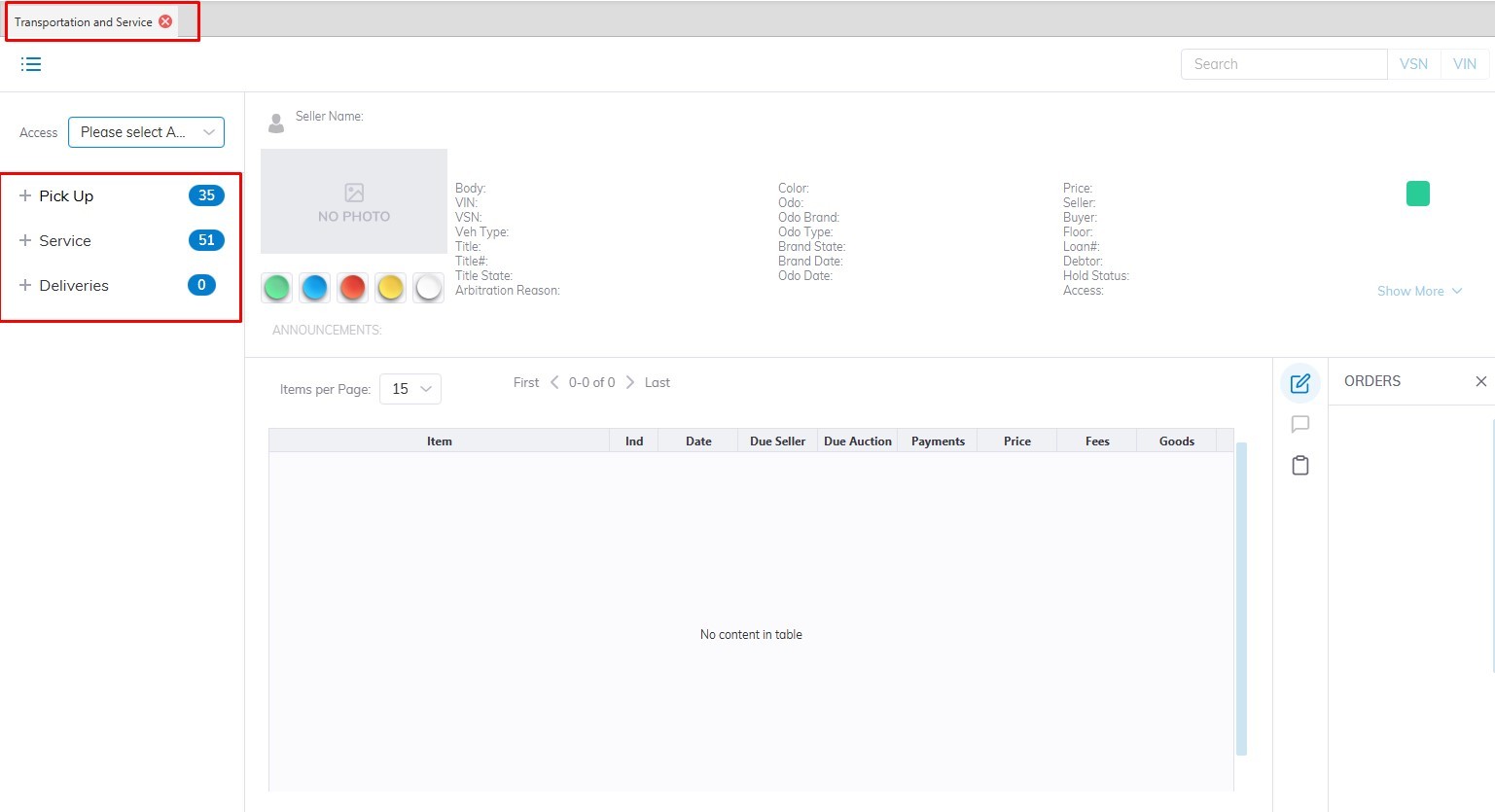
Transportation and Service application - displays Vehicles in Stock (Fleet / Lease). The summary sections contain a selected Vehicle's make, model, and current state. All 'Active' and 'Off-Site' Vehicles are loaded into this application.
[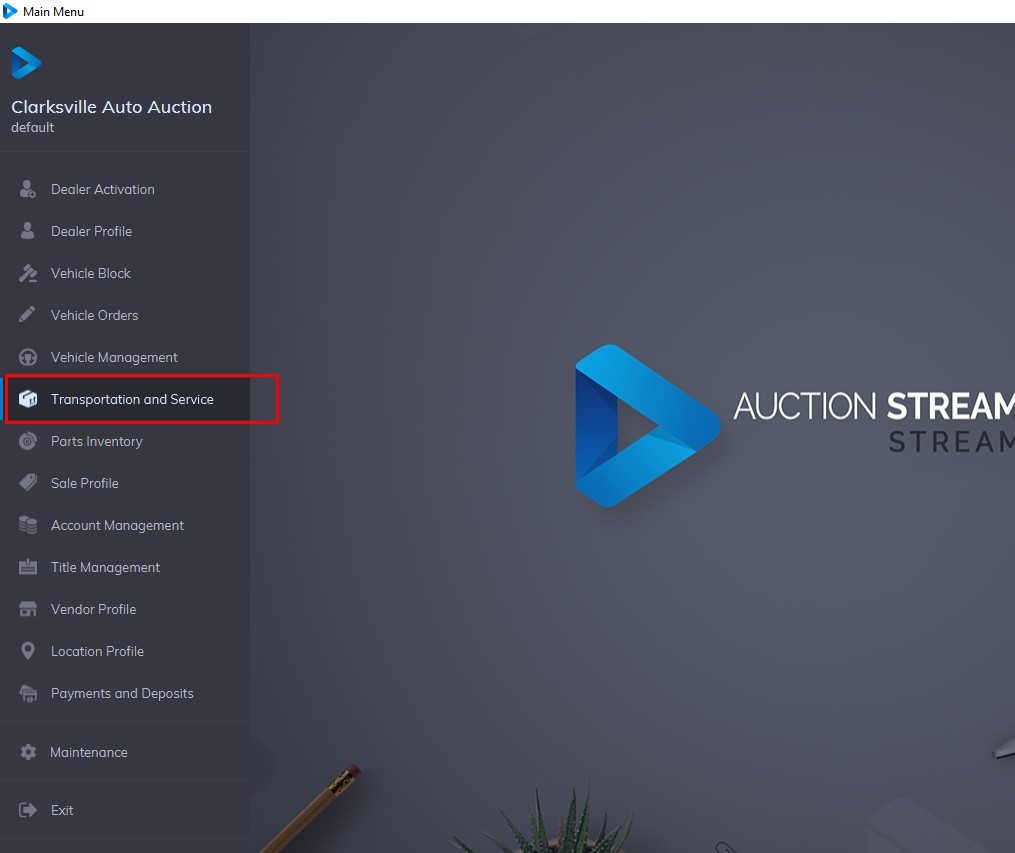](https://cam3-wiki.auctionstreaming.com/uploads/images/gallery/2022-09/main.jpg)
The grid displays Vehicles based on the sash and button(s) selected. The 3 sashes or groups of Vehicle States are:
- **Pick Up**
- **Service**
- **Delivery**
It is possible to Search for a vehicle according to VIN8 (last 8 digits of the VIN) or VSN (6 digits).
[](https://cam3-wiki.auctionstreaming.com/uploads/images/gallery/2022-09/trans1.jpg)
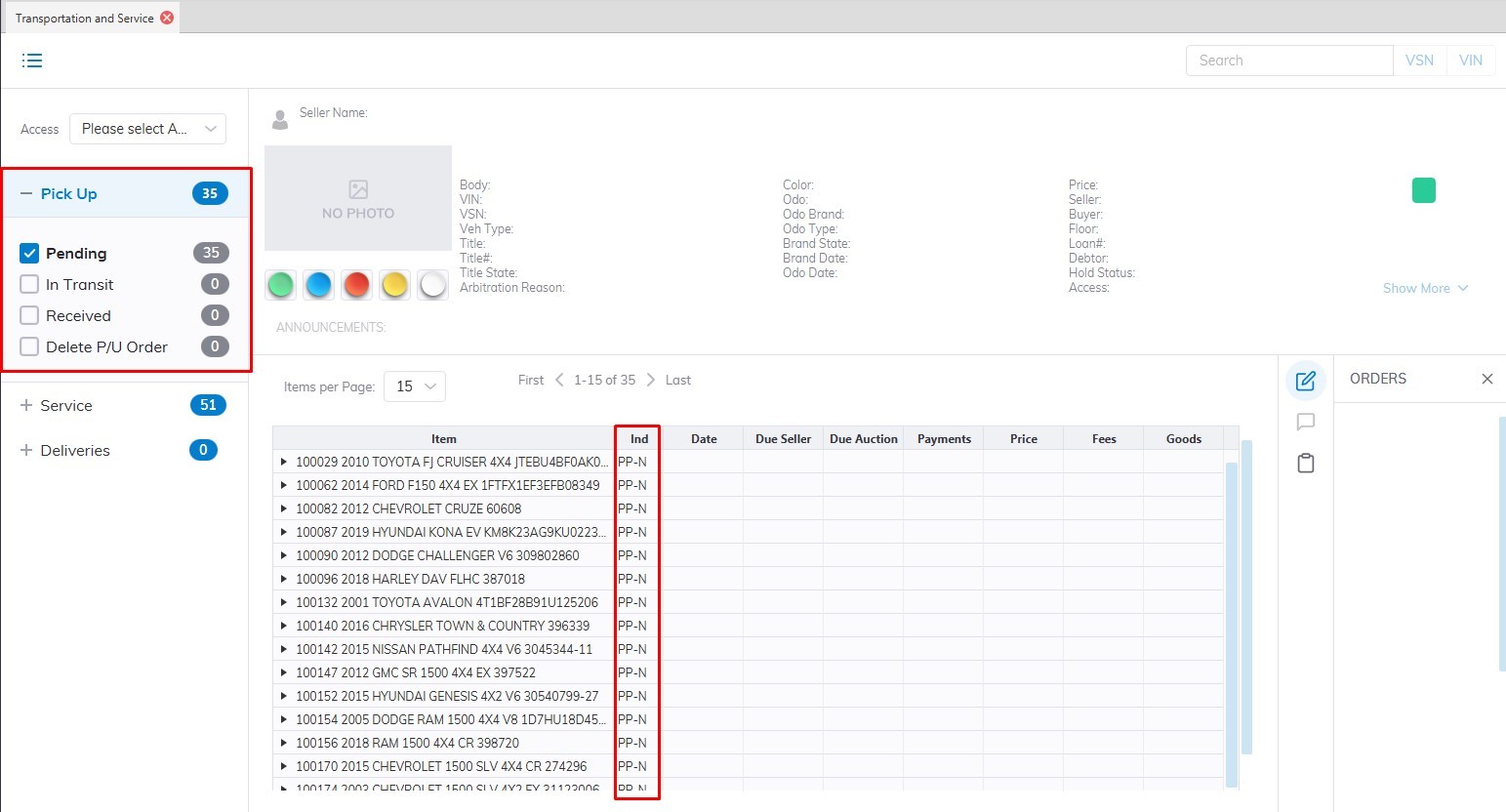
**Pick Up Sash** - contains 3 buttons, each corresponding to a Pick Up State. Each Vehicle has a 2-digit indicator showing the Vehicles' state indicated in red.
[](https://cam3-wiki.auctionstreaming.com/uploads/images/gallery/2022-09/pickup.jpg)
**Hold Pick Up (HP)**
A Hold Pick Up is the result of a Pick-Up InTransit being 'Held' pending some action by the Auction. This Vehicle also appears in the Inventory Tab of the Dealer Profile application.
- You may do a Reinstate Pick Up order to go back to In Transit
- You may do a Delete Pick Up order to start over.
- You may also add a Charge or Adjustment.
**Pick Up In Transit (PT)**
This Vehicle is in Transit to the Auction. This Vehicle also appears in the Inventory Tab of the Dealer Profile application.
- You may do an Arrive order to bill the Vehicle for the Transportation fees.
- You may do a Hold order to place the Vehicle Transportation on hold.
- You may do an Edit order to change Pick Up or Delivery Locations.
- You may also add a Charge or Adjustment.
**Arrived Pick Up (AP)**
This Vehicle has Arrived or has been received at the Auction but remains outside the gate. This Vehicle also appears in the Inventory Tab of the Dealer Profile application.
- You may do a Stock In order to make the VSN Active.
- You may also add a Charge or Adjustment.
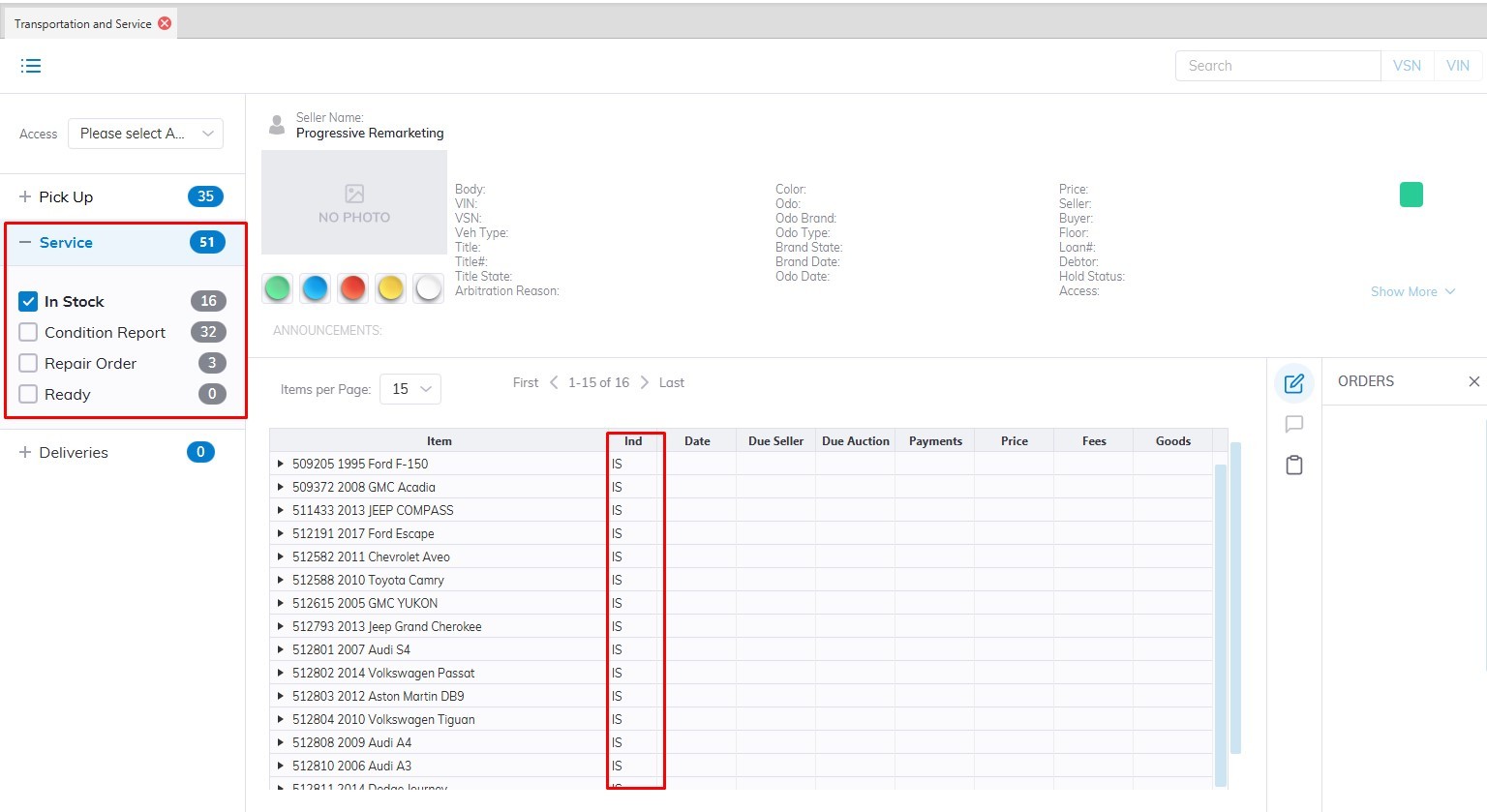
**Service Sash** - contains 4 buttons each corresponding to a Service State. There are 5 states described below, Un Sold Settle is nested in the Ready button. Each Vehicle has a 2-digit indicator showing the Vehicles' state. See below for a discussion of the four Vehicle States and the Show Details button.
[](https://cam3-wiki.auctionstreaming.com/uploads/images/gallery/2022-09/service.jpg)
**In Stock (IS)**
These Vehicles are usually Fleet / Lease Vehicles. This Vehicle also appears in the Inventory Tab of the Dealer Profile application.
- You may do a Condition Report Order to input a Condition Report.
- You may do an Issue RO order to create a Repair Order.
- You may do a Sale Check In order to move the VSN into a Sale.
- You may do an Un-Sold Settle order if the Seller wishes to remove the Vehicle from the Sale.
- You may also add a Charge or Adjustment.
**Condition Report (CR)**
This Vehicle also appears in the Inventory Tab of the Dealer Profile application.
- You may do an Issue RO order to create a Repair Order.
- You may do a Sale Check In order to move the VSN into a Sale.
- You may do an Un-Sold Settle order if the Seller wishes to remove the Vehicle from the Sale.
- You may also add a Charge or Adjustment
**Repair Order (RP)**
These Vehicles are in for Repairs. This Vehicle also appears in the Inventory Tab of the Dealer Profile application.
- You may do an Amend RO order to post charges for Parts, Labor, Sublet, or Services.
- You may do a Close RO order to post RO charges to the Vehicle balance.
- You may also add a Charge or Adjustment.
**Ready (RY)**
These Vehicles are ready to be placed into a Sale. This Vehicle also appears in the Inventory Tab of the Dealer Profile application.
- You may do a Condition Report Order to input a Condition Report.
- You may do an Issue RO order to create a Repair Order.
- You may do a Sale Check In order to move the VSN into a Sale.
- You may do an Un-Sold Settle order if the Seller wishes to remove the Vehicle from the Sale.
- You may also add a Charge or Adjustment.
**Un Sold Settle (US)** - nested in Ready
These Vehicles are being taken out of Inventory. This Vehicle also appears in the Inventory Tab of the Dealer Profile application.
- You may do a Departure order to move the VSN to In Active.
- You may also add a Charge or Adjustment.
# Title Management
[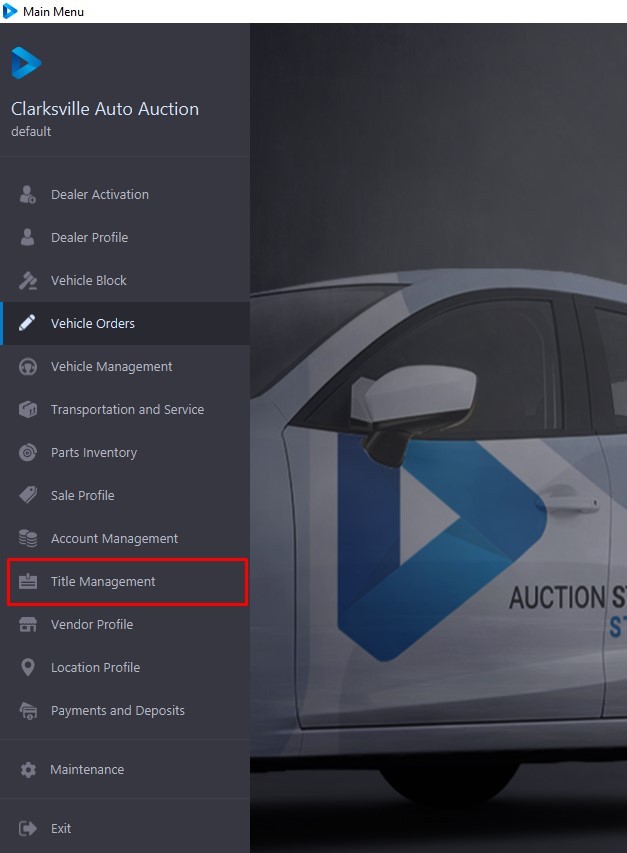](https://cam3-wiki.auctionstreaming.com/uploads/images/gallery/2022-09/title1.jpg)
The Title Management application divides the titles of 'Active' VSNs' in the system into one of 3 Categories. Each Sash represents a Category. The three Categories are:
- **Pending**
- **Received**
- **Registered**
- **Mailed Title**
Within each Category, the Condition of a given title will be represented by a checkbox. Selecting a checkbox will filter the grid display. The Checkboxes are cumulative. See below for information on searching for a title. Click on the links above for a discussion of each Category and the orders that can be performed.[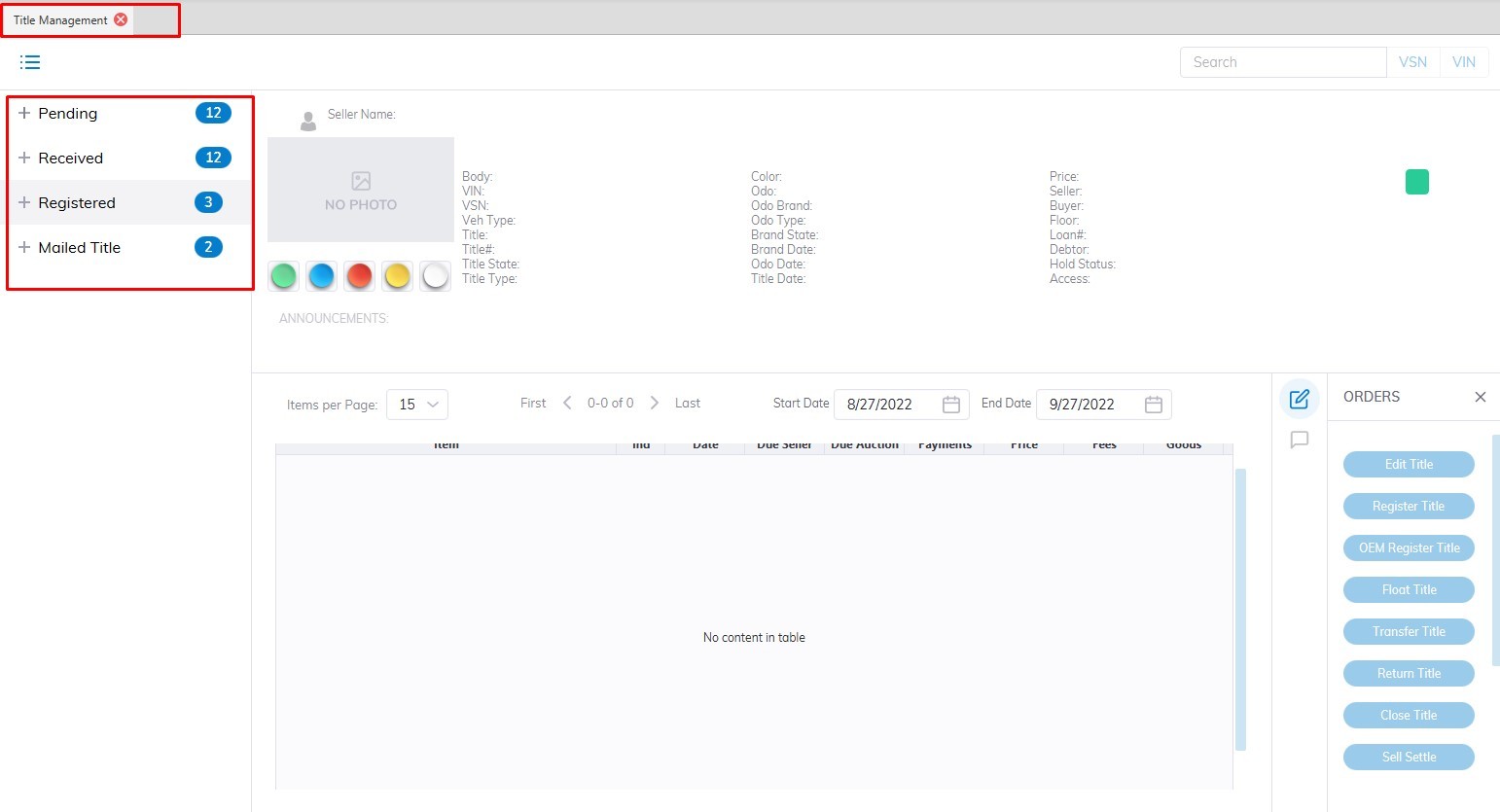](https://cam3-wiki.auctionstreaming.com/uploads/images/gallery/2022-09/title2.jpg)
Titles may be 'Searched' for by typing the VSN or the VIN8 (last 8 of the VIN) and clicking the 'Search' button, or by selecting the:
- VIN8
- VSN
from the combo box in the top right corner. The application will search and automatically select the VSN or Run Number associated with the Title. Once a Title is selected, the summary portion of the form will populate with the following information:
- Year, Make, Model, VIN, Style, VSN, Vehicle Type, and Status
- Seller, Title Condition, State, and Number
- Vehicle State with date/time stamp
This grid is identical to the one in the **[Vehicle Orders](https://cam3-wiki.auctionstreaming.com/books/cams-3-wiki-faq/page/vehicle-orders)**, **[Dealer Profile](https://cam3-wiki.auctionstreaming.com/books/cams-3-wiki-faq/page/dealer-profile)**, and [**Transportation and Service** ](https://cam3-wiki.auctionstreaming.com/books/cams-3-wiki-faq/page/transportation-and-service)applications.
**Pending****[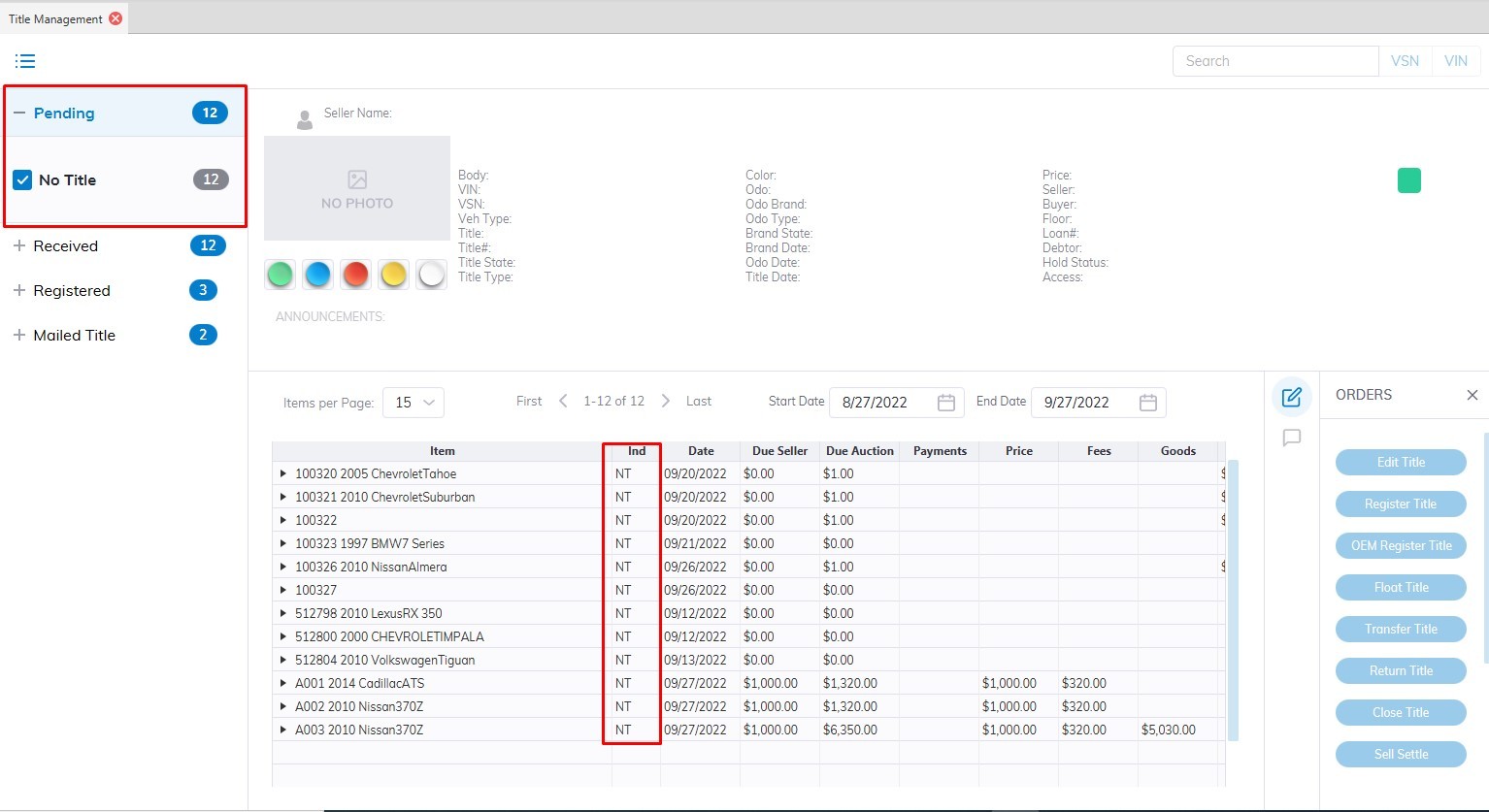](https://cam3-wiki.auctionstreaming.com/uploads/images/gallery/2022-09/pending.jpg)**
The 'Pending' Category contains 3 title conditions corresponding to a button on the left and a 2 digit indicator in the grid.
**No Title (NT)**
The condition 'No Title' is the default title condition when a 'Stock In' order is done. You may do a 'Register' title order for NT titles.
**Title Sent (ST)**
Title Sent are title conditions for future use with Auto IMS.
**In Transit (IT)**
Title In Transit is title conditions for future use with Auto IMS.
**Received****[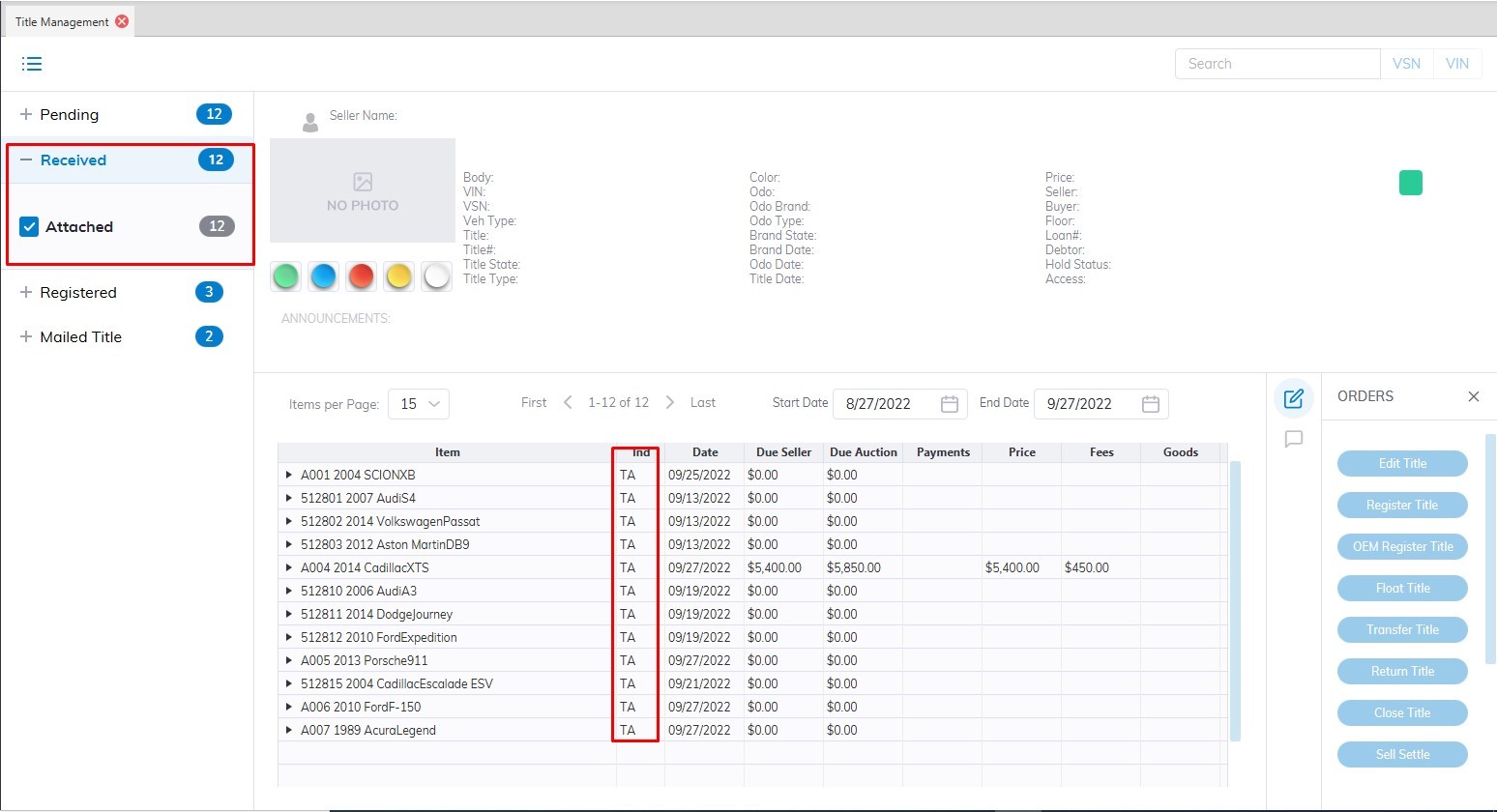](https://cam3-wiki.auctionstreaming.com/uploads/images/gallery/2022-09/received.jpg)**
The 'Received' sash contains 3 title conditions corresponding to a button on the left and a 2 digit indicator in the grid.
**Title Attached (TA)**
The condition 'Title Attached' is the default title condition when a 'Check In' order is done.
You may do a 'Register' title order for TA titles.
**Title Only (TO)**
Title Only are title conditions for future use with Auto IMS.
**Title Service (TS)**
Title Services are title conditions for future use.
**Registered****[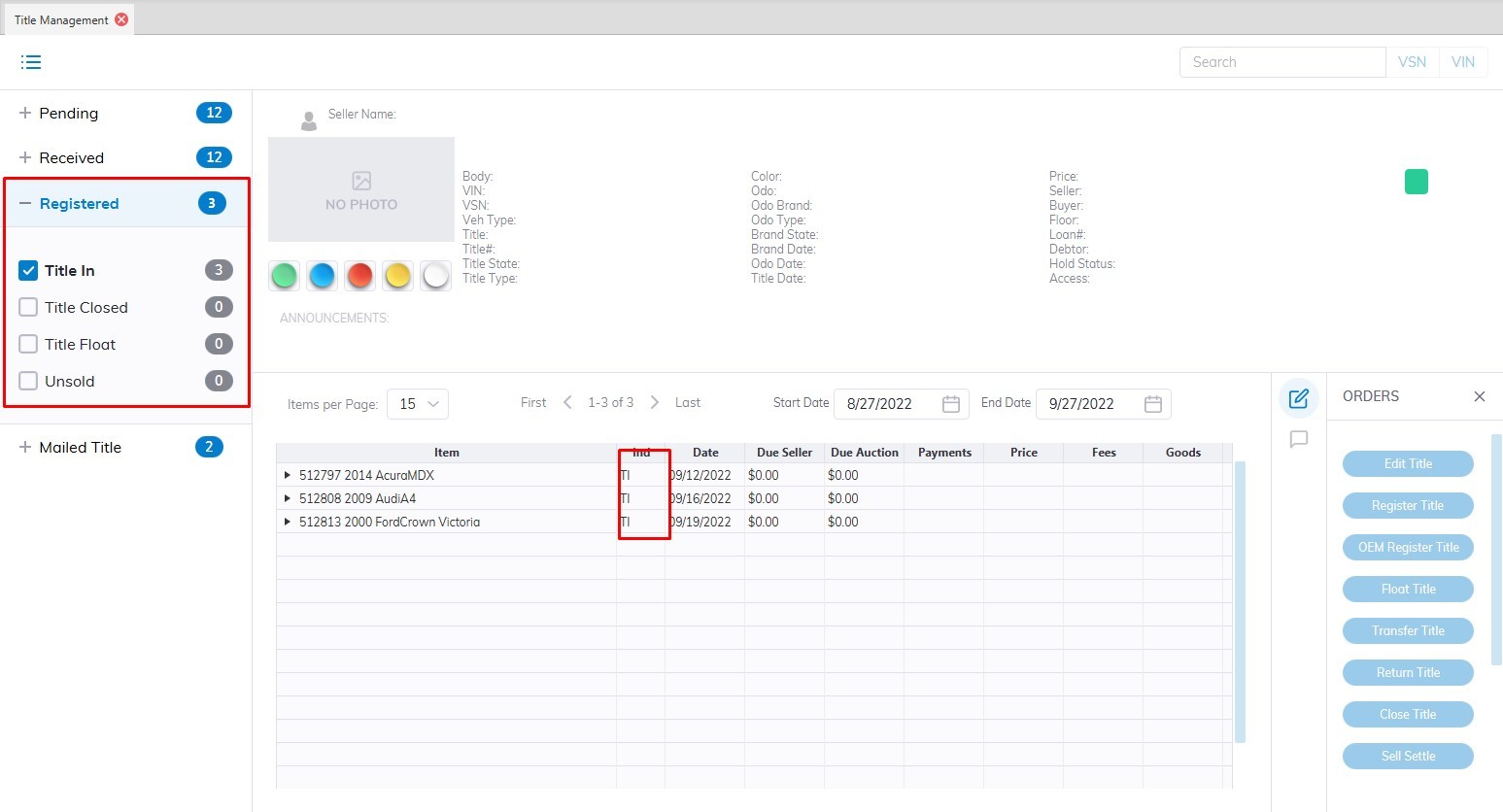](https://cam3-wiki.auctionstreaming.com/uploads/images/gallery/2022-09/registered.jpg)**
The 'Registered' sash contains 4 title conditions corresponding to a button on the left and a 2 digit indicator in the grid.
**Title In (TI)**
This condition is used to indicate that the Title is in the physical possession of the Auction. A TI condition may be the result of a Seller Settlement order or a Register title order.
- You may do an 'Edit' title (this is the only place you may edit the VIN )
- You may 'Return ' the title to the Seller.
**Title Closed (TC)**
This occurs automatically (TI > TC) when a buyer's payment is Deposited.
- There are no orders that may be done for the TC condition.
**Title Float (TF)**
This condition is the result of a Seller Settlement (issuance of a Seller's Check) without the physical title in possession of the Auction.
- You may do a 'Register' title order for TF titles.
**Title Un Sold (TU)**
This condition is the result of a 'Return' title order.
- You may do a 'Close' title order for TU titles.
**Mailed**
**Title Mailed (MT)**
This condition is the result of a 'Create Mailed' title order.
[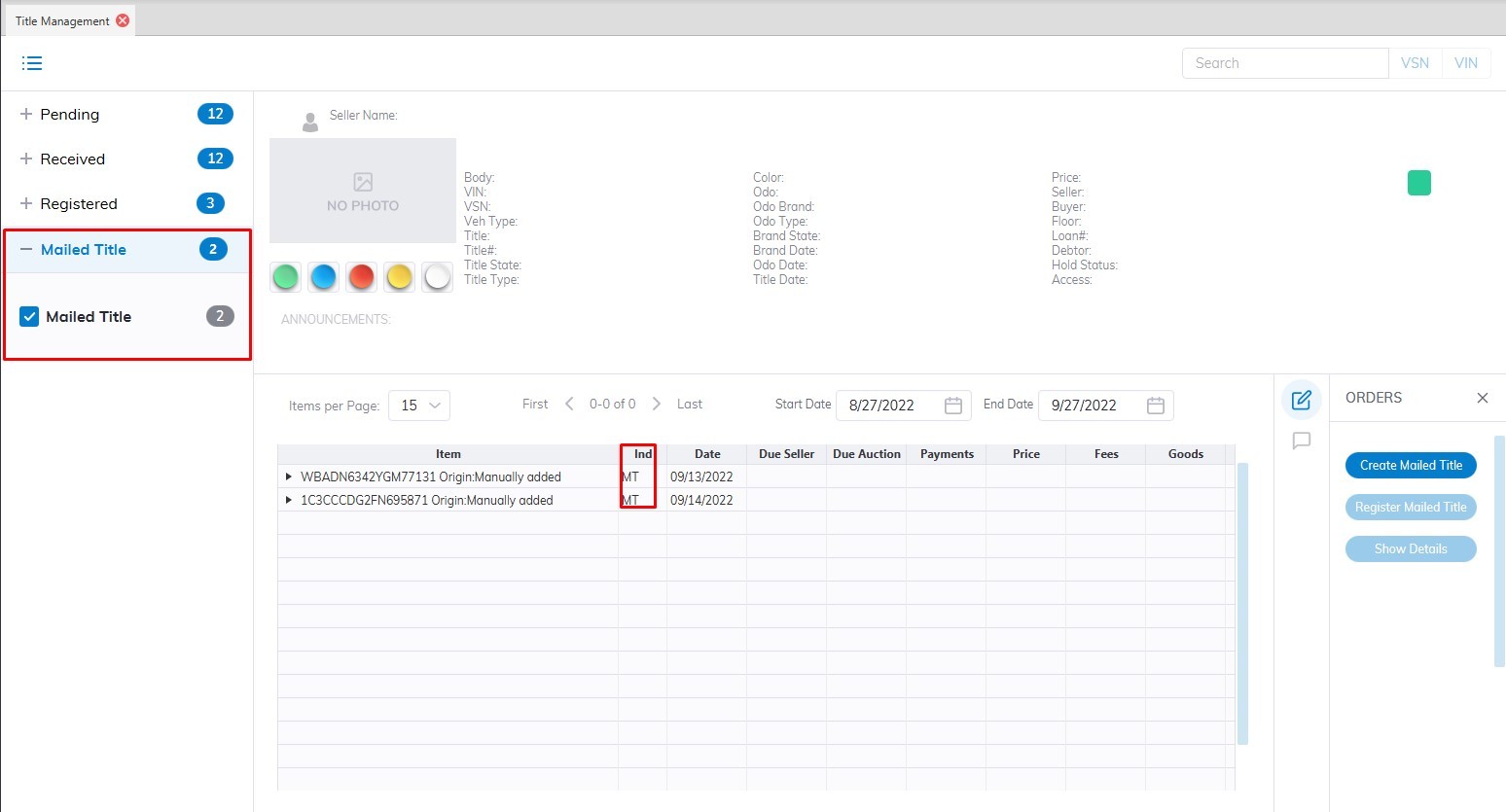](https://cam3-wiki.auctionstreaming.com/uploads/images/gallery/2022-09/mailed.jpg)
# Payments and Deposits
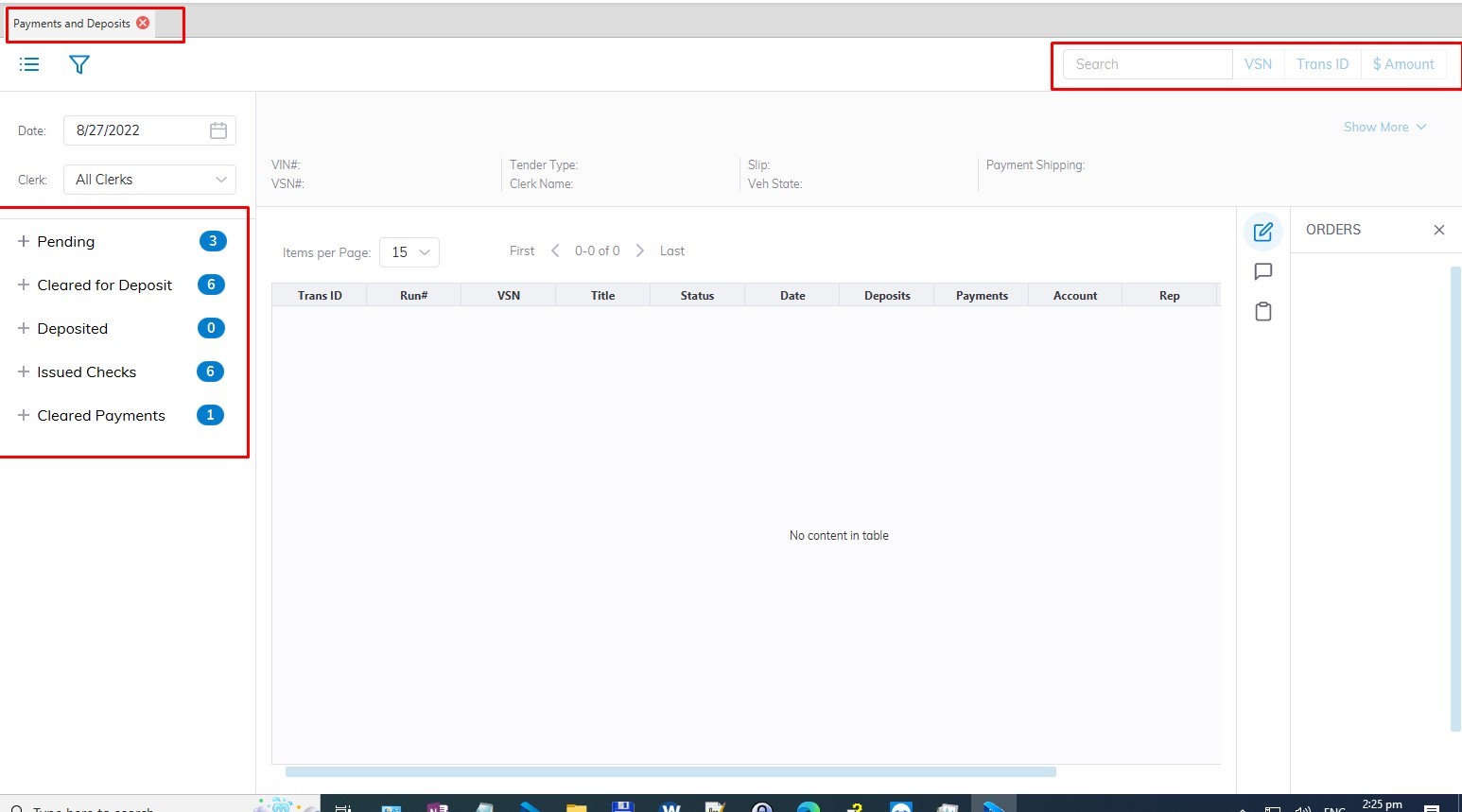
Payments and Deposit application - contains all of the payments made within the date range shown just above the Payments to Auction button. To view a different date range re-select the beginning and/or ending dates.
[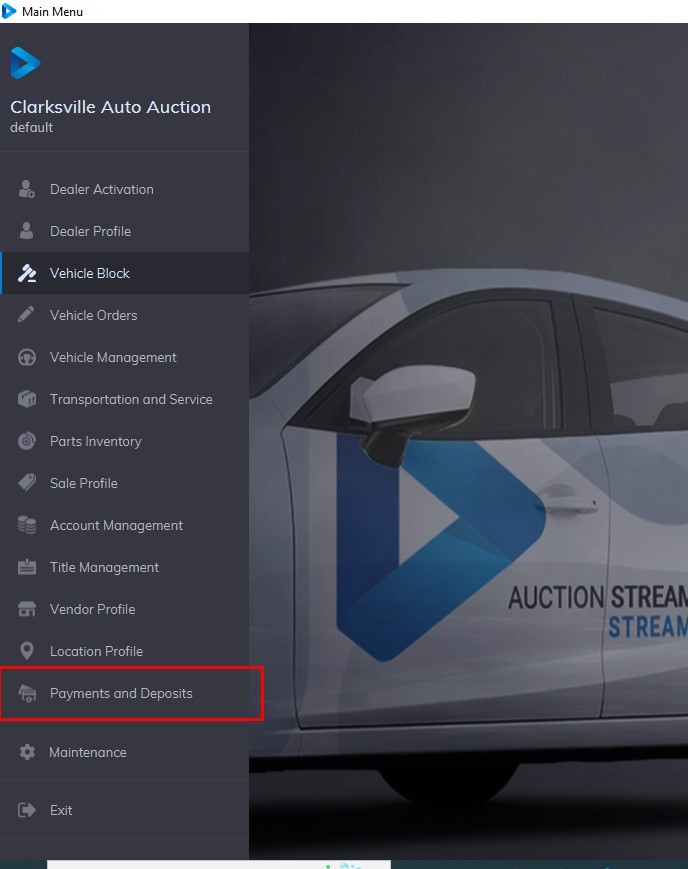](https://cam3-wiki.auctionstreaming.com/uploads/images/gallery/2022-09/pd1.jpg)
When a transaction is selected, the application displays Vehicle and Title summary along with accounting information.
There are 5 divisions of payments divided into Sashes:
- **Pending**
- **Cleared for Deposits**
- **Deposits**
- **Issued Checks**
- **Cleared Payments**
**[](https://cam3-wiki.auctionstreaming.com/uploads/images/gallery/2022-09/pd2.jpg)**
##### **Pending**
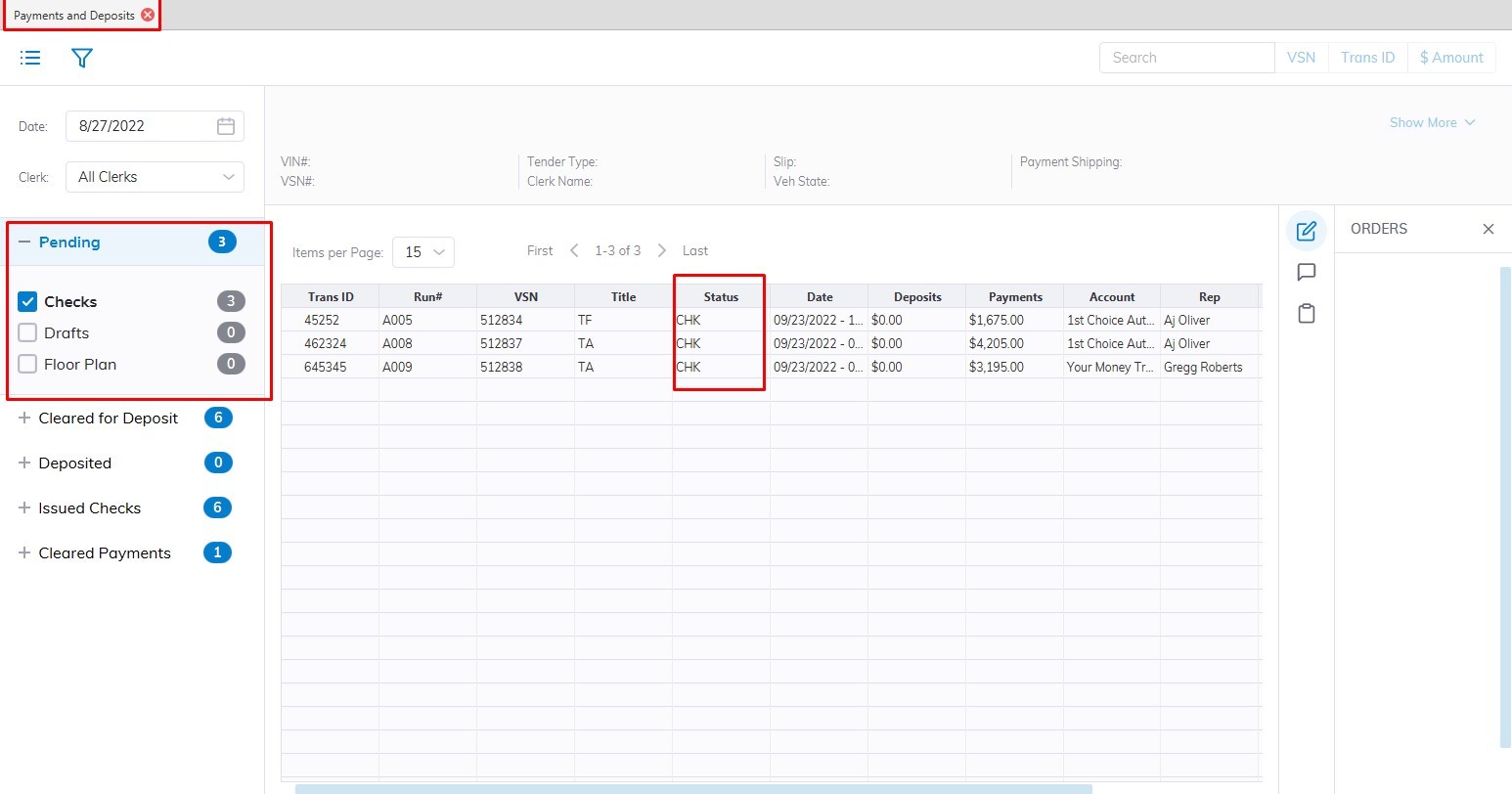
Pending- contains all of the payments made within the date range. Three ( 3) sashes contain Tender or Payment types each corresponding to a button on the left and a 3-digit indicator in the grid.
[](https://cam3-wiki.auctionstreaming.com/uploads/images/gallery/2022-09/pd3.jpg)
- Checks **CHK**
- Draft **DFT**
- Floor **FPT**
- - You may move the payment to 'Cleared for Deposit' using a Seller Settlement order
- You may move the payment to 'Cleared for Deposit' using a Register Title Order.
**Note: Otherwise these payments may not be deposited.**
##### **Cleared for Deposit**
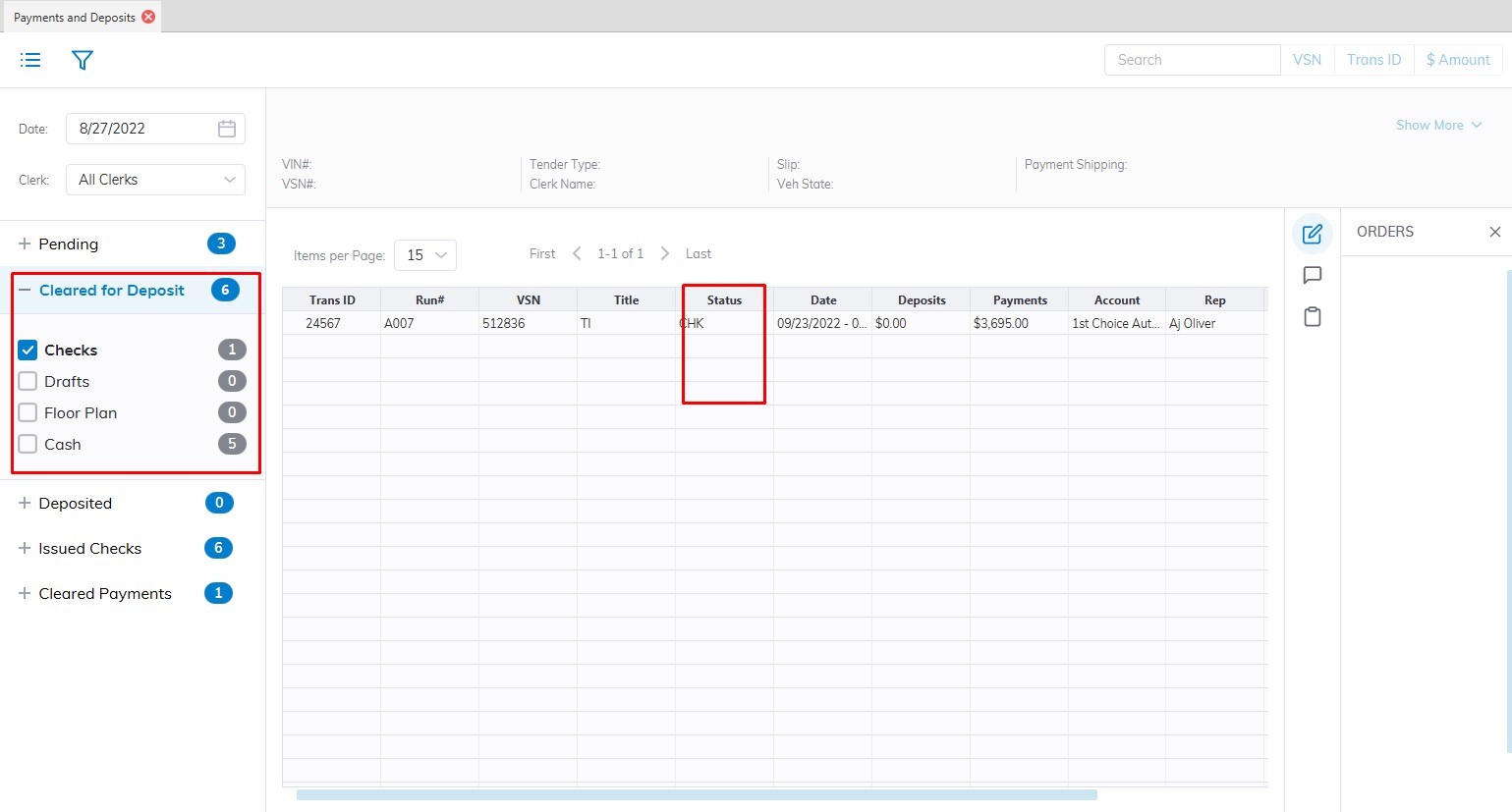
Cleared for Deposit - contains all of the deposits made within the date range shown. The Pending Deposit' sash contains 4 Tender or Payment types each corresponding to a button on the left and a 3-digit indicator in the grid.
[](https://cam3-wiki.auctionstreaming.com/uploads/images/gallery/2022-09/pd4.jpg)
Because Draft and Floor Plan payments may be returned for a number of reasons these payment types are 'Sent' and/or 'Returned' before they are deposited. Checks are simply deposited. It is possible to click the '+' icon next to the payment to view the history of the orders.
**Checks CHK **
- You may perform a Deposit Check order on this payment.
**Cash CSH **
- You may perform a Deposit Cash order on this payment.
**Drafts DFT **
- You may perform a Send Collection Item order on this payment.
**Drafts Sent DFS **
- You may perform a Deposit Draft order on this payment.
**Drafts Returned DFR **
- You may perform a Re-Send Collection Item order on this payment.
**Floor Plan FPT **
- You may perform a Send Floor order on this payment.
**Floors Sent FPS **
- You may perform a Deposit Floor order on this payment.
**Floors Returned FPR **
- You may perform a Re-Send Floor order on this payment.
##### **Deposited**
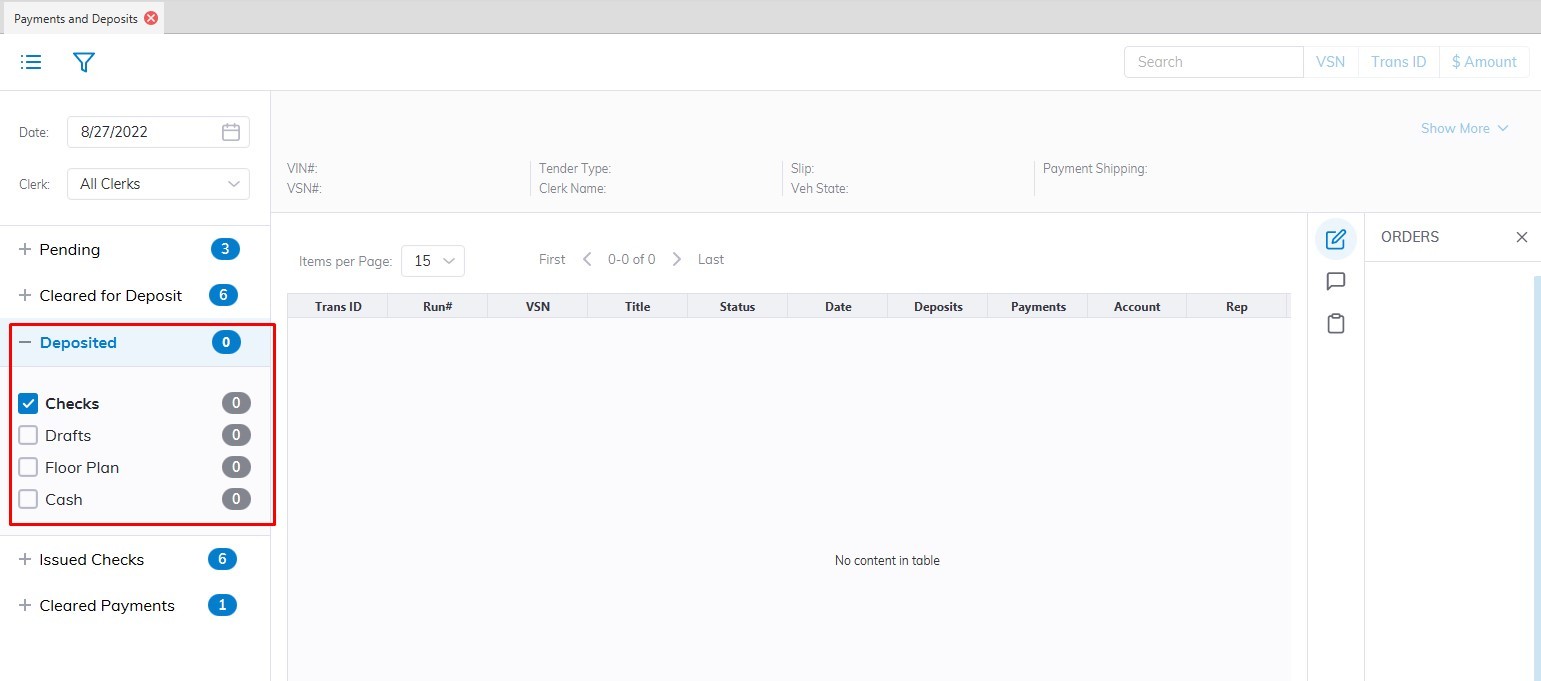
Deposits - contains all of the deposits made within the date range shown. After deposits have been made they appear in the 'Previous Deposits' sash. The column 'Payments Deposited' contains the amount, date, and time of the deposit.
[](https://cam3-wiki.auctionstreaming.com/uploads/images/gallery/2022-09/pd5.jpg)
- **CHK **(check) now reads **CHD** (Check deposited)
- **CSH **(Cash) now reads**CSD **(CashDeposited)
- **DFT** (Draft) now reads **DFD** (Draft Deposited)
- **FPT** (Floor) now reads **FPD** (Floor Deposited)
##### **Issued Checks**[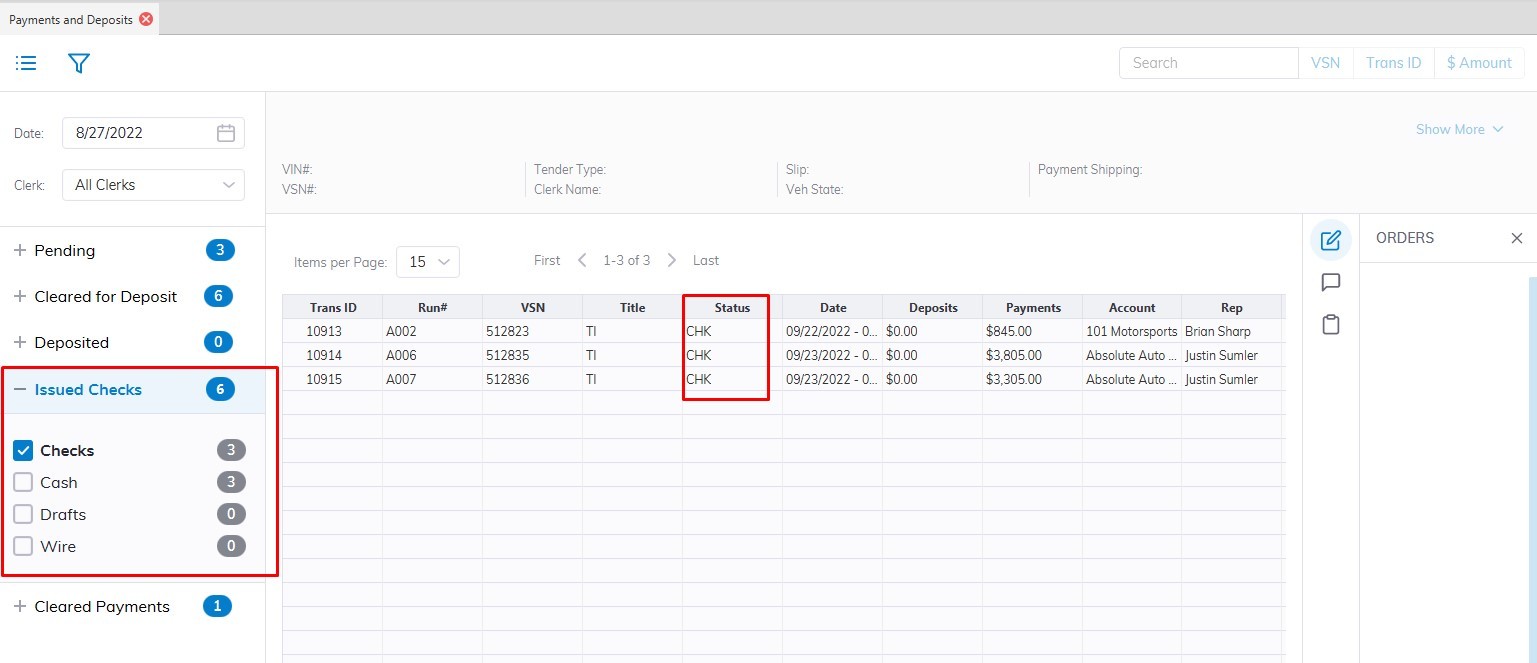](https://cam3-wiki.auctionstreaming.com/uploads/images/gallery/2022-09/pd6.jpg)
Issued Checks - contains all payments made to Sellers within the date range shown.
The following orders may be done for Checks written to Sellers:
- Edit Transaction ID
- Edit Check Status (void check)
- Re-Print Check
##### **Cleared Payments****[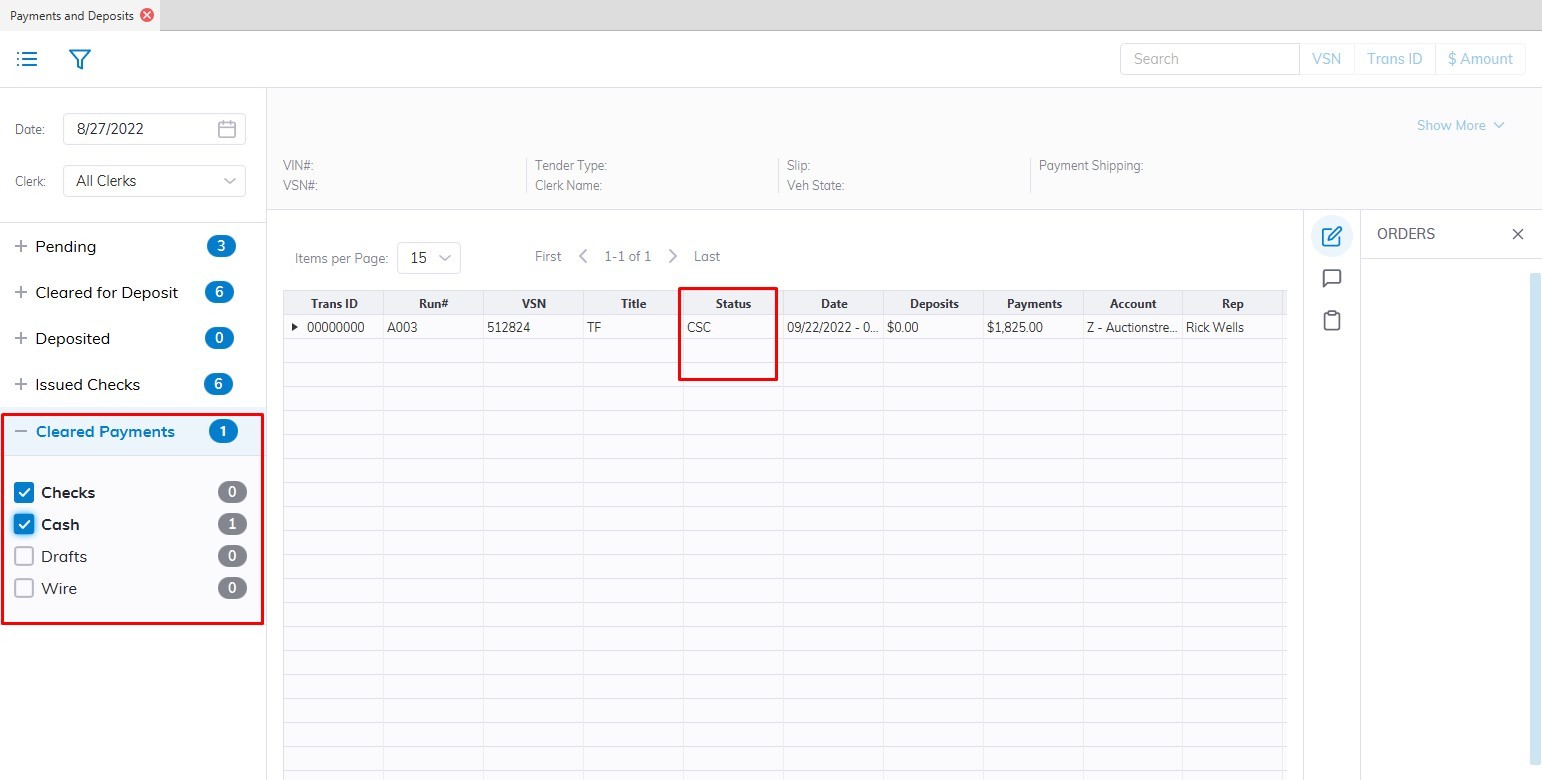](https://cam3-wiki.auctionstreaming.com/uploads/images/gallery/2022-09/pd7.jpg)******
# Account Management
**Account Management** application - contains account receivable information (excluding Price and buyer/seller Fees). The amounts are also aged in 7-day increments up to 28 days, 60 days, and 90 days. Other features include:
[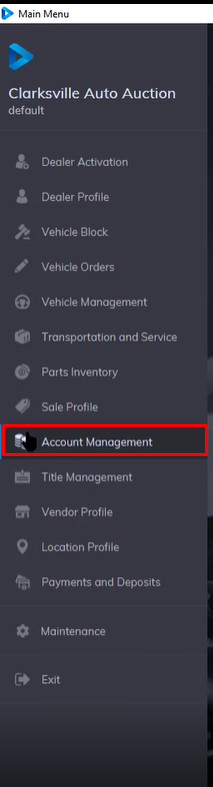](https://cam3-wiki.auctionstreaming.com/uploads/images/gallery/2022-10/image-1665423535993.png)
- **Setting a Dealer or Representative(s) to Sell Only or Buy Only**
- **Setting a Dealer to In Active**
- **Setting a Dealer to Active**
- **Setting a Dealer to Hold**
[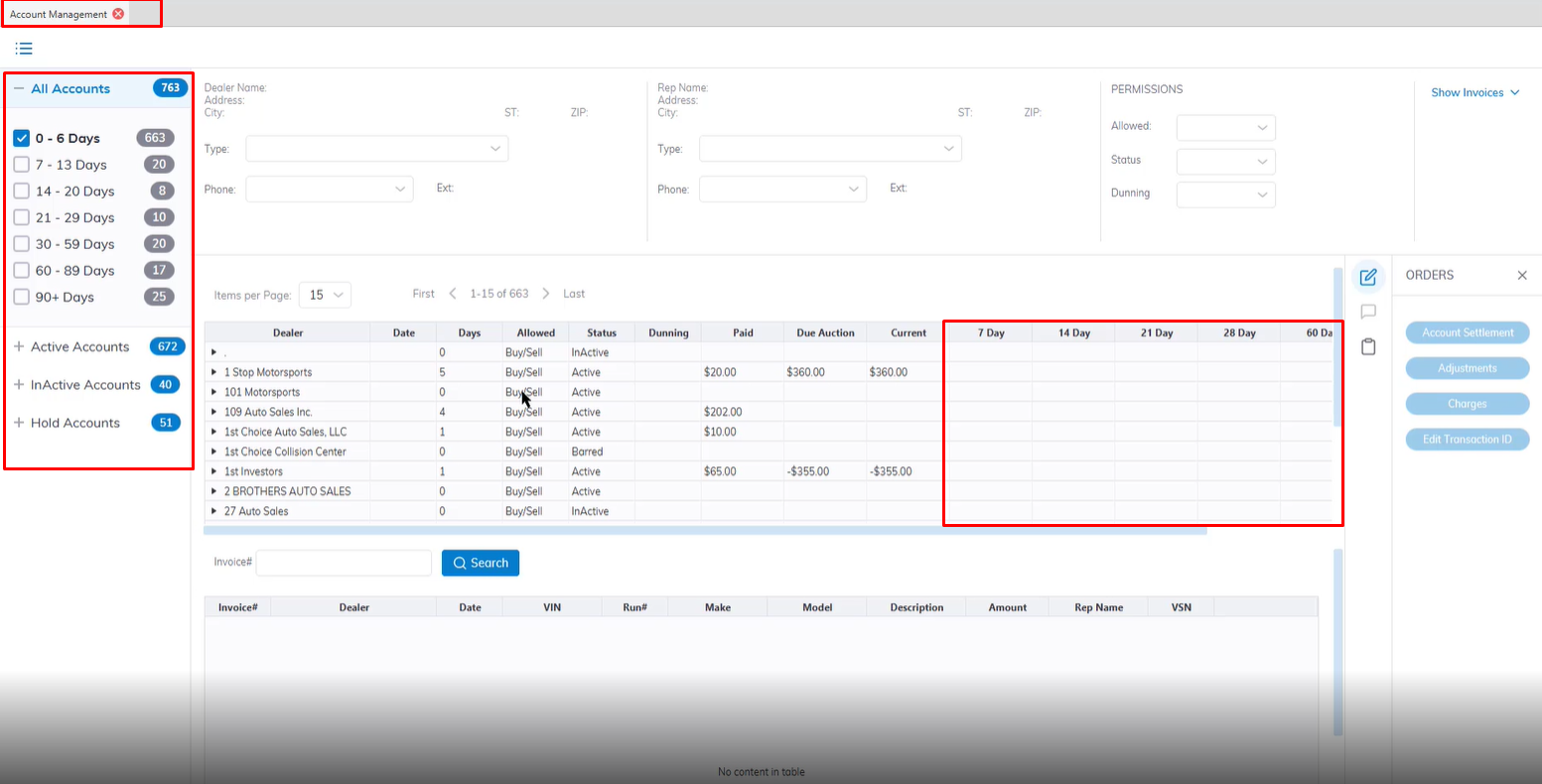](https://cam3-wiki.auctionstreaming.com/uploads/images/gallery/2022-10/image-1665423745151.png)
**Note: Amounts may be sorted by aging.**
**Payments to an Account** are for anything other than the vehicle price or Buyer / Seller Fees, a.k.a. accounts receivables. ARs include charges or adjustments for items such as Fuel, Pick Up or Delivery Fees, Wash-n-Vac, Detail, etc.
****