Dealer Editing FAQ
1. Dealer Editing 2. Permission 3. Contact Information 4. Business 5. Owner
Dealer Editing
Under Dealer Profile you can use the Dealers - Filters icon to filter which dealer types appear in the Dealer Profile application. At the top of the Dealer Profile application, you’ll see 3 icons; The one you need is the funnel shape icon for filtering by Dealer Type and Status.
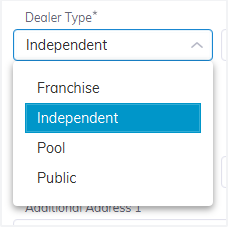
Select the Funnel shape icon > 'Dealer Type' > then select the types you want to see;
- Public - Select if you wish to view all Public vehicle dealers
- Pool - Select if you want to view all Pool vehicle dealers
- Franchise - Select if you want to view all Franchise accounts
- Independent -Select if you want to view all Independent Accounts
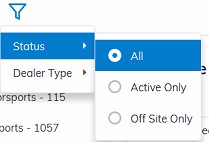
Select the Funnel shape icon > 'Status' > then select the types you want to see;
- All - Select if you want to view All Dealers
- Active Only - Select if you want to view Active accounts only
- Off-Site Only - Select if you want to view Off-Site accounts only.
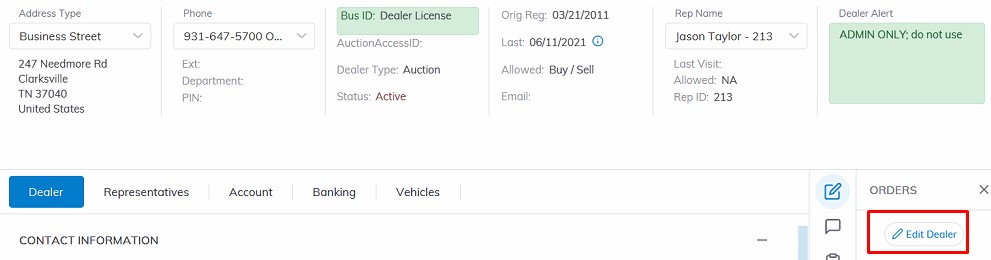
Select
'Edit Dealer'
Click 'Save' when you have completed editing the dealer.
Note: Before issuing the Edit Dealer Order, ensure you have selected the dealer you want to edit and that your login has permission for the Edit Dealer order.
The Edit Dealer form has 4 groups of information to edit; Contact Information, Permission, Business, and Owner.
The Summary information:
- Contact Information: The Business Address, Phone number, Email Address, and Dealership Logo Image.
- Permission: Buyer and Seller Permission where you can add or remove payment methods. e.g. cash, debit, credit, checks, wire, etc.
- Business: This section the type of business the dealer is as well as what type of taxes are applied to this business.
- Owner: Detail information of the Business Owner and Seller Check deductions
- Streaming: section is system generated no change can be made here.
Permission
Payment Methods
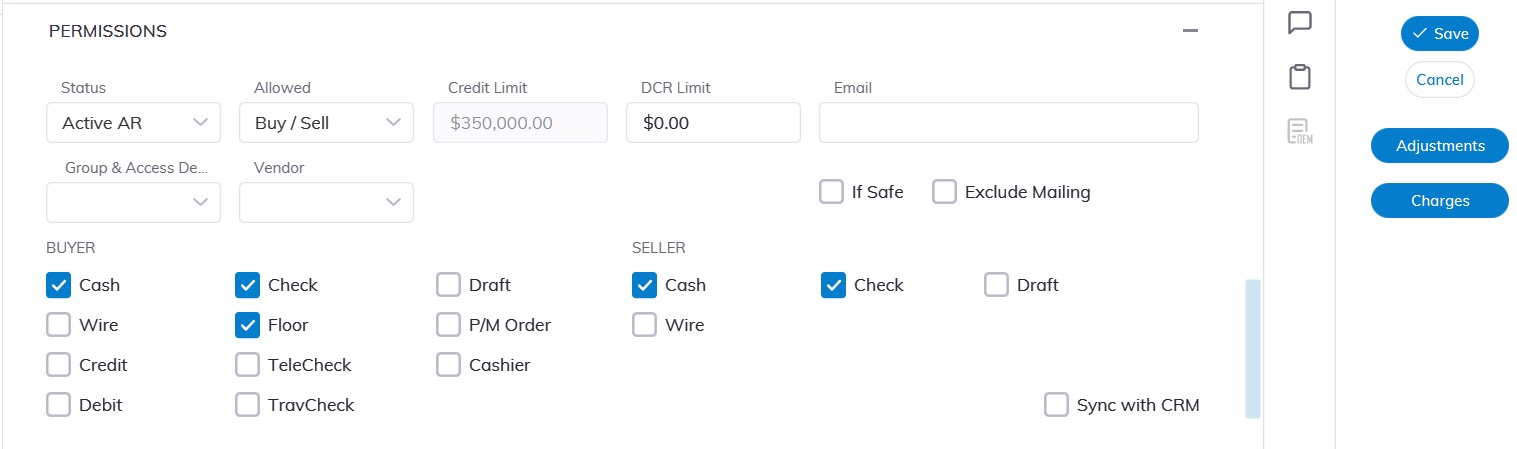
Select Payment Type for use in Seller Settlement.
Cash, Check, Draft and Wire
Select Payment Type for use in Buyer Settlement.
Cash, Check, Credit,
Debit, Wire, P/M Order,
Draft, Floor Plan, TeleCheck,
Travelers Check, Cashier
Click 'Save' to Save.
Permissions
NA - No Buying and No Selling. The Dealer and its Reps will not be able to Register Vehicles for Sale or Check-in as a Buyer for any Sale.
Buy - Buying Only. The Dealer and its Reps may obtain a Bid badge through Rep Check In, although they will not be able to Register Vehicles for Sale.
Sell - Selling Only. The Dealer and its Reps may Register Vehicles for Sale, although they will not be able to Check-in as a Buyer.
Buy / Sell - Buying and Selling. The Dealer and its Reps may Register Vehicles for Sale as well as Check in as a Buyer.
Pre Reg - Pre Registration is used to indicate the Dealer Registration is incomplete and permission for Buying and Selling is not granted.
Marketing - Marketing is used to indicate the Dealer Registration is for Marketing purposes only and permission for Buying and Selling is not granted.
- Exclude Mailing: Setting the 'Exclude Mailing' value to true (clicking the check box) will exclude this dealer from being included in the Mailing Label report.
Permissions are set at both the Dealer and Representative levels. The Dealer over-rides the Rep.
Note: Settings of NA or Buy will prevent any Vehicle from being ' Checked In ' to a sale.
Contact Information
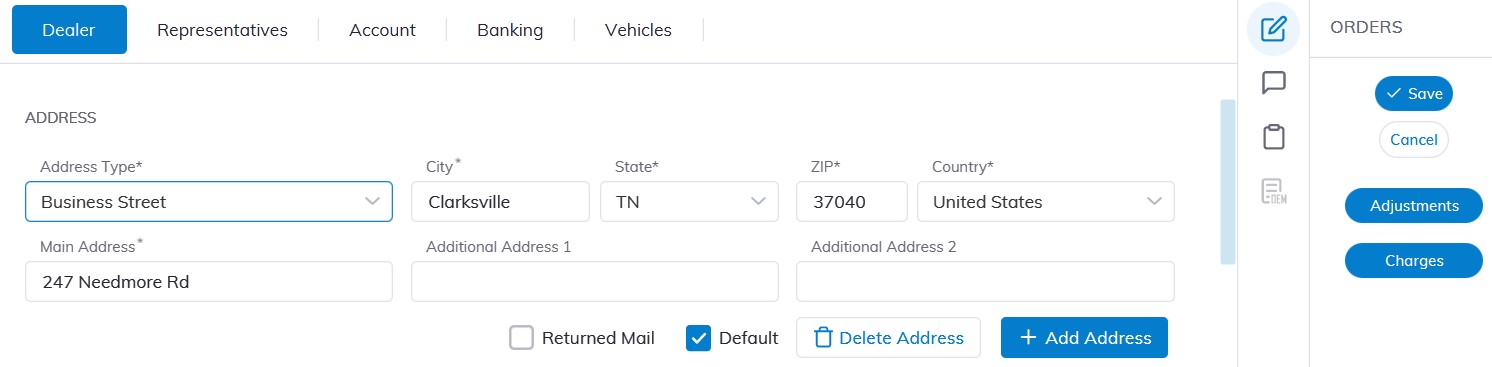
Change Address
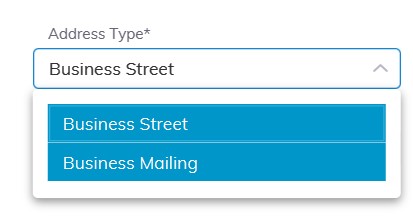
Select the Address Type: e.g. Business Mailing, Business Street, Main Office Street, etc.
Change Address Information
Click 'Save' to Save.
Add New Address
Select the 'Add Address’ button
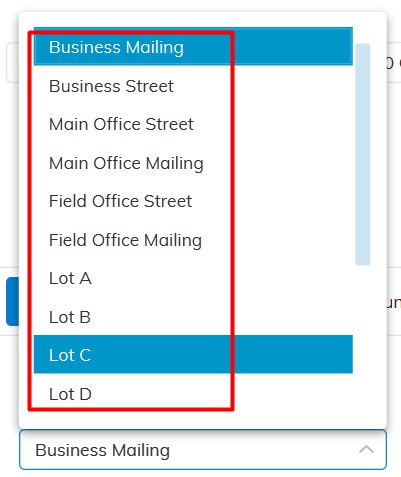
Choose the Address Type: e.g. Business Mailing, Business Street, Main Office Street etc.
Add Address Information
Click 'Save' to Save.

Change Phone Number
Select the Phone location: e.g. Office, Fax, Mobile, etc.;
Change Telephone Information e.g. 931-647-5555
Click 'Save' to Save.
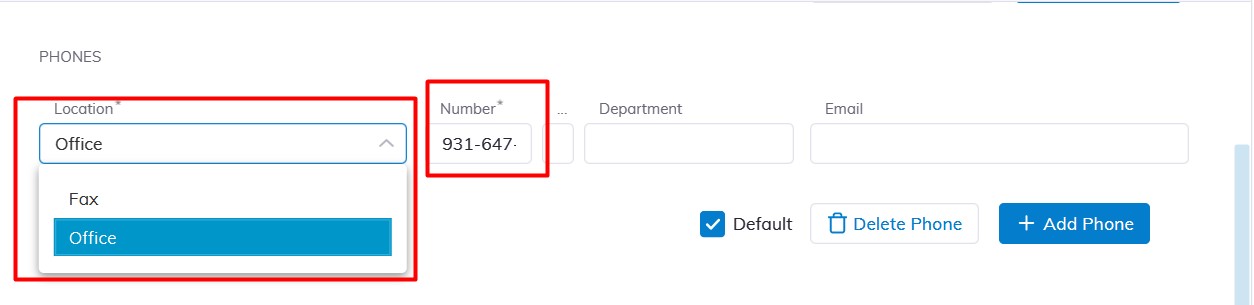
Add New Phone
Select the 'Add Phone’ button
Select the Phone location: e.g. Office, Fax, Mobile, etc.;
Add Telephone Information e.g. 931-647-5555
Click 'Save' to Save
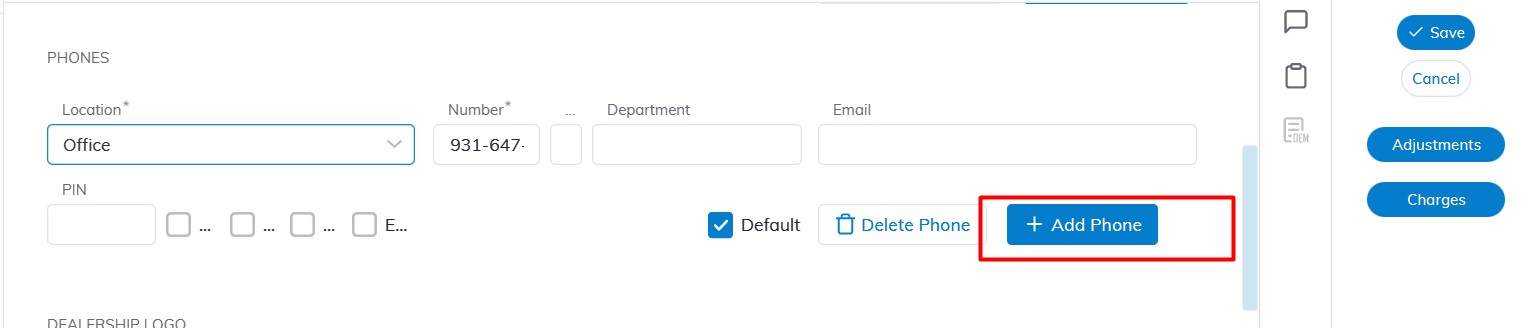
Business
Under the Business Section of Edit Dealer
Business Lines
Options available for selection: New, Fleet, Factory, Rental, Used, Lease, Salvage, Repo, GSA, Finance, Wholesale, etc.

Business Details
Select one of several types:
- Business License
- Dealer License
- Sales Tax Certificate
- Dealer Master Tag
Type the Business ID Expiration, Business ID#, and Business ID State.

When editing the Business Information, you can select any one of the types of Business structure:
- Business Corporation
- Sole Proprietorship
- General Partnership
- Limited Partnership
- LLC-Sole
- LLC-Partnership
- LLC-Corporation
Etc.
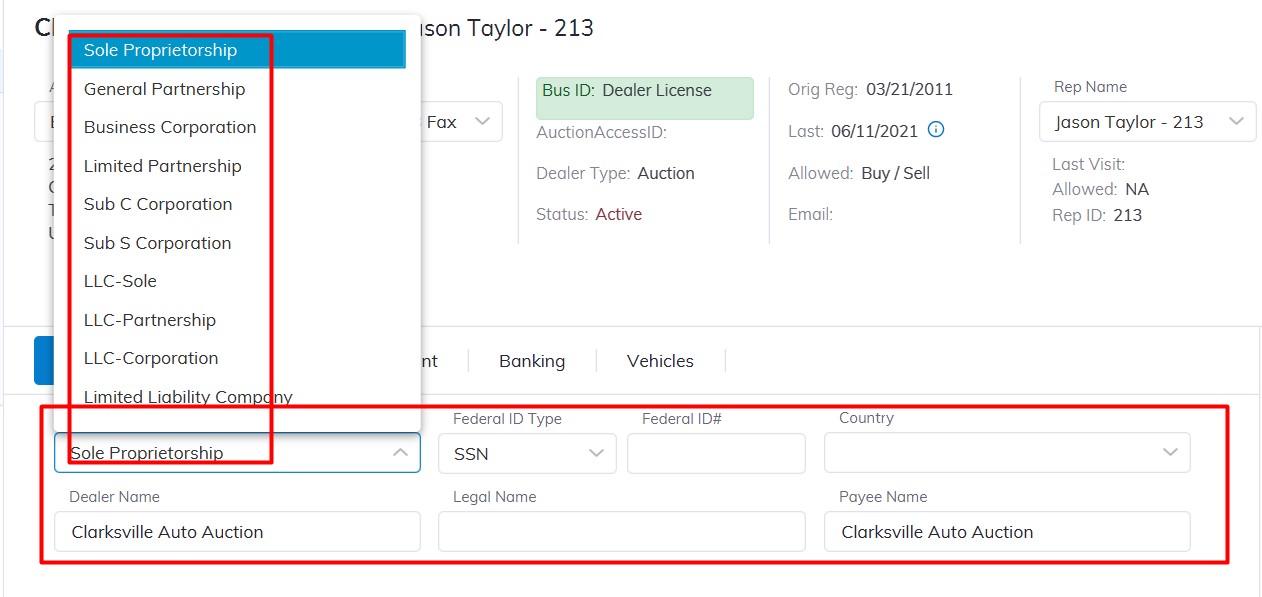
Fill in the other fields:
- Legal Name
- Dealer Name
- Federal ID Type - SSN or EIN (depending on corporation type)
- Federal ID#
- Country
- Payee Name
Click 'Save’ to Save.
Insurance
Fill in the other fields:
- Insurance Company
- Insurance Policy#
- Insurance Policy Expiration Date
- Bonding Company Name
- Bonding Policy Number
- Bonding Policy Expiration Date
- Bond Credit Limit
- Resale Certificate
- Resale Certificate Expiration Date

Owner
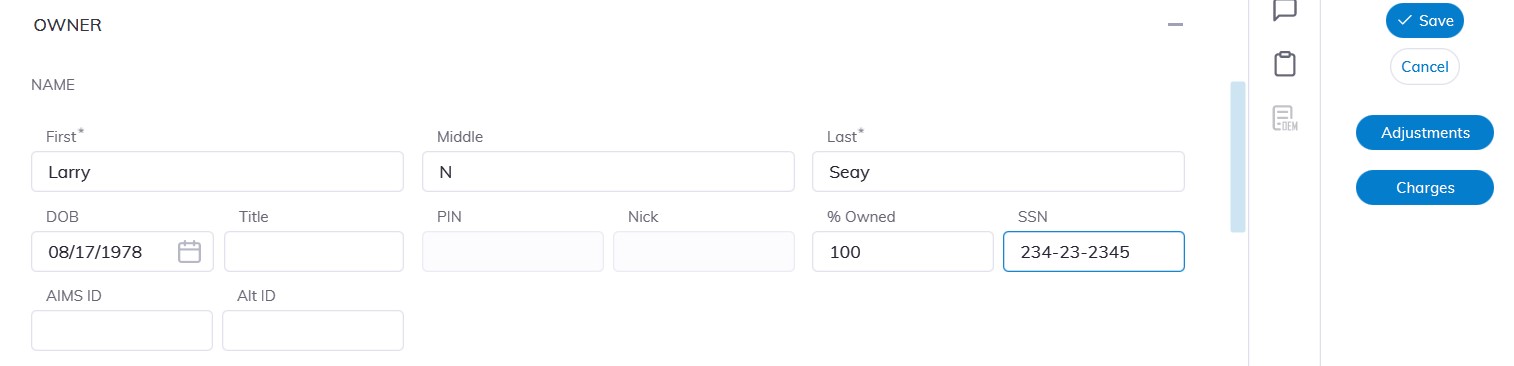
The owner section is where the Business Owners' info is entered.
Fill in the other fields:
- First Name
- Middle Name
- Last Name
- Title
- SSN
- DOB
- Percentage Ownership
Click 'Save' to Save.
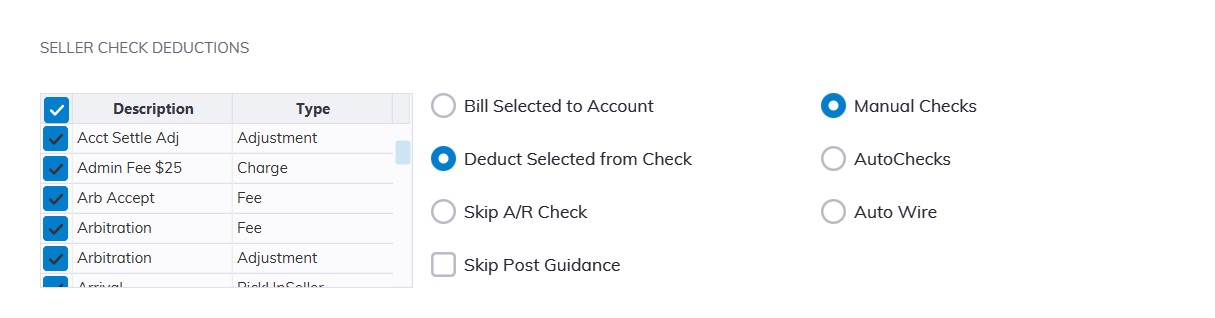
The Seller Check Deductions reflect the Auction's policy regarding which amounts are deducted from a Seller's check' versus those billed to the Seller's Accounts Receivable. The Dealer specific settings allow an Auction to have a different policy for different Dealers. Settings apply to any and all Seller Check issued to a Dealer.
Any charge, adjustment, or fee associated with a vehicle may be subject to Seller Check Deductions.
Selecting:
- 'Bill Selected to Account': means any selected charges, adjustments, or fees are guided to the account during Sell Settle.
- ‘Deduct Selected from Check’: means any selected charges, adjustments, or fees are guided from the account during Sell Settle.
Automated checks or wires may be set up for the individual dealer.
NOTE: Contact AMS support before setting this control to Automatic
Click 'Save' to Save.
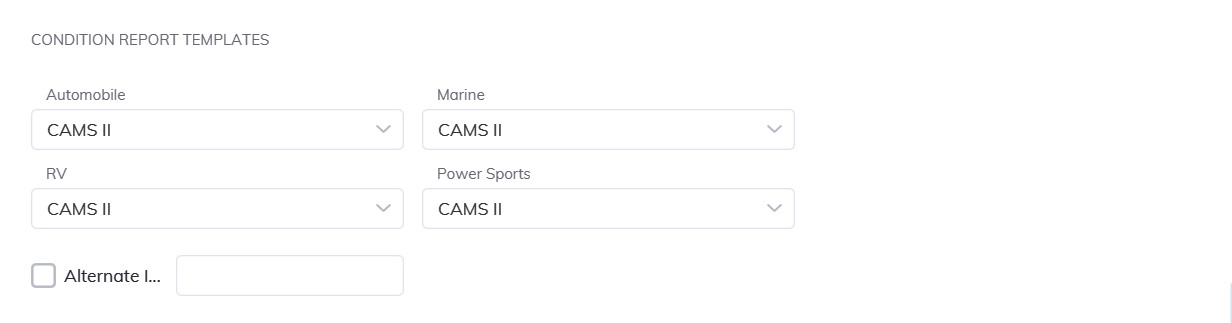
Condition Report
Select the down at the following fields: choose the CRC template to use
- Automobile
- Marine
- RV
- Powersports
Click 'Save' to Save.
This setting will determine which Condition Report Configuration (CRC) is used for a Condition Report. Through the use of the CRC; a Condition Report's content may be customized to meet the needs of a particular Dealer.