Administrative Reports FAQ
1. Window Sticker 2. Sale Sticker 3. Mailing Labels 4. Registration Card 5. Dealer License Expiration 6. Gate Activity 7. Auction Insurance Agency Report 8. Bank Master and Fee Master Reports 9. Lot Turn List
- Window Sticker
- Sale Sticker
- Mailing Labels
- Registration Card
- Dealer License Expiration
- Gate Activity
- Auction Insurance Agency Report
- Bank Master and Fee Master Reports
- Lot Turn List
Window Sticker
WIN Sticker
Win (window) Sticker
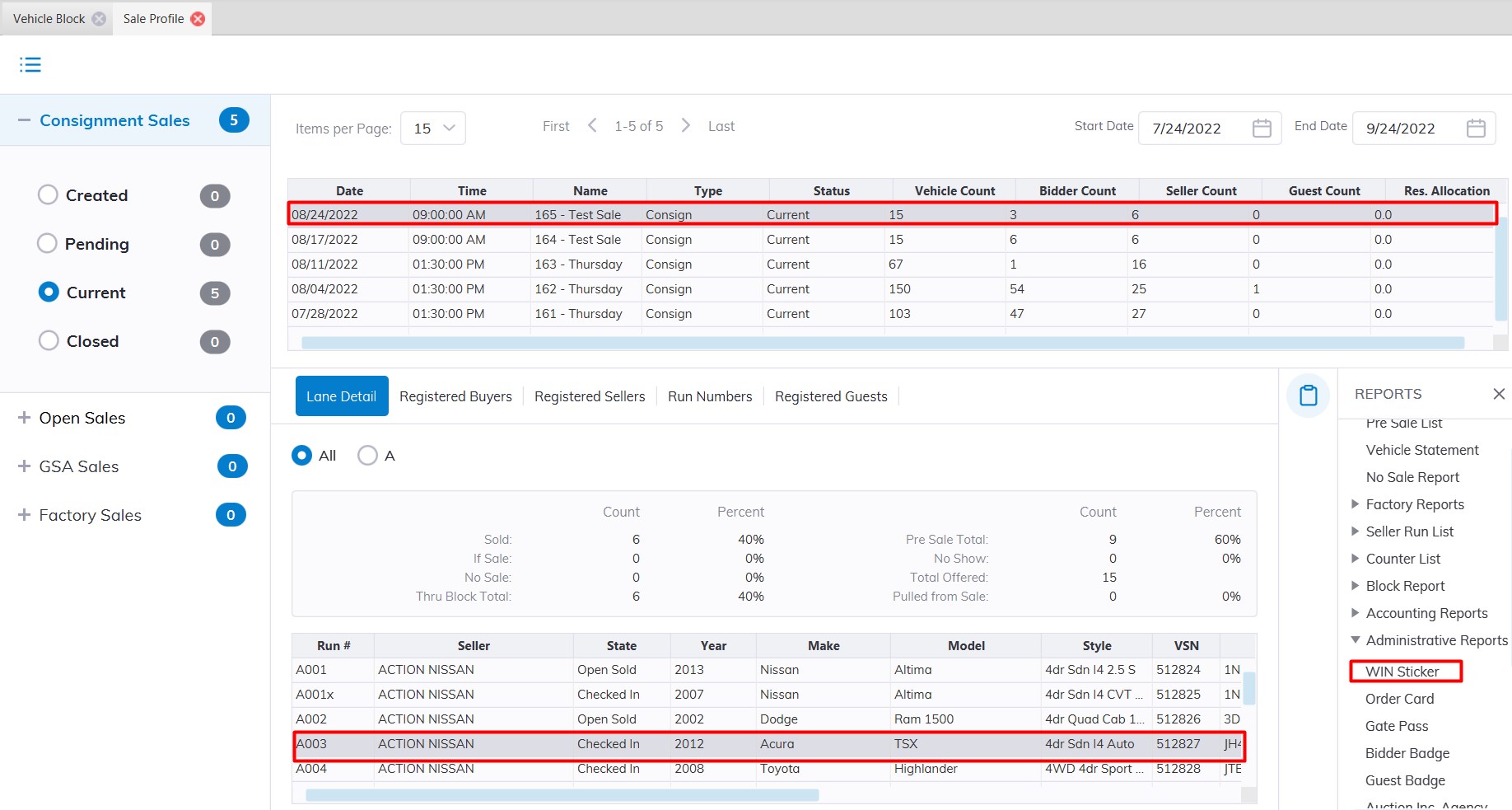
This report is designed to provide larger and more readable information for a vehicle than the Sales Sticker. You may run this report from the Sale Profile or the Vehicle Block application.
Select
- The Sale Profile application > Reports > Administrative Reports > Win Sticker
- The Vehicle Block application > Reports > Administrative Reports > Win Sticker
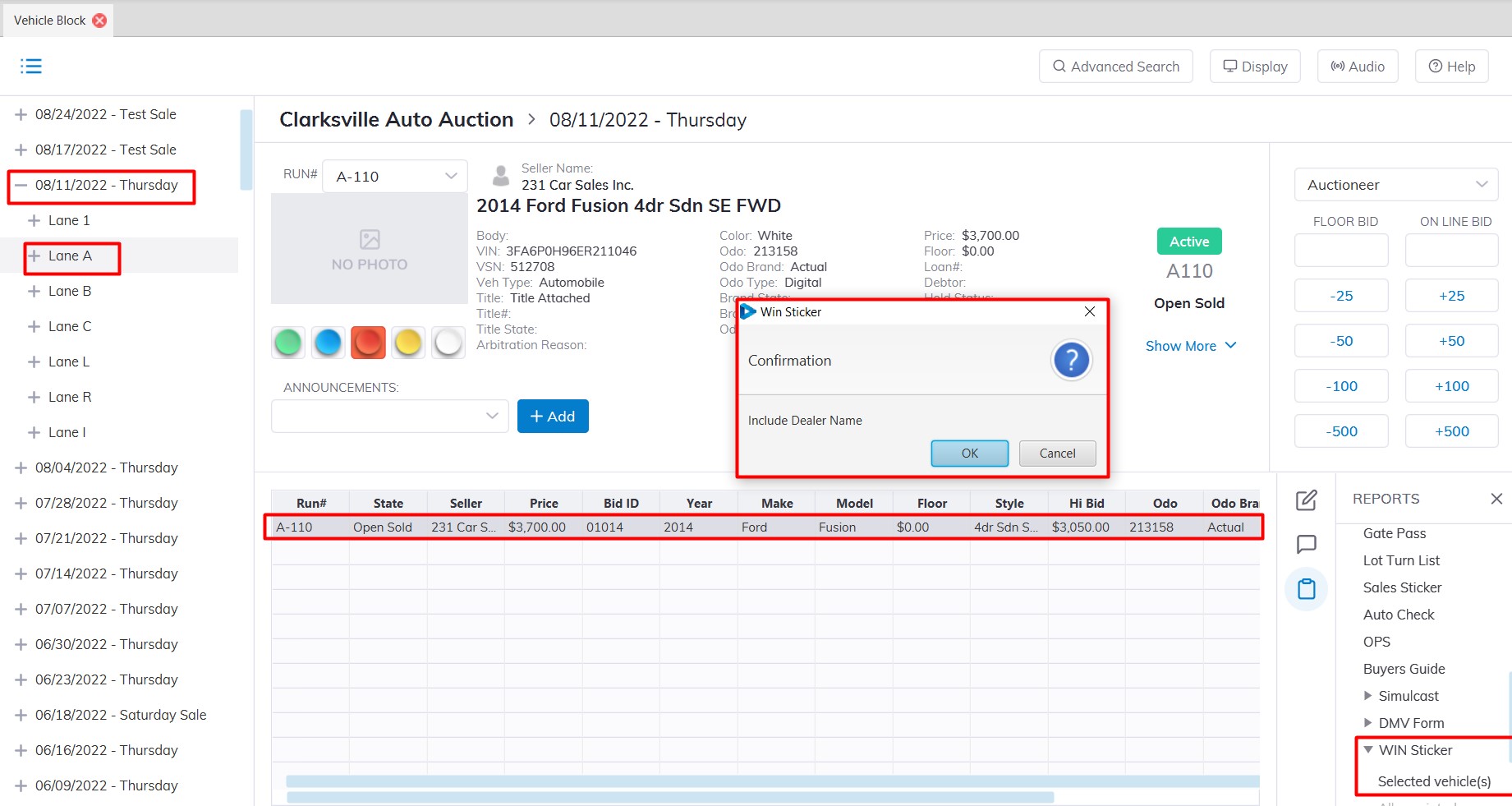
Note: You must select the 'Sale Description' (click the '+' sign next to the Sale Date') to run the report and select a vehicle.
Sale Sticker
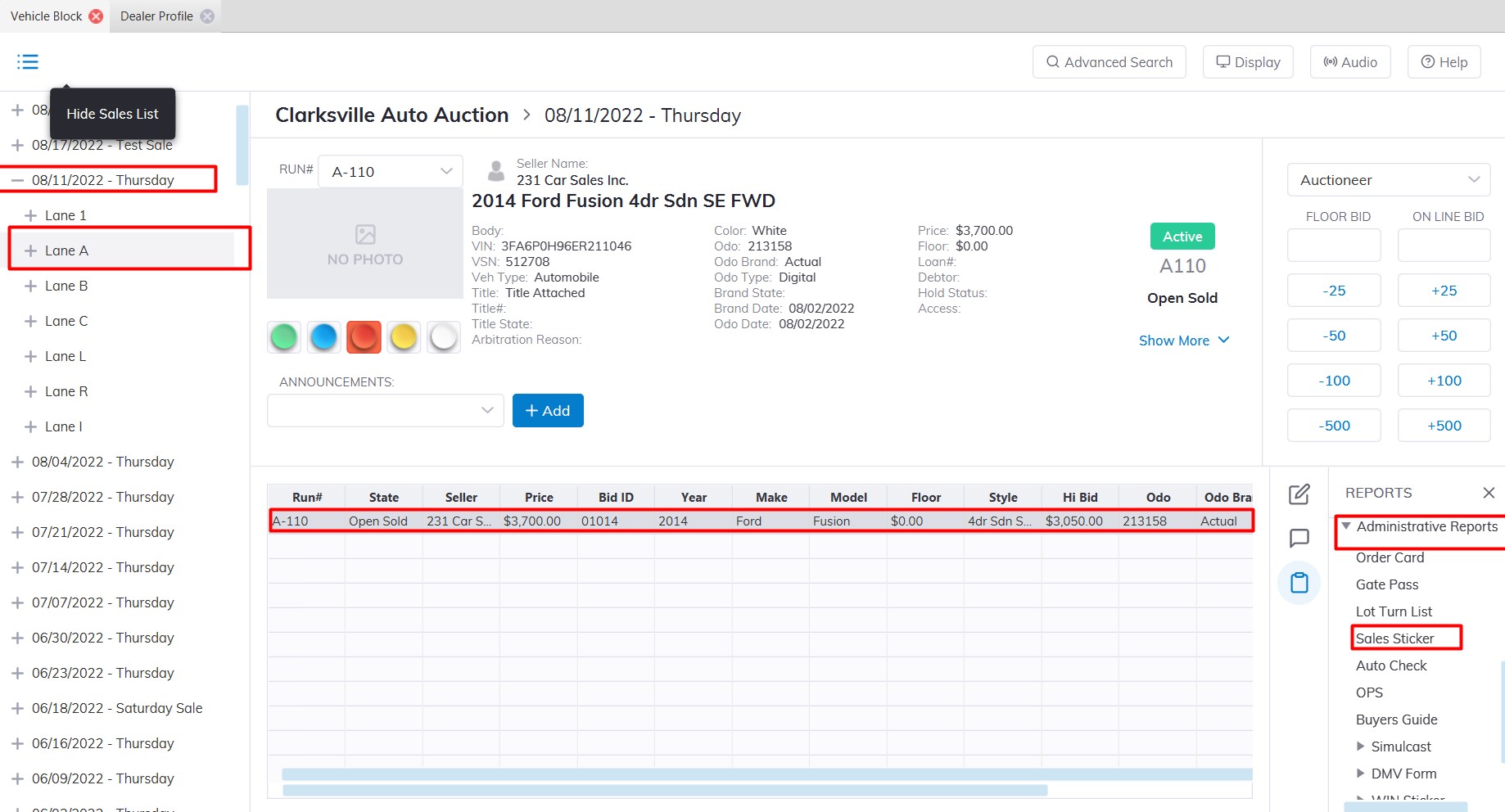
The Sales Sticker is used to identify a vehicle's Run Number, Year, Mileage, Make, Model and Color. It is affixed to the front windshield and has a bar code for use when the vehicle departs. The report can be configured to automatically print after the following orders are done:
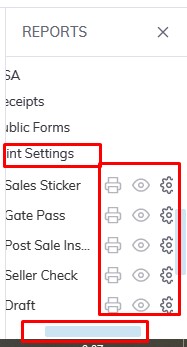
You may re-print the Sales Sticker from the Dealer Profile or Vehicle Block application. You may also use Print Settings to define the printer output according to your user ID.
Click the "Printer icon" to enable the print setting to save the report as PDF and click the "Eye icon" to change and enable the printing for the report to open in preview mode. Click the "Gear icon" to reset to default"
here
Select
The Vehicle Block application> Reports > Administrative Reports > Sales Sticker
The Dealer Profile application> Reports > Administrative Reports > Sales Sticker
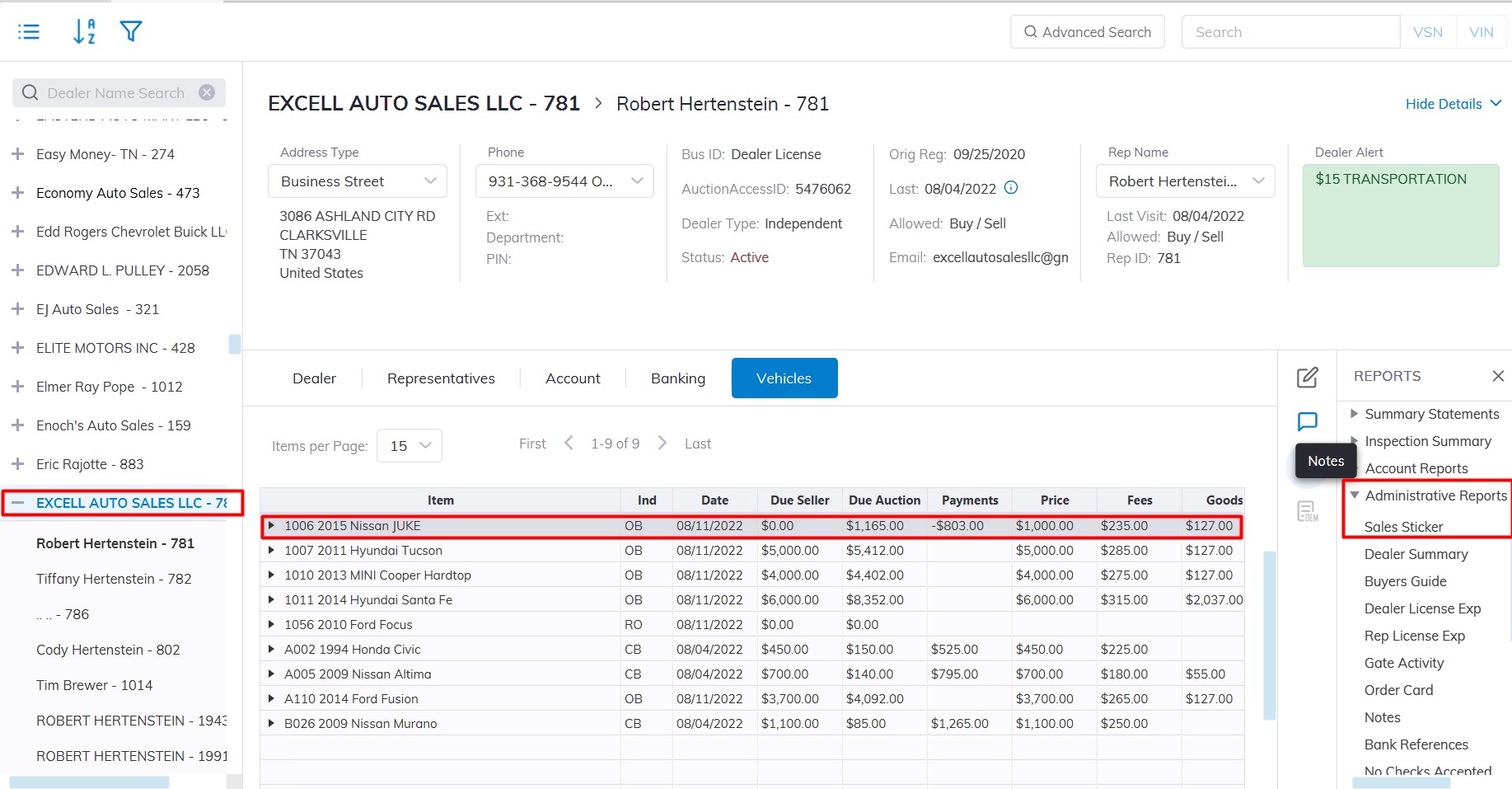
***The Dealer Profile application> Reports > Printing Setting > Sales Sticker
Note: You must select a vehicle in the grid of the Vehicle Block application
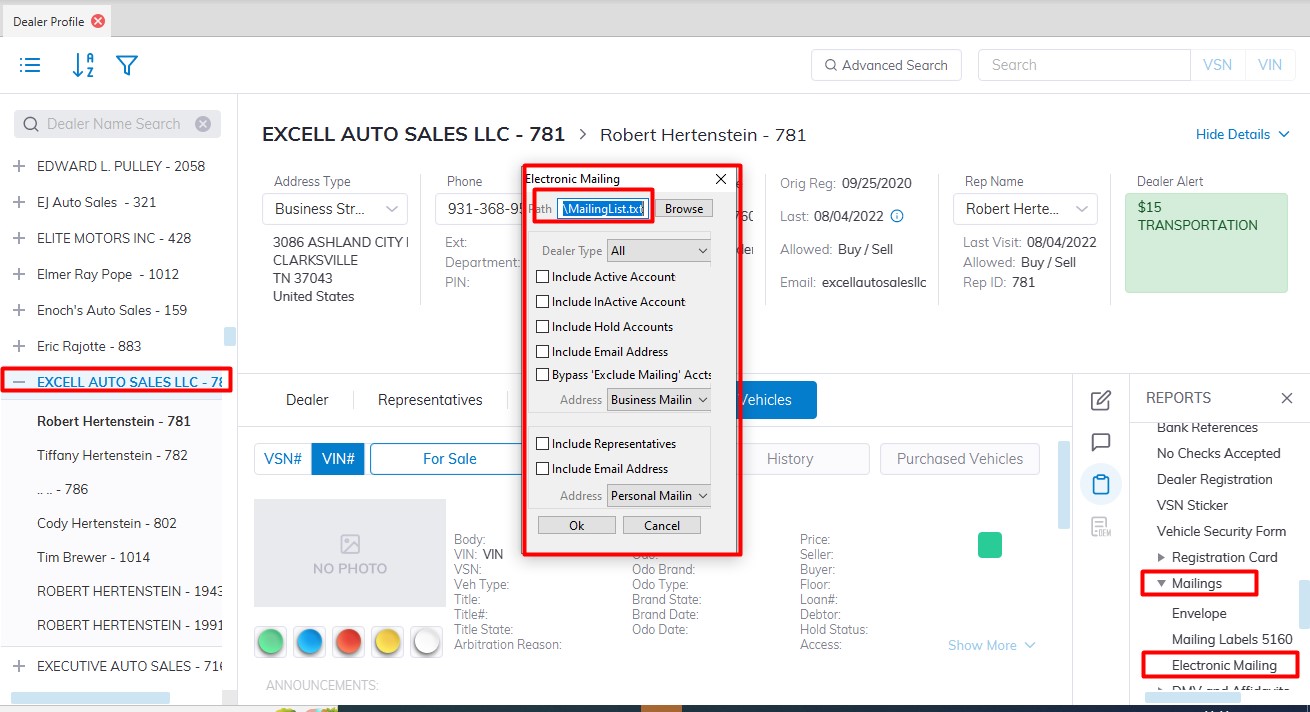
Mailing Labels
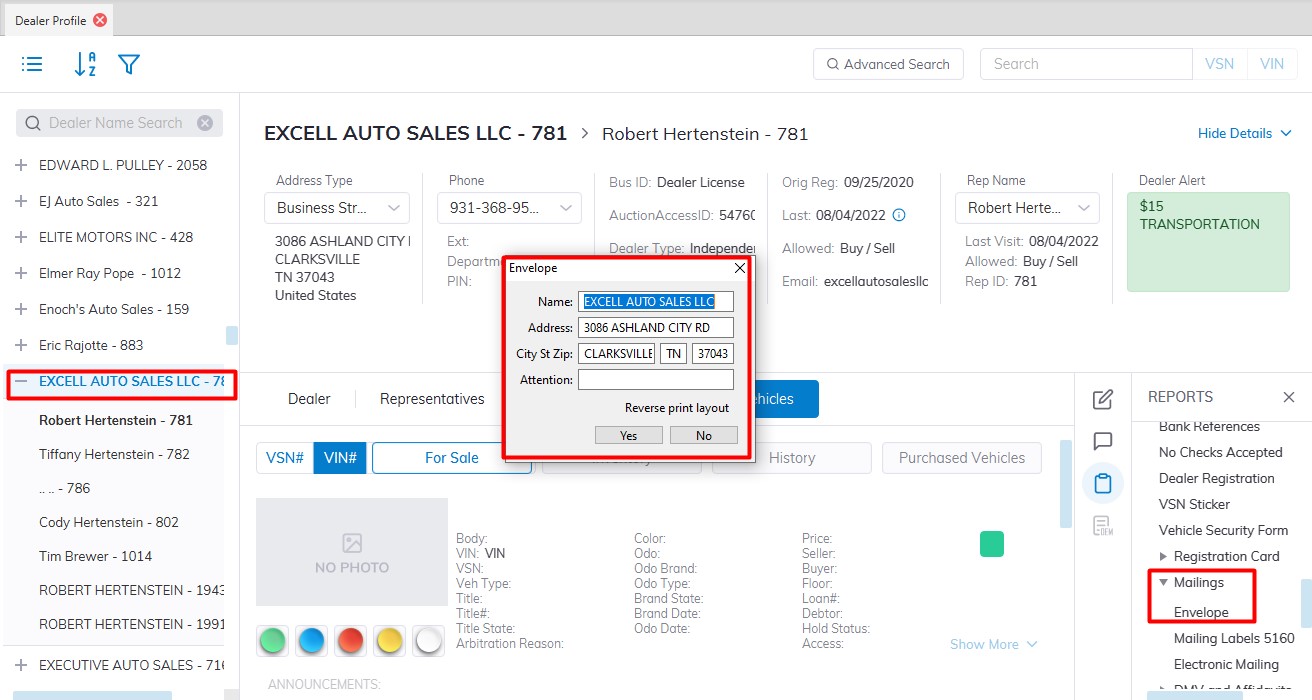
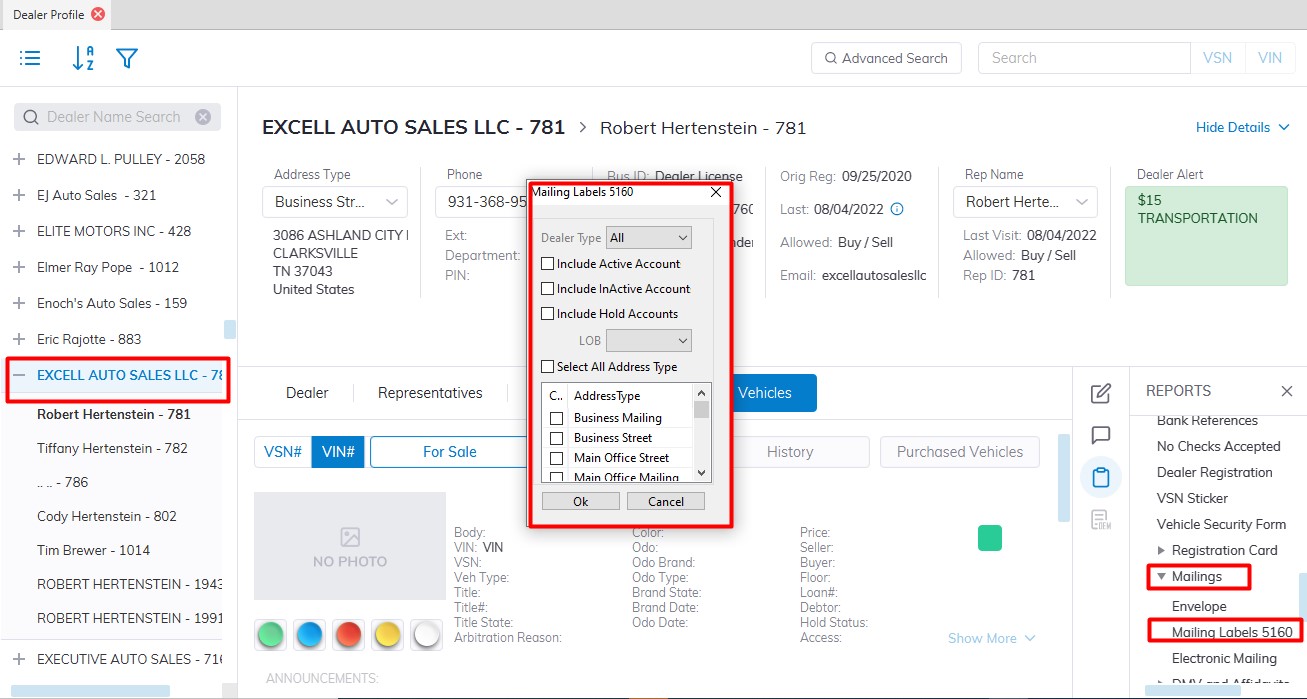
Mailing labels may be printed from the Dealer Profile. These labels are designed to print on Avery (or a similar maker) of the 5160 labels, Envelopes and.
Select
The Dealer Profile > Reports > Administrative Reports > Envelope
Print the Dealers Address on envelopes
The Dealer Profile > Reports > Administrative Reports > Mailing Labels 5160
Print Dealers Business Street on Avery 5160 Labels
The Dealer Profile > Reports > Administrative Reports > Electronic Mailing
Create a text file with the dealer's Address and you can include the Email Address as well.
Registration Card
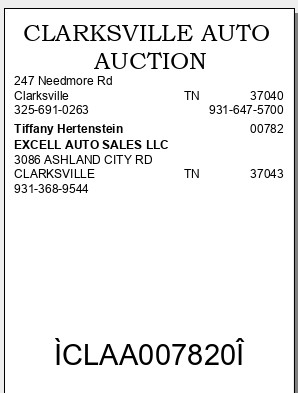
The Registration ID card is printed on a 4 x 3 bid badge label which is affixed to a plastic card. The label has a bar code used by a Representative to register themselves as a bidder using a scanner.
Select
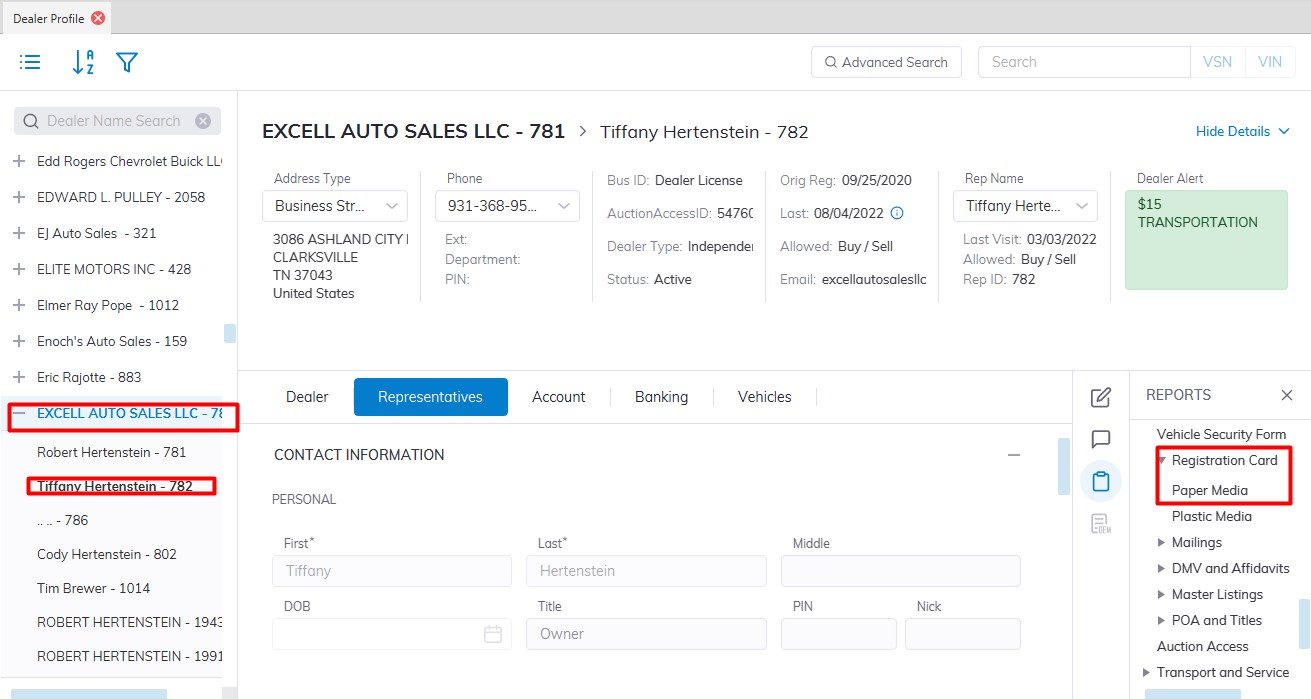
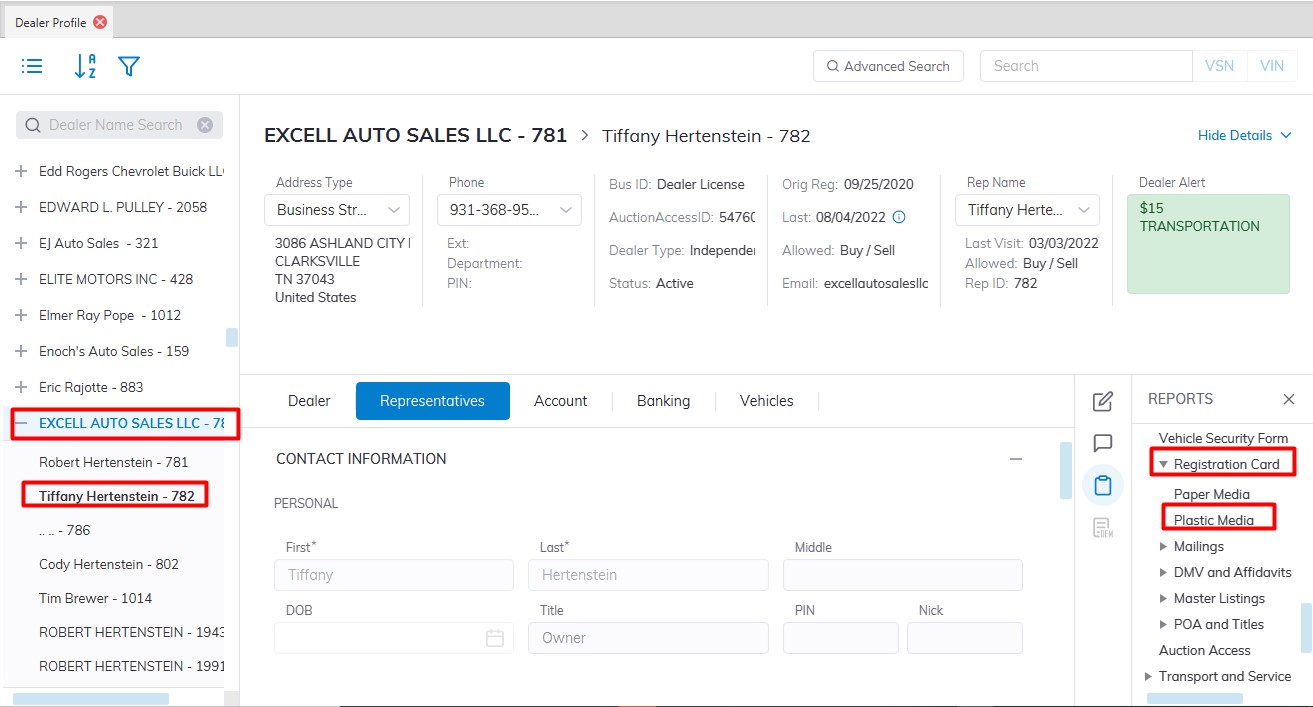
The Dealer Profile application > Select the Rep> Reports > Administrative Reports > Registration Card >
You can also choose the media to type the card that will be printed on
- Paper Media
Sample print of Paper Media
- Plastic Media
Sample print of Plastic Media
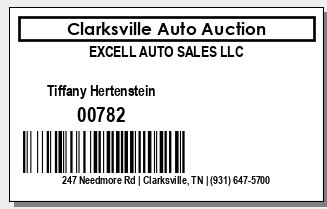
Dealer License Expiration
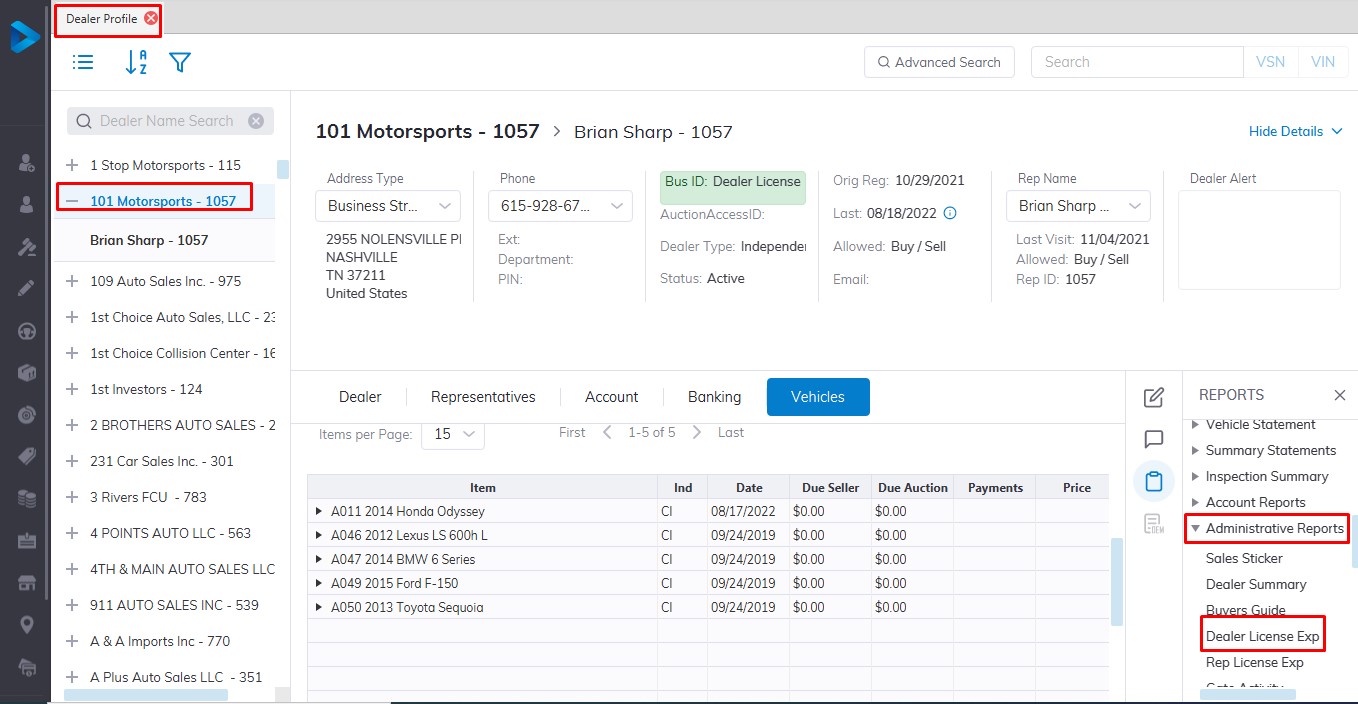
The Dealer License number along with the State and expiration date is stored in the system. The Dealer License Expiration report is designed to list Dealer Accounts whose license has expired or is incomplete.
Select
The Dealer Profile application > Reports > Administrative Reports > Dealer License Exp
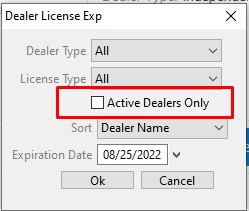
Select the Dealer Type and if you wish to include 'Active' Dealer accounts only.
Gate Activity
This report provides details on Redemption, Departure, and Test Drive times for vehicles leaving and/or returning to the lot. It provides elapsed time for Test Drives and quickly identifies if vehicles left but did not return.
Select the Dealer Profile application > Reports > Administrative Reports > Gate Activity
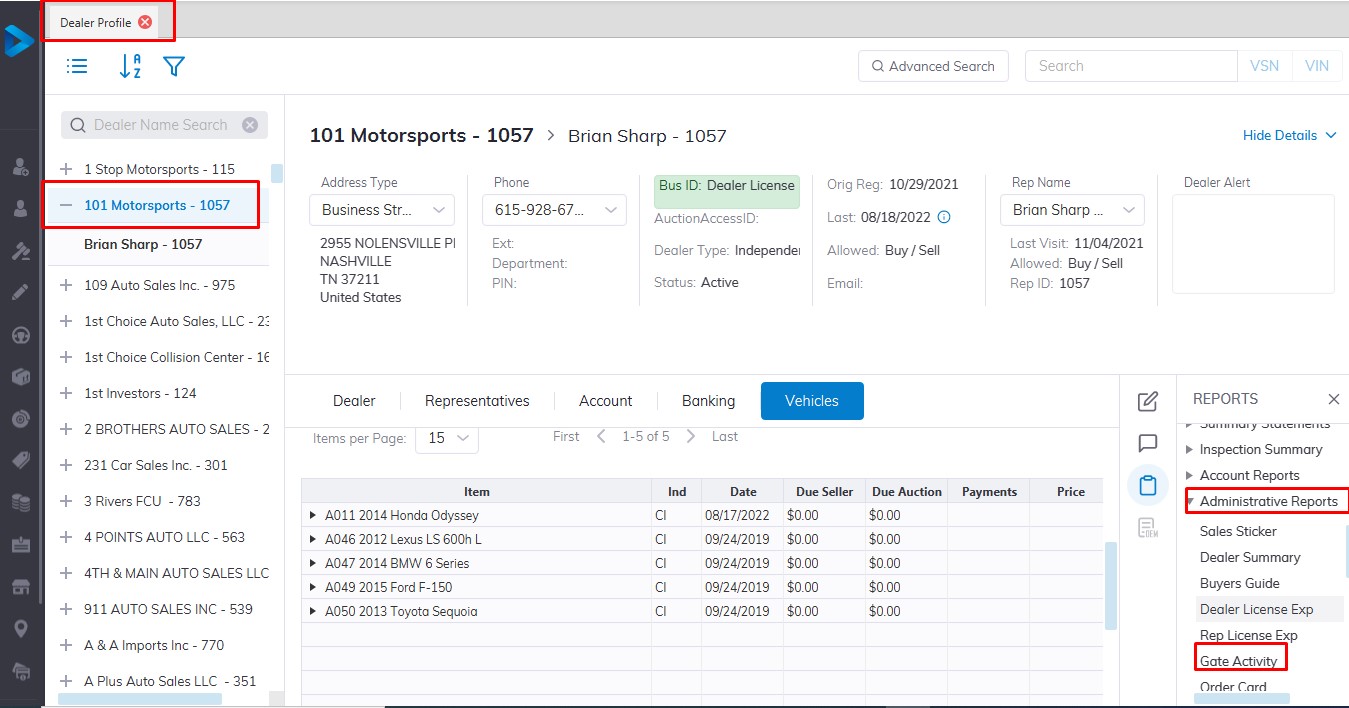
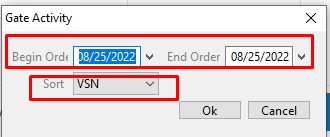
After selecting the report you will be prompted for the 'Begin' and 'End' dates for the order.
Auction Insurance Agency Report
The Auction Insurance Agency report is used to provide sales information to AIA (Auction Insurance Agency)
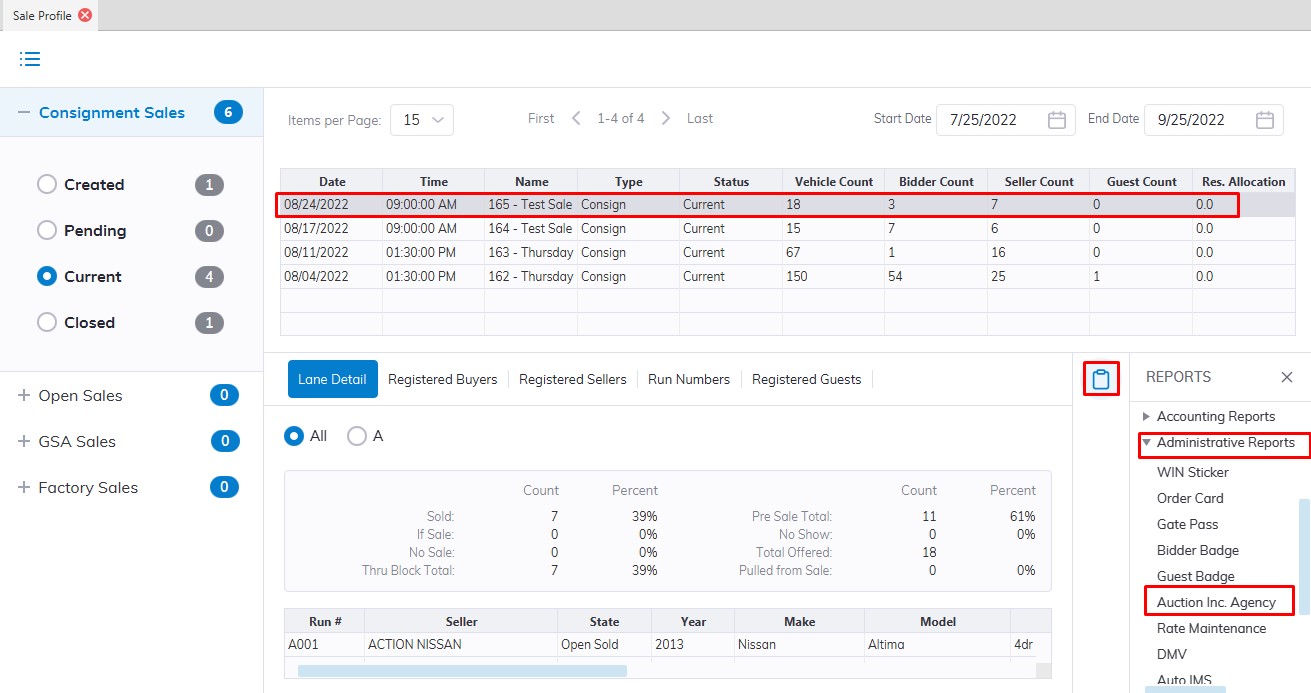
Select The Sale Profile application > Reports > Administrative Reports > Auction Inc Agency
Ensure to select the Sale Date you want to run the report for
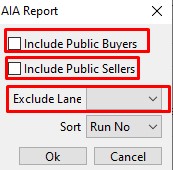
In the event, you buy or sell vehicles to the Public you should include these dealers in this report by selecting the checkboxes.
Bank Master and Fee Master Reports
Bank Master Report
The Bank Master lists all banks as they relate to each Dealer.
Select
The Dealer Profile application > Reports > Administrative Reports > Master Listings > Bank Master
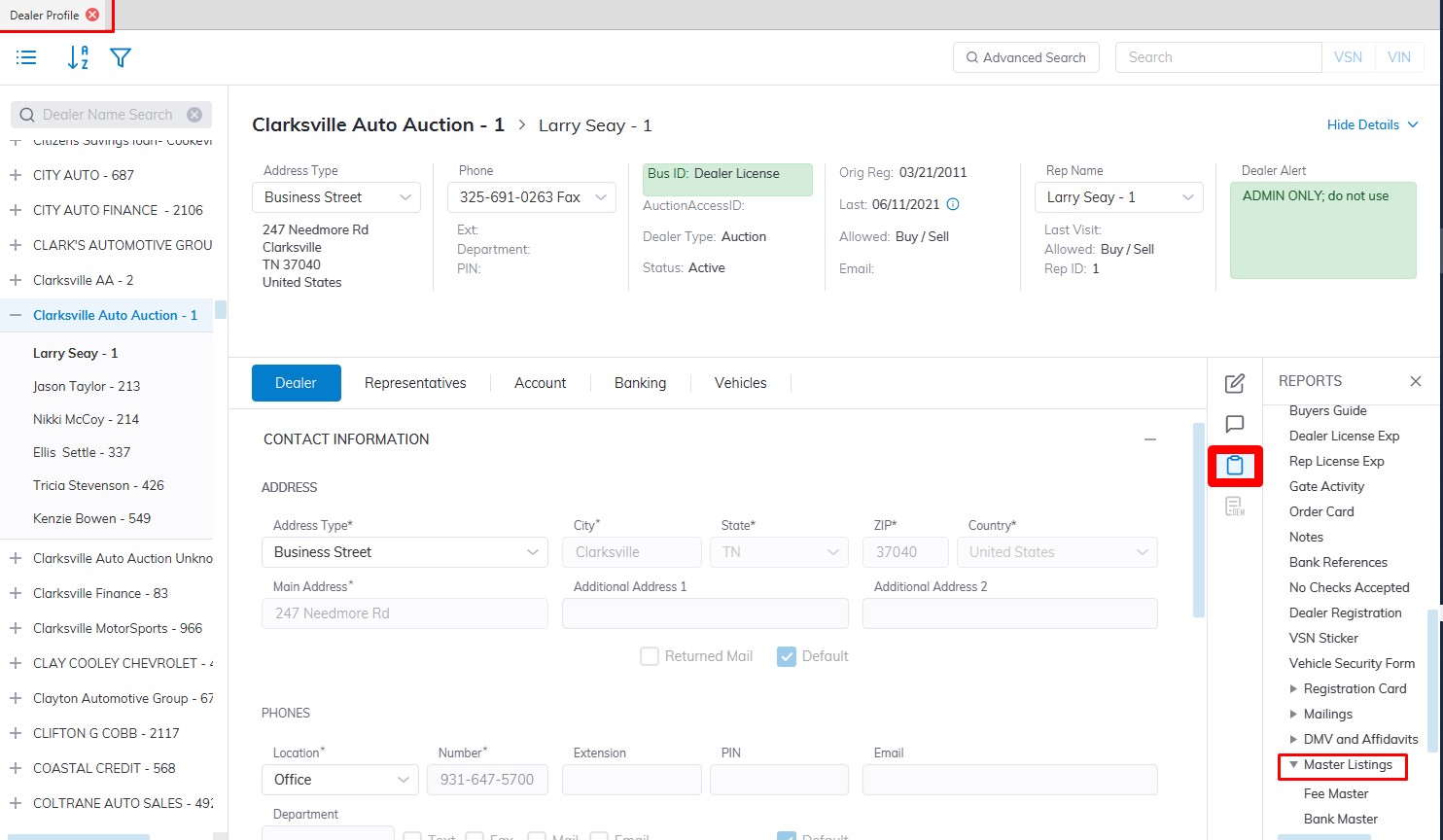
This will launch the Bank Master Report form. You may sort according to Bank, Branch, or Dealer. You may also select all Dealers or just one.
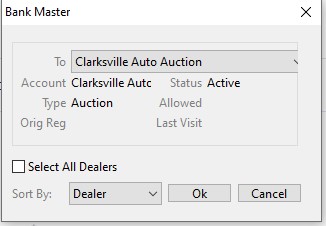
Click 'OK' to create the report and print
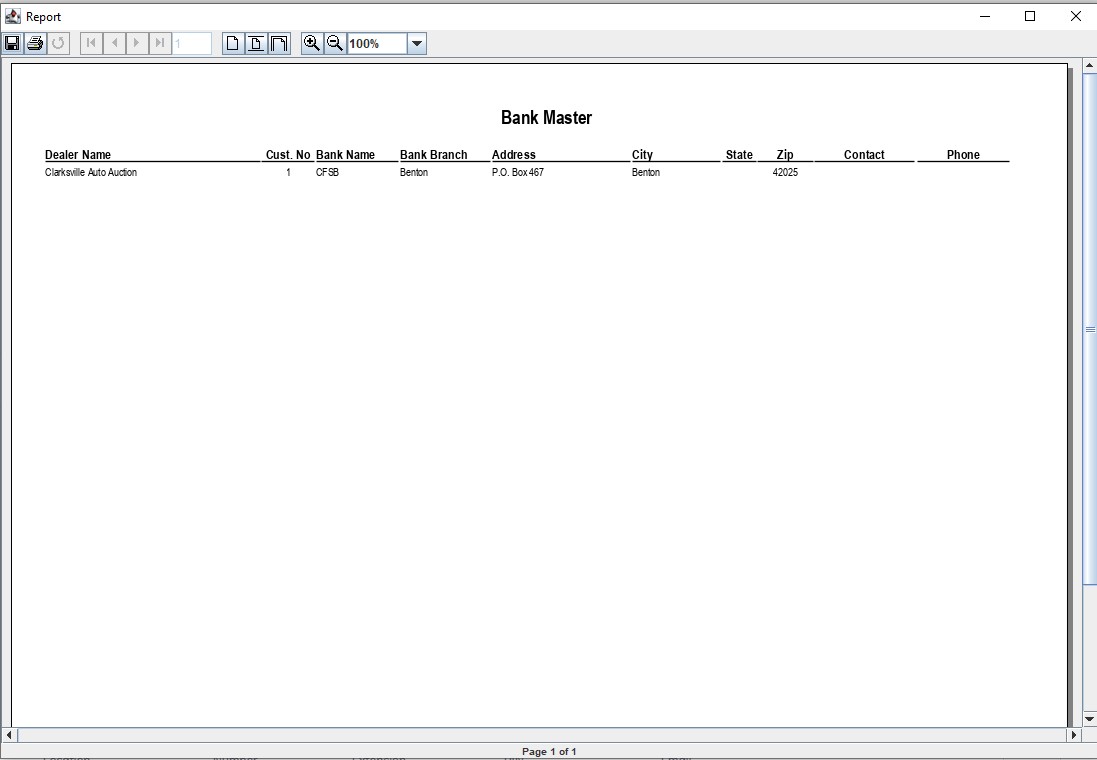
Fee Master Report
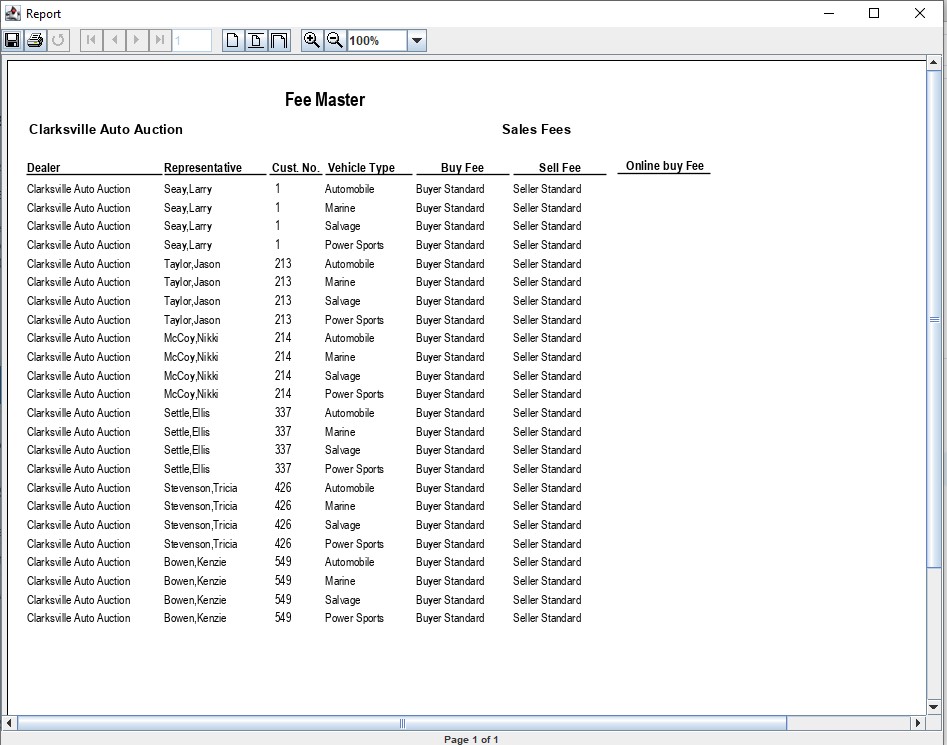
The Fee Master report is used to provide details on what rates the Auction has set up to charge its customers for Sales, Registration, Transportation, and settlement Fees.
Select
The Dealer Profile application > Reports > Administrative Reports > Master Listings > Fee Master
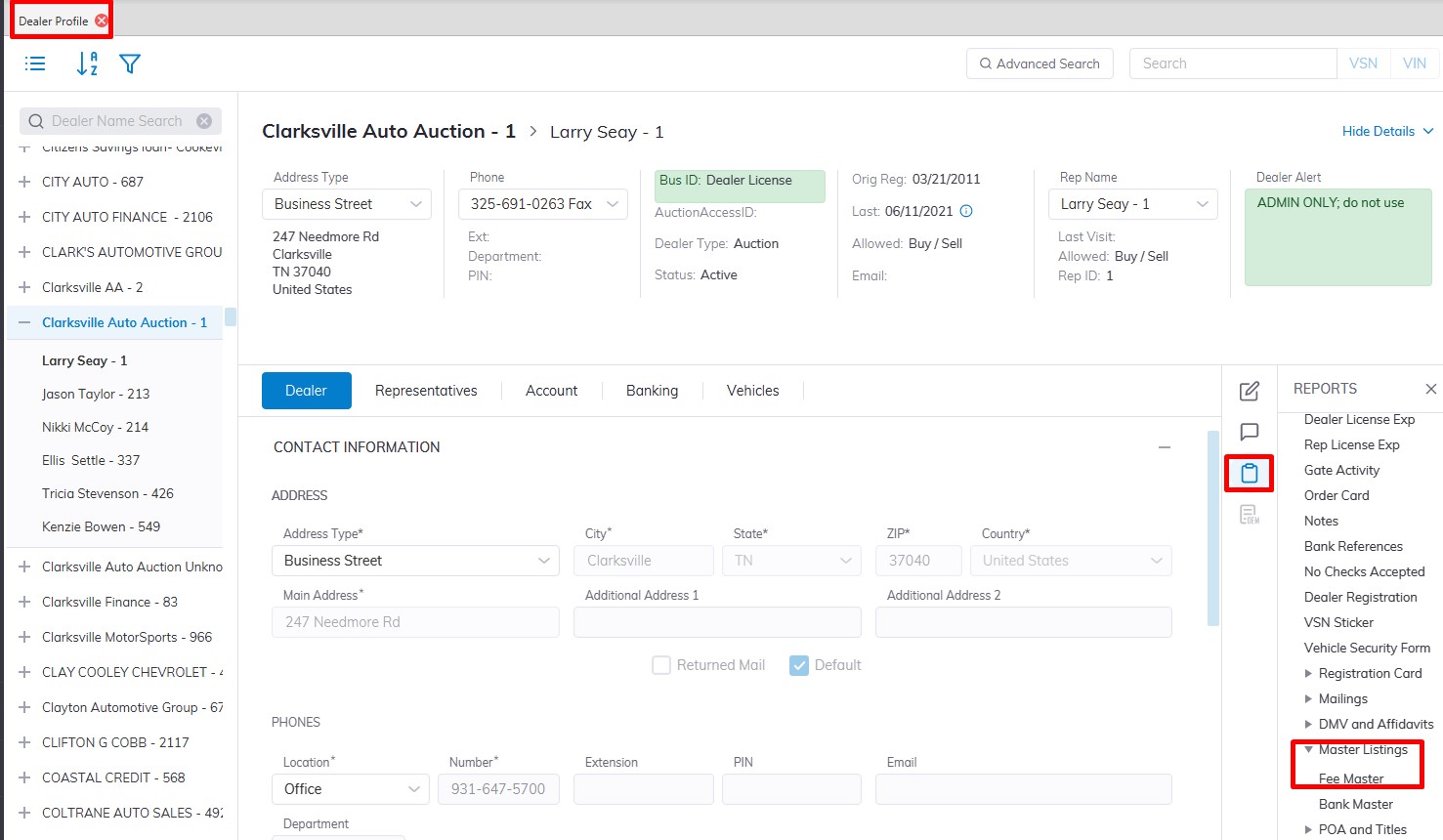
This will launch the Bank Master Report form. You may run the report for 'All Dealers' or only one.
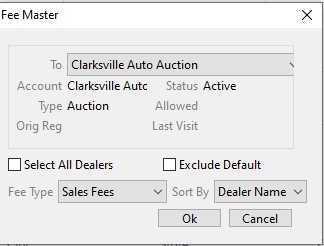
Select the Fee Type:
- Sales Fees (buyer and seller)
- Registration Fees (sold and unsold)
- Transportation
- Settlement
- You may sort the report by Dealer name, Representative name, or by Customer ID.
- Click 'OK' to create the report and print
Lot Turn List
The Lot Turn report is used to identify the remaining vehicles from the previous week when setting the sale.
To this Report Select the Vehicle Block application > Reports > Administrative Reports > Lot Turn list
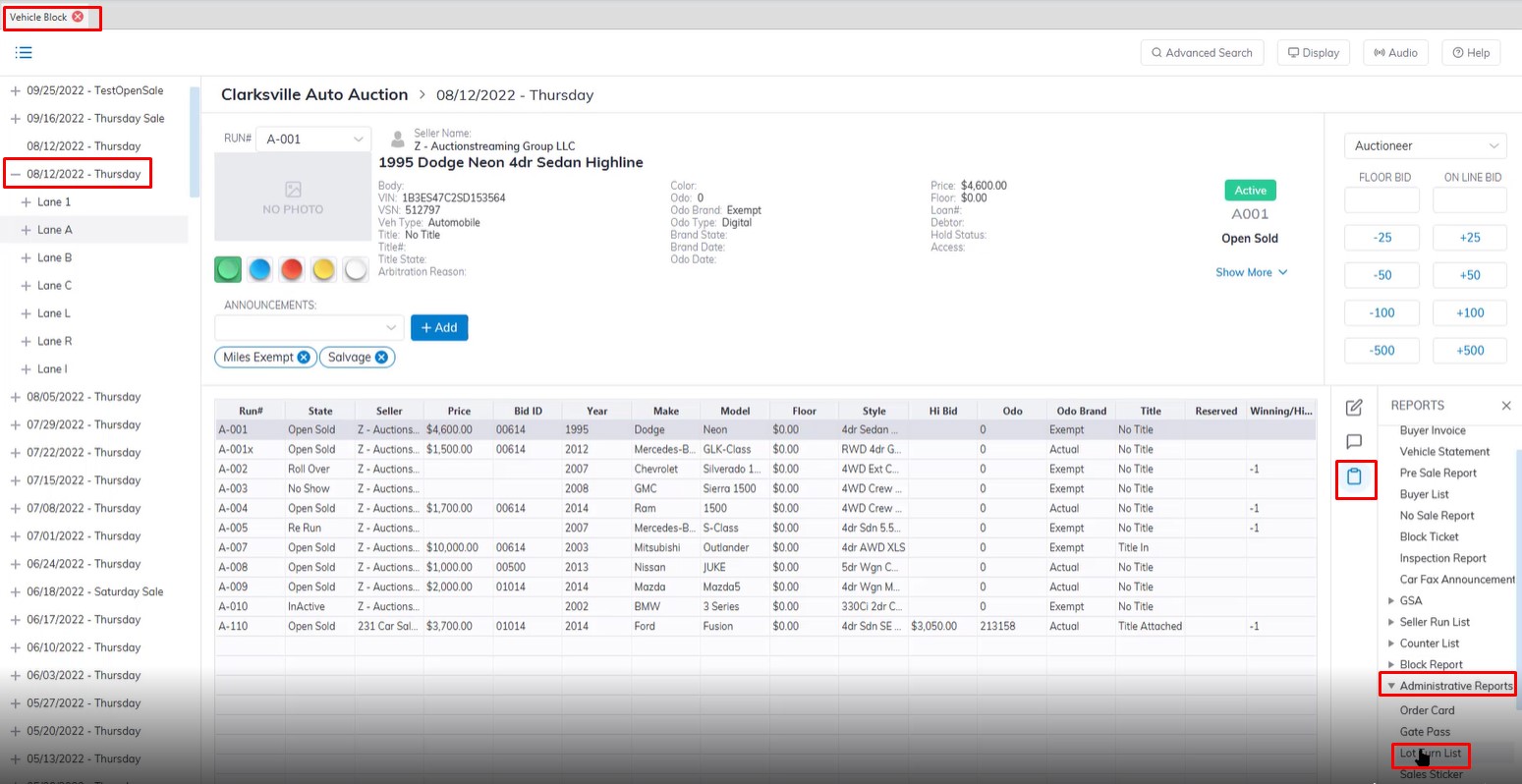
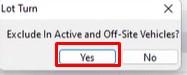
You will be asked if you want to exclude In Active and Off-Site vehicles here we choose yes because we don't want the departed vehicles in our report. The report will then be generated for printing.