# Accounts Reports FAQ
1. Age Trial Balance
2. General Ledger
# Aged Trial Balance
The 'Aged' Trial Balance provides a view of Receivables relative to the passage of time since posting. This may help to identify which Dealers to collect from first. The report is aged according to:
Total Due
Current
7 - Day
14 - Day
21 - Day
30 - Day
60 - Day
90 - Day
Select
- The **[Account Management](https://cam3-wiki.auctionstreaming.com/books/cams-3-wiki-faq/page/account-management) application** > Reports > Aged Trial Balance
[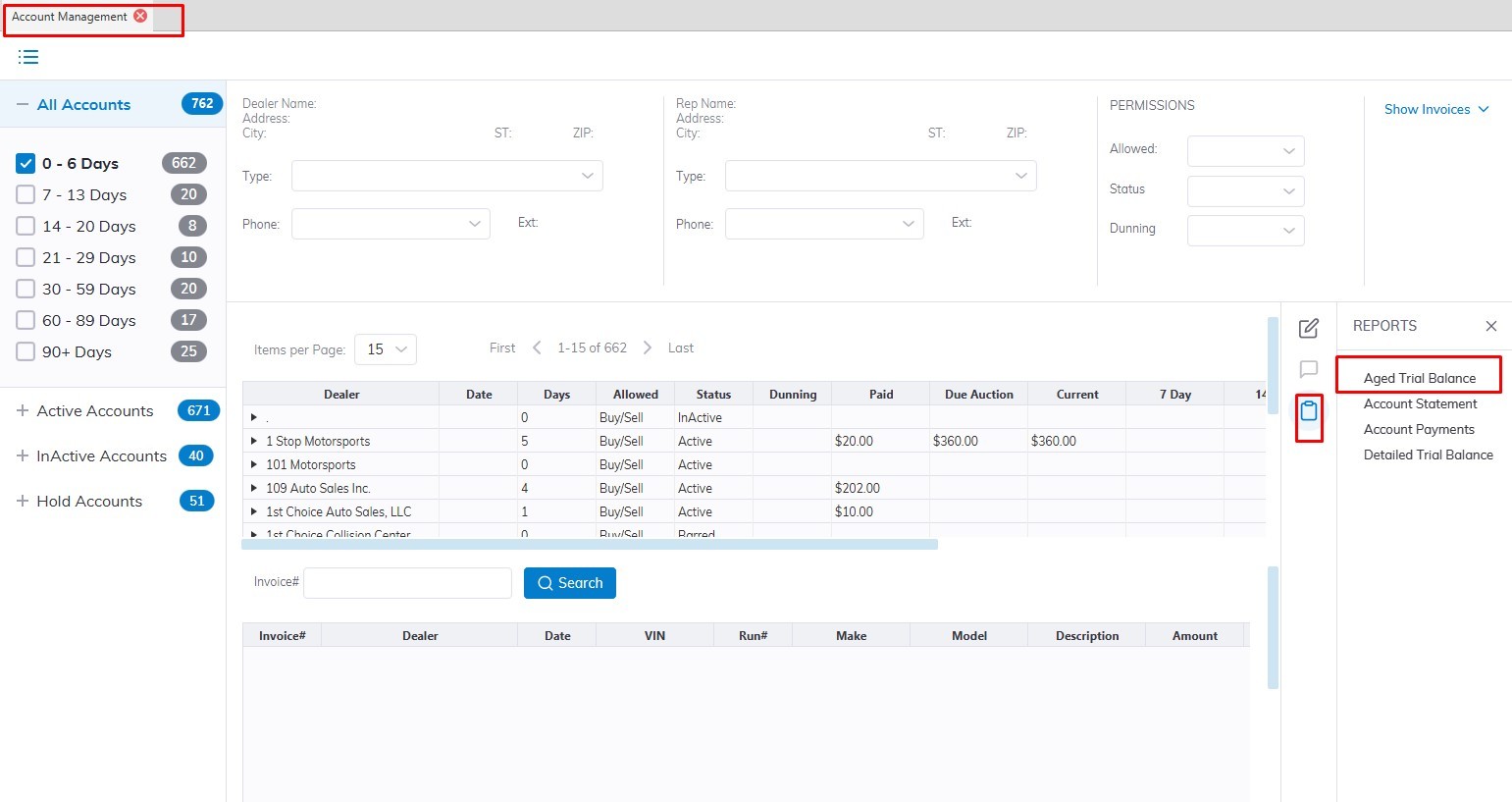](https://cam3-wiki.auctionstreaming.com/uploads/images/gallery/2022-09/age1.jpg)
- This will launch the report wizard [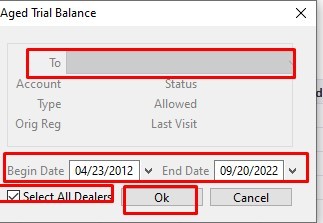](https://cam3-wiki.auctionstreaming.com/uploads/images/gallery/2022-09/age2.jpg)
- Select the specific Dealer in the To: Filed or 'All Dealers' checkbox
- Select the Date range that you would like to generate the report.
- Click 'OK' when done to create and print the report.[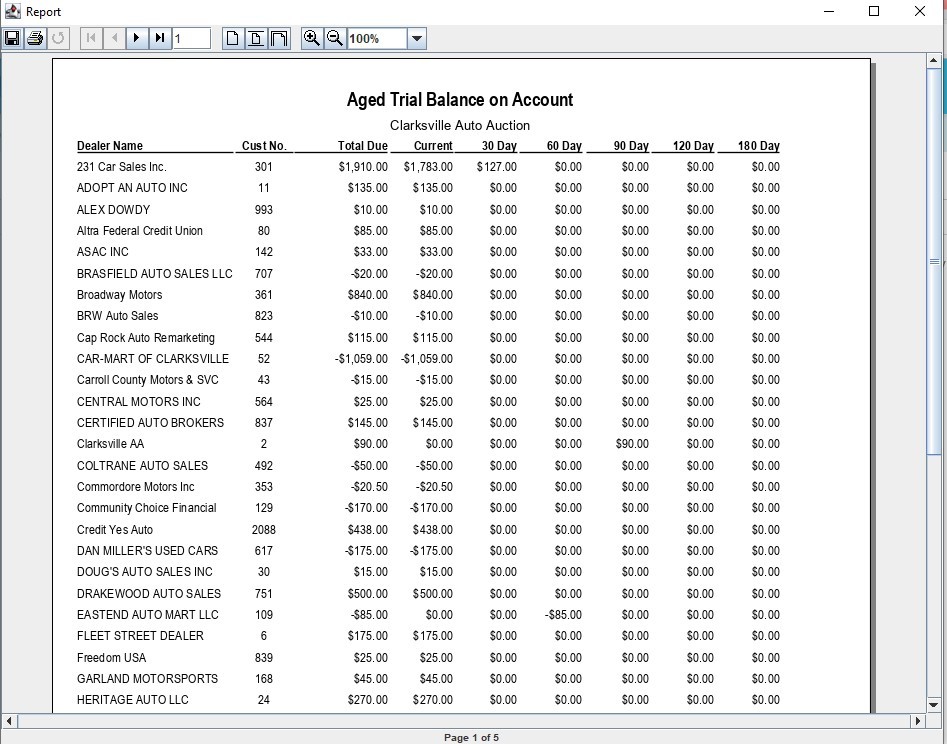](https://cam3-wiki.auctionstreaming.com/uploads/images/gallery/2022-09/age3.jpg)
# General Ledger
General Ledger is an accounting report, not a sales report. Behind each transaction is a posting event containing 'opening' and 'closing' entry(s) posted to the Ledger in real-time. A 'P&L' can be obtained at any time. The double-entry Ledger has a complete chart of Accounts.
There are two versions of General Leger:
- GL Detail
- GL Summary
from the **[Sale Profile](https://cam3-wiki.auctionstreaming.com/books/cams-3-wiki-faq/page/sale-profile)** select Reports > Accounting Reports > General Ledger
[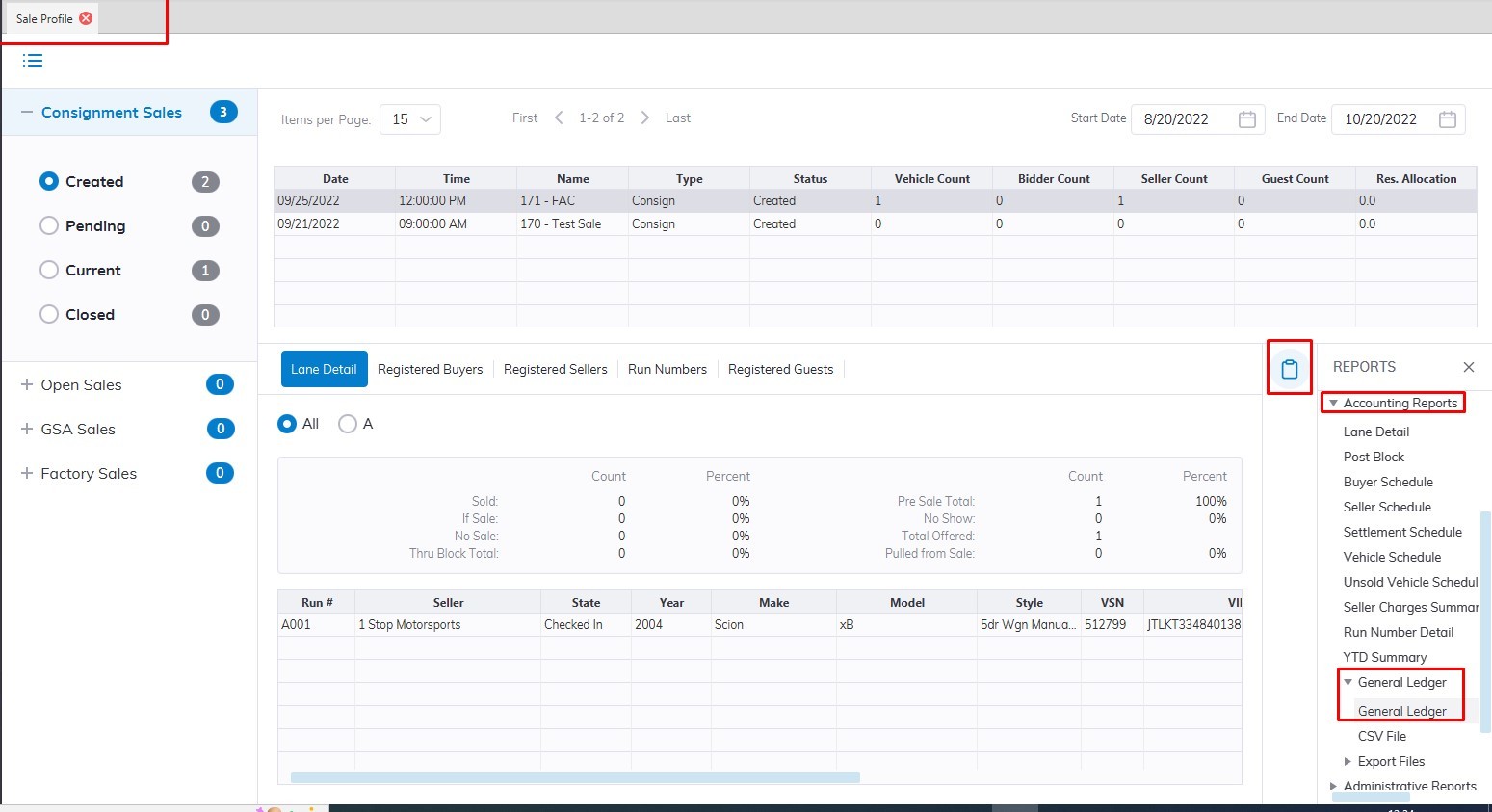](https://cam3-wiki.auctionstreaming.com/uploads/images/gallery/2022-09/gl1.jpg)
This will launch the GL report wizard
[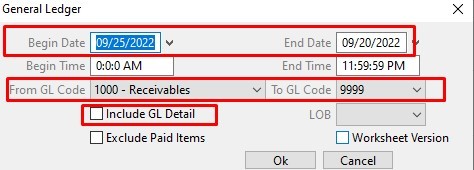](https://cam3-wiki.auctionstreaming.com/uploads/images/gallery/2022-09/gl2.jpg)
- Select a Date range
- Select the GL Code you want to run the report with
- For Detail, GL report Select the **'Include GL Detail'** checkbox
- Click '**OK**' when done to create and print report
**GL Detail Report Example**
**[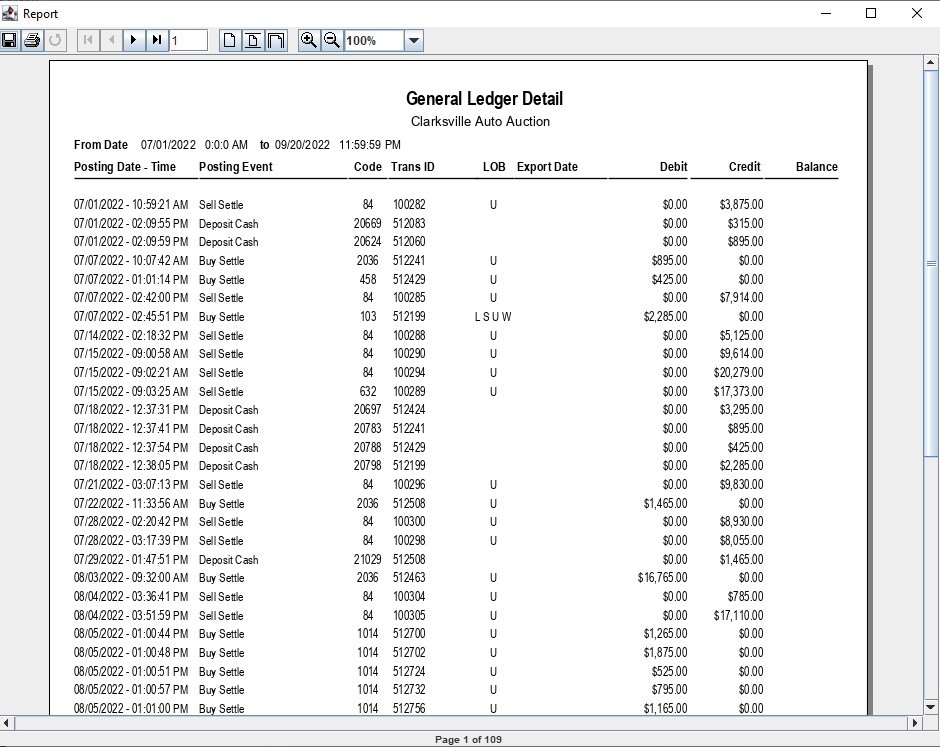](https://cam3-wiki.auctionstreaming.com/uploads/images/gallery/2022-09/gl-detail.jpg)**
**GL Summary Report Example**
**[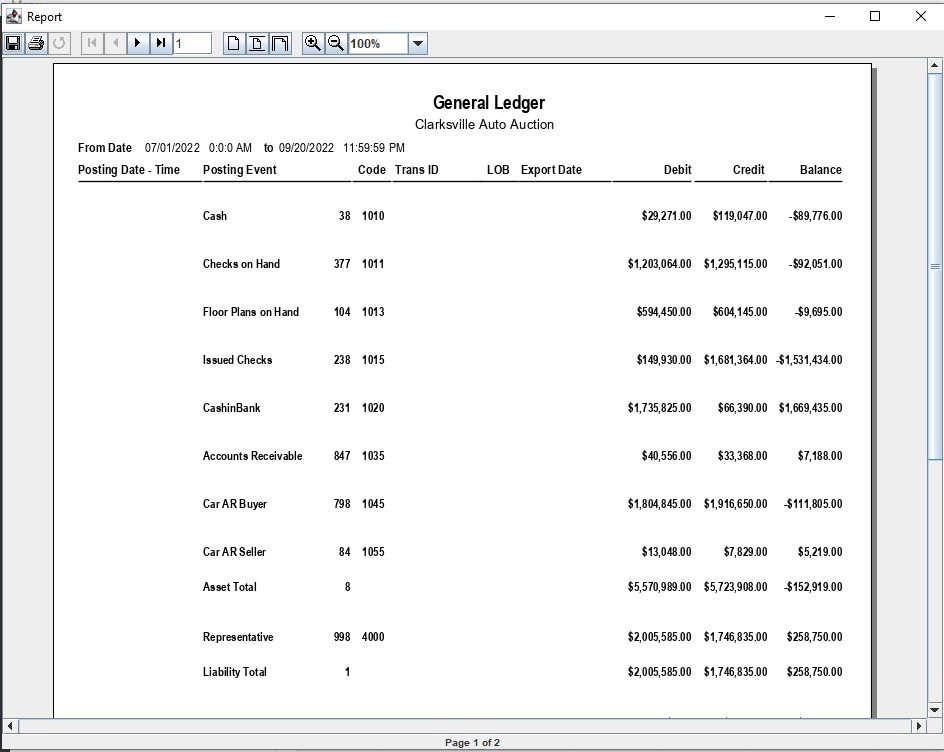](https://cam3-wiki.auctionstreaming.com/uploads/images/gallery/2022-09/gl-summary.jpg)**
****